How to fix
HDMI port not working
on Windows
Resolve HDMI port issues on Windows 10 quickly with our expert-tested solutions. Get your devices connected seamlessly now! Fixed in minutes.

What causes How to fix HDMI port not working in Windows 10?
- HDMI cable may be faulty
- Drivers may need to be updated or reinstalled
- Windows operating system may not be up to date
- System file integrity may be compromised
- Connection issues with the laptop or TV
Repairs Windows system files, removes malware, and restores a clean OS state — without reinstalling.
Hi, I have problem with the HDMI cable when trying to connect my laptop to a TV. I have Asus laptop and everything worked fine before. Could you help me to solve this issue on Windows 10? Many thanks.
HDMI is a connection type that is often used to transmit video and audio data from a computer to a compatible device, such as another monitor, a TV, or a projector. First released in 2002 by high profile companies such as Sony, Philips, Toshiba, and others, this connection method became one of the main standards in the modern digital device era. HDMI has successfully replaced old connections such as VGA, bringing in much higher resolutions, crispier image, as well as the sound.
Despite many advantages, HDMI technology is not exempt from various issues, and the HDMI port not working is one of the most frequently encountered ones. Users reported that the computer simply could not establish a connection, while other times, they claimed that the sound was not present, despite the video working.
Most commonly, the issue is faced by laptop users who either recently upgraded to Windows 10 from an older version, although some users reported that even the brand new computers/laptops had the same problem and did not manage to fix HDMI port not working issue despite the efforts.
The very first thing that users should check is the HDMI cable itself, as it can simply stop working one day. For that, you either have to try an already working cable or purchase a new one from the shop. Nonetheless, the issue with HDMI not working typically does not lie there.
Users should be able to fix HDMI connection problems by updating or reinstalling drivers, ensuring that Windows operating system is up to date, checking system file integrity, and much more. Keep in mind that there is no unified solution for everybody, so you will likely have to try several fixes before one works for you.
Before you start, we would highly recommend you scan your machine with a repair tool [d1] - this Windows repair tool can fix various problems automatically if they are related to Windows system files and various other bugs.
Basic ways to fix Windows not detecting HDMI issue
Before we dive into more complicated solutions, you should ensure that you check all the basic stuff. Here is what you should do:
- Ensure that you are connecting to the correct HDMI slot. Use your remote to navigate through different channels (e.g., HDMI1, HDMI2, HDMI3).
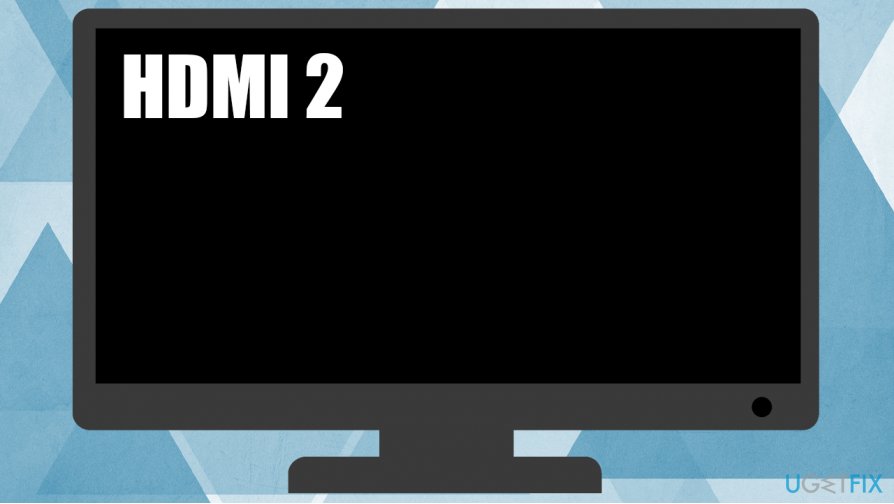
How to fix hdmi port not working in windows 10 check for correct slot - Boot your laptop/PC with the HDMI already connected to the output device (TV, projector, etc.).
If these two methods still did not help you fix HDMI connection issues, proceed with the next steps.
Fix 1. Update Windows to latest version
Windows updates should always be applied as soon as they are released not to only increase the performance and implement new features, but also fix bugs and patch security vulnerabilities on the system.
- Right-click on Start button and select Settings
- Go to Update & Security
- On the right site, click Check for updates
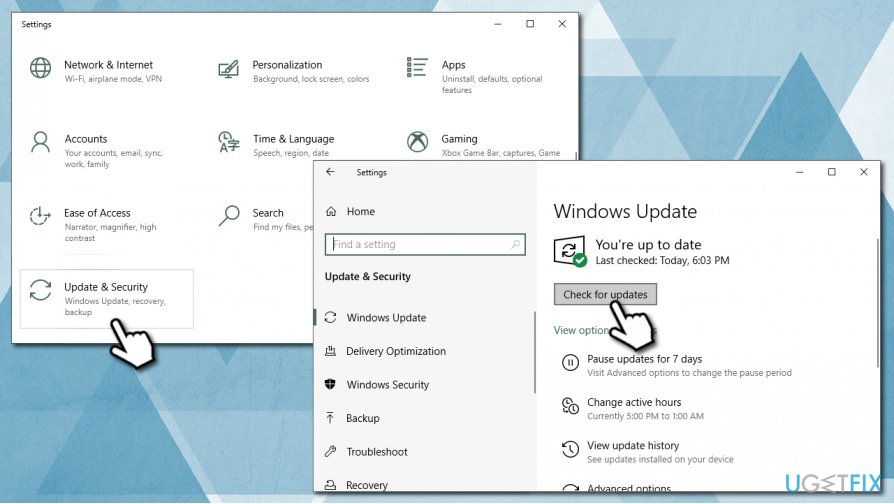
How to fix hdmi port not working in windows 10 update windows - Wait till Windows downloads and installs updates
- Reboot the device and check if HDMI problems persist.
Fix 2. Ensure correct output settings are used
- Open Settings once again as explained above
- Go to System and pick Display
- On the right, you should see two monitor icons
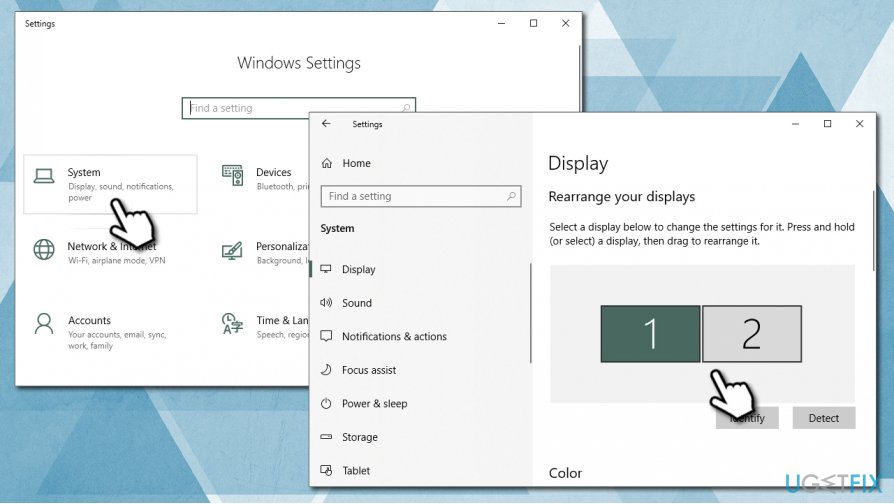
How to fix hdmi port not working in windows 10 use correct output settings - If you do not see the second monitor, press Win + P simultaneously
- Pick Duplicate and check if second screen is working (if not, try the Extend option)
Fix 3. Update display drivers
Incorrectly installed or outdated drivers can cause various issues. Thus, make sure your drivers are up to date:
- Right-click on Start and select Device Manager
- Press the Display adapters arrow
- Right-click on the graphics card and select Update driver
- Pick Search automatically for drivers
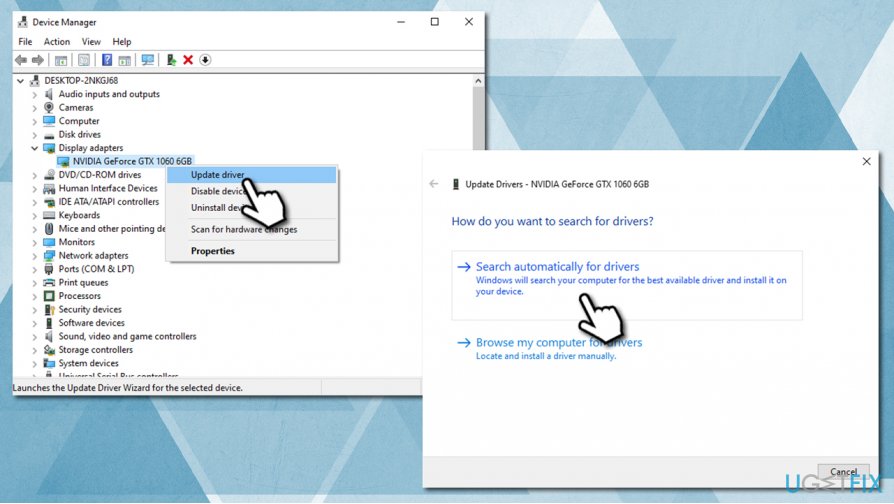
How to fix hdmi port not working in windows 10 update video drivers - Wait till Windows downloads and installs updated drivers and then reboot the machine
Fix 4. Reinstall display drivers
If updating drivers did not help, you should reinstall them completely and download ones from the manufacturer's website:
- Right-click on the Start button and pick Device Manager
- Expand the Display adapters section
- Right-click on the display adapter (graphics card name) and pick Uninstall device
- Tick the Delete the driver software for this device checkbox
- Confirm with Uninstall and reboot your PC
Instead of downloading new drivers automatically, we suggest you try going for the official website of your hardware manufacturer. Here are the links to the main GPU makers: Nvidia, AMD, Intel.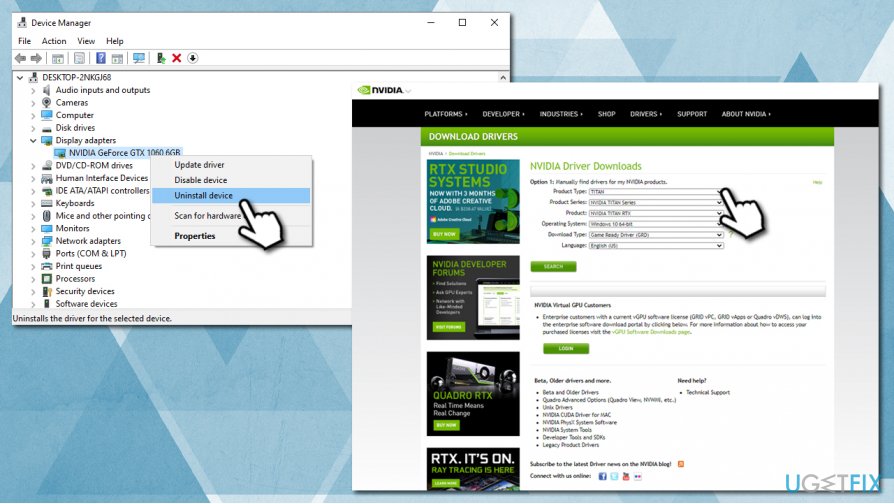
Fix 5. Run SFC and DISM tools via Command Prompt
It is time to check system file integrity. For that, you can employ the built-in Windows tools DISM and SFC. Follow these steps:
- Type cmd in Windows search box
- Right-click on Command Prompt search result and select Run as administrator
- In the new window type in the following command and press Enter:
sfc /scannow
- Wait till scan completes and see if HDMI port not working issue persists
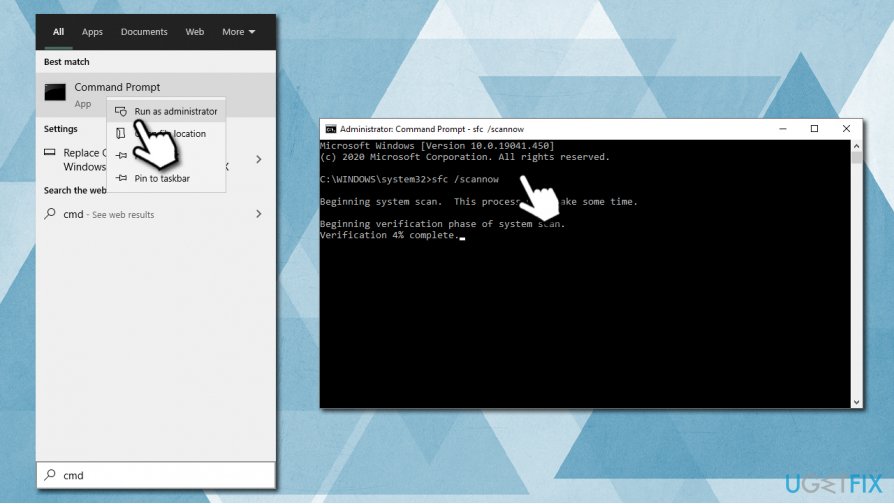
How to fix hdmi port not working in windows 10 run sfc dism scans - If it does, use the DISM tool - open Command Prompt once again, type in the following command and press Enter:
DISM /Online /Cleanup-Image /ScanHealth
DISM /Online /Cleanup-Image /RestoreHealth - Wait till the scan completes and restart the PC.
Fix 7. Use System Restore Point
System Restore is completely safe process that will not make you lose any of your personal files. If you started experiencing HDMI connection issues just recently, System Restore might be able to fix it:
- Type Create a Restore Point into Windows search box and press Enter
- Pick System Protection tab
- Click on System Restore, pick Choose a different restore point and pick Next
- Select Show more restore points
- Choose one of the restore points and then select Next
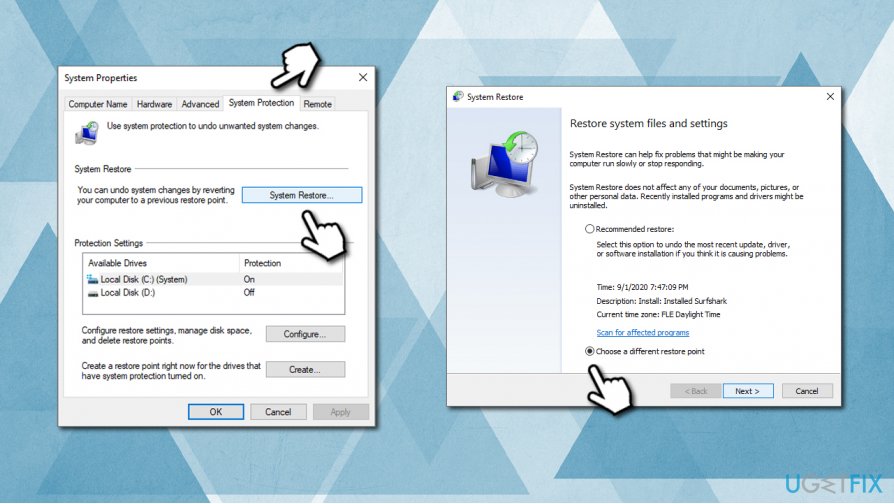
How to fix hdmi port not working in windows 10 use system restore
Bottom line
To fix the HDMI port not working issue, users should check the HDMI cable, update or reinstall drivers, ensure Windows is up to date, and check system file integrity. If these steps do not resolve the problem, users may need to try additional fixes or seek further assistance.
Frequently asked questions
First, ensure that the HDMI cable is securely connected to both the computer and the display. Additionally, check if the correct input source is selected on your monitor or TV.
You can update your HDMI drivers by going to Device Manager, locating the display adapters, right-clicking on your HDMI device, and selecting 'Update driver'. Windows 10 will then search for and install any available updates.
Open the 'Display settings' and click on 'Detect' to see if Windows 10 can find the external display. If not, check the 'Multiple displays' section and ensure that the display is enabled.




Report an issue
What's wrong with this guide? We review every report and update or remove content.
Report received — thank you. We'll review and fix it.
You need a free account to submit a report.
Be the first to comment