
Headphones detected as speakers in Windows 11 and 10: how to fix it

Prefer to fix it yourself? The manual steps follow.
- 9methods
- 2 to 30 minutes
- Easy
Applies to Wired, USB, wireless and Bluetooth headphones and headsets on Windows 11 and Windows 10
9 methods in this guide
- What the label means
- Why it happens
- The fixes
- 1. Select the right output
- 2. Rename the output
- 3. Fix Bluetooth outputs
- 4. Check the 3.5 mm jack
- 5. Set default devices
- 6. Reinstall the audio driver
- 7. Roll back or change driver
- 8. Run the audio troubleshooter
- 9. Remove the latest update
- Still broken
- Prevent it
- FAQ
Hello. I recently had to change my headphones to brand new ones because the old ones broke, and now they are recognized as speakers instead of headphones. I am not sure how to fix this problem, so help would be appreciated.
When Windows lists your headphones as Speakers, it is showing the name the audio driver gave that output, not testing what is plugged in. If sound plays in the headphones, only the label is wrong and you can rename it. If sound comes from the speakers instead, pick the right output first, then fix the jack, Bluetooth or the driver.
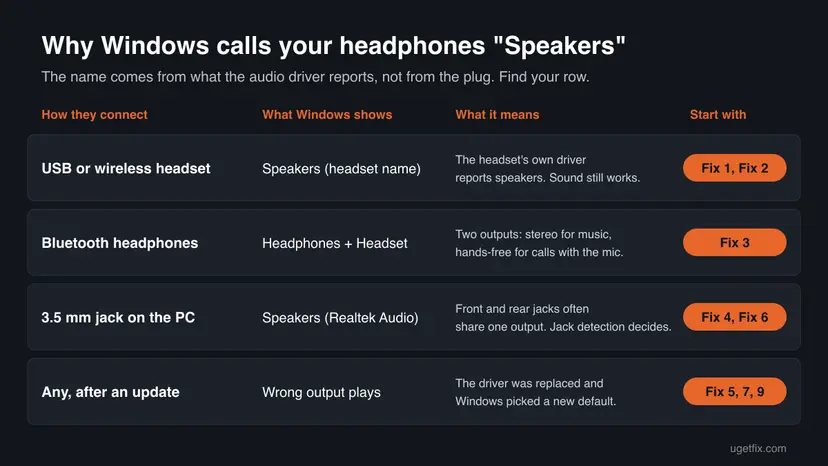
Windows names each output from what the audio driver reports, so many USB and wireless headsets appear as Speakers (headset name) even though they work. Open the speaker icon on the taskbar, select the arrow next to the volume slider and pick your headphones (Fix 1). If they play sound, rename the output (Fix 2). If they do not, work through the jack, Bluetooth and driver fixes below.
| Error | No error message: the headphones appear as Speakers in the sound output list, have a speaker icon, or sound keeps playing from the speakers |
|---|---|
| Where it appears | The speaker icon on the taskbar, Settings > System > Sound > Output and the Playback tab of the classic Sound window |
| Main cause | The headset's driver reports a speaker output, so Windows uses the friendly name "Speakers"; with a 3.5 mm jack, the PC's audio driver often uses one output for the front and rear jacks |
| Fastest fix | Select the headphones as the output and test them (Fix 1), then rename the output to Headphones (Fix 2) |
| Also written as | Windows thinks my headphones are speakers, headset showing up as speakers, headphones recognized as speakers, PC thinks headphones are speakers |
| Affects | Wired 3.5 mm, USB, wireless dongle and Bluetooth headphones on Windows 11 (25H2, 26H2) and Windows 10 22H2 |
| Vendor status | Not a Windows bug: Microsoft documents that the name comes from the pin category the audio driver sets, and that users can rename an output |
| Time to fix | 2 minutes when only the name is wrong, up to 30 minutes when the driver has to be reinstalled |
Facts checked on 15 October 2026. Steps written for Windows 11 (25H2 and 26H2) and Windows 10 22H2.
What it means when Windows detects your headphones as speakers
Windows does not look at what is plugged in to decide whether it is headphones or speakers. Each sound output is an audio endpoint, and its name comes from the category the audio driver gives it. Microsoft's driver documentation says the category KSNODETYPE_SPEAKER gets the friendly name "speakers" and KSNODETYPE_HEADPHONES gets "headphones". If the headset maker's firmware or driver says speaker, Windows says Speakers.
So the label is often only cosmetic. The old guide's own screenshot shows exactly that: a SteelSeries Arctis 1 Wireless headset listed as Speakers with the headset's name underneath. The question that matters is where the sound goes, not what the line is called.
- Only the name is wrong
- Sound plays in the headphones when they are selected; the line says Speakers (headset name)
- The output is wrong
- Sound still comes from the PC or monitor speakers while the headphones are plugged in
- The headphones are missing
- They do not appear in the output list at all; see Fix 4, Fix 6 and Fix 7
Why your headphones are recognized as speakers, from most to least common
Most often a USB or wireless headset reports itself as a speaker output, and nothing is broken. Next comes a 3.5 mm plug on a PC whose audio driver (usually Realtek) uses one Speakers output for both the front and the rear jacks. Bluetooth pairs, a wrong default device and a replaced driver are less common, and a broken jack or cable is rare.
| Cause | How common | What you see | Fix |
|---|---|---|---|
| The headset's driver reports a speaker category | Most cases, USB and dongle headsets | Speakers (headset name), and sound works when it is selected | Fix 1 and Fix 2 |
| Windows plays to another output | Common | Sound from the monitor or PC speakers; headphones listed but not chosen | Fix 1 and Fix 5 |
| Bluetooth headset shows two outputs | Common with Bluetooth | Headphones and Headset for the same device; poor sound on calls | Fix 3 |
| One shared output for front and rear jacks, or jack detection not working | Common on desktops with Realtek audio | Speakers (Realtek Audio) only; plugging in changes nothing | Fix 4 and Fix 6 |
| A driver update or reinstall created new outputs | Less common | Started after Windows Update or a new driver | Fix 7 and Fix 9 |
| A broken jack, plug or cable | Rare | Crackling, one side only, or no change in any port | Still broken, below |
Microsoft also documents why Windows sometimes keeps playing through the speakers. It ranks outputs, and an output that can detect when something is plugged in beats one that cannot, whatever its type. Installing a different driver, or uninstalling and reinstalling one, deletes the saved sound settings and makes the outputs look new, which can change the default.
How to fix headphones detected as speakers in Windows
Fix 1 and Fix 2 take two minutes and solve the cases where only the name is wrong. Fix 3 is for Bluetooth and Fix 4 for the 3.5 mm jack. Fixes 5 to 9 are for a PC that plays to the wrong output or lost the headphones after a driver or Windows update.
| What you see | Start with |
|---|---|
| A USB or wireless headset is listed as Speakers (headset name) | Fix 1, then Fix 2 |
| Sound comes from the monitor or PC speakers, not the headphones | Fix 1, then Fix 5 |
| Bluetooth headphones show as Headphones and Headset, or sound is poor on calls | Fix 3 |
| 3.5 mm headphones: only Speakers (Realtek Audio), nothing changes when you plug in | Fix 4, then Fix 6 |
| It started after a driver or Windows update | Fix 7, then Fix 9 |
| The headphones do not appear anywhere | Fix 6, then Fix 8 |
Fix 1. Check which output is really playing and select your headphones
2 minutesNo riskEveryone: it shows in one minute whether only the name is wrong or the sound really goes to the speakers.
Windows can list several outputs at once, and the one called Speakers may be your headset. Microsoft's first step for any sound problem is to check which output is selected, and picking it also makes it the default.
- Plug in or turn on the headphones.
- Windows 11: select the speaker icon on the taskbar, then the arrow to the right of the volume slider (its tooltip says Select a sound output).
- Windows 10: select the speaker icon on the taskbar, then the device name above the slider to open the list.
- Look for a line with your headset's name, even if it starts with Speakers, and select it.
- Play a video or music and listen in the headphones.
- To be sure, unplug the headphones: if that line disappears from the list, it was the headset all along.
The same list is in Settings > System > Sound > Output on Windows 11 and Settings > System > Sound on Windows 10. Selecting a device there also sets it as the default, as Microsoft notes.
It worked if: Sound plays in the headphones. The line may still say Speakers, which you can change in Fix 2.
If not: If no line plays in the headphones, use Fix 3 for Bluetooth or Fix 4 for a 3.5 mm plug.
Fix 2. Rename the output to Headphones in the Sound window
2 minutesNo riskReaders whose headset works but is labeled Speakers, which is most USB and wireless dongle headsets.
The name comes from the driver and no setting makes Windows guess the type again. Microsoft documents that you can edit an output's friendly name on the General tab; it changes only the name of that one output.
- Press Win + R, type
mmsys.cpland press Enter. - On the Playback tab, select the line with your headset's name and select Properties.
- On the General tab, replace Speakers in the text box at the top with a name such as Headphones or the headset's model.
- Select OK, then OK again to close the Sound window.
- Open the output list on the taskbar and check the new name.
The audio is the same before and after. Apps that read the name straight from the driver may still show the old one. If you reinstall the driver later (Fix 6), Windows creates the output again and the old name comes back.
On Windows 11 you can also open Settings > System > Sound, select the device under Output and use Rename at the top of its page.
It worked if: The output list shows your new name, and the headset plays sound as before.
If not: If you also want a different icon, look for Change Icon on the same General tab; we could not confirm it on every Windows build.
Fix 3. Pick the stereo Headphones output for Bluetooth and pair again
5 minutesLow riskReaders with Bluetooth headphones that show up twice, sound flat on calls or switch to the speakers.
Windows treats Bluetooth audio over two paths, listed by Microsoft as the bus types BTHENUM and BTHHFENUM. A headset with a microphone therefore often shows as Headphones for stereo sound and Headset for the hands-free mode used in calls.
- Open the output list on the taskbar as in Fix 1.
- For music and games, select the Headphones line with your device's name, not the Headset one.
- If the device is still wrong or missing, Windows 11: open Settings > Bluetooth & devices > Devices, select the three dots next to it and choose Remove device.
- Windows 10: open Settings > Devices > Bluetooth & other devices, select the device and choose Remove device.
- Put the headphones in pairing mode as their maker describes, then select Add device > Bluetooth and choose them.
- Open the output list again and select the Headphones line.
The hands-free Headset output is the one Windows uses when an app opens the microphone, so calls can sound thinner than music. That is how Bluetooth works, not a fault in the headphones.
It worked if: The headphones play in stereo, and Windows lists them under their own name in the output list.
If not: If they pair but every output sounds wrong, set the defaults in Fix 5.
Fix 4. Check the 3.5 mm plug, the jack and the jack detection setting
5 minutesNo riskDesktop and laptop users with wired 3.5 mm headphones that show only as Speakers or play nothing.
Windows learns that something is plugged in only if the audio driver supports jack detection. On many desktops the front headphone jack and the rear green jack share one Speakers output, so the name never changes and the plug decides where the sound goes.
- Push the plug in fully. A plug that stops one click short can leave sound on the speakers.
- Use the jack marked with a headphone symbol, or the green jack at the back: Microsoft notes that green is usually output and pink is the microphone input.
- Try the other jack: the front panel if you used the back, or the back if you used the front.
- A headset with one plug that has three rings (sound and microphone in one) needs a combined headset jack; on a PC with separate green and pink jacks, it needs a splitter.
- Open your PC maker's audio app, such as Realtek Audio Console where it is installed, and look for a jack detection or front and rear output setting.
- Play sound and check the headphones again.
The names of the jack options change between Realtek versions and PC makers, and some PCs have no audio app at all. We could not confirm one path that works on every PC, so read the labels in your own app.
It worked if: Plugging the headphones in moves the sound from the speakers to the headphones.
If not: If plugging in changes nothing in any jack, set the defaults in Fix 5, then reinstall the driver in Fix 6.
Fix 5. Set the headphones as the default device and the default communication device
3 minutesNo riskReaders whose sound or calls keep going back to the speakers after a restart or in one app.
Windows keeps two defaults, one for normal sound and one for communications, and picks them by rank when you have not chosen. Setting both by hand puts your headphones at the top of the saved choices.
- Press Win + R, type
mmsys.cpland press Enter. - On the Playback tab, right-click an empty area and tick Show Disabled Devices and Show Disconnected Devices.
- If your headphones show as disabled, right-click them and select Enable.
- Right-click the headphones (even if they are called Speakers) and select Set as Default Device.
- Right-click them again and select Set as Default Communication Device.
- Select Apply and OK.
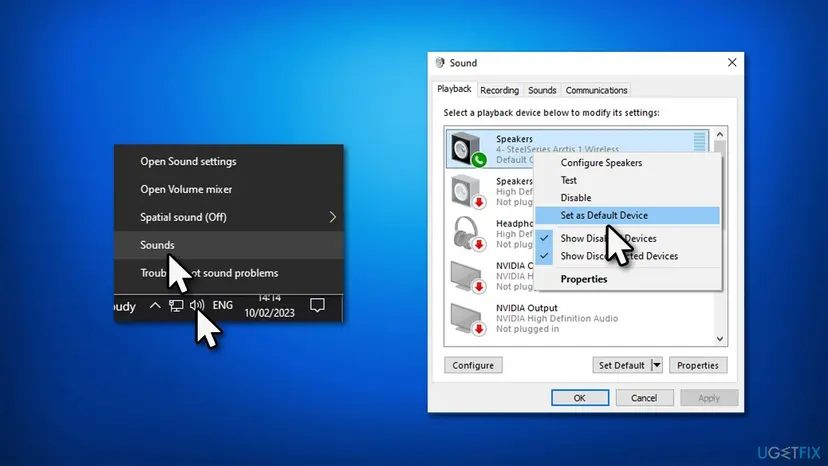
If one app still uses the speakers, Windows 11 has a per-app choice: Settings > System > Sound > Volume mixer, then pick the Output device next to the app.
It worked if: A green tick marks the headphones on the Playback tab and sound plays in them in every app.
If not: If the headphones are missing from the Playback tab even with disconnected devices shown, go to Fix 6.
Fix 6. Reinstall the Realtek or other audio driver in Device Manager
10 minutesLow riskReaders with 3.5 mm headphones on Realtek audio, or headphones that vanished from the list.
A damaged or half-updated driver reports the wrong outputs or no jack detection. Microsoft says that uninstalling the audio driver and restarting makes Windows install it again, and the outputs are built fresh.
- Right-click Start and select Device Manager.
- Expand Sound, video and game controllers.
- Right-click Realtek(R) Audio (or your audio device) and select Uninstall device.
- Tick Attempt to remove the driver for this device only if you want Windows to fall back to another driver, then select Uninstall.
- Save your work and restart the PC.
- After the restart, plug in the headphones and check the output list as in Fix 1.
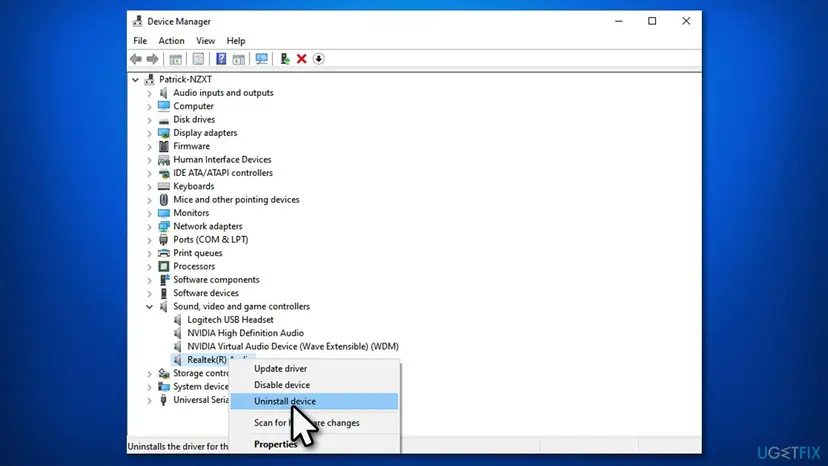
Microsoft notes that uninstalling the audio driver deletes the saved settings of its outputs. Names you changed in Fix 2 and the defaults from Fix 5 must be set again.
Full steps with screenshots: Update, roll back or reinstall a driver.
It worked if: Windows reinstalls the audio driver, and plugging in the headphones switches the sound to them.
If not: If the problem is the same or worse after the restart, try a different driver in Fix 7.
Fix 7. Roll back the audio driver or switch to the Windows or PC maker's driver
15 minutesLow riskReaders whose headphones turned into speakers after a driver update, or who still have the problem after Fix 6.
Two drivers can expose the same jacks differently. Microsoft lists three options in this order: roll back after an update, use the generic audio driver that comes with Windows, or install the newest driver from the device maker.
- In Device Manager, expand Sound, video and game controllers, right-click your audio device and select Properties.
- On the Driver tab, select Roll Back Driver if it is available, choose a reason and select Yes.
- If it is greyed out, select Update Driver > Browse my computer for drivers > Let me pick from a list of available drivers on my computer.
- Select the Microsoft driver in the list (on most PCs it is called High Definition Audio Device), select Next and follow the steps.
- Restart and test the headphones.
- If the generic driver is worse, download the audio driver for your exact laptop or motherboard model from its maker's support page and install it.
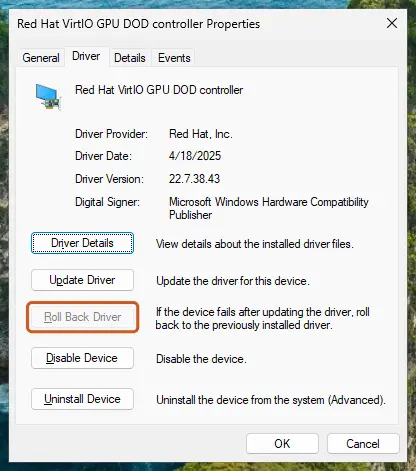
The generic driver drops the maker's audio app and its extras, but it often reports the jacks plainly. You can go back to the maker's driver at any time by installing it again.
It worked if: After the restart, the headphones play sound when plugged in, with their own output or with the speakers muted.
If not: If nothing changes with any driver, run the audio troubleshooter in Fix 8.
Fix 8. Run the Windows audio troubleshooter
5 minutesNo riskReaders who tried the fixes above, or whose headphones are disabled or muted somewhere they cannot find.
The troubleshooter checks the audio services, muted and disabled devices and the default output in one pass. It cannot change the name the driver gives, but it finds settings that send sound to the wrong place.
- Windows 11: select Start > Settings > System > Troubleshoot > Other troubleshooters.
- Find Audio and select Run; Windows opens the audio troubleshooter in the Get Help app.
- Windows 10: open Settings > Update & Security > Troubleshoot > Additional troubleshooters, select Playing Audio and Run the troubleshooter.
- Choose your headphones when it asks which device to check.
- Apply the changes it suggests and test the headphones.
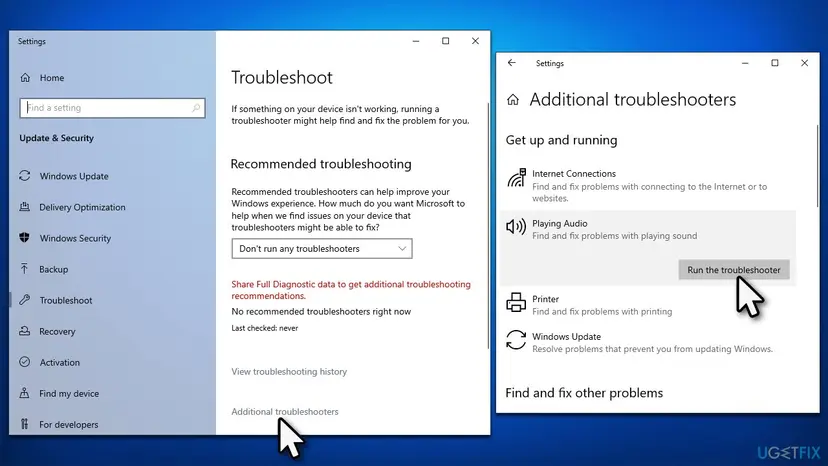
It worked if: The troubleshooter reports a fixed problem, or confirms the headphones are enabled and selected.
If not: If it started right after a Windows update, remove that update in Fix 9.
Fix 9. Uninstall the latest Windows update if the problem started right after it
15 minutesLow riskReaders whose headphones worked one day and showed up as speakers right after Windows installed updates.
A cumulative update can bring a new audio driver with it, which creates new outputs and changes the defaults. Removing the update for a test shows whether it is the cause.
- Open Windows Update. Select Start > Settings > Windows Update.
- Open the update history. Under More options, select Update history. Note the KB number and the date of the update you suspect.
- Open the list of removable updates. Scroll down to Related settings and select Uninstall updates.
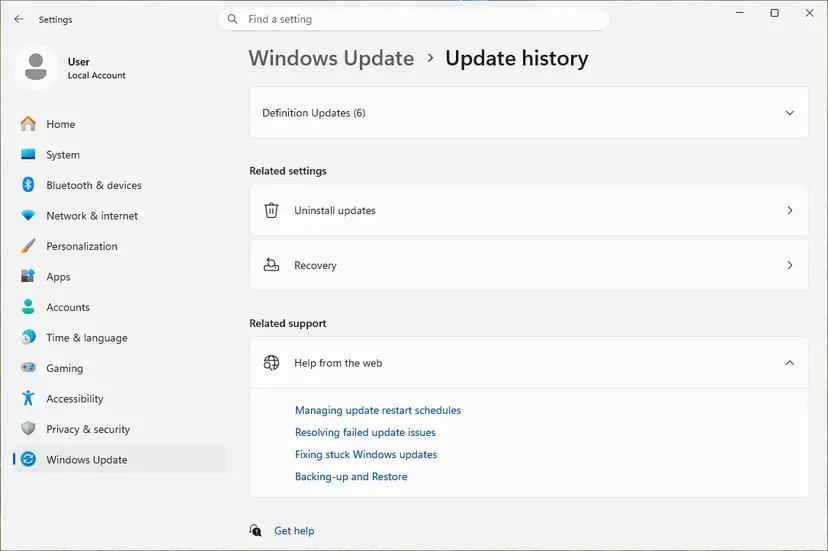
Uninstall updates is under Related settings. Screenshot: Windows 11 26H2. - Uninstall the update. Find the update in the list and select Uninstall next to it. If the update is not in the list, Windows does not allow it to be removed this way.
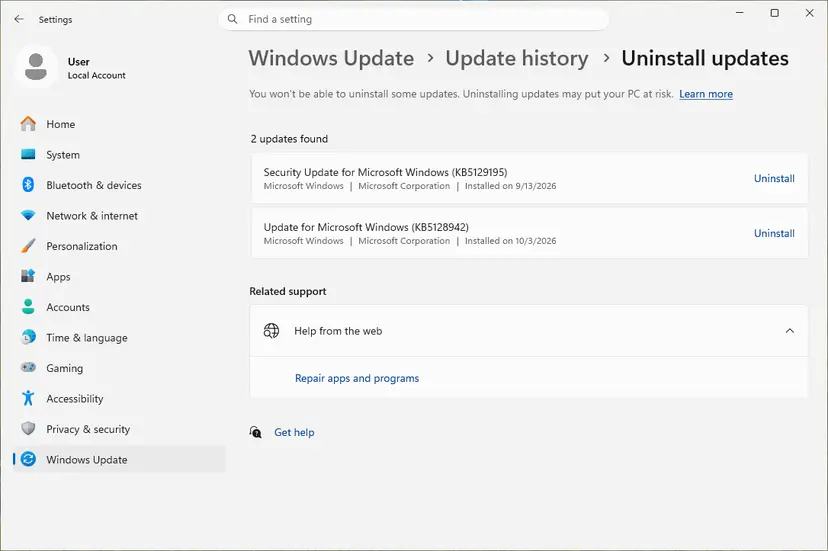
Each removable update has its own Uninstall link. Screenshot: Windows 11 26H2. - Pause updates. Go back to Settings > Windows Update and select Pick a date on the Pause updates control. If your PC shows a list there instead, select the pause length you prefer. Without a pause Windows downloads the same update again.
These steps were written for Windows 11 25H2 and 26H2. The full page with the other versions and what each result means: How to uninstall a Windows update
Removing an update also removes its security fixes, so treat it as a test. If the headphones work without it, pause updates for a while and check the PC maker's site for a new audio driver before you let the update return.
It worked if: After the restart, the headphones play sound as they did before the update.
If not: If removing the update changes nothing, reinstall it and see Still broken below.
Headphones still recognized as speakers: when it is the hardware
There is no log that says why Windows names an output Speakers, so the test is a second device. Plug the headphones into a phone or another PC, and plug another pair of headphones into your PC. That tells you which side is at fault.
- The headphones show as Speakers on every PC, but play sound: this is how their driver reports them. Rename the output (Fix 2) and use them.
- Other headphones work in the same jack, yours do not: a damaged plug or cable. A loose plug, crackling or sound on one side point the same way.
- No headphones work in the jack: the jack, the front panel cable inside a desktop or the audio chip. Test the rear jack; if only the front fails, check the front panel connector on the motherboard or ask the PC maker.
- A USB headset is not listed at all: try another USB port and check Device Manager for the headset under Sound, video and game controllers. If it is missing on every PC, contact the headset maker.
Give the headphone model, how they connect (3.5 mm, USB, dongle or Bluetooth), the exact name Windows shows in the output list, the audio device name in Device Manager and whether the problem started after an update.
How to keep Windows from switching your headphones back to speakers
- Select the headphones once as the default and default communication device, so Windows remembers your choice.
- Rename the output after a driver update if the old name comes back.
- Get audio drivers from your PC or motherboard maker's support page, or from Windows Update.
- Use the same USB port for a USB or dongle headset, so Windows does not create a second output for it.
- Install audio drivers from download sites or video descriptions.
- Reinstall the audio driver for a problem that is only the name: it resets your sound settings.
- Plug a headset with a single three-ring plug into a pink microphone jack.
Windows 10 left support on 14 October 2025. The steps here still work on Windows 10 22H2, but a PC that stays on it gets no new audio fixes through Windows Update.
Frequently asked questions
Why are my headphones recognized as speakers?
Because Windows takes the name from the audio driver, not from the device. The driver gives each output a category, and Microsoft documents that the speaker category gets the friendly name "speakers". Many USB and wireless headsets report that category, so they show as Speakers (headset name). With a 3.5 mm plug, the PC's audio driver often has one Speakers output for both jacks. In both cases the sound can still be fine: select the line in the output list and listen (Fix 1).
Is it a problem if my headset shows up as speakers?
Usually not. If the line has your headset's name and sound plays in the headset when you select it, only the label is different. The volume, the sound and the microphone work the same. Rename the output in the Sound window if the name bothers you (Fix 2). It is a problem only when sound keeps coming from the speakers while the headphones are plugged in; then see Fix 4 to Fix 7.
How do I change speakers to headphones in Windows 11?
Open Settings > System > Sound, select the device under Output and use Rename at the top of its page, or press Win + R, type mmsys.cpl, open the device's Properties and edit the name on the General tab. This changes the name only, not how Windows treats the device. To make Windows actually play through the headphones, select them in the output list on the taskbar (Fix 1).
Why does Windows 10 recognize my headphones as speakers?
The reason is the same as on Windows 11: the audio driver decides the name. Windows 10 uses the classic Sound window and Settings > System > Sound in the same way, and every fix in this guide works on Windows 10 22H2, with the Windows 10 path given where it differs. Note that Windows 10 left support on 14 October 2025, so new audio fixes from Windows Update come only to Windows 11.
Why is sound coming from my speakers and not my headphones?
Windows is playing to another output. It ranks outputs, and one that can detect a plug beats one that cannot, so the speakers can win. Select your headphones in the output list on the taskbar (Fix 1) and set them as the default device (Fix 5). With a 3.5 mm plug, also check that it is fully in and in the right jack (Fix 4). If nothing changes when you plug in, the audio driver is not detecting the jack (Fix 6).
Why are my Bluetooth headphones listed twice?
Bluetooth audio has two modes, and Windows shows each one as its own output. Headphones is the stereo mode for music and games. Headset is the hands-free mode with the microphone, used for calls, and it sounds thinner. Pick Headphones for normal listening (Fix 3). When an app turns on the microphone, Windows switches to the hands-free mode, which is expected.
Why is my Bluetooth speaker detected as headphones?
It is the same thing in reverse. The speaker's Bluetooth profile is the one headphones use, so Windows lists it as Headphones or Headset. Some speakers with a built-in microphone also show the hands-free output. The sound is not affected by the name. Select it in the output list and, if you like, rename it in the Sound window as described in Fix 2.
Will updating the audio driver fix headphones showing as speakers?
Only when the driver is the cause, which is mostly with 3.5 mm headphones on Realtek audio. For a USB or wireless headset, the name comes from the headset itself, so a new PC driver does not change it. Microsoft also notes that installing a different driver deletes the saved sound settings and creates new outputs. So try Fix 1 and Fix 2 first, and change the driver (Fix 6 and Fix 7) only if sound really goes to the wrong place.
Why does Windows 11 not recognize my headphones at all?
This page is about headphones that are recognized under the wrong name. If they do not appear anywhere, open the Playback tab of the Sound window, show disabled and disconnected devices and enable them (Fix 5). Then reinstall the audio driver (Fix 6) and run the audio troubleshooter (Fix 8). For Bluetooth, remove and pair them again (Fix 3). If they are missing on every PC, the headphones or their cable are at fault.
Sources
- Microsoft Learn: Friendly Names for Audio Endpoint Devices (learn.microsoft.com)
- Microsoft Learn: Default Audio Endpoint Selection Starting in Windows 10 (learn.microsoft.com)
- Microsoft Support: Fix sound or audio problems in Windows (support.microsoft.com)
Did this fix work?
One click, no account. It tells the next reader which guides are worth their time.
Questions and experiences: Headphones detected as speakers in Windows 11 and 10: how to fix it
Still broken, or found a fix we did not cover? Ask here: members and our editors answer. Reading is open; writing needs a free account.
…