
Headset mic picking up PC audio in Windows 11 and 10: why it happens and how to stop it

Prefer to fix it yourself? The manual steps follow.
- 8methods
- 5 to 30 minutes
- Easy
Applies to Windows 11 and Windows 10 PCs and laptops with an analog, USB or Bluetooth headset microphone
8 methods in this guide
Hello. For some reason, my microphone is picking up all of the audio from my Windows PC. I have no idea how to fix this issue. Any tips would be appreciated.
When your headset microphone picks up PC audio, Windows or an app is usually recording a loopback device such as Stereo Mix instead of the microphone, or the driver merges the jacks. Less often the sound leaks from the ear cups or the cable. Check which input is selected first.
Most often the input is not your microphone but a loopback device such as Stereo Mix or What U Hear, or Listen to this device is ticked. Start with Fix 1: in Settings > System > Sound > Input, pick your headset microphone, then pick it by name in Discord, Teams or your game. If the audio is still heard with the mic muted, the headset or its adapter leaks the signal (Fix 8).
| Error | No error message. Others hear your music, game or video through your microphone, or the green meter in the Recording tab moves when the PC plays sound and you are silent. |
|---|---|
| Where it appears | In calls and voice chat (Discord, Teams, Zoom, games), in OBS recordings, and in the Recording tab of the classic Sound window (mmsys.cpl). |
| Main cause | A loopback input (Stereo Mix, What U Hear, a virtual audio device) is selected or active, or Listen to this device is ticked. |
| Fastest fix | Select the real headset microphone in Windows and in the app (Fix 1), then disable Stereo Mix (Fix 2). |
| Also searched as | Mic picking up desktop audio, microphone picking up headset audio, desktop audio coming through mic, mic picks up game audio, mic picking up all PC sounds. |
| Affects | Windows 11 and Windows 10. Windows 10 left support on 14 October 2025, but the Sound window works the same on both. |
| Vendor status | Not a Windows bug. Microsoft support staff point to the selected input, Stereo Mix, exclusive mode and the Realtek Audio Console settings. HP's headset support called one case of audio leaking with the mic switched off a headset fault. |
| Quick test | Open the Voice Recorder (Sound Recorder) app, play a video, stay silent and watch the level. Flat means the problem is in one app; moving means Windows or the hardware loops the sound. |
| Time to fix | 2 minutes for the input and Stereo Mix, up to 30 minutes for drivers and the hardware tests. |
Facts checked on 16 October 2026. Steps written for Windows 11 25H2 and 26H2 and Windows 10 22H2.
What it means when your mic picks up PC audio
Your microphone should send only your voice. When people in a call hear your game, music or YouTube, the sound reaches the recording in one of four ways. Windows records a loopback device that copies everything the PC plays, the driver merges two inputs, the sound leaks from your headphones into the microphone, or the signal crosses over inside the cable or adapter.
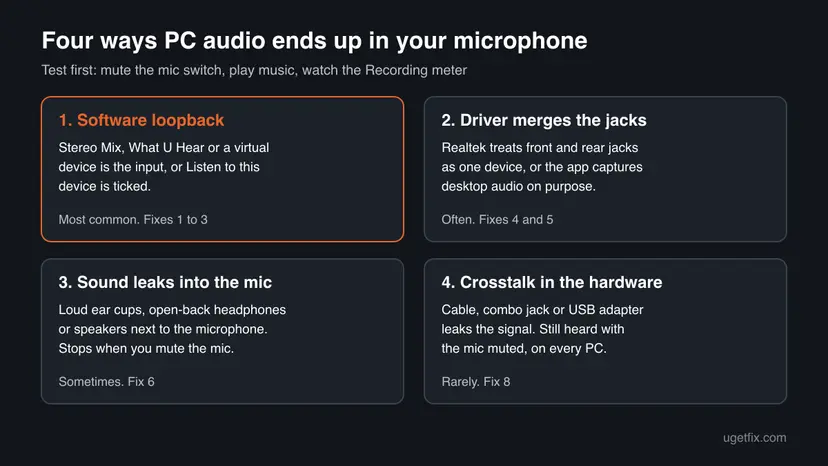
One test tells the four apart in two minutes. Open the Voice Recorder app (Sound Recorder on Windows 11), start a video, stay silent and watch the level meter. Microsoft support staff use the same test: if the meter stays flat, the problem is one app's setting; if it moves, the sound is looped in Windows or in the hardware.
Mute the microphone with the switch on the headset or its cable, then play music. If the PC audio is still recorded with the microphone muted, no Windows setting is involved: the headset, its adapter or the jack leaks the signal. Go straight to Fix 8.
Why your mic is picking up desktop audio, from most to least common
| Cause | How common | Fix |
|---|---|---|
| Windows or the app uses Stereo Mix, What U Hear, a loopback or a virtual audio device as the microphone. | Most often. | Fix 1, Fix 2. |
| Listen to this device is ticked on the microphone or on another input, so a recording device is played back and recorded again. | Often. | Fix 3. |
| The Realtek driver treats the front and rear jacks as one device, or has no echo cancellation turned on. | Often on desktop PCs. | Fix 4. |
| The app records desktop audio on purpose: OBS desktop audio, a stream mixer, or no echo cancellation in Discord or the game. | Often for streamers and gamers. | Fix 5. |
| Sound from loud or open ear cups, or from speakers, reaches the microphone through the air. | Sometimes. | Fix 6. |
| A new or damaged audio driver mixes the inputs. | Sometimes, after an update. | Fix 7. |
| The cable, a combo jack splitter or the USB adapter of the headset leaks the output into the microphone line. | Rarely. | Fix 8. |
Two signs help you skip ahead. If the problem started the day you plugged in a new headset, look at Fix 4 and Fix 8 first. If it started after installing streaming, mixing or headset software, a new virtual device is the likely cause, so Fix 1 and Fix 2 come first.
How to stop your mic from picking up PC audio in Windows 11 and 10
Go through the fixes in order. Fixes 1 to 3 take a few minutes and solve most cases. The steps are the same on Windows 11 and Windows 10 22H2 unless both paths are given.
| What you see or have | Start with |
|---|---|
| Others hear everything the PC plays, at full volume and in clear quality. | Fix 1, then Fix 2. |
| You hear yourself or the PC sound twice in your own headset. | Fix 3. |
| A desktop PC with a Realtek sound card and a headset in the front jacks. | Fix 4. |
| Only one app (Discord, OBS, a game) has the problem; the Voice Recorder test stays flat. | Fix 5. |
| The PC sound is quiet and echoey in the recording, and louder when you turn the headset up. | Fix 6. |
| It started right after a Windows or audio driver update. | Fix 7. |
| The audio is still recorded with the microphone muted, or on every PC. | Fix 8. |
Fix 1. Select the real headset microphone in Windows and in the app
3 minutesNo riskEveryone, first. Most PCs list several recording devices, and some of them record the PC's own sound.
A loopback input such as Stereo Mix, What U Hear or a virtual device from headset or mixing software records everything the PC plays. If Windows or the app uses it as the microphone, the call gets your desktop audio. Microsoft support staff check this first.
- Windows 11: open Settings > System > Sound. Under Input, in Choose a device for speaking or recording, select your headset microphone.
- Windows 10: open Settings > System > Sound. Under Input, in Choose your input device, select your headset microphone.
- Make sure the chosen line is not named Stereo Mix, What U Hear, Loopback or a virtual device of mixing software.
- If you are not sure which line is right, select another device, then select your microphone again.
- Open the voice settings of the app you use (Discord, Teams, Zoom, the game) and set the input device to the headset microphone by name, not Default.
- Make a short test call or recording with a video playing and stay silent.
Windows 11 can test the microphone without an app: select > next to the microphone, then Start test under Microphone test, speak, select Stop test and Play under Recorded sample.
It worked if: The test recording holds your voice only, and the app's input meter does not move when the PC plays sound and you are silent.
If not: If the right microphone is selected and the PC audio is still recorded, disable the loopback devices in Fix 2.
Fix 2. Disable Stereo Mix, What U Hear and other loopback inputs
3 minutesLow riskThe Recording tab lists Stereo Mix, What U Hear, a loopback or a virtual microphone you do not use.
Some apps switch to another recording device when the default one is busy, and some mixing tools combine all inputs. A disabled loopback device cannot be picked by any app, so it cannot send the PC sound into your voice.
- Press Win + R, type
mmsys.cpland press Enter. On Windows 11 you also reach it from Settings > System > Sound > More sound settings. - Open the Recording tab.
- Right-click an empty area and tick Show Disabled Devices and Show Disconnected Devices.
- Right-click Stereo Mix (or What U Hear, or a loopback device) and select Disable.
- Right-click your headset microphone and select Set as Default Device, then Set as Default Communication Device if it is offered.
- Select OK, restart the app you call with and test again.
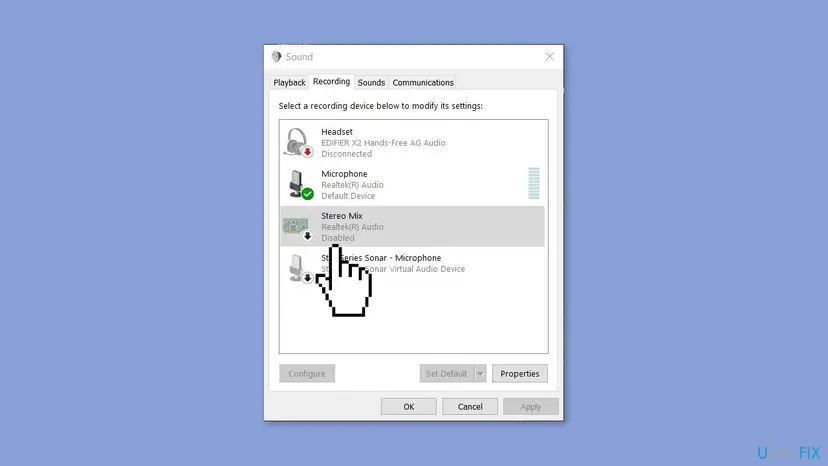
Headset and streaming software can add its own virtual microphone, as in the picture above. If you use that software on purpose, keep its device and open its mixer to make sure the PC output is not routed into the microphone channel. If you do not use it, disable the virtual device or uninstall the software: Uninstall a program or app in Windows.
It worked if: Stereo Mix shows Disabled, your headset microphone has the green check mark, and the call no longer carries the PC sound.
If not: If no loopback device was enabled, check the Listen setting in Fix 3.
Fix 3. Turn off Listen to this device and exclusive mode on the microphone
3 minutesNo riskYou hear yourself or the PC sound twice in the headset, or the Listen box was ticked to test the microphone and never unticked.
Listen to this device plays a recording device through your speakers or headset. Ticked on a microphone, Line In or Stereo Mix, it feeds an input back into the output, which can then be recorded again. Microsoft support staff also suggest turning off exclusive control for this problem.
- In
mmsys.cpl, open the Recording tab, right-click your microphone and select Properties. - Open the Listen tab and untick Listen to this device. Select Apply.
- Open the Advanced tab and untick Allow applications to take exclusive control of this device (the box below it greys out). Select Apply.
- Select OK and repeat steps 1 and 2 for every other enabled recording device, including Line In.
- Test again with the Voice Recorder app or your call app.
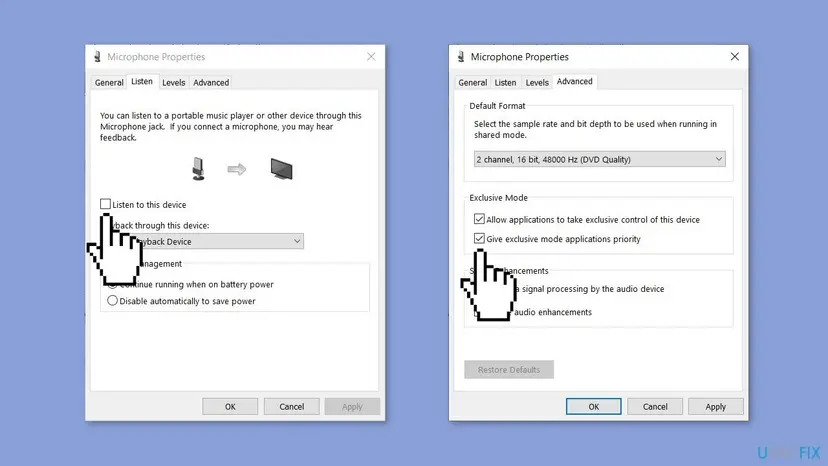
It worked if: You no longer hear yourself in the headset, and the PC sound no longer appears in your recordings.
If not: If you use a Realtek sound card, go to Fix 4. If only one app records the sound, go to Fix 5.
Fix 4. Separate the input jacks and turn on echo cancellation in Realtek Audio Console
5 minutesNo riskA desktop PC or laptop with Realtek audio, an analog headset in a 3.5 mm jack, often in the front panel.
When the Realtek driver treats all input jacks as one device, it can mix the headset microphone with another input. Microsoft support staff name three Realtek Audio Console options for this problem, and HP's moderator adds setting the Microphone Boost to 0.
- Open Realtek Audio Console from the Start menu. If it is not installed, it comes from your PC or motherboard maker, not from Windows.
- Open the device advanced settings and select Separate all input jacks as independent input devices.
- Turn on Acoustic Echo Cancellation if your microphone page offers it.
- Turn on the option to mute the internal output device when headphones are plugged in, if your version has it.
- In
mmsys.cpl, open your microphone's Properties > Levels and set Microphone Boost to 0 dB if the slider is there. Select OK. - Restart the app and test again.
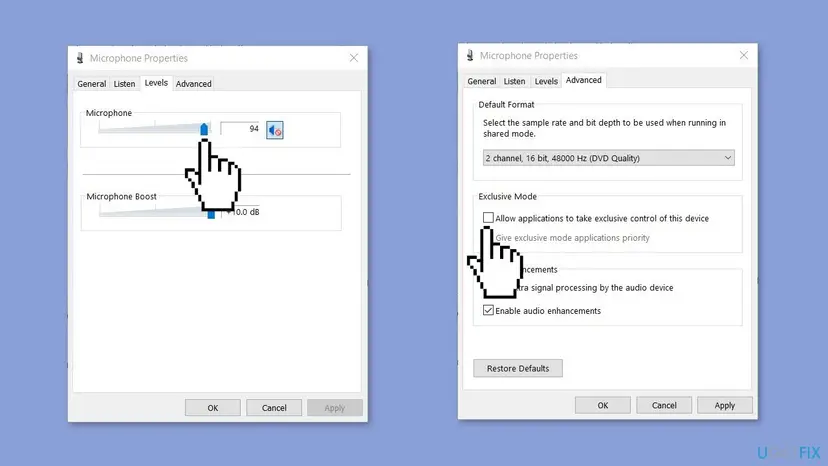
Option names differ between Realtek Audio Console versions and PC makers, and some versions show only playback settings. If you cannot find an option, that version does not offer it. For a laptop where Windows mixes up the headset and speakers, see our guide on headphones detected as speakers.
It worked if: After the change the headset microphone appears as its own line in the Recording tab, and the PC sound is gone from the recording.
If not: If the Voice Recorder test is flat but one app still records the sound, go to Fix 5.
Fix 5. Check the app: desktop audio capture, echo cancellation and noise suppression
5 minutesNo riskThe Voice Recorder test stays flat, but Discord, OBS, Teams or a game still sends the PC sound.
Microsoft support staff treat a flat Voice Recorder meter as an app problem. Streaming and call apps can capture desktop audio on purpose, and echo cancellation in the app removes sound that comes back into the microphone from the headset.
- In the app's voice or audio settings, set the input device to the headset microphone by name.
- Turn on Echo Cancellation and Noise Suppression if the app has them (Discord, Teams and Zoom do).
- In OBS, check the Audio Mixer: Desktop Audio is a separate source on purpose. Make sure the Mic/Aux source is your microphone, not the output device.
- In a game with voice chat, select the microphone by name and switch from Open mic or voice activity to Push to talk to test.
- Close other apps that use the microphone or mix audio, then test again.
If you cannot find the cause right away, Push to talk in Discord or the game sends sound only while you hold the key. Others then hear the PC audio only when you speak.
It worked if: The app's input meter moves only when you speak, and people in the call no longer hear your game or music.
If not: If the PC sound is quiet and echoey rather than clear, it is reaching the microphone through the air. Go to Fix 6.
Fix 6. Lower the headset volume and stop sound leaking into the microphone
5 minutesNo riskThe PC sound in the recording is quieter than the original and sounds like a room, and it gets louder when you turn up the headset.
A boom or inline microphone sits close to the ear cups. At high volume, or with open-back headphones or speakers, the sound travels through the air into the microphone. Microsoft's own advice is to keep the volume moderate and the microphone positioned correctly.
- Turn the PC volume down to about half and test again.
- Point the boom microphone towards your mouth, away from the ear cups.
- If the headset sits loosely or has open-back ear cups, test with closed headphones.
- If you use speakers in calls, move the microphone away from them or use headphones.
- Lower the microphone level on the Levels tab, and set Microphone Boost to 0, so the microphone picks up less from a distance.
It worked if: The PC sound in the recording drops a lot or disappears when the volume is lower and the microphone points at your mouth.
If not: If the PC sound is recorded at the same level whatever the volume or position, it is not leaking through the air. Go to Fix 7.
Fix 7. Roll back or reinstall the audio driver
10 to 20 minutesLow riskThe problem started right after a Windows update or an audio driver update, or the Realtek options from Fix 4 vanished.
The driver decides how the jacks are split and which recording devices exist. A generic or new driver can merge inputs that were separate before. HP's moderator recommends the driver from the PC or motherboard maker over a generic one from Windows Update.
- Right-click Start and select Device Manager.
- Expand Sound, video and game controllers, right-click the sound card (for example Realtek(R) Audio) and select Properties.
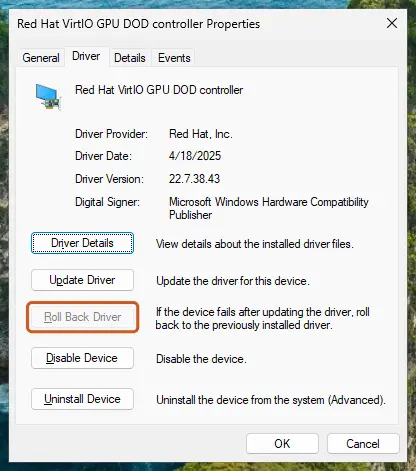
- On the Driver tab, select Roll Back Driver if it is active, and confirm.
- If it is greyed out, install the audio driver for your exact model from the PC or motherboard maker's support page.
- If the device misbehaves after that, right-click it, select Uninstall device, restart the PC and let Windows install it again.
- Restart and repeat Fix 2 to Fix 4, because a new driver can turn Stereo Mix back on.
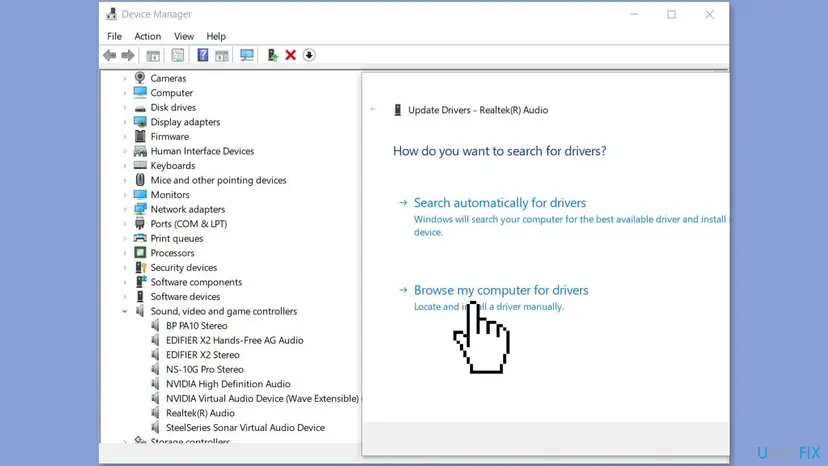
Full steps for updating, rolling back and reinstalling drivers: Update, roll back or reinstall a driver.
It worked if: After the restart the sound card shows the maker's driver, the headset microphone is a separate line in the Recording tab, and the PC sound is gone from it.
If not: If nothing changes with the maker's driver, test the hardware in Fix 8.
Fix 8. Test the headset, the adapter and the jack for crosstalk
10 minutesNo riskThe PC audio is still recorded with the microphone muted, or the problem follows the headset to another PC.
In a headset, the speaker and microphone wires run side by side, often through one combo plug or a USB adapter. A fault or a poor design there can leak the output into the microphone line. One user on HP's forum reports that OMEN headset support called this a headset fault that settings could not fix.
- Mute the microphone with the headset switch, play music and record with the Voice Recorder app.
- Switch the playback to speakers while the headset stays plugged in, and record again.
- Try another USB port, the rear jacks instead of the front panel, or the other plug of a splitter.
- If the headset uses a USB adapter or splitter, try another one.
- Plug the headset into another PC or a phone and test there.
- Try another headset on your PC.
| Result | What it means |
|---|---|
| The sound is recorded with the mic muted, but not when playback goes to speakers. | The headset's cable or adapter leaks the output into the microphone line. |
| The problem stays with the headset on another PC. | The headset or its adapter is at fault. Contact its maker or replace it. |
| Another headset works on your PC. | Your PC is fine. The first headset is the cause. |
| Only the front panel jacks have the problem. | The front panel cable inside the case picks up the signal. Use the rear jacks. |
It worked if: You find the part that leaks the signal: the headset, its adapter, the front panel or the PC.
If not: If every test is clean but calls still carry the PC sound, read the next section.
If your mic is still picking up PC audio
Repeat the Voice Recorder test once more after a restart, because a new driver or headset software can turn Stereo Mix or a virtual device back on. Then use the result to decide where to ask for help.
- The meter moves in Voice Recorder with the mic muted: contact the headset maker. Give the model, how it connects (3.5 mm, splitter or USB adapter) and the result of the other PC test.
- The meter moves only with the mic on: contact the PC or motherboard maker with the sound card name and Driver Version from Device Manager and your Windows version from Win + R >
winver. - Only one app records the sound: ask that app's support and say which input device the app shows.
If the PC has an unknown audio app or virtual device you did not install, check what added it. A scan with Microsoft Defender rules out unwanted software: How to scan for malware with Microsoft Defender. A clean boot shows whether a background app is routing the sound: How to perform a clean boot in Windows.
How to keep your microphone from picking up desktop audio
- Pick the microphone by name in every app instead of Default, so a new device does not take over.
- Keep Stereo Mix disabled unless you record PC sound on purpose, and check it again after audio driver updates.
- Untick Listen to this device as soon as you finish testing the microphone.
- Keep the headset volume moderate and the boom microphone pointed at your mouth.
- Use the rear jacks of a desktop PC for a headset that picks up noise in the front panel.
Frequently asked questions
Why does my mic pick up desktop audio?
Most often because Windows or your app records a loopback device such as Stereo Mix or What U Hear instead of the microphone, or because Listen to this device is ticked. Less often the Realtek driver merges the jacks, the app captures desktop audio on purpose, or sound leaks from the ear cups. Rarely the headset cable or adapter leaks the signal. The Voice Recorder test with the microphone muted tells you which of these it is.
How do I stop my mic from picking up desktop audio?
Select the headset microphone by name in Settings > System > Sound > Input and in your app (Fix 1). Then open mmsys.cpl, show disabled devices on the Recording tab and disable Stereo Mix (Fix 2). Untick Listen to this device in the microphone's Properties (Fix 3). On Realtek PCs, separate the input jacks in Realtek Audio Console (Fix 4). These steps fix most cases in a few minutes.
Why is my microphone picking up my headset audio?
If the sound from your headset is clear and loud in the recording, a software loopback is the cause: work through Fixes 1 to 4. If it is quiet and echoey and gets louder with the volume, it leaks through the air from the ear cups (Fix 6). If it is still recorded with the microphone muted, the headset or its adapter leaks the signal electrically, which no Windows setting can fix (Fix 8).
Why is my mic picking up game audio?
The same causes apply to games as to any PC sound, but games add two of their own. The game's voice chat may use Default or the wrong input, and open mic with no echo cancellation sends everything the microphone hears. Select the microphone by name in the game, try Push to talk, and turn on echo cancellation in Discord if you talk there. If the game sound is clear in the recording, check Stereo Mix (Fix 2).
How do I fix a microphone picking up computer audio on Windows 11?
On Windows 11 open Settings > System > Sound, choose your microphone under Choose a device for speaking or recording, then open More sound settings to reach the classic Sound window. On its Recording tab disable Stereo Mix and untick Listen to this device in the microphone's Properties. Windows 11 also offers a built-in microphone test with Start test and Play, which shows quickly whether the PC sound is still recorded.
Is it the same fix on Windows 10?
Yes. On Windows 10 the input is chosen in Settings > System > Sound under Choose your input device, and the classic Sound window opens with Win + R > mmsys.cpl or the Sound Control Panel link. The Recording tab, Stereo Mix, the Listen tab and Realtek Audio Console work the same. Windows 10 left support on 14 October 2025, so newer audio drivers for it can be harder to find.
What is Stereo Mix and should I disable it?
Stereo Mix is a recording device that some sound cards, mostly Realtek, offer. It records everything the PC plays, which is useful for capturing PC sound but not for calls. If an app picks it instead of your microphone, others hear your desktop audio. Disable it in mmsys.cpl > Recording unless you use it on purpose. You can enable it again the same way at any time.
My mic picks up PC audio even when it is muted. Why?
Then the signal does not come from a Windows setting. The headset's cable, a combo jack splitter, a USB adapter or the front panel wiring leaks the output into the microphone line. One user on HP's forum describes exactly this with the mic switch off, and HP's headset support called it a headset fault. Test the headset on another PC and another headset on yours (Fix 8).
Can a Bluetooth headset microphone pick up PC audio?
Yes, through the same software causes: a loopback device chosen as input, or an app capturing desktop audio. A Bluetooth headset shows up as separate devices for stereo playback and hands-free calls, so make sure the app uses the hands-free microphone of the headset, not another input. Our AirPods Pro microphone guide explains how the Bluetooth hands-free mode works on Windows.
How do I fix my mic audio on PC in general?
This page covers one problem: the microphone recording PC sound. For other microphone problems, Microsoft's checklist starts with microphone access in Settings > Privacy & security > Microphone and the headset's mute button. Then it checks that the right microphone is the default input and runs the Recording Audio troubleshooter. If the microphone is quiet, our guide to the missing Microphone Boost option helps.
Sources
- Microsoft Support: Fix microphone problems (Windows 11 and Windows 10) (support.microsoft.com)
- Microsoft Q&A: Microphone picking up computer audio (answer by Microsoft External Staff) (learn.microsoft.com)
- HP Support Community: Headset microphone picks up computer audio output as input (HP moderator answer) (h30434.www3.hp.com)
Did this fix work?
One click, no account. It tells the next reader which guides are worth their time.
Questions and experiences: Headset mic picking up PC audio in Windows 11 and 10: why it happens and how to stop it
Still broken, or found a fix we did not cover? Ask here: members and our editors answer. Reading is open; writing needs a free account.
…