How to fix
Headset microphone not working
on Windows
Resolve headset microphone issues on Windows 10 and 11 quickly with proven solutions. Get back to crystal-clear audio in minutes with expert-tested tips.

What causes How to fix Headset microphone not working in Windows?
- Outdated drivers
- Incorrect settings
- Hardware issues
- Damaged cable
- Faulty microphone
Repairs Windows system files, removes malware, and restores a clean OS state — without reinstalling.
Hello. I just bought a new headset but the microphone does not work. What should I do to get it fixed?
A headset microphone not working in Windows can be extremely frustrating for users, especially if they need to use it for work or communication. This problem could be caused by a number of factors, including outdated drivers,[ref en-1] incorrect settings, or hardware issues.
This problem can affect users in a variety of ways. For example, if a user attempts to participate in a video conference or make a phone call, they will be unable to communicate effectively if their microphone is not operational. Misunderstandings, delays, and even missed opportunities can result from this. Furthermore, if the problem is caused by hardware issues, such as a damaged cable or a faulty microphone, the user may need to replace the headset entirely.
Possible solutions to this issue include updating drivers, adjusting settings, troubleshooting, and checking for hardware problems. Users can update their drivers to ensure they have the most recent version, change settings to allow microphone access, run the troubleshooter tool, and inspect their headsets for physical damage. If there is a hardware problem, users may need to replace the headset or send it in for repair.
In this guide, you will find 6 steps that should help you fix headset microphone not working in Windows. Keep in mind that the manual troubleshooting process may be lengthy. You can also use a maintenance tool like [d1] that can fix most system errors, BSODs,[ref en-2] corrupted files, and registry[ref en-3] issues. Otherwise, follow the step-by-step instructions below.
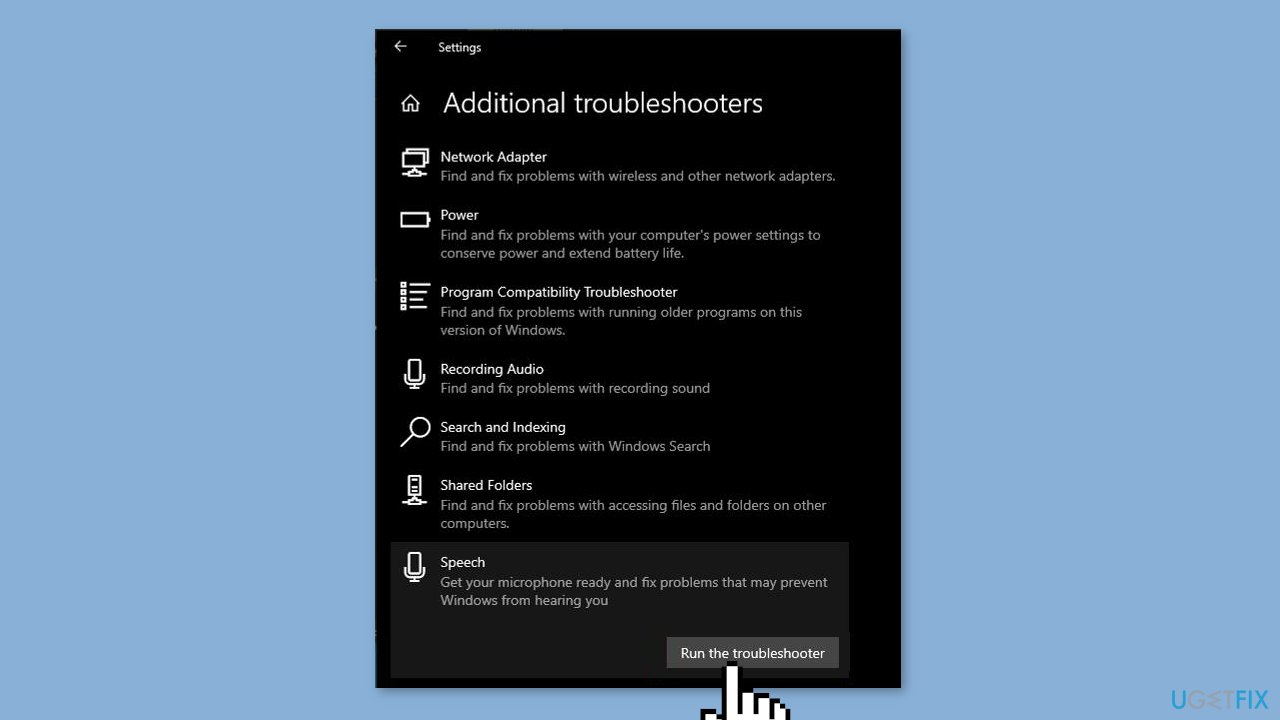
Solution 1. Run the Speech Troubleshooter
- Right-click on the Start button located in the bottom left corner of the screen.
- Click on Settings from the options that appear.
- Click on Update & Security from the settings menu.
- Click on Troubleshoot from the left panel of the Update & Security window.
- Click on Additional troubleshooters.
- Click on Speech.
- Click on Run the troubleshooter.
- Follow the on-screen instructions to find and resolve any issues.
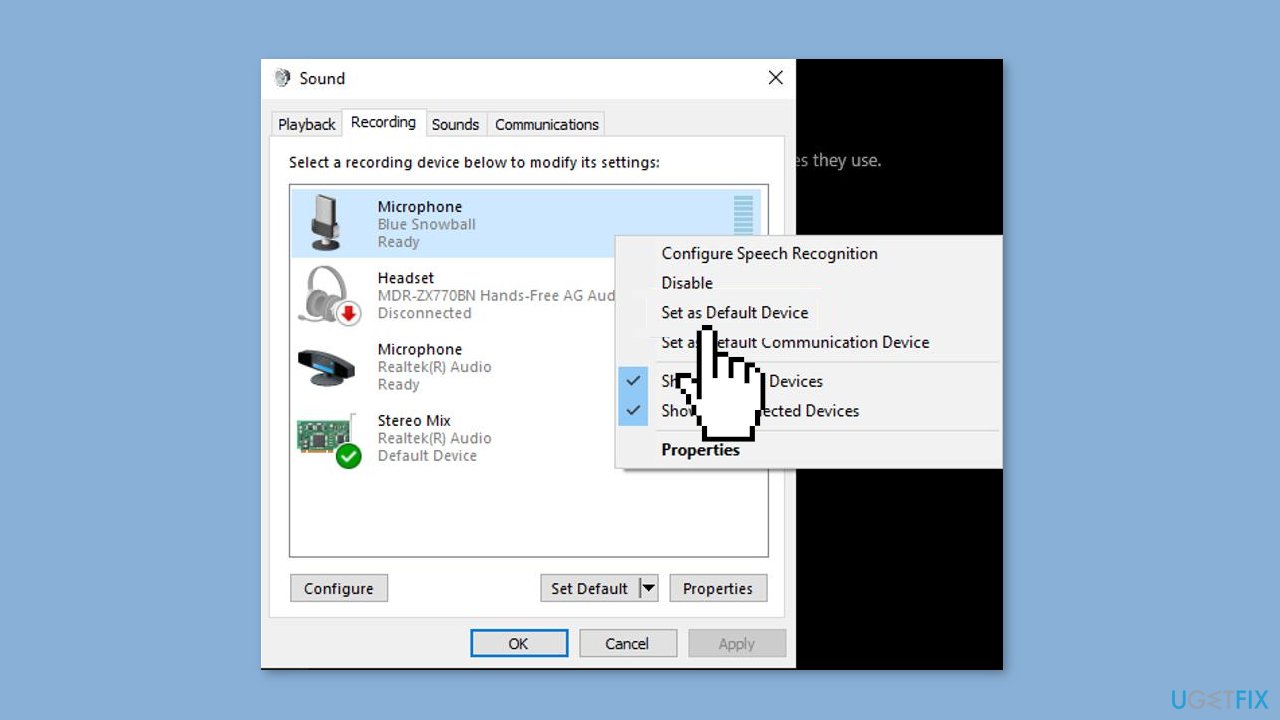
Solution 2. Set Headset Mic as the Default Input
- Locate the Speakers icon in the bottom right corner of the screen.
- Right-click on the Speakers icon.
- Select Open Sound settings from the options that appear.
- Click on Sound Control Panel located under the Related Settings section.
- The Sound window will appear. Click on the Recording tab.
- Locate your headset mic in the list of recording devices.
- Right-click on your headset mic.
- Click on Set as Default Device from the options that appear.
Solution 3. Increase Headset Mic Volume
- Right-click on the Speakers icon located in the bottom right corner of the screen.
- Select Open Sound settings from the options that appear.
- Click on Sound Control Panel located under the Related Settings section.
- The Sound window will appear. Click on the Recording tab.
- Locate your headset mic in the list of recording devices.
- Right-click on your headset mic.
- Click on Properties from the options that appear.
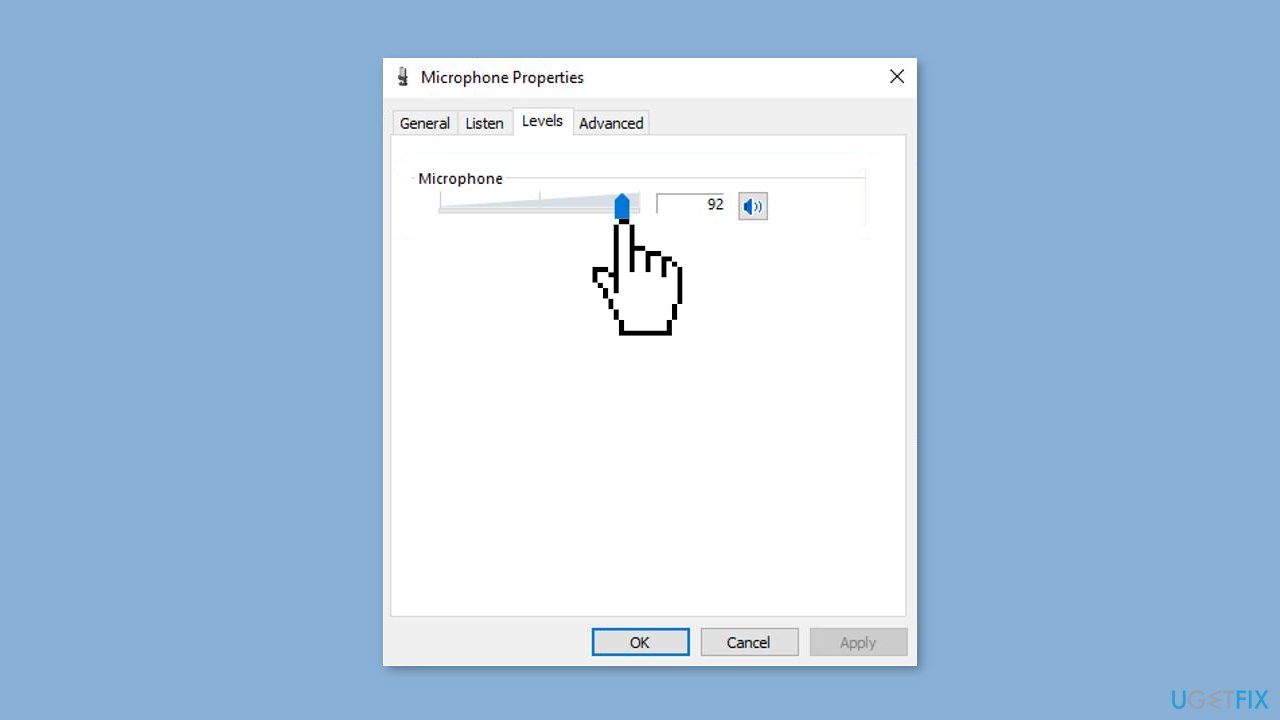
- The Microphone Properties window will appear. Click on the Levels tab.
- Ensure that the microphone volume is high enough by adjusting the slider to the right.
Solution 4. Permit Microphone Access
- Right-click on the Start button located in the bottom left corner of the screen.
- Click on Settings from the options that appear.
- Click on Privacy from the settings menu.
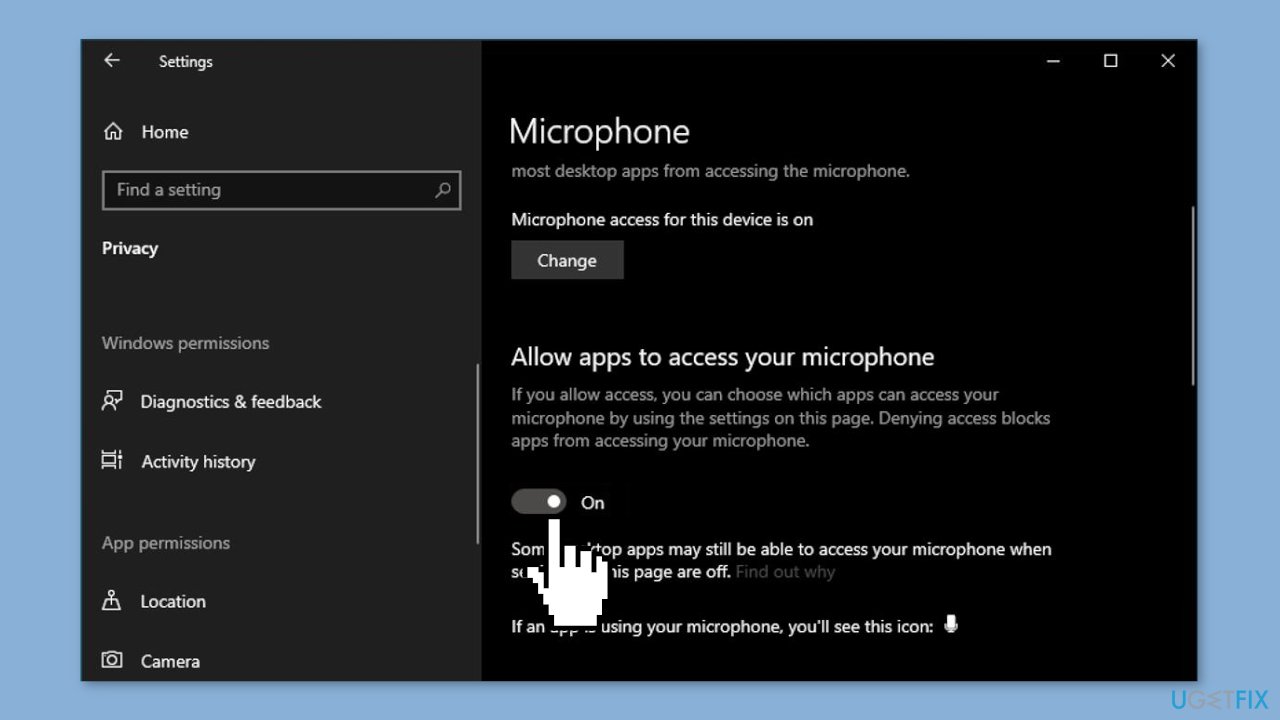
- From the left panel of the Privacy window, click on Microphone.
- Ensure that the Allow apps to access your microphone setting is set to On.
Solution 5. Close other Apps
Sometimes, when other apps attempt to take control of your microphone, it can cause the mic to stop working. This happens because some apps request exclusive access to the mic. Fortunately, you can easily fix this issue by closing any apps that you're not using. Simply go through the list of open apps and close the ones that are not essential.
Solution 6. Update Audio Driver
- Right-click on the Start button located in the bottom left corner of the screen.
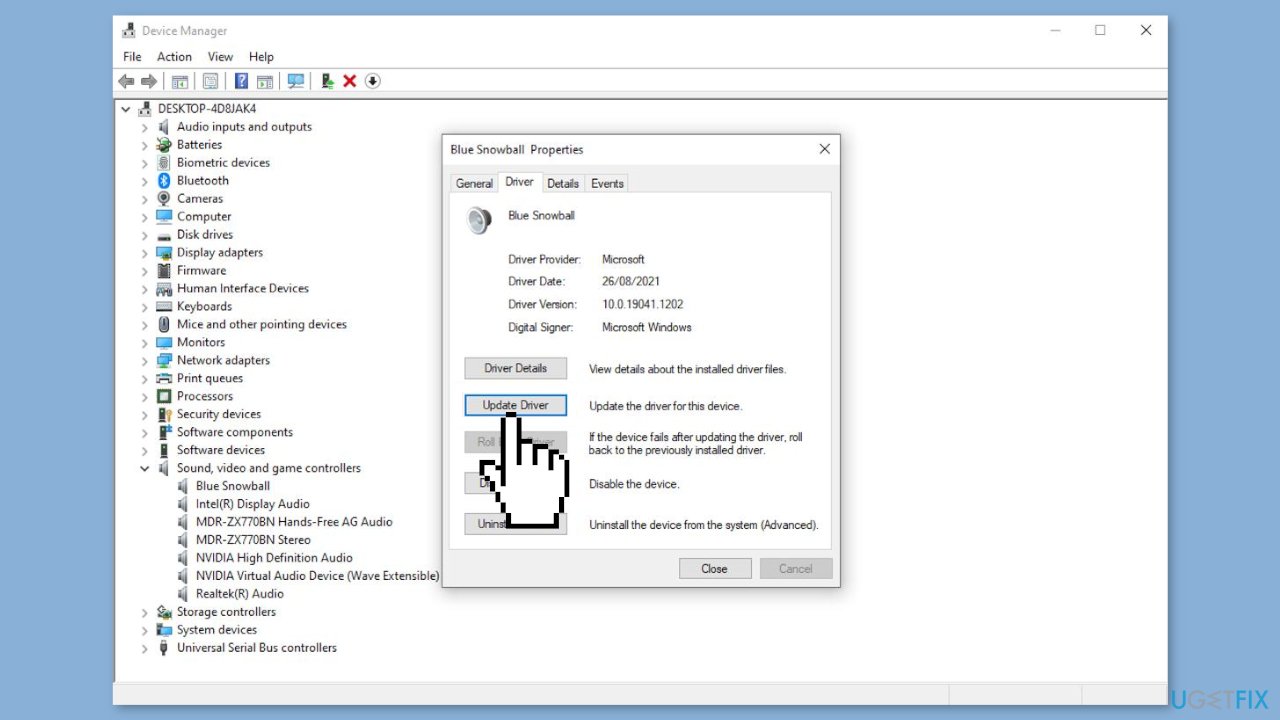
- Select Device Manager from the options that appear.
- Expand the Sound, video and game controllers dropdown menu.
- Right-click on your headset mic and select Properties.
- Select the Driver tab from the Properties window.
- Click on Update Driver.
- Select Search automatically for drivers and wait while it scans for any available updates.
- If no updates are found, click on Uninstall Device" instead to remove the existing drivers.
- Unplug or disconnect your headset from the computer.
- Reconnect your headset to the computer. This will force the drivers to download again.
You can also use a dedicated utility, like [rev id="DriverFix"] that can find the best drivers for your machine and install them automatically.
Bottom line
To fix the headset microphone not working in Windows, users can update their drivers, adjust settings for microphone access, run the troubleshooter tool, and inspect their headsets for physical damage. If these solutions do not resolve the issue, users may need to replace the headset or send it in for repair.
Frequently asked questions
First, ensure that your headset is properly connected to the audio jack or USB port, and check the sound settings to confirm that the correct input device is selected.
You can update your audio drivers by going to Device Manager, expanding the 'Sound, video and game controllers' section, right-clicking your audio device, and selecting 'Update driver'.
Make sure that microphone access is enabled in the Privacy settings, and check the sound settings to ensure that the microphone level is set appropriately and not muted.




Report an issue
What's wrong with this guide? We review every report and update or remove content.
Report received — thank you. We'll review and fix it.
You need a free account to submit a report.
Be the first to comment