How to fix
Helldivers 2 error “Unable to establish a connection to game”
on Windows
Resolve the "Unable to establish a connection to game" error in Helldivers 2 on Windows 10 and Windows 11 with expert-tested solutions. Fixed in minutes!


What causes How to fix Helldivers 2 error “Unable to establish a connection to game” in Windows?
- Network connection issues from the user side
- Game's server issues
- Server outages or maintenance
- Bugs and crashes in the game
- Corrupted game files
Repairs Windows system files, removes malware, and restores a clean OS state — without reinstalling.
Hello. I have a problem with the Helldivers 2 game. Whenever I attempt to play it, I always get an "Unable to establish a connection to game" error after the cutscene. Any idea how to fix this?
Helldivers 2 was released on February 8, 2024, and immediately became a hit - amassing almost half a million players. This success was mainly achieved due to the game being fun, although even the developers didn't expect it to be so popular, thus players constantly had to deal with server connection issues, bugs, and crashes. At some point, it even had "Mixed" reviews on Steam precisely for that reason.
At the time of the writing, the game is now in a way better state, although users may still encounter problems, such as the "Unable to establish a connection to game" error when playing Helldivers 2 on Windows.
The issue can occur at any time during gameplay, although some players said it happens at certain points of the game, such as after the first cutscene is played out. Not only does the "Unable to establish a connection to game" error diminishes user experience, but some can't even play the game at all.
In most cases, the Helldivers 2 error "Unable to establish a connection to game" error is related to network connection issues from the user side, although it can also be attributed to the game's server issues. Therefore, it is always wise to check whether the servers are up and running.
Also, running the built-in troubleshooters, verifying game files, resetting the internet connection, and applying other troubleshooting steps can help you fix the error. Below you will find a list of solutions that should help you with these steps. If you would like to try automating this process, we recommend trying [d1] PC repair software.

Fix 1. Check Helldivers servers
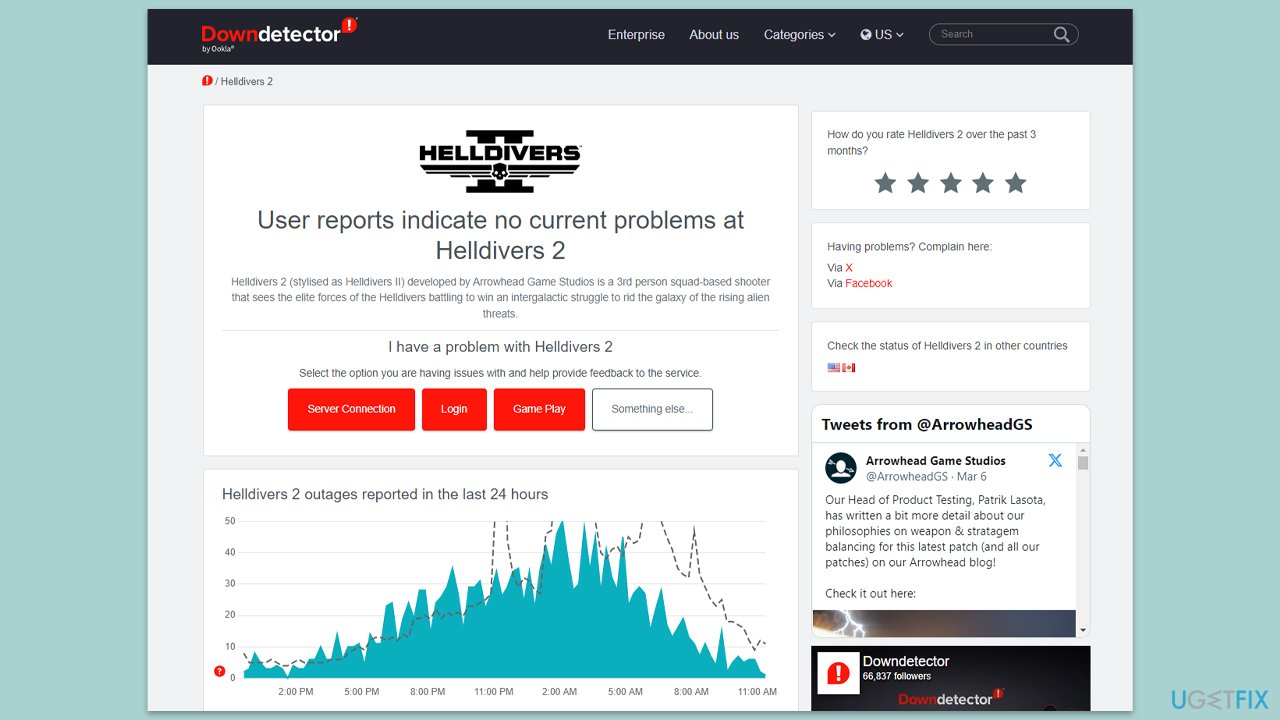
The first step in troubleshooting connectivity issues with Helldivers 2 is to verify the status of the game's servers. Server outages or maintenance can prevent players from accessing the game. This information can typically be found on the official Helldivers social media pages or their service status website. Checking these sources will confirm whether the problem is on the user's end or a broader issue affecting multiple players.
- Visit the Helldivers official website or social media channels for any service status updates.
- Utilize third-party websites like DownDetector to assess if other users are reporting similar connectivity issues.
Fix 2. Run network troubleshooter
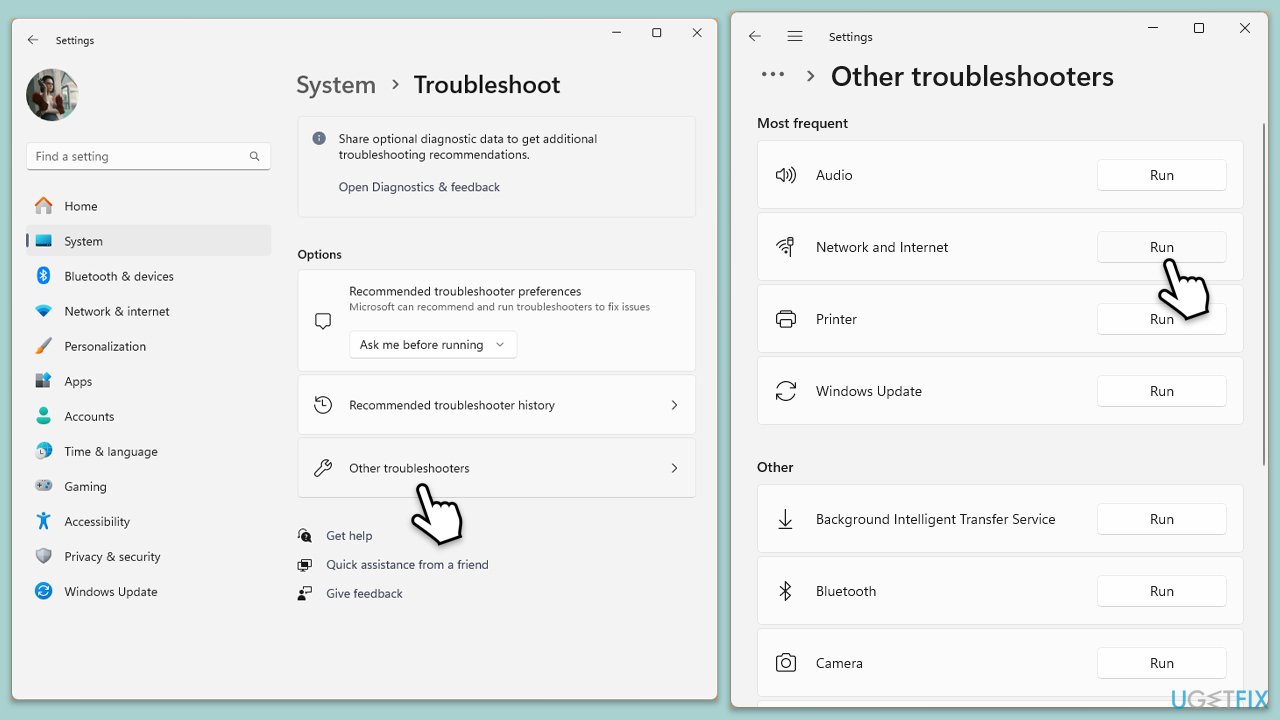
Windows offers a built-in network troubleshooter that can automatically detect and resolve issues affecting your internet connection. This tool can be particularly useful for identifying problems that might impede your ability to connect to Helldivers 2.
Windows 11
- Type Troubleshoot in Windows search and press Enter.
- Select Other troubleshooters.
- Find Network & Internet troubleshooter from the list and select Run.
- Wait till the process is finished and apply the offered fixes.
- Restart your device.
Windows 10
- Right-click on Start and pick Settings.
- Go to the Network & Internet section.
- On the right side, find the Advanced network settings section.
- Click Network troubleshooter and wait.
- The fixes will be automatically applied.
Fix 3. Disable security software
Security programs such as antivirus or firewall applications can sometimes interfere with your game's ability to connect to the internet. Temporarily disabling these applications can help determine if they are the cause of the connectivity issues. Remember to re-enable your security software after testing to maintain your system's protection.
- Locate the antivirus and firewall applications on your system and temporarily disable them.
- Attempt to access the game. If connectivity improves, consider adding an exception for Helldivers 2 in your security software's settings.
Fix 4. Verify the integrity of game files
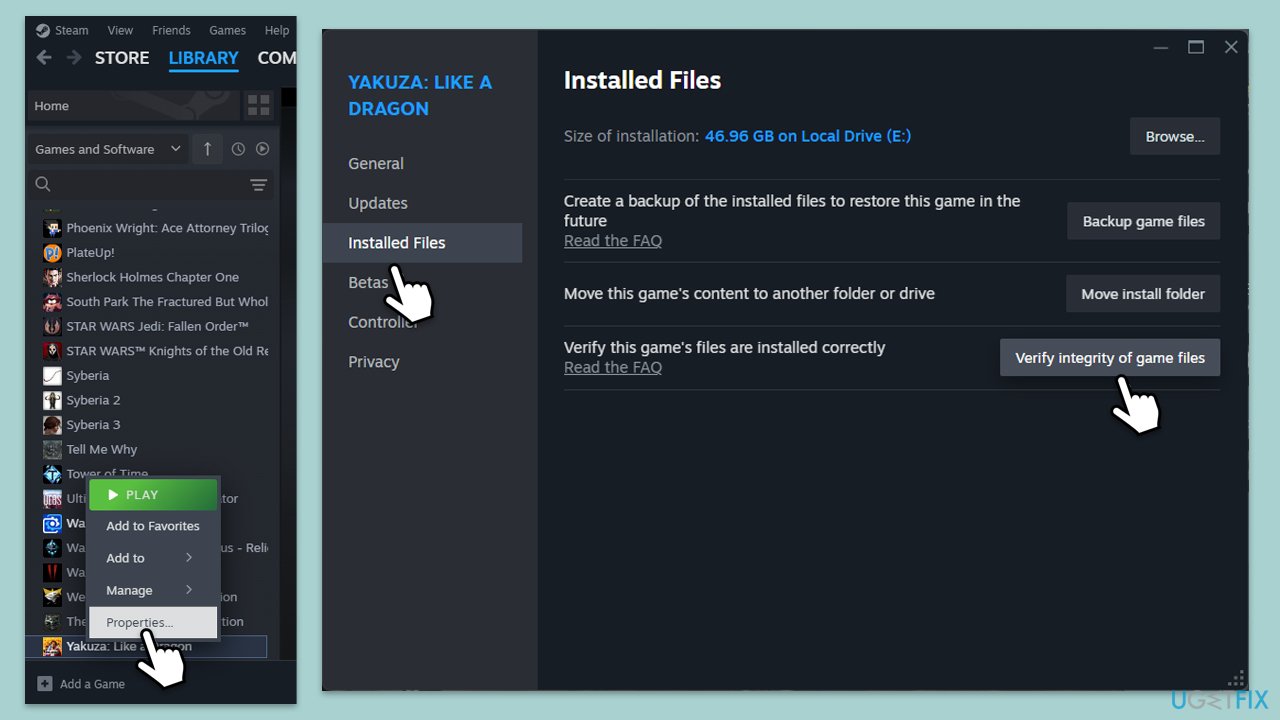
Corrupted or missing game files can lead to a variety of issues, including connectivity problems. Steam's "Verify integrity of game files" feature can automatically repair or replace damaged files.
- Open Steam and go to your Library.
- Right-click on Helldivers 2 and pick Properties.
- Go to Installed Files and click Verify integrity of game files.
- Wait till the scan is finished and attempt to launch the game again.
Fix 5. Reset your internet connection
A simple reset of your internet connection can resolve temporary connectivity issues.
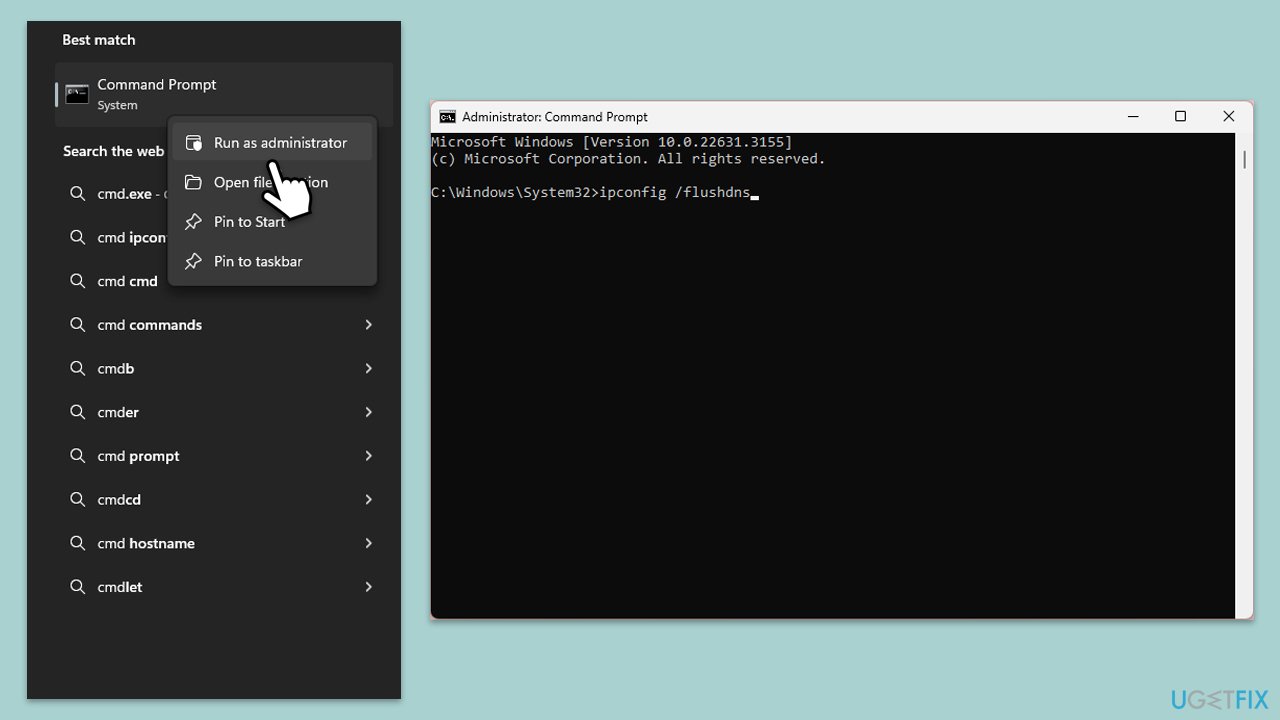
- Type cmd in Windows search.
- Right-click on the Command Prompt result and select Run as administrator.
- Copy and paste each of the following commands, pressing Enter every time:
ipconfig /flushdns
ipconfig /registerdns
ipconfig /release
ipconfig /renew
netsh winsock reset - Restart your system.
Fix 6. Update network drivers
Outdated network drivers can lead to suboptimal performance and connectivity issues. Ensuring that your network adapter's drivers are up-to-date is crucial for maintaining a stable connection to online services.
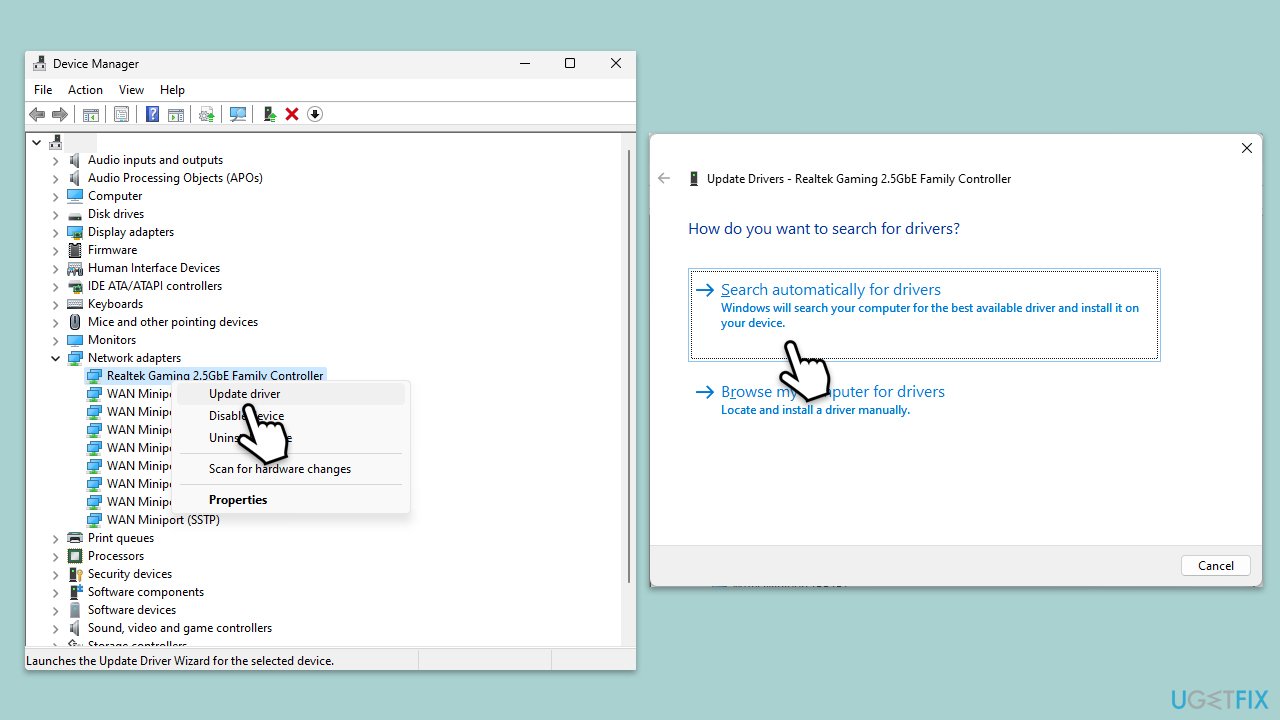
- Right-click on the Start button and select Device Manager.
- Expand the Network adapters section.
- Right-click on your network adapter and select Update driver.
- Choose Search automatically for drivers.
- Follow the prompts to install any available updates.
- Restart your computer after updating the drivers.
- For a quicker solution, you can always use an automatic driver updater such as [rev id="DriverFix"].
Fix 7. Change DNS settings
Switching to a more reliable DNS server can improve your network's speed and stability. This change can be beneficial for connecting to online games.
Windows 11
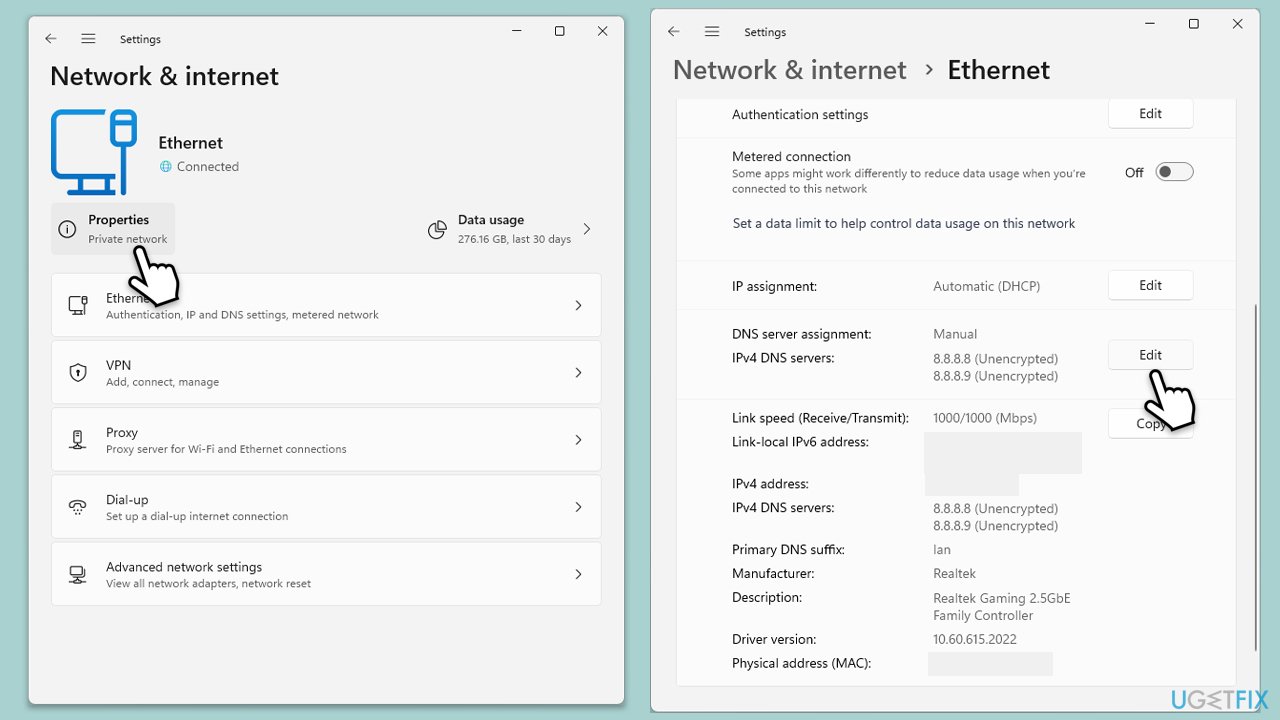
- Right-click on Start and select Network connections.
- Under your connection, click Properties.
- Find the DNS server assignment section and click Edit.
- Set your DNS to Google's:
Preferred DNS: 8.8.8.8
Alternate DNS: 8.8.4.4 - Click Save.
Windows 10
- Right-click on Start and select Settings.
- Go to Network and Internet section.
- Click on Change adapter options.
- Right-click on your internet connection and pick Properties.
- Select Internet Protocol Version 4 (TCP/IPv4) once and go to Properties or select Edit next to the DNS settings.
- Select Use the following DNS server addresses option and set your DNS to Google's:
Preferred DNS server: 8.8.8.8
Alternate DNS server: 8.8.4.4 - Click OK.
Bottom line
To fix the 'Unable to establish a connection to game' error in Helldivers 2, you should check the status of the game's servers, run built-in troubleshooters, verify game files, and reset your internet connection. If these steps do not resolve the issue, consider trying PC repair software for further assistance.
Frequently asked questions
First, check your internet connection and ensure that your firewall or antivirus software is not blocking the game. If the issue persists, try restarting your router and relaunching the game.
Make sure that Helldivers 2 is allowed through the Windows Firewall by going to Settings > Privacy & security > Windows Security > Firewall & network protection. You may also consider resetting your network settings in Windows 11.
Yes, you can try switching to a wired connection if you're using Wi-Fi, or adjusting your DNS settings to use Google's Public DNS (8.8.8.8 and 8.8.4.4) to improve connectivity.




Report an issue
What's wrong with this guide? We review every report and update or remove content.
Report received — thank you. We'll review and fix it.
You need a free account to submit a report.
Be the first to comment