How to fix
Hiberfil.sys BSOD error
on Windows
Resolve the hiberfil.sys BSOD error in Windows 10 and 11 quickly and easily. Expert-tested solutions with screenshots ensure zero traces left!


What causes How to fix hiberfil.sys BSOD error in Windows?
- Corrupted system files
- Outdated drivers
- Malfunctioning drivers
- Conflicts with hardware
- Conflicts with software
Repairs Windows system files, removes malware, and restores a clean OS state — without reinstalling.
When my PC comes out of sleep mode, I receive a hiberfil.sys Blue Screen of Death. Any way I could fix this, maybe?
Blue Screen of Death (BSOD) is a critical safety measure in the Windows operating system, designed to prevent further damage to the system when a serious problem is detected. It halts all operations, displaying a blue screen with diagnostic information, indicating that the system encountered a critical error that it could not handle, prompting a forced restart. This mechanism safeguards against data corruption and hardware damage by stopping the system immediately when it encounters a severe issue.
Among the various types of BSOD errors, are crashes related to the hiberfil.sys file, which is an integral part of Windows' hibernation feature. It stores the contents of the RAM on the hard drive when the system hibernates, allowing the computer to resume its previous state upon waking up. This file is essential for the hibernation process but can become a source of system crashes if issues arise.
The hiberfil.sys BSOD might occur for several reasons, including corrupted system files, outdated or malfunctioning drivers, or conflicts with hardware or software. If you encounter this error, it implies there's a problem related to the hibernation process or the hiberfil.sys file itself.
To address this, you might consider checking for driver updates, ensuring your system's software is up to date, or scanning for any system file corruption. It's crucial to approach these steps with caution, as improper handling could lead to further system instability.
To fix the constant crashes, please follow the instructions below. For those who are not comfortable delving into system diagnostics or troubleshooting, utilizing a reliable PC repair tool [d1] can be an efficient way to resolve underlying Windows issues. Such tools are designed to automatically detect and fix a range of common Windows problems, potentially resolving the hiberfil.sys BSOD without the need for in-depth technical knowledge.
Fix 1. Perform SFC and DISM scans
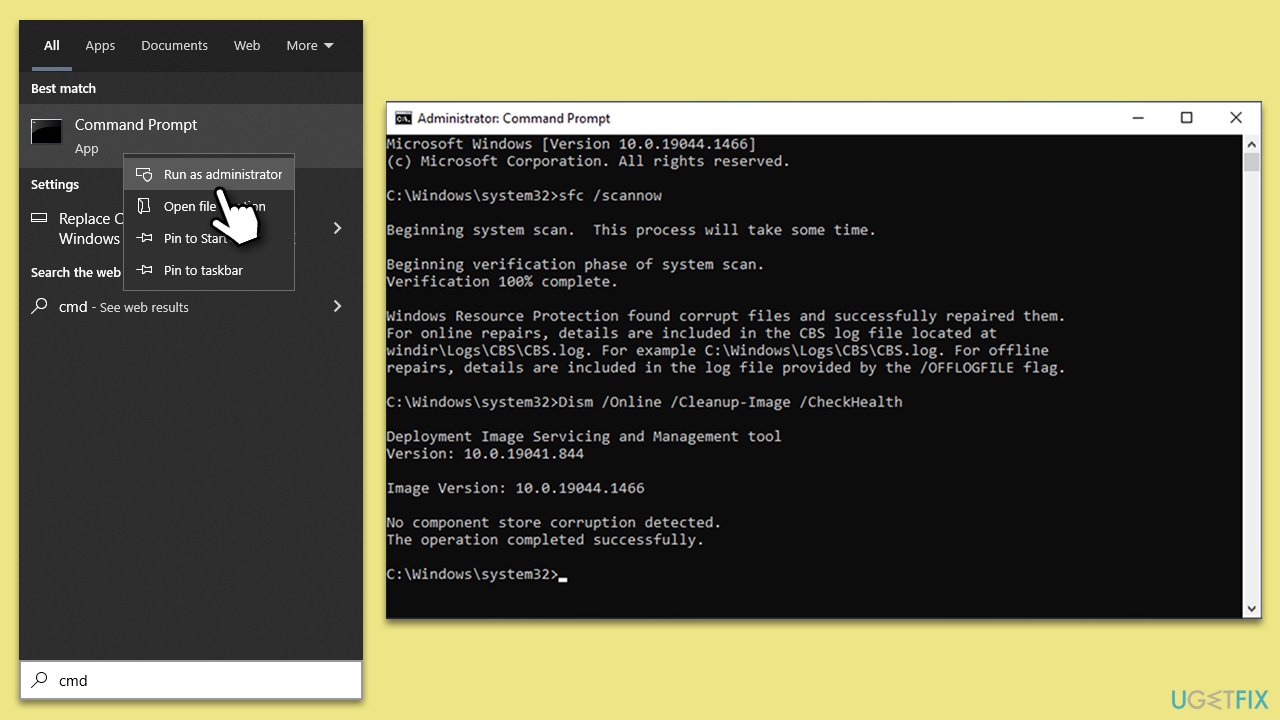
SFC and DISM are utilities in Windows that help repair system files. SFC scans for and replaces corrupt or missing system files, while DISM checks the system image and corrects inconsistencies. Using these tools can resolve issues related to system file corruption, which might be causing the hiberfil.sys BSOD.
- Type cmd in Windows search.
- Right-click on Command Prompt and pick Run as administrator.
- When User Account Control asks you whether you want to allow changes, click Yes
- Paste the following command and press Enter:
sfc /scannow - Wait till the scan is finished
- Once that is done, use the following commands, pressing Enter each time:
dism /online /cleanup-image /scanhealth
dism /online /cleanup-image /checkhealth
dism /online /cleanup-image /restorehealth - Reboot your device.
Fix 2. Update Windows
Keeping Windows up-to-date ensures you have the latest drivers and system files, which can prevent and fix various issues, including BSODs. Microsoft regularly releases updates to improve system stability and performance.
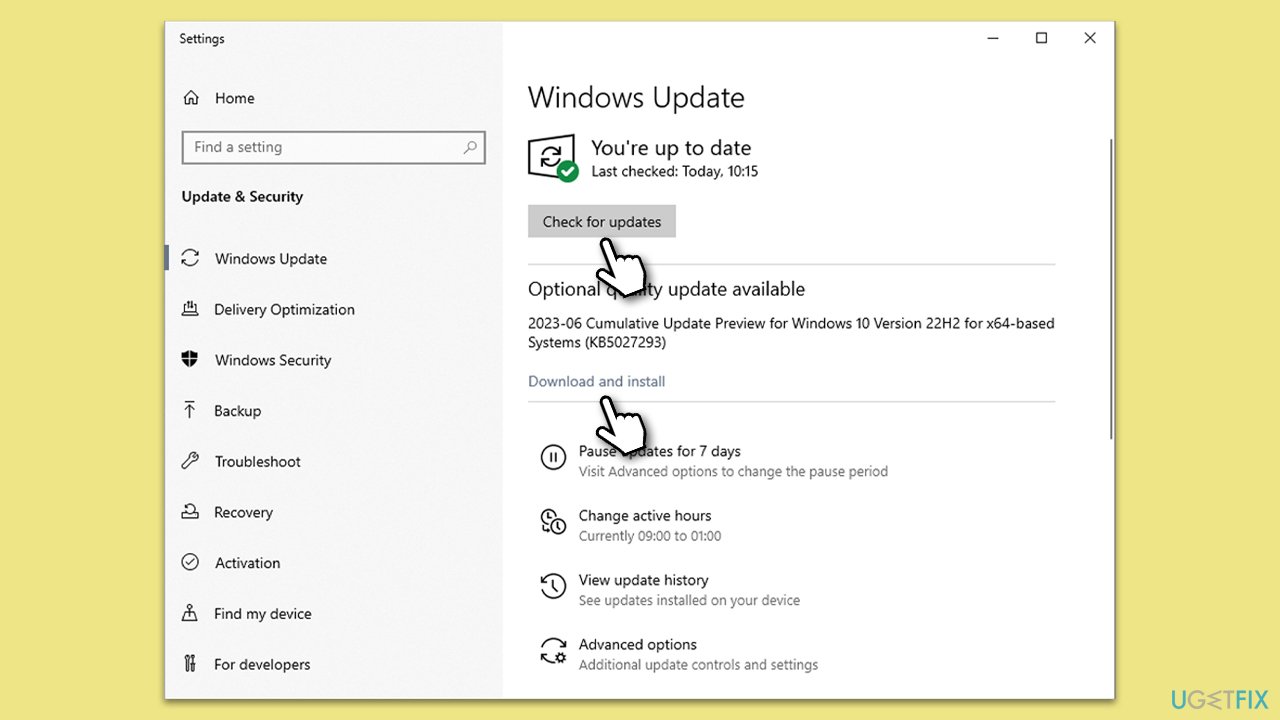
- Press Win + I on your keyboard to open Settings.
- Go to Update & Security.
- Click on Windows Update.
- Click Check for updates and install any available updates, including optional ones.
- Restart your computer after the updates are installed.
Fix 3. Check Disk space and manage hibernation settings
Insufficient disk space can lead to hiberfil.sys BSOD as the hibernation process requires adequate space to store the system state. Adjusting hibernation settings and ensuring sufficient disk space can help prevent this error.
- Check your available disk space by opening This PC and viewing the available space on your system drive (usually C:).
- If space is low, consider deleting unnecessary files or using Disk Cleanup to free up space:
- Type Disk Cleanup in Windows search and hit Enter.
- If your Windows is installed on drive C, pick it from the list (it should be by default) and press OK.
- Click Clean up system files.
- Select your main disk again and click OK.
- Here, select the largest portions of the data used - these typically include Temporary Internet Files, Windows Update, Temporary Files, Recycle Bin, Delivery Optimization Files, and others.
- Click OK - the process should be finished shortly.

- To adjust hibernation settings, open Command Prompt as an administrator.
- Type powercfg.exe /hibernate off to turn off hibernation and press Enter. This will remove the hiberfil.sys file and free up space.
- To re-enable hibernation later, type powercfg.exe /hibernate on.
Fix 4. Update Device Drivers
Outdated or corrupt drivers can cause BSODs. Updating your device drivers, especially for critical components like the graphics card and motherboard, can resolve these issues.
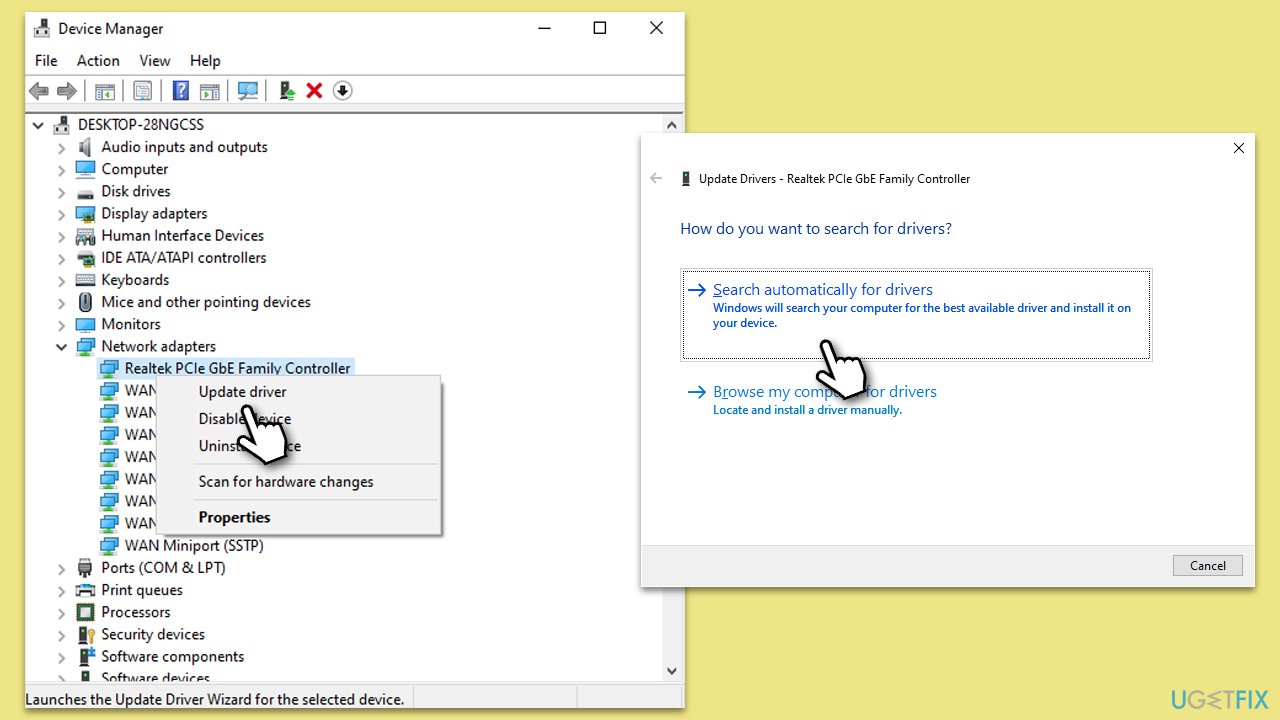
- Right-click on the Start button and select Device Manager.
- Expand the categories and look for any device with a yellow exclamation mark, indicating a driver issue.
- Right-click on the device and select Update driver.
- Choose Search automatically for drivers and follow the on-screen instructions.
- Restart your computer after updating the drivers.
- To get rid of all the driver issues automatically, we recommend employing [rev id="DriverFix"].
Fix 5. Disable Fast Startup
Fast Startup is a feature in Windows that helps your computer start faster after shutdown. However, it can sometimes lead to hibernation-related issues.
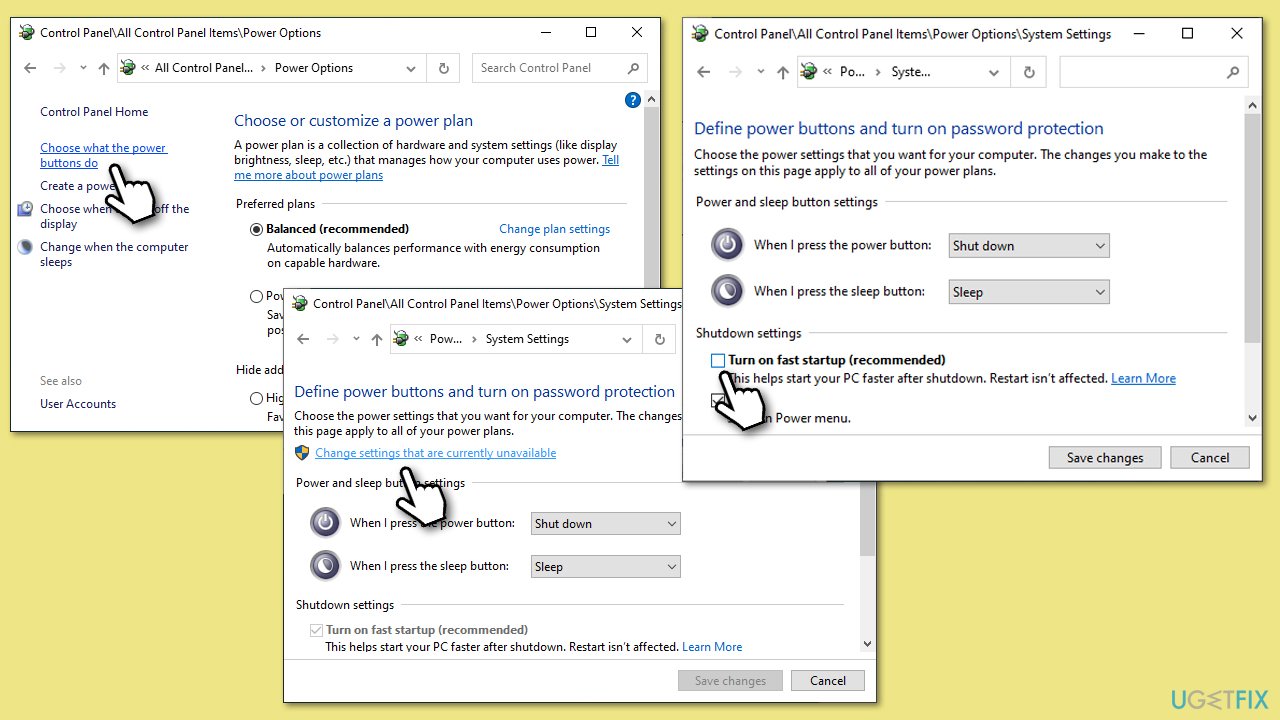
- Type Control Panel in Windows search and hit Enter.
- Select Small icons view and pick Power options.
- On the left side of the window, select Choose what the power buttons do
- Pick the Change settings that are currently unavailable option at the top
- Remove the tick from the Turn on fast startup (recommended) option and select Save changes.
Fix 6. Run Memory Diagnostic
Memory issues can often lead to BSODs. Running the Windows Memory Diagnostic tool can help identify and solve problems with your computer's memory.
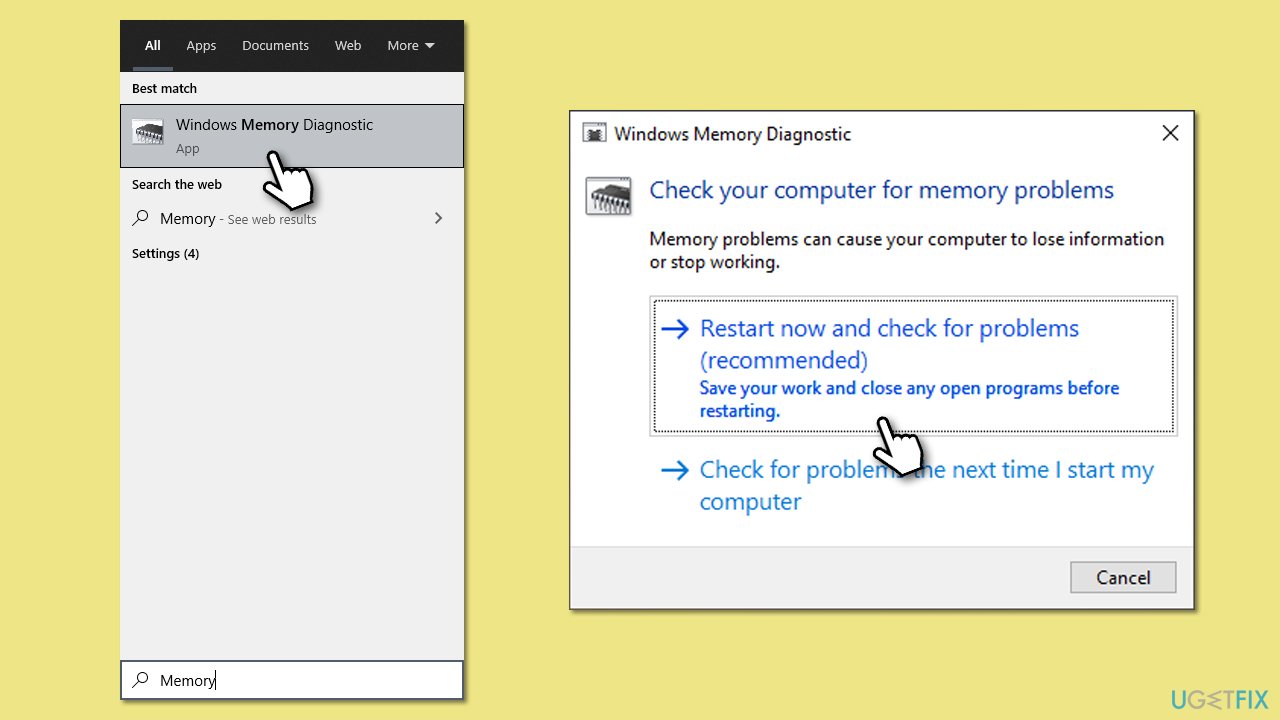
- Type Windows Memory Diagnostic into the Windows search bar and select it.
- Choose Restart now and check for problems. Your computer will restart, and the memory diagnostic will run.
- After completion, the computer will restart again, and the test results will be displayed after logging in.
Fix 7. Restore the system to the previous state
Using System Restore to revert your computer to a previous state can resolve issues that began after recent changes to the system.
- Type in Create a restore point in Windows search and hit Enter.
- Go to System Restore and click Next.
- Mark the Show more restore points option (if available).
- Pick the time when the problem did not exist and click Next.
- Finalize the process - your device will restart.

Fix 8. Perform a Clean Boot
A clean boot starts Windows with a minimal set of drivers and startup programs. This can help identify if background programs are causing the issue.
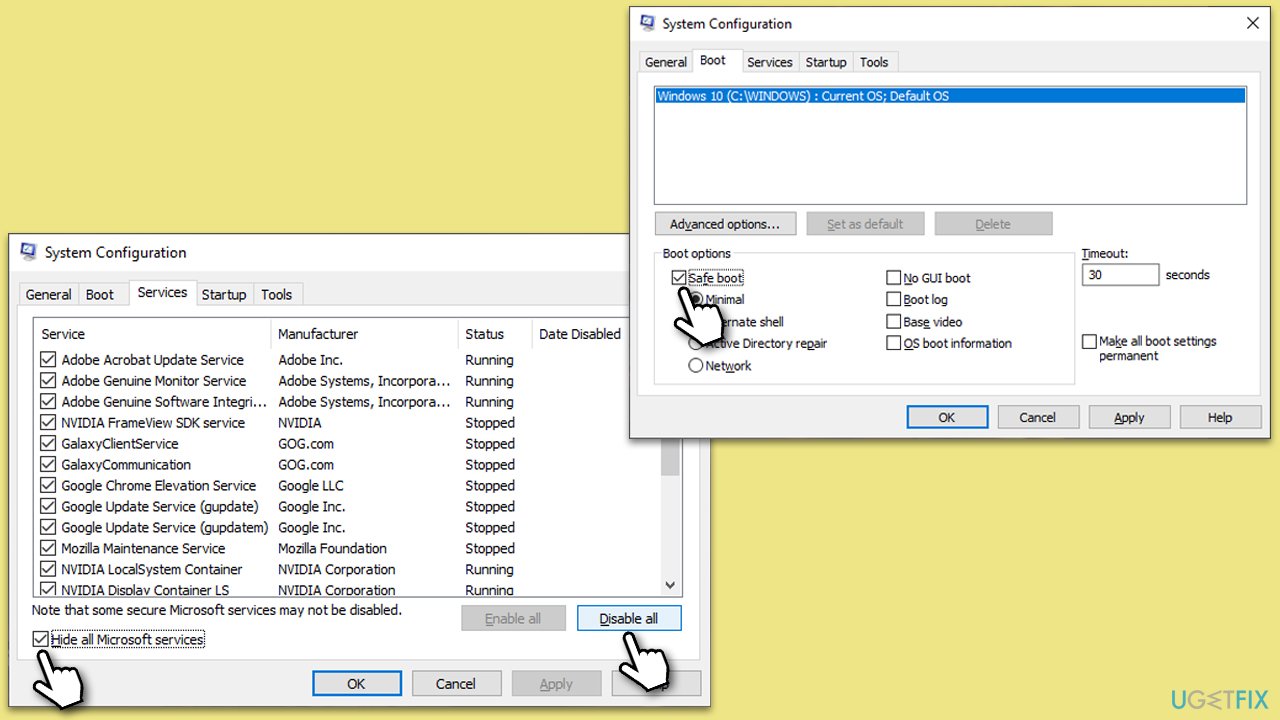
- Type msconfig in Windows search and hit Enter.
- Go to the Services tab and tick the Hide all Microsoft services checkbox.
- Select Disable all.
- Go to the Startup tab and click Open Task Manager.
- Here, right-click on each of the non-Windows entries and select Disable.
- Close down the Task Manager.
- Go to the Boot tab and tick the Safe boot option.
- Restart your computer.
- Test to see if the hiberfil.sys BSOD occurs. If it doesn't, one of the disabled items was causing the issue.
- To identify the problematic service or program, re-enable services and startup items one at a time or in small groups.
- After each change, restart your computer to check if the error reappears.
Bottom line
To fix the hiberfil.sys BSOD error, you can perform SFC and DISM scans to repair system files, check for driver updates, and ensure your system software is up to date. If these steps do not resolve the issue, consider using a reliable PC repair tool for further assistance.
Frequently asked questions
The hiberfil.sys BSOD error is typically caused by issues related to the hibernation feature, such as corrupted system files or insufficient disk space for the hibernation file.
You can disable hibernation by opening Command Prompt as an administrator and typing 'powercfg /hibernate off', which will remove the hiberfil.sys file and may resolve the BSOD issue.
Yes, if you do not use the hibernation feature, deleting hiberfil.sys is safe and can free up disk space; however, it will disable the hibernation feature until re-enabled.




Report an issue
What's wrong with this guide? We review every report and update or remove content.
Report received — thank you. We'll review and fix it.
You need a free account to submit a report.
Be the first to comment