How to fix
Hibernate mode not working
on Windows
Resolve Hibernate mode issues in Windows 10 and 11 quickly and easily. Get expert-tested solutions that leave zero traces behind.


What causes How to fix Hibernate mode not working in Windows?
- Incorrect power settings
- Outdated drivers
- Malfunctioning drivers
- Operating system problems
- Interference from third-party software or hardware
Repairs Windows system files, removes malware, and restores a clean OS state — without reinstalling.
I have a problem with the Hibernate feature. Every time I close my laptop's lid, it turns back on and continues to use the battery, becoming hot as well. Please advise on how to fix this.
Hibernate mode in Windows serves as a practical feature for users who seek to conserve power and prolong their device's battery life without losing their current work state. Instead of completely shutting down, hibernation allows the computer to save the state of your current session (all your open programs and documents) on your hard drive, enabling a quicker boot-up when you're ready to resume your tasks. This feature is incredibly valuable for users who frequently switch between work sessions or prefer to leave their devices in a low-power state without having to close and reopen their programs.
However, a common issue among Windows users is that Hibernate mode is not working as expected. For some, the computer wakes up immediately after entering Hibernate mode, causing undue battery drain and overheating issues. This problem can occur on both laptops and desktop computers, and it can be disruptive to the user's workflow and hardware health.
For others, the Hibernate mode functions abnormally, shutting down the computer entirely instead of merely entering a low-power state. This incorrect functioning causes inconvenience, as all the current work sessions close, forcing the user to reopen programs and files upon startup, negating the primary benefit of Hibernate mode.
These issues are generally caused by a range of factors, including incorrect power settings, outdated or malfunctioning drivers, and underlying operating system problems. Without proper system configuration or updates, the Hibernate mode may not perform optimally, leading to the aforementioned issues. It's also possible that certain third-party software or hardware is interfering with the Hibernate function.
Fortunately, most of these problems can be addressed with the right troubleshooting methods. Detailed instructions on how to correct these hibernate mode issues can be found below. One such effective solution involves using a PC repair tool like [d1].
This app is designed to identify and rectify underlying Windows issues that may be causing the Hibernate mode to malfunction. A comprehensive system scan with this tool can significantly improve your system's performance and restore the efficient functionality of features like Hibernate mode.
Fix 1. Run Power troubleshooter
Windows comes with a built-in troubleshooter which can identify and fix issues with power management.
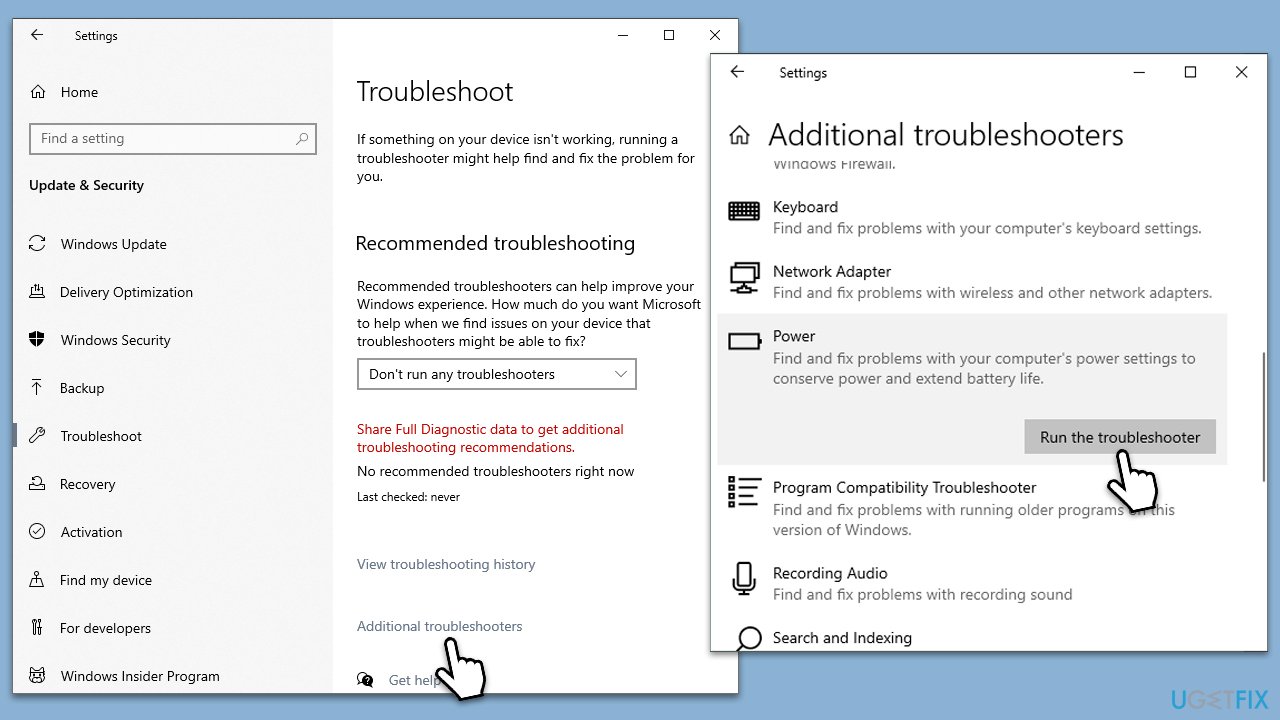
- Type Troubleshoot in Windows search and press Enter.
- Select Additional troubleshooters (or Other trouble-shooters in Windows 11).
- Find the Power section and click Run the troubleshooter/Run.
- Wait till the scan is finished, apply the suggested fixes, and restart your device.
Fix 2. Check for driver updates
Outdated or corrupt drivers can cause your Hibernate mode to malfunction. Updating your drivers might resolve this issue.
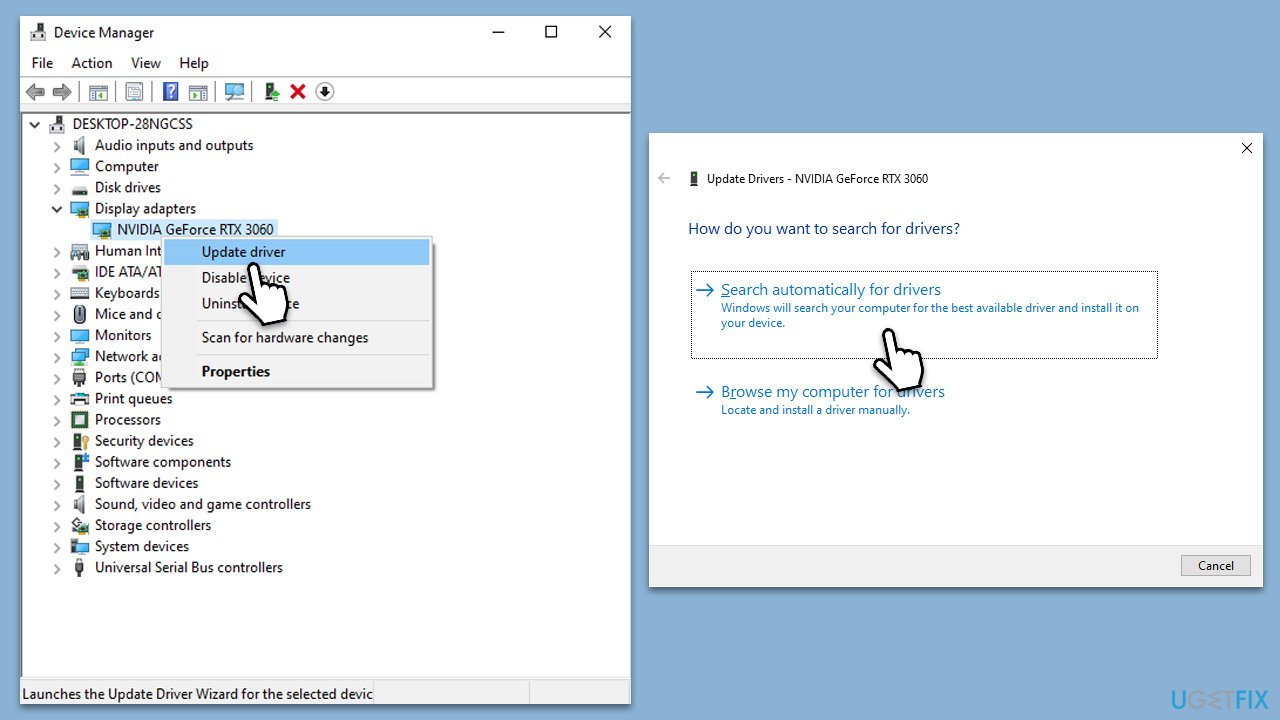
- Open Device Manager.
- Expand each category and look for any device with a yellow exclamation mark.
- Right-click on each flagged device and select Update driver.
- Choose Search automatically for drivers.
- Restart your computer after all drivers have been updated.
Unfortunately, Windows is not always reliable at finding the latest drivers for your system. Therefore, you should either visit each of the hardware manufacturer's websites and download the updates from there or use [rev id="DriverFix"] for a hands-off approach - it will download and install all the missing or outdated drivers for you.
Fix 3. Install all Windows updates
Windows releases regular updates to improve system performance and fix known issues. If you haven't updated your system recently, doing so might solve the Hibernate mode not working.
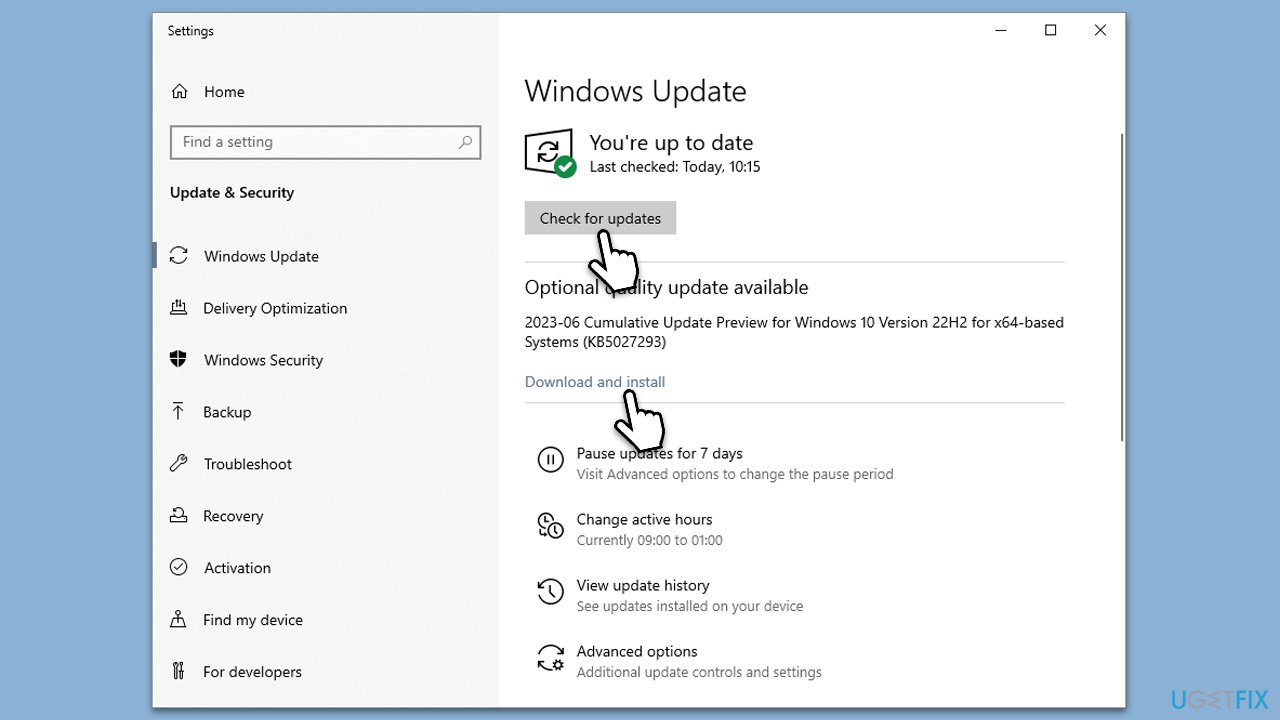
- In Windows search, type Updates and press Enter (alternatively, click on Start and pick Settings).
- In the new window, click Check for updates and wait till all the files are downloaded.
- If optional updates are available, install them as well.
- Once done, reboot your system.
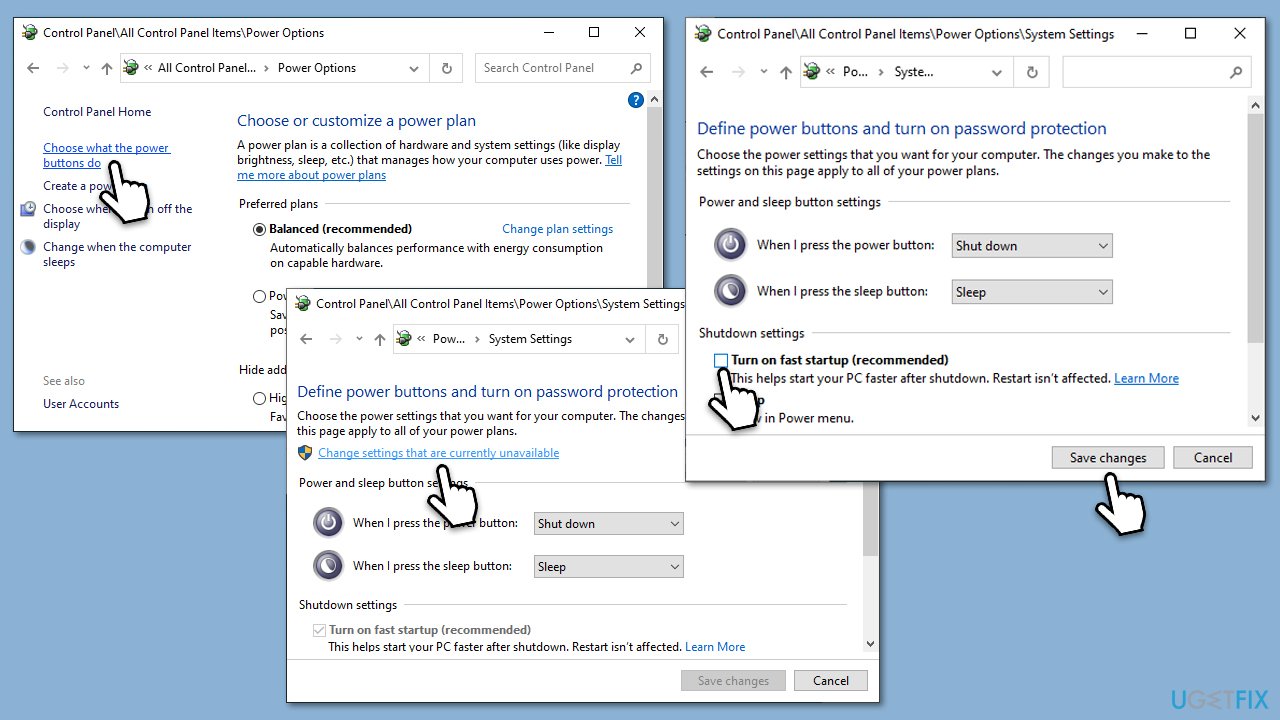
Fix 4. Disable fast startup
Fast startup is a Windows feature designed to reduce the time it takes for your computer to boot up. However, it can sometimes conflict with the Hibernate mode. Disabling it might solve the problem.
- Open Control Panel and go to Power Options.
- Click on Choose what the power buttons do.
- Click on Change settings that are currently unavailable.
- Remove the Turn on fast startup checkmark.
- Click Save changes.
Fix 5. Repair system files
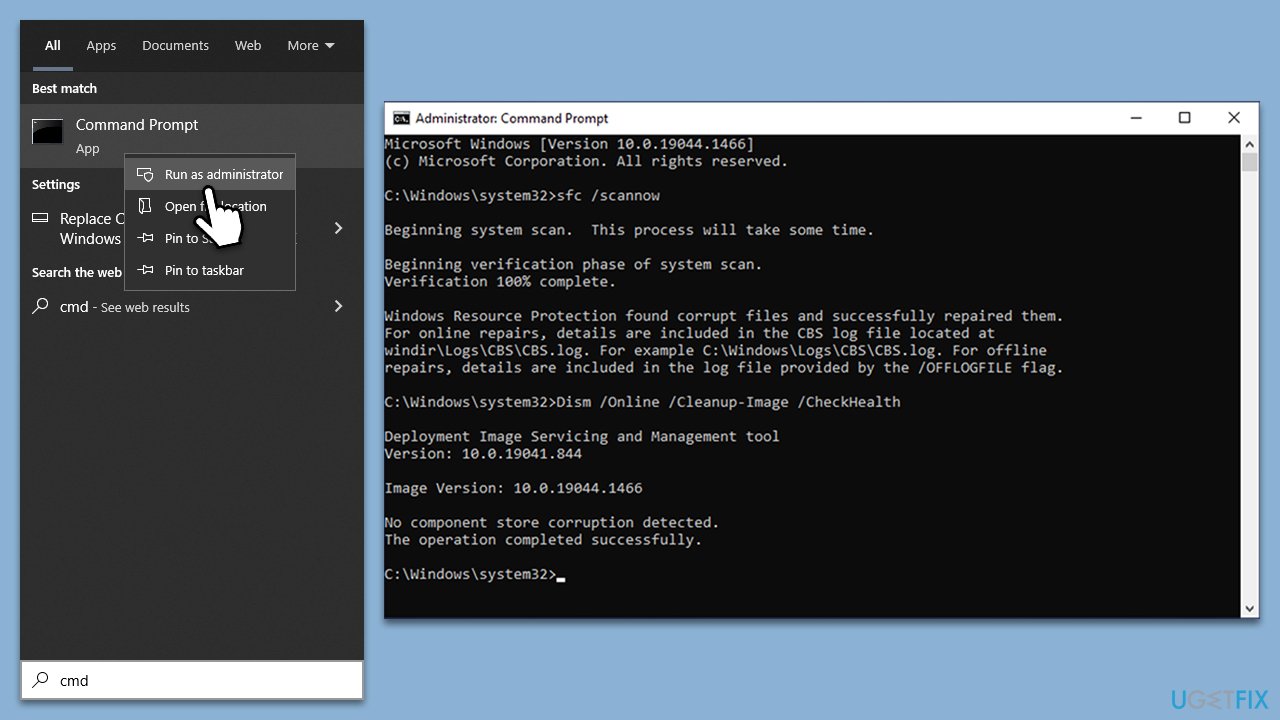
SFC and DISM are built-in Windows utilities used to repair system files and Windows images, respectively. Running these commands can potentially fix issues preventing the Hibernate mode from working correctly.
- Type cmd in Windows search.
- Right-click on the Command Prompt result and select Run as administrator.
- UAC (User Account Control) will ask whether you want to allow changes - click Yes.
- Next, type in the following command and press Enter:
sfc /scannow - When done, run the following commands as well:
dism /online /cleanup-image /scanhealth
dism /online /cleanup-image /checkhealth
dism /online /cleanup-image /restorehealth - Close down the Command Prompt and restart your computer.
Fix 6. Reset your Power plan
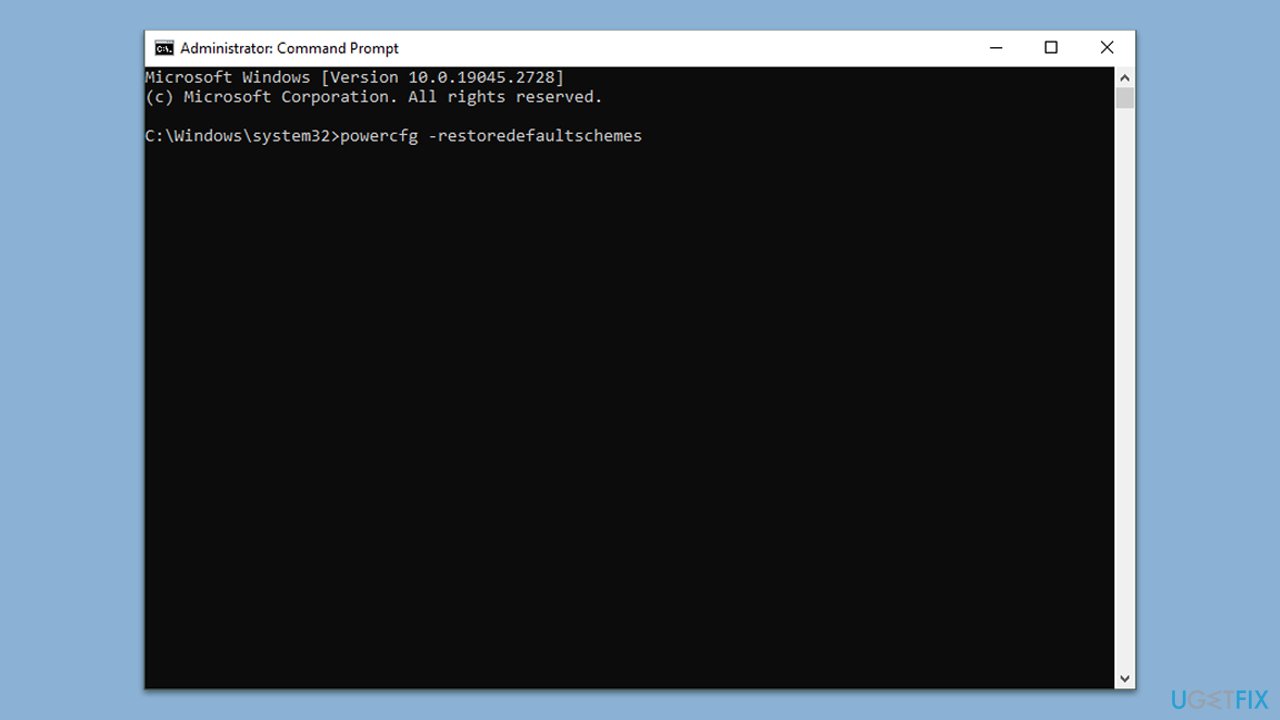
- Run Command Prompt as administrator.
- In the Command Prompt window, copy and paste the following:
powercfg -restoredefaultschemes - Close down everything and restart your computer.
Fix 7. Modify BIOS settings
Some BIOS settings, including Hibernate mode, can interfere with Windows' power management features.
- Restart your computer and press the designated key to enter BIOS (commonly F2, F10, Del, or Esc).
- Navigate to Power Management or a similarly named category.
- Look for settings related to Wake on LAN or Power on by PCI device and disable them.
- Save changes and exit BIOS.
Bottom line
To fix Hibernate mode not working in Windows, users can adjust power settings, update drivers, and check for software conflicts. If these solutions do not resolve the issue, consider using a PC repair tool to identify and rectify underlying problems.
Frequently asked questions
Hibernate mode may not be enabled by default in Windows 10 or Windows 11. You can enable it through the Command Prompt by running 'powercfg /hibernate on'.
If Hibernate is grayed out, ensure that it's enabled in the Control Panel under Power Options, and check if the fast startup feature is disabling it.
If Hibernate stops working after an update, try running the Power Troubleshooter from Settings or checking for any driver updates that may affect power settings.




Report an issue
What's wrong with this guide? We review every report and update or remove content.
Report received — thank you. We'll review and fix it.
You need a free account to submit a report.
Be the first to comment