How to fix
High CPU Usage by Audio Device Graph Isolation (AudioDG.exe)
on Windows
Resolve high CPU usage from Audio Device Graph Isolation on Windows 10 and 11 effortlessly. Expert-tested solutions for quick fixes!

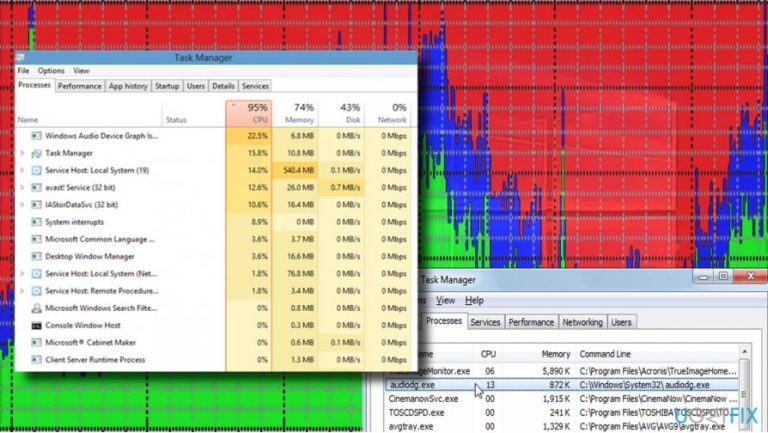
What causes How to Fix High CPU Usage by Audio Device Graph Isolation (AudioDG.exe)?
- Corrupted AudioDG.exe file due to virus
- Corrupted AudioDG.exe file due to spyware
- Corrupted AudioDG.exe file due to worms
- Corrupted AudioDG.exe file due to other cyber threats
- Corrupted AudioDG.exe file due to Windows Updates installation process
Repairs Windows system files, removes malware, and restores a clean OS state — without reinstalling.
Audiodg.exe keeps crashing and using more than 40% CPU. Sometimes CPU usage reaches 80%, so PC becomes a real lag. What can I do to fix that?
AudioDG.exe or Windows Audio Device Graph Isolation[ref en-1] is an executable file, which is a part of the Windows audio engine. Windows 7, 8, 8.1, and 10 has this file installed by default and its process is set to run on Windows Startup automatically. Therefore, both audiodg.exe and Windows Audio Device Graph Isolation processes can be found running on Task Manager any time unless forcefully disabled.
Since AudioDG.exe is responsible for controlling the sound enhancement process and providing the advanced audio effects, the proper performance of this file and the entire Windows audio engine is extremely important to perform various activities that require sounds on Windows devices.
The problem is that the audio engine often fails to work. Many people reported a high CPU usage by AudioDG.exe, while the others experience common crashes of this file. Both ways the system gets sluggish and unresponsive, but that’s not the worst part.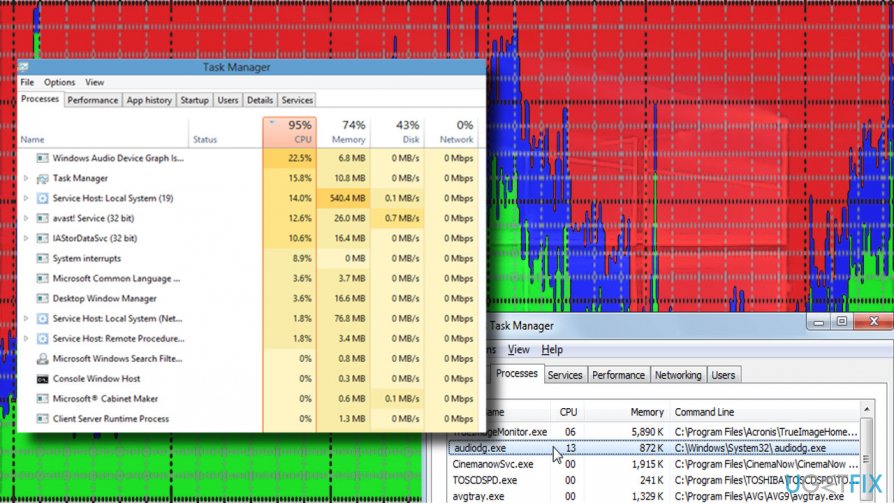
The Windows Audio Device Graph Isolation error may result in low-quality or no sounds problem while watching videos, listening for music or having Skype conversation. Thus, if you have started experiencing any sound problems and found high CPU usage by Windows Audio Device Graph Isolation or AudioDG.exe, you should immediately address Windows audio engine.
A Guide on How to Fix AudioDG.exe Error on Windows
The AudioDG.exe file is usually corrupted either by virus, spyware,[ref en-2] worms,[ref en-3] and other cyber threats or Windows Updates. It’s important to stress the fact that not the update itself can corrupt the file, but rather its installation process. Anyway, if you noticed high CPU consumption by AudioDG.exe, please try the following methods:
Fix 1. Check the location of AudioDG.exe file
The default location of the AudioDG.exe file is the C:\\Windows\\System32 folder. Normally, its location should not be changed. However, virus, spyware, worm, and other serious computer infections are capable of removing the original AudioDG.exe file and placing the counterfeit file in another folder.
- To check that, open Task Manager (Ctrl + Alt + Del).
- Find the Windows Audio Device Graph Isolation entry or AudioDG.exe process and right-click on it.
- Select open File location and check the location path at the top of the window.
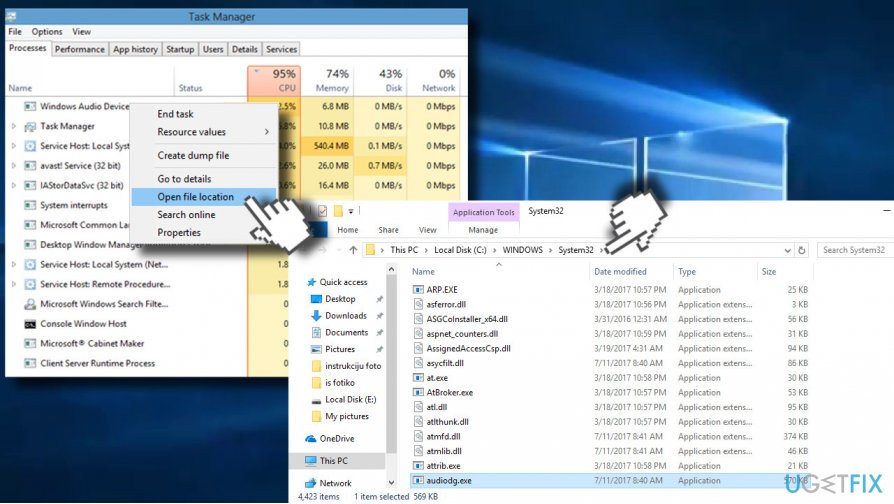
Check files location
If the file is saved in the C:\\Windows\\System32, then it’s not a virus and antivirus scan is not necessary. Otherwise, you should immediately scan your PC with a professional anti-malware. Our recommendation would be [d1].
You can also run a scan with Microsoft Safety Scanner.[ref en-4] Download the tool by clicking on this link and run a full system scan. Microsoft Safety Scanner is not a long-term protection tool. It expires in 10 days after its being downloaded, so make sure to have an alternative security tool later on.
Fix 2. Reinstall Audio Driver
The AudioDG.exe error is frequently triggered by outdated or corrupted Audio driver. According to people’s reports, the Realtek ALC3266 Audio Driver is most frequently affected.
In this particular case, people may encounter NAHIMICV3apo.dll is missing or Error Code 0xc0000005 and similar notifications.
- First of all, you should navigate to the official website of your audio driver and download the latest version of the driver.
- After that, right-click on Windows key and select Device Manager.
- Expand Sound, video and game controllers section.
- Right-click o the sound card device and select Uninstall.
- On the UAC pop-up, check the box next to Delete the driver software for this device.
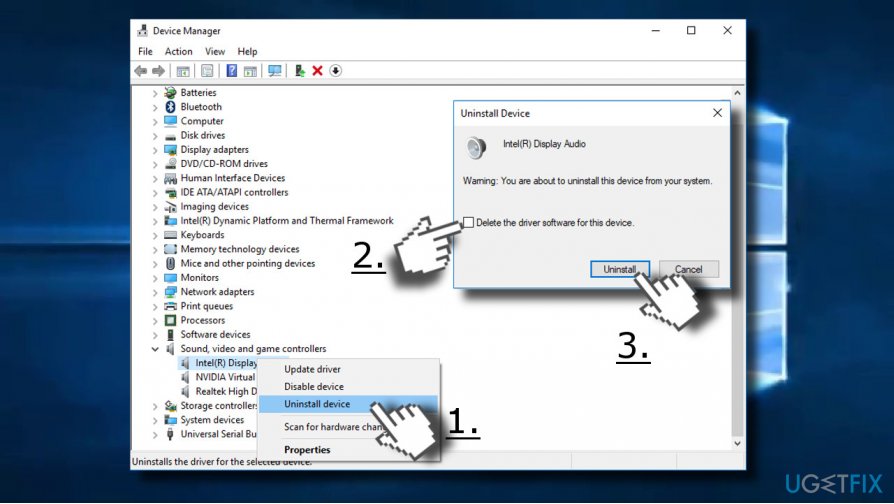
Uninstall device driver - Click OK and reboot.
- When Windows fully loads, open the Download folder and locate the downloaded audio drivers installer.
- Right-click on it and select Run as Administrator.
- Once installed, reboot your PC again.
Fix 3. Turn Off Sound Effects
The last solution to fix high CPU by Windows Audio Device Graph Isolation or AudioDG.exe crashes, try disabling all sound effects:
- Right-click on the Speakers icon positioned in the System Tray.
- Select Playback devices.
- Under Playback tab, find Speakers and right-click on it.
- Select Properties and open Enhancements tab.
- Check the box next to Disable all sound effects.
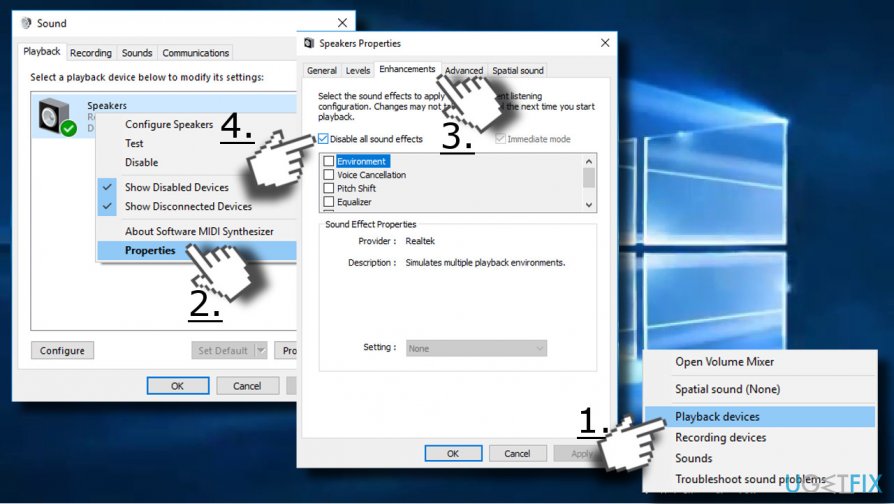
Disable sound effects - Finally, click OK to save the changes.
Bottom line
To fix high CPU usage by AudioDG.exe, check the location of the AudioDG.exe file to ensure it is in the default C:\Windows\System32 folder. If the file is corrupted, consider scanning for malware or reinstalling audio drivers. If none of these solutions work, further troubleshooting of the Windows audio engine may be necessary.
Frequently asked questions
High CPU usage by AudioDG.exe can be caused by outdated audio drivers, corrupted audio enhancements, or conflicting applications that affect audio processing.
You can update your audio drivers by going to Device Manager, right-clicking on your audio device, and selecting 'Update driver' to check for the latest updates.
Yes, you can disable audio enhancements by right-clicking the speaker icon in the taskbar, selecting 'Sounds', and under the 'Playback' tab, right-clicking your audio device, selecting 'Properties', and then unchecking 'Enable audio enhancements'.




Report an issue
What's wrong with this guide? We review every report and update or remove content.
Report received — thank you. We'll review and fix it.
You need a free account to submit a report.
Be the first to comment