How to fix
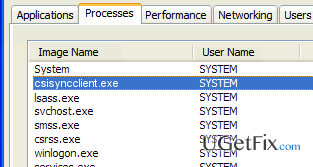
High CPU Usage by CSISYNCCLIENT.EXE Process
on Windows
Resolve high CPU usage caused by CSISYNCCLIENT.EXE on Windows 10 and 11 effortlessly. Expert-tested solutions for immediate relief and optimal performance.

What causes How to Fix High CPU Usage by CSISYNCCLIENT.EXE Process?
- Software incompatibility
- Virus
- Malware
- Corruption of registry entries
- Cache issues
Repairs Windows system files, removes malware, and restores a clean OS state — without reinstalling.
Hi. I suppose that’s not a big problem, but I’ve noticed a file CSISYNCCLIENT.EXE taking up lots of CPU. As far as I know, high CPU usage negatively affects OS’s performance, so please tell me if it’s possible to minimize the CPU usage by this process? Thanks in advance!
CSISYNCCLIENT.EXE is a non-system process that belongs to the Microsoft Office. This process is also known as the Microsoft Office Document Cache Sync Client Interface. In fact, it’s a random process, which is not special in any way, but we have included it into our database due to the fact that quite a lot of people found it sucking up CPU resources. While the normal CPU resource utilization is about 0.0008% including foreground and background operations, sometimes people find it using more than 50% of CPU. That’s NOT normal, of course. Unfortunately, but it’s not clear what issues prompt CSISYNCCLIENT.EXE high CPU usage. We can only speculate that this issue may be triggered by software incompatibility, virus, malware, corruption of registry entries, and similar things. Nevertheless, it’s obvious that due to the CSISYNCCLIENT.EXE CPU consumption system’s performance decreases significantly, which is why Windows startup and log off may take lots of time, software can load in a very sluggish manner, web browser may continuously crash, and so on. That’s why it’s very important to take actions and to fix CSISYNCCLIENT.EXE high CPU usage ASAP.
How to Fix High CPU Usage by CSISYNCCLIENT.EXE Process?
When any system error occurs, we would highly recommend checking the system with a reliable PC optimization tool at first. Such programs are powerful enough to fix issues like registry errors, corrupted files, cache, malware infection, etc. that are known for being error triggers. Therefore, If you have noticed that CSISYNCCLIENT.EXE eats up system’s resources, run a scan with [d1].
Another simple step that you can take to fix high CPU usage by CSISYNCCLIENT.EXE is a complete system scan with a professional anti-malware. Very often such and similar processes are exploited by serious viruses, which cover themselves by system and non-system files to prevent easy recognition. Thus, if CSISYNCCLIENT.EXE process seems suspicious to you, run a full system scan with a professional anti-malware. Preferably NOT third-party one.
If these steps did not help, then there are two fixes that have helped people to fix this issue manually.
Fix 1. Install Windows Updates
- Navigate to Settings App – Select Updates & Security – Windows Updates.
- Select Check for Updates option and wait until the system scans for available options.
- As soon as you get the list with all Windows updates that you are recommended installing, click Run the Updates.
- After all updates are installed, reboot your PC.
Fix 2. Restore the system
NOTE: You can only use System Restore point if you have created it before. Typically, System Restore point is created when the system shows its best performance and, of course, is error-free. Therefore, if you have set the point some time ago, you can get back to that point by performing the following steps:
- Click Win key, type Create a Restore Point, and press Enter.
- Click on the search results and select System Protection.
- After that, select System Restore and click Next.
- Now you should see the list of created system restore points. If you have created some points before, select the latest one, and click Next.
- Finally, click Finish and let the system to restore.
Bottom line
To fix high CPU usage by CSISYNCCLIENT.EXE, it is recommended to run a scan with a reliable PC optimization tool and perform a complete system scan with a professional anti-malware. If these steps do not resolve the issue, further investigation may be needed to identify underlying problems.
Frequently asked questions
CSISYNCCLIENT.EXE is a process related to the Microsoft OneDrive sync client that can sometimes consume high CPU resources due to synchronization issues. This can occur on Windows 10 when there are large files or many changes to sync.
To reduce CPU usage, you can pause syncing in OneDrive settings or limit the bandwidth used for uploads and downloads. Additionally, ensuring that OneDrive is updated can help resolve performance issues.
Yes, you can safely terminate the CSISYNCCLIENT.EXE process in Task Manager, but it will stop OneDrive from syncing until you restart it. If high CPU usage persists, consider troubleshooting OneDrive or reinstalling it on Windows 10 or Windows 11.




Report an issue
What's wrong with this guide? We review every report and update or remove content.
Report received — thank you. We'll review and fix it.
You need a free account to submit a report.
Be the first to comment