How to fix
High CPU usage by dwm.exe
on Windows
Struggling with high CPU usage due to dwm.exe on Windows 10? Discover effective fixes and boost your system's performance—expert-tested solutions await!


What causes How to fix high CPU usage by dwm.exe on Windows 10?
- Third-party anti-virus
- Explorer.exe process
- Problematic Windows services
- mdi264.dll service
- Graphics card drivers
Repairs Windows system files, removes malware, and restores a clean OS state — without reinstalling.
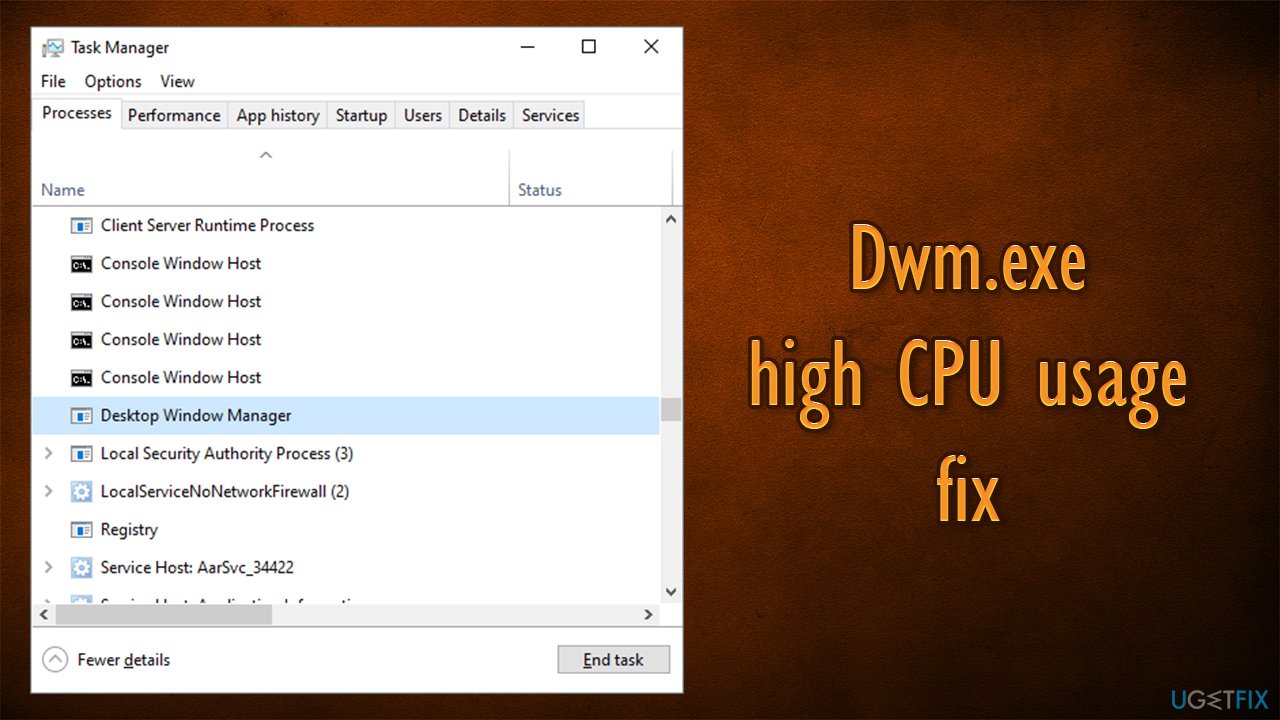
Hi, I am having some issues with CPU usage. I have recently noticed that my PC is quite a bit slower than it should be - especially when I attempt to do some tasks on it, for example, watching 4k videos. I then checked my Task Manager and noticed that Desktop Window Manager (dwm.exe) uses a lot of CPU most of the time and spikes even higher when some tasks are performed. Any tips on this?
Dwm.exe stands for Desktop Window Manager and can be found running in the background. It belongs to the desktop graphical user interface (GUI) and is responsible for handling various visual UI effects when using Windows. While initially might not seem too significant because it handles things like transparent windows or live taskbar thumbnails, it is also the reason why users can enjoy 4K or 8K[ref en-1] video and gaming.
Unfortunately, many people have reported that the dwm.exe in Task Manager uses too much CPU. The resource consumption is usually higher than 30% and changes regularly. Some people said the process usually works fine and only spikes up to over 80% CPU, spinning the fans faster and lagging or dropping the framerates when playing a video game.[ref en-2]
In other words, the high CPU usage of dwm.exe typically occurs when performing graphically-intensive tasks on a computer. Considering that the process is responsible for graphical effects, it makes sense that the resource usage spikes at times, although many people reported it does so to abnormal levels and also sits at high usage at all times.
The strange and unusual indicators raise people’s suspicions about a PC being infected with malware.[ref en-3] The problem is that system’s scan with a professional anti-virus does not show any threats. If you have noticed such activity on your system, don’t panic because the dwm.exe process is seldom related to a computer infection.
Just like any other Windows file, the dwm.exe file can go corrupt due to various reasons, the most common of which are:
- Third-party anti-virus;
- Explorer.exe process;
- Problematic Windows services;
- mdi264.dll service;
- Graphics card drivers, etc.
As always, there is no universal solution for everybody since all machines run different configurations, and reasons for errors or other PC issues can arise due to different reasons. Sometimes, these reasons are difficult to figure out, and a lot of troubleshooting needs to be done in order to fix dwm.exe high CPU usage.
Therefore, if you do not want to bother with the manual solutions below, we highly advise you to try running a scan with an automatic PC repair tool [d1]. If the reason for the error lies within Windows system file corruption, malware damage, or similar, it will eliminate the problem automatically, resolving the high CPU problem quickly.
Method 1. Malware and antivirus software checks
Malware could be one of the main reasons for issues such as high CPU usage. Thus, if you haven't done so yet, perform a full system scan to check it. You can use a third-party antivirus or employ the built-in Windows Defender:
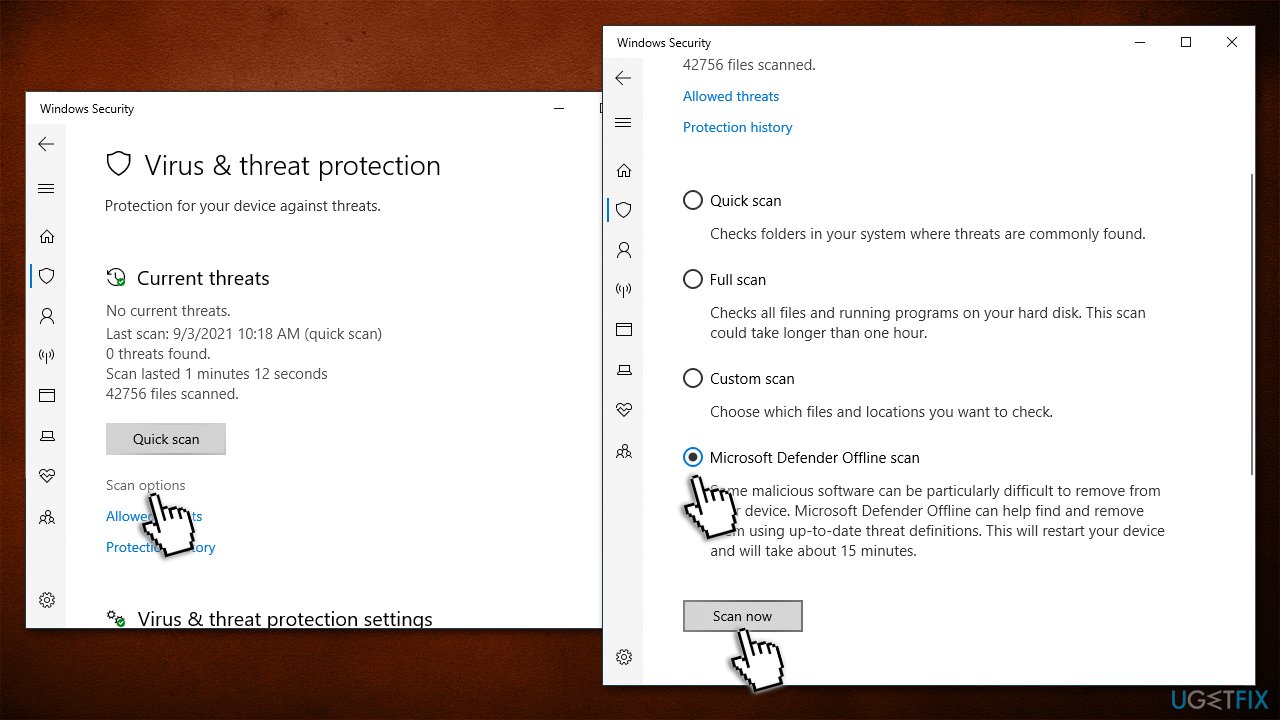
- Type Windows Security in Windows search and press Enter.
- Select Virus & threat protection and pick Scan options.
- Choose Microsoft Defender Offline scan and click Scan now.
- Your system will reboot, and a deep scan will begin.
If your scans come clean and you run a third-party security app, you should disable or uninstall it temporarily to see if the problem is gone. If it is, you should update your security app, as well as Windows, to ensure compatibility. If that doesn't help, you can either opt for a different anti-malware tool or contact the developer.
Method 2. Restart Windows Explorer process
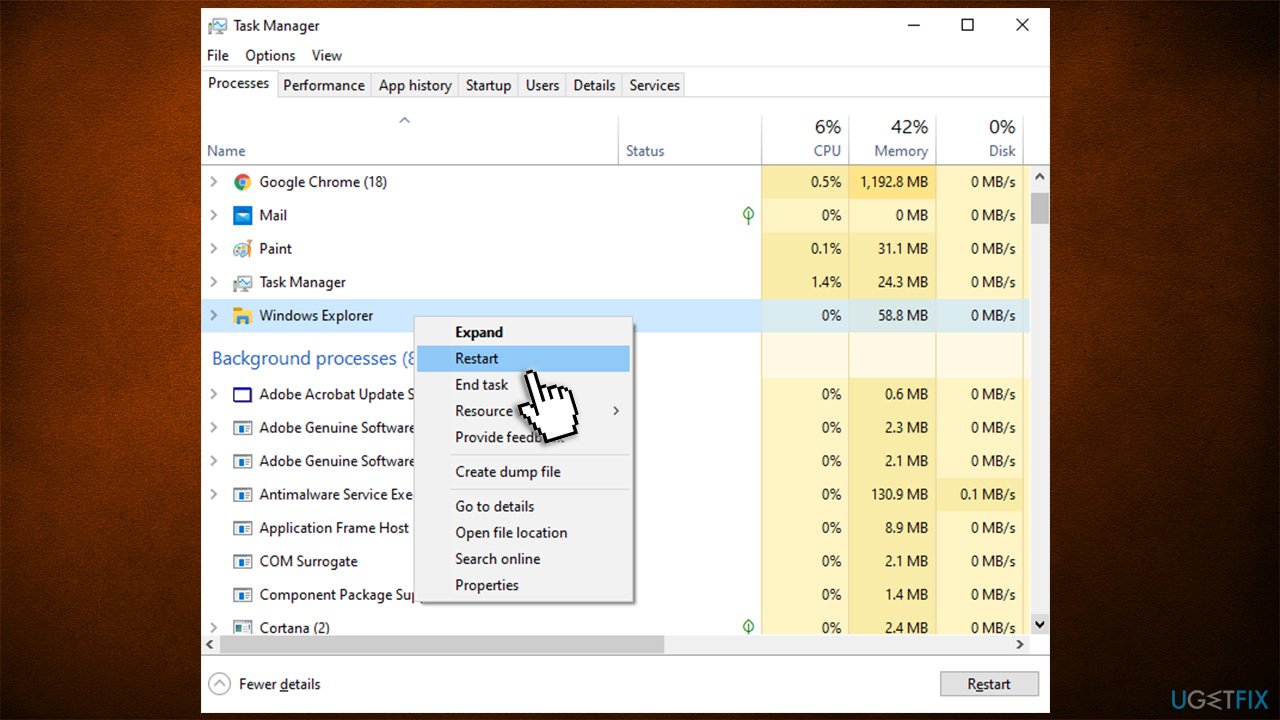
- Press Ctrl + Shift + Esc and open Task Manager.
- Press More Details.
- Right-click on Windows Explorer and select Restart.
Method 3. Check mdi264.dll
If you find the mdi264.dll file is running a process in Task Manager, it might be that it’s the culprit of the dwm.exe issues. To fix that, you should delete this file by following these steps:
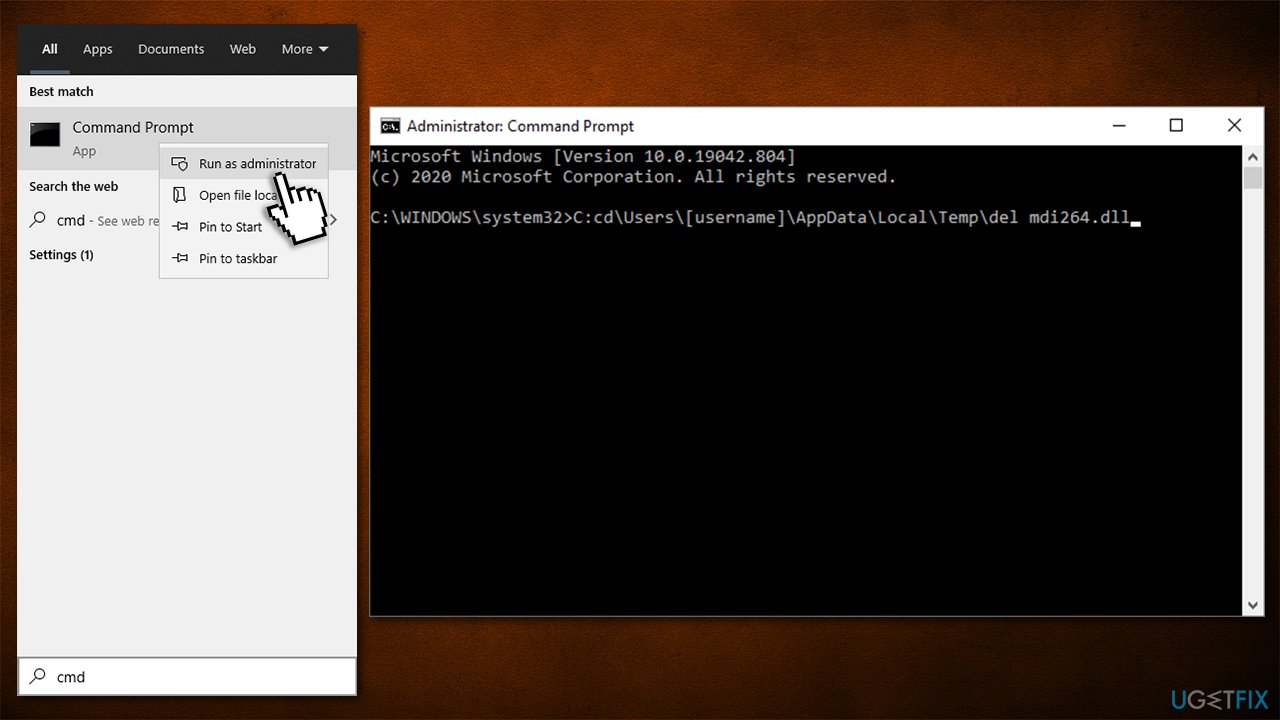
- Type in cmd in Windows search.
- Right-click on Command Prompt and select Run as administrator.
- Type the following command and press Enter after each (note: replace [username] with your particular username)
C: cd\Users\[username]\AppData\Local\Temp\ del mdi264.dll
- Once done, close everything and reboot your PC.
How to fix high cpu usage by dwm exe on windows 10 check mdi264dll process
Method 4. Perform a Clean boot
- Press Windows key and type msconfig.
- Click System Configuration and open Services tab.
- Mark Hide all Microsoft services box and select Disable all.
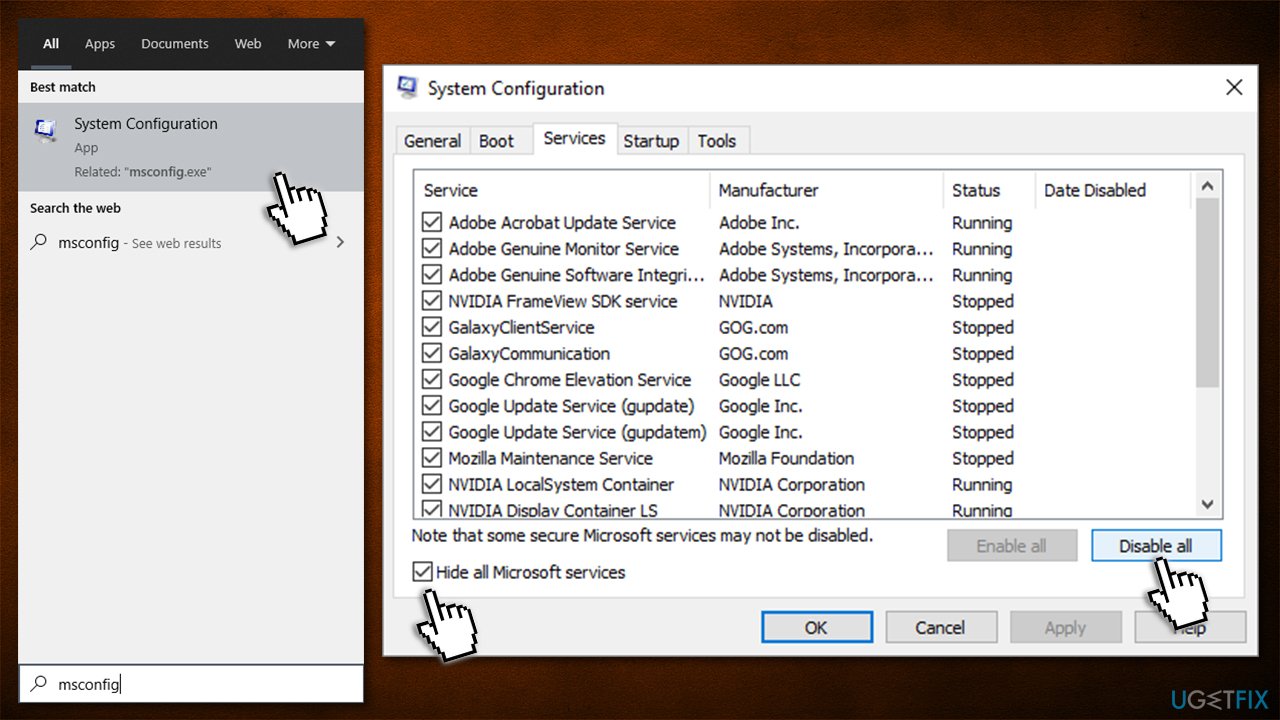
How to fix high cpu usage by dwm exe on windows 10 use clean boot - Open Startup tab and click Open Task Manager.
- Click on each startup item and select Disable.
- Close down the Task Manager
- Go to the Boot tab, select Safe boot, and click Apply and OK.
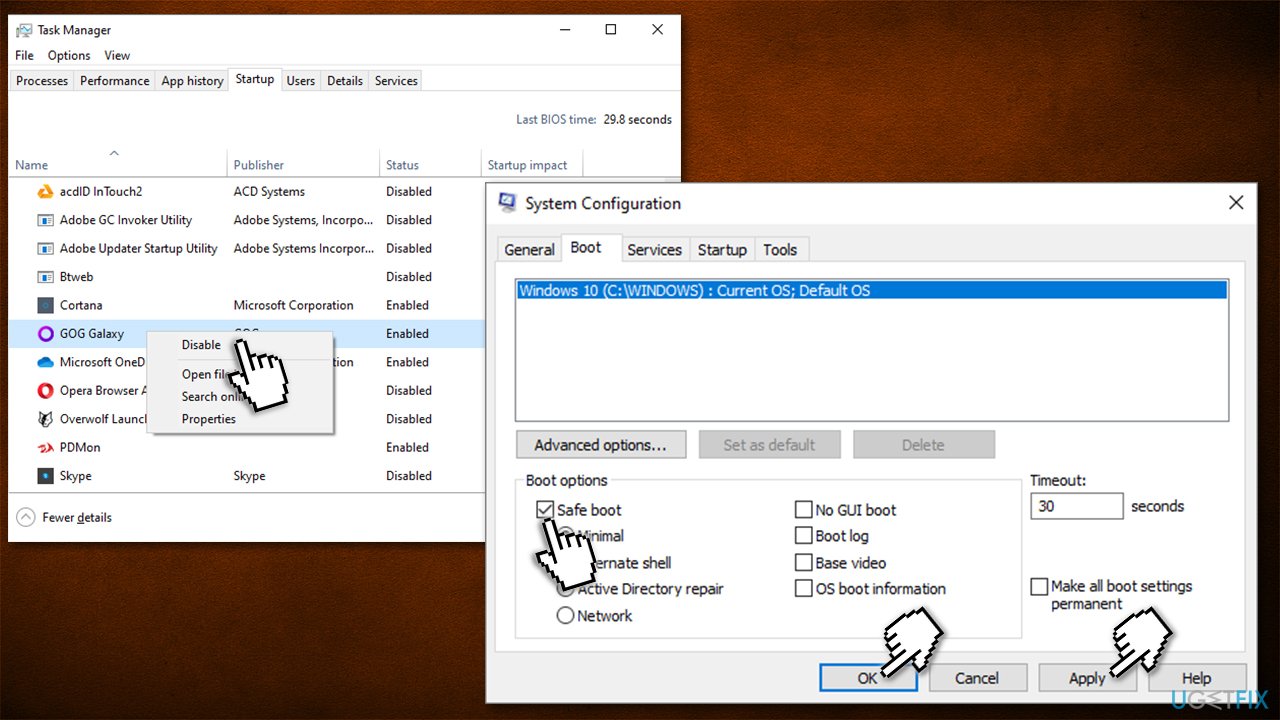
How to fix high cpu usage by dwm exe on windows 10 use clean boot2
The clean boot will help you to isolate the software or services that are triggering dwm.exe high CPU.
Method 5. Update or reinstall your GPU drivers
Sometimes the dwm.exe error occurs after upgrading system’s drivers. In this case, it might be that the new Nvidia driver’s version is not compatible with your operating system, which is why we recommend installing the earlier version.
- Press Windows key + X and select Device Manager.
- Expand Display Adapters and right-click on Nvidia driver.
- Select Update Driver and pick Search automatically for drivers.
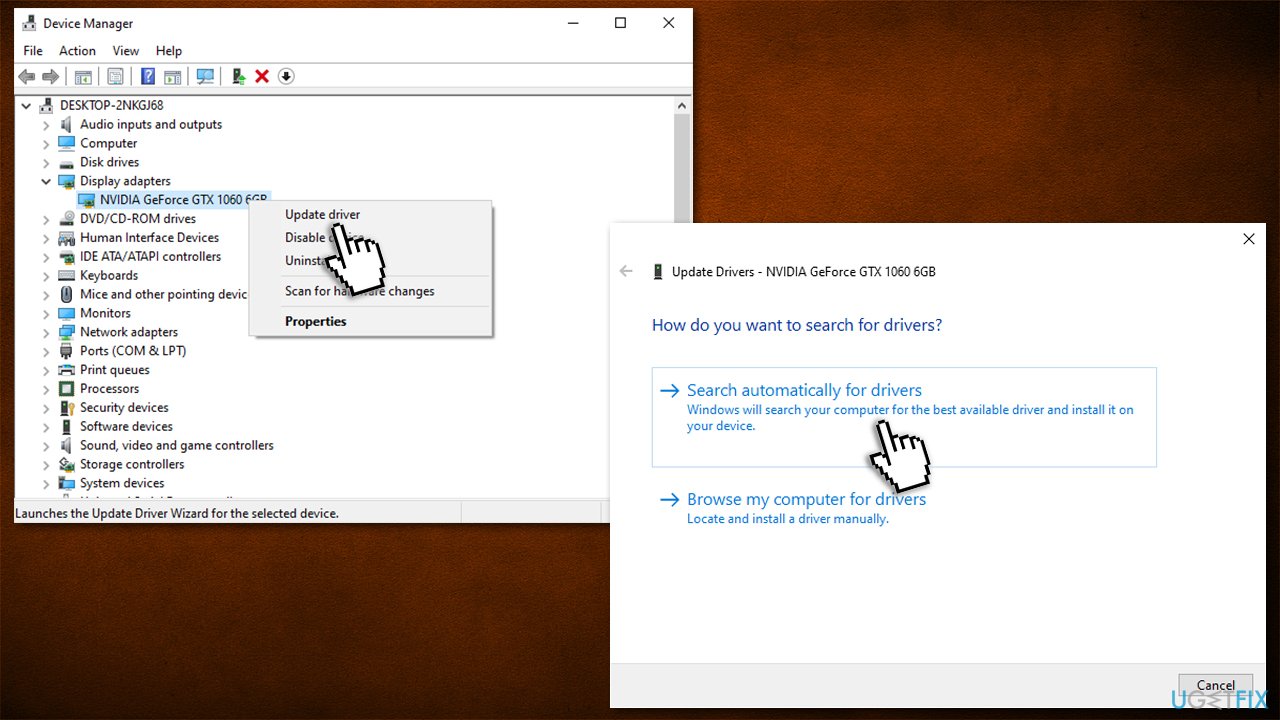
How to fix high cpu usage by dwm exe on windows 10 update gpu drivers - Wait till the drivers install and reboot.
Device Manager is by far not an optimal choice for your driver updates - especially when it comes to GPU drivers (it often fails to determine that the drivers are out of date). Thus, you should either visit the manufacturer's website and install the newest drivers based on your GPU model or instead go for an easy way and employ an automatic driver updater such as [rev id="DriverFix"]. By employing it, you will never have to worry about updating drivers again, as it will be done with a mere few clicks of a button.
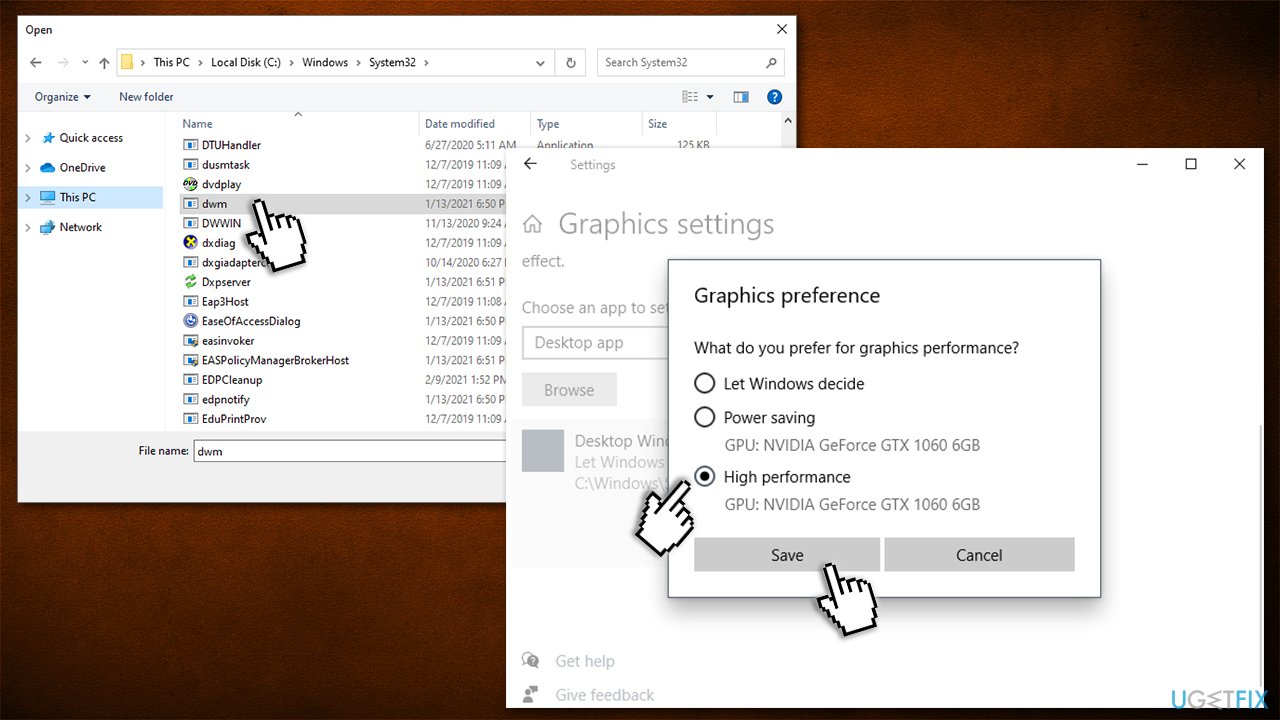
Method 6. Select High performance graphics preference
Keep in mind that the following solution can be applied for any apps that are intensive on GPU usage.
- Right-click on Start and pick Settings.
- Go to System.
- On the right side, scroll down until you find Graphics settings - click on it.
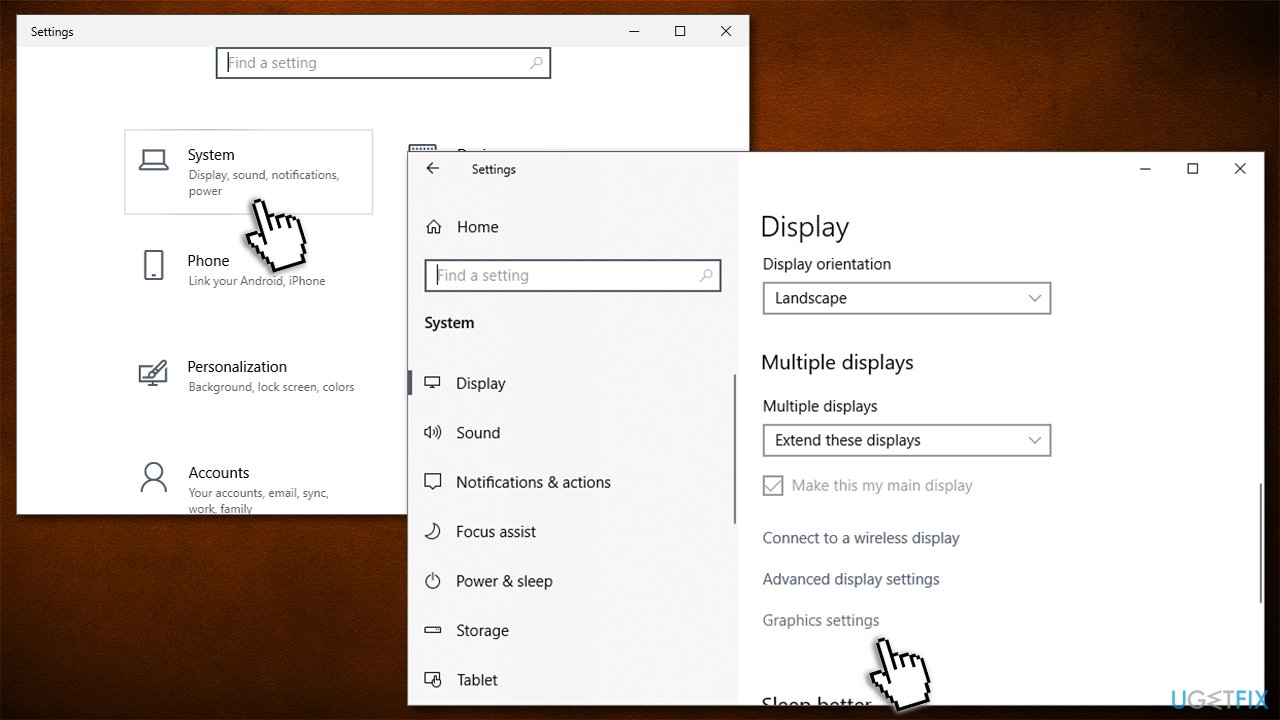
How to fix high cpu usage by dwm exe on windows 10 set high performance - Under Graphics performance preference, click on Browse and select dwm.exe from the following location:
C:\Windows\System32
- Click on Options, select High Performance and click Save.
How to fix high cpu usage by dwm exe on windows 10 set high performance2
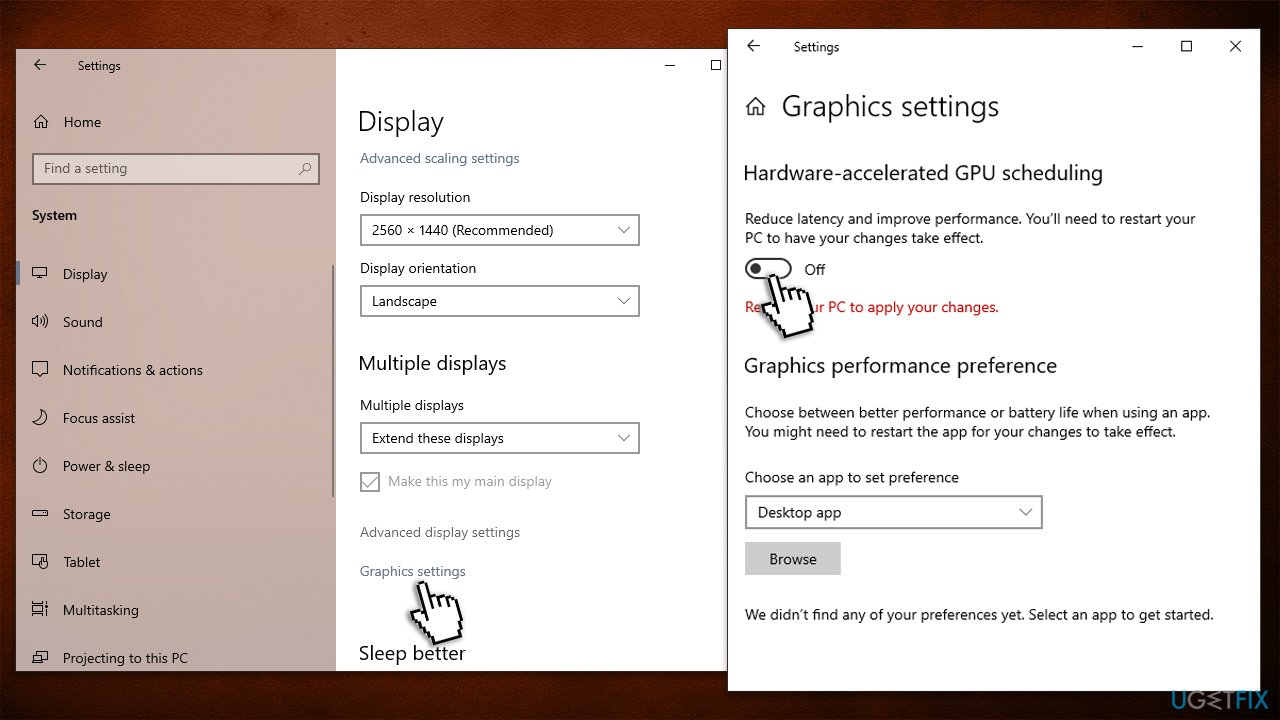
Method 7. Disable Hardware acceleration
Some users said that they managed to fix dwm.exe high CPU by disabling the Hardware acceleration feature in Windows.
- Click Start and select Settings.
- Go to the System section and pick Display.
- Under various settings in this section, click Graphics settings.
- Here, disable Hardware-accelerated GPU scheduling by toggling the switch.
- You will be prompted to restart your computer.
Method 8. Check for file corruption
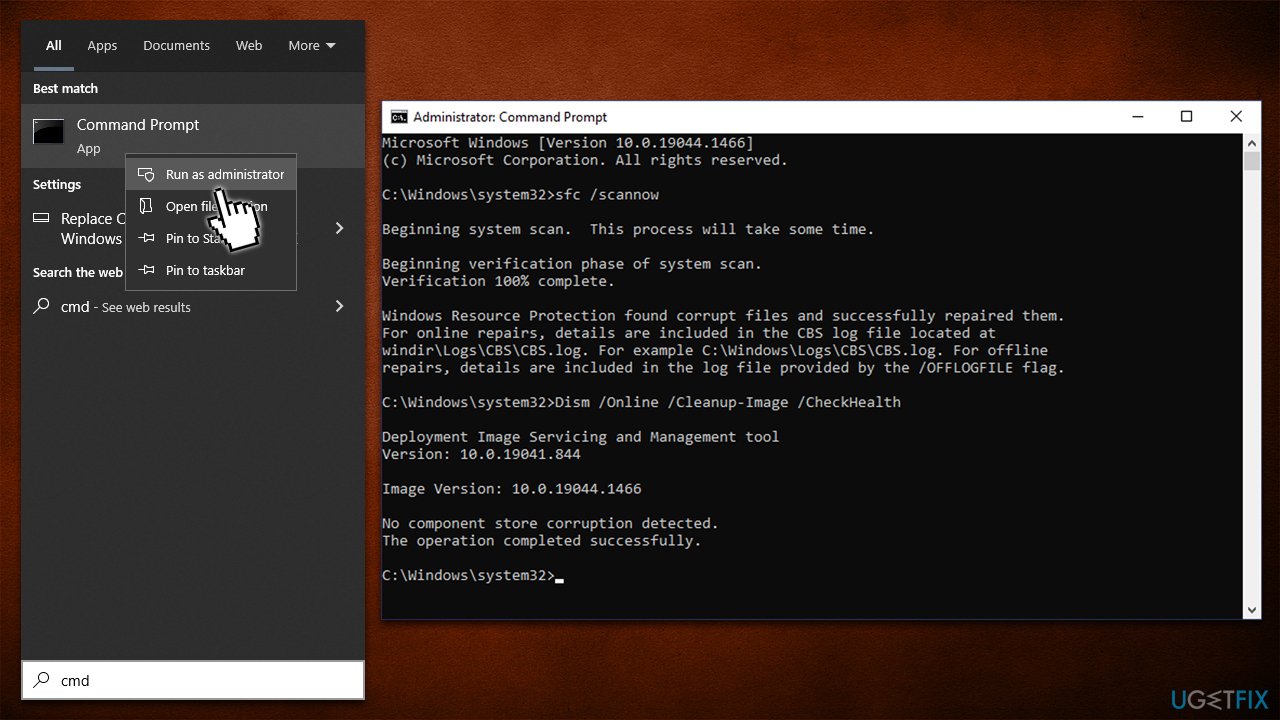
- Open Command Prompt as administrator, as previously explained.
- Use the following command and press Enter:
sfc /scannow - Next, use the following command lines, pressing Enter after each:
DISM /Online /Cleanup-Image /CheckHealth
DISM /Online /Cleanup-Image /ScanHealth
DISM /Online /Cleanup-Image /RestoreHealth - Restart your machine.
Method 9. Adjust for best performance
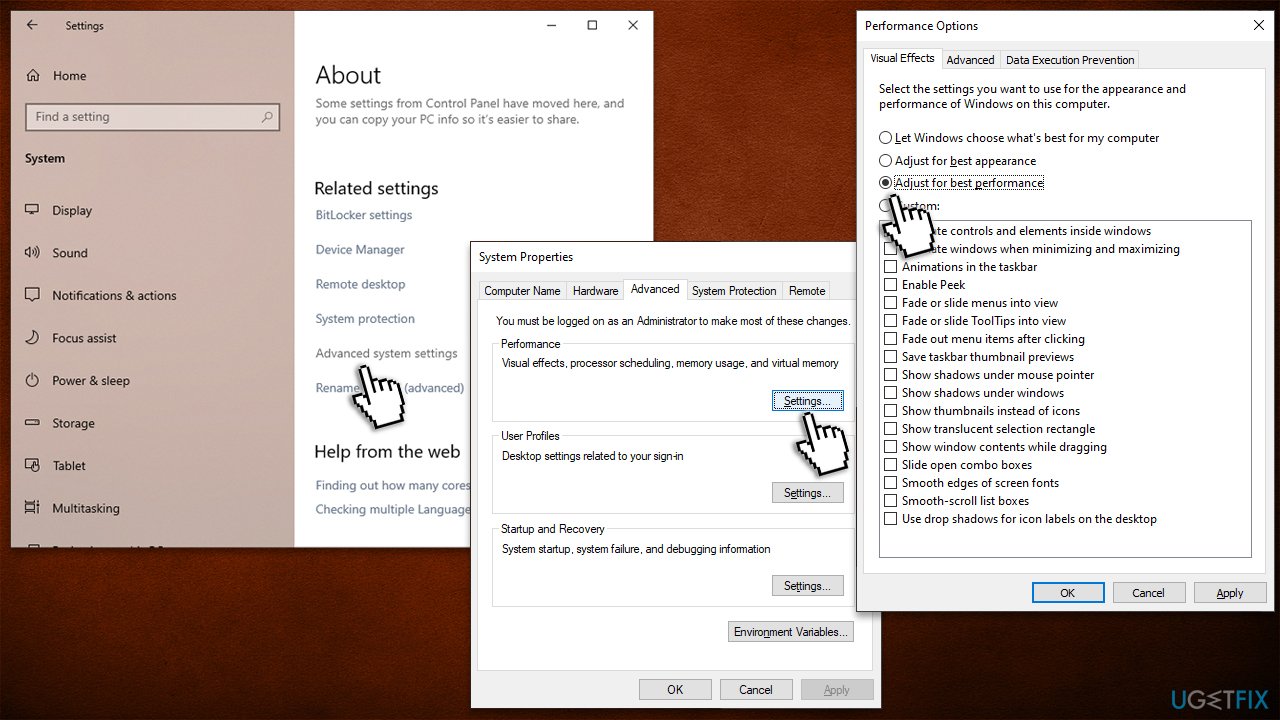
- Right-click on the Start button and select System from the menu.
- Scroll down in the right pane and click Advanced system settings.
- Click on the Advanced tab.
- In the Performance section, click Settings.
- Navigate to the Visual Effects tab.
- Choose the Adjust for best performance option.
- Click on Apply and then OK to save the changes.
Bottom line
To address high CPU usage by dwm.exe, consider updating your graphics card drivers, checking for issues with Windows services, or disabling third-party anti-virus software. If these solutions do not resolve the issue, further investigation may be necessary.
Frequently asked questions
High CPU usage by dwm.exe can be caused by outdated graphics drivers, high-resolution displays, or certain applications that heavily utilize the desktop window manager. It's important to ensure your drivers are up to date and to check for any resource-intensive software running in the background.
To reduce dwm.exe CPU usage, try updating your graphics drivers, disabling visual effects, or adjusting your display settings. You can also close unnecessary applications that may be affecting performance.
Ending the dwm.exe process is not recommended as it manages graphical effects and windows on your desktop, which could cause instability. Instead, focus on troubleshooting the underlying issues causing high CPU usage.




Report an issue
What's wrong with this guide? We review every report and update or remove content.
Report received — thank you. We'll review and fix it.
You need a free account to submit a report.
Be the first to comment