How to fix
High CPU Usage by Ravbg64.exe
on Windows
Struggling with high CPU usage from Ravbg64.exe on Windows 10 or 11? Discover effective solutions to optimize performance and boost your system's speed—…

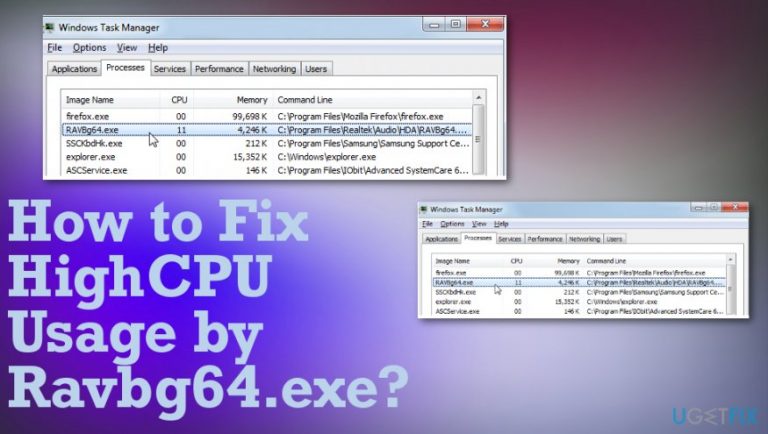
What causes How to Fix High CPU Usage by Ravbg64.exe?
- Multiple instances of ravbg64.exe running
- High CPU usage by ravbg64.exe
- Possible virus infection
- Related to Realtek HD driver or Realtek Audio programs
- Malfunction after Windows updates or important program installations
Repairs Windows system files, removes malware, and restores a clean OS state — without reinstalling.
I’ve noticed multiple ravbg64.exe instances on Task Manager. Besides, each of these processes takes up minimum of 20% of CPU. Even if the only ravbg64.exe process is run, it uses more CPU than it is supposed to (I don’t think that 40% is reasonable consumption). I ran the scan with Norton, but no virus has been found. What should I do to fix high CPU usage by ravbg64.exe?
RAVBg64.exe process is one of many background processes that cannot be noticed initially until it causes high usage of CPU on the machine. The appearance of this file on the Task Manager is worrying and additional symptoms on the machine affect the performance significantly whit interference of space and memory of the device.
Security experts have noticed people’s concern about the ravbg64.exe process expressed on various IT-related forums.[ref en-1] Windows users have accidentally noticed that this process either runs several instances or consumes a huge amount of CPU resources (sometimes up to 50%).
The fact that this process may be related to a virus infection worries people the most. In fact, system processes like ravbg64.exe are often misused by hackers to conceal malicious processes and prevent virus detection.[ref en-2]
Therefore if you have noticed other signs typical for virus infection, such as unusual error messages, slowdowns, freezes, unresponsive software, accompanied by multiple ravbg64.exe processes or high CPU usage, you can be sure that malicious file is affecting the PC. 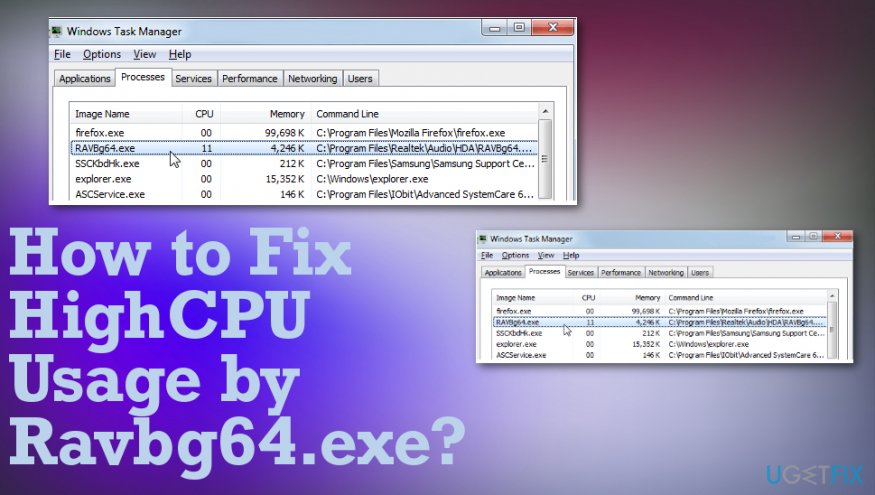
How to Fix High CPU Usage by Ravbg64.exe?
We would strongly recommend performing a thorough system scan with a professional anti-malware to find out what is the purpose of the RAVBg64.exe that is causing all the issues on the device. Try [d1]. If your anti-virus finds zero infections, it means that the culprit of the irrelevant high CPU usage by ravbg64.exe is related to Realtek HD driver or Realtek Audio programs.
Usually, this malfunction starts after the installation of Windows updates or some important programs.[ref en-3] This process is a part of the Realtek HD audio background process, meaning that it cannot be deleted or modified. Luckily, there are a couple of useful tips that may help you to optimize ravbg64.exe’s resource consumption.
Restart Realtek Audio Programs
- Press Windows key + R, type msconfig, and press Enter.
- Open Startup tab and locate Realtek.
- Find a checkbox next to Realtek startup items, check it, and select Disable all.
- Click OK to save the changes.
- After that, right-click Windows key and select Device Manager.
- Expand the Sound, video and game controllers category.
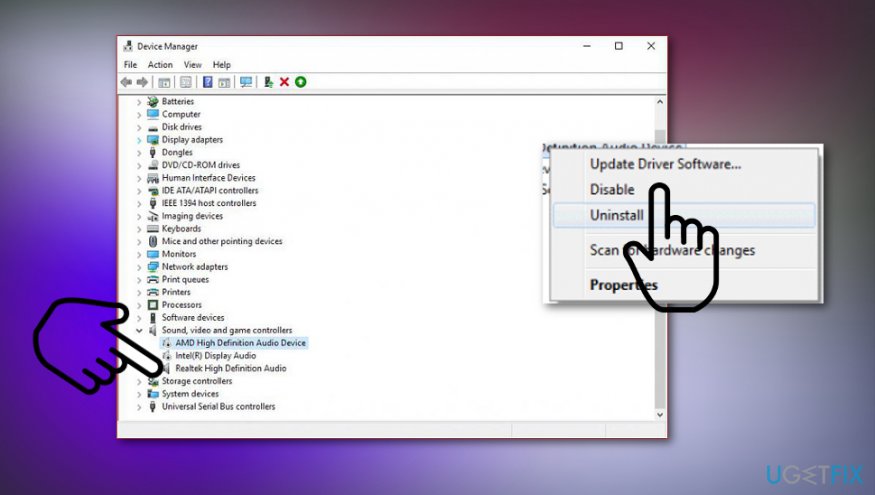
How to fix high cpu usage by ravbg64 exe drivers - Right-click on the Realtek audio device and select Disable.
- Once done, repeat the steps 1-7 to enable both Realtek startup items and Realtek audio device.
- Finally, reboot the system.
Try a simple registry hack
Before any interference to the registries, it’s advisable to backup all the registries. For that, refer to the instructions provided on the official Microsoft’s website. Then perform the following steps:
- Press Windows key + R, type regedit, and press Enter.
- Use the left pane to navigate to the HKEY_LOCAL_MACHINE/SOFTWARE directory.
- Find SRS Labs under Software. If the key is present, move on to the next ravbg64.exe error solution method.
- If the key is missing, right-click on Software and select New -> Key.
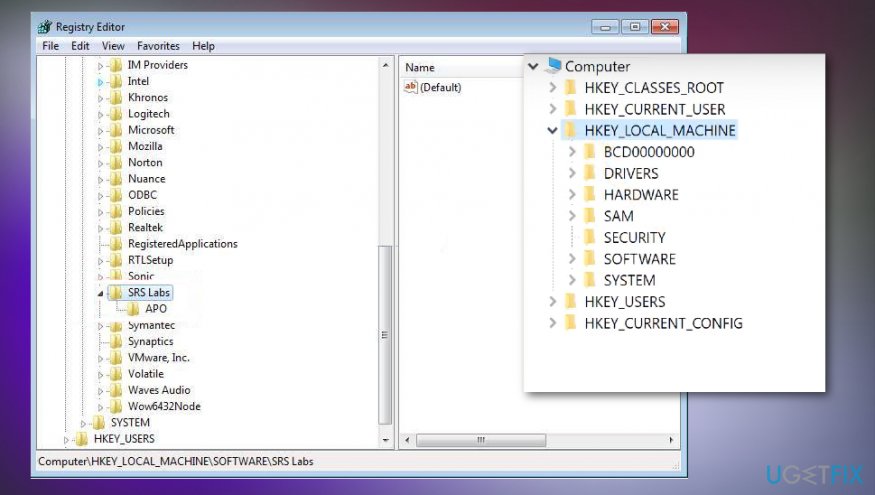
How to fix high cpu usage by ravbg64 exe reg edit - Name the key as SRS Labs.
- When the key is created, right-click on it and select Add -> Subkey.
- Name it as APO.
- Now you can close the Registry Editor and restart the computer.
Reinstall Realtek Audio drivers
- Right-click on Windows key and select Device Manager.
- Expand Sound, video, and game controllers, right-click on Realtek High Definition Audio and select Uninstall.
- If a UAC shows up, click OK to proceed.
- Now close everything and reboot the system.
- Open Device Manager as explained in step 1.
- Click Action tab on the toolbar.
- Select Scan for Hardware Changes and wait until the system detects the missing hardware.
- Click Install driver. The system now should find the latest version of the Realtek driver automatically.
- If for some reason this process ends up with the failure, go to the manufacturer’s website and download the drivers manually.
Bottom line
To fix high CPU usage by ravbg64.exe, perform a thorough system scan with a professional anti-malware tool. If no infections are found, consider addressing issues related to the Realtek HD driver or audio programs. If these solutions do not resolve the problem, further investigation may be necessary.
Frequently asked questions
Ravbg64.exe is a process related to Realtek audio drivers, and high CPU usage can occur due to outdated drivers or software conflicts. It's important to ensure your audio drivers are up to date to minimize this issue.
You can disable Ravbg64.exe from startup by opening Task Manager, navigating to the Startup tab, and disabling the Realtek HD Audio Manager entry. This will prevent it from launching automatically when you start your computer.
If updating audio drivers doesn't resolve the issue, try uninstalling and reinstalling the Realtek drivers, or use the Device Manager to roll back to a previous version if the problem started after an update.




Report an issue
What's wrong with this guide? We review every report and update or remove content.
Report received — thank you. We'll review and fix it.
You need a free account to submit a report.
Be the first to comment