How to fix
High CPU Usage by Srvany.exe
on Windows
Struggling with high CPU usage from Srvany.exe on Windows 10 or 11? Discover effective solutions and expert-tested tips to resolve the issue quickly.

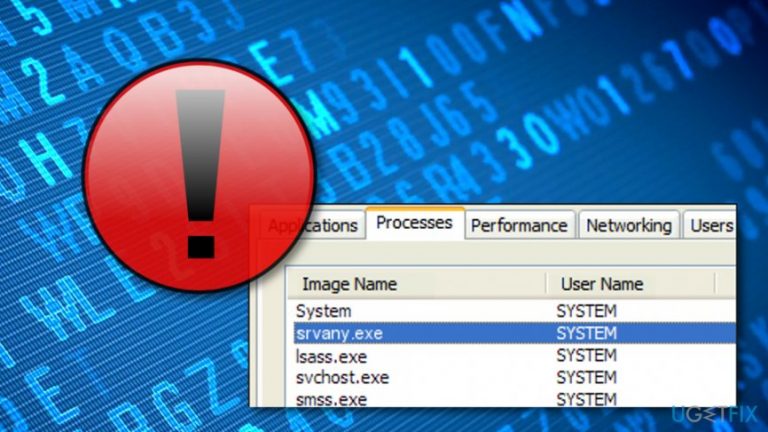
What causes How to Fix High CPU Usage by Srvany.exe?
- High CPU usage due to malware infection
- Corrupted system files
- Software incompatibilities
- Missing updates
- Misuse of Srvany.exe by hackers
Repairs Windows system files, removes malware, and restores a clean OS state — without reinstalling.
Is it normal that srvany.exe process uses up to 60% CPU? As far as I know, high CPU usage by any process/app is not a good sign, is it? Please help me to fix this process is possible. Thanks.
Srvany.exe is a constituent file of the Windows NT Resource Kit that has been developed by Microsoft.[ref en-1] It’s not one of the essential processes for running Windows OS so it can be both disabled and removed. According to the latest Windows 10 users’ reports, it seems that Srvany.exe file often causes problems, such as a high CPU usage[ref en-2] (up to 60%) or error messages like “The program can be launched because the Srvany.exe file is missing.”
Usually, people ask if the Srvany.exe process is not dangerous. People’s suspicions are aroused due to the high CPU usage by Srvany.exe accompanied by system slowdowns, crashes, unresponsiveness, and similar issues. It has been found that the dangerousness of this file depends on its location. According to security tests, if the Srvany.exe is found under C:\\Windows folder or C:\\Windows subfolder, it’s security rating reaches 71%.
Hackers tend to misuse such processes to conceal viruses and prevent them from recognition. Therefore, if you have noticed High CPU usage by Srvany.exe and its multiple instances on the Task Manager, check Windows folders and look for the file there. It might be that your PC’s system is infected with a serious virus. Nevertheless, the Srvany.exe error is not necessarily triggered by a virus.
It may also be caused by damaged or corrupted system files, software incompatibilities (some specialists claim that Srvany.exe sucks up the resource due to MS Office failure), missing updates and similar issues. Unfortunately, but no one, except a professional IT expert, is going to fix high CPU usage by Srvany.exe. However, this will cost a lot so we would recommend you to try the following fixes at first.
How to Fix High CPU Usage by Srvany.exe?
Method 1. Check the system for malware
If Srvany executable file consumes more CPU than 10%, there is high-risk that you PC has been infected with a virus, malware, spyware, Trojan or another cyber threat. Therefore, to fix your PC, you should run a full system scan with a professional anti-malware and then remove all potentially unwanted or dangerous applications. If you can’t decide what security software to use, we would recommend using [d1]. It will check the system for malware/virus[ref en-3] and perform optimization works alongside.
Sometimes anti-virus software lacks for the newest definitions, which is why they may fail to recognize the newest virus infections. Therefore, to check if the Srvany.exe is a virus, stop the process temporarily via Registry Editor and check if it keeps working on the Task Manager.
- Click Win key + R, type regedit, and press Enter.
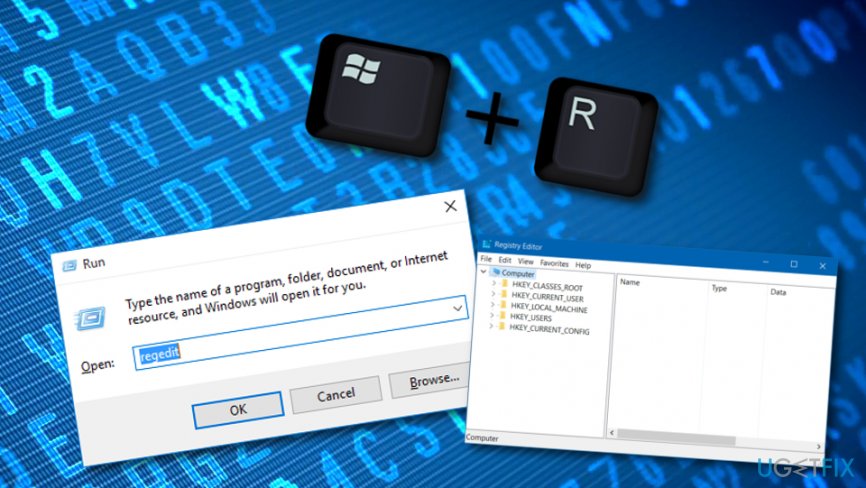
Fix method 1 - Navigate to the HKLM\\SYSTEM\\CurrentControlSet\\Services\\Srvany using the left pane.
- Modify the Start value from any number to 4.
- Once done, reboot the system and check if disabling Sppsvc.exe helped to fix high CPU usage.
- If you found the process on Task Manager anyway, scan the system with anti-malware one more time. If the process is no longer active, enable it and check if it is still using too much CPU.
Method 2. Perform a clean boot
If inadequate Srvany.exe resource consumption is not related to a virus, it might be triggered by software incompatibilities. Therefore, we would recommend performing a clean boot and checking for problematic software.
- Click Win key and type msconfig.
- Click System Configuration and open Services tab.
- Mark Hide all Microsoft services box and select Disable all.
- Open Startup tab and click Open Task Manager.
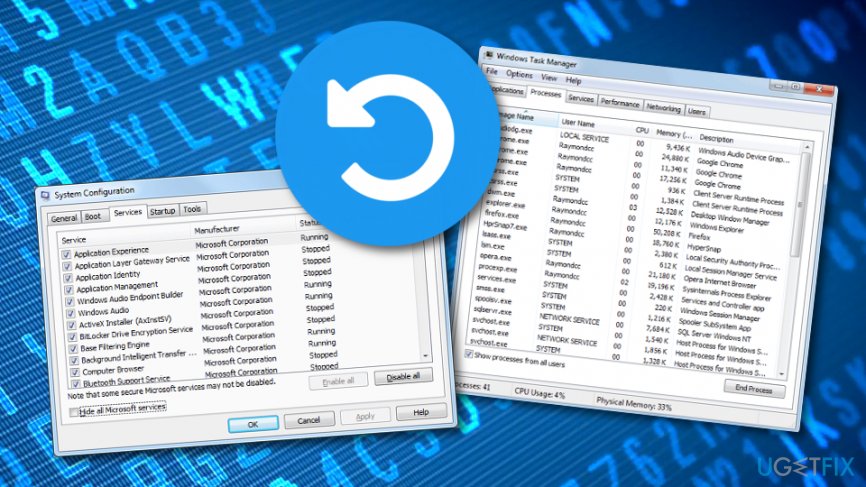
Error fix 2 - Click on each startup item and select Disable.
- Close Task Manager and click OK on the System Configuration window.
- Reboot the system.
If the problem disappeared, then you should enable the programs one-by-one to find out which one is the culprit of the Srvany.exe error. Once the problematic software is detected, you should either remove it completely or re-install.
Method 3. Update Windows
Missing updates may trigger malfunctions of executable files. Therefore, if you have noticed high CPU usage by Srvany.exe, perform the following steps:
- Click Win key + I and select Updates & Security.
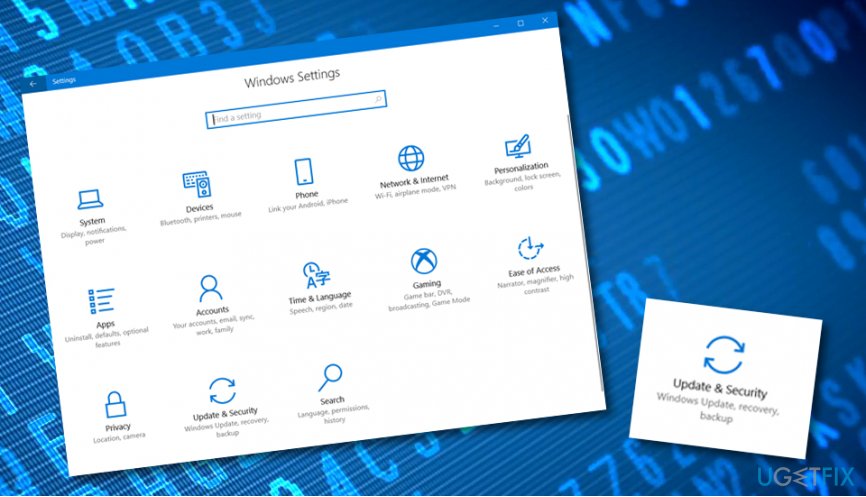
Fix method 3 - Open Windows Updates.
- Click Check for Updates and wait for a while.
- The system will automatically detect which updates are missing and provide a list of available ones.
- Click Run the Updates.
- Finally, restart the system and check if this helped to fix Sppsvc.exe high CPU usage.
Bottom line
To fix high CPU usage by Srvany.exe, first check your system for malware and ensure that all updates are installed. If issues persist, consider checking for corrupted files or software conflicts. If none of these solutions work, consulting a professional IT expert may be necessary.
Frequently asked questions
Srvany.exe is a utility that allows Windows services to run as applications, and high CPU usage may occur if the service is misconfigured or if the application it runs is malfunctioning.
You can reduce CPU usage by ensuring that the application running under Srvany.exe is optimized, updating its configuration, or stopping the service if it is not needed.
If high CPU usage persists, consider uninstalling the application associated with Srvany.exe or disabling the service entirely to prevent further performance issues.




Report an issue
What's wrong with this guide? We review every report and update or remove content.
Report received — thank you. We'll review and fix it.
You need a free account to submit a report.
Be the first to comment