How to fix
High CPU Usage by Wmiprvse.exe
on Windows
Resolve high CPU usage by Wmiprvse.exe on Windows 10 and 11 effortlessly. Get expert-tested solutions and enjoy a smoother, faster system in minutes.

What causes How to Fix High CPU Usage by Wmiprvse.exe?
- Malware infection
- Antivirus conflict
- Recently installed uncertified driver
- Improper configuration of system components
Repairs Windows system files, removes malware, and restores a clean OS state — without reinstalling.
Hello all,
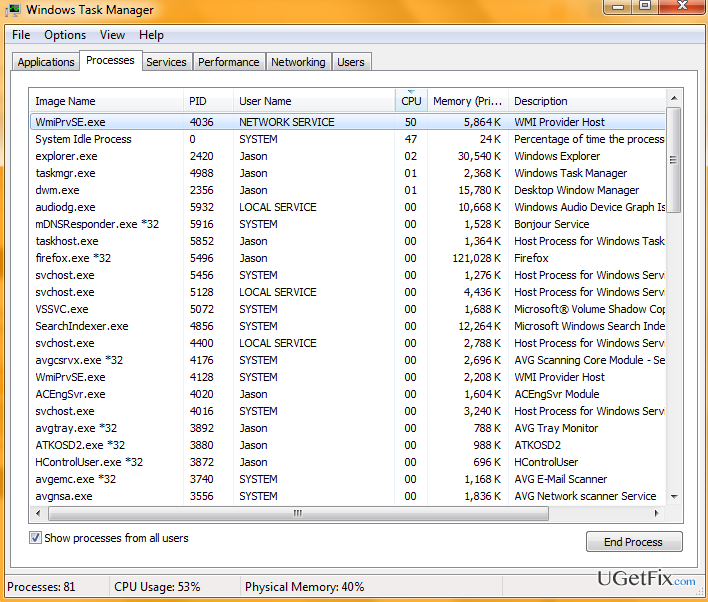
So here is the problem. I‘ve noticed that my PC‘s CPU usage reaches 30-40% or more even if zero programs are running. Each time I attempt to run an app, for example a web browser or media player, CPU uses goes up to 80% and sometimes even reaches 100%. You can imagine how sluggish the loading process is and how slow my PC is. I’ve checked Task Manager and was negatively surprised that a process named WmiPrvSE.exe consumes a lot more CPU than expected. Please tell me what this file is responsible for and is it normal for it to consume so much resources?
Wmiprvse.exe is an executable process full name of which is Microsoft Windows Management Instrumentation. It is responsible for examination and configuration of desktop, apps, networks, and other system components in order to ensure a proper work of Windows Management Instrumentation. Wmiprvse.exe file is manufactured by Microsoft and installed on the system by default. Therefore, its errors, including high CPU usage, should be treated seriously and fixed immediately.
Windows fans have started reporting about Wmiprvse.exe high CPU usage several years ago. However, this issue seems to have been solved by Windows and renewed with the Windows 10 OS release. Online forums are full of people‘s questions how to fix Wmiprvse.exe high CPU usage, so we are here to help you. According to professional technicians, this issue may be triggered by several reasons. For example, you PC may be infected with malware or your antivirus may be causing the conflict. Besides, it might be that you‘ve recently installed a driver, which is not certified. Consequently, Wmiprvse.exe may throw an error, start using 30% and more CPU and, consequently, force the system to slow down.
In case the error did not appeared yet, keep in mind that sooner or later high CPU usage by Wmiprvse.exe may be accompaniend by the following pop-up message:
Runtime Error!
Program: C:/WINDOWS/system32/wbem/ Wmiprvse.exe
This application has requested the Runtime to terminate it in an unusual way. Please contact the application‘s support team for more information.
Luckily, there is some steps that you can take to fix Wmiprvse.exe error and reduce Wmiprvse.exe CPU usage. You can find the tips down below.
How to Fix High CPU Usage by Wmiprvse.exe?
Fix 1. Debug Wmiprvse.exe process
For this purpose, you have to access Command Promt:
- Click Win key + R together and type cmd in a run dialogue box.
- Click Enter and type the following command in the command prompt window:
reg add “HKLM\SOFTWARE\Microsoft\Windows NT\CurrentVersion\Image File Execution Options\wmiprvse.exe” /v debugger /t reg_sz /d debugfile.exe /f - After that, click Enter and close Command Prompt.
Fix 2. Disable Wmiprvse.exe process
- Go to Start and find Windows Explorer.
- Access it and select Administrative tools.
- Click twice on Services and find Wmiprvse.exe process.
- Once found, click on it to check its status.
- Finally, click on Wmiprvse.exe with suspicious service in order to disable it.
Fix 3. Use Task Manager to fix Wmiprvse.exe high CPU usage
- Click Win key + R together, type taskmgr in the search box, and click Enter.
- Once Task Manager opens, search for Search Conduit.
- If you detect it, right-click on it and select Kill from the menu.
- After that, navigate to Control Panel -> Add/Remove Programs.
- Right-click on Search Protected by Conduit or Conduit Engine and select Remove/Uninstall.
- After that, click on Win Key + R, type cmd and hit Enter to open Command Prompt.
- Once the window is open, type sfc /scannow and hit Enter.
- After that, type DISM /Online /Cleanup-Image /RestoreHealth and press Enter.
- Once this process is finished, restart your PC.
We hope that now Wmiprvse.exe process uses less CPU than it used to before.
Bottom line
To address high CPU usage by Wmiprvse.exe, consider scanning for malware, checking antivirus settings, and ensuring all drivers are certified. If the issue persists, further investigation into system configurations may be necessary.
Frequently asked questions
High CPU usage by Wmiprvse.exe can occur due to misconfigured WMI settings, corrupted system files, or excessive background processes utilizing WMI services.
You can reduce Wmiprvse.exe CPU usage by running the 'winmgmt /salvagerepository' command in Command Prompt or by disabling unnecessary services that rely on WMI.
Ending the Wmiprvse.exe process is generally safe, but it may cause temporary issues with applications relying on WMI; it's better to troubleshoot and fix the root cause of high CPU usage.




Report an issue
What's wrong with this guide? We review every report and update or remove content.
Report received — thank you. We'll review and fix it.
You need a free account to submit a report.
Be the first to comment