How to fix
High ping while gaming
on Windows
Struggling with high ping while gaming on Windows 10 or 11? Discover proven fixes that enhance your gaming experience and reduce lag—expert-tested!

What causes How to fix high ping while gaming on Windows?
- Network congestion
- Poor Wi-Fi signal
- Obsolete network drivers
- Background programs consuming network resources
Repairs Windows system files, removes malware, and restores a clean OS state — without reinstalling.
After upgrading to a new gaming laptop, I'm facing severe and unstable ping issues in online games, with spikes up to 1000ms, despite being on the same WiFi network as my old laptop which had stable ping. Is there something wrong with my new laptop?
Ping is a network diagnostic tool that tests a host's reachability on an Internet Protocol (IP) network and calculates the round-trip time of messages transmitted from the originating host to a destination computer. In the context of online gaming, a consistent and low ping is essential for a smooth and responsive experience. A low ping suggests a brief delay, whereas a high ping indicates a longer delay in communication between your computer and the game server.
Some gamers may experience severe ping fluctuations, with spikes reaching up to 1,000 milliseconds (ms). Some said that this started happening seemingly out of nowhere, while others claim that this behavior only began after a new computer was purchased. This fluctuation in ping can lead to a poor gaming experience, producing lag, delays, and disconnection from real-time online gameplay.
Such irregular behavior might be caused by various circumstances, including network congestion, a poor Wi-Fi signal, obsolete network drivers, or background programs that consume significant network resources.
To reduce these ping spikes, begin by monitoring network traffic to identify and limit bandwidth-intensive apps. Updating your network drivers and configuring your Wi-Fi network for gaming can assist in stabilizing your ping. Furthermore, connecting directly to your router via an Ethernet cable can provide a more stable and speedy connection than Wi-Fi.
For gamers experiencing persistent high ping troubles on new Windows PCs, using a professional repair tool [d1] may be a viable option. These programs can automatically detect and address underlying Windows issues that may be causing network performance issues, resulting in a smoother and more consistent online gaming experience.
Fix 1. Install all Windows updates
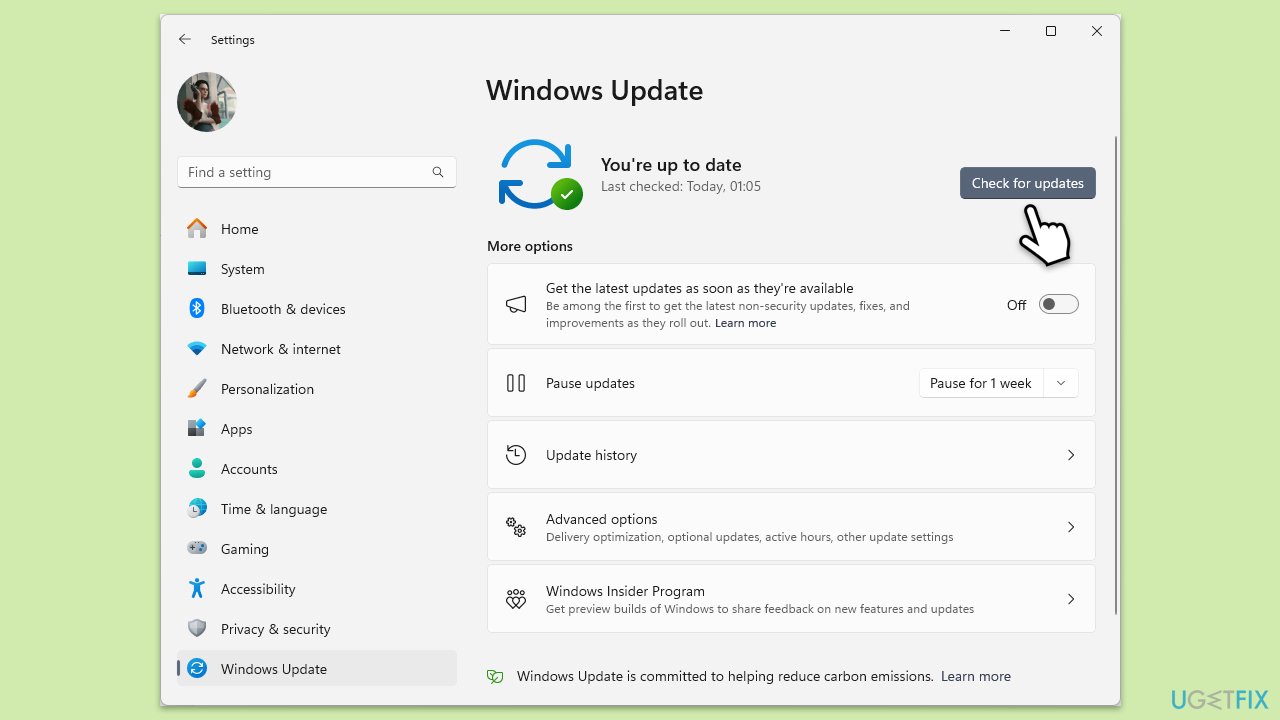
Installing the latest Windows updates can resolve various system issues and improve performance, including network stability. Windows updates often include new features, security improvements, and bug fixes that can help in optimizing your system's efficiency.
- In Windows search, type Updates and hit Enter.
- In the new window, click Check for updates and wait till everything is installed.
- Make sure you also install any available optional updates.
- When done, restart your system to implement the changes.
Fix 2. Run network troubleshooter
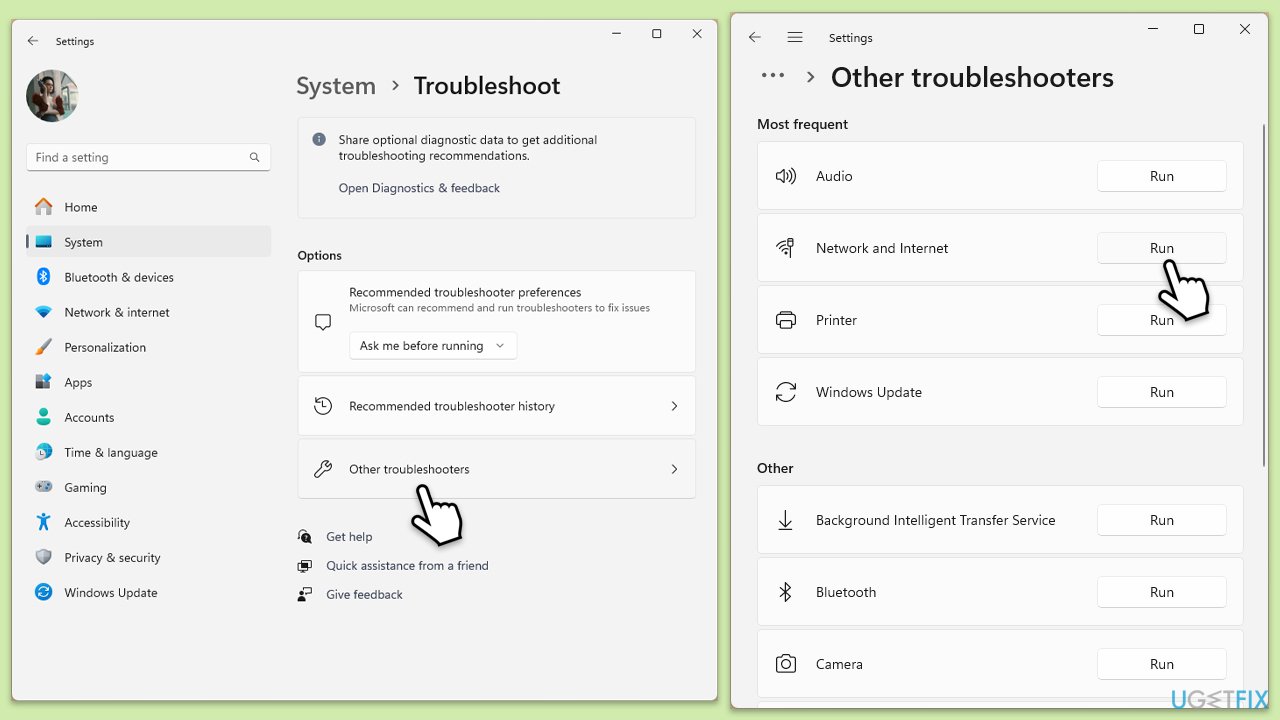
The network troubleshooter can help diagnose and automatically resolve issues with your internet connection. It checks for common issues such as network adapter problems or incorrect network settings.
Windows 11
- Type Troubleshoot in Windows search and press Enter.
- Select Other troubleshooters.
- Find Network & Internet troubleshooter from the list and select Run.
- Wait till the process is finished and apply the offered fixes.
- Restart your device.
Windows 10
- Right-click on Start and pick Settings.
- Go to Network & Internet section.
- On the right side, find the Advanced network settings section.
- Click Network troubleshooter, specify the problem, and wait till the scan is finished.
- When done, apply all the recommendations.
Fix 3. Update network and WiFi drivers
Outdated or corrupted network drivers can cause connectivity problems. Updating them can improve network performance and stability.
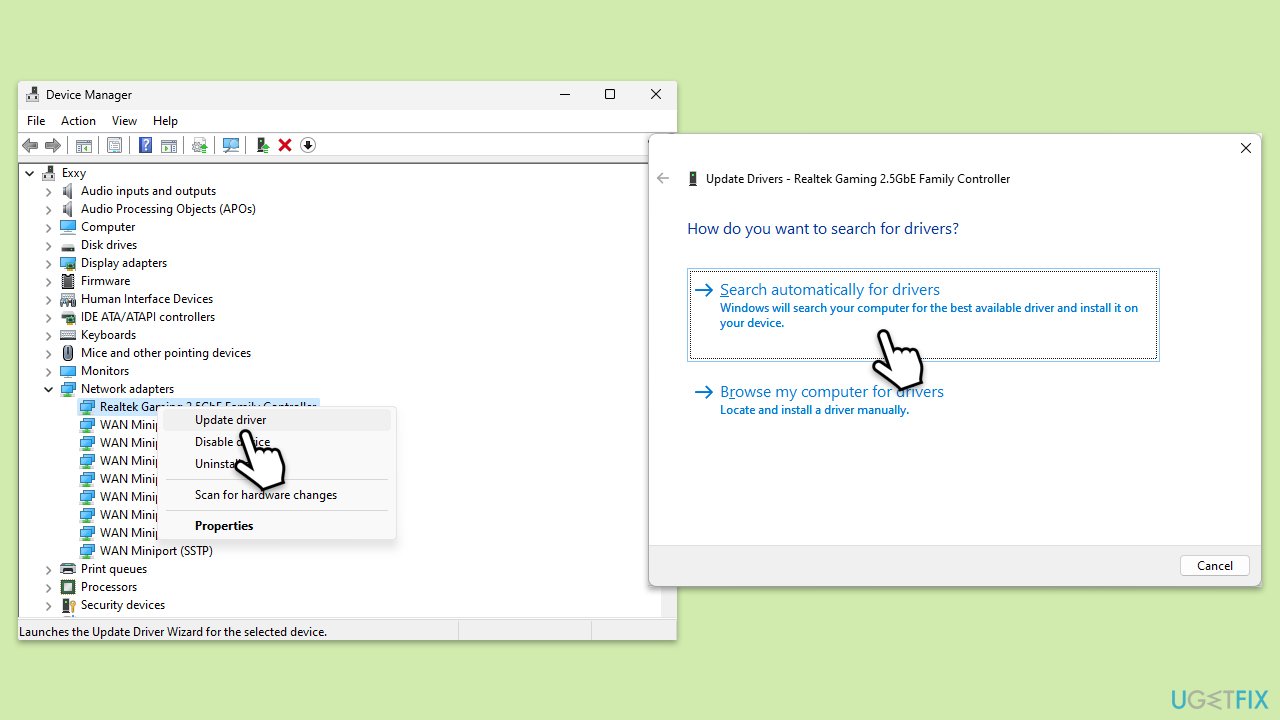
- Type Device Manager in Windows search and press Enter.
- Locate and expand the Network adapters section.
- Right-click on your Network adapter and select Update driver.
- Pick Search automatically for drivers and wait.
- Repeat for WiFi.
- Follow the on-screen instructions and restart your device once done.
Fix 4. Reinstall network and WiFi drivers
Reinstalling network drivers can fix issues caused by corrupted or outdated drivers. This process involves removing the current drivers and installing them anew.
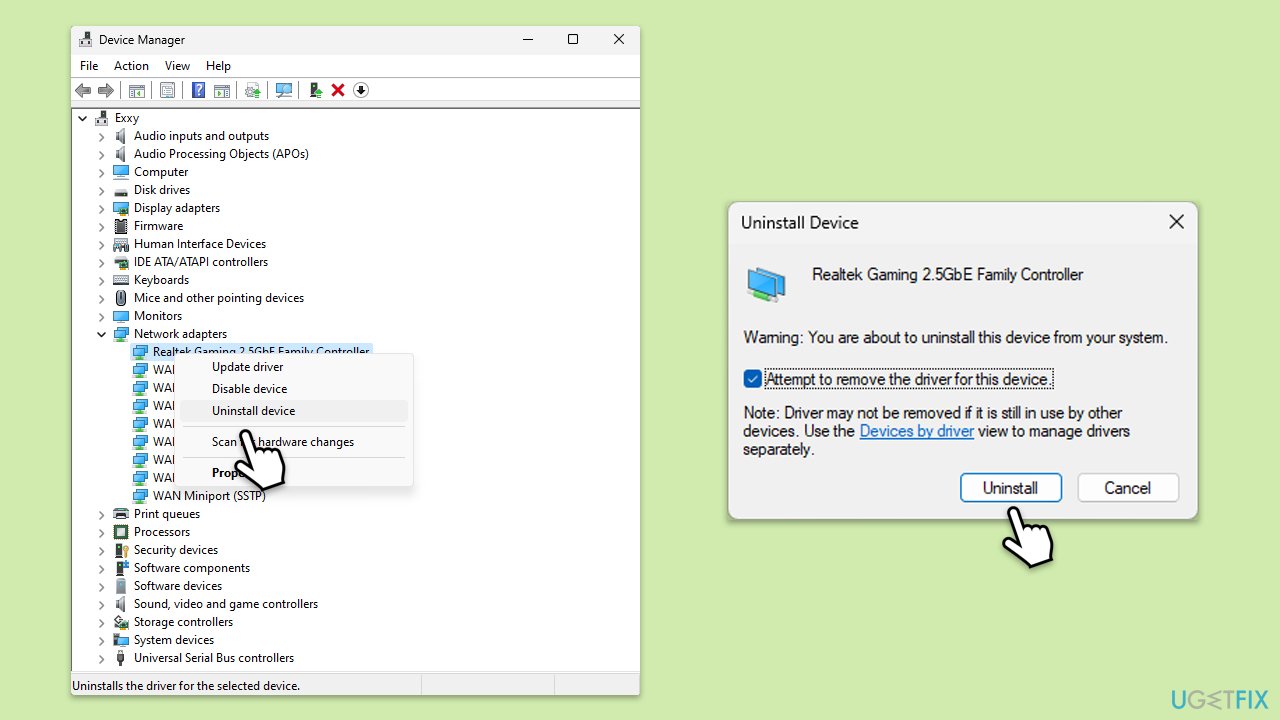
- Open Device Manager from the Start menu.
- Expand the Network adapters section.
- Right-click on the network adapter and select Uninstall device.
- Confirm the uninstallation.
- Restart your computer.
- Repeat for the WiFi driver.
- Windows will automatically reinstall the network adapter upon reboot. If it doesn't, download the driver manually or use automatic tools.
Fix 5. Perform a Clean Boot
Performing a clean boot starts Windows with a minimal set of drivers and startup programs. This can help identify if background programs are interfering with your network connection.
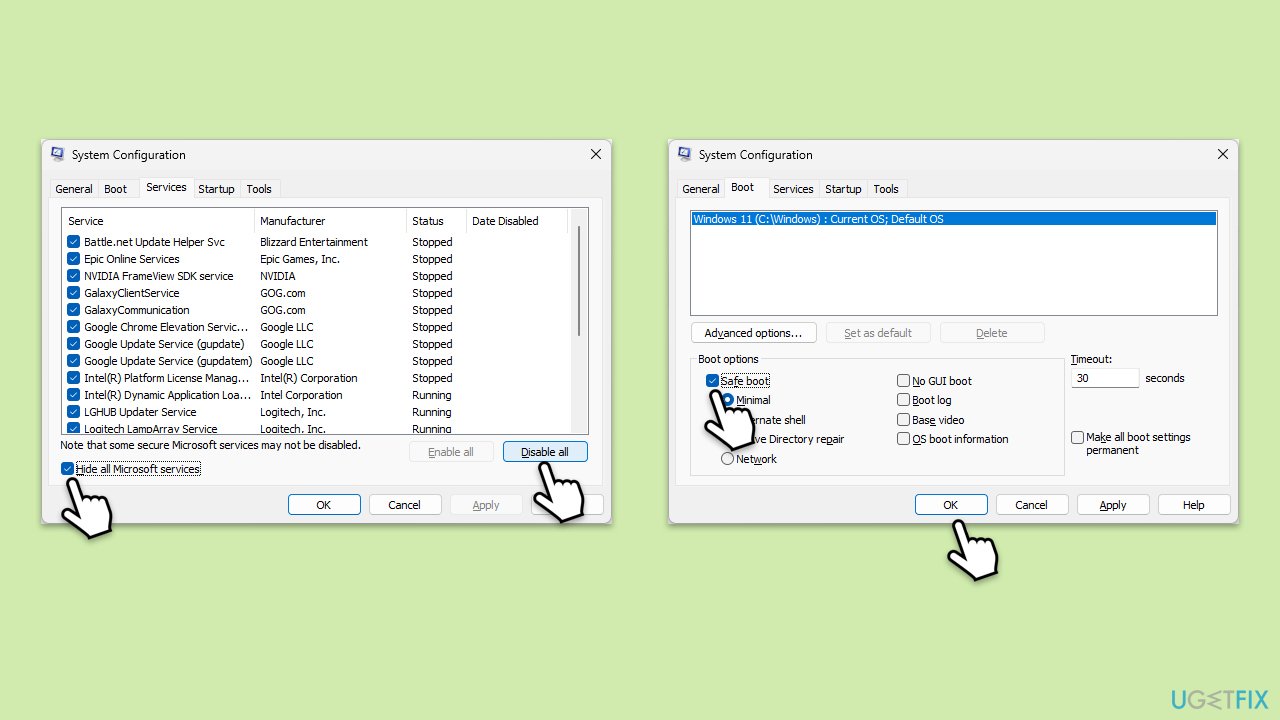
- Type msconfig in Windows search and hit Enter.
- Go to the Services tab and tick the Hide all Microsoft services checkbox.
- Select Disable all.
- Go to the Startup tab and click Open Task Manager.
- Here, right-click on each of the non-Windows entries and select Disable.
- Close down the Task Manager.
- Go to the Boot tab and tick the Safe boot option.
- Click OK.
Fix 6. Reset network settings
Resetting your network settings can resolve issues by removing and reinstalling all your network adapters and setting everything back to its original configuration.
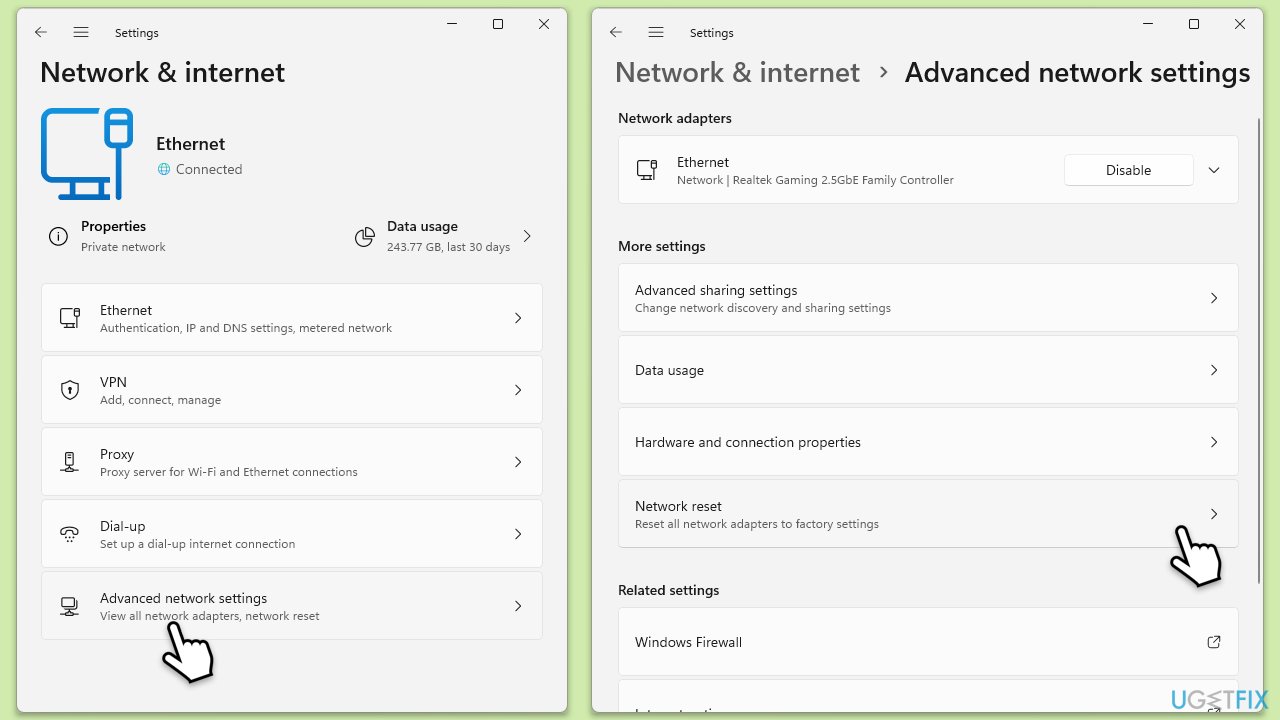
- Right-click on Start and pick Settings.
- Go to Network & Internet.
- Under Advanced network settings, click Network reset.
- Click Reset Now.
- Confirm the action and then restart your system.
Fix 7. Change Wi-Fi channel
Interference from other Wi-Fi networks can cause connectivity issues. Changing your Wi-Fi channel can help reduce interference.
- Log in to your router's web interface.
- Locate the Wireless settings section.
- Select the Wi-Fi channel with the least interference (usually 1, 6, or 11 for 2.4 GHz networks).
- Save your changes and restart your router.
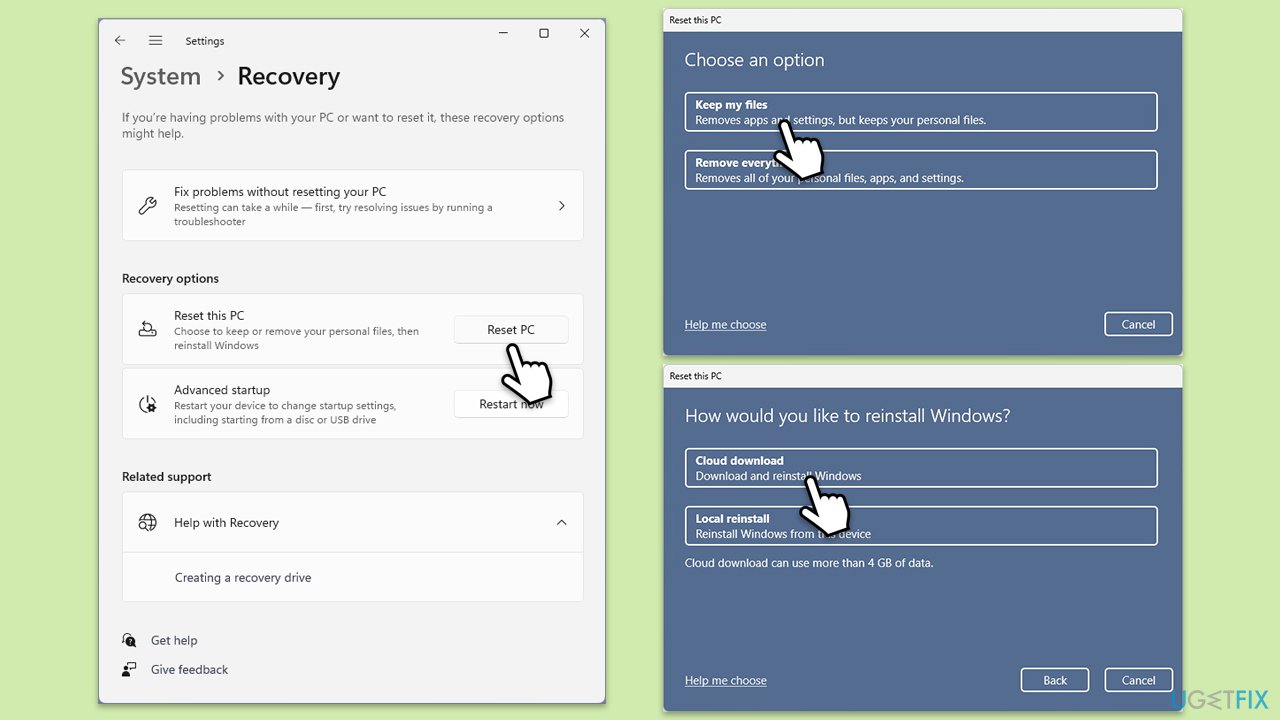
Fix 8. Reset Windows
Resetting Windows reinstalls the operating system, which can resolve underlying system issues affecting network performance. This should be a last resort.
- Click on Start and pick Settings.
- Go to Windows Update/Update & Security.
- Select Advanced options.
- Under Additional options, select Recovery.
- Under Recovery options, click Reset PC.
- Select the option to Keep your files and then press Cloud download.
- Follow on-screen instructions to finish the process.
Bottom line
To fix high ping issues while gaming on Windows, consider installing all Windows updates, monitoring network traffic, updating network drivers, and connecting directly to your router via Ethernet. If these solutions do not resolve the problem, using a professional repair tool may help identify and fix underlying Windows issues.
Frequently asked questions
Common causes include network congestion, background applications using bandwidth, and incorrect network settings on your Windows system.
You can check your current ping by opening Command Prompt and typing 'ping google.com' or by using the built-in game performance overlay in Windows Game Bar.
You can try disabling background apps, using a wired connection instead of Wi-Fi, and adjusting your DNS settings to a faster server to help reduce ping.




Report an issue
What's wrong with this guide? We review every report and update or remove content.
Report received — thank you. We'll review and fix it.
You need a free account to submit a report.
Be the first to comment