How to fix
Highlighting not working in Microsoft Word
on Windows
Resolve highlighting issues in Microsoft Word on Windows 10 or 11 quickly. Get expert-tested solutions and fix it in minutes.


What causes How to fix highlighting not working in Microsoft Word?
- Compatibility mode is enabled
- Insufficient user permissions
- Outdated Office suite version
- Missing system updates
- Broader operating system issues
Repairs Windows system files, removes malware, and restores a clean OS state — without reinstalling.
Hi. I am not sure what happened, but I can't highlight text in Word as normal anymore. I can no longer select the text I want by dragging the mouse, but instead, I can only double-click certain words or paragraphs at the time. I am not sure how to fix this.
Microsoft Office Suite, with its diverse array of powerful tools, has become a mainstay in many workplaces, schools, and homes. Among its suite of applications, Microsoft Word stands out as an essential tool for creating, editing and formatting written documents.
One feature that many users find invaluable is the ability to highlight text. By dragging the cursor across text, users can mark important sections, emphasize certain phrases, or simply track where they left off reading. However, some users have recently encountered a problem: their ability to highlight text by dragging the cursor is not working.
In most instances, users experiencing this issue report that they are only able to highlight text by double-clicking a word or a paragraph, which can become an inefficient method, especially for extensive documents. This problem typically arises due to issues related to permissions and compatibility modes.
For example, when a document is opened in compatibility mode or the logged-in user lacks sufficient permissions, the highlighting function may not work as intended. It's important to note that this issue could be specific to Microsoft Word or indicative of a larger system issue.
Although this issue can be frustrating, several potential solutions exist to restore the highlighting tool's full functionality. Firstly, you can try updating the Office suite. This ensures you are running the most recent version, which often includes bug fixes and performance improvements. Also, ensuring all system updates are installed can prevent conflicts between your operating system and Microsoft Office. Another method to rectify the highlighting issue is to repair the Office suite.
In some instances, the problem could be symptomatic of a broader issue with the operating system itself. Running System File Checker (SFC) or Deployment Image Servicing and Management (DISM) scans could be beneficial in such scenarios as these tools can fix underlying system corruption or damaged system files.
Lastly, for automatic repair of Windows issues, [d1] PC repair tool is a reliable option. It diagnoses and fixes common system errors, enhancing the overall performance of your PC and potentially rectifying the text-highlighting issue in Word.
Fix 1. Update Microsoft Office
Regular updates often contain bug fixes and improvements that may resolve highlighting issues. Keeping your Office suite up-to-date ensures that it runs optimally with your system.
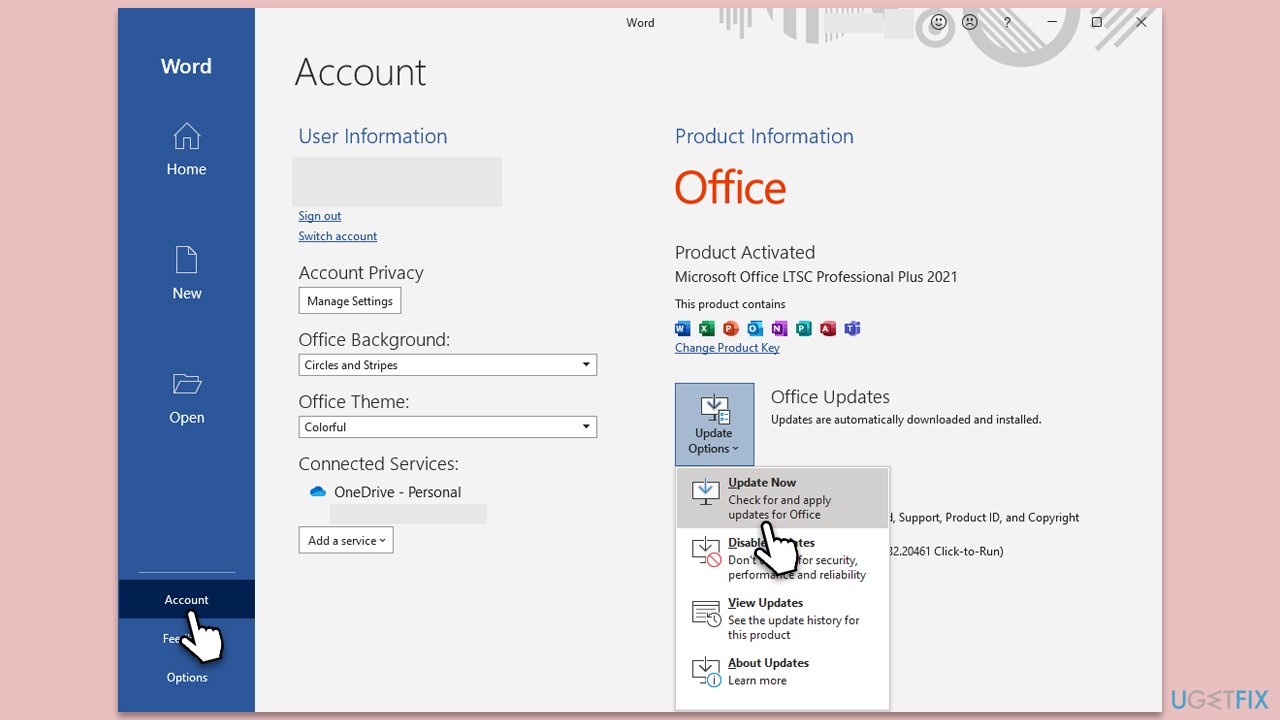
- Open Microsoft Word and navigate to File.
- From the file menu, select Account.
- Under Product Information, locate and click on Update Options.
- From the dropdown list, select Update Now. The program will then check for available updates and install them.
Fix 2. Enable necessary permissions
Insufficient permissions can hinder certain functionalities. Granting necessary permissions ensures all features of Word operate properly.
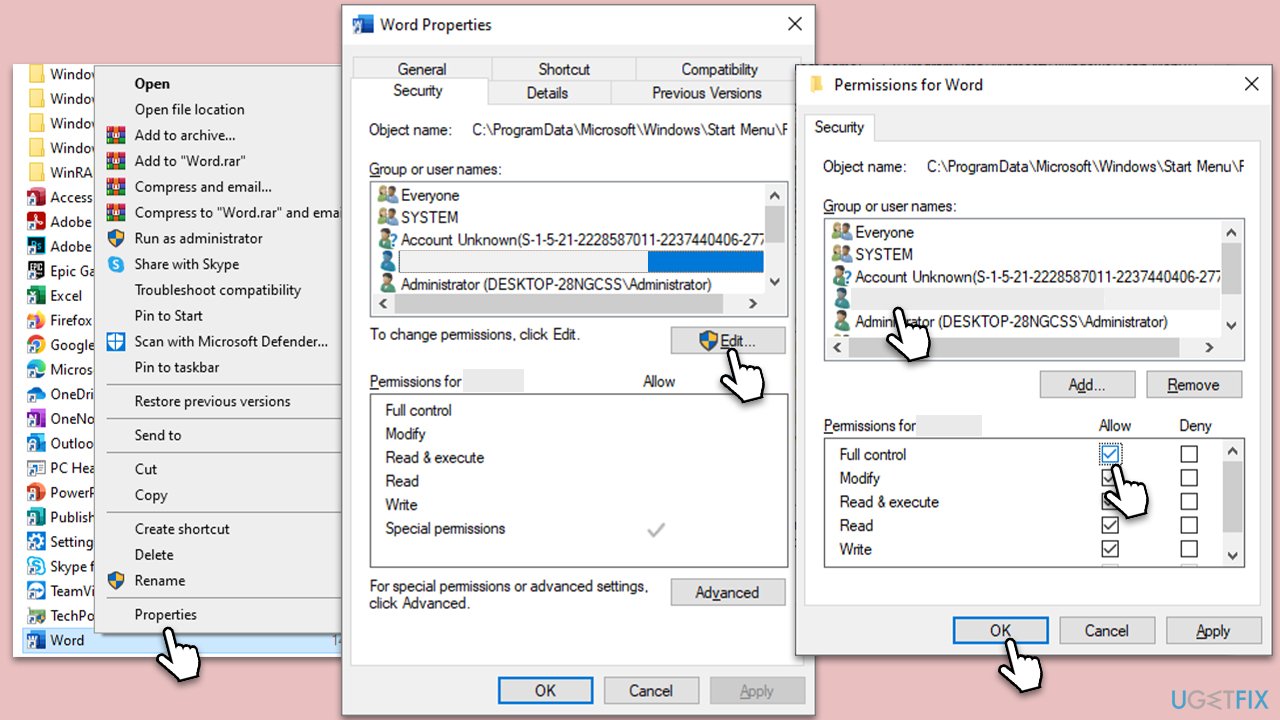
- Type Word in Windows search.
- Right-click on Word and select Open file location.
- Right-click on Word and select Properties.
- Go to the Security tab.
- Select your username from the list and click Edit.
- Pick your account name once again and select Full Control.
- Click OK.
Fix 3. Stop running Word in Compatibility mode [if applicable]
Compatibility mode, while useful for older documents, can affect some Word functionalities. Exiting this mode may solve the highlighting problem.
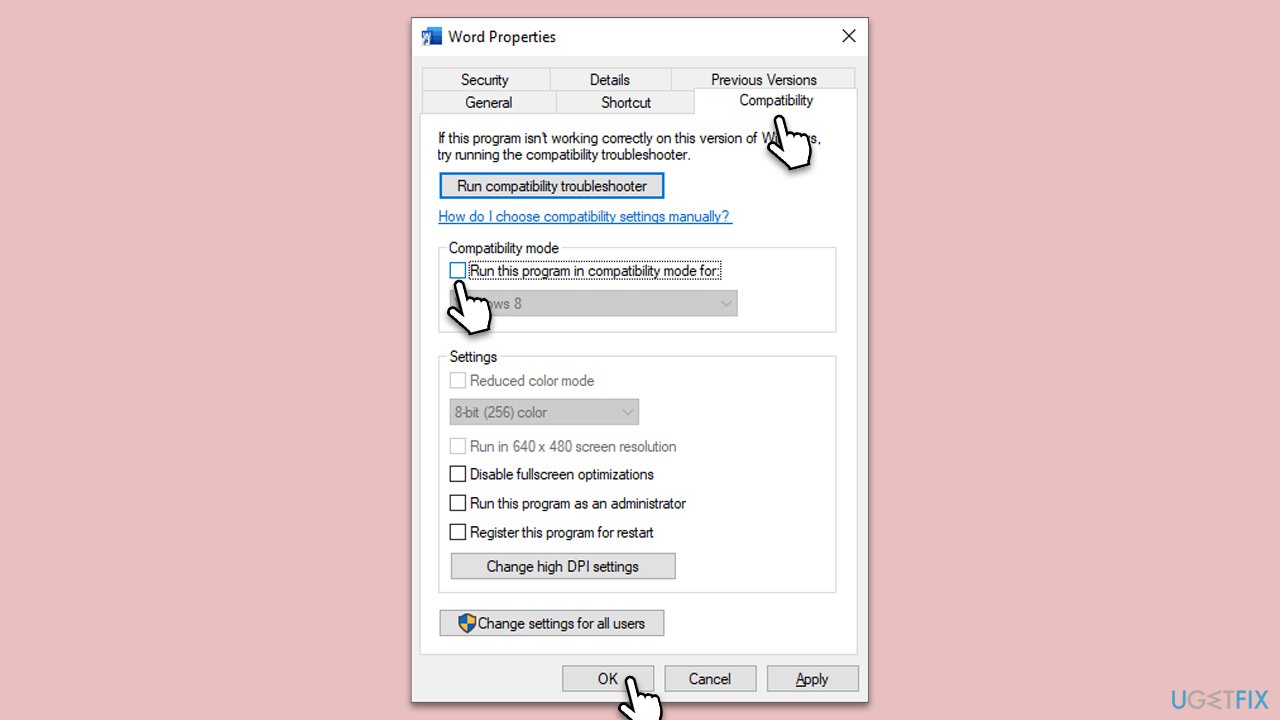
- Access Word Properties as explained in the previous solution.
- Go to the Compatibility tab this time.
- Find the Compatibility mode section and untick the Run this program in compatibility mode for option.
- Click OK.
Fix 4. Repair Microsoft Office
Repairing your Office installation can fix any software errors or glitches causing the highlighting issue.
- Type Control Panel in Windows search and press Enter.
- Select Programs > Programs and Features.
- Select Microsoft Office and click on Change.
- Choose the option for Online Repair and click Repair.
- Follow the prompts to finish the process.

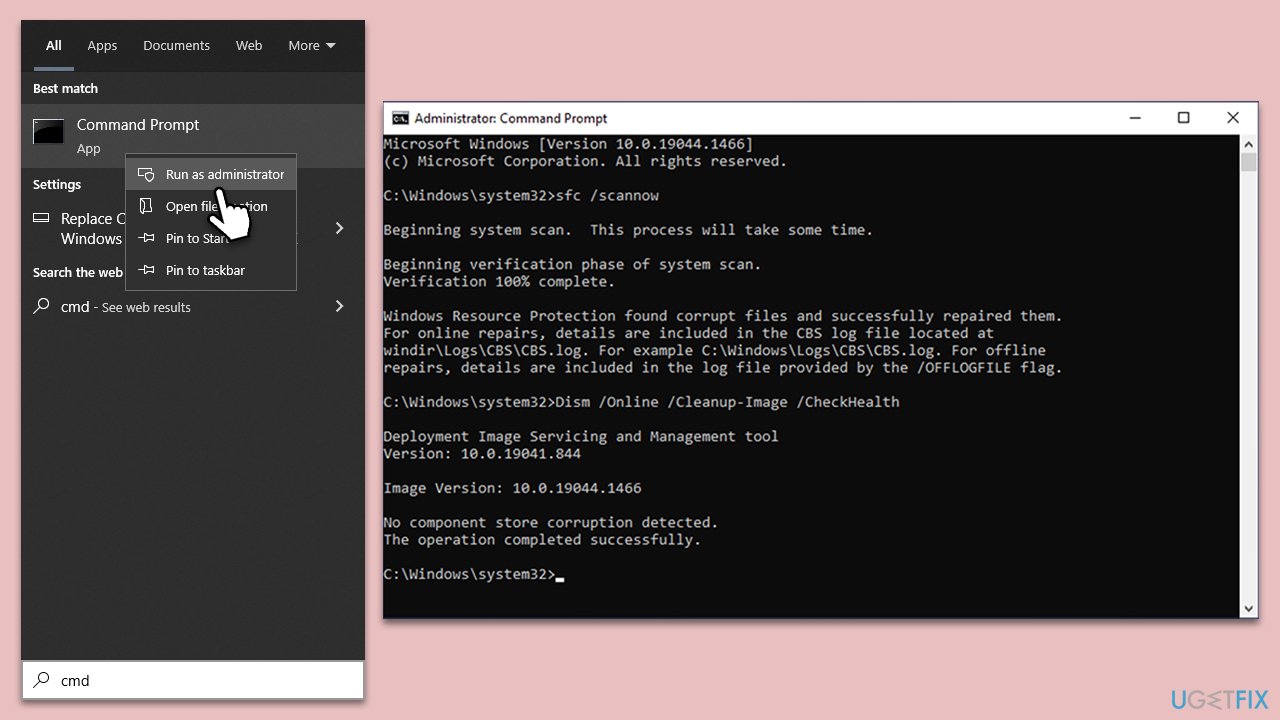
Fix 5. Run system scans
Issues with the operating system can impact Word's functionality. Running SFC and DISM scans can rectify any system corruption or damaged system files.
- Type in cmd in Windows search
- Right-click on Command Prompt and select Run as administrator
- User Account Control will ask you whether you allow making changes to the system - click Yes
- In the Command Prompt window, paste the following command and hit Enter:
sfc /scannow - Next, use the following commands, pressing Enter each time:
Dism /Online /Cleanup-Image /CheckHealth
Dism /Online /Cleanup-Image /ScanHealth
Dism /Online /Cleanup-Image /RestoreHealth - Restart your system.
Fix 6. Use alternative methods of highlighting text
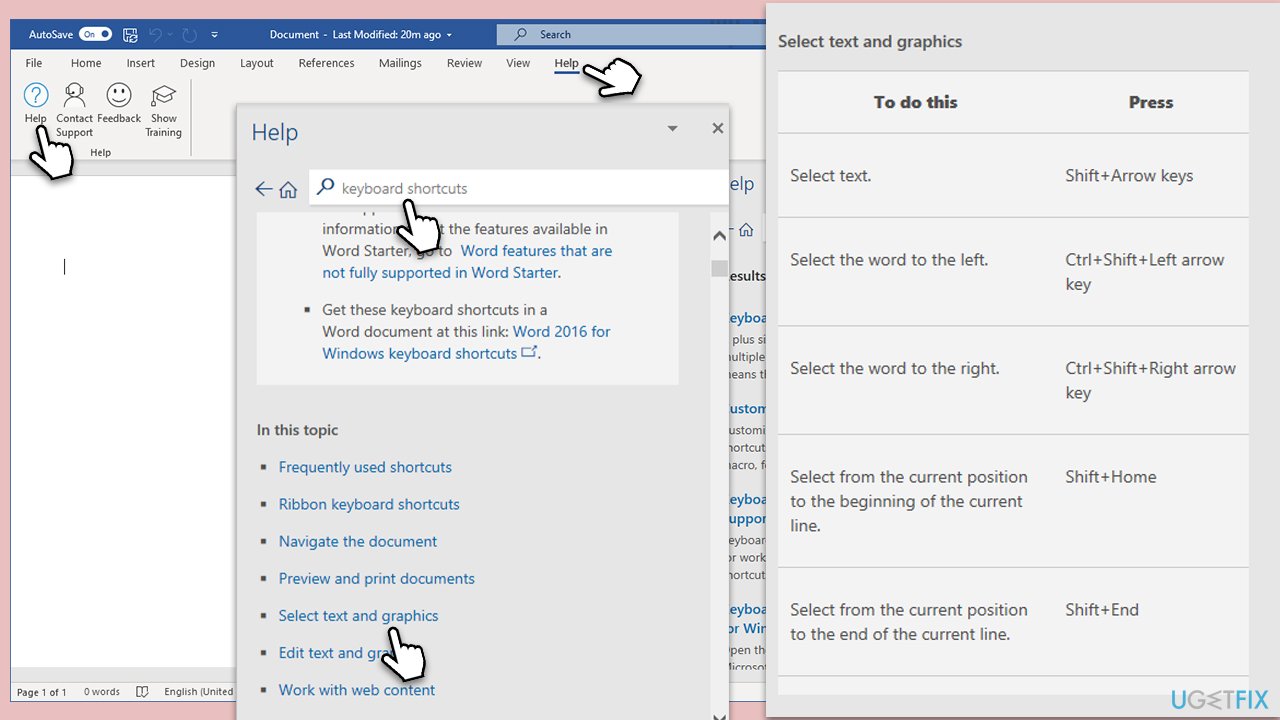
Note that for some users, simply holding Shift and then highlighting the text did the trick. Alternatively, follow these steps:
- Open Word and select Help > Help.
- Pick Keyboard shortcuts in Word.
- Select the Select text and graphics subtopic.
- Here, you can find many different ways how to highlight your text in alternative ways.
Bottom line
To fix the highlighting issue in Microsoft Word, try updating the Office suite and ensuring all system updates are installed. If the problem persists, consider repairing the Office suite or running System File Checker (SFC) and Deployment Image Servicing and Management (DISM) scans. If none of these solutions work, further investigation into system settings may be necessary.
Frequently asked questions
First, check if your document is in 'Protected View' or 'Read-only' mode; if it is, you need to enable editing. If that doesn't help, try restarting Word or your computer.
Ensure that your Microsoft Word is updated to the latest version, as updates often fix bugs. You can also try disabling add-ins that might interfere with the highlighting feature.
Go to 'File' > 'Options' > 'Advanced' and ensure that 'Show document content' settings are properly configured. Also, check your color settings under 'Design' > 'Colors' to make sure they are not affecting the highlighting.




Report an issue
What's wrong with this guide? We review every report and update or remove content.
Report received — thank you. We'll review and fix it.
You need a free account to submit a report.
Be the first to comment