How to fix
Hkcmd.exe Error
on Windows
Resolve hkcmd.exe errors on Windows 10 and 11 swiftly with our expert-tested solutions. Get your system running smoothly in minutes!

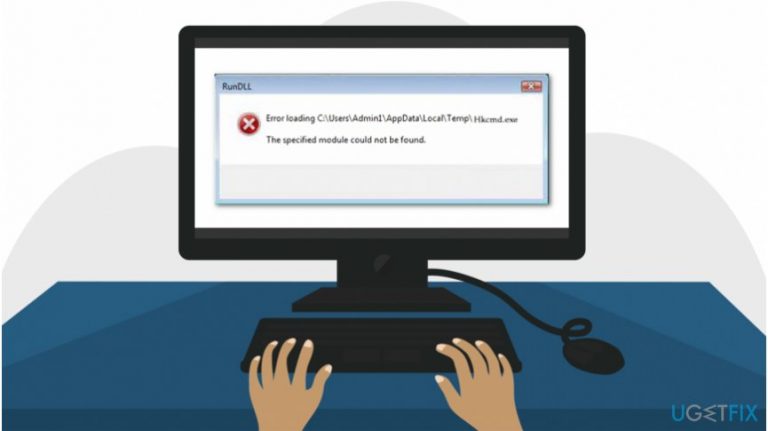
What causes How to Fix hkcmd.exe Error on Windows?
- Problem with Intel hardware drivers
- Virus damaging the PC
- Missing export HCCUTILS.DLL:IsDisplayValid
- Issues with older stationary PCs
Repairs Windows system files, removes malware, and restores a clean OS state — without reinstalling.
I have a problem with “Cannot find c:\\winnt\\system\\hkcmd.exe” message. It keeps popping on my screen. How to fix that?
Hkcmd.exe is an executable file which is designed to help control keyboard shortcuts on Windows operating system. This .exe file[ref en-2] is used by Hotkey Command Interpreter on Intel 810[ref en-1] and 815 graphics drivers.
Even though this process should not cause errors, some people report about various issues and search for Hkcmd.exe module process fix. Before presenting Hkcmd module fix we would like to introduce you to the potential causes of this error.
There are two types of Hkcmd.exe error. In case you have Intel 82810 Graphics and Memory Controller Hub (GMCH) or Intel 82815 Graphics Controller on a Microsoft Windows NT computer, the message “Cannot find c:\\winnt\\system\\hkcmd.exe” may occur.
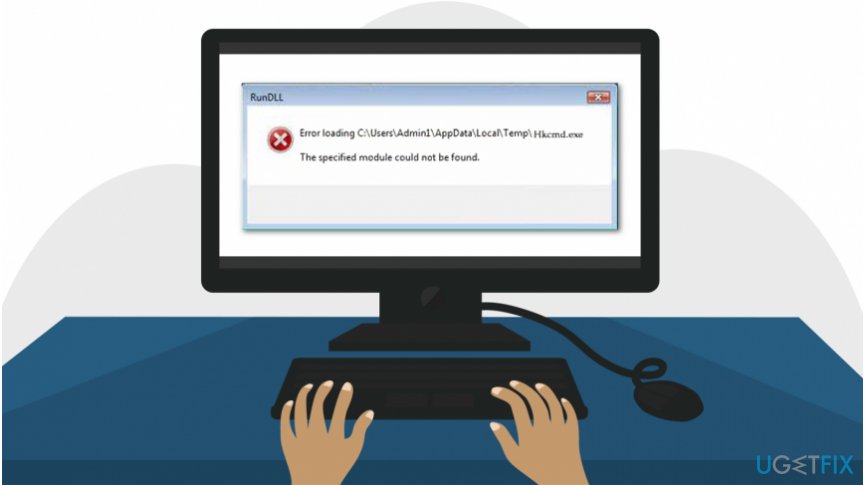
In this case, it means that there is a problem with the Intel hardware drivers or a virus[ref en-3] is damaging your PC. Our experts suggest you to scan your computer with [d1] to fix Hkcmd.exe error and check for potentially dangerous programs.
Also, you may also receive an error saying “The HKCMD.EXE file is linked to missing export HCCUTILS.DLL:IsDisplayValid." This error may occur on older, usually stationary PCs. Therefore, this kind of Hkcmd.exe error is rare these days.
No matter which type of Hkcmd.exe error you encounter, the error window will not diminish by itself. In other words, you will have to take some actions to fix problems related to Hkcmd.exe file manually or automatically.
Instructions below are designed to show computer users how to fix “Cannot find c:\\winnt\\system\\hkcmd.exe” error. There are multiple techniques which can eliminate the problem. We recommend trying them all to find the most effective solution.
Hkcmd module fix explained
Unfortunately, it is hard to determine the actual cause of problems related to Hkcmd.exe. For this reason, experts list several methods which should help you fix all potential issues. It is important that you would attentively follow the guidelines to ensure that your computer is safe.
This video will provide you with all information you need to eliminate this error:
[youtube E4I4NMOaePA]
Method 1. Uninstall Intel Graphics Drivers
- Go to Start and select My Computer;
- Right-click on it and opt for Properties;
- Find and click on Hardware;
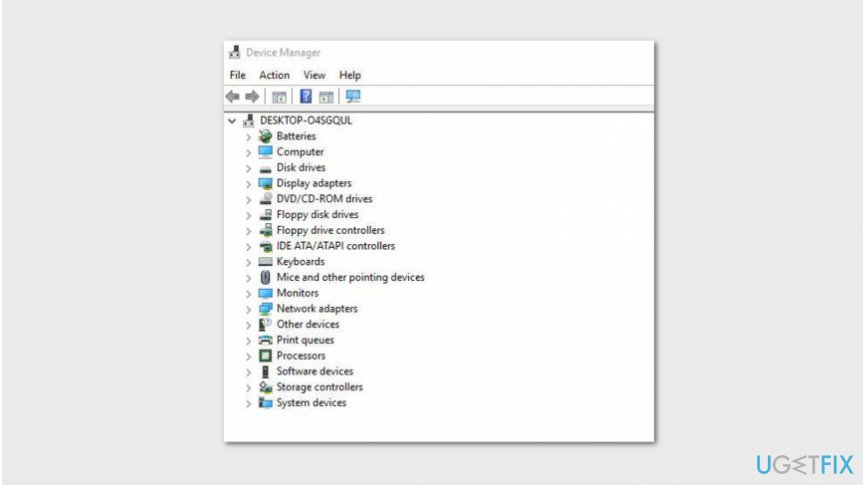
Open device manager - Find Device Manager in the left pane and click on it;
- Right-click on the Graphics Adapter and select Uninstall Driver;
- Finally, Restart your PC.
Method 2. Disable Hkcmd.exe process
- Click Ctrl + Alt + Delete at the same time;
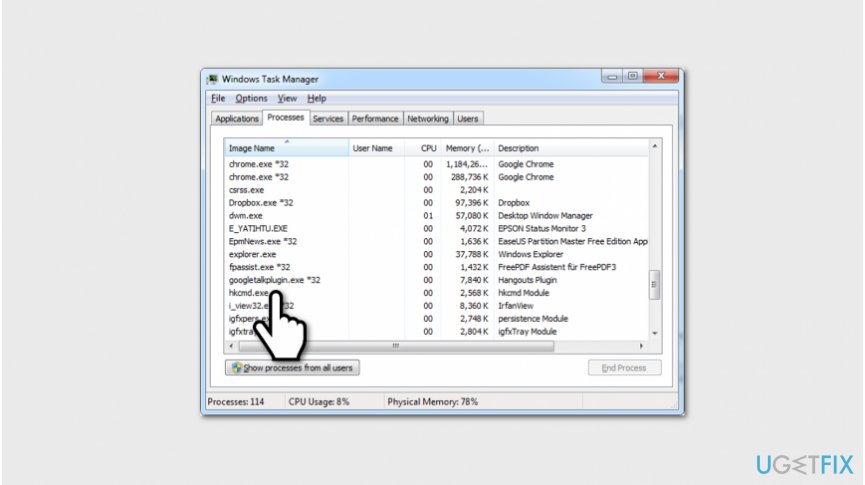
Disable hkcmd exe - Once Task Manager is opened, search for Hkcmd.exe process;
- Right-click on it and select Disable.
Method 3. Run System File Checker
- Open Command Prompt from Windows Start;
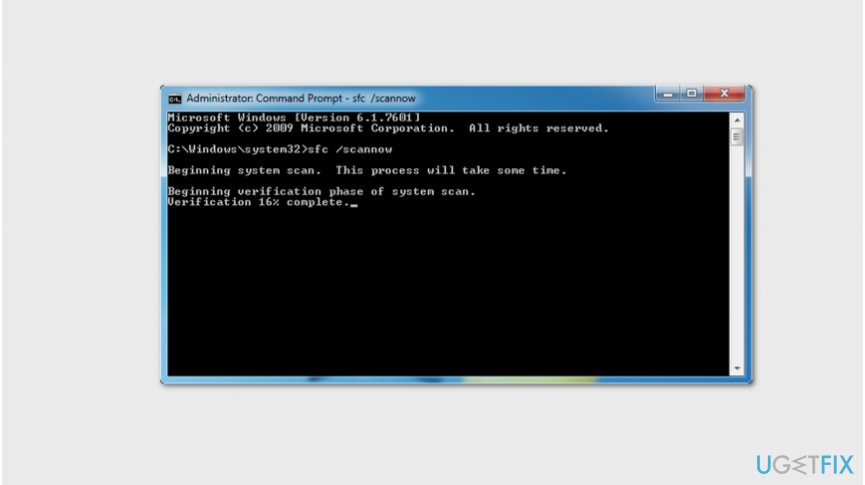
Run sfc scannow - Type sfc/scannow and press Enter;
- Wait for the scan to finish and follow on-screen instructions.
Bottom line
To fix the 'Cannot find c:\winnt\system\hkcmd.exe' error, you can try uninstalling Intel graphics drivers and scanning your computer for viruses. If these methods do not resolve the issue, consider trying additional techniques outlined in the guide.
Frequently asked questions
The hkcmd.exe error is often caused by outdated Intel graphics drivers or corrupted system files. It can also occur due to conflicts with other software installed on your system.
To update your Intel graphics drivers on Windows 10 or Windows 11, go to Device Manager, expand the Display adapters section, right-click your Intel graphics device, and select 'Update driver'.
If the error continues after updating drivers, try running the System File Checker tool by opening Command Prompt as an administrator and typing 'sfc /scannow' to repair corrupted system files.




Report an issue
What's wrong with this guide? We review every report and update or remove content.
Report received — thank you. We'll review and fix it.
You need a free account to submit a report.
Be the first to comment