How to fix
“Hmm, we can’t reach this page” Error on Edge
on Windows
Resolve the “Hmm, we can’t reach this page” error on Windows 10 and 11 Edge effortlessly. Troubleshooting tips to get you back online—expert-tested!

What causes How to Fix “Hmm, we can’t reach this page” Error on Edge?
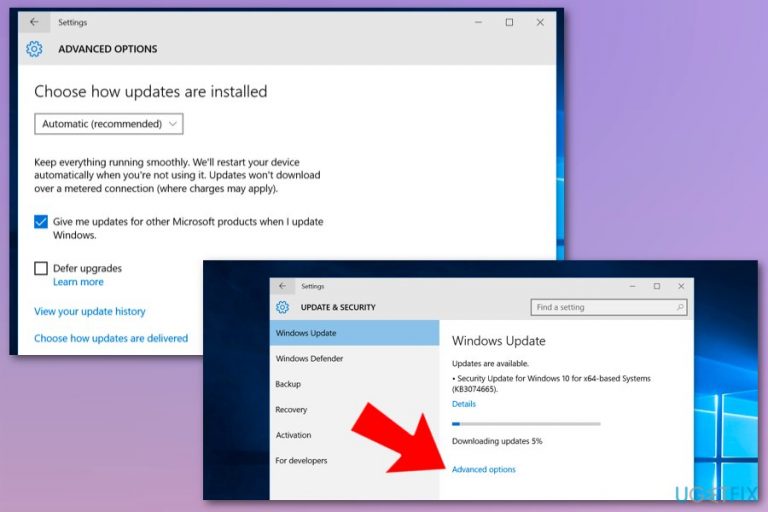
- Recent Windows 10 updates
- Browser settings misconfiguration
- Network connectivity issues
- Corrupted Edge installation
- Conflicting extensions or add-ons
Repairs Windows system files, removes malware, and restores a clean OS state — without reinstalling.
For some reason, Edge refuses to open websites, actually, any website. In some rare occasions, I can open Facebook and Google search. None of the other sites are opened. Instead, I receive an error message in a white colored background saying “Hmm, we can’t reach this page.” This has started a week ago for no apparent reason. I tried running in New Private Window, but with no avail. Could you please help me with that? At the moment I’m using Chrome, which works fine, but I’ve noticed that Edge works far more faster, so I want it to get fixed. Please help.
Microsoft Edge is a web browser developed by Microsoft and inbuilt into the Windows 10 OS.[ref en-1] Nevertheless, it can also be downloaded from the Microsoft Store for free and installed on any other operating system. Various test results initiated by Microsoft and other impartial companies, Microsoft Edge features a faster performance while working within Windows 10 OS in comparison to Google Chrome, Mozilla Firefox or Internet Explorer.
That’s because it has a set of features that perfectly confirm the requirements of the newest version of Windows. However, this web browser has plenty of things to work on, including performance, design, settings, personalization, design, etc. to satisfy the needs of all users.[ref en-2]
Therefore, all of the major Windows 10 updates include some improvements of Microsoft Edge. The problem is that after the installation of some Windows 10 updates, people often start encountering a Microsoft Edge error, which says “Hmm, we can’t reach this page.”
The bug prevents people from accessing any website except for Edge’s homepage. In some of the cases, people get through the bug and manage to access several websites, though typically “Hmm, we can’t reach this page” error reappears in a short time span.

Even though this problem emerged a couple of years ago soon after Windows 10 release, people are still buzzing about it these days. Therefore, we’ll provide a couple of tips that may help you to fix “Hmm, we can’t reach this page” bug on Edge.
How to Fix “Hmm, we can’t reach this page” Error on Microsoft Edge?
First of all, make sure that your computer has established an Internet connection. Sometimes the “Hmm, we can’t reach this page” error page may show up due to the lost connection. In addition to that, you should also initiate a thorough system scan with a powerful anti-malware just to make sure that your web browsing sessions aren’t interfered by malware or virus.[ref en-3] We would highly recommend using [d1]. If after all “Hmm, we can’t reach this page” is not gone, please try the following methods:
Change your network from Public to Private or vice verse
- Click Win key + R, type regedit, and press Enter.
- Using the left pane, navigate to the HKLM/Software/Microsoft/Windows NT/CurrentVersion/NetworkList/Profiles path.
- Locate the network connection, click it, and open the Category DWORD.
- Change the value of Category to 1 and Public to 0. If your network has been set to Category, then change the values vice verse.
- Finally, close Registry Editor and reopen Edge to check for the error.
Change the address of DNS server
- Locate to Network Connections.
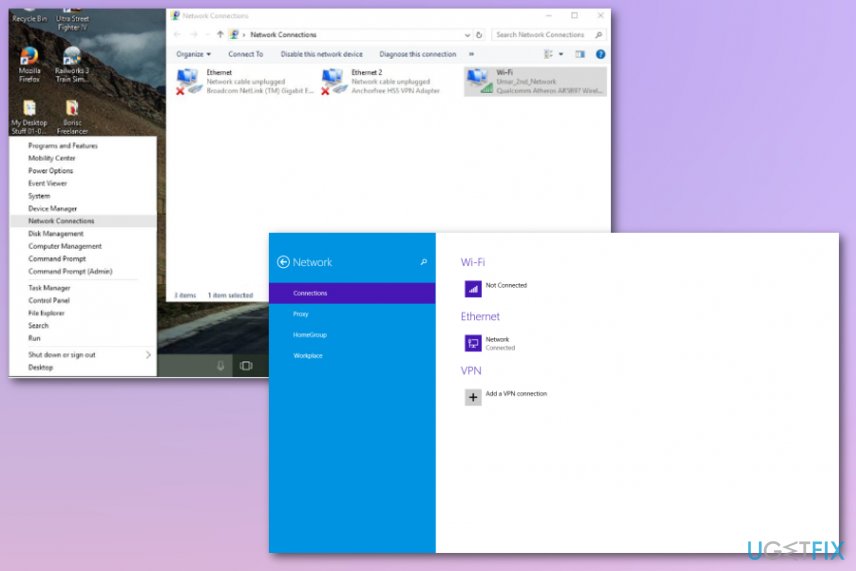
How to fix hmm we cant reach this page error on edge network connections - Right-click on the network connection you are currently using.
- Go to Properties and double-click on Internet Protocol Version 4 (TCP/IPv4).
- Mark Use the following DNS server addresses and type in the following:
Preferred DNS server: 8.8.8.8
Alternate DNS server: 8.8.4.4 - Click OK to save the changes.
Undo Windows 10 Updates
If you have noticed that “Hmm, we can’t reach this page” error emerges soon after the installation of Windows update, then we would recommend you to undo it and wait for the other update to come. For this purpose, you should:
- Open Settings app by clicking Win key + I.
- Navigate to Update & security -> Windows Update.
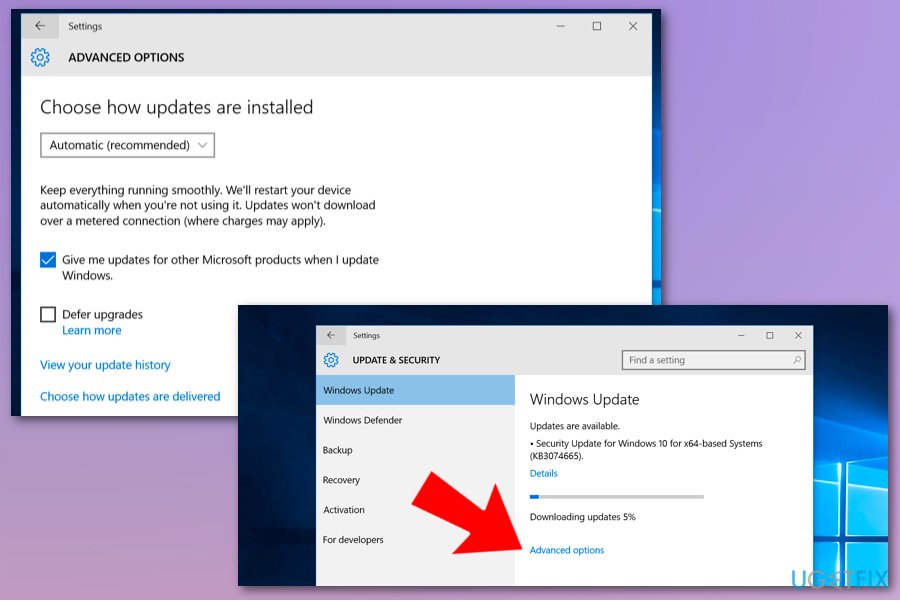
How to fix hmm we cant reach this page error on edge windows update - Select Advanced options and then click View your update history.
- Click Uninstall updates.
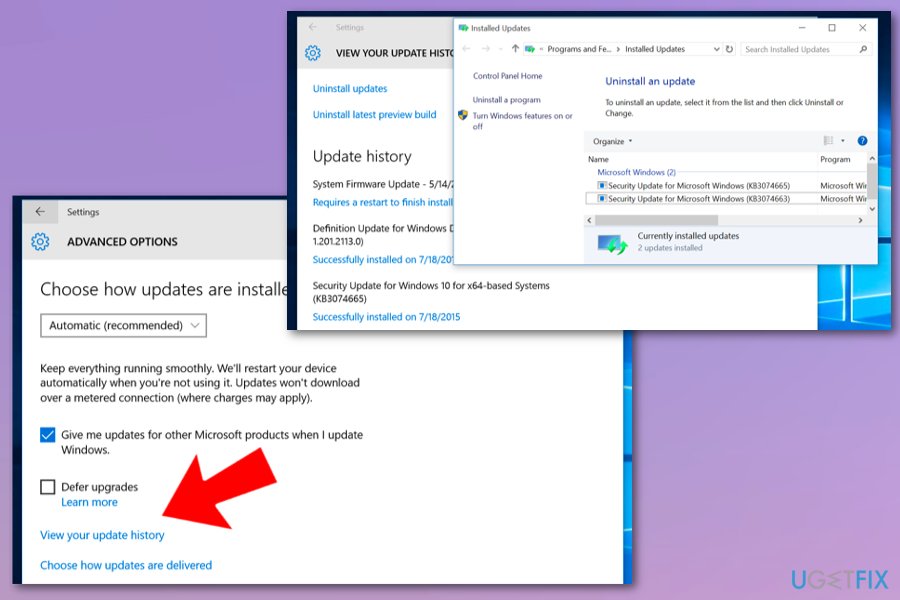
How to fix hmm we cant reach this page error on edge windows update uninstall
Bottom line
To fix the 'Hmm, we can’t reach this page' error on Edge, you can try resetting Edge settings, checking your internet connection, or reinstalling the browser. If none of these solutions work, consider using an alternative browser or seeking further technical support.
Frequently asked questions
First, check your internet connection and try restarting your router. If the issue persists, clear your browser cache and cookies from Edge settings.
Yes, try disabling any browser extensions you have installed, as they can sometimes interfere with page loading in Edge.
To reset Edge, go to Settings > Reset settings > Restore settings to their default values, and then restart the browser.




Report an issue
What's wrong with this guide? We review every report and update or remove content.
Report received — thank you. We'll review and fix it.
You need a free account to submit a report.
Be the first to comment