How to fix
Hogwarts Legacy low FPS and other performance issues on PC
on Windows
Boost Hogwarts Legacy performance on Windows 10 and 11 with effective fixes for low FPS. Expert-tested solutions for seamless gaming await!

What causes How to fix Hogwarts Legacy low FPS and other performance issues on PC?
- Low graphics settings
- Outdated drivers
- In-game V-Sync enabled
- Corrupted files
- Registry issues
Repairs Windows system files, removes malware, and restores a clean OS state — without reinstalling.
Hello. I just got Hogwarts Legacy but the FPS are extremely low. The game is lagging and stuttering. What could be the issue? What should I do?
Prepare your wands, people! Hogwarts Legacy, the highly anticipated game, is finally here and ready to transport us all to the magical world of the Wizarding World. This game, developed by Avalanche Software and published by Warner Bros, promises to be a spellbinding adventure.
Players will have the chance to attend classes at Hogwarts School of Witchcraft and Wizardry and explore beloved locations such as Diagon Alley, Hogsmeade, and the Forbidden Forest. It's like a field trip to the wizarding world, and we're all signed up!
Now, we know there's been a bit of controversy surrounding the game due to the views of J.K. Rowling, the author of the Harry Potter books, and her recent statements on transgender issues. Despite this, many fans of the Wizarding World franchise have been eagerly awaiting the release of Hogwarts Legacy.
But wait, what's this? Unfortunately, players are reporting a variety of game performance issues, such as low FPS[ref en-1] and stuttering. These technical issues are causing a great deal of frustration for gamers, affecting the overall quality of their gaming experience. Stuttering and lagging have an impact on gameplay as well, making it difficult for players to fully immerse themselves in the wizarding world.
Players can try a few different solutions to improve game performance, such as adjusting graphics settings or updating drivers. However, these solutions may not work for everyone, and some players may continue to have issues.
In this guide, you will find 9 steps that should help you fix Hogwarts Legacy low FPS and other performance issues on PC. Keep in mind, that the manual troubleshooting process can be lengthy. You can use a maintenance tool like [d1] that can fix most system errors, BSODs,[ref en-2] corrupted files, and registry[ref en-3] issues. Otherwise, follow the step-by-step instructions below.
Method 1. Disable In-game V-Sync
- Open the game and go to the Settings
- Find the option to disable V-Sync
Now enable V-Sync in Nvidia Control Panel:
- Open the Nvidia Control Panel
- Click on 3D Settings and choose Manage 3D settings in the Nvidia Control Panel interface
- Choose Program Settings, then click Add
- Choose Hogwarts Legacy from your PC’s list of programs
- If the game app isn’t shown, click Browse and go to the directory on the drive where Hogwarts Legacy is installed
- Find the Hogwarts Legacy folder and add the Hogwarts Legacy.exe program. Then choose the game from the list and add it.
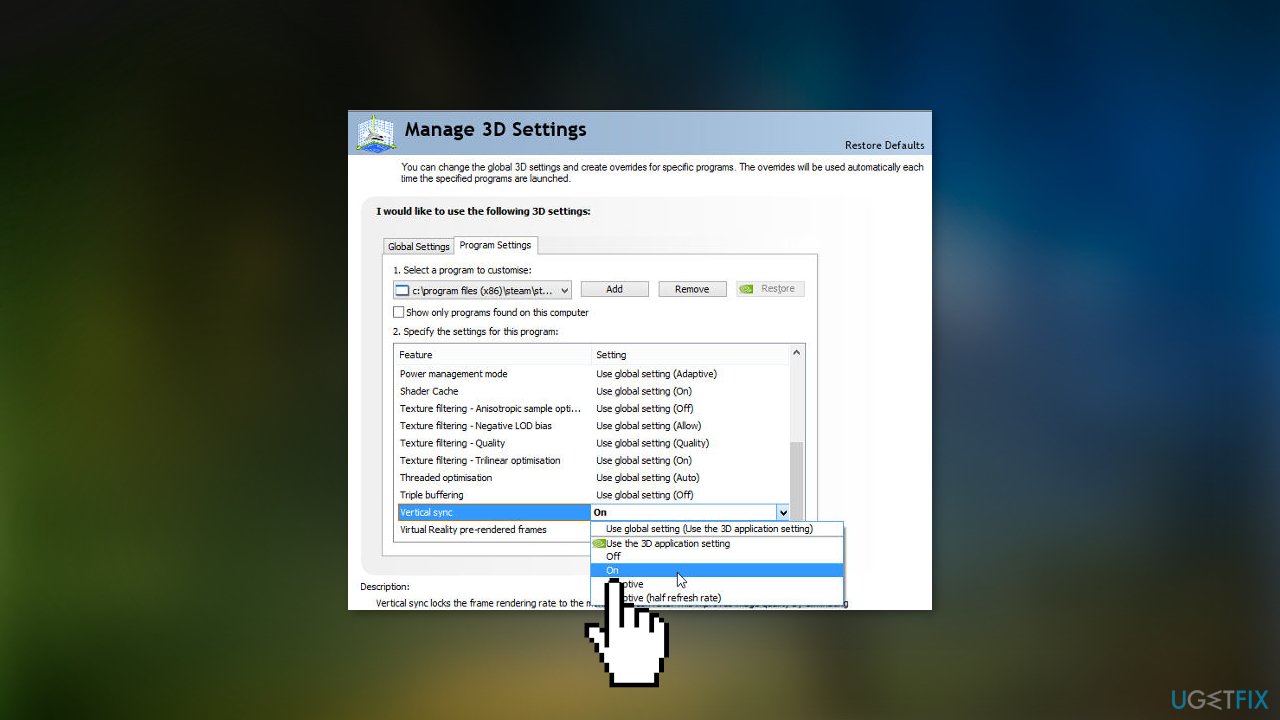
- Scroll down until you see Vertical sync
- Click on it, then choose On to turn it on. This will always make Hogwarts Legacy use V-Sync
- Restart your computer for the changes to take effect, then play the game again to see if the problem is still there
Method 2. Change Low Latency Mode to Ultra
- Right-click on Desktop
- Select NVIDIA Control Panel from the drop-down menu
- Navigate to 3D Settings in the left sidebar
- Click Manage 3D Settings
- Go to Settings
- Select Low Latency Mode from the options list
- Choose Ultra from the drop-down menu
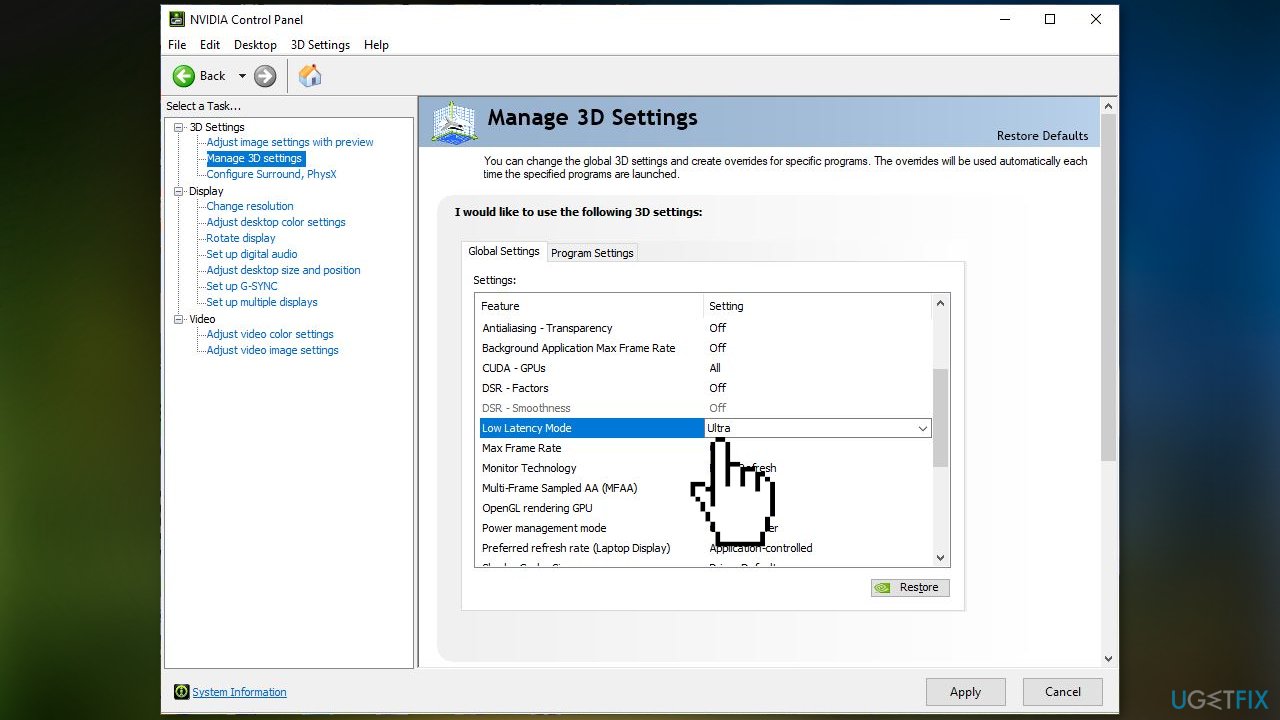
- Click Apply in the lower-right corner of the window
- Wait until Apply disappears, low latency mode is now activated
Method 3. Update DLSS
- Download DLSS DLL 2.5.1 (22 December 2022)
- Extract file in C:\Program Files (x86)\Steam\steamapps\common\Hogwarts Legacy\Engine\Plugins\Runtime\Nvidia\DLSS\Binaries\ThirdParty\Win64
- Check if the performance is better
Method 4. Disable Windows app Correction Scaling
Windows 10:
- Open windows settings Windows + I
- Click System
- On Display tab, click Advanced scaling settings under Scale and Layout
- Under Let Windows try to fix apps so they’re not blurry, set the button to Off
Windows 11:
- Go to Settings and click on Personalization
- Go to Fonts and click on the Related Settings dropdown button
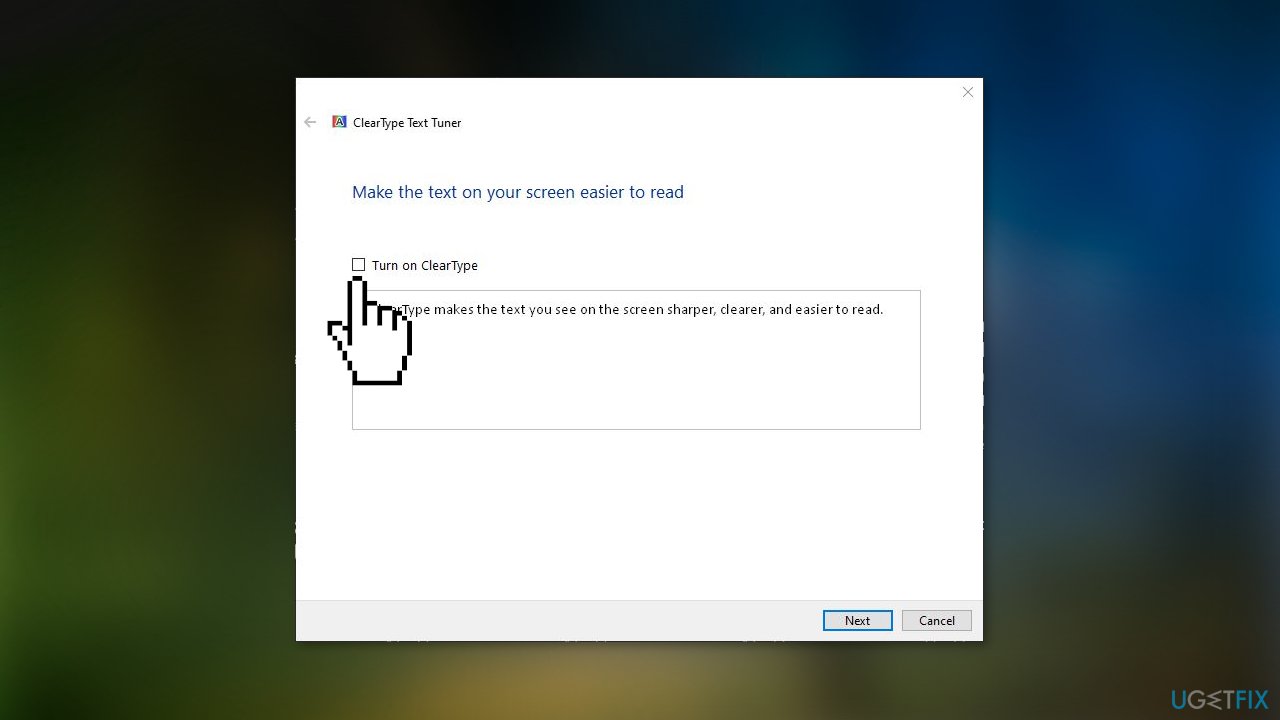
- In the menu that appears, click on the Adjust ClearType text option then make sure Enable ClearType is unchecked
Method 5. Set Process Priority to High
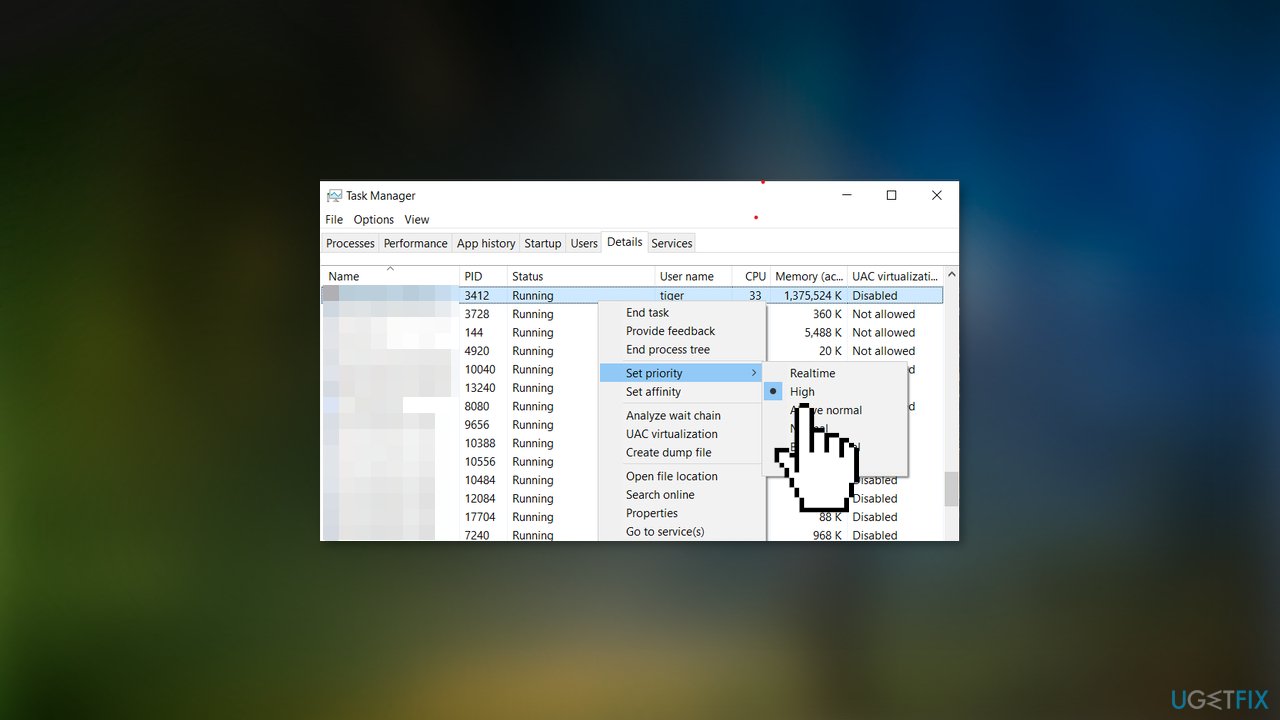
- Right-click the Start button and choose Task Manager
- Click on the Processes tab, then right-click on the game task for Hogwarts Legacy
- Choose Set High Priority and then close Task Manager
Method 6. Lower In-Game Graphics Settings
To improve performance, decrease graphics settings in the game on your PC or console. Turn off features such as texture details, shadow effects, v-sync, anti-aliasing, etc. This should boost FPS.
Method 7. Verify Integrity of Game Files
- Launch Steam and select Library
- Right-click Hogwarts Legacy in the list of games you have installed
- Click on Properties and go to Local Files
- Click on Verify integrity of game files
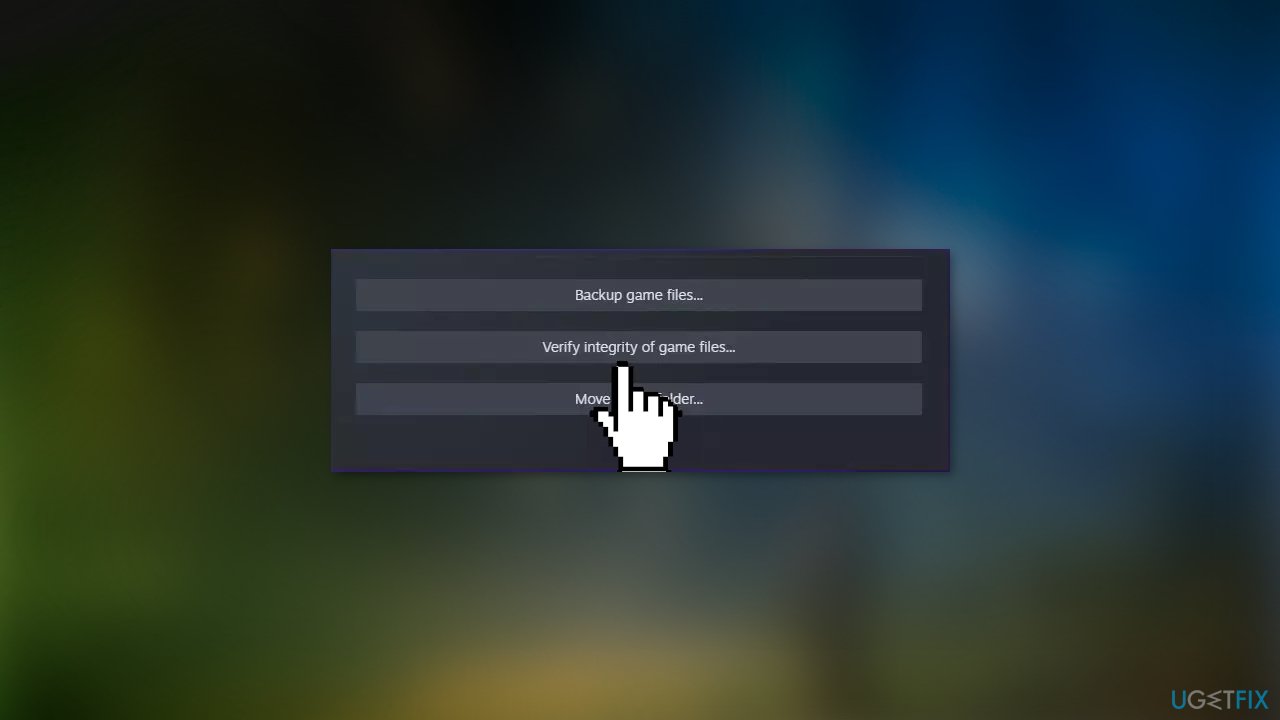
- You will have to wait until the process is done
- Restart your computer
Method 8. Update Display Driver
- Open Device Manager and expand the Display Adapters tab
- Right-click on your graphics driver and select Properties
- Go to the Driver tab and click on Update Driver
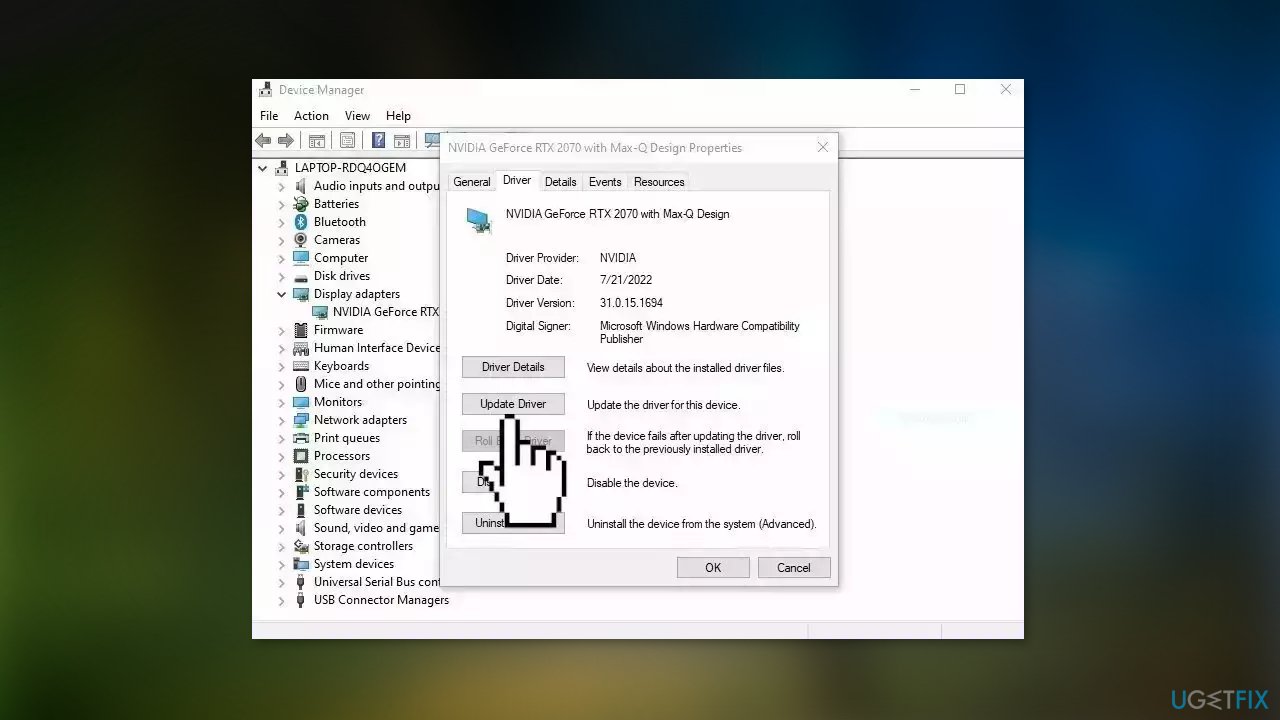
- Press on Search Automatically for Drivers
- If a graphic driver update is available, install it and then restart your PC
- Upon restart, launch the Forspoken game and check if it fixed the issue.
- You may also use a dedicated utility like [rev id="DriverFix"] that can find the best drivers for your machine and install them automatically
Method 9. Update Hogwarts Legacy
- Open Steam and go to Library
- Click on Hogwarts Legacy
- It will look for the available update on its own. Make sure to click on Update if there is an update available.
- Restart your PC to make the changes take effect and start the game again
Bottom line
To fix low FPS and performance issues in Hogwarts Legacy, players can try adjusting graphics settings, disabling in-game V-Sync, and updating their drivers. If these solutions do not resolve the issues, consider using a maintenance tool to fix system errors or follow additional troubleshooting steps.
Frequently asked questions
You can improve FPS by lowering the in-game graphics settings, updating your graphics drivers, and ensuring that your Windows is up to date with the latest patches.
Try reducing the resolution, turning off V-Sync, and disabling any unnecessary background applications to enhance performance on Windows 10 or Windows 11.
Yes, you can optimize performance by using the Windows Game Mode, adjusting power settings to high performance, and ensuring your system meets the game's recommended specifications.




Report an issue
What's wrong with this guide? We review every report and update or remove content.
Report received — thank you. We'll review and fix it.
You need a free account to submit a report.
Be the first to comment