How to fix
HP printer error 0x00829C98
on Windows
Resolve HP printer error 0x00829C98 on Windows 10 or 11 effortlessly. Get expert-tested solutions and restore your printing functionality in minutes!


What causes How to fix HP printer error 0x00829C98 in Windows?
- Underlying software problems
- Malfunctioning printer firmware
- Outdated printer drivers
- Broken ink cartridge
- Faulty printer motor
Repairs Windows system files, removes malware, and restores a clean OS state — without reinstalling.
Hello. When I try to print on Windows using my HP printer, I get the 0x00829C98 error code. Is there a way to fix this?
When Windows users see the HP printer error number 0X00829C98 HW WATCHDOG C, it usually indicates underlying software problems. Components like the printer's firmware or drivers[ref en-1] may be a common source of the issue. Problems with these software components could cause the error and prevent the printer from operating normally.
Furthermore, malfunctioning hardware could potentially be the cause of the error code. A broken ink cartridge or motor can contribute to the occurrence of the 0x00829C98 error, adding an additional layer of complexity to the troubleshooting process.
This problem has a significant negative effect on users since it prevents the HP printer from operating smoothly. Printing tasks could be interrupted for users, temporarily stopping the printer from working. The annoyance and frustration resulting from these disruptions can be especially difficult for people who depend on the printer for important or daily duties.
The HP printer error code 0x00829C98 must be resolved with an organized strategy. It can be necessary for users to investigate possible hardware problems by looking at the ink cartridge, motor, and other pertinent parts. Concurrently, fixing the issue and getting back to normal operation depends on making sure the printer driver is in good shape, which may be done by upgrading or reinstalling it.
In this guide, you will find 6 steps that should help you fix HP printer error code 0x00829C98 on Windows. If you experience any other OS issues, you can run a maintenance tool like [d1] that can fix most system errors, BSODs,[ref en-2] corrupted files, and registry[ref en-3] issues. Otherwise, follow the step-by-step instructions below.
Solution 1. Run the Printer Troubleshooter
- Navigate to Settings.
- Open the System.
- Select Troubleshooters.
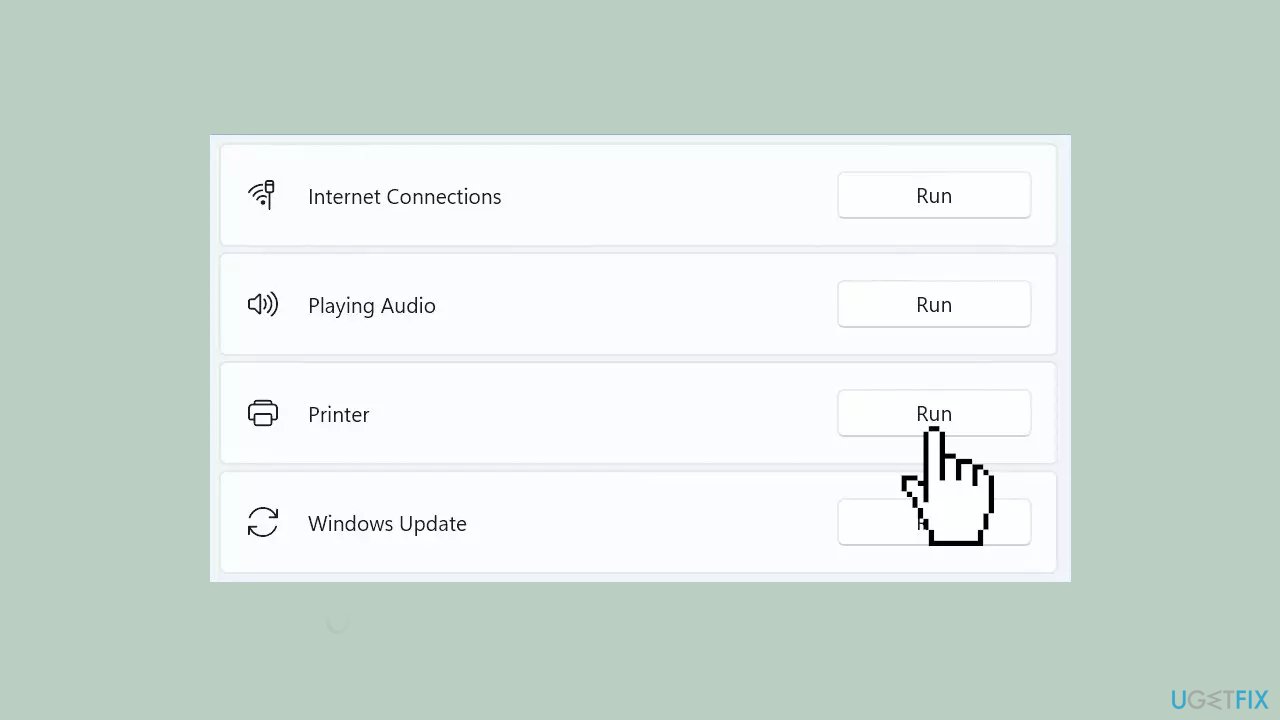
- Select Other troubleshooter.
- Run the Printer troubleshooter from the following menu and follow the on-screen instructions.
Solution 2. Install Windows Updates
- Click Start and select Settings.
- Go to the Windows Update section.
- Click Check for updates and wait.
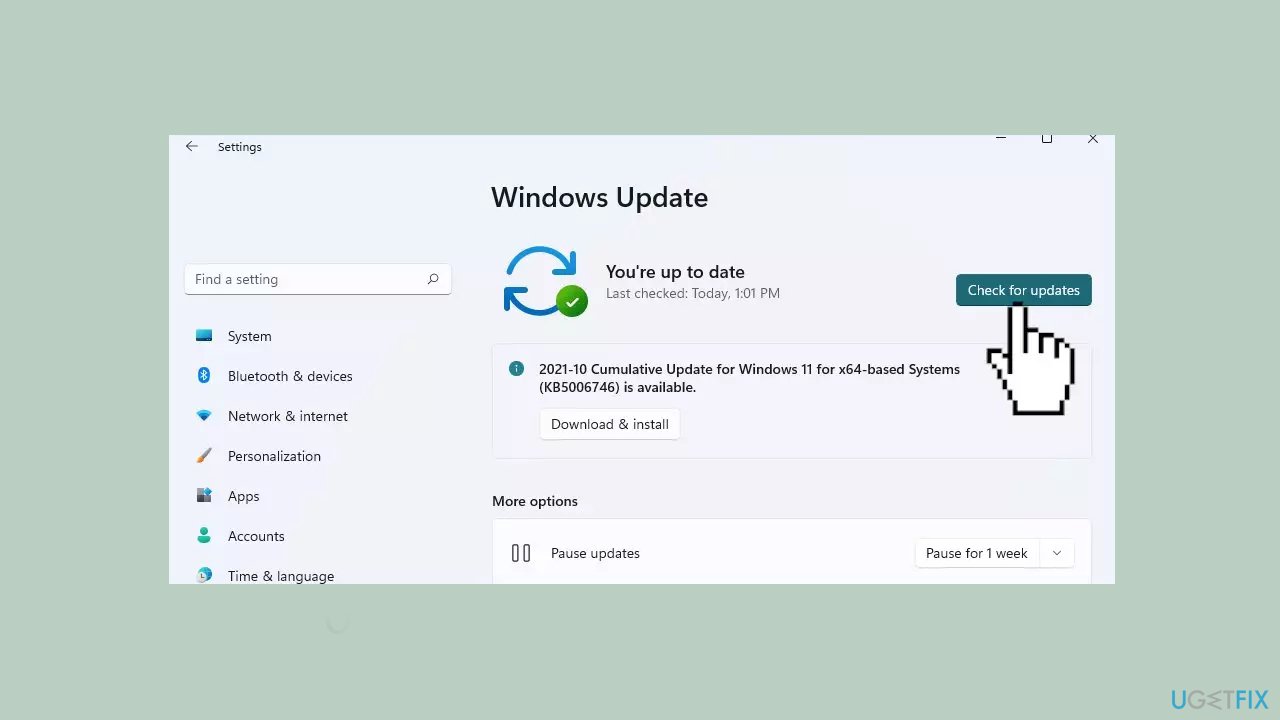
- Go to the Advanced options and install optional updates.
- Reboot your system.
Solution 3. Perform a Hard Reset
If neither the motor nor the ink cartridge is the culprit behind the error, consider performing a hard reset. A hard reset restores your printer's settings to default and can often resolve various printer errors. Follow these steps to initiate the hard reset:
- With the printer turned on, disconnect the power cord from the rear of the printer and unplug the power cord from the wall outlet.
- Remove the USB cable, if present.
- Wait for 2-3 minutes, press and hold the power button on your printer for about 30 seconds to remove any additional charge.
- Now plug back the power cable straight into a wall outlet without any surge protector or an extension cord and then plug the power cord into the printer.
- Turn on the printer and wait till the warm-up period finishes and the printer is idle.
Solution 4. Update Printer Firmware
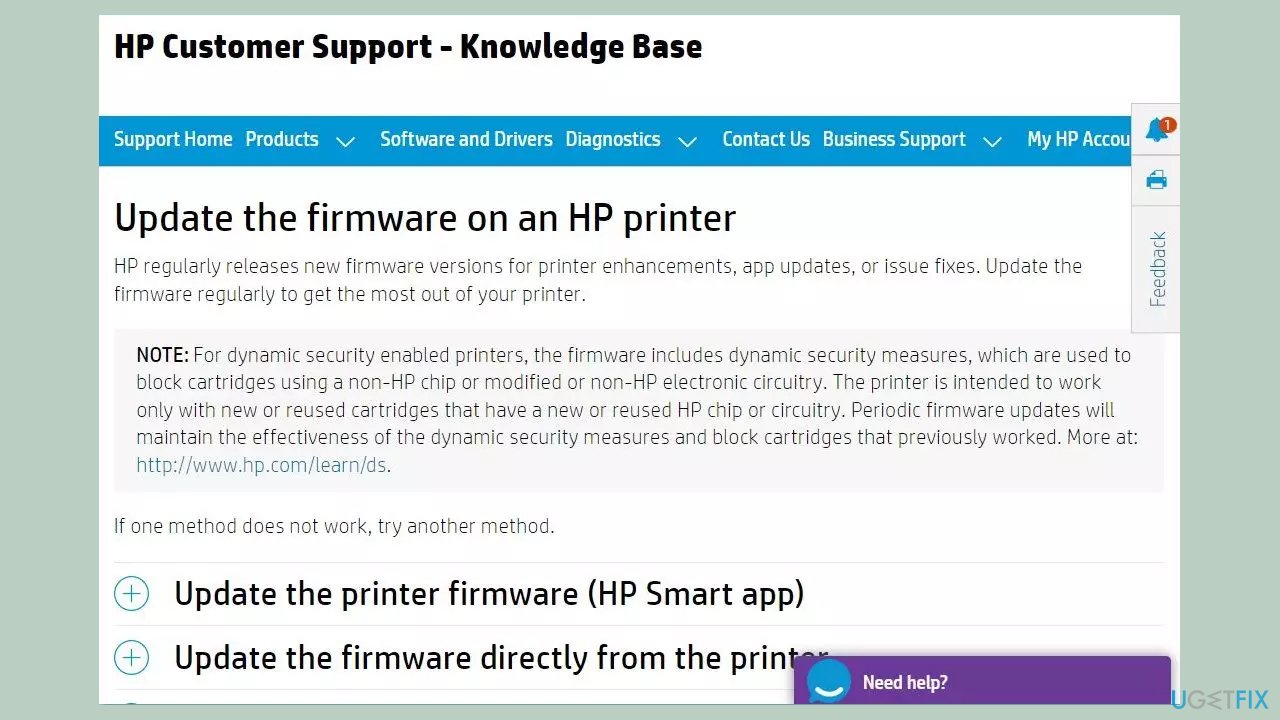
Every HP printer model comes with its specific firmware. Therefore, to acquire the most up-to-date firmware, you should go to the respective support website and install the firmware that matches your device model.
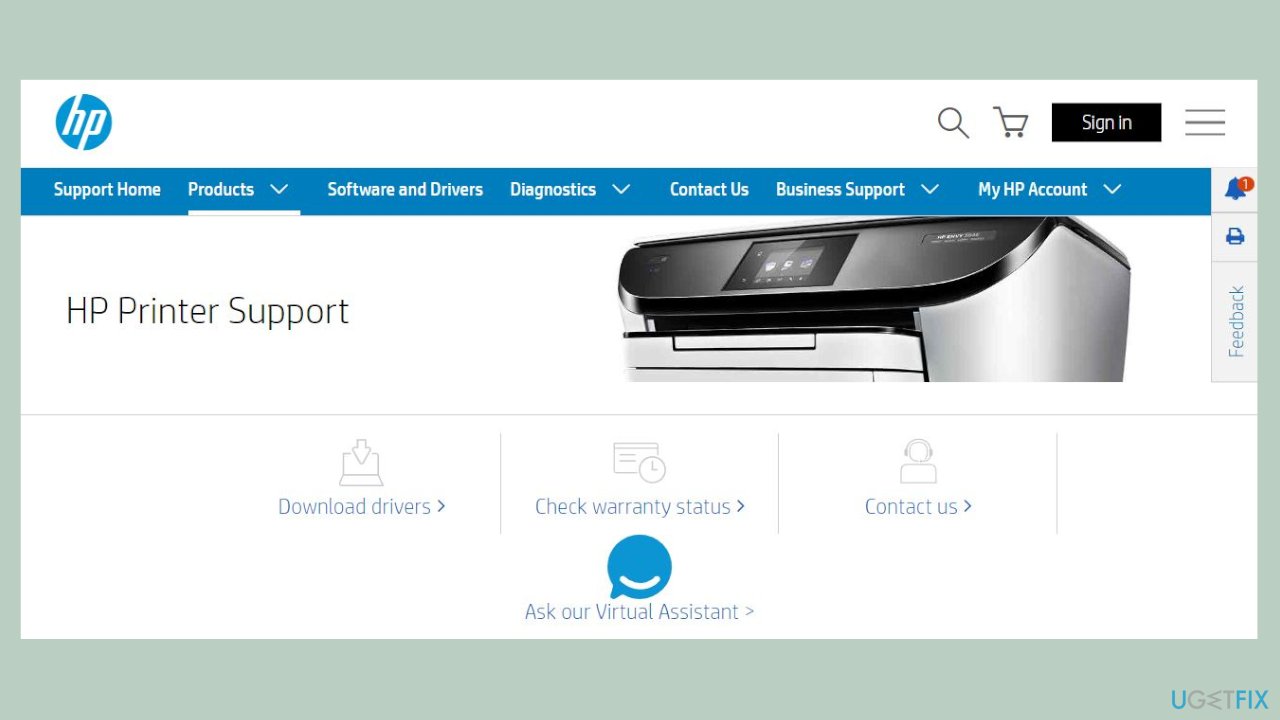
- Visit the HP Support website to download and install or update the firmware on an HP printer.
- Click on Software and Drivers.
- Select Printers.
- Add the model of your printer in the Enter your product name field.
- Click Submit.
- Expand the Printer Firmware field.
- Download the recent firmware from the list of available firmware for your printer.
- Once the file is downloaded successfully, run the installer (ensure the printer is connected to the PC).
- Restart your PC.
Solution 5. Update or Reinstall the Printer Driver
- Launch the Device Manager.
- Go to Print Queues and expand the list.
- Select Update driver and check if the problem is gone.
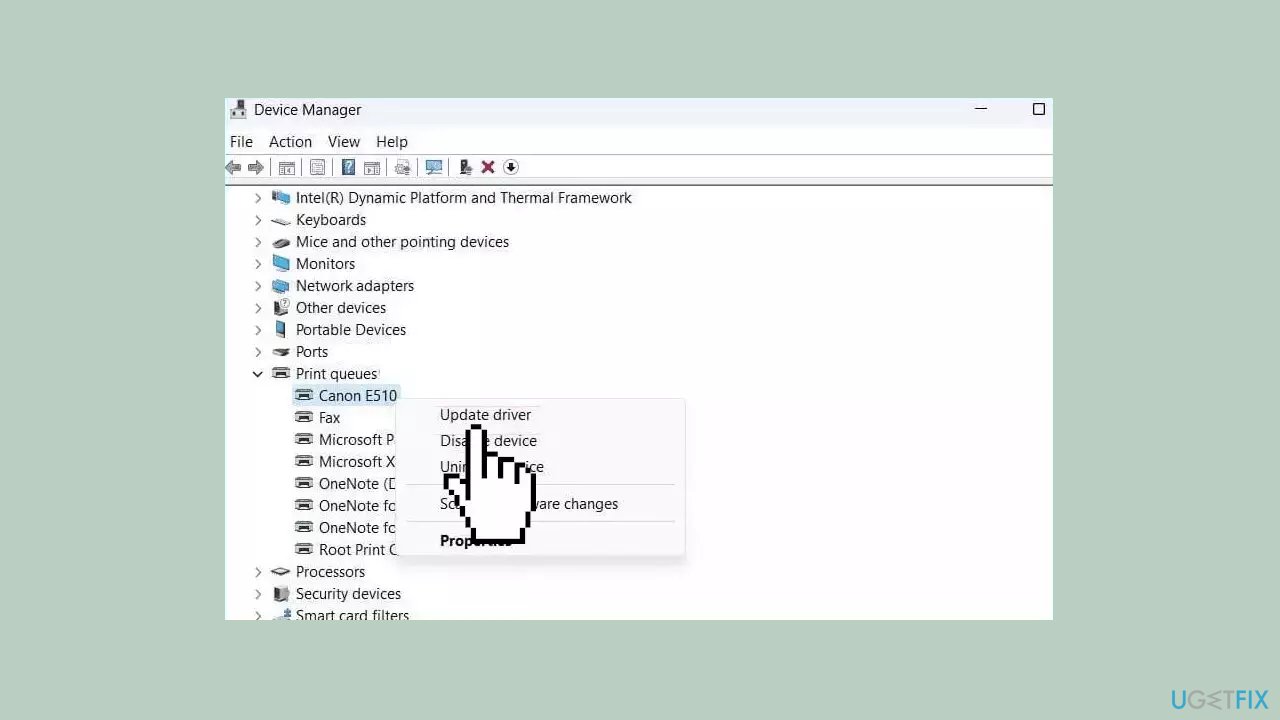
- If it persists, select Uninstall device to remove your current print drivers.
- Restart your computer.
- Your device will automatically install the latest print drivers.
You can also use a dedicated utility like [rev id="DriverFix"] that can find the best drivers for your machine and install them automatically.
Solution 6. Contact HP Support
If, despite attempting the previously mentioned solutions, the error code persists, there might be another underlying hardware issue that warrants additional troubleshooting. In such cases, we recommend reaching out to HP Support or seeking assistance from a qualified printer repair technician.
Bottom line
To fix the HP printer error code 0x00829C98, users can run the Printer Troubleshooter, install Windows updates, and ensure that the printer driver is up to date. If these solutions do not resolve the issue, consider investigating potential hardware problems or using a maintenance tool for further assistance.
Frequently asked questions
This error typically occurs due to outdated printer drivers or connectivity issues between your HP printer and Windows 10 system.
You can update your HP printer drivers by visiting the HP support website, downloading the latest drivers for your printer model, and installing them on your Windows 11 computer.
Yes, you can try restarting both your printer and Windows, checking the printer's connection, and running the Windows Printer Troubleshooter to resolve the error.




Report an issue
What's wrong with this guide? We review every report and update or remove content.
Report received — thank you. We'll review and fix it.
You need a free account to submit a report.
Be the first to comment