How to fix
HP printer error 0x6100004a
on Windows
Resolve HP printer error 0x6100004a on Windows 10 and 11 quickly. Get expert-tested solutions that restore your printer functionality in minutes.


What causes How to fix HP printer error 0x6100004a?
- Jammed paper
- Faulty printhead installation
- Limited printhead movement
- Incorrect cartridge installation
- Obstructions in the paper path
Repairs Windows system files, removes malware, and restores a clean OS state — without reinstalling.
Hello. My HP printer does not respond and shows 0x6100004a error code. What does it mean? What should I do to fix it?
Users frequently see the HP printer error 0x6100004a, which is frequently linked to hardware issues with the printer. This error includes a number of problems, including jammed paper and cartridge or printhead troubles. This error tells users that there are issues with the printer's operation that need to be fixed.
One common cause of the 0x6100004a error is paper jams. This error number may appear if paper gets caught inside the printer, interfering with the device's ability to operate smoothly. This error may also occur as a result of issues with the printhead or cartridge, such as faulty installation or limited movement.
The stoppage of printing tasks demonstrates the impact on users. Users may encounter delays and irritation when their printing efforts are hindered once the error 0x6100004a occurs. When documents need to be printed quickly or urgently, this problem can be quite annoying.
Fixing the underlying hardware issues is necessary to fix the error. It could be necessary for users to check the printer for paper jams and make sure the paper path is free of obstructions. Furthermore, it's imperative to confirm that the printhead and cartridge are installed correctly and move freely. It might be required to clean and reinstall these parts in order to fix the issue and get the printer working normally again.
In this guide, you will find 6 steps that should help you fix HP printer error 0x6100004a. You can also run a maintenance tool in Windows like [d1] if you experience any system errors, BSODs, corrupted files, or registry issues. Otherwise, follow the step-by-step instructions below.
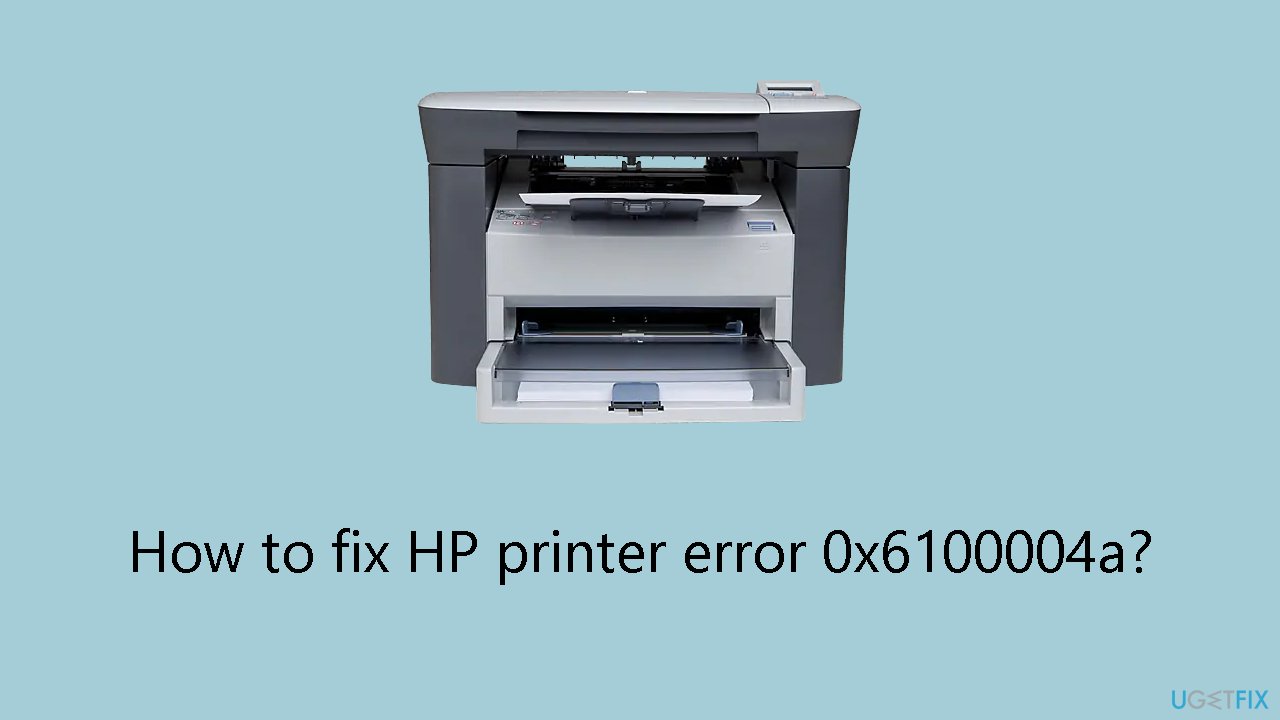
Solution 1. Restart Printer
Initiating a printer restart and checking for the presence of the error is a more effective approach. Many electronic device issues, including those with printers, can often be resolved with a simple restart.
Solution 2. Check for Paper Jams
Verify that there is no paper jam, and ensure that the papers are correctly positioned in the tray without any folds or damage. If any such issues are detected, remove the problematic papers before attempting to use the printer. Additionally, inspect for any foreign objects interfering with the print jobs. Conduct a thorough examination of the printer, clearing any items that are not pertinent to its operation.
Solution 3. Check the Printhead and Cartridge
If the printhead and cartridge are not installed correctly, or if the cartridge lacks free mobility, you may encounter the 0x6100004a error on HP printers. Ensure that the printhead is appropriately installed. If the printhead is detachable, take it out and reseat it properly. If you have uncertainties about the printhead, consult your printer's user manual for guidance.
Likewise, confirm that the cartridge is correctly installed and can move freely. Remove the cartridge, clean it with a soft cloth, and then reinstall it.
Solution 4. Hard Reset Printer
A hard reset restores your printer's settings to default and can often resolve various printer errors. Follow these steps to initiate the hard reset:
- With the printer turned on, disconnect the power cord from the rear of the printer and unplug the power cord from the wall outlet.
- Remove the USB cable, if present.
- Wait for 2-3 minutes, press and hold the power button on your printer for about 30 seconds to remove any additional charge.
- Now plug back the power cable straight into a wall outlet without any surge protector or an extension cord and then plug the power cord into the printer.
- Turn on the printer and wait till the warm-up period finishes and the printer is idle.
Solution 5. Update the Firmware
Every HP printer model comes with its specific firmware. Therefore, to acquire the most up-to-date firmware, you should go to the respective support website and install the firmware that matches your device model.
- Visit the HP Support website to download and install or update the firmware on an HP printer.
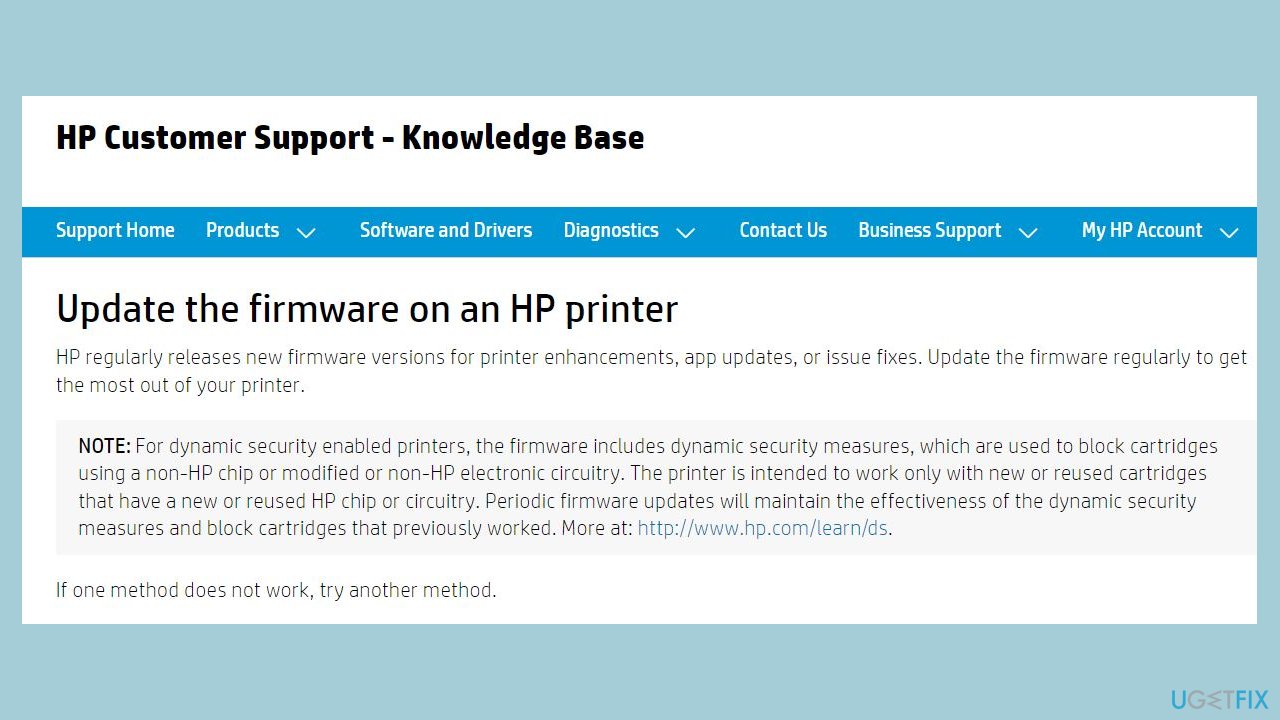
- Click on Software and Drivers.
- Select Printers.
- Add the model of your printer in the Enter your product name field.
- Click Submit.
- Expand the Printer Firmware field.
- Download the recent firmware from the list of available firmware for your printer.
- Once the file is downloaded successfully, run the installer (ensure the printer is connected to the PC).
- Restart your PC.
Solution 6. Contact Support
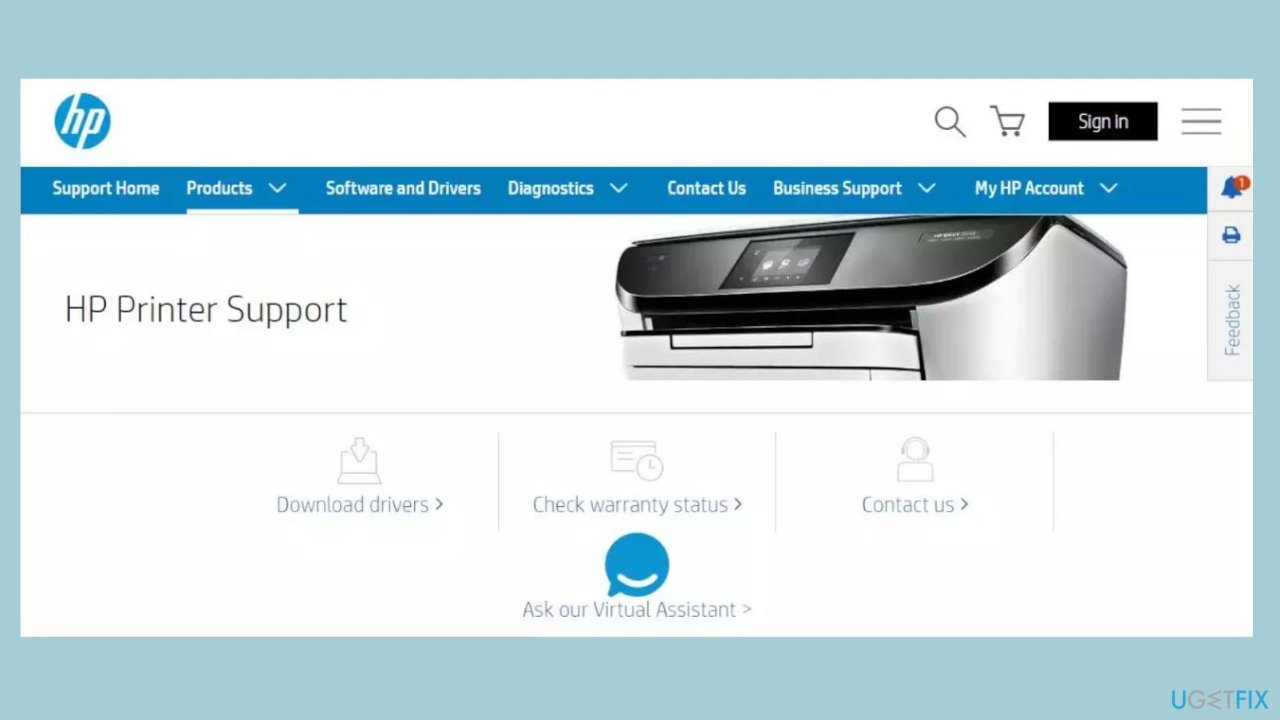
If, despite attempting the previously mentioned solutions, the error code persists, there might be another underlying hardware issue that warrants additional troubleshooting. In such cases, we recommend reaching out to HP Support or seeking assistance from a qualified printer repair technician.
Bottom line
To fix the HP printer error 0x6100004a, users should restart the printer, check for paper jams, and ensure that the printhead and cartridge are installed correctly and can move freely. Cleaning and reinstalling these components may also be necessary. If the issue persists, consider running a maintenance tool in Windows or seeking further assistance.
Frequently asked questions
This error typically signifies a problem with the printer's cartridge or an internal hardware issue that needs addressing. It can often be resolved by checking the ink levels and ensuring cartridges are properly installed.
To reset your HP printer, turn it off, unplug it for at least 60 seconds, and then plug it back in and turn it on. This can help clear temporary errors and restore normal functionality.
Yes, ensuring that you have the latest HP printer drivers installed on your Windows 10 or Windows 11 system can help resolve compatibility issues that may trigger error 0x6100004a.




Report an issue
What's wrong with this guide? We review every report and update or remove content.
Report received — thank you. We'll review and fix it.
You need a free account to submit a report.
Be the first to comment