How to fix
HP printer error 83C0000B
on Windows
Resolve HP printer error 83C0000B on Windows 10 and 11 effortlessly. Get your printer back to work with expert-tested solutions today! Fixed in minutes.

What causes How to fix HP printer error 83C0000B?
- Network problem
- Connectivity issue
- Firmware outdated
- Printer settings misconfigured
Repairs Windows system files, removes malware, and restores a clean OS state — without reinstalling.
Hello. When I try to print using my HP printer I see the 83C0000B error. What does it mean? Is there a way to fix this?
HP printers are well-known for their dependability and performance, with a wide range of models available for both home and business use. They are intended to provide high-quality printing, scanning, and copying. HP printers work with a variety of operating systems and include advanced features like wireless connectivity, automatic duplexing, and cloud printing.
The 83C0000B error code is a specific error code that can occur on HP printers. While the exact cause varies, it usually indicates a network or connectivity problem. This error can cause the printer's functionality to be disrupted, preventing it from completing print jobs or connecting to the network.
This problem may have a number of consequences for users. It can cause interruptions in printing tasks, delays in finishing important documents, and frustration as a result of the printer's unresponsive behavior. Furthermore, if the printer is part of a networked environment, it can have an effect on the productivity of multiple users.
Users can try several troubleshooting steps to resolve error 83C0000B. Disconnecting the printer from the internet, updating firmware, performing a hard reset, or contacting HP support for further assistance are all options. Each potential solution aims to resolve the underlying network or connectivity problem and restore printer functionality.
In this guide, you will find 4 steps that should help you fix HP printer error 83C0000B. If you experience any Windows OS issues, you can try a maintenance tool like [d1] that can fix most system errors, BSODs,[ref en-1] corrupted files, and registry[ref en-2] issues. Otherwise, follow the step-by-step instructions below.
Solution 1. Disconnect Printer from the Internet and Restart it
Begin by disconnecting your printer from the internet access. This can be done in several ways:
- If your printer is connected via an ethernet cable, unplug it.
- If you can access the printer's settings, disable the Wi-Fi connection.
- Alternatively, change the password for your Wi-Fi connection to prevent the printer from connecting.
- After successfully disconnecting the internet access, restart your printer.
- Verify if the error persists or if the issue has been resolved.
Solution 2. Update Firmware
All firmware for HP devices is readily available on their support websites. Users have the freedom to download and install the firmware on their HP devices at their convenience. To resolve the error, follow these steps:
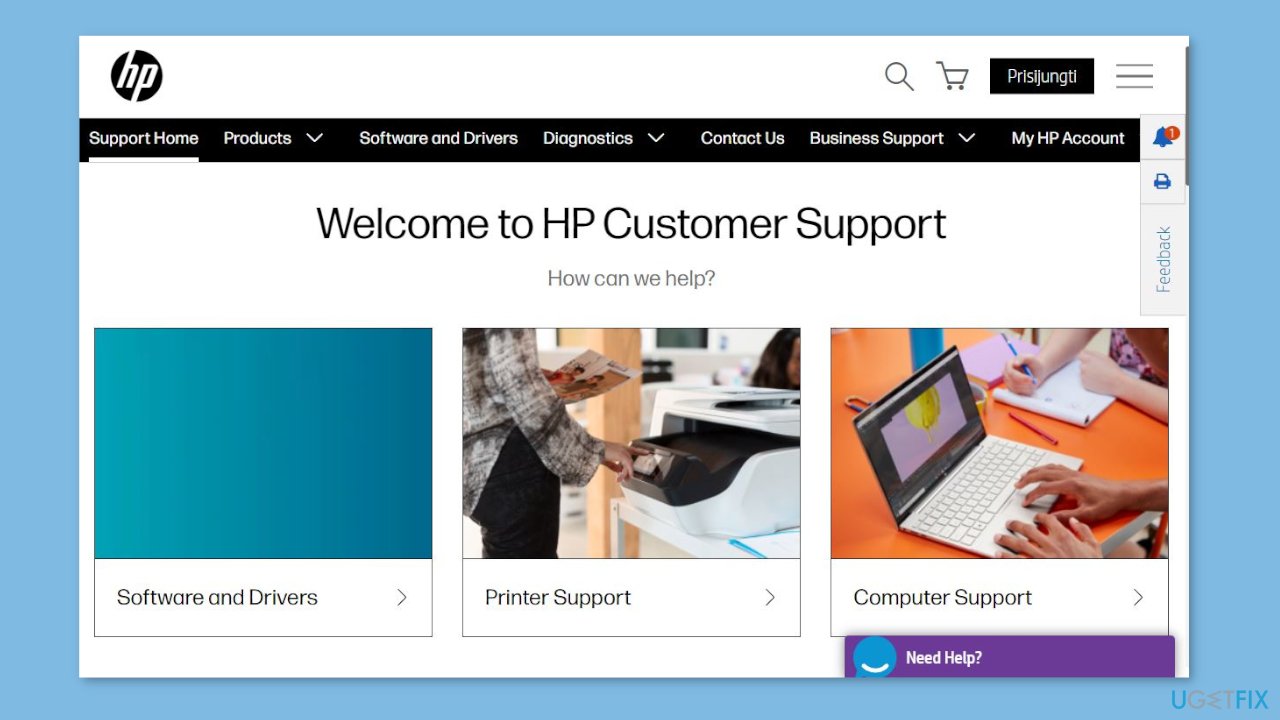
- Go to the HP Support website.
- Click on Software and Drivers on the website.
- Select Printers.
- Enter the model of your printer and click Submit.
- You will see a list of available firmware for your printer. Download the latest version.
- Once the download is complete, ensure that your printer is connected to your PC.
- Run the installer for the firmware.
- Follow the on-screen instructions to complete the installation process.
- After the firmware installation is finished, restart your printer.
Solution 3. Reset Printer
To resolve the error 83C0000B on your HP printer, an alternative method is to perform a reset. Typically, an HP printer reset can be accomplished through the printer's settings. However, since you lack access to all settings due to the error, a hard reset is necessary.
- Turn off the printer.
- Disconnect the power cable from the printer.
- Wait for approximately 30 seconds.
- Reconnect the power cable to the printer.
- Turn on the printer.
Solution 4. Contact HP Support
If none of the aforementioned solutions were successful in resolving the issue, the next course of action is to seek assistance from HP support. The most convenient method to reach out to the HP support team is through their dedicated support website.
- Open a web browser and navigate to the HP Support website.
- On the homepage, locate and click on the option Contact an HP agent for Support.
- Follow the on-screen instructions provided to initiate the support process.
- Provide the necessary details and describe the issue you are facing with your HP printer.
- Depending on the options available, you may be able to chat with an agent, schedule a callback, or explore other support channels.
- Engage with the HP support agent and follow their guidance to address and resolve the issue with your printer.
Bottom line
To fix the HP printer error 83C0000B, users can try disconnecting the printer from the internet, updating the firmware, or performing a hard reset. If these solutions do not resolve the issue, contacting HP support for further assistance is recommended.
Frequently asked questions
The HP printer error 83C0000B typically indicates a problem with the printer's firmware or a hardware issue. To resolve it on Windows 10, you may need to update the printer drivers or reset the printer settings.
To reset your HP printer on Windows 11, turn off the printer, disconnect the power cord, wait for 60 seconds, reconnect the power, and turn it back on. This can help clear temporary errors, including error 83C0000B.
Yes, ensuring you have the latest drivers installed can help resolve the HP printer error 83C0000B on both Windows 10 and Windows 11. Visit the HP website to download and install the latest drivers for your printer model.




Report an issue
What's wrong with this guide? We review every report and update or remove content.
Report received — thank you. We'll review and fix it.
You need a free account to submit a report.
Be the first to comment