How to fix
HP printer error code 0xc19a0003
on Windows
Resolve HP printer error code 0xc19a0003 on Windows 10 and 11 quickly and easily. Follow our expert-tested guide for a hassle-free fix!


What causes How to fix HP printer error code 0xc19a0003 in Windows?
- Problem with the printhead
- Issues with HP printer drivers
- Faulty ink cartridges
- Underlying system issues
- Corrupted files or registry issues
Repairs Windows system files, removes malware, and restores a clean OS state — without reinstalling.
[ref 1][ref 2]Hello. I have an error message "0xc19a0003 There is a problem with the printhead" displayed on my HP printer. Any advice would be greatly appreciated.
HP is a technology company that develops and provides a wide variety of hardware components, software, and related services to consumers, small and medium-sized businesses, and large enterprises, including customers in the government, health, and education sectors. It is especially known for its wide variety of printers.
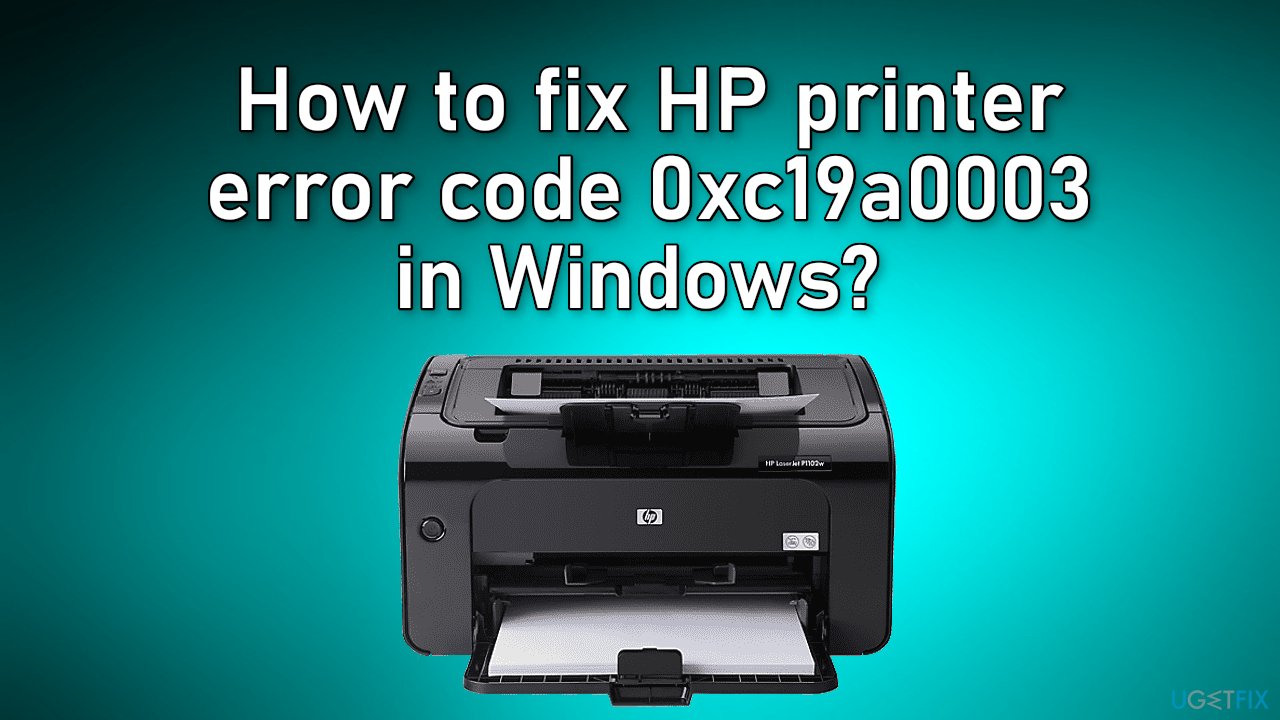
Unfortunately, some users have run into issues when trying to use HP printers. People report receiving an error code 0xc19a0003 in Windows when attempting to print. Along with the error, a lot of people saw an ink system or printhead failure message. Although it is unknown what exactly could be causing this, there are a couple of troubleshooting steps users can perform.
There might be a problem with the HP printer drivers or the ink cartridges, etc. In this guide, you will find 6 steps that could help you fix the HP printer error code 0xc19a0003 in Windows. However, the HP printer error could be caused by underlying system issues so running a repair tool would make sure that is not the case.
We recommend using a maintenance tool, like [d1] that can fix most system errors, BSODs,[ref en-1] corrupted files, and registry[ref en-2] issues. This software will also clear your cookies and cache[ref en-3] which are the culprits behind many malfunctions. Otherwise, proceed with the steps below carefully.
Solution 1. Perform a Power Reset
-
With the printer turned on, disconnect the power cord from the printer
-
Unplug the power cord from the power source
-
Wait 60 seconds
-
Reconnect the power cord to a wall outlet and to the printer
Solution 2. Clean the Printhead of the Device
- Open the HP Inkjet Utility
- Begin with cleaning the toolbox’s printhead. The Toolbox has to be opened for this purpose
- Then choose Printer Services
- Select the option stating Clean Print Heads
- Read the instructions on the display and administer them
- Now, open the HP Inkjet Utility
- Click on the Clean option and follow the on-screen instructions to complete the process
Solution 3. Reinstall the Ink Cartridges
- Turn on your HP Printer
- Access the lid for opening it
- When the cartridge carriage moves to the central position, you have to take out the cartridges
- Spread a clean sheet of paper on a surface and place the cartridges over it
- Now, clean the seats of the cartridges and then reinstall them
- Ensure that the cartridges have been correctly seated
- After closing the lid, perform a test print
Solution 4. Restore Your HP Printer to Factory Settings
- Push the button for Menu on your printing device
- Head to Preferences via the arrow icons
- Now, make a selection for the option of Restore Defaults
- Press Ok
Solution 5. Update HP Printer Drivers
- Press the Windows key and search for Device Manager
- Select the printer that you’ve connected from the list of available devices
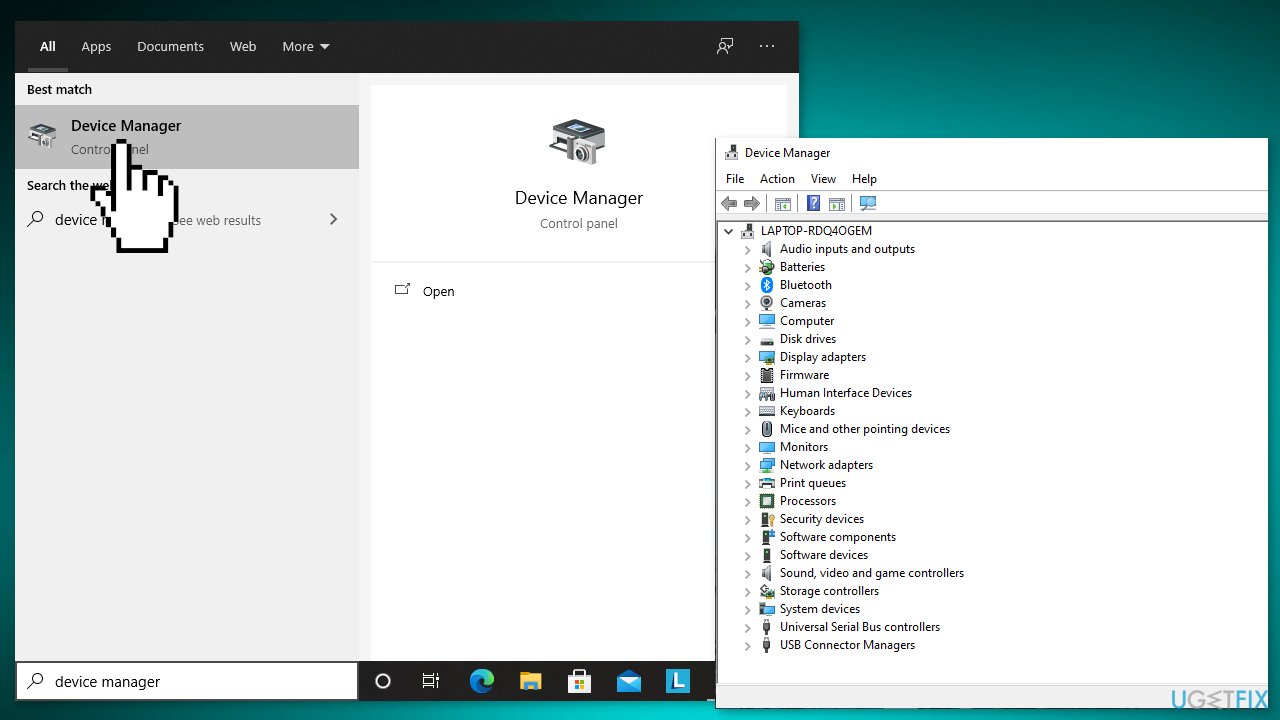
- Right-click the device and select Update driver or Update driver software
- Click Search automatically for updated driver software
- Follow the on-screen instructions to install the updated driver
- Restart your computer
Solution 6. Contact HP Support
If none of the steps fixed the error code 0xc19a0003, you should contact HP support and they will assist you further.
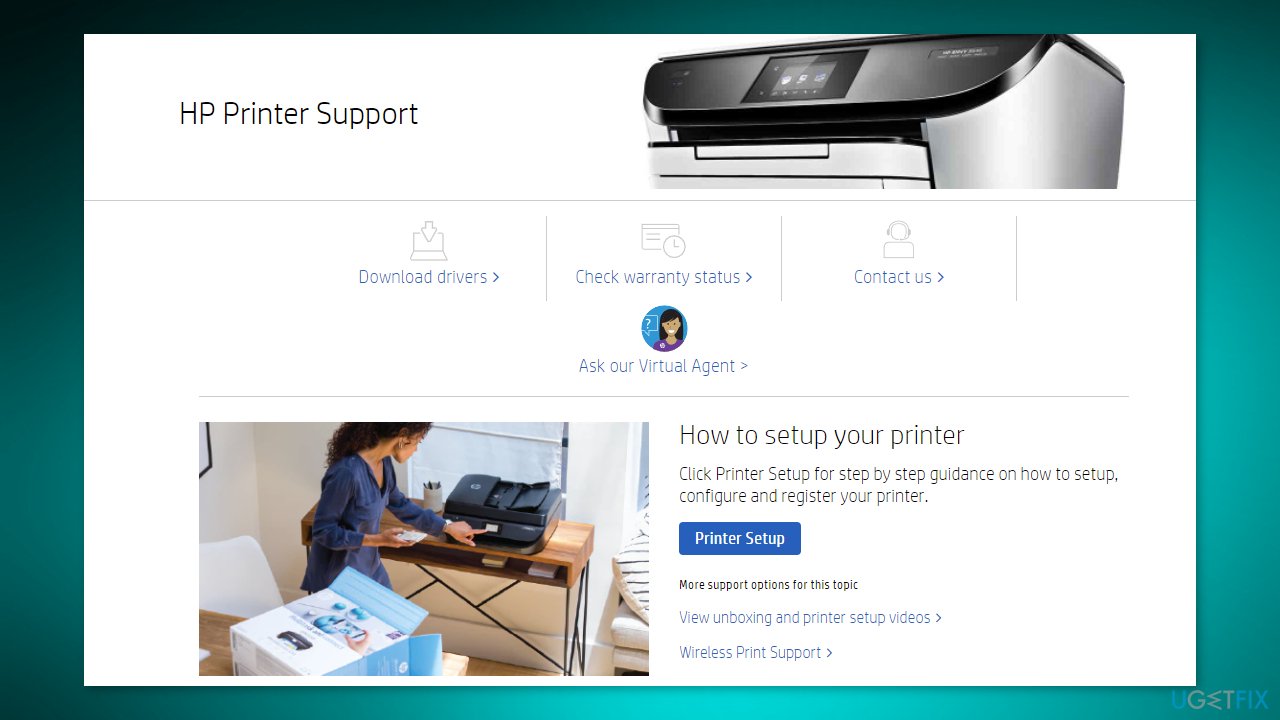
- Go to the official HP Support page
- Choose how you want to contact them
Bottom line
To fix the HP printer error code 0xc19a0003, you can perform a power reset and clean the printhead using the HP Inkjet Utility. If these steps do not resolve the issue, consider using a maintenance tool to address potential system errors.
Frequently asked questions
The HP printer error code 0xc19a0003 is typically caused by issues with the ink cartridges, such as being empty or incorrectly installed. It can also result from a malfunctioning printhead or software conflicts.
To reset your HP printer, turn it off, disconnect the power cord, wait for 60 seconds, then reconnect and power it on again. This can help clear temporary errors, including code 0xc19a0003.
If replacing the ink cartridges doesn't resolve the issue, try cleaning the printhead and ensuring that the printer's firmware is up to date. You can also run the HP Print and Scan Doctor tool available for Windows 10 and 11 to troubleshoot further.




Report an issue
What's wrong with this guide? We review every report and update or remove content.
Report received — thank you. We'll review and fix it.
You need a free account to submit a report.
Be the first to comment