How to fix
HP Smart “Printer status unknown” error
on Windows
Resolve the HP Smart "Printer status unknown" error in Windows 10 or 11 effortlessly. Get expert-tested solutions for seamless printing today!


What causes How to fix HP Smart “Printer status unknown” error in Windows?
- Antivirus software issues
- Firmware problems
- Driver problems
- Underlying technological problems
Repairs Windows system files, removes malware, and restores a clean OS state — without reinstalling.
Hello. The HP Smart app on my Windows PC shows “Printer status unknown” error and I can't print anything. How do I fix this?
Users who depend on HP Smart for document sharing, printing, and scanning with their HP printers may find the "Printer status unknown" error on Windows 10/11 to be a confusing problem. This disruptive error indicates that there is an inability to establish contact with the connected printer. It appears as a yellow box within the HP Smart interface.
This issue can significantly impact users by hindering their ability to utilize the full functionality of the HP Smart app. Some customers could discover that their printers can still print effectively even with the error present if they utilize different methods, including the web or other apps. For consumers who want smooth interactions with their HP printers, this disparity adds another layer of complexity and frustration to the issue.
There are multiple reasons why the "Printer status unknown" issue occurs. This challenge could be caused by issues with antivirus software, firmware or driver[ref en-1] problems, or other underlying technological problems. The complexity of numerous contributing elements makes it difficult to isolate a single cause, necessitating a careful study to determine the precise origin of the issue and take appropriate action.
In this guide, you will find 6 steps that should help you fix HP Smart “Printer status unknown” error in Windows. If you experience any Windows OS issues, you can run a maintenance tool like [d1] that can fix most system errors, BSODs,[ref en-2] corrupted files, and registry[ref en-3] issues. Otherwise, follow the step-by-step instructions below.
Solution 1. Run HP Smart Diagnostic
Within the HP Smart app, the Diagnose & Fix feature is designed to assist in resolving certain issues. When encountering the "HP Smart printer status unknown," access the application, and select the Diagnose & Fix icon located in the bottom left corner.
Solution 2. Reset HP Smart
- Open Settings by pressing the Windows key + I.
- Go to Apps > Apps & features or Installed apps.
- Locate HP Smart in the list of installed apps.
- Click on Advanced options.
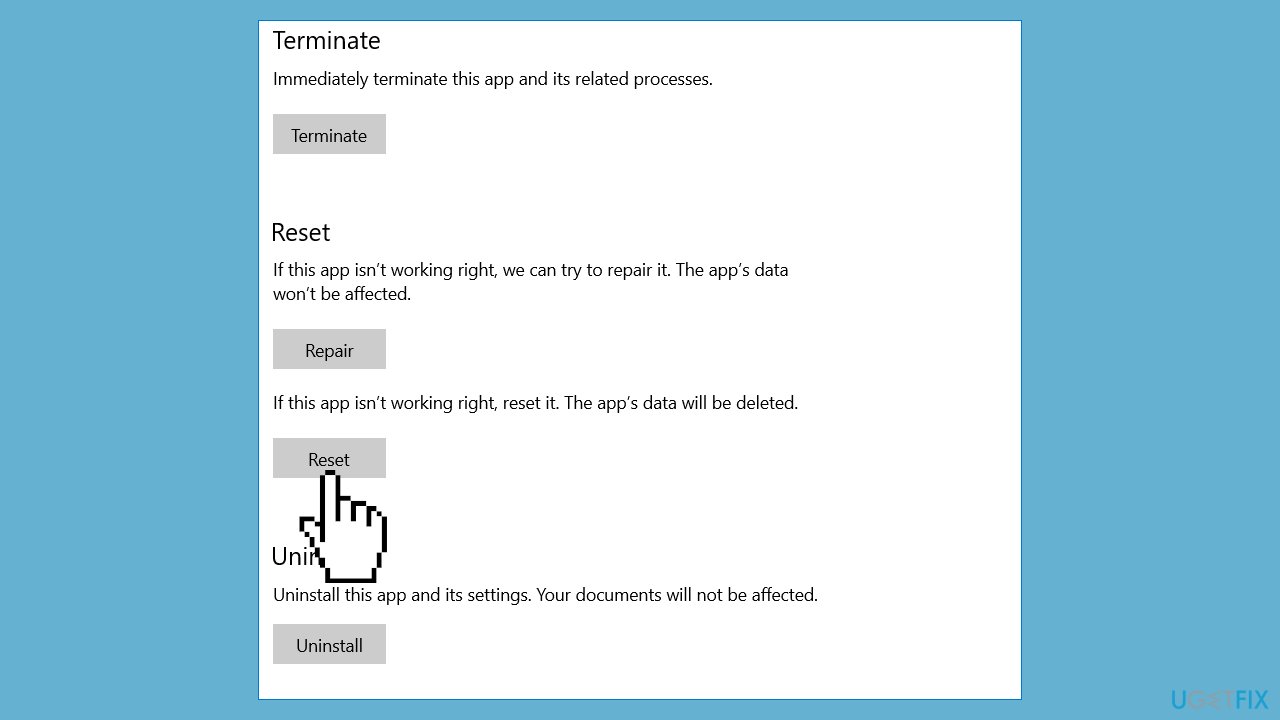
- Choose either Repair or Reset.
- Wait for the process to finish.
Solution 3. Update Printer Firmware
Every HP printer model comes with its specific firmware. Therefore, to acquire the most up-to-date firmware, you should go to the respective support website and install the firmware that matches your device model.
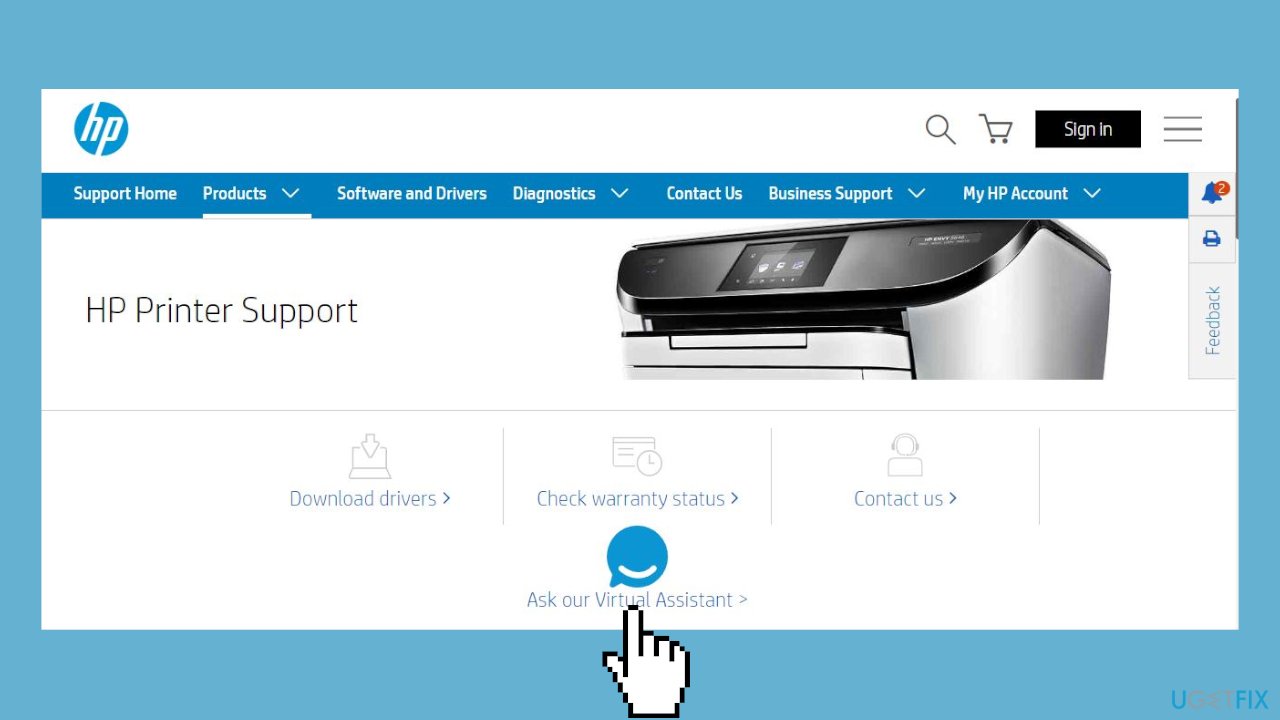
- Visit the HP Support website to download and install or update the firmware on an HP printer.
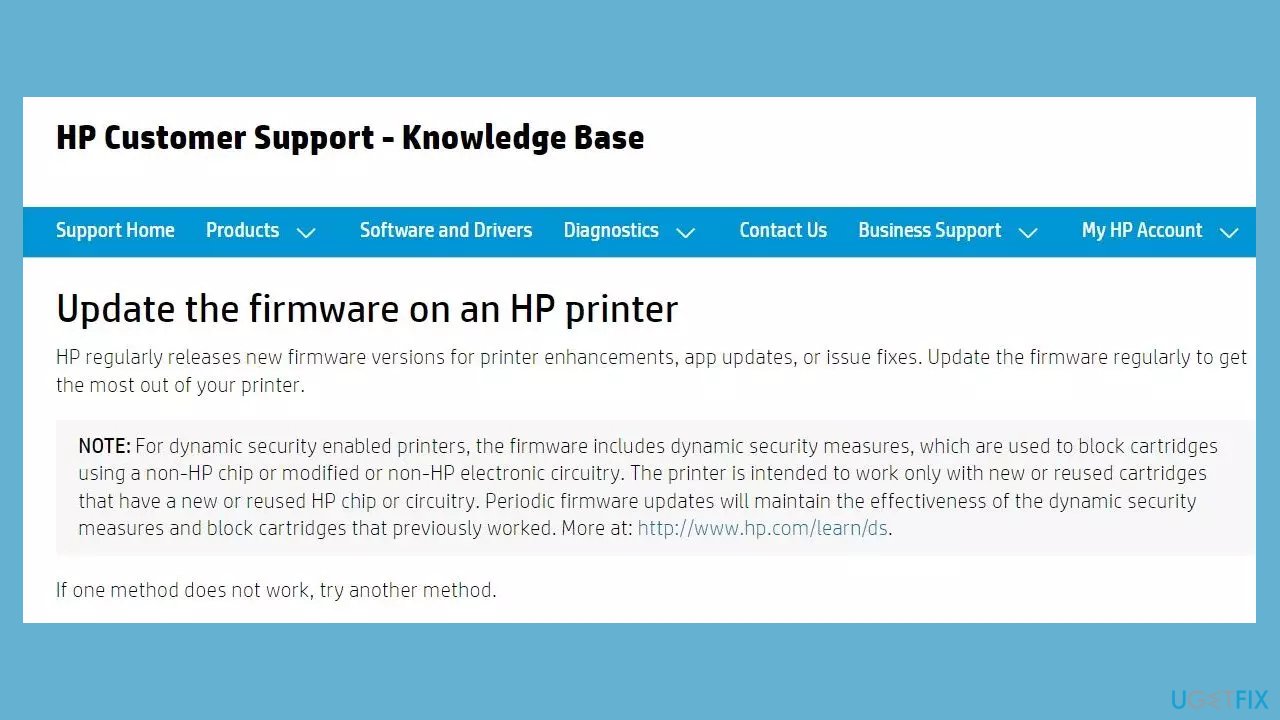
- Click on Software and Drivers.
- Select Printers.
- Add the model of your printer in the Enter your product name field.
- Click Submit.
- Expand the Printer Firmware field.
- Download the recent firmware from the list of available firmware for your printer.
- Once the file is downloaded successfully, run the installer (ensure the printer is connected to the PC).
- Restart your PC.
Solution 4. Disable Antivirus Software
Antivirus software may occasionally prevent Windows apps from functioning properly. In cases where it disrupts your printer, it has the potential to prompt an HP Smart "Printer status unknown" issue. If you do not have third-party antivirus installed, you can try disabling Windows Security:
- Open the Start menu and search for Windows Security. Click on the top result to proceed.
- Select Virus & threat protection from the menu.
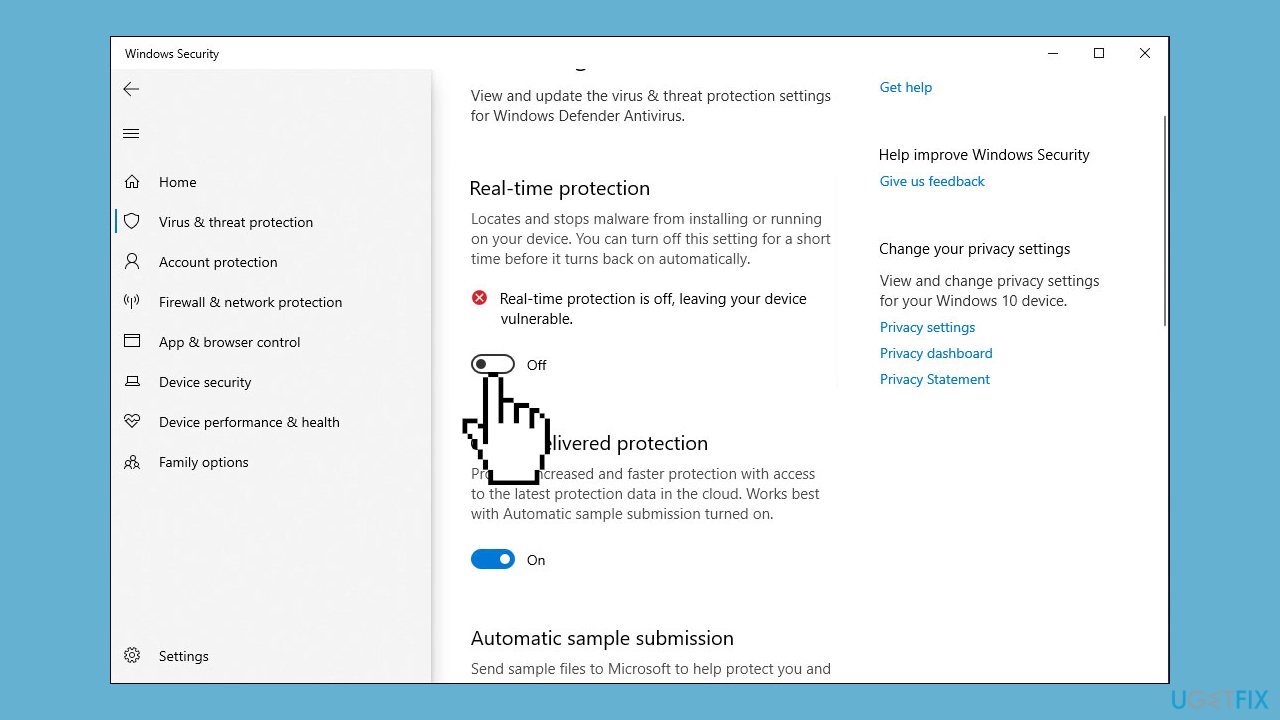
- Click on Manage settings under Virus & threat protection settings.
- Locate the Real-time protection section.
- Toggle the switch from Off to On under Real-time protection.
Solution 5. Reinstall Printer
- Navigate to Control Panel > Hardware and Sound (View by Category) > Devices and Printers.
- Locate the affected printer, right-click on it, and select Remove device.
- Press the Windows key + R to open Run, enter printui.exe /s, and click OK.
- In the Print Server Properties window, go to the Drivers tab.

- Find the HP printer driver, click on it, and select Remove. Then, click Apply followed by OK.
- Open Run again (Windows key + R) and type c:/programdata, then click OK.
- Find and remove the HP or Hewlett-Packard folder.
- Restart your PC and reconnect the printer.
Solution 6. Contact Support
If, despite attempting the previously mentioned solutions, the error code persists, there might be another underlying hardware issue that warrants additional troubleshooting. In such cases, we recommend reaching out to HP Support or seeking assistance from a qualified printer repair technician.
Bottom line
To fix the HP Smart 'Printer status unknown' error, you can run the HP Smart Diagnostic feature, reset the HP Smart app, and consider using a maintenance tool for Windows OS issues. If these solutions do not resolve the problem, further investigation may be necessary.
Frequently asked questions
Try restarting both your printer and your computer, then check if they are connected to the same Wi-Fi network. If the issue persists, reinstall the HP Smart app from the Microsoft Store.
Ensure that your printer's drivers are up to date by visiting the HP support website and downloading the latest version. Additionally, check the printer's power and network connections to ensure they are secure.
Yes, you can try running the Windows Printer Troubleshooter by going to Settings > Update & Security > Troubleshoot > Additional troubleshooters and selecting 'Printer'.




Report an issue
What's wrong with this guide? We review every report and update or remove content.
Report received — thank you. We'll review and fix it.
You need a free account to submit a report.
Be the first to comment