How to fix
HP Software Framework is not installed in the System
on Windows
Resolve the HP Software Framework issue on Windows 10 and 11 effortlessly. Get expert-tested solutions to have your system running smoothly again!


What causes How to fix HP Software Framework is not installed in the System?
- HP Software Framework is missing from the system
- HP Software Framework is not recognized as installed
- Corrupt HP Support Assistant installation
- Missing crucial drivers for system functionality
Repairs Windows system files, removes malware, and restores a clean OS state — without reinstalling.
Hello. Recently, I received an error that says "HP Software Framework is not installed in the System." How do I fix it?
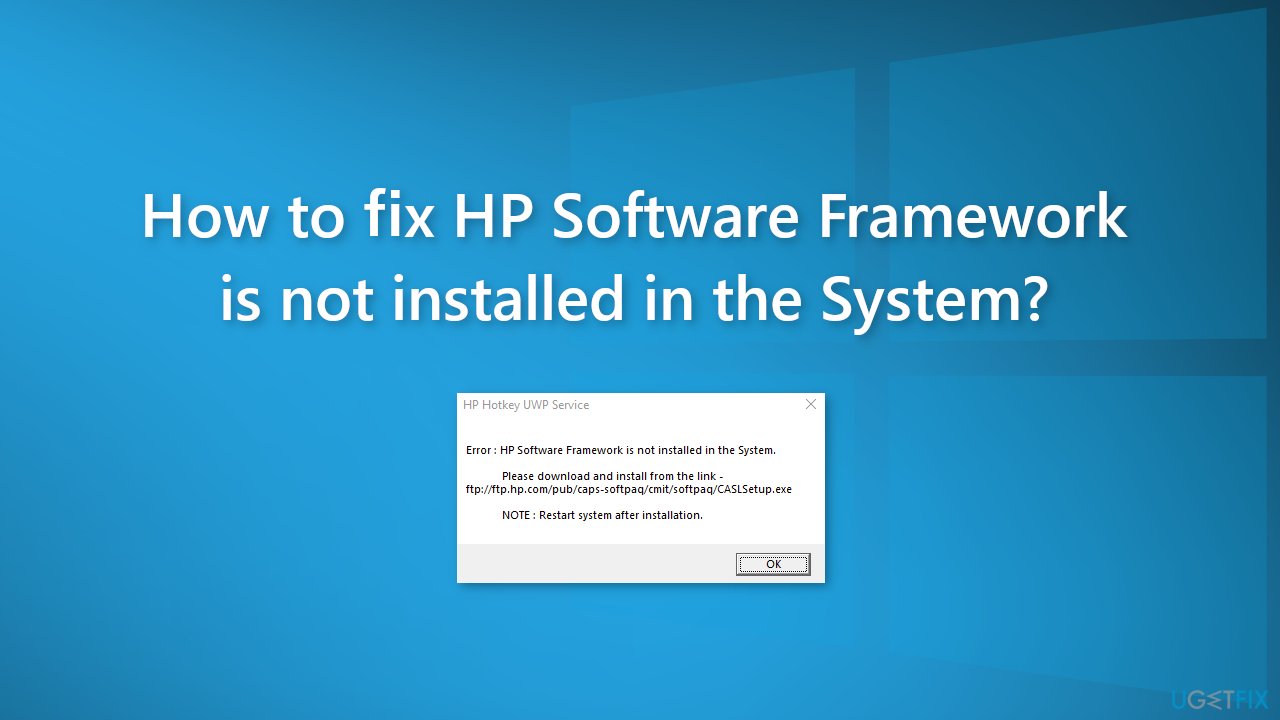
People who own an HP laptop or a desktop computer may encounter the "HP Software Framework is not installed in the System" error. Most of the time, the error appears when trying to use the function keys[ref en-1] to perform tasks like adjusting the screen brightness, and sound volume, or putting the device to sleep. The full error message reads as follows:
Error: HP Software Framework is not installed in the System.
Please download and install from the link - ftp://ftp.hp.com/pub/caps-softpaq/cmit/softpaq/CASLSetup.exe
NOTE: Restart system after installation.
The message clearly states that HP Software Framework is missing from the system or for some reason does not recognize that it is installed. It is unknown why exactly this might happen. Since it is responsible for allowing to function important hotkeys, finding the solution is necessary.
In this guide, you will find 4 steps that should help you fix the "HP Software Framework is not installed in the System" error. However, manual troubleshooting can be a lengthy process so you can also use a maintenance tool like [d1]. It can fix most system errors, BSODs,[ref en-2] corrupted files, and registry[ref en-3] issues. Otherwise, follow the step-by-step instructions below carefully.
Solution 1. Reinstall the HP Support Assistant
A corrupt HP Support Assistant installation may be the reason why the error appears. Try to reinstall it to see if it solves the issue.
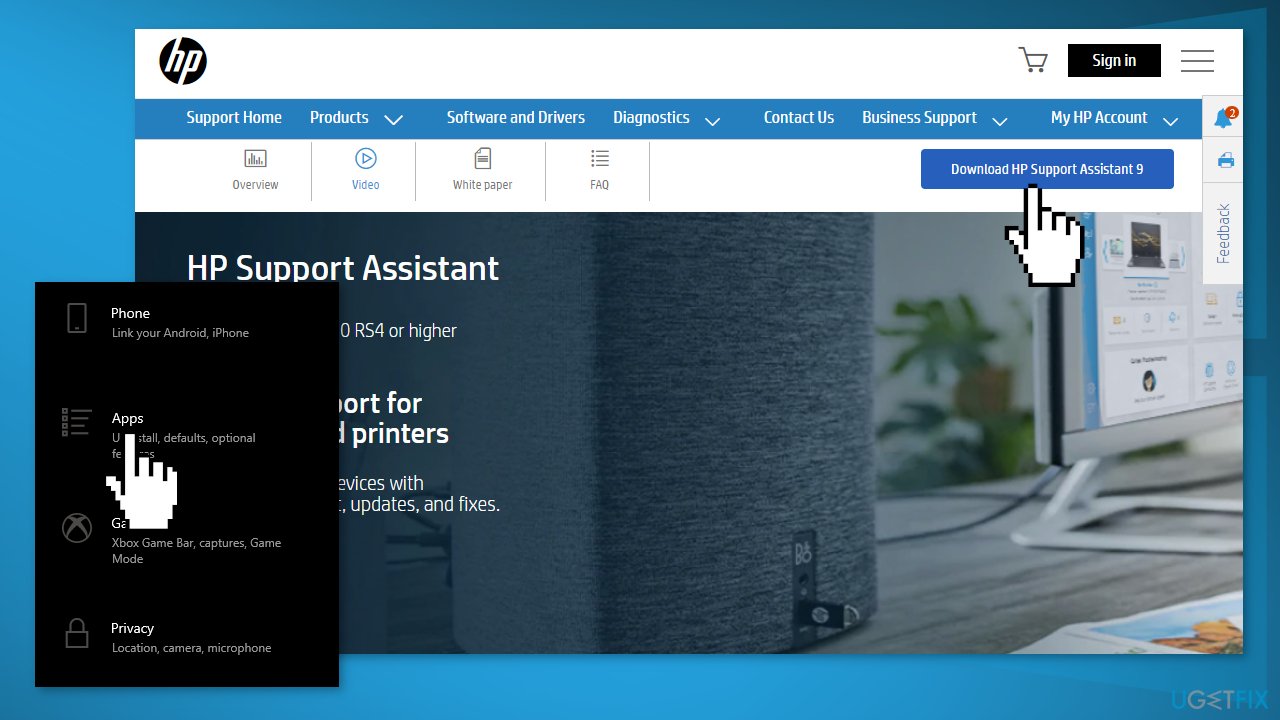
- Press the Windows key + I key to open Settings
- Click on Apps and then on Apps & Features
- Locate the HP Support Solution Framework
- Tap on it and click Uninstall
- Visit the HP Support Assistant webpage
- Find the Download HP Support Assistant icon to install it
- Restart your system after installation
Solution 2. Install the HP Hotkey Support Driver
If you are missing crucial drivers that are responsible for keeping your system running smoothly, you should install them as soon as possible. For driver installation and updates, you can also use an automatic tool like [rev id="DriverFix"]. It can find the best drivers for your system and install them.
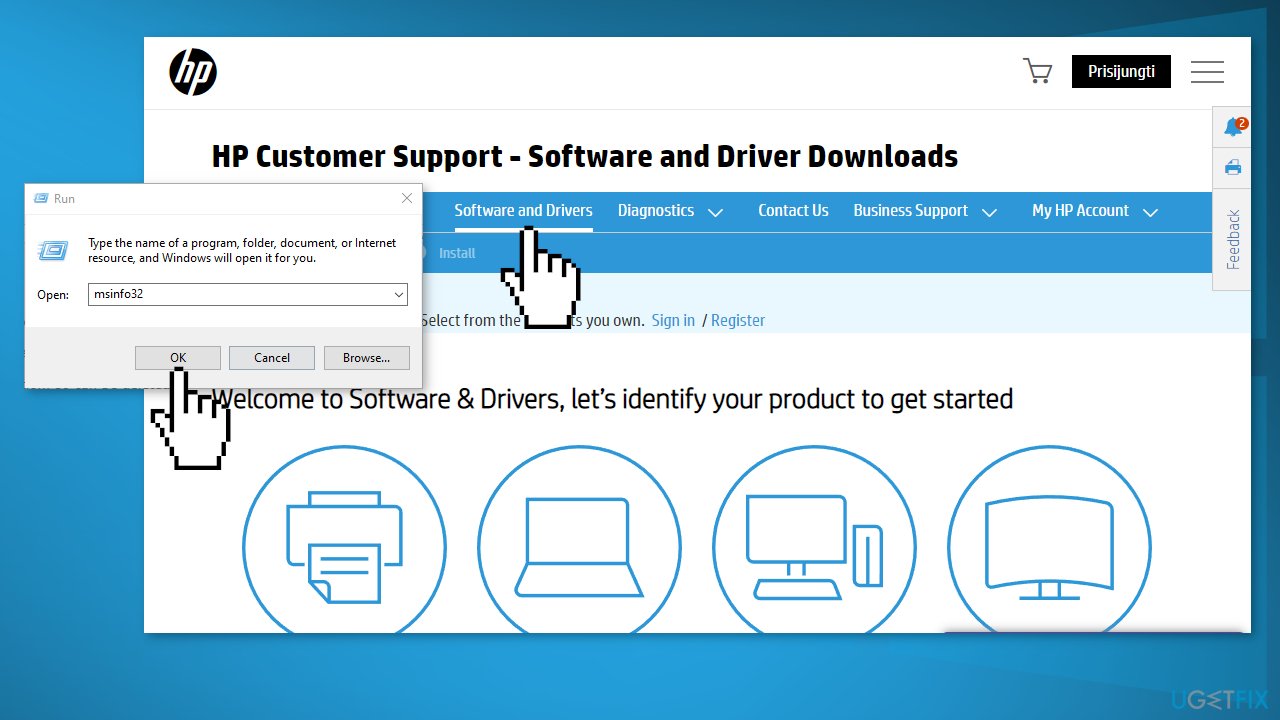
- Press the Windows key + R to launch the Run box
- Type msinfo32 and press Enter to launch the System Information window
- Look for your system’s model number
- Go to the official HP Support website and find the Software and Drivers
- Enter the serial number of your device
- Type the model of your system on the box and tap the Submit button
- Choose the OS you use on your system
- Click the option Software-Solutions
- Select the HP Hotkey Support driver and click on the Download option
- Install the driver and check for the issue is solved
Solution 3. Update Driver via HP Support Assistant
Even if after you installed the required HP Hotkey Support Driver you see the same error, try looking if there are any available updates for it.
- Launch the HP Support Assistant by double-tapping its icon
- Press on the Updates to check for any available updates
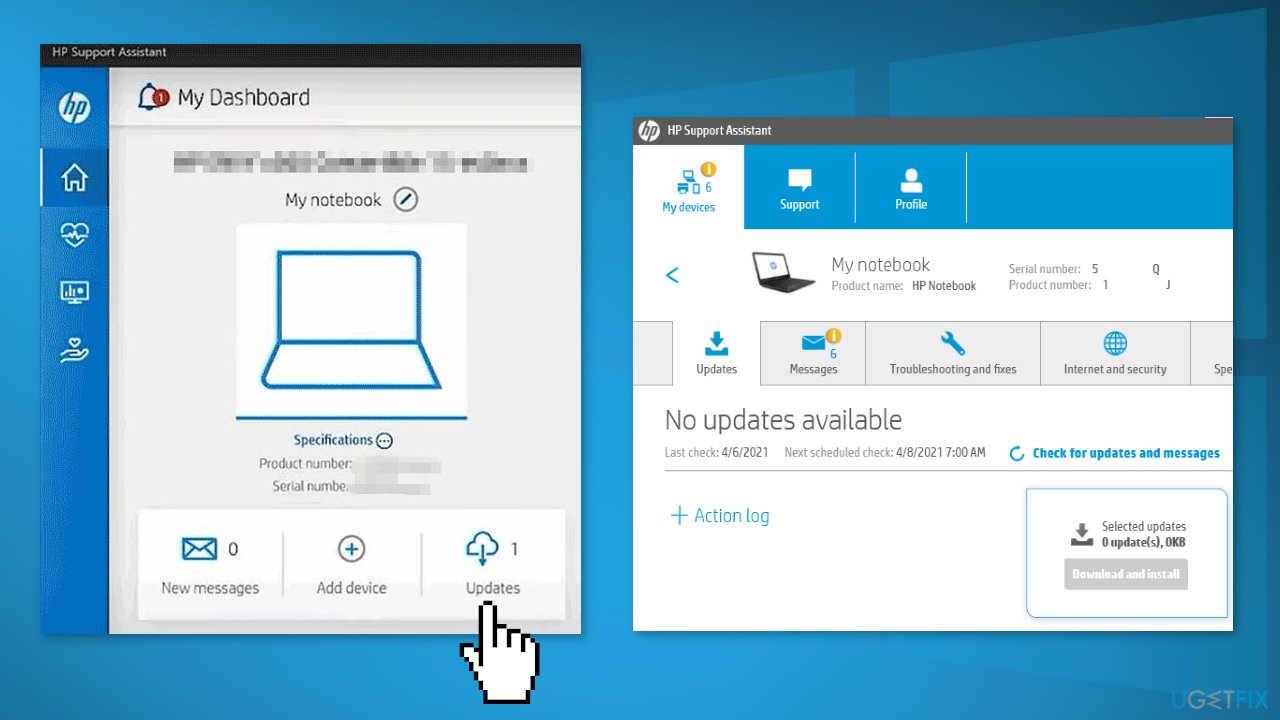
- If no drivers are available, then it means that your drivers are up-to-date
Solution 4. Disable Hotkey Support On Startup
If none of the previous methods helped you solve the error, you can just disable the Hotkey Support on startup.
- Press the Windows key + R to launch the Run box
- Type services.msc and press Enter to launch Windows Services
- Navigate to the HP Hotkey UWP Service and right-click on it
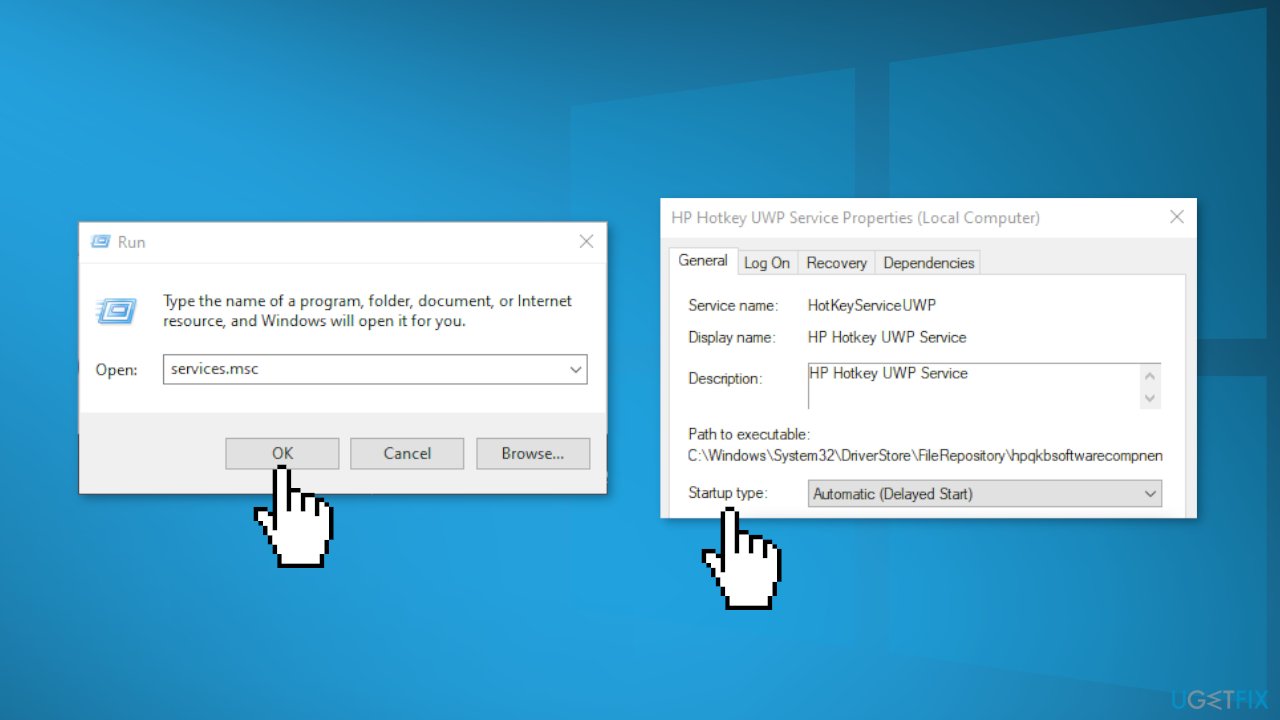
- Press on the Properties
- Choose the option Disabled from the Startup type dropdown menu
- Tap the OK button to save the changes
Bottom line
To fix the 'HP Software Framework is not installed in the System' error, you can reinstall the HP Support Assistant and install the HP Hotkey Support Driver. If these solutions do not resolve the issue, consider using a maintenance tool or further manual troubleshooting.
Frequently asked questions
HP Software Framework is a component that supports HP software applications on Windows 10 and Windows 11, providing essential functionality for printer and device management.
You can reinstall the HP Software Framework by downloading the latest version from the HP support website and running the installation file on your Windows 10 or Windows 11 system.
If the installation fails, try disabling any antivirus software temporarily and ensure that your Windows 10 or Windows 11 system is updated before attempting the installation again.




Report an issue
What's wrong with this guide? We review every report and update or remove content.
Report received — thank you. We'll review and fix it.
You need a free account to submit a report.
Be the first to comment