How to fix
Hswultpep.sys BSOD
on Windows
Resolve the Hswultpep.sys BSOD error in Windows 10 or 11 with our expert-tested solutions. Get your PC back on track in minutes, zero traces left.

What causes How to fix Hswultpep.sys BSOD in Windows?
- Driver issues
- Resource-demanding tasks
- Enabling Core Isolation
- Outdated driver version
- Conflicts with other software
Repairs Windows system files, removes malware, and restores a clean OS state — without reinstalling.
I was playing a game through Steam recently, and suddenly, my PC crashed and produced a Blue Screen of Death. In the "What failed" section, it shows Hswultpep.sys file, with code SYSTEM_THREAD_EXCEPTION_NOT_HANDLED. I am now stuck in a boot loop and can't load to Windows. Please advise.
Windows is a complex system that is responsible for managing a wide range of hardware and software components. While it is generally stable and reliable, sometimes it may run into issues that cause a Blue Screen of Death. A BSOD is a critical error that occurs when Windows encounters a problem that it cannot recover from, and it results in a blue screen with white text that provides information about the error.
One specific BSOD that some people encounter is related to the Hswultpep.sys file. This usually happens when performing resource-demanding tasks, such as gaming, and a code SYSTEM_THREAD_EXCEPTION_NOT_HANDLED is shown. It can be frustrating to encounter this type of error, especially if you are in the middle of an important task or game.
The majority of issues like this are caused by drivers and the Hswultpep.sys BSOD is no exception. Hswultpep.sys is an Intel Processor Line Power Engine Plug-in driver designed to optimize the power consumption and performance of the processor by adjusting the power states and settings. While this driver is generally reliable, it can sometimes cause issues that result in a system crash.
In addition to resource-demanding tasks, some people also get this BSOD when they attempt to enable Core Isolation in Windows. Core Isolation is a security feature that helps protect your system from attacks by isolating sensitive processes and data in a protected environment. However, it can sometimes conflict with the Hswultpep.sys driver, causing the BSOD.
If you encounter the Hswultpep.sys BSOD, the first thing you should do is check to see if there are any updates available for the driver. You can do this by visiting the Intel website and downloading the latest version of the driver. If that doesn't work, you may need to uninstall the driver and then reinstall it. In other cases, overclocking can also be the reason for crashes, so disabling it may be helpful.
We provide these and other solutions in the step-by-step guide below. If your Windows is not stuck in a boot loop, you can skip the first step. Likewise, we recommend fixing the problem automatically with [d1], as it is a powerful tool designed to fix the most common Windows issues, including Blue Screen errors.
1. Access Safe Mode
If your PC is stuck in a boot loop, you should be able to bypass it by using Safe Mode.
- Restart your system.
- Once Windows starts booting, press and hold the Power button, interrupting the loading process - do this three times.
- After that, Windows will automatically enter Advanced Startup mode.
- Select Troubleshoot > Advanced options > Startup Settings and Restart.
- After a reboot, pick either 4/F4 for Safe Mode or 5/F5 for Safe Mode with Networking.
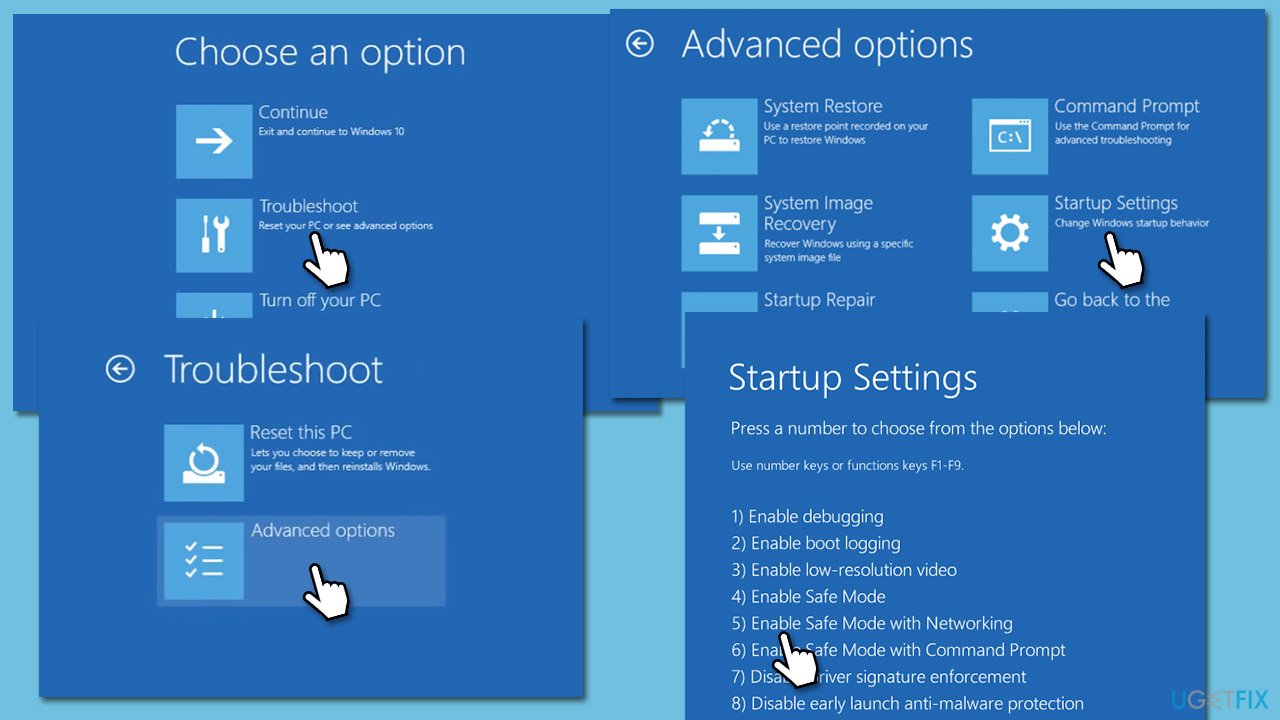
Once in Safe Mode, proceed with the troubleshooting steps below.
2. Update Intel drivers
Updating Intel drivers might help you solve the situation. First, you can employ the Windows update feature:
- Type Updates in Windows search and hit Enter.
- Select Check for Updates and let Windows download the necessary files.
- Pay attention to optional updates - install them all, as that's how Windows implements driver updates.
- When all the drivers are installed, reboot your system.
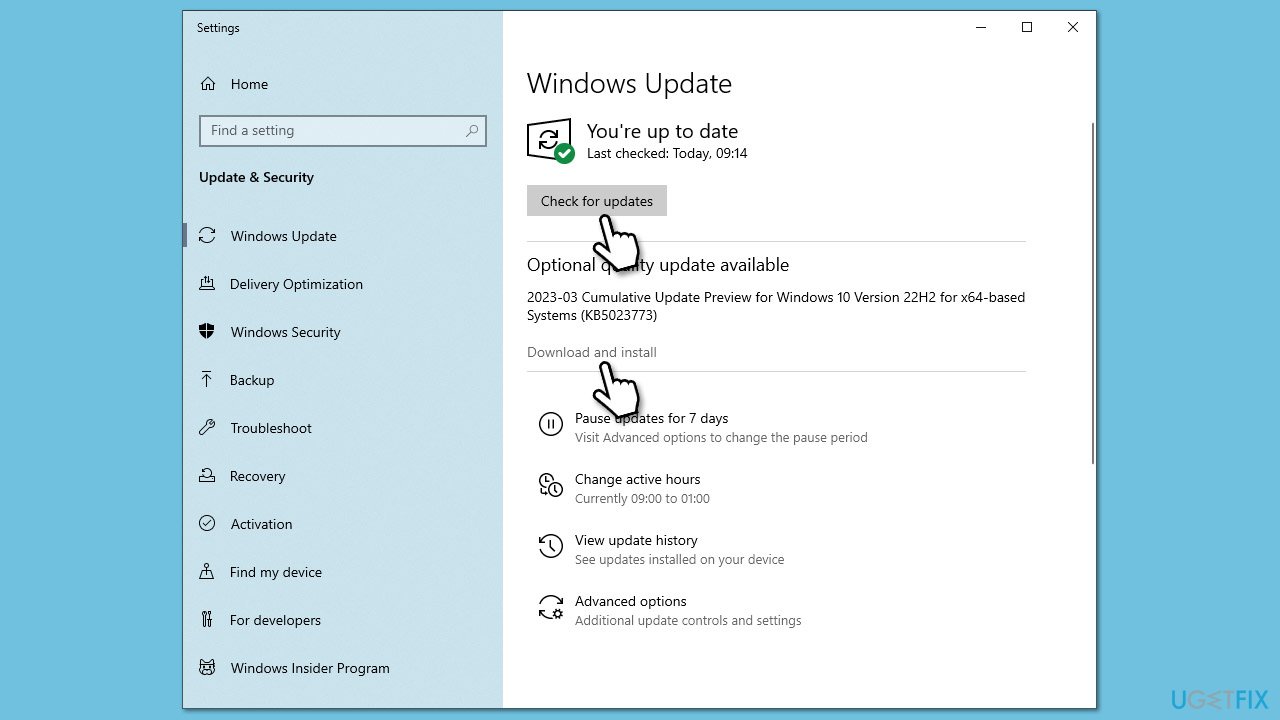
If no driver updates are available, you can opt for an automatic driver updater such as [rev id="DriverFix"] or install the newest drivers directly from the Intel website.
Note: you can also try reinstalling drivers if this option doesn't help.
3. Disable XMP
XMP (Extreme Memory Profile) is a type of memory technology that allows you to overclock your computer's RAM for better performance. It may cause problems, which may end up in BSODs. Thus, you should disable the feature and see if it helps.
- Restart your PC and start repeatedly pressing F2, F8, F10, Del, Esc, or another button (refer to your motherboard manufacturer for the instruction) - this should boot you into BIOS.
- Check Overclocking, Advanced, or similar sections to find the XMP feature.
- Disable XMP and restart your system in normal mode.
- If you have any other overclocking systems enabled, disable them as well.

4. Run SFC and DISM
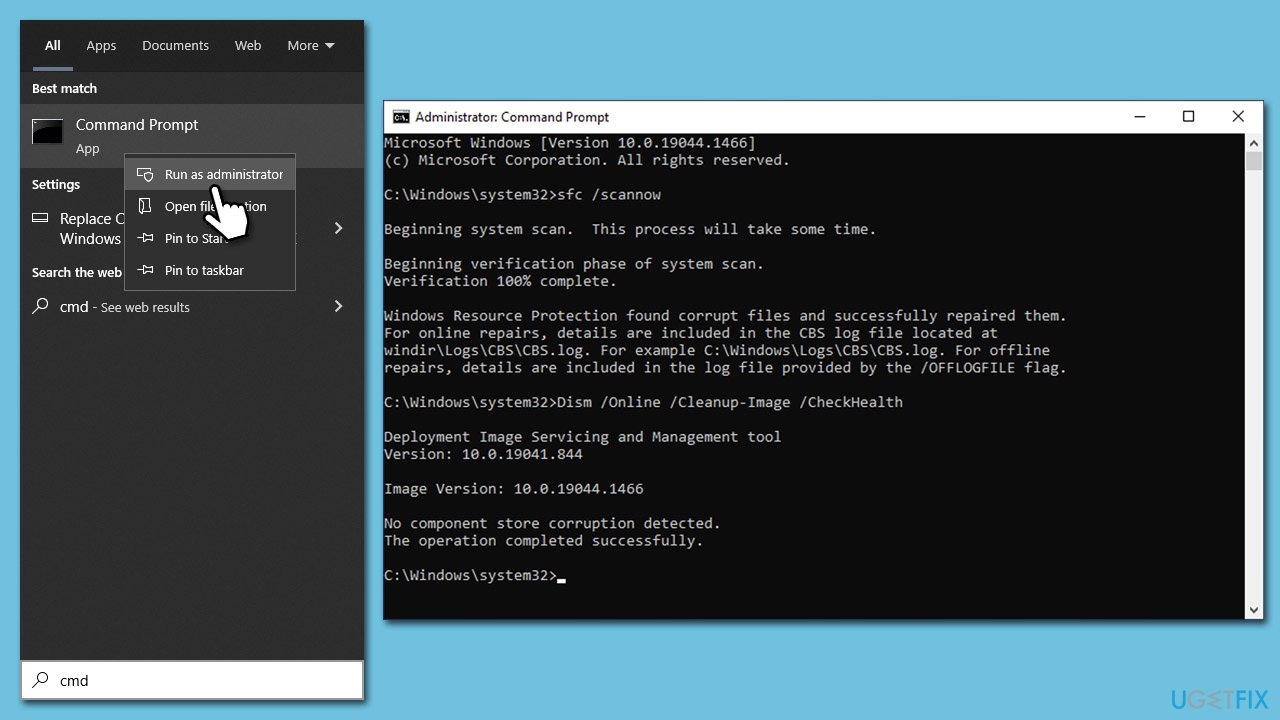
To ensure your system files aren't corrupted, run SFC and DISM scans.
- Type cmd in Windows search.
- Right-click on the Command Prompt result and pick Run as administrator.
- User Account Control will ask you whether you want to allow changes - click Yes.
- Paste the following command into the new window:
sfc /scannow - Press Enter and wait till the scan finishes.
- When done, run this set of commands, pressing Enter each time:
DISM /Online /Cleanup-Image /CheckHealth
DISM /Online /Cleanup-Image /ScanHealth
DISM /Online /Cleanup-Image /RestoreHealth - Restart your system.
5. Uninstall the latest update
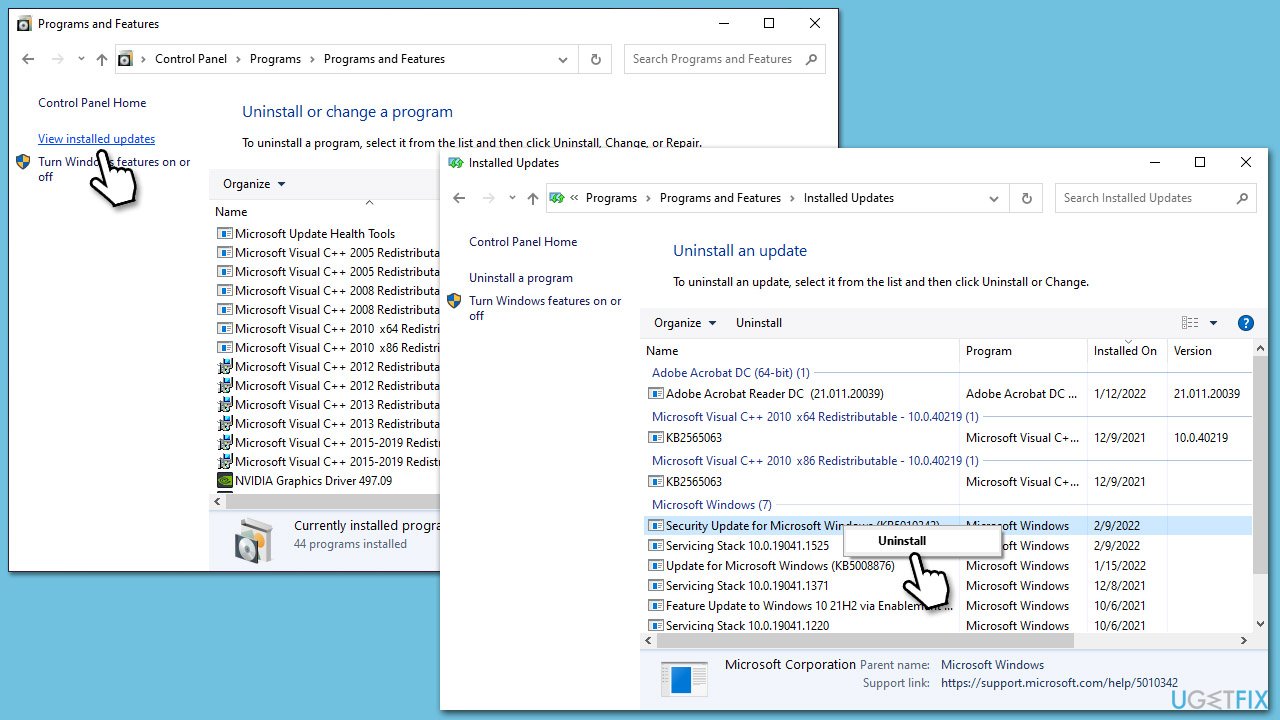
If the problem started after a recent Windows update, try uninstalling it and see if that helps.
- Type Control Panel in Windows search and press Enter.
- Select Programs > Uninstall a program.
- Click on View installed updates on the left side of the window.
- Sort all the updates by date.
- Right-click on the most recent update and select Uninstall.
- Proceed with on-screen instructions.
- Then, type Updates in Windows search and press Enter.
- Click Pause the updates for 7 days (in Windows 11, you can pick a different time period).
6. Repair-install Windows
You will have to create a bootable ISO for this method. Here's how:
- Download Windows 10 installation media (Windows 11 version) from the official Microsoft website.
- Double-click the installer to launch it.
- Agree to Terms and select Next.
- Select Create installation media (USB flash drive, DVD or ISO file) for another PC and click Next.
- Pick a USB flash drive (make sure you have USB connected to your PC).
- Mark the Use Recommended options for this PC checkbox and click Next
- Pick ISO file and click Next to finish the process.
Once you have the USB ready, proceed with the following:
- Connect the USB to the PC that you are having trouble with.
- Boot into BIOS and go to the Boot menu.
- Here, select the Boot priority option and set it to USB.
- Restart the system.
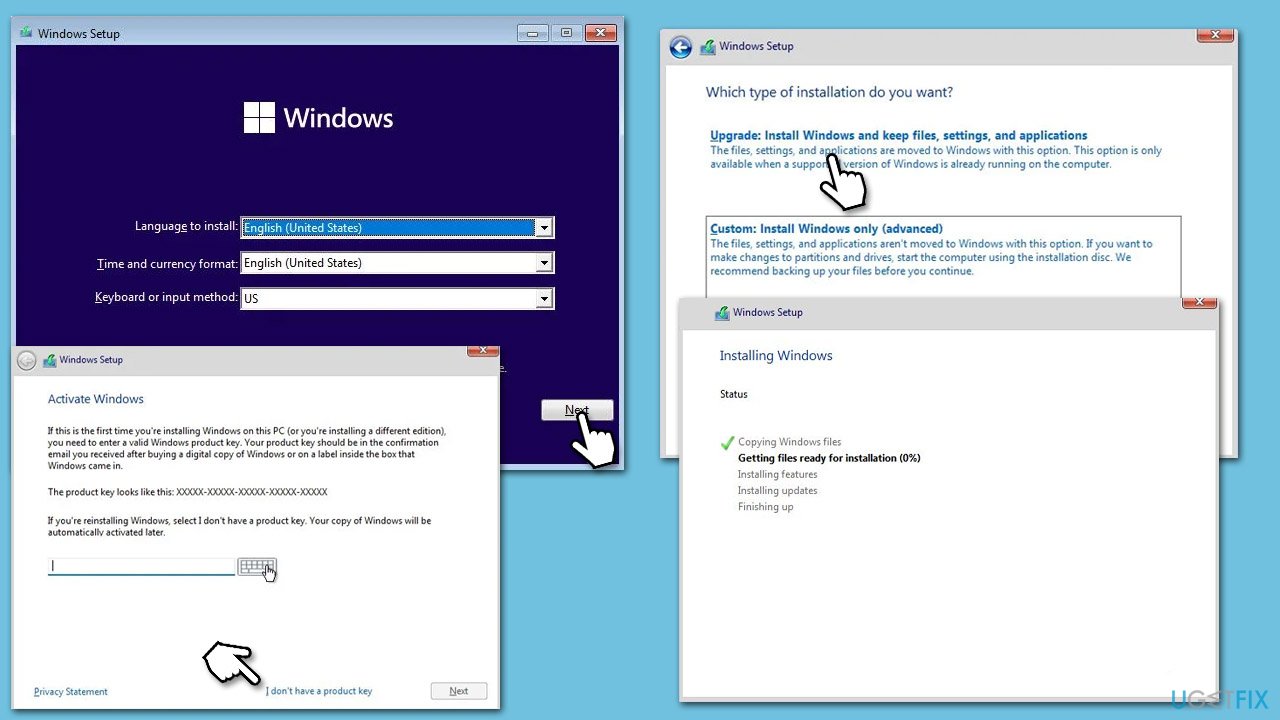
- When the system boots, you will be presented with the Install now option - click it.
- Select all the preferences and click Next.
- Skip Windows activation for now - select I don't have a product key.
- Select the correct version of the operating system (if you were using Windows 11 Home before, use the same option).
- In the next step, select Upgrade: Install Windows and keep files, settings, and applications.
- Select the correct partition and click Next.
Bottom line
To fix the Hswultpep.sys BSOD, check for driver updates on the Intel website and consider uninstalling the driver if updates do not resolve the issue. If the problem persists, further troubleshooting may be required, such as checking for conflicts with other software or restoring system settings.
Frequently asked questions
The Hswultpep.sys BSOD is typically caused by driver issues, corrupted system files, or hardware conflicts. Updating your drivers and running a system file check can help resolve this issue.
To troubleshoot the Hswultpep.sys error on Windows 11, you can boot into Safe Mode and uninstall any recently installed drivers or software that might be causing the issue. Additionally, running the built-in Windows Memory Diagnostic tool can help identify hardware problems.
To prevent the Hswultpep.sys BSOD from reoccurring in Windows 10, ensure that all your drivers are updated and perform regular system maintenance, such as checking for Windows updates and running disk cleanup. You can also disable automatic driver updates if they cause issues.




Report an issue
What's wrong with this guide? We review every report and update or remove content.
Report received — thank you. We'll review and fix it.
You need a free account to submit a report.
Be the first to comment