How to fix
Hybrid Sleep missing
on Windows
Resolve the missing Hybrid Sleep feature on Windows 10 and 11 effortlessly. Get expert-tested solutions and regain control of your power settings in min…

What causes How to fix Hybrid Sleep missing on Windows?
- System updates may remove the Hybrid Sleep option
- Changes in system configurations
- Outdated device drivers
- Incorrect power settings
Repairs Windows system files, removes malware, and restores a clean OS state — without reinstalling.
Hello. I noticed that the Hybrid Sleep mode is missing on my Windows PC. What should I do? Any suggestions would be appreciated.
Some users have expressed concern about the lack of the Hybrid Sleep option in Windows, with some suggesting that the capability would disappear after system updates. Traditional Sleep and Hibernation modes are combined in Hybrid Sleep, a power-saving mode especially intended for desktop computers. With this special feature, users may get back to work right away and have the added security of having their open documents and programs saved in case of a power outage.
It's important for many Windows users to know the differences between sleep, hibernation, and hybrid sleep. Although sleep mode saves power and keeps your work in RAM for faster wake-up times, it does not protect your work in the event of a power outage. Hibernation, on the other hand, ensures that your work is saved even in the event that the computer loses power by saving your open documents and applications to the hard drive before turning them off. By fusing the data protection benefits of hibernation with the pace of sleep, hybrid sleep aims to provide the best of both worlds.
Users who depend on hybrid sleep for their workflow or who value the balance it offers between speed and data security may find it difficult to function without it. Users might have to decide between hibernation and sleep, which could mean giving up some of the advantages that hybrid sleep has to offer.
Users who experience Hybrid Sleep disappearing may look for remedies to bring it back to operation, albeit the causes can vary. Changing system configurations, upgrading device drivers, and checking power settings are a few potential fixes. To avoid unforeseen effects in their attempts to fix the missing Hybrid Sleep issue, users should take caution and adhere to prescribed troubleshooting procedures.
In this guide, you will find 6 steps that should help you fix Hybrid Sleep missing on Windows. You can also run a maintenance tool like [d1] that can fix most system errors, BSODs, corrupted files, and registry issues. Otherwise, follow the step-by-step instructions below.
Method 1. Install Windows Updates
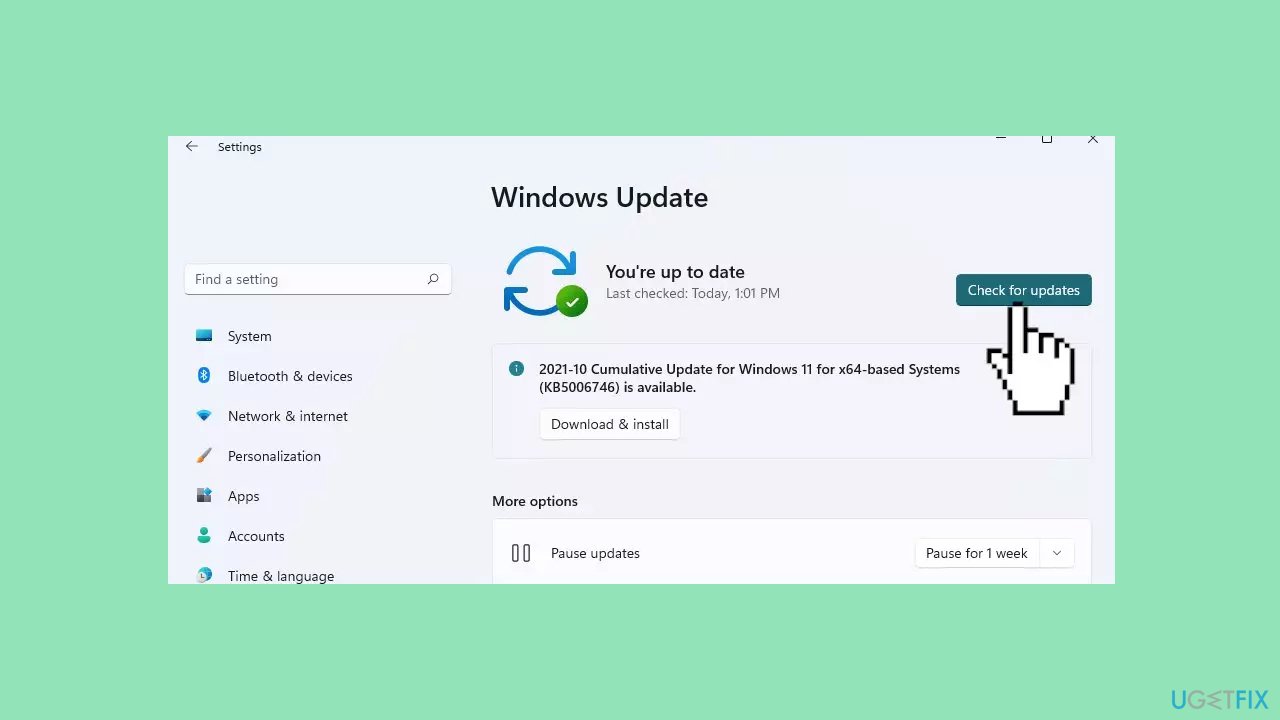
- Click Start and select Settings.
- Go to the Windows Update section.
- Click Check for updates and wait.
- Go to the Advanced options and install optional updates.
- Reboot your system.
Method 2. Update Drivers
Outdated drivers could be the cause of this issue. In this case, you can fix it automatically by using [rev id="DriverFix"], which will scan your PC for missing and out-of-date device drivers. Or you can update them manually:
- Open Settings.
- Click on Update & Security.
- Click on Windows Update.
- Click the Check for updates button.
- Click the View optional updates option.
- Click the Driver updates tab.
- Select the driver you want to update.
- Click the Download and install button.
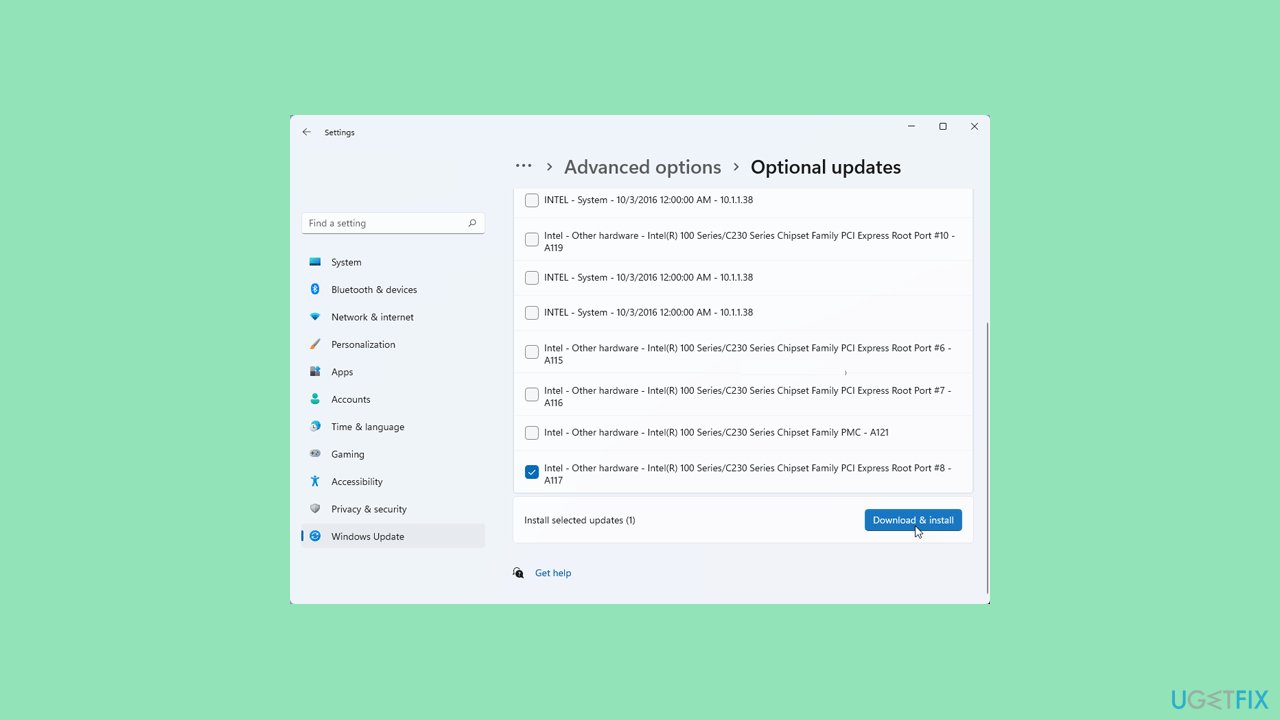
If the View optional updates link is not available after checking for updates, then Windows Update does not have any new drivers or any updates for other products at that particular time.
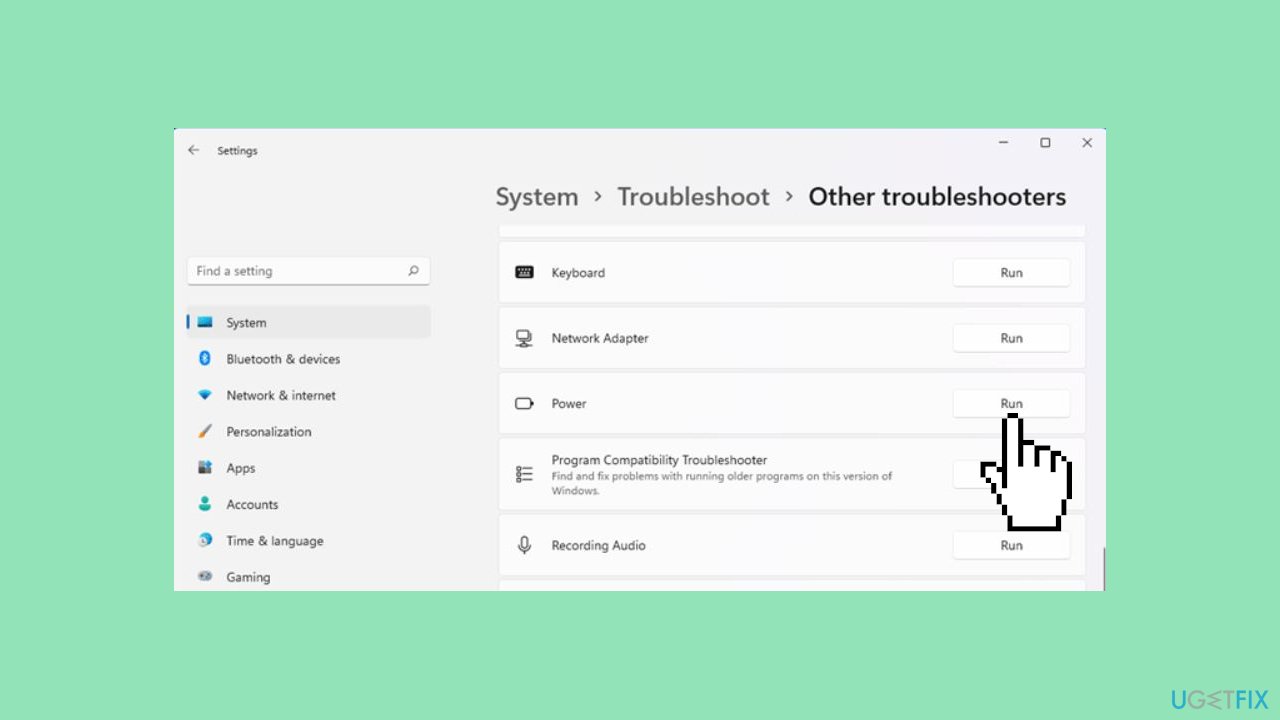
Method 3. Run the Power Troubleshooter
- Navigate to Update & Security.
- Select Troubleshoot.
- Click on Additional troubleshooters.
- Scroll down and click on Power.
- Run the troubleshooter.
Method 4. Restore Default Power Plan Settings
- Open Control Panel.
- Navigate to Hardware and Sound.
- Select Power Options.
- Click Change plan settings next to the chosen power plan.
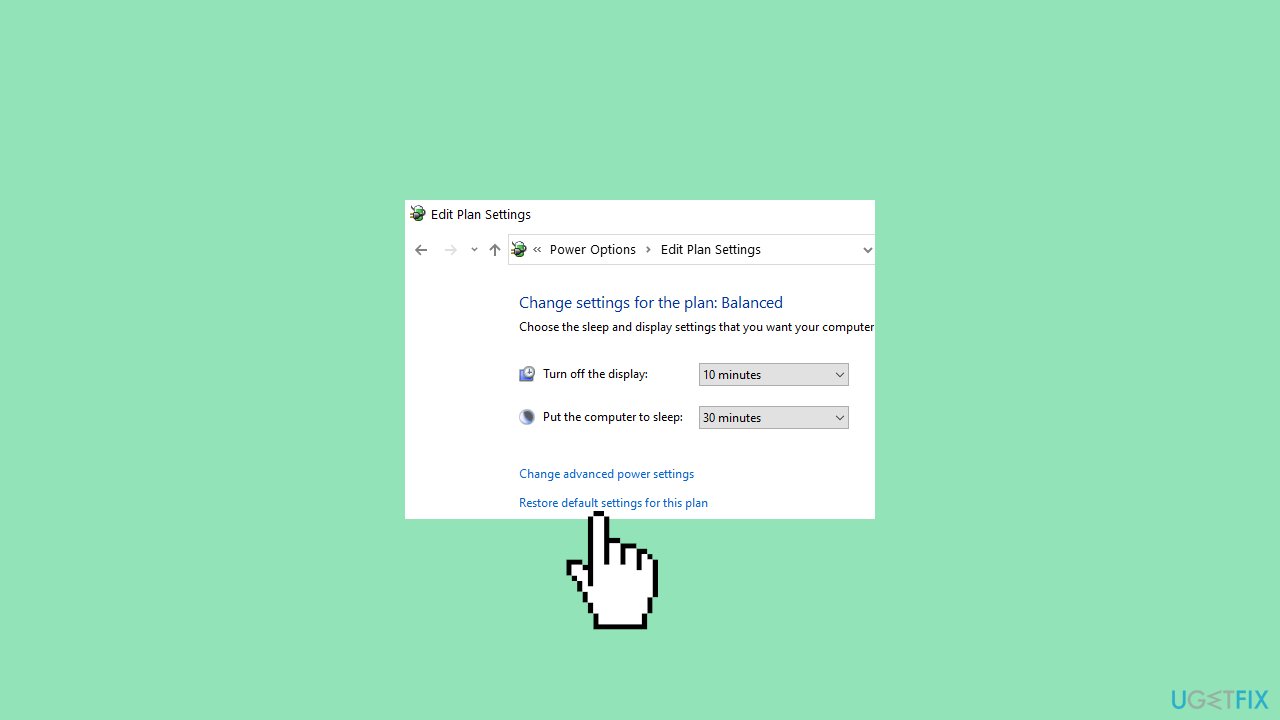
- Choose Restore default settings for this plan.
- Confirm your choice.
Method 5. Modify the Group Policy
- Type Group Policy in Search.
- Open Edit group policy.
- Navigate to Computer Configuration.
- Select Administrative Templates.
- Go to System.
- Choose Power Management.
- Click on Sleep Settings.
- Double-click on Turn off hybrid sleep (on battery).
- Ensure it is either Disabled or Not Configured.
Method 6. Reset Windows
- Open Update & Security.
- Click on Recovery.
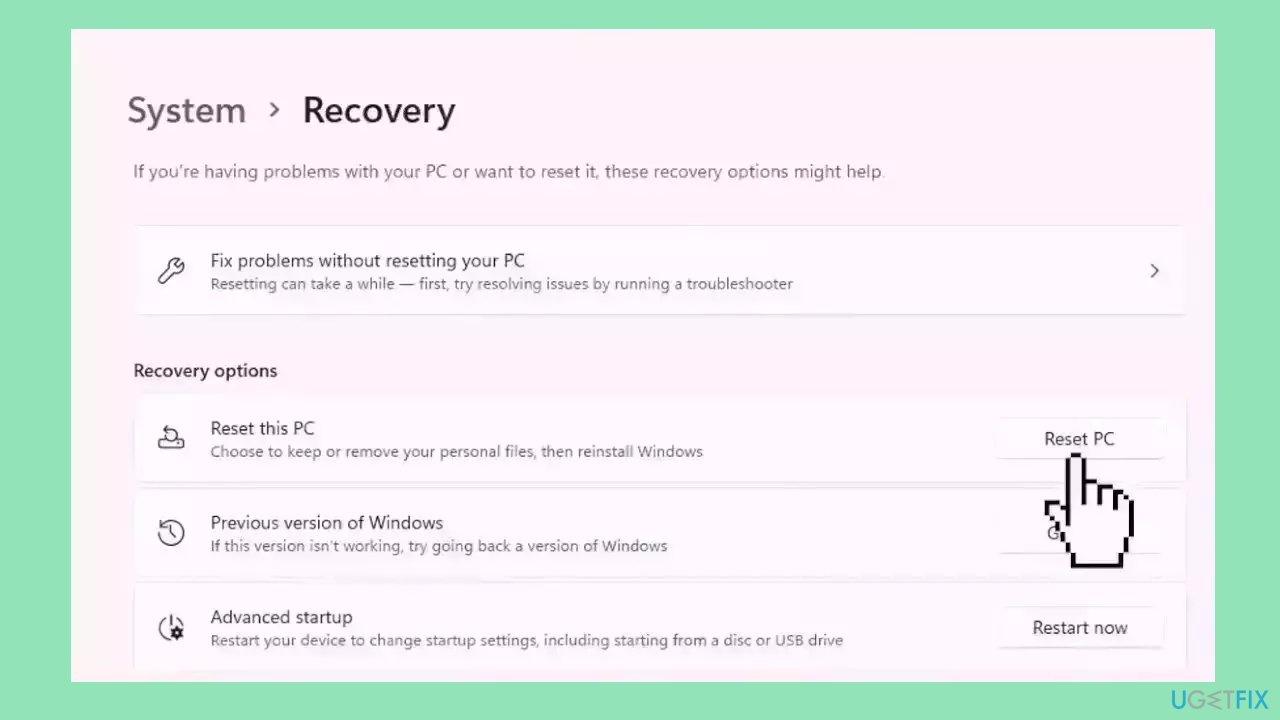
- Click Get started under Reset this PC.
- Follow the next instruction prompts to complete the reset.
Bottom line
To fix the missing Hybrid Sleep issue, users can change system configurations, upgrade device drivers, and check power settings. If these steps do not resolve the problem, consider running a maintenance tool to address potential system errors.
Frequently asked questions
The Hybrid Sleep option may be missing due to power settings being misconfigured or because your hardware does not support it. Check your power plan settings and ensure that Sleep and Hybrid Sleep options are enabled.
To restore Hybrid Sleep, go to Control Panel > Power Options > Change plan settings > Change advanced power settings, and expand the Sleep section to enable Hybrid Sleep.
Yes, certain Windows updates can affect power management features, including Hybrid Sleep; ensure your system is up to date and check for known issues related to recent updates.




Report an issue
What's wrong with this guide? We review every report and update or remove content.
Report received — thank you. We'll review and fix it.
You need a free account to submit a report.
Be the first to comment