
How to fix the I01 initialization failed BSOD (IO1_INITIALIZATION_FAILED, 0x69) in Windows

Prefer to fix it yourself? The manual steps follow.
- 8methods
- 15 to 90 minutes
- Intermediate
Applies to Windows 11 and Windows 10 PCs that stop during startup with IO1_INITIALIZATION_FAILED (0x00000069)
8 methods in this guide
My PC worked fine yesterday, but today when I tried to turn it on, I was instantly met with the I01 Initialization failed BSOD. What is going on? Can you give me some tips on what to do next?
I01 initialization failed is really IO1_INITIALIZATION_FAILED, stop code 0x69: Windows could not start its input and output system while booting, so it cannot reach the disk it runs from. It most often follows a changed BIOS setting, a moved or cloned disk, a failed update or a power cut. Undo the last hardware or BIOS change first.
The stop code is IO1_INITIALIZATION_FAILED (0x69), not "I01" or "101": the first stage of the Windows input and output system failed during boot. Microsoft says the system was most likely installed badly or reconfigured. Undo the last BIOS, disk or hardware change first (Fix 1). If nothing changed, run Startup Repair and remove the latest update from the recovery screen (Fix 2), then use System Restore (Fix 3).
| Error | A stop screen with Stop code: IO1_INITIALIZATION_FAILED, bug check value 0x00000069. The PC restarts and stops again at the same point. |
|---|---|
| Where it appears | During startup, before the sign-in screen. Often the PC then loops into Automatic Repair or Preparing Automatic Repair. |
| Main cause | Microsoft: the system was installed improperly or reconfigured. In practice a changed storage setting in the BIOS, a disk moved to other hardware, a failed update or a hard power loss. |
| Fastest fix | Put back the BIOS setting, disk or part you changed last (Fix 1). With no change, Startup Repair and Uninstall Updates from the recovery screen (Fix 2). |
| Also written as | IO1 initialization failed, I01, IOI, 101 initialization failed, io1_initialization_failed, stop code 0x69, 0x00000069. The letter is I and O, the number is 1. |
| Not the same as | PHASE1_INITIALIZATION_FAILED (0x32), a sibling stop code from the same early startup stage. The same fixes apply, see the table below. |
| Affects | Windows 11, Windows 10 and Windows Server. Windows 10 left support on 14 October 2025. |
| Vendor status | Microsoft documents 0x69 for developers only, with no parameters and no known issue entry. It says there is very little information to analyze this error. |
| Time to fix | 15 to 30 minutes for Fix 1 to 3. 60 to 90 minutes when the disk must be checked or Windows reinstalled. |
Facts checked on 15 October 2026. Steps written for Windows 11 (25H2 and 26H2) and Windows 10 22H2.
What I01, IO1 and 101 initialization failed mean
Microsoft's bug check reference says the IO1_INITIALIZATION_FAILED bug check has a value of 0x00000069 and indicates that the initialization of the I/O system failed for some reason. IO stands for input and output, and 1 for the first phase. This is the part of Windows that loads storage drivers and finds the disk Windows itself is on.
On a stop screen the letters I and O next to the digit 1 look like "I01", "IOI" or "101". All of them are the same stop code. Windows shows it with the lines Your device ran into a problem and needs to restart and Stop code: IO1_INITIALIZATION_FAILED.
| What you see or type | What it is |
|---|---|
| Stop code: IO1_INITIALIZATION_FAILED | The text on the Windows 11 and Windows 10 stop screen |
| I01, IOI, io1, 101 initialization failed | The same code, read or typed with a zero, the digit one or a lower case L |
0x69, 0x00000069, (0x69) | The same code as a number, in Event Viewer, Reliability Monitor and crash tools |
PHASE1_INITIALIZATION_FAILED (0x32), phase 1 initialization failed | A different stop code: the first phase of system startup failed. Microsoft gives one parameter, the NT status code of the failure |
| Initialization failed in a game or app window | Not a stop code. This page is about the blue or black stop screen at startup |
Both 0x69 and 0x32 happen before Windows reaches the desktop, while it starts its core systems. Neither leaves much to analyze, so the fixes on this page are the same for both. Start with the change you made last.
Why IO1 initialization fails: the causes, most common first
Microsoft names two causes: the setup routine installed the system improperly, or a user reconfigured the system. Both mean the same thing at boot: Windows looks for its disk with drivers and settings that no longer fit the hardware in front of it.
| How often | Cause | Sign | Fix |
|---|---|---|---|
| Most often | The system was reconfigured: a storage setting changed in the BIOS or UEFI, the disk was cloned, moved to another PC or motherboard, or a drive was added | The crash started right after you changed hardware or BIOS settings, or after a BIOS update reset them | Fix 1 |
| Often | A Windows update or upgrade did not finish installing | The first crash came on the restart that should have finished an update | Fix 2, Fix 3 |
| Often | A power cut or a forced shutdown damaged boot or system files | Users on Microsoft Q&A report the error after a power outage or a weekend shutdown | Fix 4, Fix 3 |
| Less often | Damaged boot configuration or system files | Startup Repair cannot repair the PC and no restore point exists | Fix 5, Fix 6 |
| Rarely | A failing disk, cable, port or memory module | The disk is sometimes missing in the BIOS, or the stop codes change from crash to crash | Fix 4, Fix 7 |
Where the cause is written, and why it is hard to read
Microsoft lists no parameters for 0x69 and says there is very little information available to analyze it. The crash happens before Windows has full access to its disk, so it may not manage to save a dump file. That is why the timing of the first crash is the best clue you have.
- What changed before the first crash: BIOS settings, a BIOS update, a new or moved disk, a new motherboard, a Windows update, a power cut.
C:\Windows\Minidump: if Windows starts again later, a.dmpfile with the date of the crash may be there. For 0x69 it holds the stop code but no parameters.C:\Windows\System32\Logfiles\Srt\SrtTrail.txt: the log that Startup Repair writes. It names the root cause it found, for example a boot configuration or a disk problem.- Event Viewer > Windows Logs > System: after a later successful start, look for Kernel-Power event 41 and BugCheck event 1001 at the crash time.
How to fix the IO1_INITIALIZATION_FAILED blue screen
Start with Fix 1 if you changed anything in the BIOS or the hardware. Fixes 2 and 3 cover a crash that began after an update or with no clear reason. Fixes 4 to 6 repair the disk, the boot files and the system files. Fixes 7 and 8 are for hardware and for the last resort.
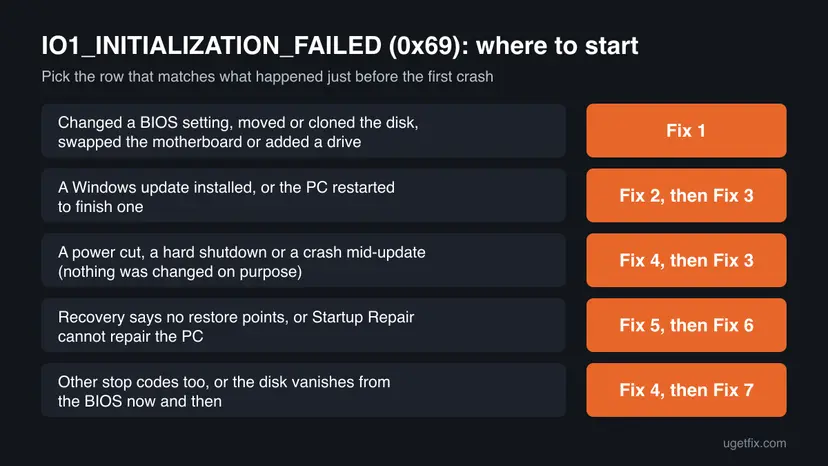
| What happened before the first crash | Start with | Then |
|---|---|---|
| You changed a BIOS setting, updated the BIOS, cloned or moved the disk, or swapped the motherboard | Fix 1 | Fix 5 |
| A Windows update installed or the PC restarted to finish one | Fix 2 | Fix 3 |
| A power cut, a hard shutdown or a crash during an update | Fix 4 | Fix 3 |
| Startup Repair cannot repair the PC and there is no restore point | Fix 5 | Fix 6 |
| Other stop codes appear too, or the disk is sometimes missing in the BIOS | Fix 4 | Fix 7 |
Fix 1. Undo the last BIOS, disk or hardware change
10 minutesLow riskYou changed a setting in the BIOS or UEFI, updated the BIOS, cloned or moved the system disk, replaced the motherboard or added a drive before the first crash.
Microsoft says 0x69 most likely means the system was reconfigured. Windows starts only the storage drivers that fit the setup it was installed on, so putting the old setup back lets it find its disk again.
- Turn the PC on and press the BIOS key shown on the logo screen, often Del, F2 or F10.
- Find the storage settings (names vary: SATA Mode, SATA Operation, Storage Configuration, VMD Controller). Set them back to what they were before the crash.
- If a BIOS update or a reset changed many settings at once, set the storage mode back to the value Windows was installed with. Your PC maker's manual lists the factory value.
- Select Save and Exit and let the PC start.
- If you added a disk, disconnect it. If you moved the system disk, put it back in its first port or slot.
- If you cloned the disk to a new one, start once from the old disk to check that it still boots, then repeat the clone with the cloning tool's boot repair option.
Changing the storage mode to a value Windows was not installed with can cause the same stop code or another boot error. Change one setting at a time, write down what it was, and change it back if the next start does not work. Your files are not touched by these settings.
A user on Microsoft Q&A who had the error on two PCs reports that the drives did not even appear until a setting was turned off in the BIOS. We could not confirm which setting, so check your BIOS against your maker's manual.
It worked if: The PC passes the logo screen and loads the sign-in screen without the stop code.
If not: If you changed nothing, or the crash stays after you undo the change, go to Fix 2.
Fix 2. Run Startup Repair and remove the latest update from the recovery screen
20 minutesLow riskThe PC stops at every start, nothing was changed in the hardware, or the crash came after an update.
The I/O system starts before the desktop, so the repair has to run from the recovery environment. A half-installed update can leave storage drivers that do not match the rest of Windows, and the recovery screen can remove it.
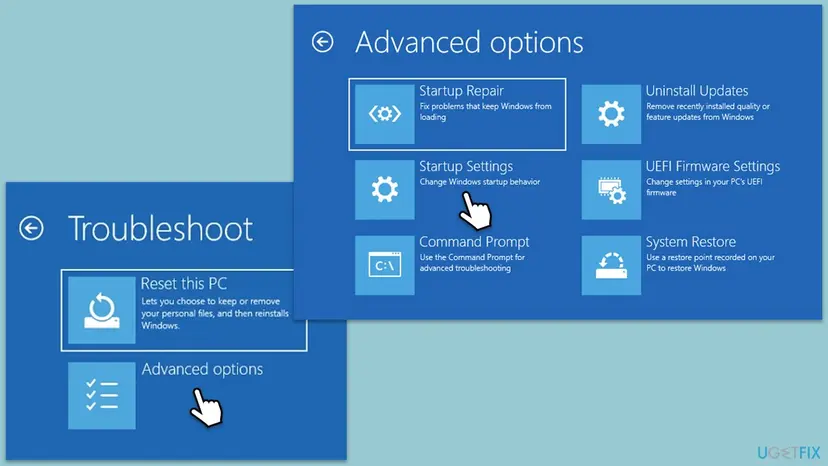
- Turn the PC on and, when the logo appears, hold the power button until it shuts down. Do this twice; the third start opens Automatic Repair.
- Select Advanced options > Troubleshoot > Advanced options.
- Select Startup Repair (called Quick machine recovery on newer Windows 11 builds) and pick your account. Step by step: Run Startup Repair
- If it says it could not repair the PC, go back and select Uninstall Updates > Uninstall latest quality update.
- If that does not help either, select Uninstall latest feature update if it is offered. Step by step: How to uninstall a Windows update
- Restart the PC after each step and see whether it reaches the sign-in screen.
The recovery screen may ask for a BitLocker recovery key. If your account is a Microsoft account, the key is listed at account.microsoft.com/devices/recoverykey. Look it up on a phone or another PC.
It worked if: Startup Repair reports that it repaired the PC, or Windows starts after the update is removed.
If not: If Startup Repair fails, read its log SrtTrail.txt (see above) and go to Fix 3.
Fix 3. Return Windows to an earlier state with System Restore
20 minutesRead the warningThe PC worked yesterday, Fix 2 did not help, and System Protection was on.
System Restore brings back the registry, drivers and system files from a restore point. That includes the storage driver settings Windows reads in the first I/O phase. A user on Microsoft Q&A got past 0x69 this way.
System Restore does not touch your documents and photos. It removes apps, drivers and updates installed after the restore point. Note them so you can install them again.
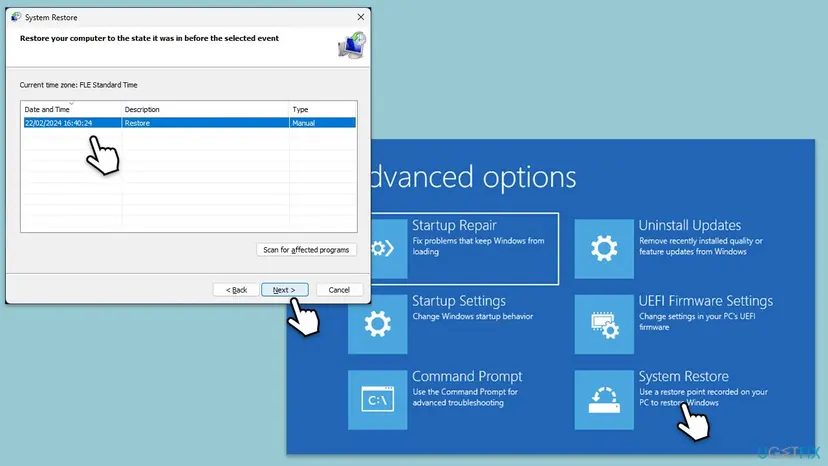
- Open the recovery screen as in Fix 2 and select Troubleshoot > Advanced options > System Restore.
- Choose your account and enter its password.
- Select a restore point dated before the first crash, then Next and Finish.
- Wait until the PC restarts. Do not turn it off during the restore. Step by step: Undo recent changes with System Restore
It worked if: Windows reports that System Restore completed successfully and starts to the sign-in screen.
If not: If there is no restore point or the restore fails, check the disk in Fix 4.
Fix 4. Check the system disk for errors and loose connections
30 to 60 minutesLow riskThe error followed a power cut or a forced shutdown, the disk is sometimes missing in the BIOS, or Startup Repair names a disk error.
The first I/O phase reads the system disk. File system damage after a power loss, or a disk that answers late, can stop it before Windows loads. A user on Microsoft Q&A tied the error to a power outage and a failed backup battery unit.
- Open the BIOS and check that the system disk is listed. If it is missing, shut the PC down, unplug it and reseat the disk's data and power cables, or the M.2 drive.
- Open the recovery screen as in Fix 2 and select Troubleshoot > Advanced options > Command Prompt.
- Type
bcdeditand press Enter. The lineosdeviceunder Windows Boot Loader shows the letter of the Windows drive; it is often notC:here. - Run
chkdsk C: /fwith that letter in place ofC:. Add/rto also look for bad sectors; it takes much longer. - Type
exitand select Continue to start Windows. Step by step: Check a disk for errors (chkdsk)
In the recovery Command Prompt (replace C: with the Windows drive):
bcdedit
chkdsk C: /f /r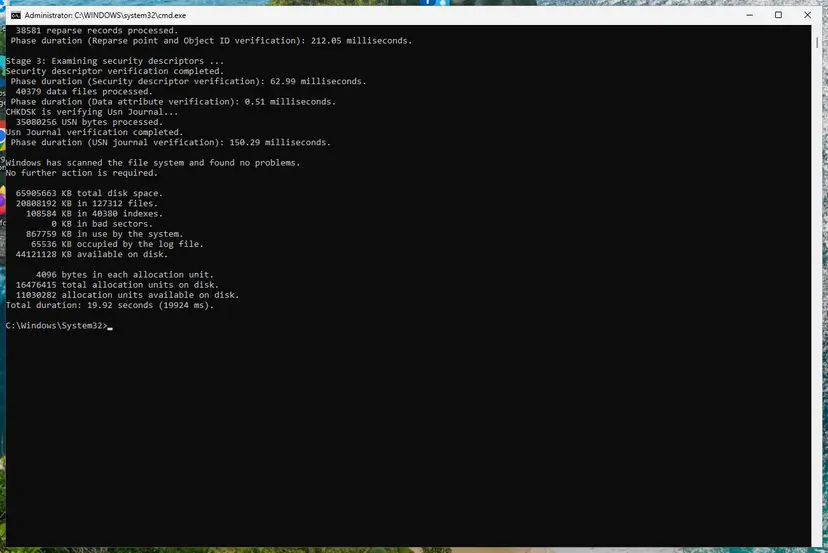
It worked if: CHKDSK reports that it made corrections, or that it found no problems, and the next start reaches the sign-in screen.
If not: If CHKDSK reports bad sectors, back up the disk soon and plan to replace it. If it finds nothing, go to Fix 5.
Fix 5. Rebuild the boot files from the recovery Command Prompt
15 minutesLow riskStartup Repair could not repair the PC, or the disk was cloned, moved or repartitioned.
The boot configuration tells Windows which disk and partition to start from. When it points to a disk layout that no longer exists, the early start fails; bcdboot writes fresh boot files from the Windows folder.
- Open Troubleshoot > Advanced options > Command Prompt in the recovery screen.
- Find the Windows drive with
bcdeditas in Fix 4, or withdir C:\Windows,dir D:\Windowsuntil one lists the folder. - Run
bcdboot C:\Windowswith the right letter. It copies boot files to the system partition and creates a new boot entry. - On older PCs that start in legacy BIOS mode, also run
bootrec /fixmbrandbootrec /rebuildbcd. - Type
exitand restart.
In the recovery Command Prompt (replace C: with the Windows drive):
bcdboot C:\Windows
bootrec /rebuildbcdUsers on Microsoft Q&A report Access is denied when they run bootrec /fixboot on a newer PC. You can skip that command: on UEFI PCs, bcdboot does the same job.
It worked if: The command reports Boot files successfully created, and the PC starts without the stop code.
If not: If the stop code is still there, repair the system files in Fix 6.
Fix 6. Repair Windows system files offline with SFC and DISM
30 minutesNo riskFixes 2 to 5 did not help, or the PC starts only in Safe Mode.
The first I/O phase loads storage drivers and their registry entries from the Windows folder. If one of those files is damaged, SFC can replace it from the component store, even while Windows does not start.
If Windows starts in Safe Mode (Start Windows or a Mac in Safe Mode), run DISM and then SFC there as usual. Step by step: Run DISM and SFC to repair Windows system files. If it does not start at all, run SFC offline from the recovery Command Prompt.
In the recovery Command Prompt (replace C: with the Windows drive):
sfc /scannow /offbootdir=C:\ /offwindir=C:\WindowsIn Terminal (Admin) once Windows starts, one after the other:
DISM.exe /Online /Cleanup-Image /RestoreHealth
sfc /scannow
It worked if: SFC reports that it found no integrity violations or that it repaired them, and the next start brings no stop code.
If not: If SFC cannot repair some files, or the crash returns, test the hardware in Fix 7.
Fix 7. Test the memory and the rest of the hardware
60 minutes or moreLow riskThe stop codes change from crash to crash, the disk sometimes vanishes, or nothing above helped.
Bad memory corrupts the drivers Windows loads at startup, and a failing disk or controller does not answer the first I/O phase in time. Both look like a software fault until you test them.
- Reset any CPU or memory overclock to default in the BIOS, and turn off the memory profile (XMP or EXPO) for the test.
- If Windows starts in Safe Mode, test the RAM with the tool built into Windows: How to test your RAM with Windows Memory Diagnostic
- Check the disk's health with its maker's tool, or in the BIOS if your board shows drive health.
- Disconnect every USB device except the keyboard and mouse, and remove cards and drives you added lately.
- Update the BIOS and the chipset driver from your PC or motherboard maker's support page, then check the storage settings again as in Fix 1.
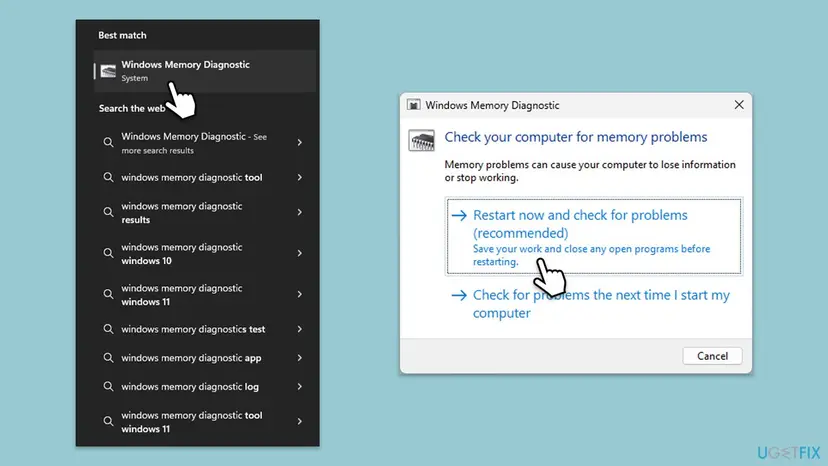
It worked if: The memory test reports no errors, the disk shows as healthy, and the PC starts with only the basic devices connected.
If not: If the memory test reports errors, replace or reseat the RAM. If the hardware is clean, go to Fix 8.
Fix 8. Reinstall Windows and keep your files
60 to 90 minutesRead the warningEvery fix above failed and the hardware tests are clean.
A reinstall writes a fresh Windows with storage drivers that fit the hardware it is installed on. The user in the Microsoft Q&A thread who tried the command line repairs with no luck says a reinstall solved it.
Reset this PC with Keep my files keeps documents, pictures and the desktop, but removes the apps you installed. If Windows does not start, copy your files first by booting the PC from a Windows USB drive or by connecting the disk to another PC: Back up your files (Windows Backup, File History, Time Machine)
- In the recovery screen, select Troubleshoot > Reset this PC > Keep my files.
- Choose Cloud download to get fresh files from Microsoft, or Local reinstall.
- If the reset cannot start, create a Windows 11 USB drive with the Media Creation Tool on another PC and boot from it.
- In Windows Setup, choose Repair my PC to reach the recovery tools, or install Windows and keep the old files in
Windows.oldif the setup offers it. - After the reinstall, install the chipset and storage drivers from your PC maker first. Full method: Reinstall Windows without losing files

It worked if: Windows starts to a fresh desktop with your files in place, and the stop code does not come back.
If not: If the stop code appears even during Windows Setup, the disk, its controller or the board is at fault. Contact your PC maker or a repair shop.
Still stuck at IO1_INITIALIZATION_FAILED: what to collect and whom to ask
Because 0x69 carries no parameters, support needs the story around the crash more than a dump. Collect these facts once, then send them to the right place.
- What changed before the first crash, with the date: BIOS update or setting, disk, motherboard, update, power cut.
- The text of
SrtTrail.txtfrom Startup Repair (Fix 2). - The storage mode shown in the BIOS and the model of the system disk.
- The CHKDSK and memory test results (Fix 4 and Fix 7).
- Any
.dmpfile fromC:\Windows\Minidump, if Windows started again.
| Where to ask | When |
|---|---|
| Your PC or motherboard maker's support | The error started after a BIOS update or a hardware change |
| Microsoft Q&A or Microsoft Support | The error started after a Windows update, with no hardware change |
| A repair shop or your disk's maker | The disk disappears from the BIOS, or CHKDSK reports bad sectors |
When Windows does start but other stop codes follow, read the dump the way our guide to the WIN32K_CRITICAL_FAILURE blue screen shows, with WinDbg and !analyze -v.
How to keep IO1_INITIALIZATION_FAILED from coming back
- Write down your BIOS storage settings before a BIOS update, and check them after it.
- Keep System Protection on for the system drive, so a restore point exists.
- Let Windows updates finish their restarts, and plug a laptop in during them.
- Use a UPS on a desktop where power cuts are common.
- Change the storage mode in the BIOS on a PC that already has Windows installed.
- Move a system disk to another PC and expect it to start without repair.
- Hold the power button during an update unless the PC has frozen for a long time.
- Ignore CHKDSK errors or a disk that is sometimes missing in the BIOS.
Windows 10 left support on 14 October 2025. A Windows 10 PC gets fixes for boot and storage drivers only through Extended Security Updates, so moving to Windows 11 keeps them coming.
Frequently asked questions
What does I01 initialization failed mean?
It means Windows could not start its input and output system during boot. The real name of the stop code is IO1_INITIALIZATION_FAILED, bug check 0x69: IO for input and output, 1 for the first phase. Without that system, Windows cannot reach the disk it runs from, so it stops and restarts. Microsoft says the most likely reasons are an improper install or a reconfigured system, such as a changed BIOS setting or a moved disk.
Is 101 initialization failed the same error?
Yes. On the stop screen the letters I and O next to the digit 1 look like 101, I01 or IOI, and people search for all of them. Every spelling is the same stop code, IO1_INITIALIZATION_FAILED with the value 0x69. On Windows 10 and Windows 11 the fixes are the same: undo the last hardware or BIOS change, then run Startup Repair, remove the latest update and use System Restore from the recovery screen.
What is IO1 initialization failed 0x69?
0x69 is the number of the IO1_INITIALIZATION_FAILED bug check, and 0x00000069 is the same value with eight digits. You see the number in Event Viewer, Reliability Monitor and crash tools, while the stop screen shows the name. Microsoft's reference lists no parameters for this code and says there is very little information available to analyze it. That is why the timing of the first crash matters more than the dump.
What is phase 1 initialization failed on Windows 11?
PHASE1_INITIALIZATION_FAILED is a different stop code with the value 0x32. It means the first phase of system initialization failed, and its one parameter is the NT status code that says why. It appears at the same early stage of startup as 0x69, and the same fixes apply: undo the last change, then Startup Repair, Uninstall Updates and System Restore from the recovery screen, then the disk check and boot file repair.
Can I fix IO1 initialization failed without losing my files?
Yes, in most cases. Fixes 1, 2 and 4 to 7 do not touch your documents and photos. System Restore in Fix 3 removes only apps, drivers and updates installed after the restore point. Only the reinstall in Fix 8 removes installed apps, and even then Keep my files keeps your personal files. Back up your files before Fix 8, from a Windows USB drive or by connecting the disk to another PC.
Why did IO1 initialization failed appear after a BIOS update?
A BIOS update often resets settings to their defaults, and that can include the storage mode. If Windows was installed with another mode, it starts drivers for a controller that is no longer there and cannot reach its disk. Open the BIOS, set the storage settings back to what they were before the update and save. Your PC maker's manual or support page lists the factory value.
Can a power outage cause IO1 initialization failed?
It can. A user on Microsoft Q&A reports the error on a server right after a power outage and a failed backup battery unit, and another after a normal weekend shutdown. A sudden power loss can leave the file system or boot files half written. Check the disk with CHKDSK from the recovery Command Prompt (Fix 4), then try System Restore (Fix 3) and the boot file repair (Fix 5).
How do I get past the blue screen if the PC restarts in a loop?
Interrupt the start twice: when the logo appears, hold the power button until the PC turns off. On the third start Windows opens Automatic Repair, and from there Advanced options lead to Startup Repair, Uninstall Updates, System Restore, Command Prompt and Startup Settings. If even that screen does not appear, boot from a Windows 11 USB drive made with the Media Creation Tool and select Repair your computer.
Is IO1_INITIALIZATION_FAILED a hardware problem?
Usually not. Microsoft ties it to an improper install or a reconfigured system, which means settings and drivers, not broken parts. It points to hardware when the disk is sometimes missing in the BIOS, CHKDSK reports bad sectors, the memory test reports errors, or the stop code appears even during Windows Setup. In those cases, Fix 7 and a repair shop are the way forward.
Sources
- Microsoft Learn: Bug Check 0x69 IO1_INITIALIZATION_FAILED (learn.microsoft.com)
- Microsoft Learn: Bug Check 0x32 PHASE1_INITIALIZATION_FAILED (learn.microsoft.com)
- Microsoft Q&A: IO1 Initialization Failure (learn.microsoft.com)
Did this fix work?
One click, no account. It tells the next reader which guides are worth their time.
Questions and experiences: fix the I01 initialization failed BSOD (IO1_INITIALIZATION_FAILED, 0x69) in Windows
Still broken, or found a fix we did not cover? Ask here: members and our editors answer. Reading is open; writing needs a free account.
…