How to fix
Ic64.dll error
on Windows
Resolve the ic64.dll error on Windows 10 and 11 effortlessly with expert-tested solutions that ensure zero traces left. Fix it in minutes!

What causes How to fix ic64.dll error in Windows?
- File missing
- File corrupted
- Incompatible file
- Conflicting software
- Malware infection
Repairs Windows system files, removes malware, and restores a clean OS state — without reinstalling.
Hello, I am not sure what to do with this error: "There was a problem starting ic64.dll." Any tips on how to deal with it?
Dynamic Link Libraries (DLL) are vital components of the Windows OS, containing reusable code and data for multiple applications. DLL files streamline software functionality by enabling shared resource access, conserving memory, and reducing executable size.
They serve as modular programming, allowing developers to create flexible, easy-to-maintain applications. By sharing code and resources via DLL files, developers increase efficiency, reduce redundancies, and enable all dependent applications to benefit from updates without individual modifications.
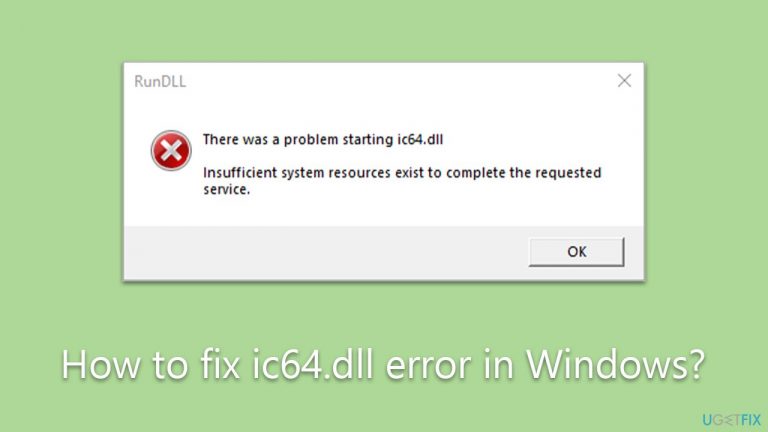
However, despite their significance in maintaining the smooth operation of software programs, DLL files can sometimes cause issues. One such error that users might encounter is related to the ic64.dll file. This error can manifest in various ways, such as:
- File missing. Users may receive an error message indicating that the ic64.dll file is missing from their computer. This error can occur if the file has been accidentally deleted, moved, or if it is not correctly registered in the Windows Registry.
- File corrupted. A corrupted ic64.dll file can also trigger error messages. Corruption can result from issues like hardware failure, malware infection, or incomplete software installation.
- Incompatible file. Users might face errors related to the ic64.dll file if it is incompatible with the software trying to access it. Incompatibility can arise from using an outdated or incorrect version of the file with the application in question.
- Conflicting software. Occasionally, conflicts between different software programs can cause DLL errors. Such conflicts can occur when multiple applications try to access the same resources within the DLL file or when one application interferes with the functionality of another.
- Malware infection. Malware or viruses can sometimes target DLL files. In these instances, the malware may delete, modify, or corrupt the file, resulting in the ic64.dll error.
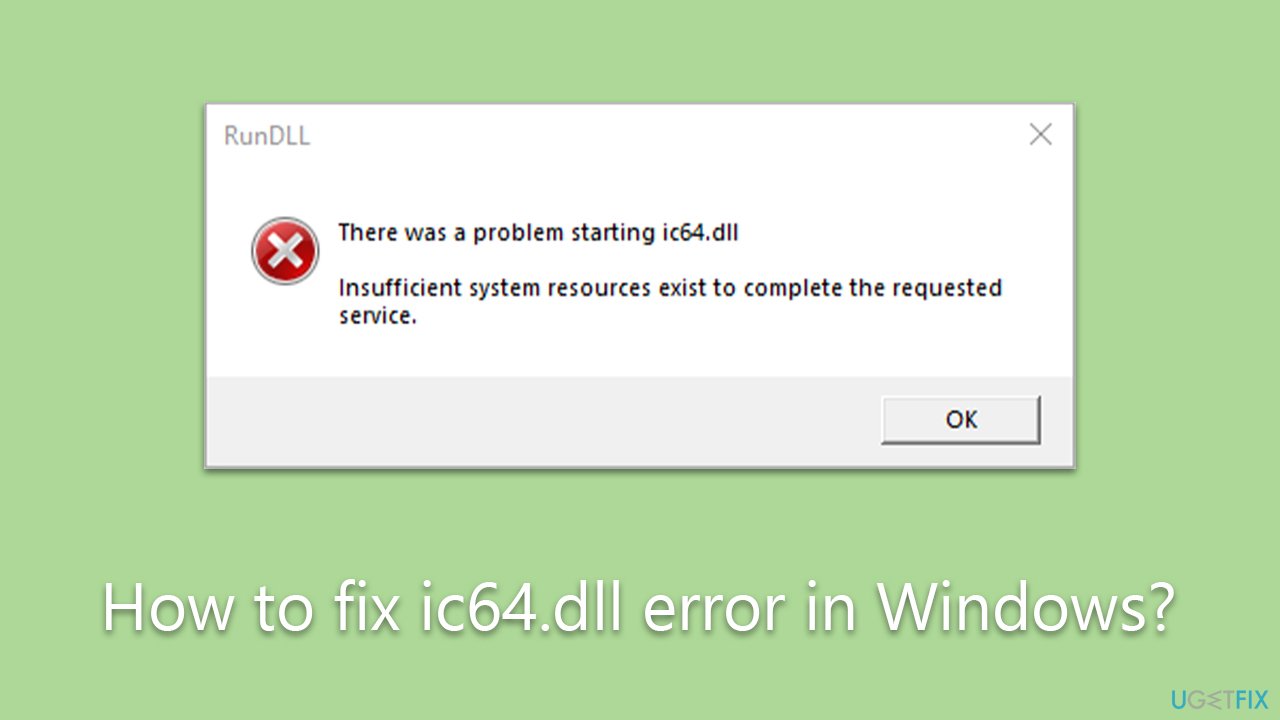
The ic64.dll error can have a negative impact on the performance and functionality of the affected applications, causing them to crash or not load properly. Furthermore, it may cause the overall system to become unstable, leading to decreased performance and increased vulnerability to additional errors or issues.
Below we provide several ways to fix the ic64.dll error in Windows. Before proceeding, we recommend you scan your system with [d1] PC repair tool that can automatically resolve various Windows issues.
Fix 1. Scan for malware
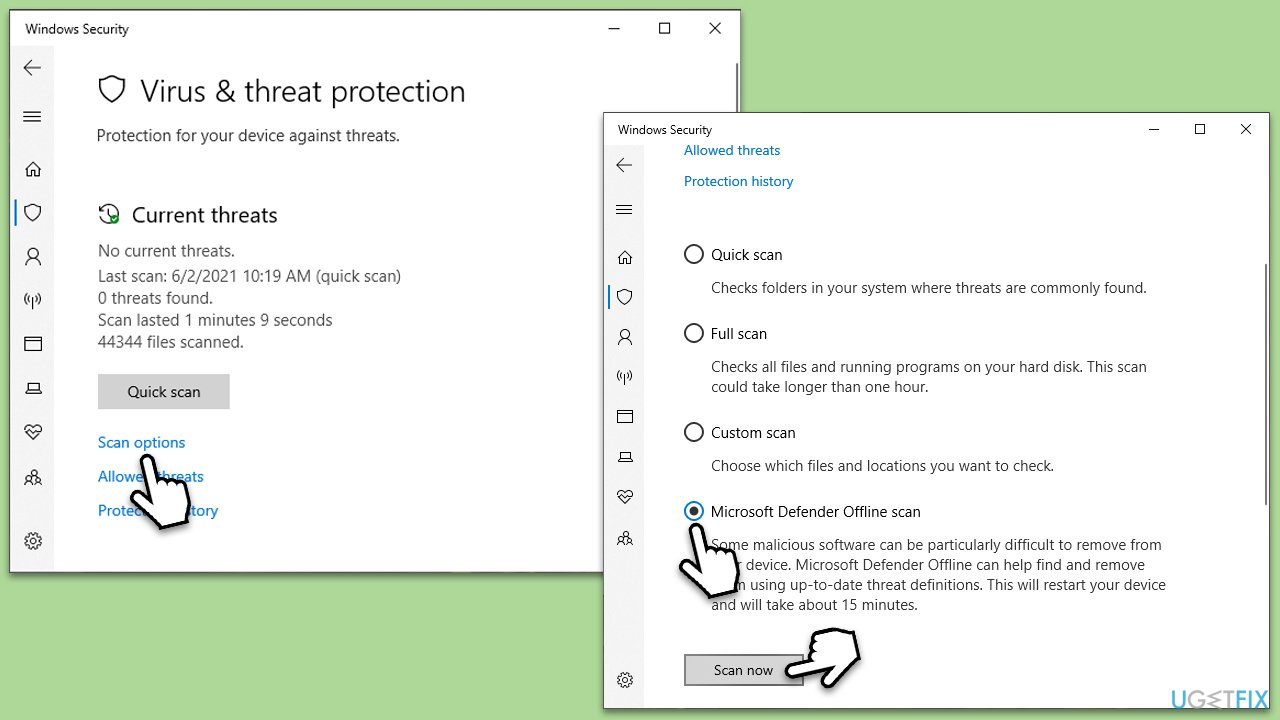
DLL errors may sometimes hint at malware infections. Therefore, let's first make sure that the system is not infected. While you can use any reliable third-party security software, you can also use Microsoft Security Scanner, which you can download from the official website. Alternatively, run an Offline scan in Windows Defender:
- Type Windows Security in the Windows search bar and hit Enter.
- Select Virus & threat protection.
- Pick Scan options.
- Choose Microsoft Defender Offline scan and click Scan now
- Your computer will immediately reboot and begin a deep scan.
Fix 2. Run SFC and DISM
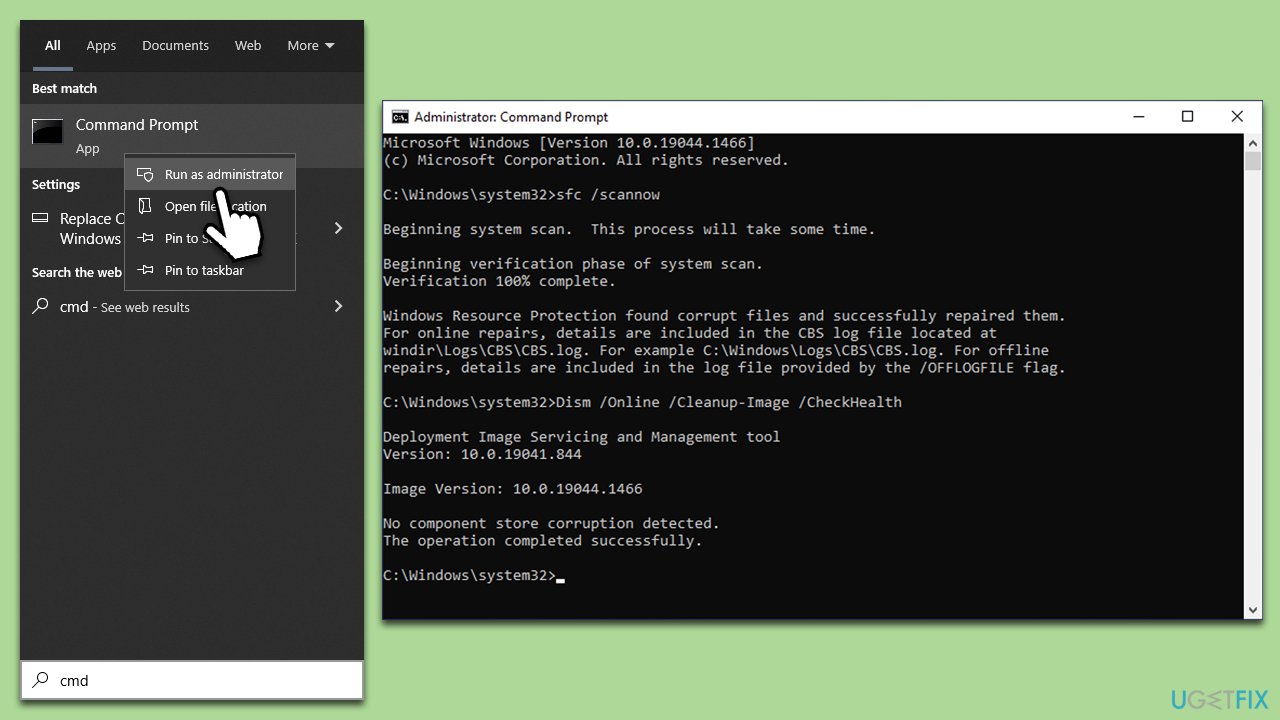
To repair corrupted files on Windows, perform the following steps:
- Type cmd in Windows search.
- Right-click on Command Prompt and select Run as administrator.
- User Account Control will ask you whether you want to make changes - click Yes.
- Use the following command lines, pressing Enter each time:
sfc /scannow
DISM /Online /Cleanup-Image /CheckHealth
DISM /Online /Cleanup-Image /ScanHealth
DISM /Online /Cleanup-Image /RestoreHealth - Restart your computer.
Fix 3. Try Clean Boot
After performing a clean boot, you can proceed with troubleshooting to identify the source of the issue. If the problem no longer occurs during the clean boot, it's likely caused by a third-party service or startup item.
To pinpoint the problematic service or application, enable the disabled items one by one (or in small groups), restarting your computer after each change. When the issue reappears, the last enabled item(s) is likely the culprit. Here's how to access the Clean Boot environment:
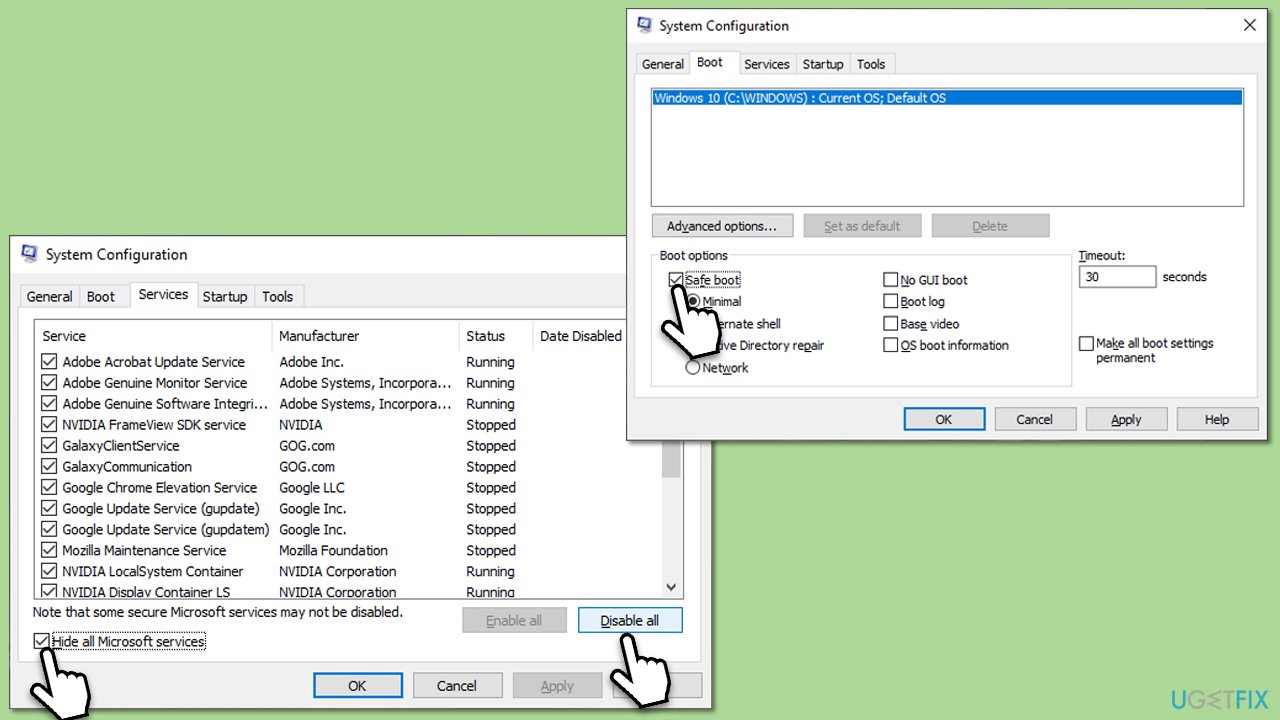
- Type msconfig in Windows search and press Enter.
- Go to the Services tab.
- Mark Hide all Microsoft services and select Disable all.
- Go to the Startup tab and click Open Task Manager.
- In the Task Manager, right-click on each of the items and select Disable, then close the Task Manager.
- Go to the Boot tab, tick Safe Boot, then click Apply and OK.
Fix 4. Try System Restore
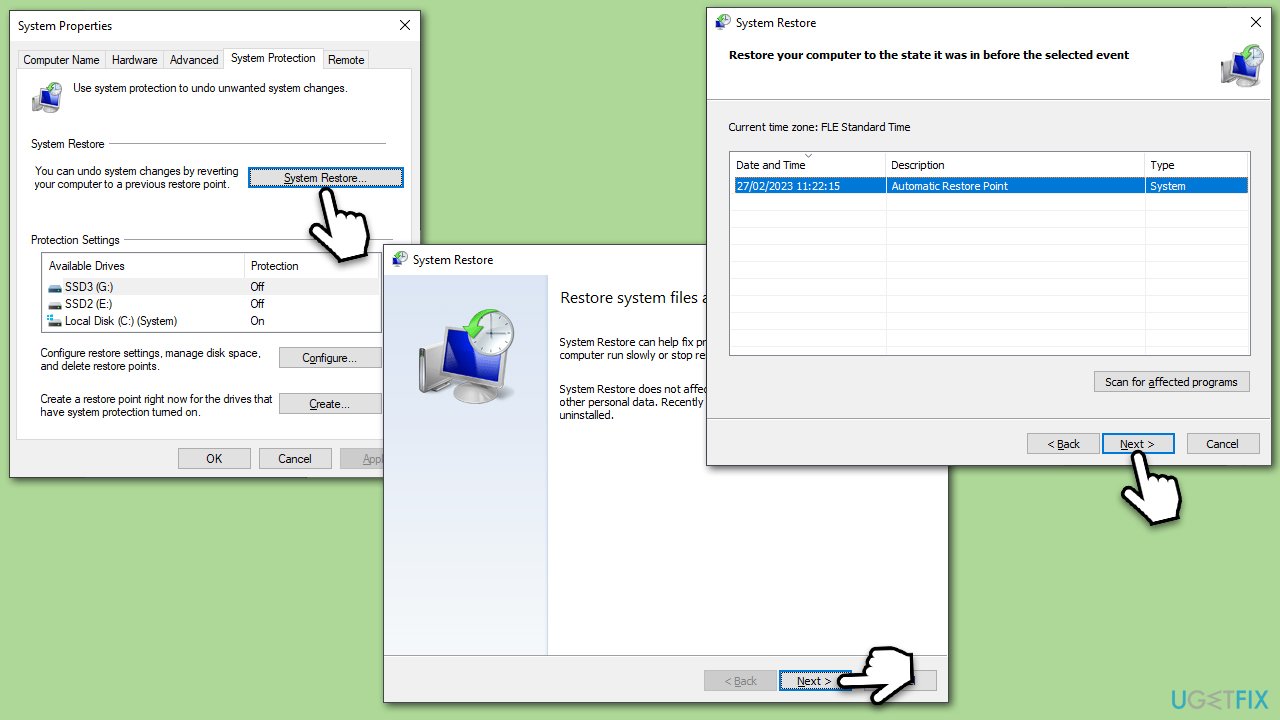
With System Restore, you can bring the system to a date when the problem did not exist.
- Type in Create a Restore point in Windows search and hit Enter.
- Go to the System Protection tab and pick System restore.
- Click Next.
- Click Show more restore points (if available).
- Pick the time before the problem occurred and click Next.
- Follow the prompts to finish the process.
Bottom line
To fix the ic64.dll error, users can try restoring the missing file, repairing the corrupted file, ensuring compatibility with the software, resolving any software conflicts, and scanning for malware infections. If none of these solutions work, further troubleshooting may be necessary.
Frequently asked questions
The ic64.dll error in Windows is often caused by missing or corrupted DLL files, malware infections, or software conflicts. It can also occur after a failed system update or improper installation of applications.
To manually replace the ic64.dll file in Windows 10, download a fresh copy of the DLL from a reputable source, then copy it to the C:\Windows\System32 directory. Make sure to back up the original file before replacing it.
Yes, you can fix the ic64.dll error in Windows 11 by running the System File Checker (sfc /scannow) or using the DISM tool to repair the system image. Additionally, performing a clean boot can help identify and resolve conflicts.




Report an issue
What's wrong with this guide? We review every report and update or remove content.
Report received — thank you. We'll review and fix it.
You need a free account to submit a report.
Be the first to comment