How to fix
Icn_downloaded stuck in the corner of the screen
on Windows
Resolve the icn_downloaded issue on your Windows 10 or Windows 11 screen effortlessly. Our expert-tested guide ensures a quick fix in minutes!

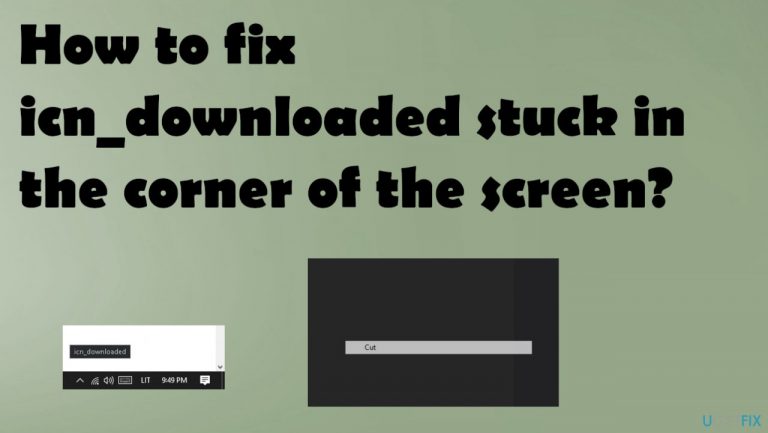
What causes How to fix icn_downloaded stuck in the corner of the screen?
- Desktop Windows Manager bug
- Graphics performance issues
- Leftover files or processes
- Background programs not properly ended
- Malware or other common errors
Repairs Windows system files, removes malware, and restores a clean OS state — without reinstalling.
I have various menu context menu items or icn_downloaded stuck in the corner of the desktop. It happens at the bottom and at the top f the screen. I cannot link this to any programs or processes. Can you help me or explain what happens?
When you click the right key on your mouse anywhere, the context menu opens, and there can be various pieces that occur after that. Some pieces like icn_downloaded get stuck in the corner of the screen or anywhere else on the desktop. This is what creates frustration for various users.[ref en-1]
There can be various things in the stuck on pop-up like Exit, Close, or different commands. icn_downloaded stuck in the corner of the screen problem can occur out of nowhere or particularly related to a program that constantly runs at the time or in the background. Unfortunately, this is a reoccurring issue related to the Desktop Windows manager bug and the graphics performance.
You might want to fix icn_downloaded stuck in the corner of the screen as soon as possible and blame Windows updates, malware,[ref en-2] other common reasons for such errors or problems with Windows devices. However, this is not the case where OS updates or applications could be triggering the problem.
Cleaning leftover files, processes, ending particular background programs could help you fix the icn_downloaded stuck in the corner of the screen problem. Resetting is pretty easy, so you can go through Task Manager and change common preferences, permissions. But if that is not helpful - move on with the methods listed.
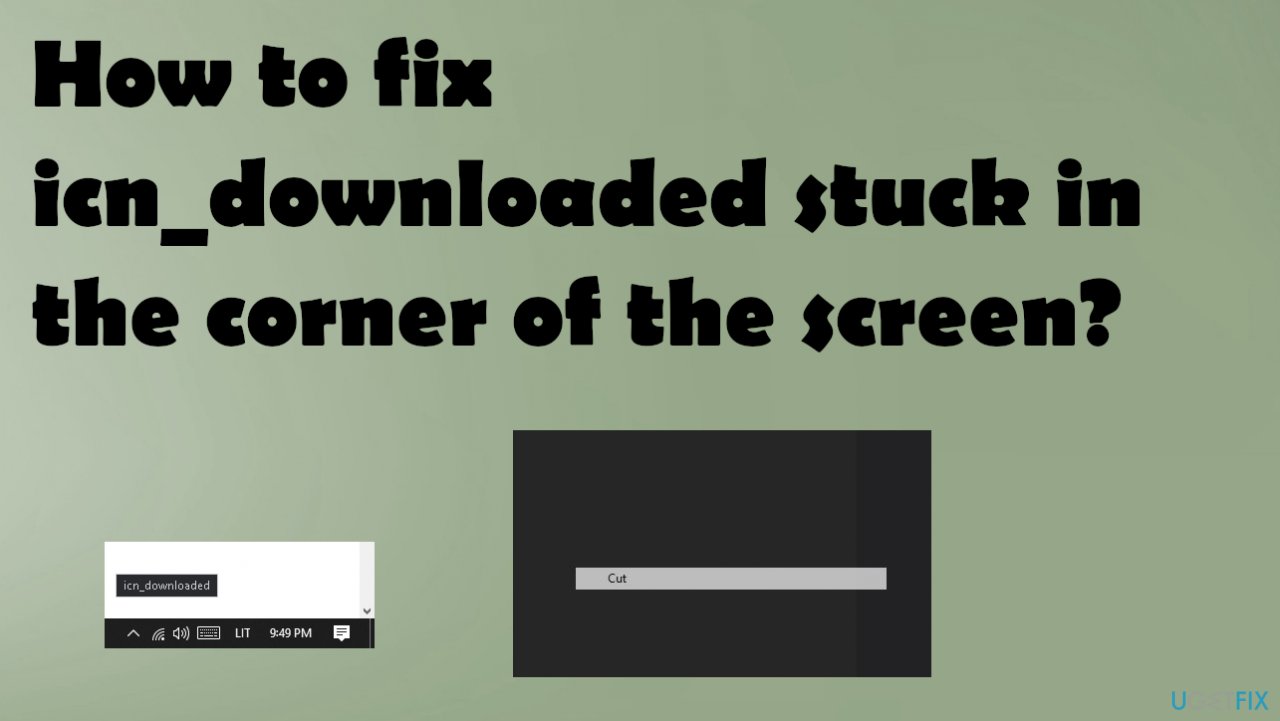
How to fix icn_downloaded stuck in the corner of the screen
When users encounter particular pieces stuck on the screen, some incidents can be related to a context menu piece, a window, or a command leftover from the program or process. In most cases, it is possible to fix icn_downloaded stuck in the corner of the screen by closing apps like Teams or Skype, Zoom. Some of the leftover processes or not properly ended actions can trigger the stuck pieces on the screen.[ref en-3]
You can notice that the issue appears when using the program or running a process, so restarting the app or machine fully should help with the issue of stuck menu pieces or specific icn_downloaded. If the problem occurs again with other things stuck in the corner of the screen, you might need to rely on some more advanced solutions.
Run a PC optimizer
System issues or unexpected errors, failure of applications can be triggered by altered files or corrupted pieces in the system. It is unfortunate, but not all things can be done manually. You should ru a PC optimization application or a similar tool like [d1] to check for any possible issues that lead to problems with unwanted content or alterations.
These software pieces should indicate affected files, altered or damaged registry entries, and issues with the applications you run on the machine. You can choose a security tool too, so the system is also checked for malware issues, but such antivirus programs are not capable of fixing system issues or repairing files needed for the performance.
Update Windows OS to fix menu pieces stuck in the corner of the screen
- Press Win + R and type ms-settings in the Run box.
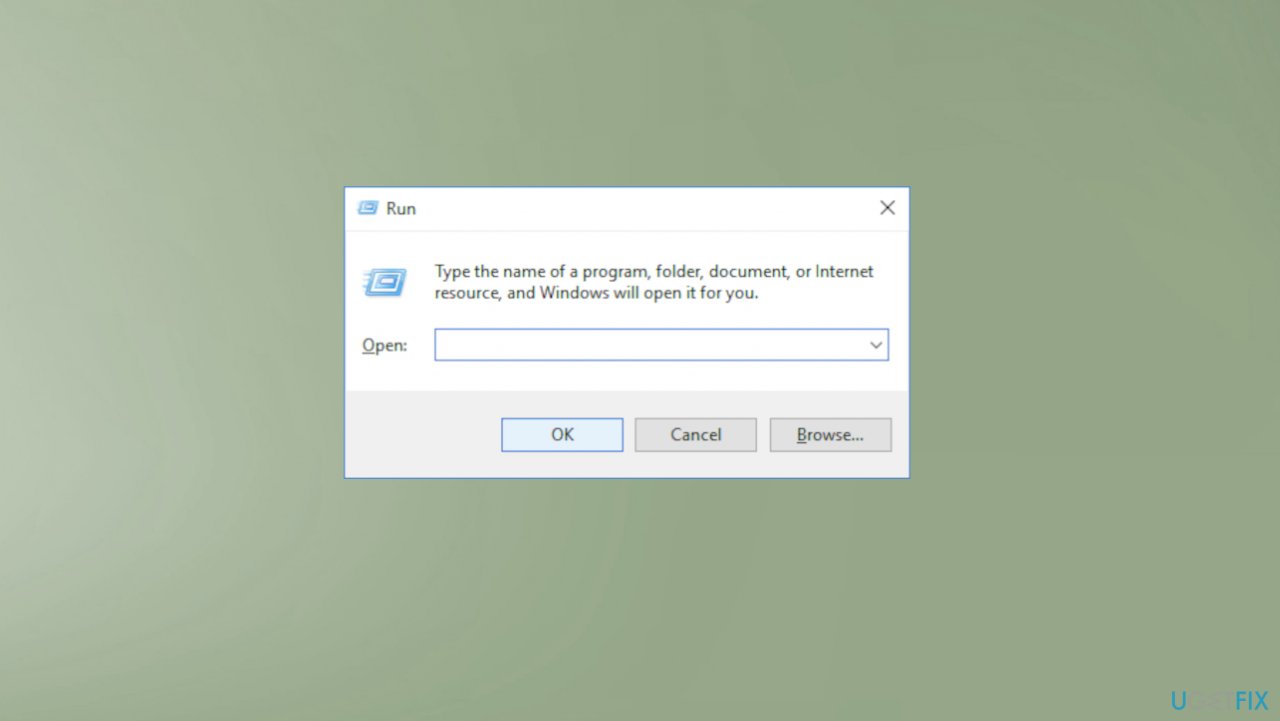
How to fix inc downloaded stuck in the corner run - Hit Enter.
- Select Update & Security.
- Then click WIndows update.
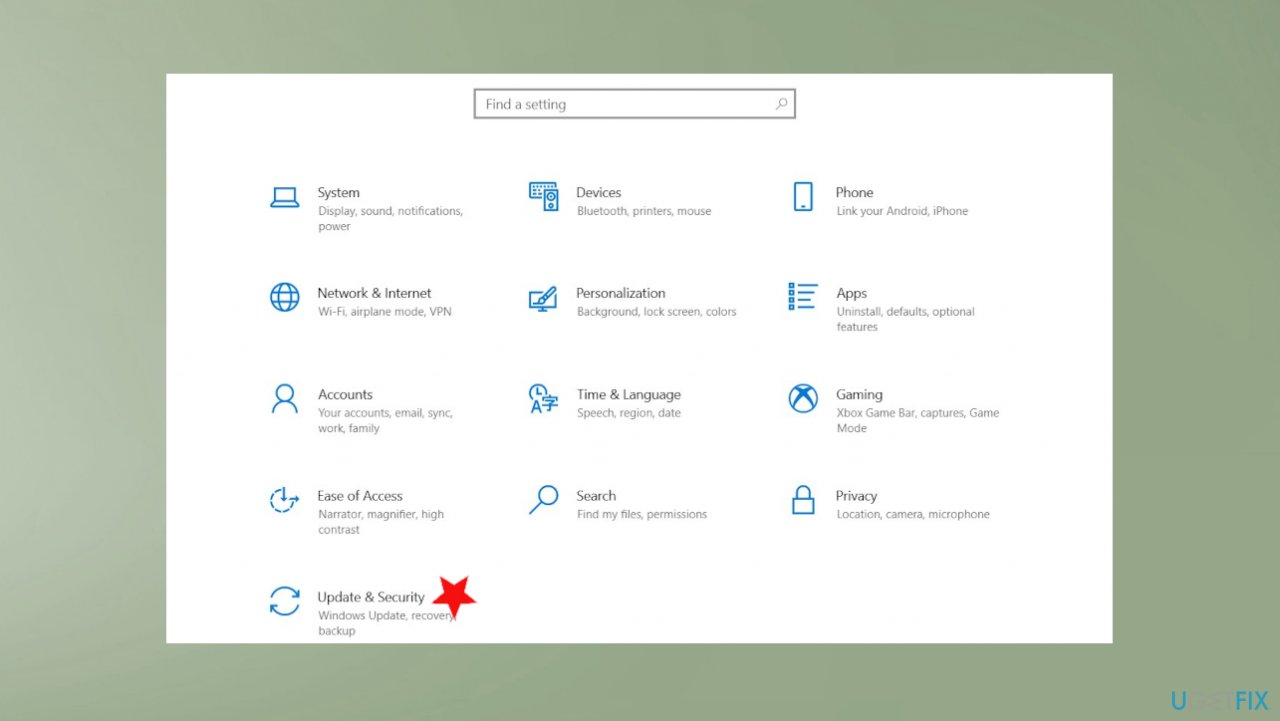
How to fix inc downloaded stuck in the corner services update - Click Check for updates and wait for Windows to download and install all the newest updates.
- Restart your PC and see if the problem is solved.
End tasks in Task manager
- Open Task Manager with a quick Ctrl + Shift + Esc key combination or by right-clicking on the taskbar.
- Find any suspicious processes and click End task to stop them.
Reset processes via Command Prompt to fix icn_downloaded stuck in the corner of the screen
- Open Command Prompt via Start.
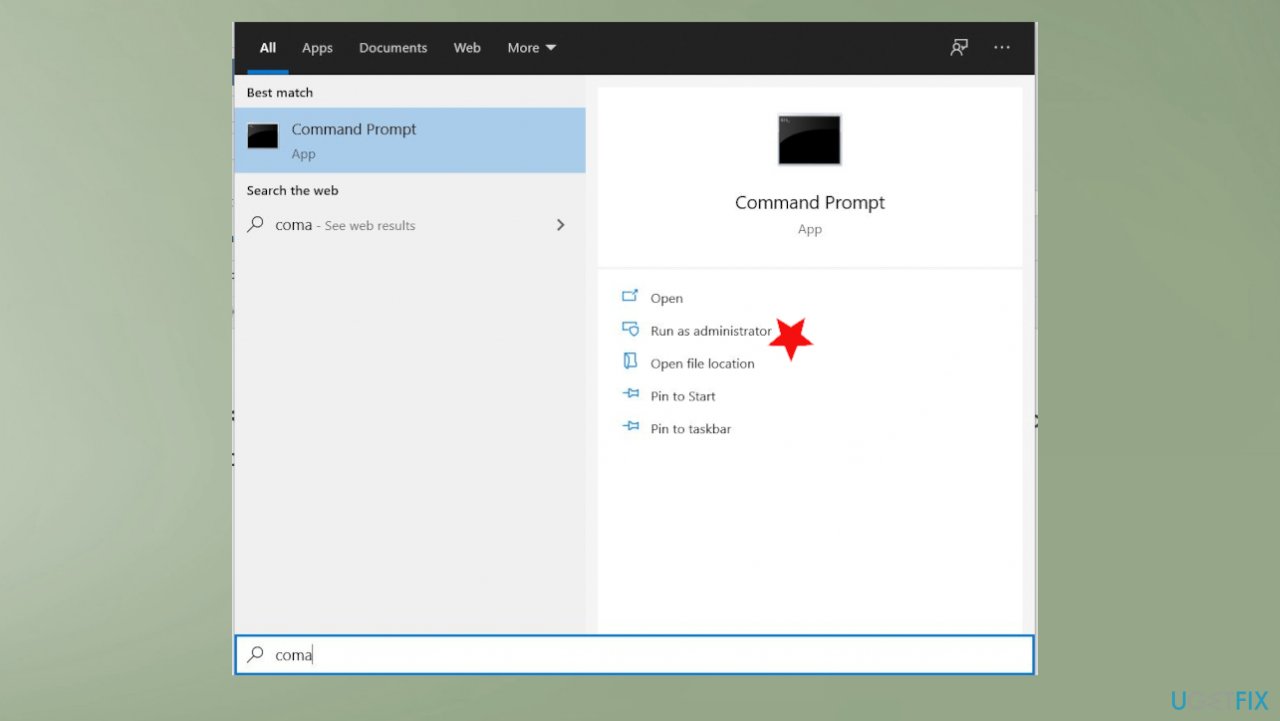
How to fix inc downloaded stuck in the corner command prompt - Run it as administrator.
- Type tskill down and hit Enter.
- Wait for the process.
- Restart PC.
Restart the Desktop Window Manager Session Manager
- Search for Services.
- Once the window opens find the DWMSM.
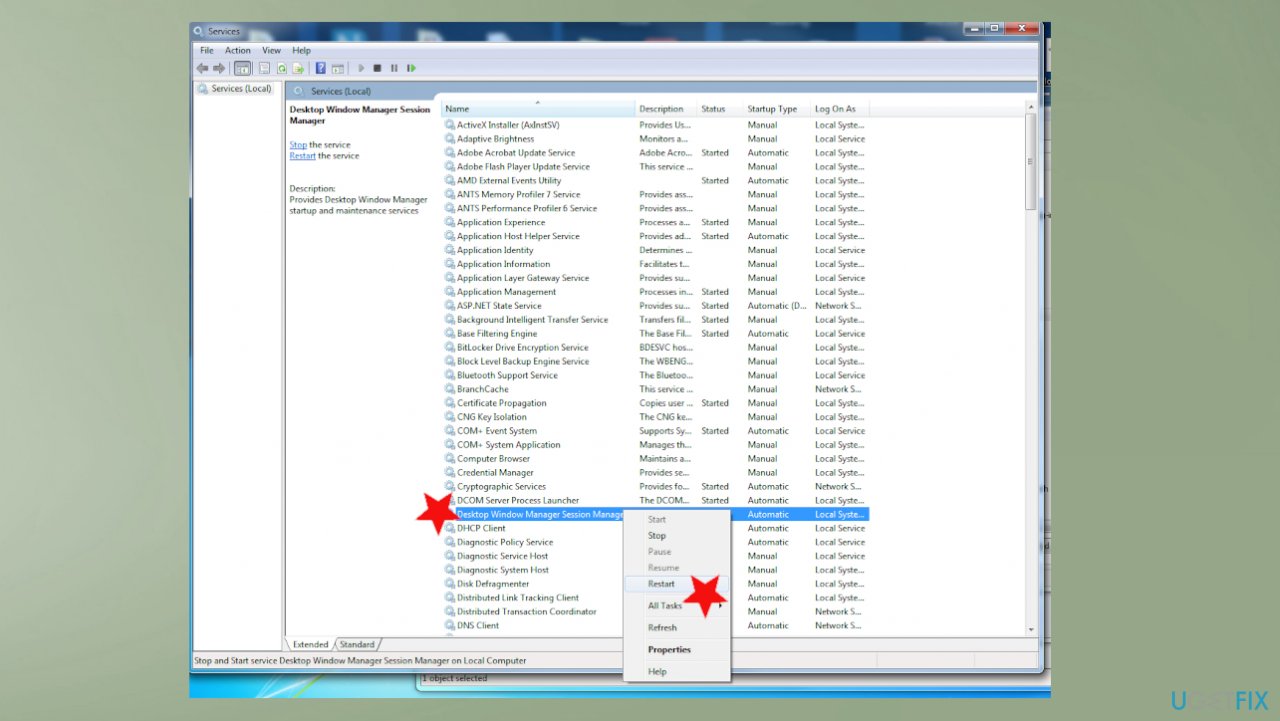
How to fix inc downloaded stuck in the corner services - Right-click it and choose Restart.
Disable Startup items
- Press Ctrl + Shift + Esc to open Task Manager.
- Go to Startup tab.
- Right-click on a program and select Disable.
Reset Windows Update components to fix icn_downloaded stuck in the corner of the screen
- Click Win key + X and select Command Prompt (Admin).
- Disable Services by typing the commands given below in the Command Prompt window.
- Press Enter after each of them:
net stop wuauserv
net stop cryptSvc
net stop bits
net stop msiserver
ren C:\\\\Windows\\\\SoftwareDistribution SoftwareDistribution.old
ren C:\\\\Windows\\\\System32\\\\catroot2 Catroot2.old - When all commands are executed, enable Services by typing these commands in the Command Prompt.
- Press Enter after each:
net start wuauserv
net start cryptSvc
net start bits
net start msiserver - Close Command Prompt window and reboot your PC.
Bottom line
To fix the icn_downloaded stuck issue, you can try closing apps like Teams, Skype, or Zoom, and clean up leftover files and processes. If these methods do not resolve the problem, consider resetting preferences in Task Manager or exploring additional troubleshooting methods.
Frequently asked questions
The icn_downloaded icon may get stuck due to a software glitch or a temporary issue with the Windows 10 notification system. Restarting your PC or resetting the Windows Explorer can often resolve this issue.
To remove the icn_downloaded icon in Windows 11, try restarting the File Explorer process through Task Manager or logging out and back into your account. If the problem persists, consider checking for updates or running the Windows troubleshooter.
To prevent the icn_downloaded icon from appearing, you can adjust your download settings in the browser or disable notifications for specific apps through Windows 10 settings. Additionally, ensure that your system is up to date to minimize glitches.




Report an issue
What's wrong with this guide? We review every report and update or remove content.
Report received — thank you. We'll review and fix it.
You need a free account to submit a report.
Be the first to comment