How to fix
Igfxext.exe Module high memory or CPU usage
on Windows
Resolve high memory or CPU usage from igfxext.exe in Windows 10 or 11 with our proven solutions. Expert-tested fixes to optimize your PC's performance.

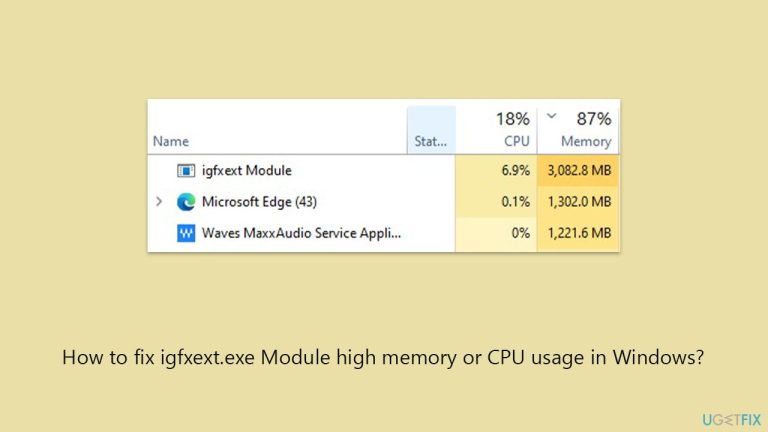
What causes How to fix igfxext.exe Module high memory or CPU usage in Windows?
- High memory or CPU usage after a Windows update
- Outdated graphics drivers
- Corrupted system files
- Conflict with another application
- High usage after waking the system from sleep
- Switching display modes
Repairs Windows system files, removes malware, and restores a clean OS state — without reinstalling.
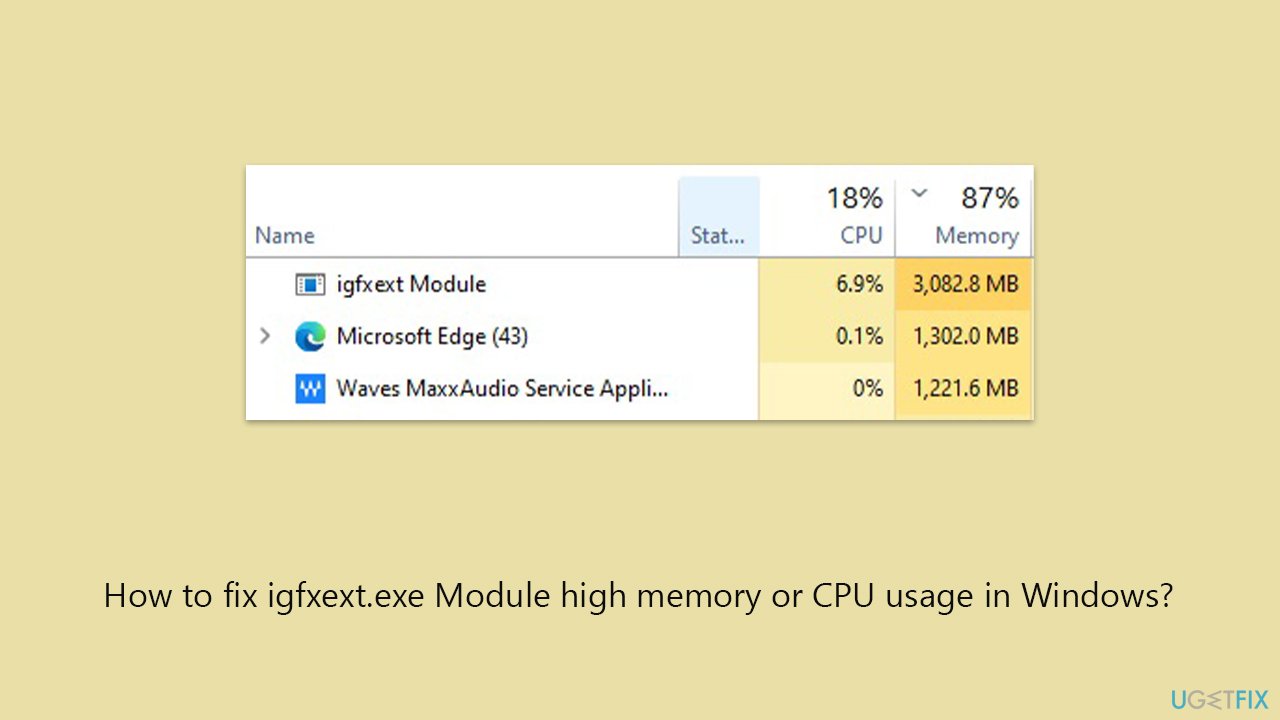
My PC has been running slow lately, and in Task Manager I see a process called igfxext.exe Module using a lot of memory. I’m not sure what this is or if it’s safe. Should I be worried about it, and how do I stop it from slowing down my system?
Seeing igfxext.exe using unusually high memory or CPU in Windows can be alarming, especially if you’re not sure what the process does. In most cases, igfxext.exe is a legitimate Intel graphics-related component, not malware. It stands for Intel Graphics External Display Helper Module and is part of the Intel Graphics driver package preinstalled on many Windows devices.
This executable helps manage extended display settings, hotkeys, and interactions with external monitors or projectors. You’ll often find it running quietly in the background as part of Intel’s graphics control processes. However, when igfxext.exe begins consuming too much memory or CPU, it may signal an underlying problem with the graphics driver or a conflict with another application.
These performance issues usually appear after a Windows update, outdated graphics drivers or corrupted system files. In some cases, users notice the high usage right after waking the system from sleep or switching display modes. While igfxext.exe is safe when part of Intel’s software, high resource usage should not be ignored, especially if it’s causing slowdowns or interfering with daily tasks.
To fix igfxext.exe Module high memory or CPU usage, updating your Intel graphics drivers is often the first and most effective step. Other approaches include running system file checks, disabling unnecessary Intel utilities at startup, or reinstalling the display driver entirely.
Manual instructions for these steps and more will be listed below. If you suspect deeper system damage or persistent performance issues, [d1] repair tool can help identify and fix what’s causing the abnormal behavior.
Fix 1. Update your Intel graphics driver
Outdated or broken graphics drivers are one of the most common reasons for igfxext.exe Module using too many resources.
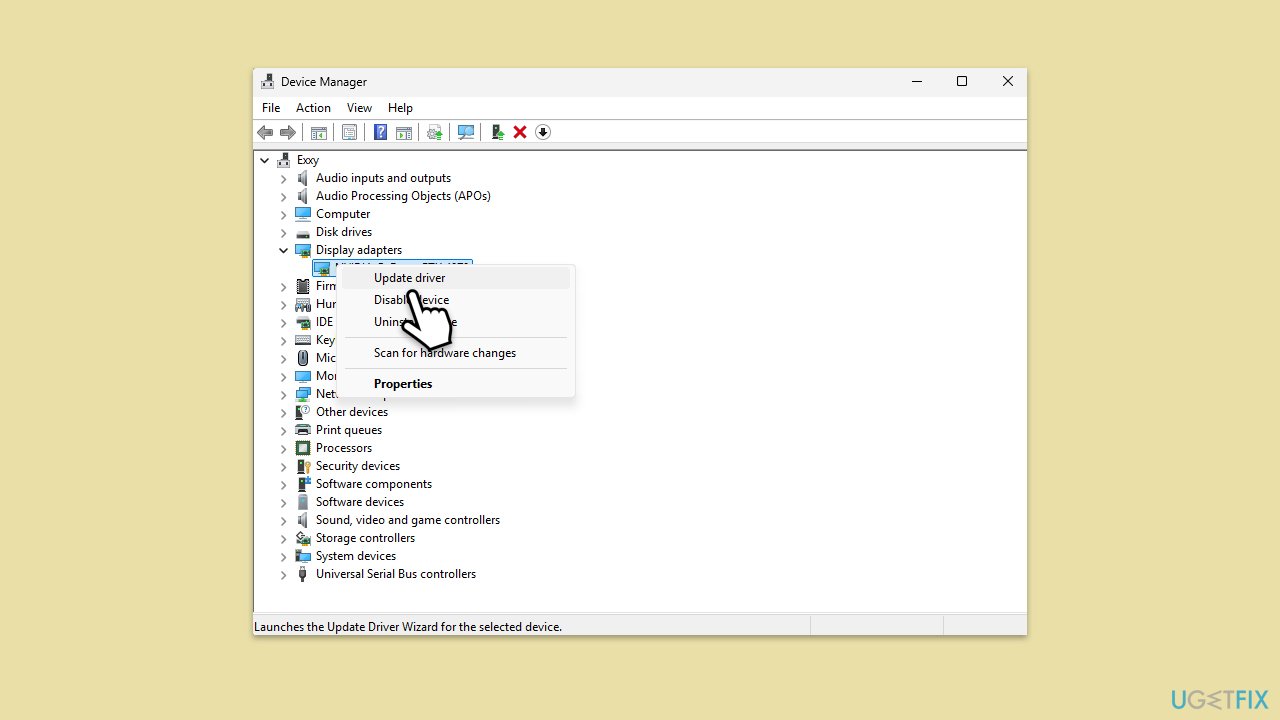
- Right-click on Start and select Device Manager.
- Expand the Display adapters section.
- Right-click your Intel graphics device and choose Update driver.
- Select Search automatically for drivers and wait till all the files are downloaded and installed.
- Restart your PC once the update completes.
- For a much quicker and fail-proof method for driver updates, choose automatic software such as [ref id="DriverFix"].
Fix 2. Reinstall the Intel graphics driver
If updating doesn't help, a clean reinstall can remove corrupted files tied to igfxext.exe.
- Right-click on Start and select Device Manager.
- Right-click your Intel graphics adapter and choose Uninstall device.
- Check the box Delete the driver software for this device when prompted.
- Restart your computer.
- Windows will attempt to reinstall the driver automatically.
- Alternatively, install the latest driver manually from Intel’s official site or use an automatic driver updater.

Fix 3. Check for recent Windows updates
A known bug in Windows or graphics integration could be responsible for abnormal process behavior.
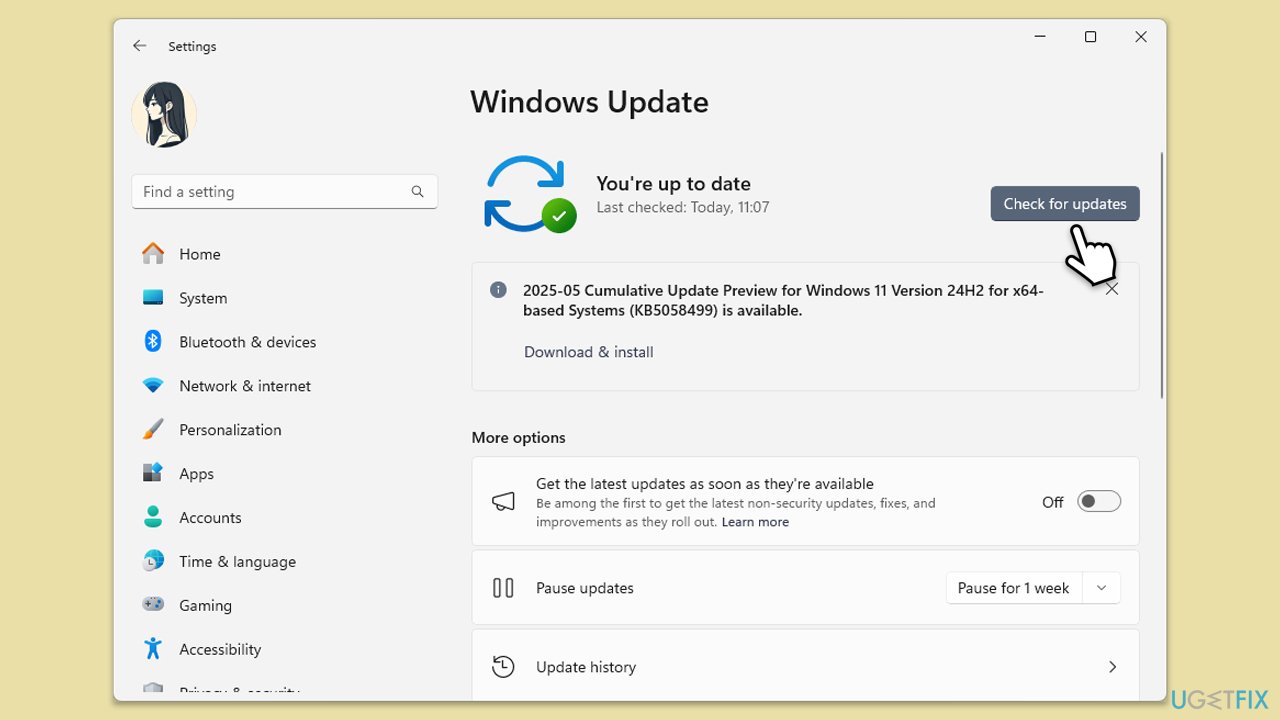
- Type Updates and press Enter.
- In the new window, click Install all (if pending) or Check for updates.
- Wait till all the files are downloaded and installed.
- If optional updates are available, install them as well.
- Restart your system once done.
Fix 4. Disable Intel-related startup tasks
Some Intel utilities are not required for system operation and may be using resources in the background.
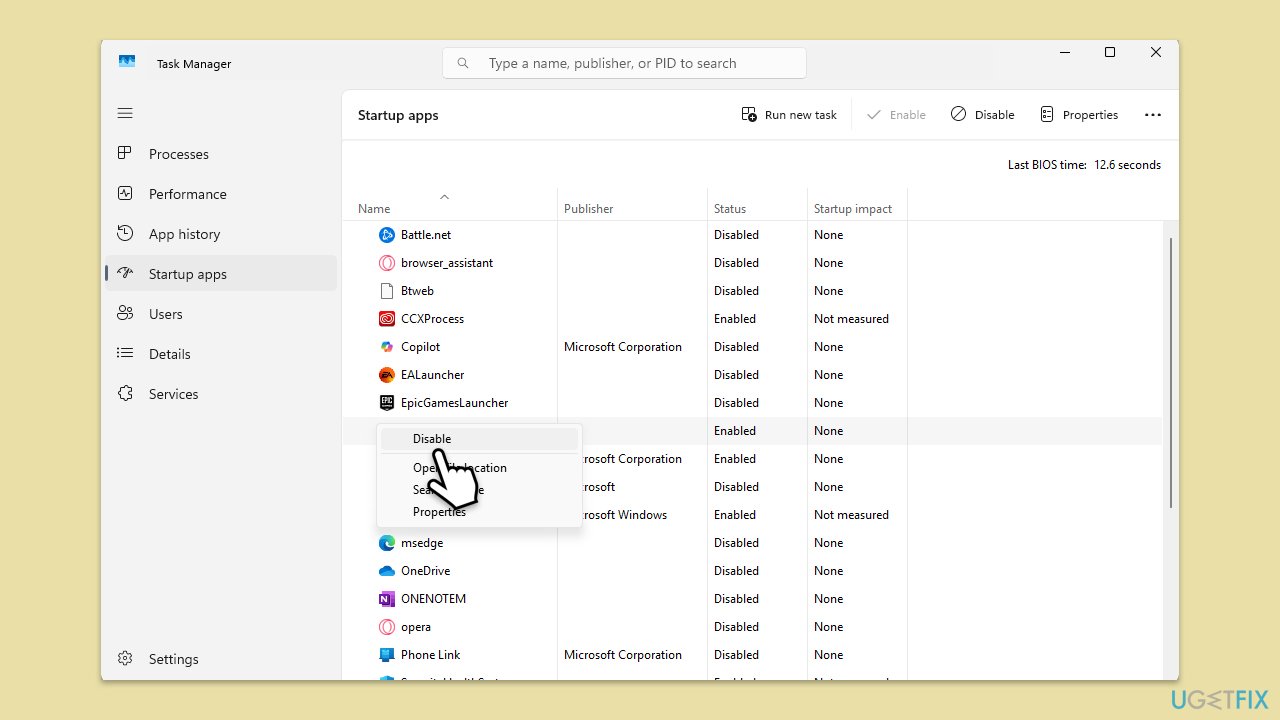
- Press Ctrl + Shift + Esc to open Task Manager.
- Go to the Startup tab.
- Look for Intel Graphics Command Center, Intel Driver & Support Assistant, or similar items.
- Right-click and select Disable.
- Restart your system.
Fix 5. Check for system file corruption
Corrupted system files can affect background processes like igfxext.exe.
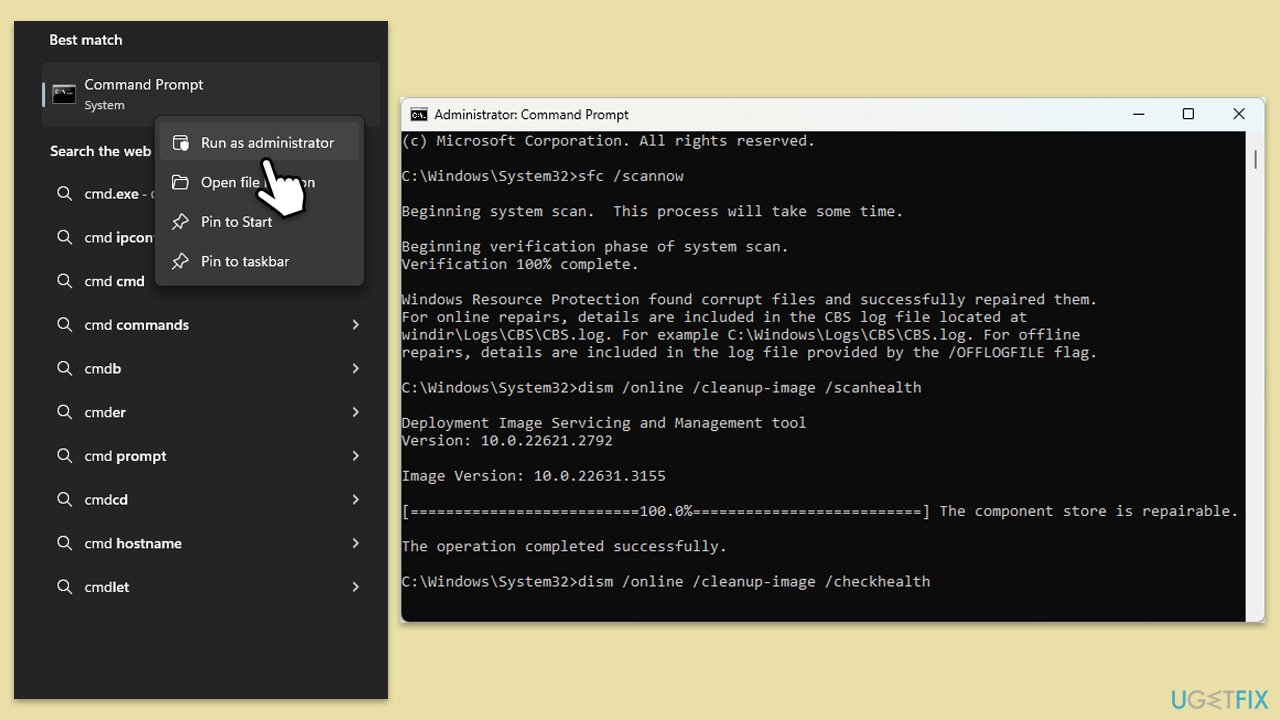
- Type cmd in Windows search.
- Right-click on Command Prompt and select Run as administrator.
- When User Account Control shows up, click Yes.
- In the Command Prompt window, paste the following command and press Enter:
sfc /scannow - Wait for the scan to complete.
- Once the SFC scan is finished, run the following set of DISM commands, pressing Enter after each one:
DISM /Online /Cleanup-Image /CheckHealth
DISM /Online /Cleanup-Image /ScanHealth
DISM /Online /Cleanup-Image /RestoreHealth
(Note: if you get an error executing this last command, add /Source:C:\RepairSource\Windows /LimitAccess to it and try again). - After completing the DISM commands, restart your computer.
Fix 6. Perform a Clean Boot
A clean boot disables third-party services that could be conflicting with Intel graphics software. Some users noticed that the conflicting software was from Dell, but Clean Boot can help you determine the precise software conflicting with the process.
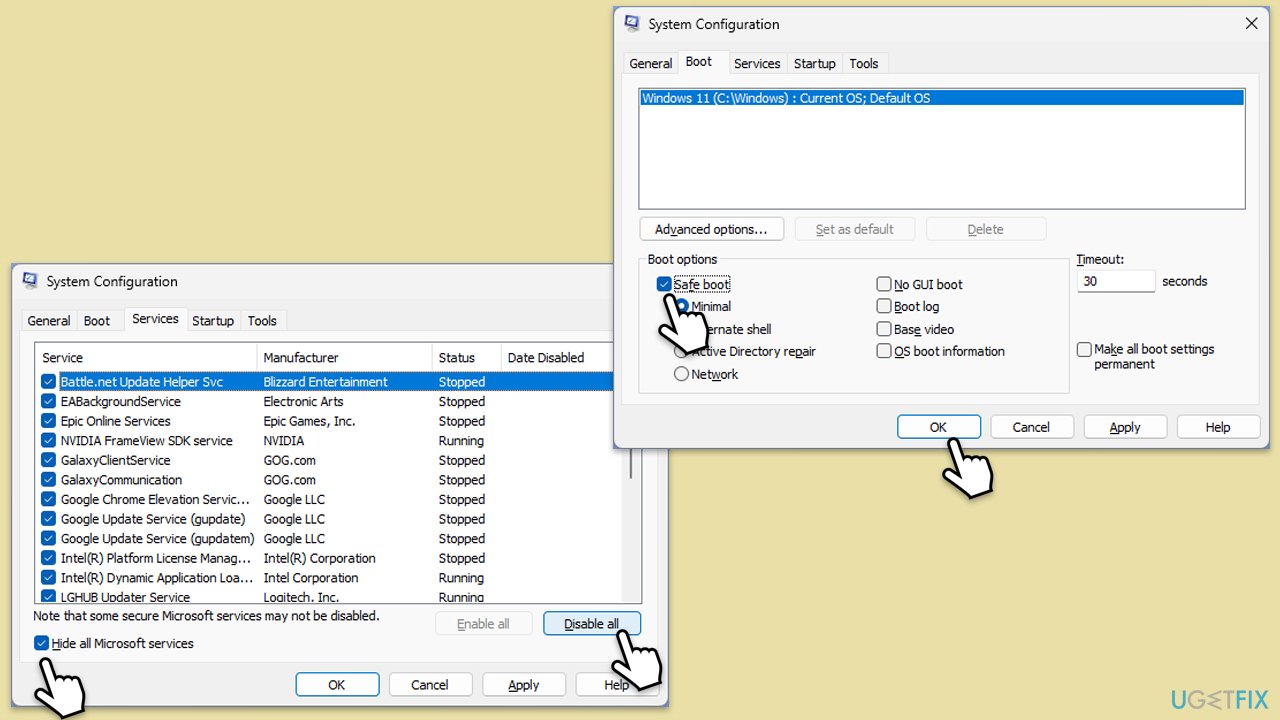
- Type msconfig in Windows search and press Enter.
- Go to the Services tab.
- Mark Hide all Microsoft services and select Disable all.
- Go to the Startup tab and click Open Task Manager.
- In the Task Manager, right-click on each of the items and select Disable, then close the Task Manager.
- Go to the Boot tab, and tick Safe Boot.
- Click Apply and OK, and restart your PC.
- To find out which app(s) is causing conflicts, enable each of the processes (or you can do it in groups), restart, and see if the problem persists. Repeat until you find the faulty app, then either update or uninstall it.
Bottom line
To fix igfxext.exe Module high memory or CPU usage, updating your Intel graphics drivers is often the first and most effective step. Other solutions include running system file checks, disabling unnecessary Intel utilities at startup, or reinstalling the display driver. If these steps do not resolve the issue, consider using a repair tool to identify and fix deeper system problems.
Frequently asked questions
High memory or CPU usage by igfxext.exe in Windows 10 is often caused by outdated or corrupted graphics drivers. Updating your graphics driver can usually resolve this issue.
To reduce igfxext.exe CPU usage on Windows 11, try reinstalling the Intel graphics driver or disabling unnecessary startup programs that may be conflicting with it.
Disabling igfxext.exe can lead to reduced functionality of your Intel graphics features, but if it's causing severe performance issues, it can be a temporary solution while you troubleshoot.
4 comments

Ah, sorry if this is a stupid question, but how would I know if the igfxext.exe high usage is due to a driver issue versus something else? Like, could it just be a random app causing the conflict, or do I need to look deeper into my system settings? I really don’t want to mess up my laptop, haha! Cheers for any insight!
Leave a reply




Look, before you jump into updating or reinstalling drivers, run CrystalDiskInfo on that drive and check for errors. Nine times out of ten, it’s a hardware issue that’s slowing your system down, not just software. I’ve seen this exact thing happen with failing drives. If everything checks out, then tackle those driver updates. Good luck!
Mike, your point about hardware issues is certainly valid, particularly when dealing with high memory or CPU usage scenarios. Disk failures, as you've noted, can manifest in various performance degradations due to read/write bottlenecks. However, the igfxext.exe module is associated with Intel graphics drivers, and while hardware health checks are essential, it is worth examining the driver configurations and potential software conflicts as well.
In my experience, CPU spikes linked to igfxext.exe often arise from graphics driver bugs or mismanagement of resources in Windows. Context matters here — if hardware diagnostics yield no issues, I would recommend ensuring that the Intel graphics drivers are up to date or rolling back to a previous version, if the issues began after an update. Nevertheless, a holistic approach, including both hardware and software analysis, is the most prudent method for troubleshooting.
Actually, Mike, that's kind of an old-school approach. Hardware isn't usually the issue these days with igfxext.exe causing high CPU or memory usage. From my experience, it’s more about the drivers or software conflicts. I mean, a quick update could resolve this, especially if you’re using Intel graphics. But definitely keep an eye on hardware if things persist! Just saying, it's often a software layer issue. Good luck!