
How to fix iGoSwServer.exe application crash on Windows?

Prefer to fix it yourself? The manual steps follow.
- 7methods
- 5 to 30 minutes
- Easy
Applies to Windows 11, Windows 10; laptops with IntelliGo audio software (Dell, Alienware, ASUS, Acer)
7 methods in this guide
My PC is randomly freezing, and I can't do anything apart from holding down the Power button to reboot it. When I checked the Event Log, the faulting application was iGoSwServer.exe. Any tips on this?
iGoSwServer.exe is the Audio SW Server/API library of IntelliGo, an audio enhancement suite that laptop makers such as Dell, ASUS and Acer install with the sound driver. It is not a Windows file and not a virus when it sits in the DriverStore folder. Install the newest IntelliGo package for your model first; if it keeps crashing, turn IntelliGo off.
iGoSwServer.exe belongs to the IntelliGo audio software from Intelligo Technology Inc., which your laptop maker added to the sound driver. Start with Fix 1: download the newest IntelliGo and Audio packages for your exact model from the maker's support page. If the crash or freeze stays, disable the IntelliGo components in Device Manager (Fix 2). Your speakers and microphone keep working through the main audio driver.
| Error | Application Error in Event Viewer with "Faulting application name: iGoSwServer.exe", often with a freeze, a restart of your session or a forced shutdown. |
|---|---|
| Where it appears | Event Viewer (Windows Logs > Application, event 1000) and Reliability Monitor, where it is listed as Audio SW Server/API library stopped working. |
| Main cause | An IntelliGo audio package that does not match the current audio driver or Windows build, often after Windows Update replaced one of them. |
| Fastest fix | The newest IntelliGo and audio packages from your laptop maker (Fix 1); otherwise disable the IntelliGo devices (Fix 2). |
| The file | C:\Windows\System32\DriverStore\FileRepository\igoaudioservice.inf_amd64_<code>\iGoSwServer.exe, description Audio SW Server/API library, publisher Intelligo Technology Inc. |
| Also written as | igoswserver, igoswserver exe, "igoswserver.exe", IntelliGo Audio Service, igo audio service, Audio SW Server/API library. |
| Affects | Windows 11 and Windows 10 laptops with IntelliGo audio, for example Dell Alienware m16 R1 and m18 R1, ASUS models with AI ClearVoice, and Acer Aspire 7. |
| Vendor status | No public fix note for this crash. Dell's IntelliGo ACA Audio Application 1.0.58.0 A01 (7 September 2023) fixed a Narrator problem only. |
| Time to fix | 15 minutes for Fix 1; 5 minutes to disable IntelliGo (Fix 2). |
Facts checked on 15 October 2026. Steps written for Windows 11 (25H2 and 26H2) and Windows 10 22H2.
What the iGoSwServer.exe application crash means
There is usually no window on screen. The PC freezes, the session restarts, or you have to hold the power button. Afterwards Windows has written an Application Error event, and in it the line "Faulting application name: iGoSwServer.exe". Reliability Monitor shows the same crash under the file's description, Audio SW Server/API library.
One crash record posted on Microsoft Q&A for Windows 11 shows the whole story in three lines. The path proves the file came with a driver package, and the module is a Windows runtime file that the program was using when it failed:
From an Application Error event reported on Microsoft Q&A:
Faulting application path: C:\Windows\System32\DriverStore\FileRepository\igoaudioservice.inf_amd64_5480d357b22325cc\iGoSwServer.exe
Faulting module path: C:\Windows\System32\ucrtbase.dll
ucrtbase.dll is the Windows C runtime that thousands of programs use. When it is named as the faulting module, the bad call almost always came from iGoSwServer.exe itself. Replacing ucrtbase.dll from a download site does not help.
People search for this crash in several spellings. They all point to the same program:
- igoswserver, igoswserver exe and "igoswserver.exe" are the file name typed in different ways.
- Audio SW Server/API library is the file description, the name Reliability Monitor and Task Manager show.
- IntelliGo Audio Service and igo audio service are the background service that starts the file.
- Faulting application name: iGoSwServer.exe is the line in Event Viewer that brought most readers here.
What is iGoSwServer.exe, and is it dangerous?
iGoSwServer.exe is part of IntelliGo, audio software made by Intelligo Technology Inc. and shipped by laptop makers. Dell describes its IntelliGo application as an audio suite that enhances the audio performance of the system, improves audio quality in open spaces and reduces feedback from other devices. ASUS uses IntelliGo for its AI ClearVoice microphone and speaker features.
- File description
- Audio SW Server/API library
- Publisher
- Intelligo Technology Inc. (the company name in the file's version information)
- Genuine location
C:\Windows\System32\DriverStore\FileRepository\igoaudioservice.inf_amd64_<code>\- Installed by
- The laptop maker's IntelliGo or audio package, or Windows Update as a driver
- Shown in Device Manager
- Software components and, on ASUS, Audio Processing Objects
- Needed for sound?
- No. Sound plays through the main audio driver; IntelliGo only adds effects such as noise reduction.
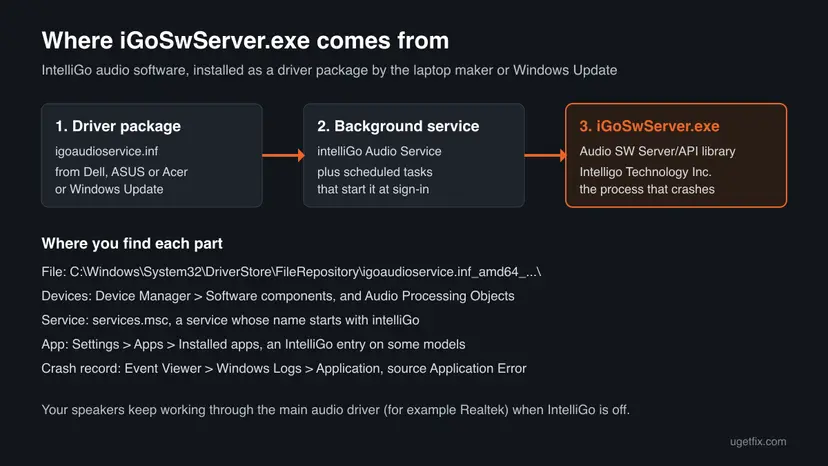
Is it dangerous? Not the file in the DriverStore folder with a valid signature. A file with the same name in your user folder, Temp or C:\Windows is not the IntelliGo program; Fix 5 shows how to check.
What makes iGoSwServer.exe crash, most common first
Intelligo and the laptop makers have not published a cause for this crash. The order below follows from where the file lives, what the vendors' pages say and what users report on Microsoft Q&A and maker forums.
| Cause | How often | Start with |
|---|---|---|
| The IntelliGo package and the main audio driver come from different releases, for example after Windows Update replaced one of them. | Most often | Fix 1 |
| A fault in the IntelliGo service itself. Users report crashes, stutter and, on some Dell and ASUS laptops, iGoSwServer.exe growing to several gigabytes of memory. | Often | Fix 2, then Fix 3 |
| A conflict with other audio software such as a headset suite. Users report it with SteelSeries GG on Alienware laptops. | Sometimes | Fix 2 |
| A damaged or half-removed IntelliGo install. | Sometimes | Fix 4 |
| A fake file using the same name. | Rarely | Fix 5 |
Damaged Windows files, if other programs crash in ucrtbase.dll too. | Rarely | Fix 6, then Fix 7 |
How to fix the iGoSwServer.exe application crash
Fix 1 repairs the cause for most readers. Fix 2 and Fix 3 switch IntelliGo off when you can live without its effects. Fixes 4 to 7 are for the cases that remain.
| What you see or have | Start with |
|---|---|
| The crash began after a Windows update or a new audio driver. | Fix 1 |
| You do not use noise reduction or AI ClearVoice and want the crashes gone now. | Fix 2 |
| Disabled devices came back, or iGoSwServer.exe still runs after Fix 2. | Fix 3 |
| You want IntelliGo gone, not only switched off. | Fix 4 |
| iGoSwServer.exe runs from a folder outside DriverStore. | Fix 5 |
Other programs also crash with ucrtbase.dll as the faulting module. | Fix 6 |
Fix 1. Install the newest IntelliGo and audio packages from your laptop maker
15 minutesLow riskMost readers, and always when the crash began after a Windows update or a driver change.
IntelliGo hooks into the main audio driver. The maker tests both as a pair for your model, so installing them together from the same support page removes the mismatch that most often makes the server crash.
- Find your model: press Win + R, type
msinfo32and press Enter. Read System Manufacturer and System Model. - Open the maker's support site (Dell, ASUS or Acer), enter the model or service tag and choose your Windows version.
- In the Audio category, download the main audio driver (for example Realtek Audio) and the IntelliGo package, such as Dell's IntelliGo ACA Audio Application or IntelliGo Audio Application.
- Install the main audio driver first and restart if it asks.
- Install the IntelliGo package. Dell notes that its IntelliGo package does not need a restart, but restart once anyway before you test.
On ASUS laptops, ASUS tells users to install the Realtek audio driver first and then the IntelliGo package from the same model page. Install in that order on any brand.
It worked if: Event Viewer records no new Application Error for iGoSwServer.exe over a few days, and the freezes stop.
If not: If the maker has no newer package, or the crash comes back, go to Fix 2.
Fix 2. Disable the IntelliGo devices in Device Manager
5 minutesLow riskYou do not need IntelliGo's noise reduction or AI ClearVoice, or Fix 1 did not help.
The IntelliGo devices load the service that runs iGoSwServer.exe. Disabled devices stay installed but do not start, so the server stops crashing while the main audio driver keeps playing sound.
- Right-click Start and select Device Manager.
- Expand Software components. Look for entries with IntelliGo or Intelligo in the name.
- Right-click each IntelliGo entry and select Disable device, then Yes.
- On ASUS laptops, also expand Audio Processing Objects; ASUS says IntelliGo audio shows there. Disable the IntelliGo entries the same way.
- Restart the PC.
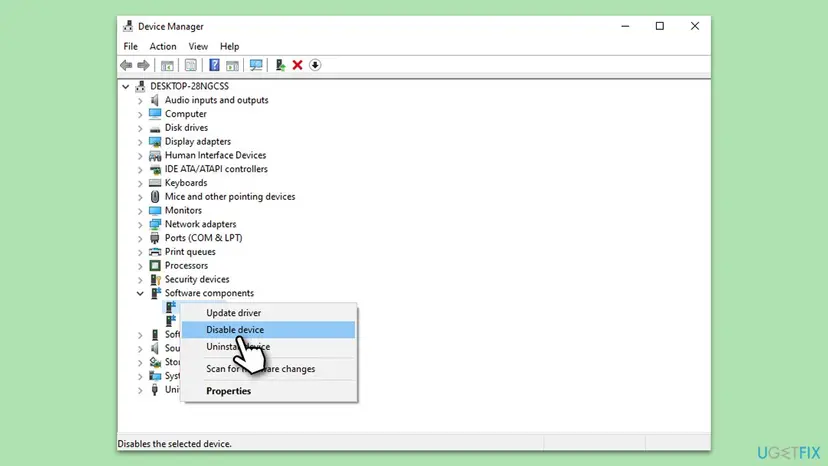
Disable, do not uninstall. An advisor on Microsoft Q&A warns that Windows simply installs uninstalled IntelliGo drivers again. A disabled device stays off through updates in most cases.
It worked if: After the restart iGoSwServer.exe no longer appears on the Details tab of Task Manager, and sound still works.
If not: If the entries come back enabled, or the process still runs, go to Fix 3.
Fix 3. Stop the IntelliGo service and its scheduled tasks
5 minutesLow riskiGoSwServer.exe still starts after Fix 2, or Windows Update turned the devices back on.
A Windows service and scheduled tasks start iGoSwServer.exe at boot and at sign-in. With the service set to Disabled and the tasks off, nothing launches the server.
- Press Win + R, type
services.mscand press Enter. - Find the service whose name starts with intelliGo (users report the name intelliGo Audio Service).
- Double-click it, set Startup type to Disabled, select Stop, then OK.
- Press Win + R, type
taskschd.mscand press Enter. - Select Task Scheduler Library. Right-click each task whose name starts with iGo (users report iGoAudioTask and iGoAudioTaskSession) and select Disable.
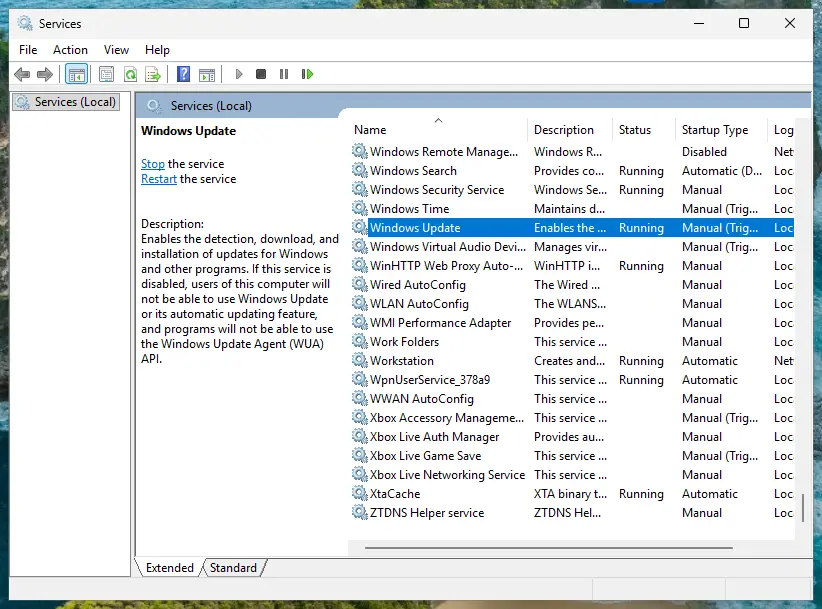
More on startup types and stopping a service: Check and restart Windows services
We could not confirm the service and task names from Intelligo or a laptop maker. They come from user reports and can differ between versions, so go by the intelliGo and iGo prefix.
It worked if: After a restart the service shows Disabled, and Task Manager shows no Audio SW Server/API library process.
If not: If you want IntelliGo removed for good, go to Fix 4.
Fix 4. Uninstall IntelliGo and remove its driver package
10 minutesLow riskYou want IntelliGo off the PC, or its install is damaged and Fix 1 cannot replace it.
Removing the app and its driver package clears a broken install. Windows or the maker's package can then install a clean copy, or you leave it off.
- Press Win + I and open Apps > Installed apps (Windows 10: Apps > Apps & features).
- If an IntelliGo entry is listed, select ... next to it and Uninstall.
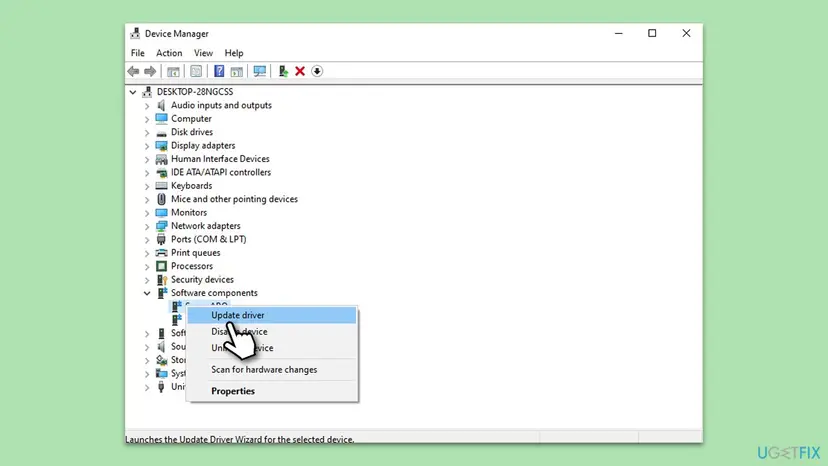
- Open Device Manager, expand Software components and right-click each IntelliGo entry.
- Select Uninstall device, tick Attempt to remove the driver for this device when it is offered, and select Uninstall.
- Restart the PC.
Other ways to remove a program: Uninstall a program or app in Windows
It worked if: No IntelliGo entry remains under Software components, and no new iGoSwServer.exe crash appears.
If not: If Windows Update puts the driver back within a day, disable it again as in Fix 2 and leave it installed.
Fix 5. Check that iGoSwServer.exe is the real IntelliGo file
10 minutesNo riskYou are not sure where iGoSwServer.exe runs from, or it appears on a PC without IntelliGo.
Malware sometimes uses the name of a known process. The real file sits only in a DriverStore folder named after igoaudioservice.inf and carries a digital signature.
- Press Ctrl + Shift + Esc and open the Details tab.
- Right-click iGoSwServer.exe and select Open file location.
- Check that the folder is
C:\Windows\System32\DriverStore\FileRepository\igoaudioservice.inf_amd64_.... - Right-click the file, select Properties and open Digital Signatures. A signature must be listed.
- If the folder or signature is wrong, run a full Microsoft Defender scan.
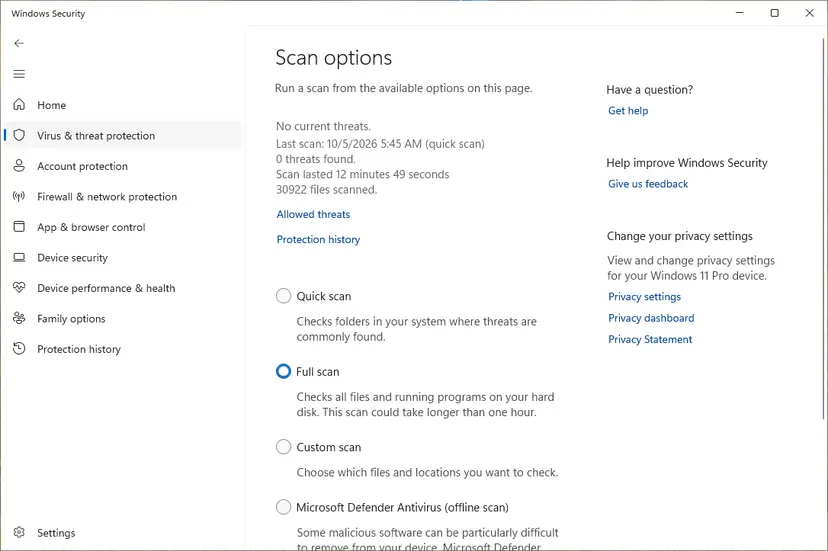
Step by step: How to scan for malware with Microsoft Defender
It worked if: The file is in the IntelliGo DriverStore folder and signed, or Defender removed the fake copy.
If not: If the file is genuine, the crash is the IntelliGo software: go back to Fix 1 or Fix 2.
Fix 6. Repair Windows system files with DISM and SFC
20 minutesNo riskOther programs also crash with ucrtbase.dll as the faulting module.
When several programs fail in the same Windows runtime file, the file or the Windows image may be damaged. DISM repairs the image and SFC restores the protected files from it.
- Open an elevated command window. Right-click Start and select Terminal (Admin), or type cmd in the search box, right-click Command Prompt and select Run as administrator. Select Yes when Windows asks for permission.
- Run DISM first. Type the command below and press Enter. DISM downloads clean copies of damaged components from Windows Update, so it can take several minutes. Wait until it says The operation completed successfully.
DISM.exe /Online /Cleanup-Image /RestoreHealth - Run System File Checker. In the same window, type the command below and press Enter. Do not close the window until the verification reaches 100%.
sfc /scannow - Read the result and restart. Compare the last message with the table below this guide, then restart the PC so that repaired files are loaded.
These steps were written for Windows 11 24H2 and 25H2. The full page with the other versions and what each result means: Run DISM and SFC to repair Windows system files

It worked if: SFC reports no integrity violations, or that it repaired them.
If not: If only iGoSwServer.exe crashes, the cause is IntelliGo, not Windows: use Fix 2. If many programs still crash, go to Fix 7.
Fix 7. Return Windows to a restore point from before the crashes
20 minutesLow riskThe crashes began on a known day, and a restore point from before it exists.
A restore point brings back the drivers as they were, including the IntelliGo and audio pair that worked. Your documents are not touched.
- Press Win + R, type
rstruiand press Enter. - Select Choose a different restore point and pick one dated before the first crash.
- Select Scan for affected programs, then Next and Finish.
Full steps: Undo recent changes with System Restore
It worked if: Windows starts with the older drivers and Event Viewer shows no new iGoSwServer.exe crash.
If not: If there is no restore point, use Fix 2 and wait for a new IntelliGo package from your laptop maker.
If iGoSwServer.exe still crashes: where to look and what to send
These places hold the details your laptop maker's support will ask for:
| What to check | Where | What it tells you |
|---|---|---|
| The crash record | Event Viewer: Windows Logs > Application, source Application Error, event ID 1000 | The faulting module, the exception code and the version of iGoSwServer.exe. |
| The crash history | Press Win + R, type perfmon /rel | Reliability Monitor lists each day Audio SW Server/API library stopped working. |
| Memory use | Task Manager, Details tab, column Memory | A value that keeps growing points to the memory leak users report. |
| Installed versions | Device Manager > Software components > IntelliGo entry > Properties > Driver | The driver date and version to compare with the maker's support page. |
Send your laptop maker the model, the Windows version from winver, the IntelliGo driver version and the text of one Application Error event. If the PC still freezes hard with IntelliGo disabled, the cause is something else; the hard freeze also leaves an Event ID 41 or 6008 in the System log. Our guide to the previous system shutdown was unexpected covers that path.
How to keep iGoSwServer.exe from crashing again
- Install audio and IntelliGo packages from your laptop maker's page for your exact model, as a pair.
- Let the maker's update app (Dell SupportAssist, MyASUS) offer audio updates.
- Keep a restore point before big driver changes.
- Check Device Manager after a large Windows update if you disabled IntelliGo.
- Do not download iGoSwServer.exe or ucrtbase.dll from EXE or DLL sites.
- Do not delete files from the DriverStore folder by hand.
- Do not disable random services in services.msc; change only the intelliGo one.
Frequently asked questions
What is iGoSwServer.exe?
iGoSwServer.exe is the Audio SW Server/API library of IntelliGo, audio enhancement software by Intelligo Technology Inc. Laptop makers such as Dell, ASUS and Acer install it with the sound driver to add noise reduction and voice effects. It runs from a DriverStore folder named after igoaudioservice.inf. It is not a Windows system file, and the PC plays sound without it.
What is the Audio SW Server/API library?
Audio SW Server/API library is the file description of iGoSwServer.exe. Task Manager and Reliability Monitor show this description instead of the file name, so a crash of the IntelliGo audio server appears there as "Audio SW Server/API library stopped working". The fixes on this page apply to it in the same way.
Is iGoSwServer.exe a virus or dangerous?
No, not when it runs from C:\Windows\System32\DriverStore\FileRepository\igoaudioservice.inf_amd64_... and has a digital signature. It is part of the audio software your laptop maker installed. A copy in your user folder, Temp or directly in C:\Windows is suspicious: scan it with Microsoft Defender as Fix 5 shows, and do not allow it in any security setting.
Can I disable or remove iGoSwServer.exe?
Yes. Disabling the IntelliGo entries in Device Manager (Fix 2) stops it and keeps sound working through the main audio driver. You lose IntelliGo's noise reduction and effects such as AI ClearVoice on ASUS. Uninstalling also works (Fix 4), but users report that Windows Update reinstalls the driver, so disabling is often the lasting choice.
What is IntelliGo Audio Service?
It is the Windows service that starts iGoSwServer.exe. Users report it as intelliGo Audio Service in services.msc. Setting it to Disabled, together with the iGo scheduled tasks, stops the server from starting at all (Fix 3). We could not confirm the exact name from the vendor, so look for the intelliGo prefix.
Can iGoSwServer.exe freeze the whole PC?
A crash of one program should not freeze Windows, but readers and Microsoft Q&A posters link freezes and lost sessions to it. One likely reason is the memory leak users report, where the process grows to several gigabytes. If the PC still freezes with IntelliGo disabled, the cause lies elsewhere: read the System log as described under "Still broken".
I have a Dell or Alienware laptop. Where do I get the IntelliGo update?
On Dell's support site, enter your service tag and look in the Audio category for IntelliGo Audio Application or IntelliGo ACA Audio Application. For the Alienware m16 R1 AMD and m18 R1 AMD, the ACA package is version 1.0.58.0, A01, dated 7 September 2023. Install the Realtek audio driver from the same page first.
I have an ASUS Vivobook or another ASUS laptop. What changes?
ASUS uses IntelliGo for AI ClearVoice. You can turn the feature off in MyASUS > Device Settings > Audio & Visual > AI ClearVoice Speaker. ASUS says IntelliGo audio appears in Device Manager under Audio Processing Objects, so disable or update the entries there as well as under Software components.
The fixes did not help. What now?
Readers sometimes arrive with "не помогло" or "проблема не исчезла", which means it did not help. Check that iGoSwServer.exe no longer appears in Task Manager after Fix 2 and Fix 3. If it is gone and the PC still freezes, IntelliGo was not the cause. Read the System log for Event ID 41 or 6008 and contact your laptop maker with the details listed under "Still broken".
Do I need a different fix after a Windows update?
Usually not. A large Windows update or a driver from Windows Update can replace the main audio driver and leave an older IntelliGo package, or the reverse. Reinstall both from your laptop maker (Fix 1), or disable IntelliGo again in Device Manager if the update turned it back on. Then check Event Viewer for a few days.
Sources
Did this fix work?
One click, no account. It tells the next reader which guides are worth their time.
Questions and experiences: fix iGoSwServer.exe application crash on Windows
Still broken, or found a fix we did not cover? Ask here: members and our editors answer. Reading is open; writing needs a free account.
…