How to fix
IMessage Not Working on iPhone, iPad or iPod
on Windows
Resolve iMessage issues on your iPhone, iPad, or iPod quickly and effectively, ensuring seamless communication across all your devices. Expert-tested.

What causes How to Fix iMessage Not Working on iPhone, iPad or iPod?
- iMessage server down
- Software issues after iOS update
- Incorrect settings
- Poor Wi-Fi or cellular connection
- Device restart needed
Repairs Windows system files, removes malware, and restores a clean OS state — without reinstalling.
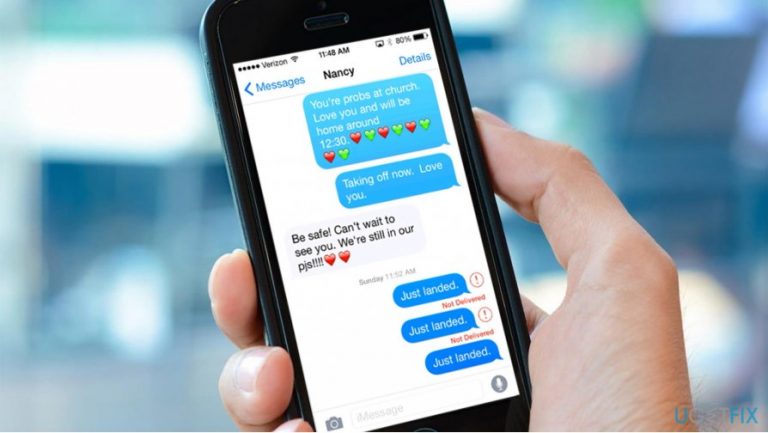
Hello, all. I’m using iPhone 6 for about a half of a year and it ran smoothly up until I installed the iOS 10.3.3 Update. I don’t know if that’s just a coincidence, but soon after updating iMessege just stopped working. When I try to send a message, a red exclamation mark shows next to the text and “Not Delivered” notification down below it.
I’ve restarted my device and check the connection. Everything seems right. What else can I do to fix iMessage? Please help asap.
Apple’s iMessage[ref en-1] is a great way of communicating with other Apple users for free. The service is available on iPhone, iPad or iPod touch devices and the only thing users need is the Messages app. The service uses Wi-Fi or cellular-data networks and allows sending messages in three formats – iMessages, SMS or MMS.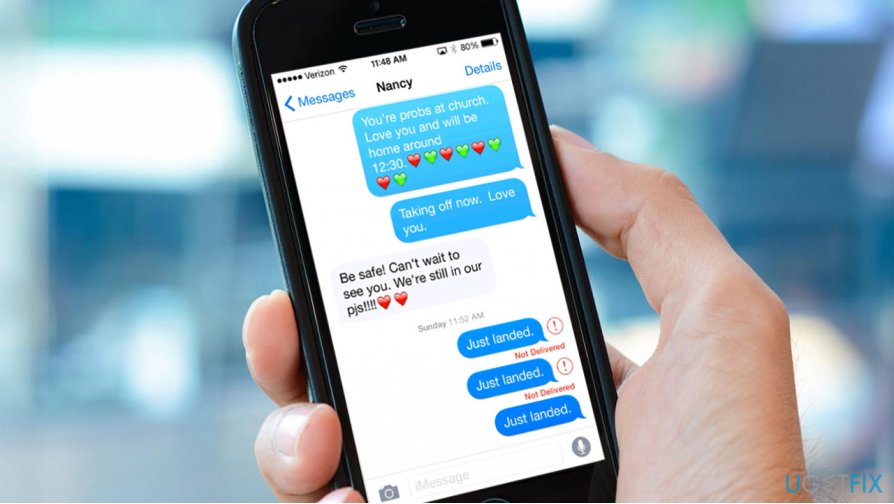
The older iMessage service is quite primitive in comparison to the one available on iOS 10 and 11. Currently, users of Mac devices can use emoji, invisible ink, animated backgrounds, bubble effects, stickers, handwriting, digital touch,[ref en-2] and many other novel features.
Along growing complexity of iMessage, the problems regarding this service grow in parallel. Quite a lot of iPhone, iPad, and iPod users reported that iMessage stopped working after installing iOS 10 or 11[ref en-3] update. Some people get a yellow exclamation mark next to the text, the others see the text in a green bubble, and so on.
The culprit of iMessage not working may be related to the server, software or settings. The fixes differ in each case, so we’ll provide the most common problem fixes down below.
TIP: before initiating any fixes, try to restart your device and make sure that you need WiFi (3G or 4G) or a cellular data connection working properly.
1. Check the Apple’s iMessage server
iMessage may stop working if Apple’s iMessage server goes down.[ref en-4] It means that the service is currently unavailable for all Mac device users. The last case of Apple’s iMessage server failure has been registered in February 15, 2017.
To check the server status, you’ll have to open the System Status page, which is available on the official Apple’s website. To see the list of currently working services, click this link. 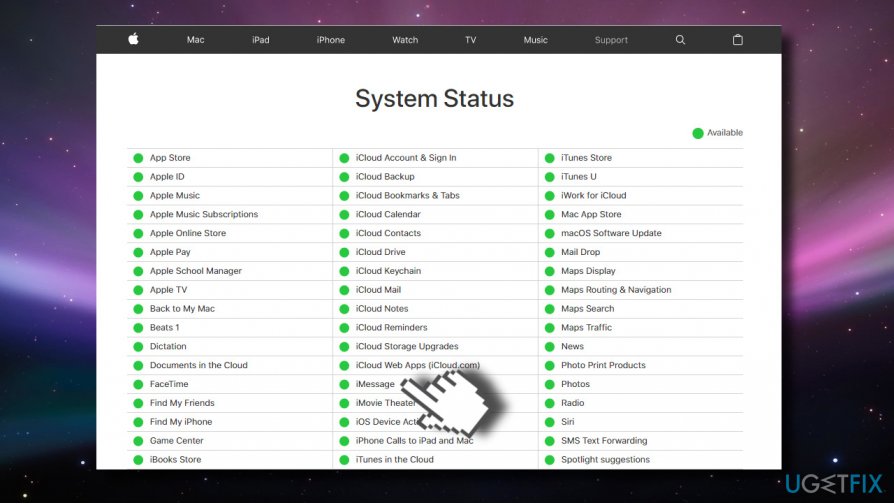
If iMessage is missing from the System Status list, it means that the iMessage server is down and the only solution is waiting.
2. Reset network settings
- Navigate to Settings -> General -> Reset -> Reset Network Settings.
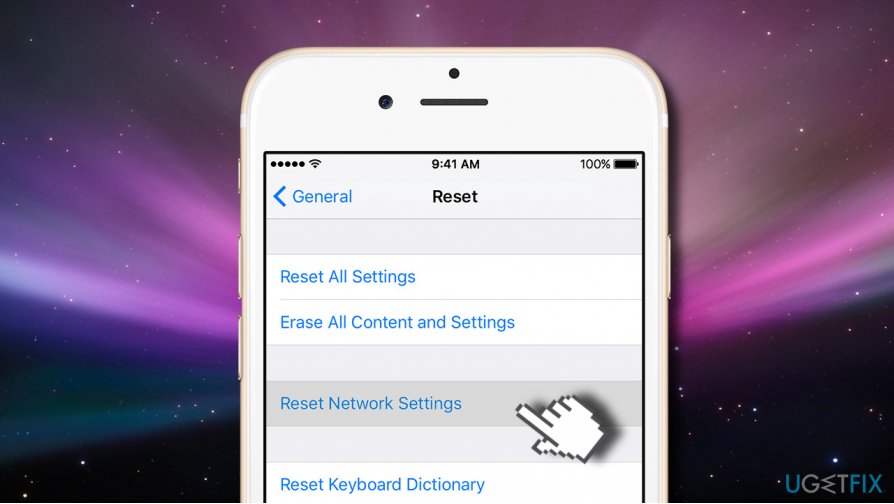
After that, try to send an iMessage. That’s the last solution for iMessage problem when the culprit is related to connection. If that did not work, try the next fix.
TIP: iPhone users can try to send a text message instead iMessage. For this purpose, you have to press and hold the undelivered message and select “Send as text message.”
3. Set up iMessage correctly
If iMessage stopped working after installation of the iOS update, it might be that the update initiated some changes in Settings. Therefore, you should check whether iMessage is turned on. For this purpose, you have to:
- Go to Settings -> Messages.
- iMessage should be switched on. If it’s not, then turn it on.
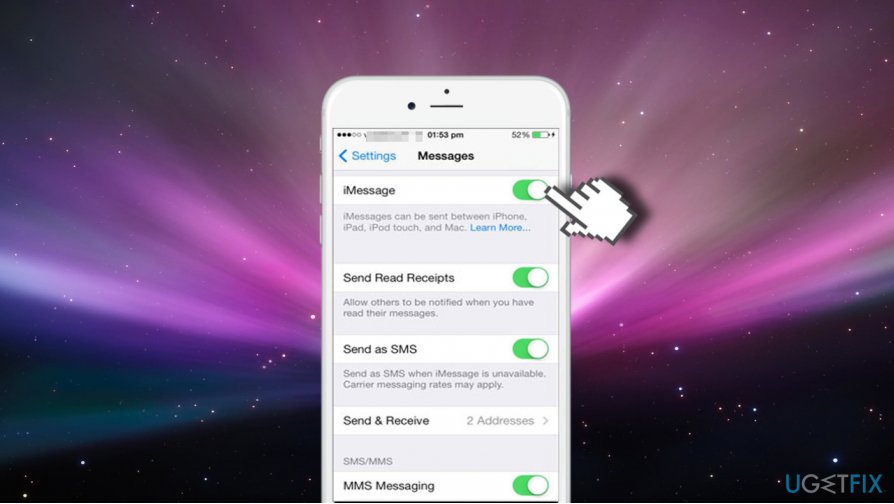
- After that, check the address and mobile number that is indicated in Send & Receive section. If the information is not correct, change it.
IMPORTANT: if the message “Waiting for activation” or “Activation unsuccessful” shows up when you open Settings -> Message, then you’ll have to fix iMessage activation problems.
4. Restart iMessage service
Turning on iMessage did not help? Restartin iMessage service may be the right solution for regaining the connection:
- Go to Settings -> Messages and turn off iMessage.
- Now press and hold the sleep/wake button and power off your device.
- Then start the device by pressing and holding the sleep/wake button.
- When the device starts, go to Settings -> Messages and turn iMessage on.
5. Sign out from iMessage
If none of the not working iMessage fixed provided above helped, try to sign out iMessage and then sing-in again using your Apple ID.
- Navigate to Settings -> Messages -> Send & Receive.
- Tap on Apple ID and then Sign Out.
- At the top of the screen, you should see an option Use your Apple ID for iMessage. Tap Sign In next to it.
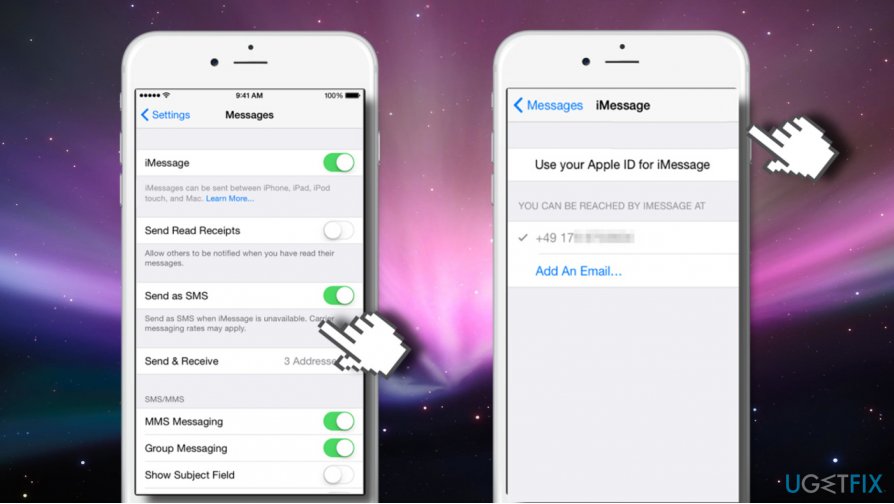
- Now Sign In to your iMessage and try to send a message.
Hopefully, this guide was helpful for you and the iMessage problems have been eventually fixed. If you have other problems, the last thing we would recommend trying is to check for the available iOS updates.
Bottom line
To fix iMessage not working, check Apple’s iMessage server status, ensure your device settings are correct, and verify your internet connection. If the problem persists, try restarting your device and consider checking for further software updates.
Frequently asked questions
No, iMessage is an Apple service and is not directly related to Windows operating systems. You need to troubleshoot iMessage settings on your iPhone, iPad, or iPod.
Make sure your device is connected to the internet and check your Apple ID settings. If the issue persists, try restarting your device or resetting network settings.
While there is no native iMessage app for Windows, you can use third-party applications or services to access iMessage, but functionality may be limited.




Report an issue
What's wrong with this guide? We review every report and update or remove content.
Report received — thank you. We'll review and fix it.
You need a free account to submit a report.
Be the first to comment