
How to fix "Incorrect PSK provided for network SSID" in Windows

Prefer to fix it yourself? The manual steps follow.
- 8methods
- 2 to 20 minutes
- Easy
Applies to Windows 11 and Windows 10 PCs with Cisco Secure Client (formerly AnyConnect) Network Access Manager; WPA2-Personal and WPA3-Personal Wi-Fi
8 methods in this guide
- What the message means
- Why it appears
- The fixes
- 1. Retype the password
- 2. Remove and re-add in Cisco
- 3. Update Cisco Secure Client
- 4. Rename the SSID
- 5. Test WPA2-Personal AES
- 6. Forget the network in Windows
- 7. Rebuild the Wi-Fi profile
- 8. Update driver, reset network
- Still broken: what to check
- Keep it from coming back
- FAQ
Hello. I tried connecting to my Wi-Fi on Windows, but I keep getting the "incorrect psk provided for network ssid" error. What does it mean and how do I get rid of it?
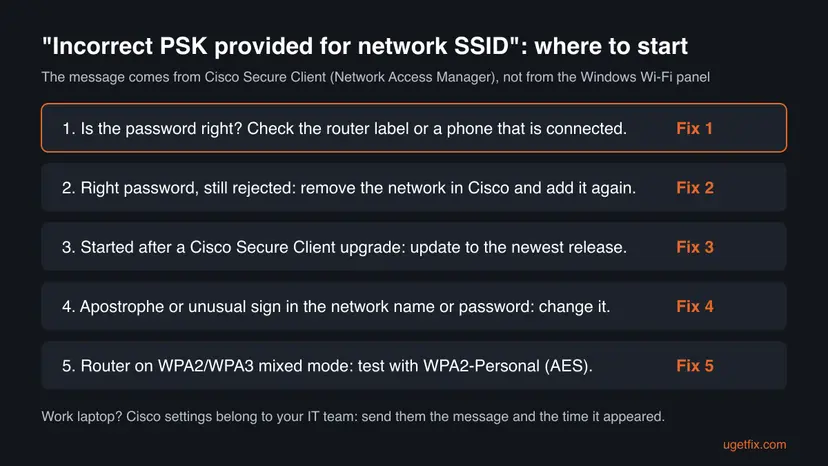
"Incorrect PSK provided for network SSID" means the Wi-Fi password your PC sent was rejected by the router. The wording comes from Cisco Secure Client's Network Access Manager, not from the Windows Wi-Fi panel. Check the password first, then remove the network in Cisco Secure Client and add it again.
PSK is the Wi-Fi password and SSID is the network name, so the message says the password was rejected. Retype it in Cisco Secure Client exactly as written on the router (Fix 1). If you are sure it is right, remove the network from Cisco's list and add it again (Fix 2). If it began after a Cisco upgrade, update Cisco Secure Client or ask your IT team (Fix 3).
| Error | "Incorrect PSK provided for network SSID XXXX. Please reselect network and enter a valid PSK if permitted." XXXX is the name of your Wi-Fi. |
|---|---|
| Where it appears | In a Cisco Secure Client (formerly AnyConnect) pop-up on Windows, when its Network Access Manager module joins a WPA2 or WPA3 Wi-Fi. |
| Main cause | The pre-shared key (Wi-Fi password) does not match the router's. Less often a stored network entry or a Cisco Secure Client bug rejects a correct key. |
| Fastest fix | Reselect the network and type the password again (Fix 1). Then remove and re-add the network in Cisco Secure Client (Fix 2). |
| Also written as | "Incorrect PSK", "incorrect PSK provided", "invalid PSK provided for network SSID", "wrong PSK" and "PSK mismatch". |
| Affects | Windows 10 and Windows 11 with Cisco Secure Client 5.1. Users reported it after upgrades from AnyConnect 4.10 and between 5.1 builds. Windows 10 support ended on 14 October 2025. |
| Vendor status | Not a documented Cisco issue. A Cisco staff member said several WPA2/WPA3 compatibility mode fixes went into later Cisco Secure Client releases. |
| Who can change it | On a work laptop, Network Access Manager is set up by your IT team. You can retype the key; updates and removal are theirs. |
| Time to fix | 2 minutes for a mistyped key. 10 to 20 minutes when the client or the router needs a change. |
Facts checked on 15 October 2026. Steps written for Windows 11 (25H2 and 26H2) and Windows 10 22H2 with Cisco Secure Client 5.1, read against Cisco Community reports and Cisco staff answers.
What "Incorrect PSK provided for network SSID" means
PSK stands for pre-shared key: the Wi-Fi password of a WPA2-Personal or WPA3-Personal network. SSID is the network's name. The message says that the password your PC sent for that network did not work, so the connection was refused.
The full text reads: "Incorrect PSK provided for network SSID XXXX. Please reselect network and enter a valid PSK if permitted." XXXX is replaced by your network's name. It was quoted in this form on the Cisco Community by an IT team piloting Windows 11 24H2.
Every report of this exact wording we found comes from PCs running Cisco Secure Client with its Network Access Manager (NAM) module. NAM takes over Wi-Fi connections from Windows. If your PC has no Cisco software, you are seeing a different Windows message, and Fixes 6 to 8 are for you.
- "Incorrect PSK", "incorrect PSK provided" and "incorrect PSK provided for network" are the same message, shortened.
- "Invalid PSK provided for network SSID" and "invalid PSK" are how users retell it, for example in a Cisco Community thread titled "Cisco Secure Client NAM, Incorrect PSK".
- "Wrong PSK", "PSK mismatch" and "PSK mismatch suspected" are the same idea in router and access point logs: the key the device sent does not match the network's key.
- "Incorrect PSK provided for network SSID Cisco" is the same message; Cisco is the software that shows it.
Why Cisco Secure Client says the PSK is incorrect
Most often the password really is wrong: a typo, a changed router password, or a password from another network. Less often the password is right and Network Access Manager still refuses it. Users on the Cisco Community describe exactly that pattern after upgrading the client.
| Cause | How often | How to tell | Fix |
|---|---|---|---|
| The password is wrong or was changed on the router. | Most often | A phone that is already connected still works, but a new device fails too. | Fix 1 |
| NAM keeps a bad copy of the network. | Often | It connects once after you add the network, then fails after a restart or when you come home. | Fix 2 |
| An older Cisco Secure Client build. | Sometimes | It started right after a client upgrade, for example from AnyConnect 4.10 to 5.1. | Fix 3 |
| An apostrophe or unusual sign in the network name or password. | Sometimes | The SSID looks like Anna's Wi-Fi, or the password uses symbols. | Fix 4 |
| The router runs WPA3 or a WPA2/WPA3 mixed mode. | Sometimes | NAM logs mention SAE, the WPA3 handshake. | Fix 5 |
| Windows, not Cisco, holds a stale profile. | On PCs without Cisco | The Windows Wi-Fi panel shows its own error. | Fixes 6 to 8 |
In one Cisco Community thread a user could connect only once after removing and re-adding the network. An IT admin with a Cisco support case later wrote that SSIDs with an apostrophe were involved, and that renaming the SSID worked for one user.
How to fix "Incorrect PSK provided for network SSID"
Fixes 1 and 2 solve most cases and take a few minutes. Fixes 3 to 5 are for a correct password that Cisco Secure Client still rejects. Fixes 6 to 8 are for PCs where Windows itself manages the Wi-Fi.
| What you see or have | Start with |
|---|---|
| You are not fully sure of the password, or it changed lately. | Fix 1 |
| The password is right, and it worked before. | Fix 2, then Fix 3 |
| It began after Cisco Secure Client was upgraded. | Fix 3 |
| Your network name or password has an apostrophe or unusual signs. | Fix 4 |
| Your router is set to WPA3 or WPA2/WPA3. | Fix 5 |
| No Cisco software on the PC, Windows shows the error. | Fix 6, then Fix 7 |
| Only this PC fails on every network. | Fix 8 |
Fix 1. Reselect the network and type the Wi-Fi password again
2 minutesNo riskEveryone should start here, and it is the only fix when the router password changed.
The message itself asks you to reselect the network and enter a valid PSK. Wi-Fi passwords are case sensitive, so one wrong capital letter is enough for the router to refuse it.
- Find the right password: the label on the router, the router's admin page, or the person who runs the network.
- Open Cisco Secure Client from the system tray, next to the clock.
- In the Network Access Manager part, open the network list and select your network again.
- Type the password slowly. Watch capital letters, the digit 0 against the letter O, and the digit 1 against the letter l.
- If a Show option is offered, use it to read what you typed before you connect.
- Select Connect and wait up to half a minute.
On many phones you can open the saved Wi-Fi network and show its password or a QR code. That copy is the one that works right now.
It worked if: Cisco Secure Client shows the network as connected, and web pages open.
If not: If you are sure the password is right, go to Fix 2.
Fix 2. Remove the network from Cisco Secure Client and add it again
5 minutesLow riskThe password is right, it worked before, or it works only once after you add the network.
Network Access Manager keeps its own list of networks with their keys and security type. A user on the Cisco Community reported that only removing the network and adding it back let the PC connect.
- Open Cisco Secure Client and open its advanced window with the gear icon.
- Find the Network Access Manager section and its list of networks.
- Select your Wi-Fi in the list and remove it.
- Close the window, open the network list in the main window again and select your Wi-Fi.
- Enter the password and connect.
- Restart the PC and check that it joins the network again on its own.
We could not confirm the exact button names for every Cisco Secure Client build. On a work laptop the list may be locked by your IT team; then ask them to remove the entry.
It worked if: The PC joins the network and joins it again after a restart.
If not: If it works once and fails after a restart, go to Fix 3 and Fix 4.
Fix 3. Update Cisco Secure Client, or ask your IT team to
10 minutesLow riskThe message started right after an AnyConnect or Cisco Secure Client upgrade, and the password is right.
Users reported the error after upgrades from AnyConnect 4.10 to Secure Client 5.1, and from 5.1.8.105 to 5.1.8.122. A Cisco staff member answered that several WPA2/WPA3 compatibility mode fixes went into later releases.
- Open Cisco Secure Client and note its version number, shown in the window's About information.
- On a work PC, send that number and the full message to your IT team. They deploy Cisco updates, and you usually cannot install one yourself.
- On a PC you manage, download the newest Cisco Secure Client 5.1 release from Cisco with your Cisco account and install it over the old one.
- Restart the PC.
- Remove and re-add the network as in Fix 2.
Cisco keeps releasing maintenance builds of version 5.1. The Cisco Community lists release notes for 5.1.18 (MR 18) in July 2026 and 5.1.19 (MR 19) in August 2026.
It worked if: After the update the PC joins the network and keeps joining it after restarts.
If not: If the newest build still fails, go to Fix 4, and ask IT to open a case with Cisco with a DART log (see the last section).
Fix 4. Remove the apostrophe or unusual signs from the network name or password
10 minutesLow riskYour Wi-Fi name contains an apostrophe, such as Anna's Wi-Fi, or the password uses unusual symbols.
An IT admin with an open Cisco support case wrote that an earlier bug involved invalid characters in the SSID, an apostrophe in his case. A Cisco staff member also asked whether the PSK had abnormal characters.
- Sign in to your router's admin page. The address is the Default Gateway that
ipconfigshows in Command Prompt. - Open the Wi-Fi or Wireless settings.
- Change the network name (SSID) so it uses only letters, digits, spaces and hyphens, for example
Anna Home. - If the password has unusual symbols, set a long password of letters and digits instead.
- Select Save or Apply and wait until the router restarts the Wi-Fi.
- Add the new network in Cisco Secure Client and enter the new password.
A new name or password means phones, TVs and printers must join again. Do it at a time when that is not a problem.
It worked if: The PC joins the renamed network and stays on it after a restart.
If not: If the name was already plain, go to Fix 5.
Fix 5. Test the router with WPA2-Personal (AES)
10 minutesLow riskYour router runs WPA3-Personal or a WPA2/WPA3 mixed (transition) mode.
WPA3 joins with a different handshake (SAE) than WPA2. The NAM logs posted on the Cisco Community name the SAE component, and Cisco's staff pointed to WPA2/WPA3 compatibility mode fixes. A plain WPA2 test shows whether the mixed mode is the problem.
- Sign in to the router's admin page as in Fix 4.
- Open the Wi-Fi security settings and note what is set now.
- Set Security mode to WPA2-Personal (also called WPA2-PSK) and Encryption to AES.
- Save, then remove and re-add the network in Cisco Secure Client (Fix 2).
- If the PC now connects, keep WPA2-Personal (AES) until a Cisco Secure Client update is installed, then try WPA3 again.
Do not go lower than WPA2 with AES. WEP and TKIP are old and Windows warns about them; see this Wi-Fi uses an older security standard.
It worked if: The PC joins the network on WPA2-Personal (AES) without the message.
If not: If WPA2 fails too, the problem is not the mode: send IT a DART log, or go to Fix 6 if the PC has no Cisco software.
Fix 6. Forget the network in Windows and connect again
3 minutesNo riskThe PC has no Cisco Secure Client, or Windows itself manages the Wi-Fi.
Windows stores a profile with the password and security type of each network. If the router's password or security changed, the old profile is sent again and refused until you remove it.
- Press Win + I and open Network & internet > Wi-Fi.
- Select Manage known networks, find your network and select Forget.
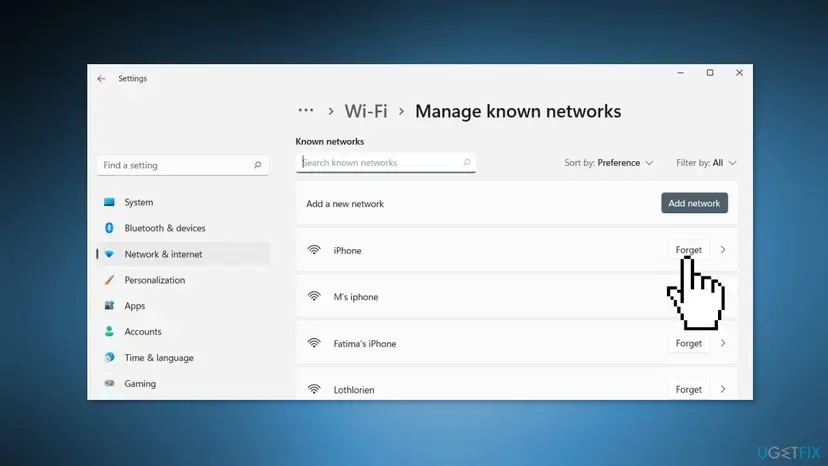
Manage known networks in Windows 11 Settings: Forget removes the stored password and security type. - Select the network icon on the taskbar, choose your Wi-Fi and select Connect.
- Type the password and select Next.
On Windows 10 22H2 the path is Settings > Network & Internet > Wi-Fi > Manage known networks.
It worked if: The PC connects and remembers the network after a restart.
If not: Go to Fix 7 to remove the profile from Command Prompt and create it by hand.
Fix 7. Delete the Wi-Fi profile with netsh and connect manually
10 minutesLow riskForgetting in Settings did not help, or the network does not appear in the list.
Command Prompt shows every stored profile, including ones Settings hides. A profile created by hand with the right security type removes any guesswork about WPA2 or WPA3.
- Press Win + S, type
cmd, right-click Command Prompt and select Run as administrator. - List the stored Wi-Fi profiles:
netsh wlan show profiles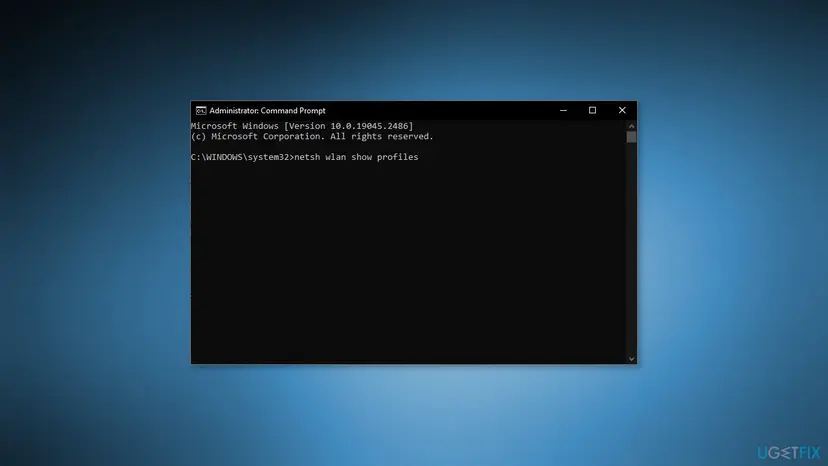
The netsh command in an administrator Command Prompt (Windows 10 shown, the same on Windows 11). - Delete the profile of your network, using its exact name:
netsh wlan delete profile name="YourNetworkName" - Open Control Panel > Network and Sharing Center and select Set up a new connection or network.
- Choose Manually connect to a wireless network and select Next.
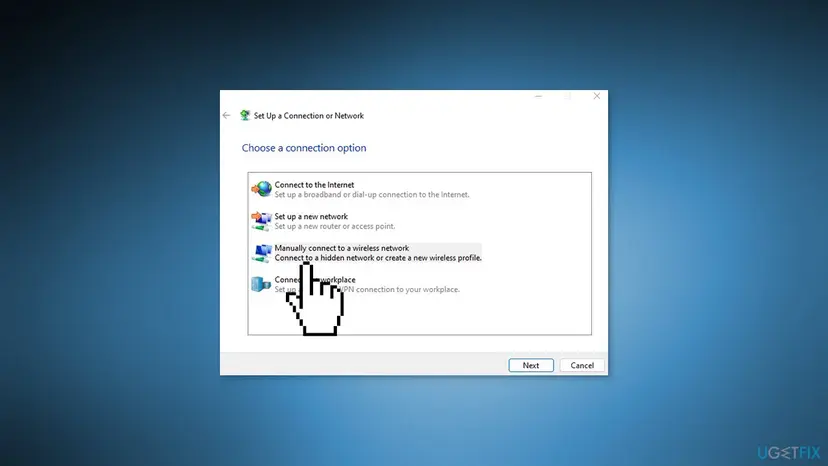
Manually connect to a wireless network creates a new profile with the security type you choose. - Type the exact network name, set Security type to WPA2-Personal (or WPA3-Personal if the router uses it), Encryption type to AES, and enter the Security Key.
- Select Next, then close the window and connect from the taskbar.
It worked if: The new profile connects at once and appears again in netsh wlan show profiles.
If not: If the right key is still refused on every network, go to Fix 8.
Fix 8. Update the Wi-Fi driver and reset the network settings
20 minutesLow riskOnly this PC fails, other devices join with the same password, and Fixes 1 to 7 did not help.
An old Wi-Fi driver can fail the WPA3 handshake while a phone succeeds. A network reset then removes every stored setting that could still send an old key.
- Press Win + I, open Windows Update > Advanced options > Optional updates and look for a Wi-Fi driver under Driver updates.
- Select it and choose Download & install.
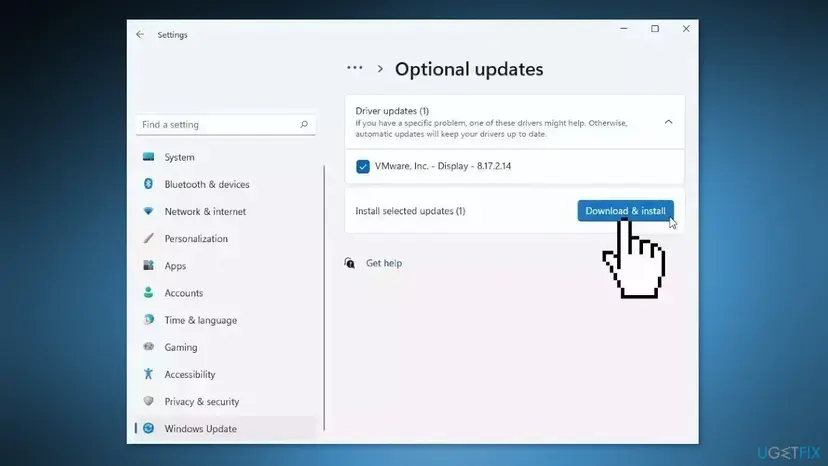
Optional updates in Windows 11: driver updates offered by Windows Update are installed from here. - If no driver is offered, get the newest one from the PC or adapter maker. Step by step: Update, roll back or reinstall a driver
- If it still fails, reset the network stack and restart. Step by step: Reset the network and flush DNS
- Open an elevated command window. Right-click Start and select Terminal (Admin), or type cmd in the search box, right-click Command Prompt and select Run as administrator. Select Yes when Windows asks for permission.
- Flush the DNS cache. Type the command below and press Enter. Windows forgets the website addresses it looked up earlier and asks for them again.
ipconfig /flushdns - Reset Winsock. Type the command below and press Enter. It returns the Windows sockets catalog to its default state.
netsh winsock reset - Reset TCP/IP. Type the command below and press Enter. If you entered an IP address or DNS server by hand, note it first: you may need to enter it again.
netsh int ip reset - Get a new IP address. Run these two commands one after the other. The connection drops for a moment between them.
ipconfig /release ipconfig /renew - Restart the PC. Restart Windows so the Winsock and TCP/IP resets take effect, then test the connection. If it still does not work, continue with the network reset below.
These steps were written for Windows 11 24H2 and later. The full page with the other versions and what each result means: Reset the network and flush DNS
A full network reset in Settings forgets all saved Wi-Fi networks and VPN adapters, Cisco ones included on some setups. Note your Wi-Fi passwords first. On a work PC ask IT before you reset.
It worked if: After the restart the PC joins the network with the right password.
If not: Read the next section: the log and the hardware checks tell where the fault is.
If "Incorrect PSK provided for network SSID" keeps coming back
Cisco Secure Client writes its own detailed log. Cisco's staff ask for a DART bundle (Diagnostics and Reporting Tool) with extended logging, collected right after the error. DART ships as a module of Cisco Secure Client.
| What you see | What it means | What to do |
|---|---|---|
| Other devices also fail with the same password. | The password is wrong. | Fix 1, or reset the router password. |
| Only this PC fails, and only with Cisco on. | A Network Access Manager problem. | Fixes 2 to 5, then a DART log for IT. |
| It works after re-adding, fails after a restart. | The stored network entry is lost or broken. | Fix 3 and Fix 4; report it to IT. |
| It fails only when the VPN is connected. | Reported by one IT team on Windows 11 24H2. | Send IT the time, the version and a DART log. |
| It fails on every network, Cisco or not. | The Wi-Fi adapter or driver. | Fix 8, then test a USB Wi-Fi adapter. |
- What to send to IT or Cisco. The full message, the Cisco Secure Client version, the router model and its security mode, the time it happened, and the DART bundle.
- When it is hardware. If a USB Wi-Fi adapter joins the same network with the same password and the built-in one does not, the built-in adapter or its driver is at fault.
How to keep the incorrect PSK message away
- Keep the Wi-Fi password written down where you can read it exactly.
- Use a long password of letters and digits, and a plain network name.
- Keep Cisco Secure Client on the newest build your IT team offers.
- After you change the router password, remove the network on the PC and add it again.
- Use WPA2-Personal (AES) or WPA3-Personal on the router.
- Do not put apostrophes or unusual symbols in the network name.
- Do not drop to WEP or TKIP to make a device connect.
- Do not uninstall Cisco Secure Client from a work laptop on your own.
- Do not share the router's admin password along with the Wi-Fi password.
If you run the router for a household with a work laptop, tell its owner before you change the Wi-Fi name, password or security mode. Their Cisco client has to learn the new settings too.
Frequently asked questions
What does "Incorrect PSK provided for network SSID" mean?
It means the Wi-Fi password your PC sent was rejected for that network. PSK is the pre-shared key, the password of a WPA2-Personal or WPA3-Personal network, and SSID is the network name. The full message asks you to reselect the network and enter a valid PSK. It is shown by Cisco Secure Client's Network Access Manager, which some companies install to manage Wi-Fi on their laptops.
How do I fix "Incorrect PSK provided for network SSID"?
First type the password again, exactly as it is on the router or on a phone that is connected. If you are sure it is right, remove the network from Cisco Secure Client's Network Access Manager list and add it back. If the message began after a Cisco upgrade, update Cisco Secure Client or ask your IT team. Then check the network name for an apostrophe and test the router on WPA2-Personal with AES.
What does PSK mean in Wi-Fi?
PSK means pre-shared key. It is the password shared by everyone who joins a home or small office Wi-Fi network, as opposed to a personal sign-in on a company network. WPA2-PSK is another name for WPA2-Personal. From the key, the PC and the router each work out the encryption keys for the connection, so a single wrong character makes the router refuse the PC.
What is an invalid PSK or a wrong PSK?
An invalid or wrong PSK is a Wi-Fi password that does not match the one set on the router. The router then refuses the connection, and the client shows a message such as "Incorrect PSK provided for network SSID". Common reasons are a typo, a password changed on the router, a case mistake, or a stored copy of an old password. Typing the current password again fixes most cases.
What does "PSK mismatch suspected" mean?
"PSK mismatch" and "PSK mismatch suspected" are what routers and access points write in their logs when a device sends a key that does not match the network's key. It is the router's view of the same problem the PC reports as an incorrect PSK. The fix is the same: make sure the device uses the current password, remove the stored network and join again.
Why does Cisco Secure Client say the PSK is incorrect when the password is right?
Users on the Cisco Community report this after upgrading Cisco Secure Client. Their PCs connected once after re-adding the network and failed again later. One admin linked it to an apostrophe in the SSID, and a Cisco staff member pointed to WPA2/WPA3 compatibility mode fixes in later releases. Remove and re-add the network, update the client, rename the SSID, or test WPA2-Personal with AES.
I see this message on a work laptop. What should I do?
Type the Wi-Fi password again first, because that part is yours. If it is right and the PC still refuses it, contact your IT team. Network Access Manager is configured by them, and they decide on updates and network lists. Send them the full message, the time it appeared, the Cisco Secure Client version, and whether the VPN was connected. They may ask you for a DART log.
Is "Incorrect PSK provided for network SSID" a Windows error?
No. Every report of this exact wording we found comes from Cisco Secure Client, formerly AnyConnect, running on Windows. Its Network Access Manager module replaces the Windows Wi-Fi manager on those PCs. If your PC has no Cisco software, Windows shows its own message for a wrong password; the Windows fixes in this guide, forgetting the network and rebuilding the profile, still apply.
Is there a version of this guide in Telugu?
No, this page is in English only. In short: the message means the Wi-Fi password was rejected. Type the password again exactly, then remove the network in Cisco Secure Client and add it back. If that does not help, update Cisco Secure Client or ask your IT team. A browser's translate option can show the full page in Telugu or another language.
Sources
Did this fix work?
One click, no account. It tells the next reader which guides are worth their time.
Questions and experiences: fix "Incorrect PSK provided for network SSID" in Windows
Still broken, or found a fix we did not cover? Ask here: members and our editors answer. Reading is open; writing needs a free account.
…