How to fix
Indexing is paused
on Windows
Resolve the "indexing is paused" issue on Windows 11 quickly and effectively with expert-tested solutions. Get your search functionality back on track!

What causes How to fix indexing is paused on Windows 11?
- Indexing feature is paused
- Relevant services are not set up correctly
- Corrupted Windows files
- Registry errors
- Malware damage
Repairs Windows system files, removes malware, and restores a clean OS state — without reinstalling.
Whenever I try to look for files in my folders, search results return nothing. It happened because "Indexing is paused." I had to re-index, which took me forever, and now I face the same problem. I don't want to keep reducing this - how do I fix the "Indexing is paused" in Windows 11?
Windows 11 is the latest operating system from Microsoft, designed to make computing easier and more efficient for users. It has an improved design that provides more personal customization options, allowing users to tailor their experience to meet their individual needs.
Debuting on October 5, 2021, the newest operating system had an overall positive reception, although there were quite a few negatives some users pointed out straight away. Listening to peoples' feedback, Microsoft addressed some of these issues, although many remain the same.
However, Windows 11 still suffers from issues that were present in Windows 10, and "Indexing is paused" is one of them. Users reported that one day, they noticed that their searches in File Explorer no longer yielded any results, and files they know exist are never found. This becomes extremely frustrating because users have to search for files manually.
Many users resorted to re-indexing their files, which takes a lot of time usually (depending on the size of the storage drive and how much it is filled). In other cases where users experienced "Indexing is paused" in Windows 11, they said that they couldn't turn the feature back on at all, which makes the PC almost unusable.
In most cases, search not working due to indexing being paused can be addressed relatively easily - checking whether relevant services are set up correctly, for example, helped many users to tackle the issue, although not all. That's why we provide several methods below that should help you find the solution once and for all.
Before proceeding, we recommend you try [d1] PC repair. The program can detect and fix a variety of issues, including registry errors, corrupted Windows files, malware damage, and system instability. It can also help users to improve their computer speed and performance by optimizing the operating system.
Fix 1. Try Search and Indexing troubleshooter
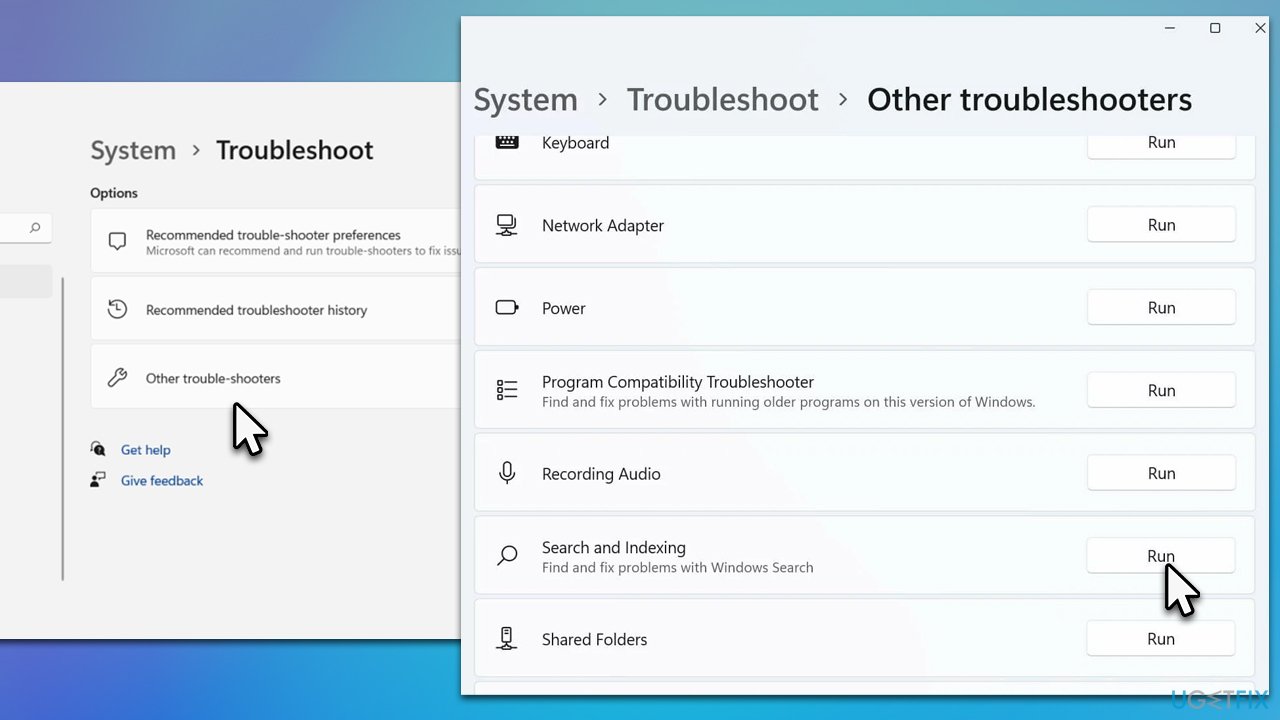
Since Windows search indexing can easily break at any point, there is a Search and Indexing troubleshooter you can try running - it could address issues related to it. Please follow these steps:
- Click the Start button and select Settings.
- Go to System and then select Troubleshoot.
- Next, pick Other troubleshooters.
- Locate the Search and Indexing section and click Run.
- From the given options, select the issue you are having (most likely, Files, folders, apps, or settings don't appear in results) and click Next.
- Wait till the scan finishes and the fixes are applied.
Fix 2. Rebuild the index
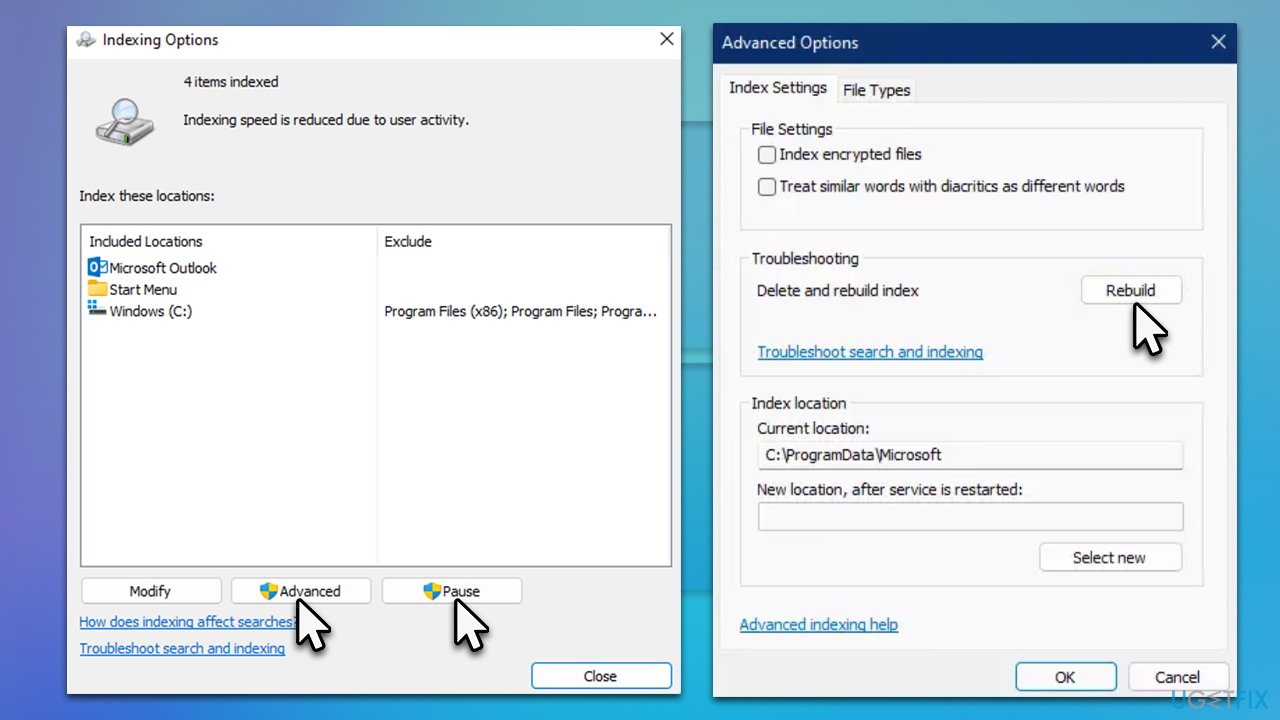
Instead of re-indexing your files, try rebuilding the index instead:
- Type Indexing options in Windows search and press Enter.
- Click Pause.
- Click Advanced.
- Find the Troubleshooting section and click Rebuild.
- Confirm the action and wait till the process is finished.
Fix 3. Restart Windows Search service
This solution works best after rebuilding the index, as explained in the previous step.
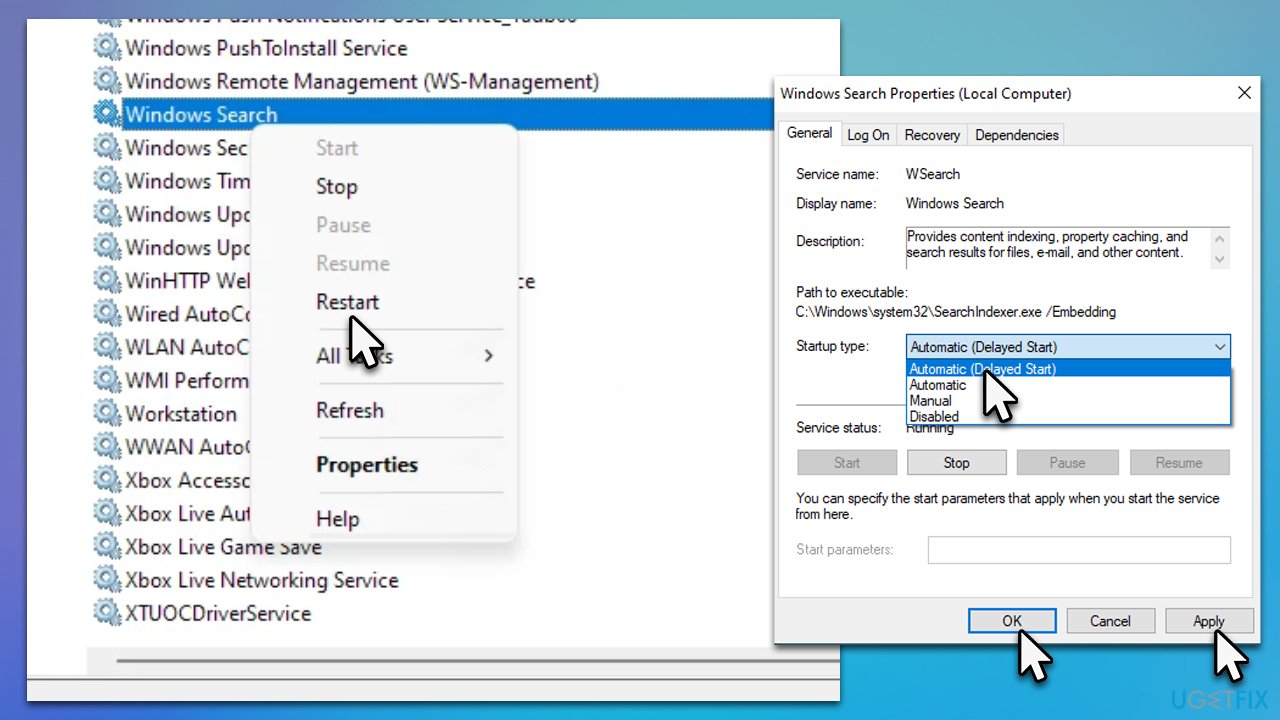
- Type Services in Windows search and press Enter.
- In the new window, scroll down to find Windows search.
- If it's running, right-click and select Restart.
- If the service is not running, double-click it and, under Startup type, select Automatic (Delayed start) from the drop-down menu and click Apply and OK.
Fix 5. Uninstall buggy Windows update
If issues with indexing started after installing the Windows update, it may be related to it. You can uninstall the update that caused it as a workaround and wait for Microsoft to fix it.
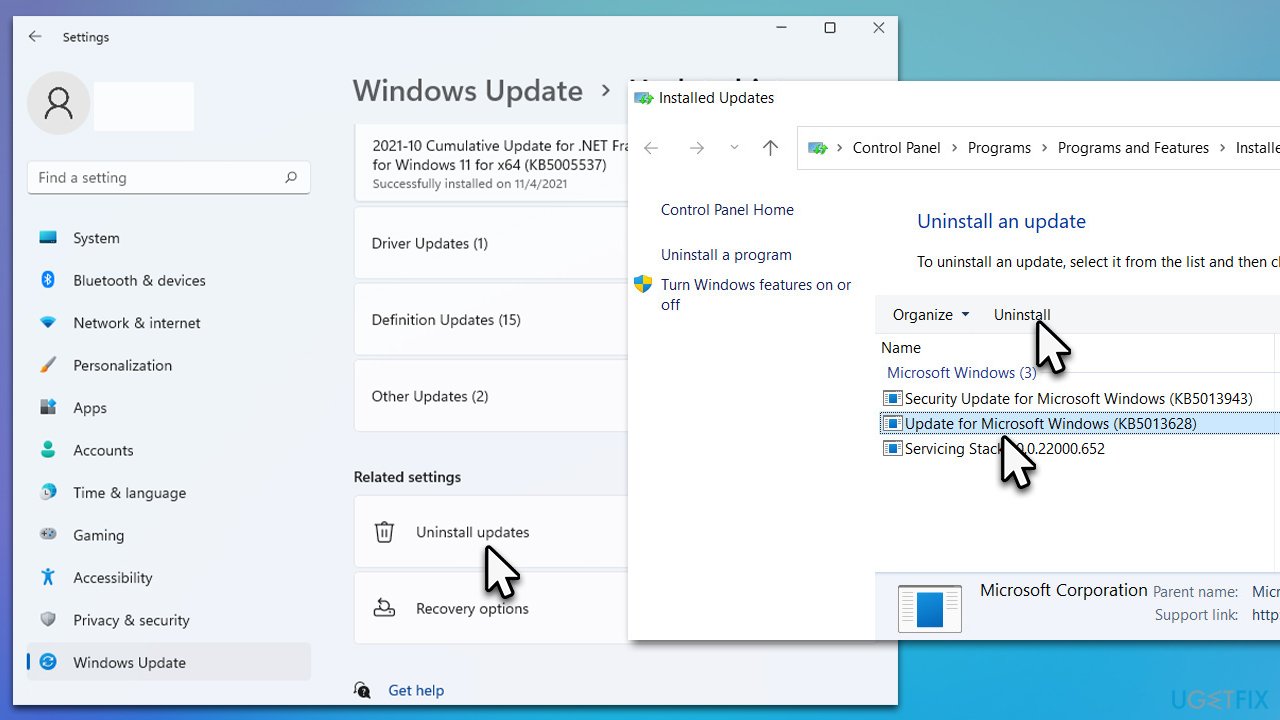
- Open Settings and go to Windows Update.
- Select Update history and pick Uninstall updates.
- When Control Panel opens, sort it by the date.
- Select the most recent update and click Uninstall at the top.
- Follow the on-screen instructions and reboot your system.
Fix 6. Try System Restore
If none of the solutions above worked, resting the system to the previous point in time when everything worked fine might just do the trick. Follow these steps:
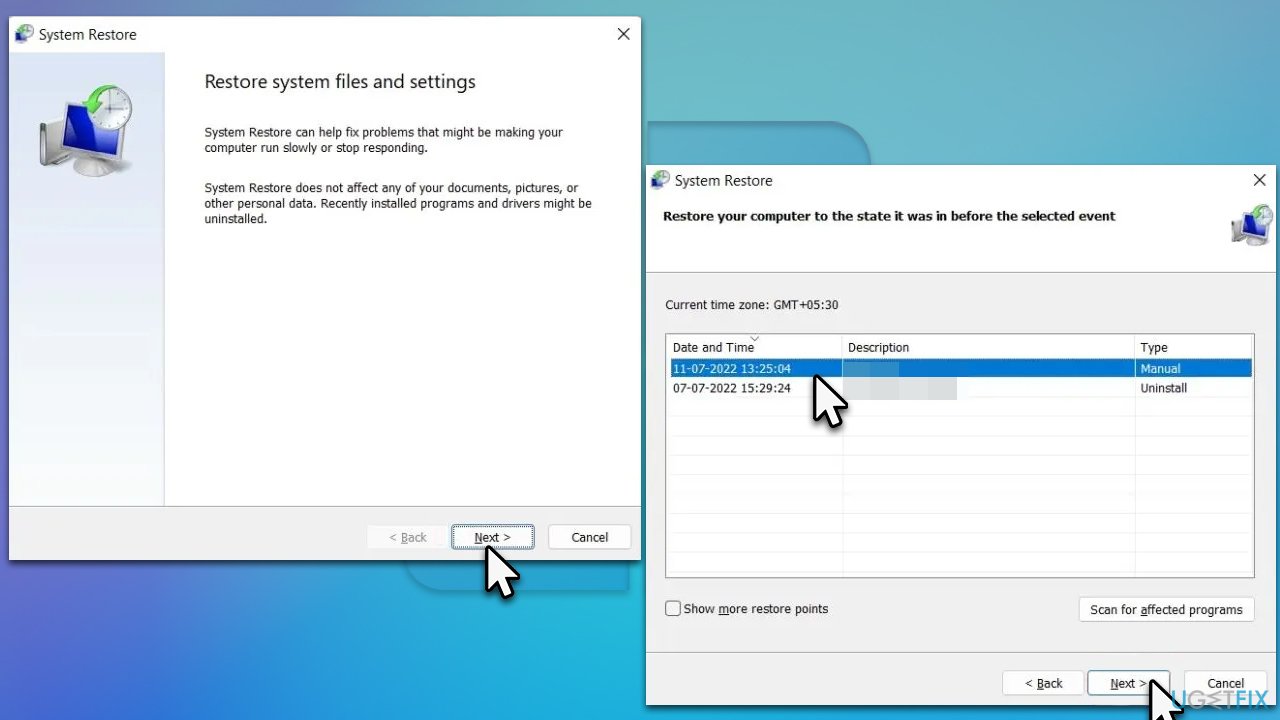
- Press Win + R simultaneously.
- Type in rstrui.exe and press Enter.
- Click Next.
- Select a restore point with a known good system configuration.
- Click Next and press Finish.
- Restart your computer.
Bottom line
To fix the 'Indexing is paused' issue in Windows 11, users can check the relevant services, re-index their files, and consider using PC repair tools to address potential registry errors and corrupted files. If these methods do not resolve the problem, further troubleshooting may be necessary.
Frequently asked questions
You can resume indexing by going to Settings > Search > Searching Windows and clicking on 'Advanced indexing options' to restart the indexing service.
Open the Indexing Options from the Control Panel or search for it in the Start menu to view the current status of the indexing process.
Indexing may pause due to high system resource usage, power settings, or if the user has manually paused it in the indexing options.




Report an issue
What's wrong with this guide? We review every report and update or remove content.
Report received — thank you. We'll review and fix it.
You need a free account to submit a report.
Be the first to comment