How to fix
Initpki.dll missing or not found error
on Windows
Resolve the Initpki.dll missing error on Windows 10 and 11 effortlessly. Get expert-tested solutions that fix your system in minutes!


What causes How to fix Initpki.dll missing or not found error in Windows?
- Accidental deletion of Initpki.dll
- File corruption from malware
- Issues within the Windows registry
- Hardware changes affecting system files
- Software changes affecting system files
Repairs Windows system files, removes malware, and restores a clean OS state — without reinstalling.
When I launch the PC I get a pop-up saying that Initpki.dll is missing and I don't know what to do with this. Please advise.
DLL files are essential to Windows operating systems as they contain instructions or data that can be used variously by several programs simultaneously. They are key in ensuring that the system has good organization since different programs are allowed to share functions, a process that saves memory and reduces redundancy.
However, when a required DLL file is corrupted or missing, this can result in errors that limit applications from behaving as it should. A typical example of such an issue in Windows is the error of a missing or not found Initpki.dll file, which is a common problem that interferes with regular system operations.
This error often appears when specific tasks require Initpki.dll, such as installing updates, opening certain applications, or running security-related processes. When Windows cannot locate this file, an error message like “Initpki.dll missing” or “Initpki.dll not found” is displayed. The issue can disrupt actions that rely on this DLL file, leaving certain processes incomplete or entirely halted.
Initpki.dll plays a critical role in Windows as it supports security protocols and digital certificate functions, primarily in verifying the authenticity of software and updates. This DLL file is essential for various cryptographic operations, ensuring safe data exchanges and reliable application installations. Due to its importance in maintaining security protocols, any problem with Initpki.dll can impact the stability and security of your system.
The causes for this error are usually straightforward. In many cases, the Initpki.dll file may be missing due to accidental deletion, file corruption from malware, or issues within the Windows registry that disrupt normal file access. Hardware or software changes can also contribute to this problem, particularly if they affect system files.
To resolve the Initpki.dll missing or not found error, several approaches can be taken, including re-registering the DLL file, repairing system files, and reinstalling specific software components. Details on these solutions are provided in the instructions below.
For a comprehensive solution that automatically addresses any underlying Windows issues, consider using the [d1] PC repair tool. This tool detects and repairs common system problems efficiently.
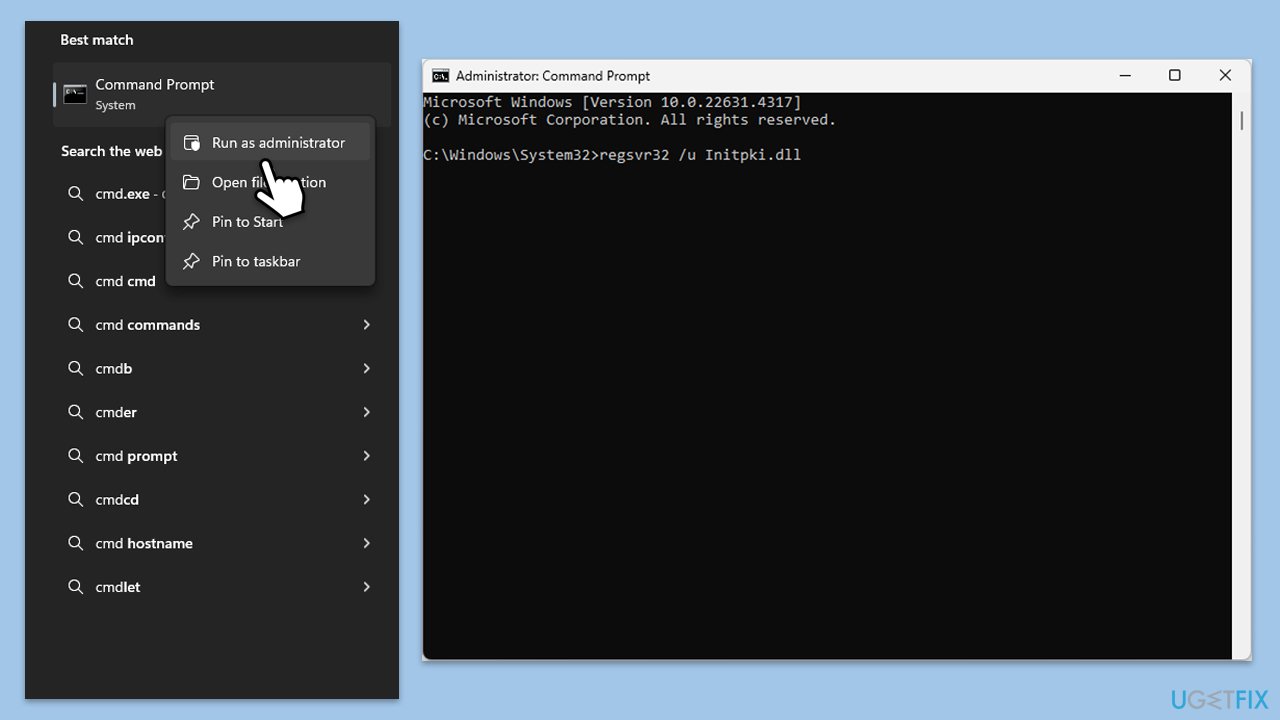
Fix 1. Re-register Initpki.dll
Re-registering the Initpki.dll file with Windows can help resolve any registry issues related to the file, as it essentially refreshes the DLL’s connection with the system.
- Type cmd in Windows search.
- Right-click on Command Prompt and pick Run as administrator.
- User Account Control window will show up - click Yes when prompted.
- In the new window, type in the following command and press Enter:
regsvr32 /u Initpki.dll - After that, type the next command and hit Enter:
regsvr32 /i Initpki.dll - Restart your device to apply the changes.
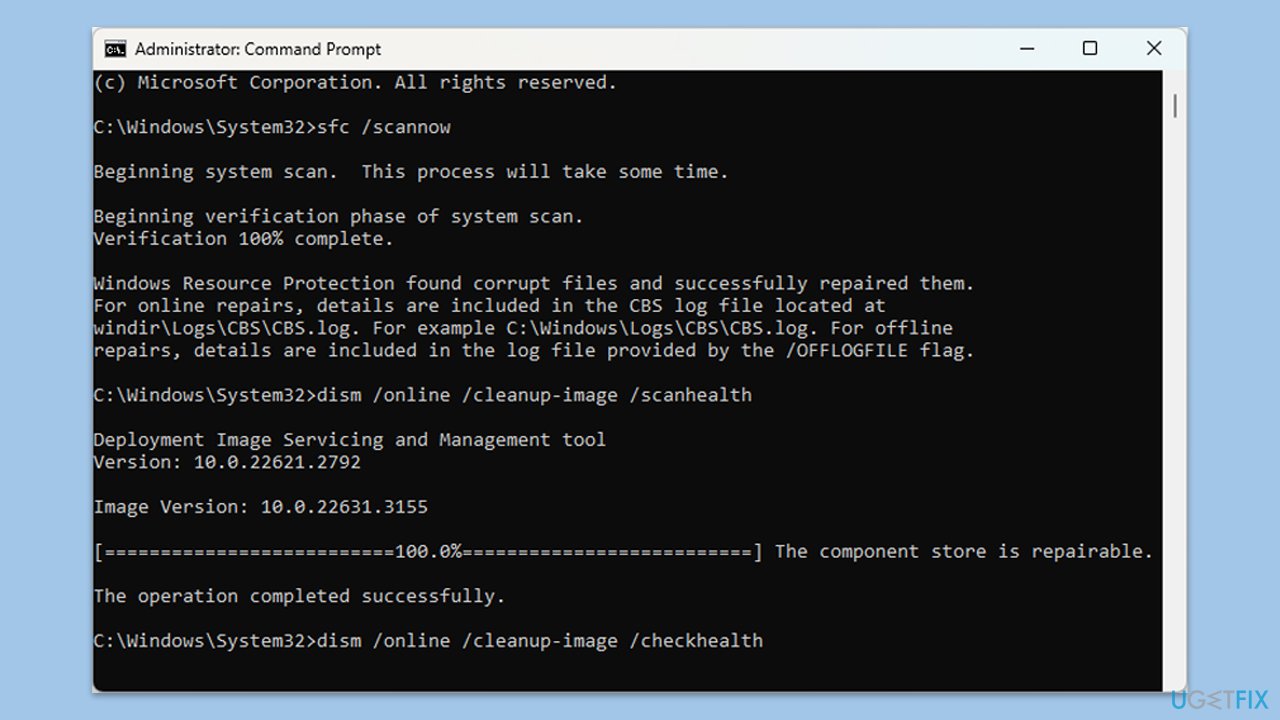
Fix 2. Run System File Checker (SFC) and DISM
Using the System File Checker (SFC) along with the DISM command can identify and repair missing or corrupted system files, restoring the Initpki.dll file if needed.
- Open Command Prompt as administrator.
- Then, copy and paste the following command, pressing Enter after:
- sfc /scannow
- Wait for the scan to complete.
- Once the SFC scan is finished, run the following set of DISM commands, pressing Enter after each one:
DISM /Online /Cleanup-Image /CheckHealth
DISM /Online /Cleanup-Image /ScanHealth
DISM /Online /Cleanup-Image /RestoreHealth - Close down the Command Prompt and restart your device.
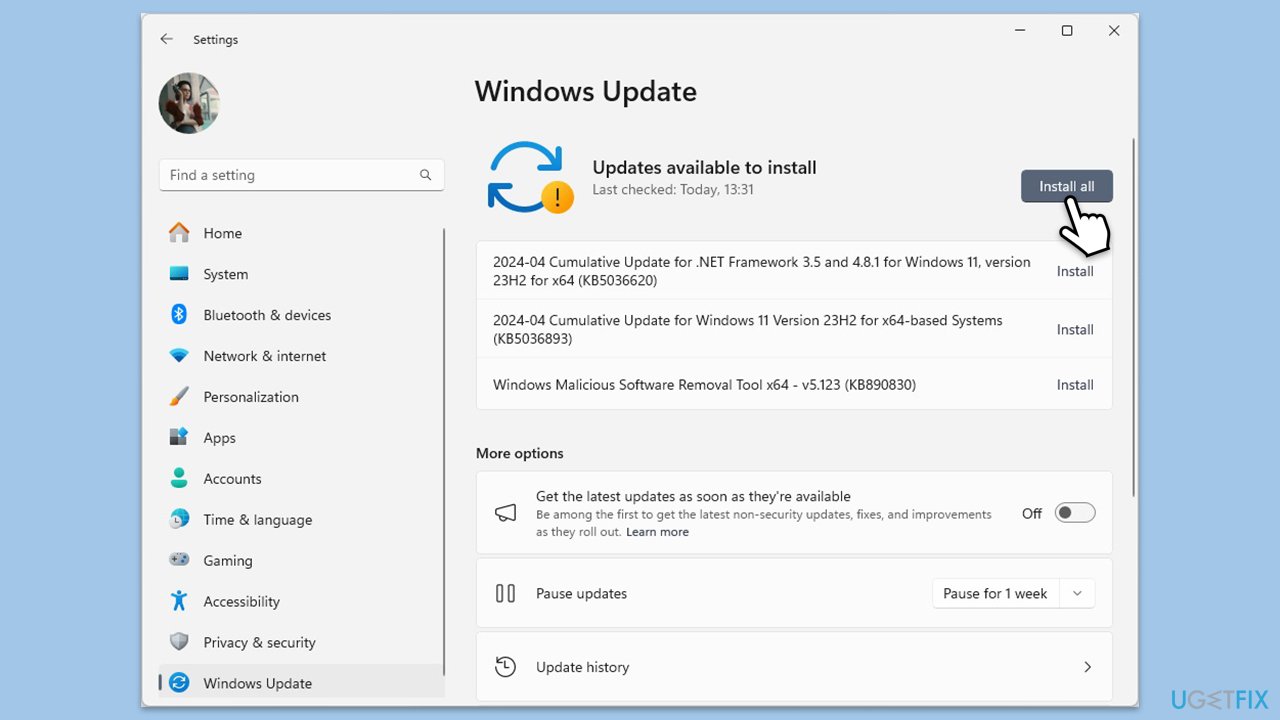
Fix 3. Check for Windows updates
Updating Windows can install missing files and update existing ones, which may help restore Initpki.dll if it was accidentally deleted or corrupted.
- Type Updates in the Windows search bar and hit Enter.
- If updates are pending, click Download and install. Otherwise, click Check for updates.
- Make sure you choose to install optional updates as well.
- Restart your system to implement the changes.
Fix 4. Restore Initpki.dll from the Recycle Bin
If Initpki.dll was accidentally deleted, it might still be in the Recycle Bin, and restoring it could resolve the error.
- Open the Recycle Bin from your desktop.
- Look for Initpki.dll in the list of deleted items.
- Right-click on Initpki.dll and select Restore.
- Restart your computer to see if the error is resolved.
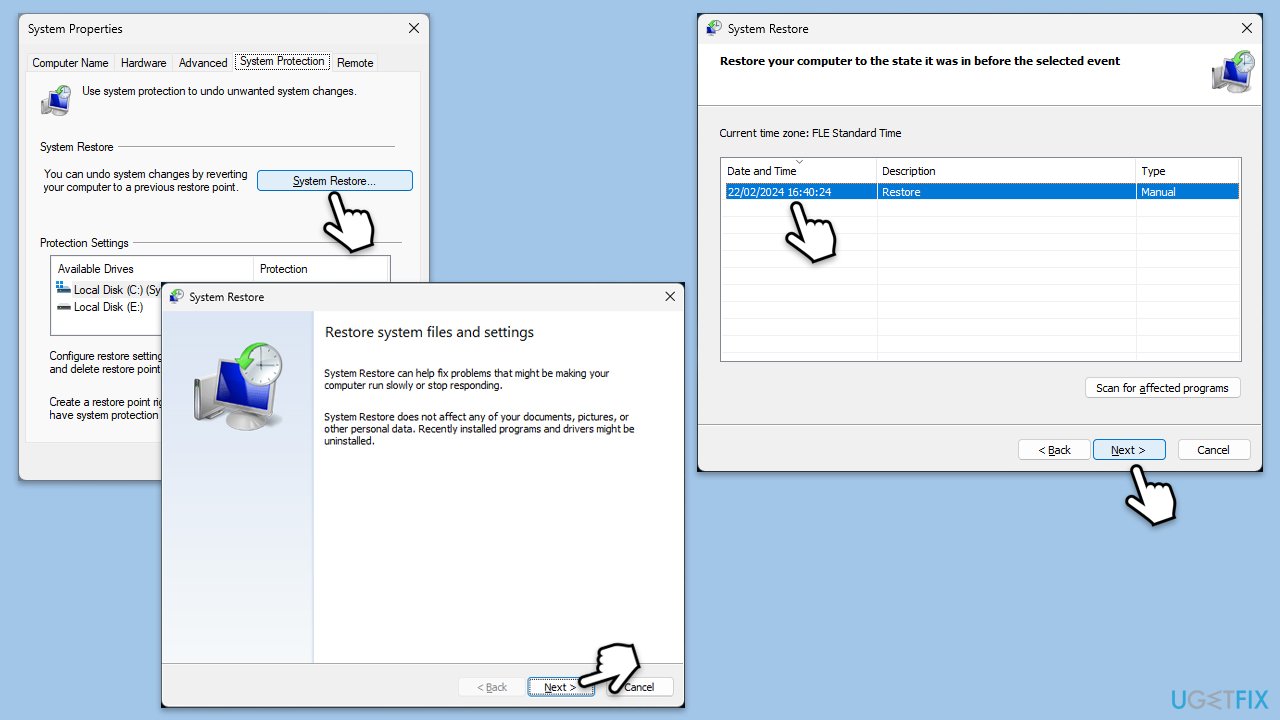
Fix 5. Perform a System Restore
A System Restore can revert your system back to a point where the Initpki.dll file was not missing or corrupted, helping resolve the issue.
- Type in Create a Restore point in Windows search and hit Enter.
- Go to the System Protection tab and pick System Restore.
- Click Next.
- Click Show more restore points (if available).
- Pick the time before the problem occurred and click Next.
- Follow the prompts to finish the process.
Fix 6. Scan for malware
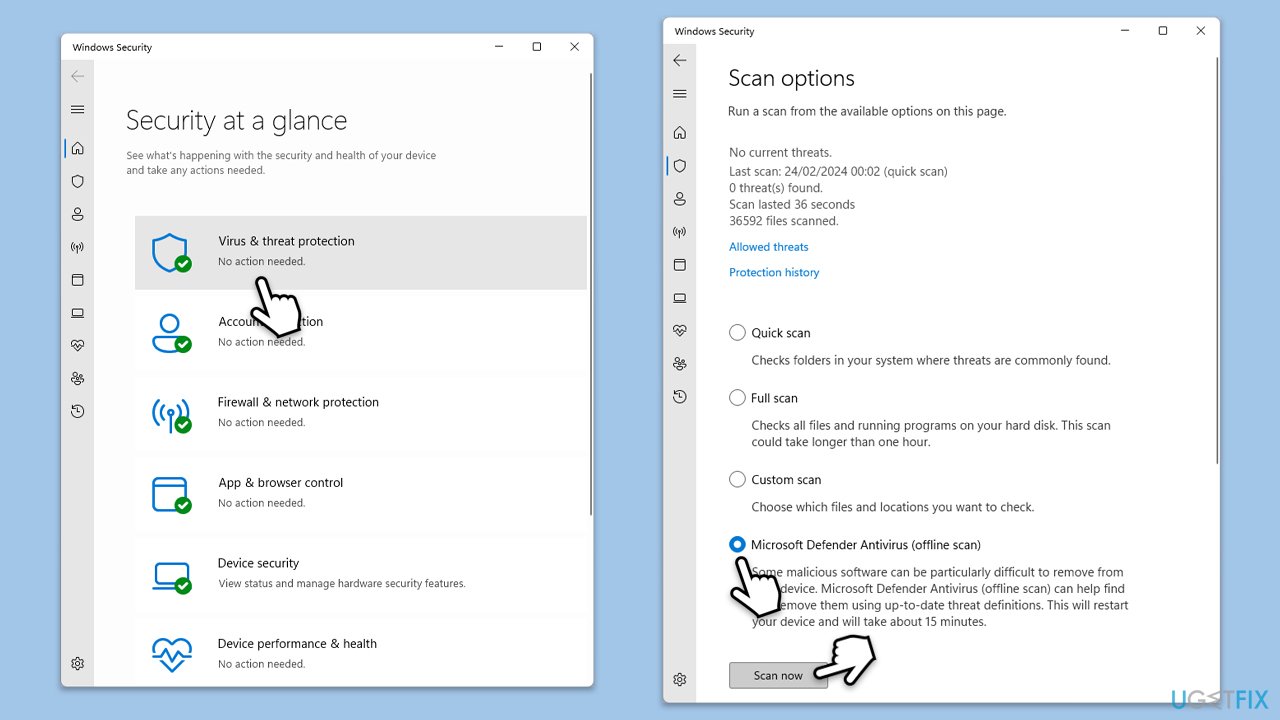
Malware infections can corrupt or remove essential system files like Initpki.dll. Running a malware scan can detect and remove threats that may be causing the error.
If you want, you can employ trusted third-party security app, although Microsoft Safety Scanner or the built-in Windows Defender can do the job just as well:
- Type Windows Security in the Windows search bar and hit Enter.
- Select Virus & threat protection.
- Pick Scan options.
- Choose Microsoft Defender Offline scan and click Scan now.
- Your computer will immediately reboot and begin a deep scan.
Fix 7. Reinstall related software
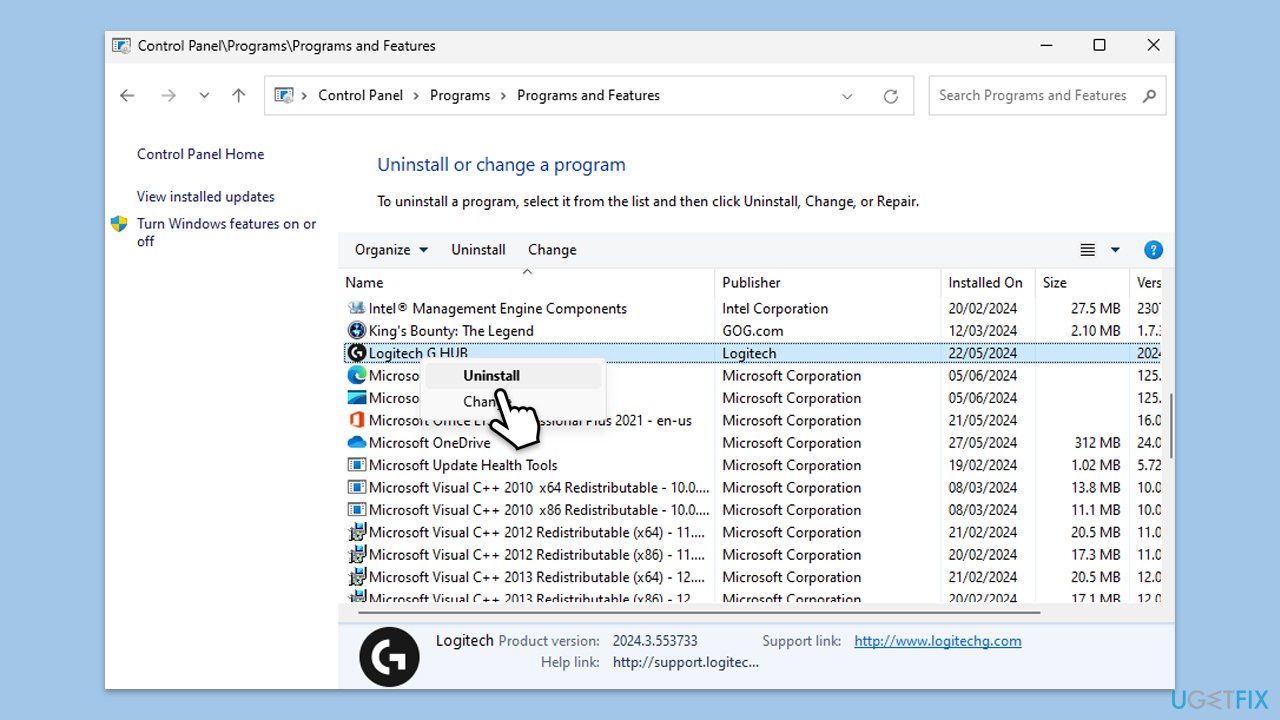
Sometimes, specific software that uses Initpki.dll may need to be reinstalled to restore the missing file.
- Type Control Panel in Windows search and press Enter.
- Go to Programs > Uninstall a program.
- Find the program related to the Initpki.dll error and select Uninstall, then follow the steps to remove it.
- Restart your computer, then reinstall the program from a trusted source.
Bottom line
To resolve the Initpki.dll missing or not found error, you can try re-registering the DLL file, repairing system files, or reinstalling specific software components. If these solutions do not work, consider using a comprehensive tool to automatically address any underlying Windows issues.
Frequently asked questions
You can restore the Initpki.dll file by running the System File Checker tool; open Command Prompt as an administrator and type 'sfc /scannow'.
If the error appeared after a Windows 11 update, try rolling back the update through Settings > Update & Security > Windows Update > View update history.
Yes, you can use reliable third-party software like DLL-files.com Client to automatically download and install the missing Initpki.dll file.




Report an issue
What's wrong with this guide? We review every report and update or remove content.
Report received — thank you. We'll review and fix it.
You need a free account to submit a report.
Be the first to comment