How to fix
Instant Apps
on Windows
Resolve Instant Apps issues on Windows 10 or 11 effortlessly. Get expert-tested solutions to ensure smooth app functionality, fixed in minutes.

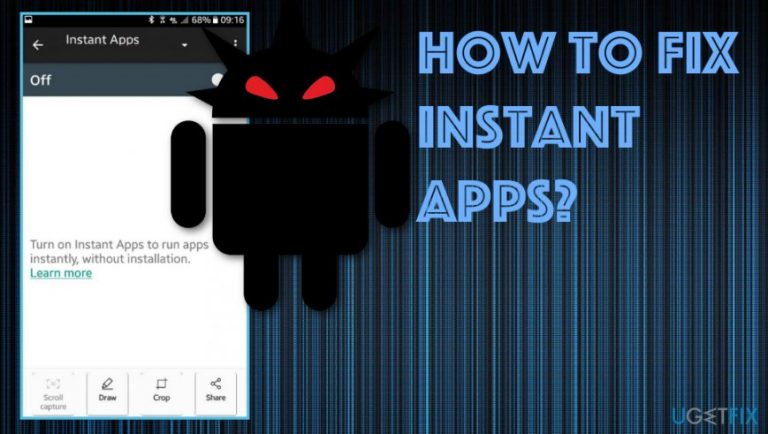
What causes How to fix Instant Apps?
- Google Play services for Instant Apps downloading itself without authorization
- Continuous pop-ups appearing on the screen multiple times a day
- Shady installation affecting functions like firewall
- Installation of malicious scripts or programs
- Misleading suggestions causing frustration
Repairs Windows system files, removes malware, and restores a clean OS state — without reinstalling.
Hello. I have a question how can I disable Instant Apps and fix the issue with installations and updates without my permission? The program is shady and installs itself without even requiring permission. Is it a virus? I keep getting various pop-ups with the errors of the service and application works in a questionable way. What can I do?
Google Play services for Instant Apps is one of the more recent changes in the Google Play App Store.[ref en-1] This is the universal solution for Android devices that helps to get speed and power of the application via the web. This is designed to work online and use features of a native application on the web app version.
Instead of downloading the full app from the store, you can use the application online. However, people encounter issues since the release of this feature, like Google Play services for Instant Apps downloading itself without authorization. Instant Apps shouldn't work without authorization, so it is a major issue.[ref en-2]
Google Play services for Instant Apps installed without permission is another problem like continuous pop-ups appearing on the screen multiple times a day. People even state that this service is not that easy to uninstall.[ref en-3] The application may be affected by other programs or even malicious scripts.
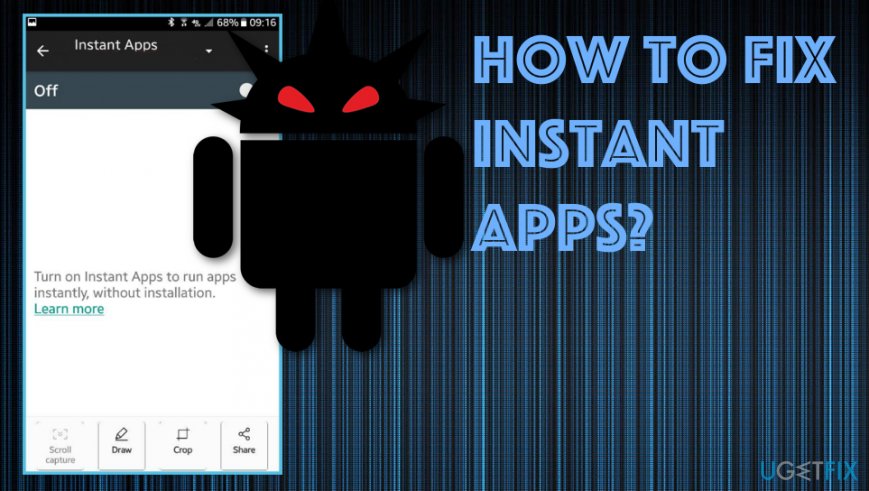
Unfortunately, shady installation of Instant Apps can affect functions like firewall, update itself and other applications without permissions and download itself back again after elimination. The program also shows misleading suggestions and causes more frustration when it cannot get off of the machine quickly. However, we have a few solutions for the Android application issue.
How to fix Instant Apps Google Play service
Google Play service issues can be caused by different settings and even the particular system or OS vulnerabilities. So this feature and service may not work as supposed to, in your case. Unfortunately, the issues can even involve attackers and information stealing. So try reinstalling the Google Play Store, other associated applications. If the less invasive manual methods listed below are not helpful too, you can try doing a factory reset. Additional tip as your first step could be a system scan with anti-malware application like [d1].
Enabling Instant Apps
You may need to enable the application yourself to change other settings and preferences so:
- Go to notifications side from your home screen.
- Tap Settings and scroll down to find Google settings.
- Tap Instant Apps and press On.
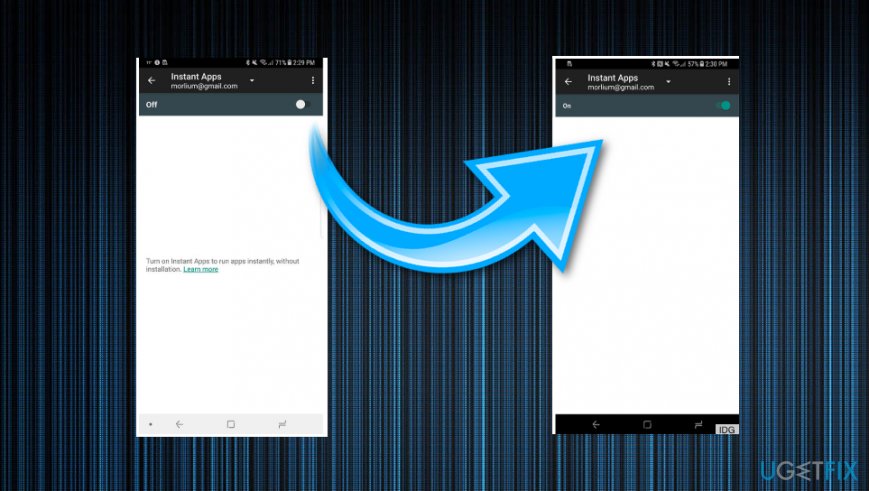
How to fix instant apps off on
Disable Instant Apps
- Open the Settings section and find Google Instant Apps.
- Locate Instant Apps account and select the account. Opt-out of them all and switch to None.
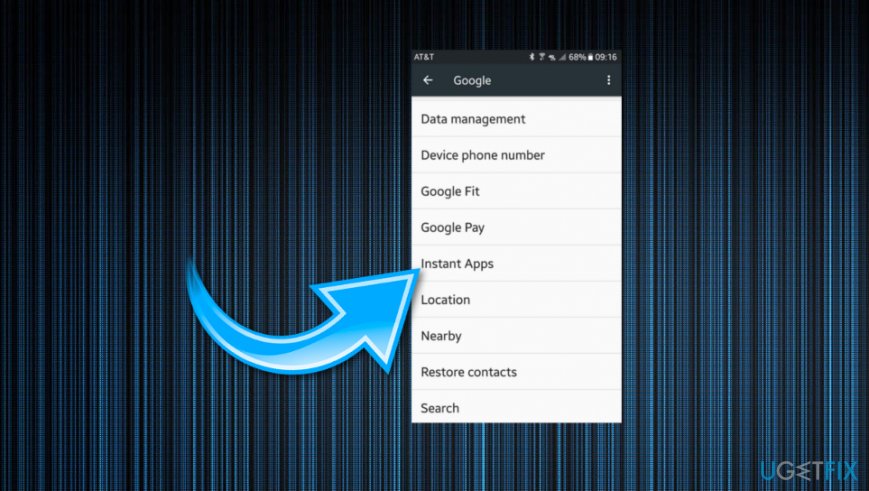
How to fix instant apps apps google
Fix Instant Apps issues via Application Manager
- Go to Settings and then Applications.
- Find the Application manager and locate Google Play services for Instant Apps.
- Find Application info and Force stop the app.
- Then, you should Clear data and Clear cache.
- You can also clear the cache of Google Play service too.
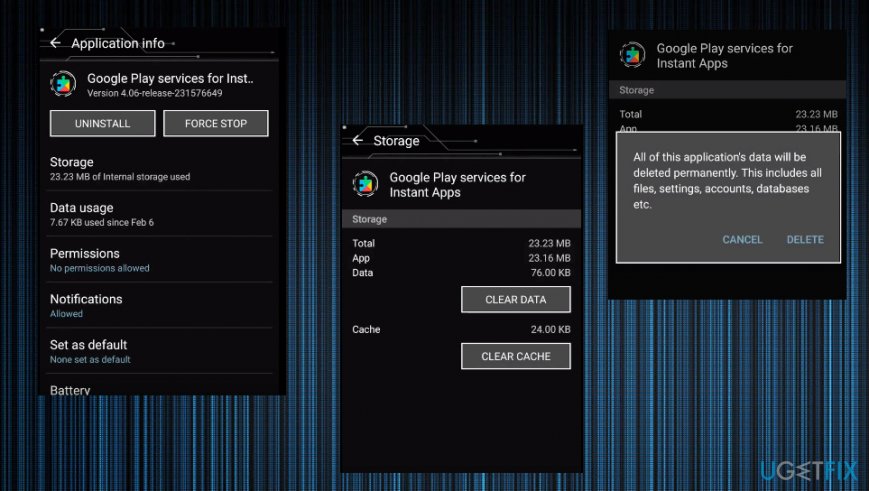
How to fix instant apps google play services
Bottom line
To fix Instant Apps issues, try reinstalling the Google Play Store and associated applications. If these less invasive methods do not resolve the problem, consider performing a factory reset.
Frequently asked questions
Try resetting the Microsoft Store app by going to Settings > Apps > Apps & features, selecting Microsoft Store, and clicking on 'Advanced options' to reset it. Additionally, ensure that your Windows 10 is up to date with the latest updates.
Check for any pending updates for Windows 11 and install them, as these may fix stability issues. You can also try clearing the cache of the Microsoft Store app to resolve crashing problems.
Make sure that your Windows 10 or Windows 11 has the 'Apps and features' setting enabled in the Microsoft Store, as this allows Instant Apps to function properly. Additionally, ensure that you have sufficient storage space on your device.




Report an issue
What's wrong with this guide? We review every report and update or remove content.
Report received — thank you. We'll review and fix it.
You need a free account to submit a report.
Be the first to comment