How to fix
“Insufficient Memory” error while using a Canon printer
on Windows
Resolve the "Insufficient Memory" error with your Canon printer on Windows 10 or 11 effortlessly. Fixed in minutes by our expert-tested guide.


What causes How to fix “Insufficient Memory” error while using a Canon printer?
- Recent Windows 10 update
- Printer has insufficient memory
- Document contains incompatible TrueType fonts
- Incorrect font type for the printer
- Potential fraudulent elements affecting device performance
Repairs Windows system files, removes malware, and restores a clean OS state — without reinstalling.
I ran out of possible explanations for this problem: when I want to launch my Canon Printer and copy a file or scan a document, an error message pops up saying “the process cannot be continued because of insufficient memory.” I tried to reinstall the printer’s drivers but the same error message pops up. Perhaps it's Windows 10's fault again?
“The process cannot be continued because of insufficient memory” or shortly “insufficient memory” may be the result of a temporal mismatch issue in the operating system. Recent Windows 10 update might be the cause of such occurrence.[ref en-1] Owners of Canon MP Printer and other Canon models frequently encounter this message.[ref en-2]
Insufficient memory issue can also occur due to the fact that the printer has, not enough memory to complete the print job. Your document may contain TrueType fonts that are downloaded as Type 42 fonts or this is not the correct type of fonts for your printer.
Nonetheless, users of other printers, e.g. HP Laserjet, might encounter this issue as well. There are a couple of options you can try to solve the issue. Firstly, if you have noticed the problem after the recent Windows update, reinstall the printer’s software. 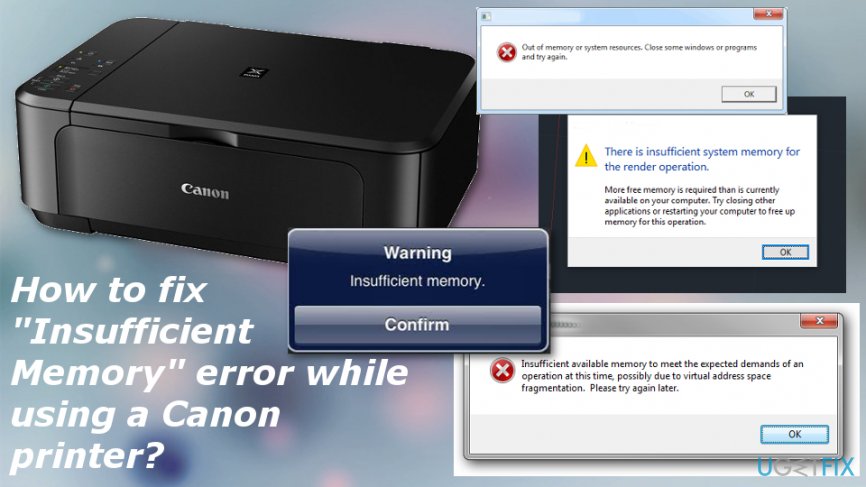
The printer may not print anything at all or print only the part of the document. Also when these type of insufficient memory errors occur, machine prints the following message instead of the document:
This job requires more memory than is available in this printer. Try on or more of the following and then print again:
For the output format choose Optimize for portability.
Reduce the number of fonts in this document.
Print the document in parts.
Insufficient memory error fixing solutions
Since there are a few reasons that may cause this issue, solutions can also be a few. You can try reinstalling the printer's driver again. Make sure it is downloaded from the official website of the printer’s company. On the final note, scan your device with [d1] to ensure that the device is clean from potentially fraudulent elements that may also affect the performance of your devices.[ref en-3] Follow our methods and fix “The process cannot be continued because of insufficient memory” error.
Reset the memory settings on the printer driver
- Click Start and select Settings.
- Then click Devices/Printers.
- Right-click the printer icon and choose Properties.
- Choose the Device Options tab.
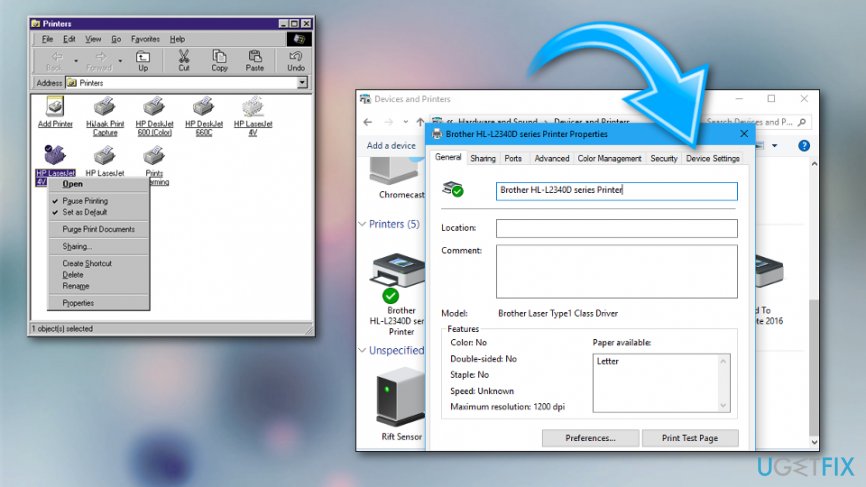
How to fix insufficient memory error while using a canon printer settings - In the Printer Memory list, click the correct setting and OK.
Run Canon software as administrator
If you are using MP Navigator, run the program as the administrator.
- Right-click on the program’s icon and choose Properties.
- In the newly appeared window, navigate to Shortcut tab.
- Enter Advanced…
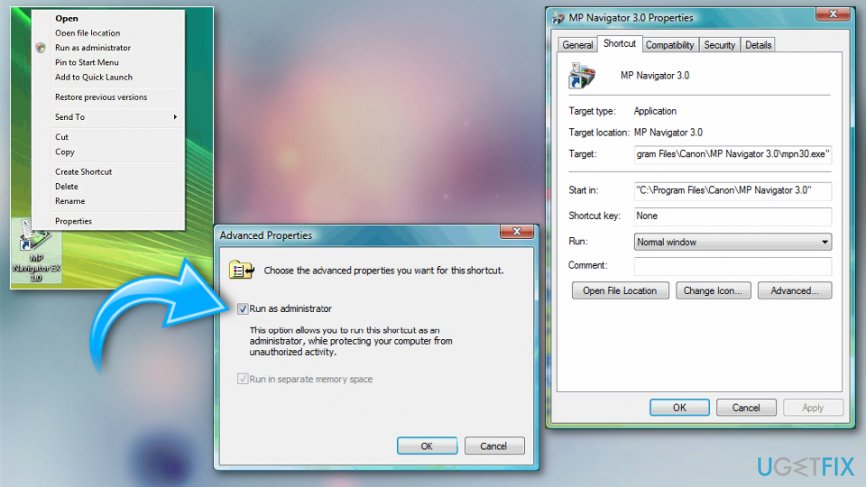
How to fix insufficient memory error while using a canon printer settings administrator - Check the box Run as administrator, click OK.
- Click Apply and exit the program.
Change the names of the software files
If your Canon printer’s model is PIXMA, try the following steps:
- Open File Explorer.
- In the View section, check whether the box Hidden items is checked.
- In the search bar enter %USERPROFILE%\\AppData\\Local\\Canon Easy-PhotoPrint EX.
- Find the Settings folder and name it to Settings.old or into another name as you like.
Bottom line
To fix the 'Insufficient Memory' error, try reinstalling the printer's drivers, ensuring they are downloaded from the official website. Additionally, optimize the output format, reduce the number of fonts, or print the document in parts. If none of these solutions work, consider scanning your device for potential issues.
Frequently asked questions
Try restarting your Canon printer and your Windows 10 device to clear temporary memory. If the issue persists, check for any pending print jobs and remove them before attempting to print again.
Ensure that your printer's driver is up to date by visiting the Canon support website. Additionally, try reducing the print quality or the size of the document to lower memory usage.
You can increase the virtual memory settings on Windows 10 by going to System Properties, selecting the Advanced tab, and adjusting the virtual memory settings under Performance Options.




Report an issue
What's wrong with this guide? We review every report and update or remove content.
Report received — thank you. We'll review and fix it.
You need a free account to submit a report.
Be the first to comment