How to fix
IntcOED.sys Blue Screen
on Windows
Resolve IntcOED.sys blue screen errors on Windows 10 and 11 effortlessly. Follow our expert-tested solutions and get back to smooth computing in minutes.

What causes How to fix IntcOED.sys Blue Screen in Windows?
- System and driver mismatch
- Driver corruption
- Incompatibility after Windows update
- Outdated driver
- Removal of necessary features
Repairs Windows system files, removes malware, and restores a clean OS state — without reinstalling.
Hello, I have recently updated Windows to the latest version (as I usually do), and I noticed that my PC started to crash relatively often. The Blue Screen mentions the IntcOED.sys file every time. Any tips to fix this would be appreciated.
Blue Screen of Death crashes is something that most users are painfully familiar with - they are bound to happen when using a Windows machine for years. While some operating systems had a really tough time with extensive Blue Screen crashes, newer versions are doing much better.
With that said, Windows 10 or Windows 11 are not immune to BSODs due to the nature of the different components that comprise it. Drivers, in particular, are one of the most common reasons for such crashes to occur, and IntcOED.sys Blue Screen error is one of the best such examples.
IntcOED.sys is a component of Intel drivers, particularly that related to the Smart Sound Technology (or SST for short). The main reason why the system crashes with this driver as a reference is because of the system and driver mismatch, corruption, or other similar issues.
In most cases, users start experiencing the IntcOED.sys crashes after they update Windows, however. This happens because Microsoft updates certain definitions and components within the operating system, which makes it no longer compatible with the Smart Sound Technology driver.
Therefore, users might be able to fix IntcOED.sys BSODs by uninstalling the most recent Windows update or removing the driver altogether. Both of these solutions are not optimal, as outdated Windows might be prone to malware attacks due to software vulnerabilities[ref en-2] or lack major bug[ref en-3] fixes.
Likewise, while SST is not a critical driver, users might lose out on useful features, such as clear voice recognition, improved battery life, better sound quality, and more. Thus, we will provide several other methods that might help you solve the situation without destroying either of these components.
Before you proceed, we recommend you check your system with [d1] PC repair software, one of the easiest and fastest ways of solving BSODs on Windows. The app can also fix malware[ref en-1] damage, clean your drives from junk, and protect your privacy by removing browser caches along with trackers.
1. Uninstall the latest Windows update [workaround]
If you have just recently updated Windows, you can uninstall the latest update, which should solve a problem for you.
- Type Control Panel in Windows search and press Enter
- Go to Program > Uninstall a program
- Here, select View installed updates
- Sort the installed updates by date
- Find the most recent one, right-click and select Uninstall
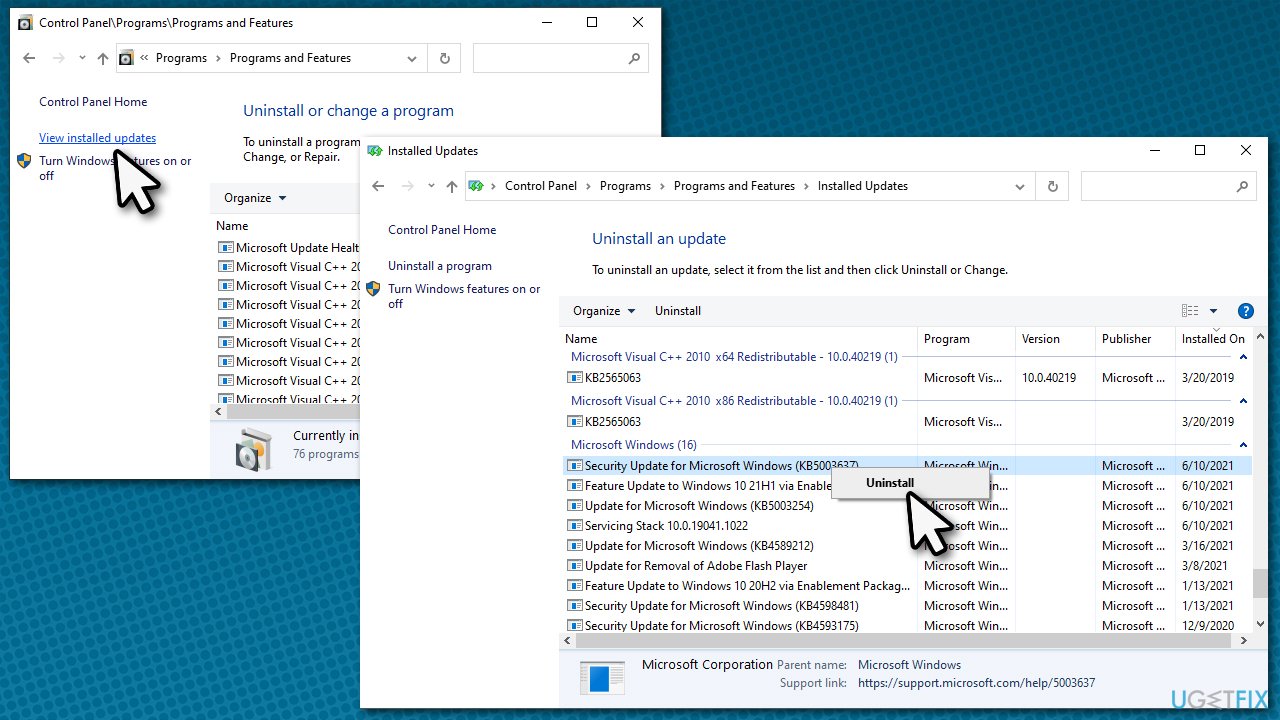
How to fix intcoed sys blue screen in windows unisntall latest update - Follow on-screen instructions to finish the process
- Type in Update in Windows search and hit Enter
- Here, click Pause updates for 7 days
- Restart your PC.
2. Check for system corruption
- In Windows search, type cmd
- Right-click on Command Prompt and select Run as administrator
- When User Account Control shows up, click Yes
- In the new window, use the following command and press Enter:
sfc /scannow - Wait till the scan is finished, and then run the following commands (press Enter after each):
DISM /Online /Cleanup-Image /CheckHealth
DISM /Online /Cleanup-Image /ScanHealth
DISM /Online /Cleanup-Image /RestoreHealth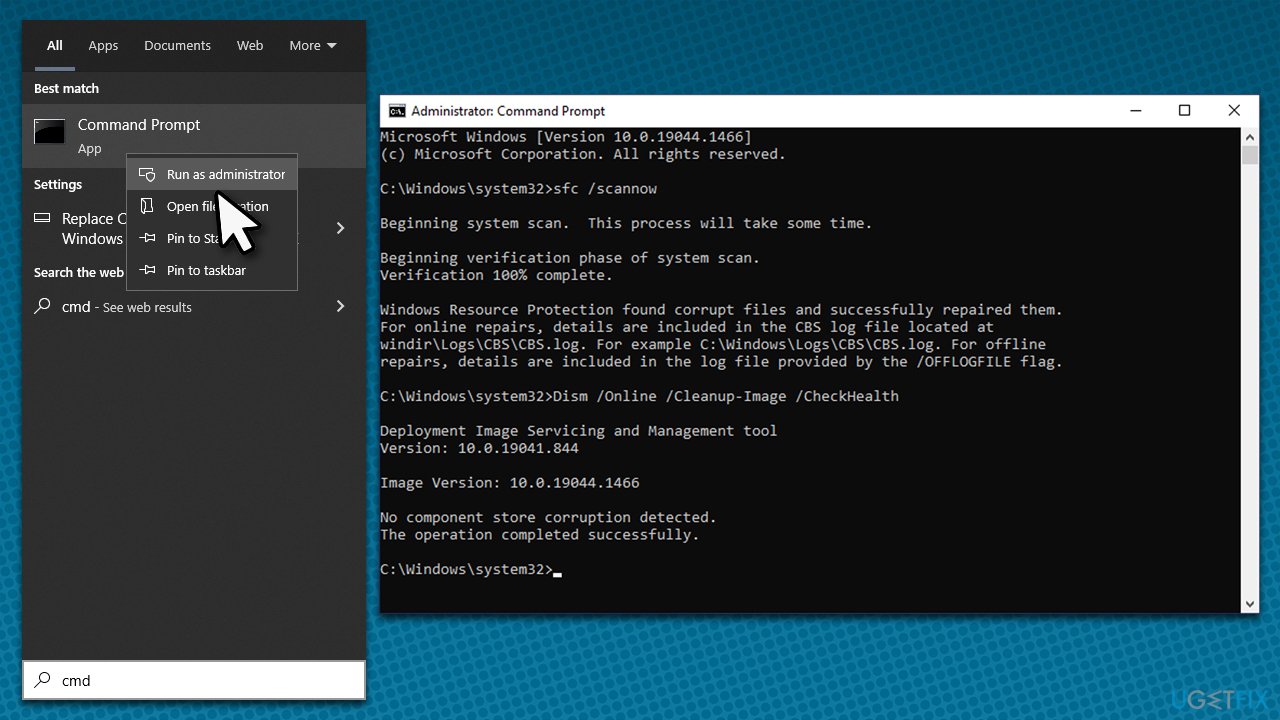
How to fix intcoed sys blue screen in windows run sfc dism - Restart your device once done.
3. Uninstall the Smart Sound Technology (SST) driver
Users claimed that uninstalling the SST driver helped them fix the IntcOED.sys Blue Screens. You can attempt to reinstall it, although many people claimed the problem returned shortly after that.
- Right-click on Start and pick Settings
- Select Device Manager
- Find Sound, Video, and Game Controllers section and expand it
- Right-click the Smart Sound Technology OED option and select Uninstall Device
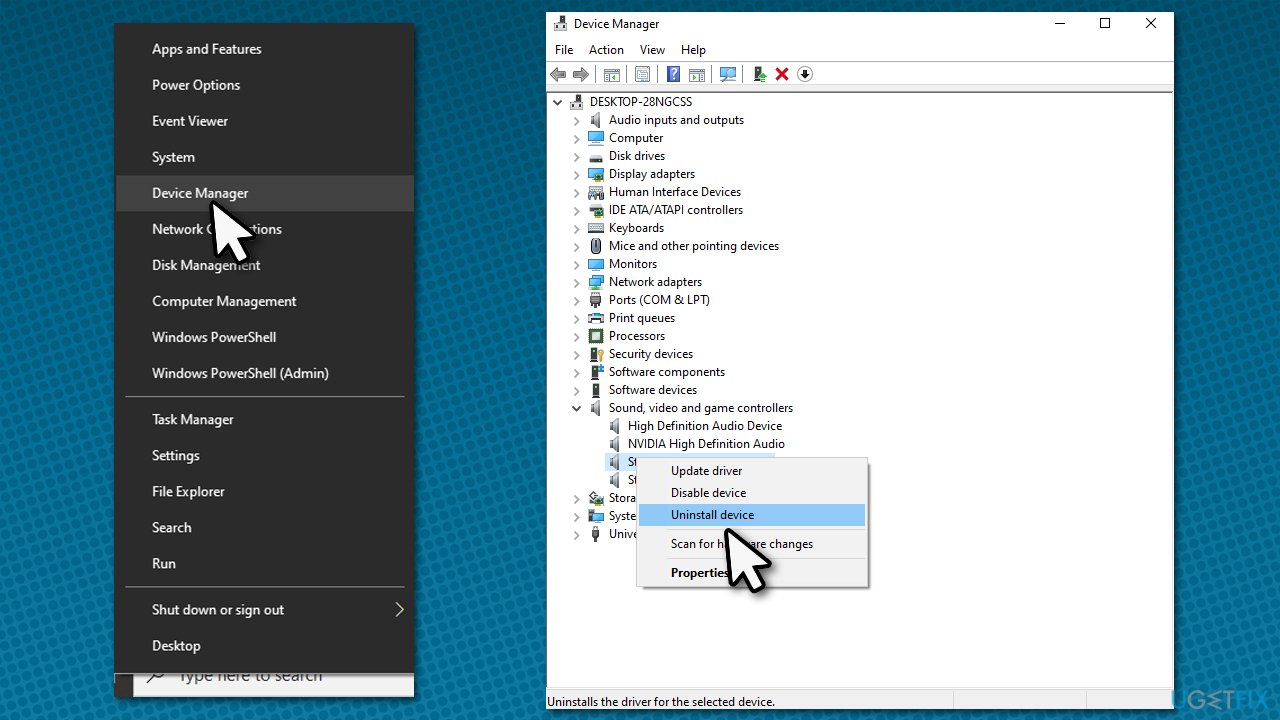
How to fix intcoed sys blue screen in windows uninstall sst driver - When the warning prompt shows up, click Yes
- Once done, restart your device.
4. Update BIOS
Warning: if you are not sure about this method, you better skip it. Incorrectly installed BIOS update might corrupt your system. On the other hand, BIOS updates are easier o implement than years ago.
- Type in System Information in Windows search and hit Enter
- Note down info next to BIOS Version/Date and BaseBoard Product
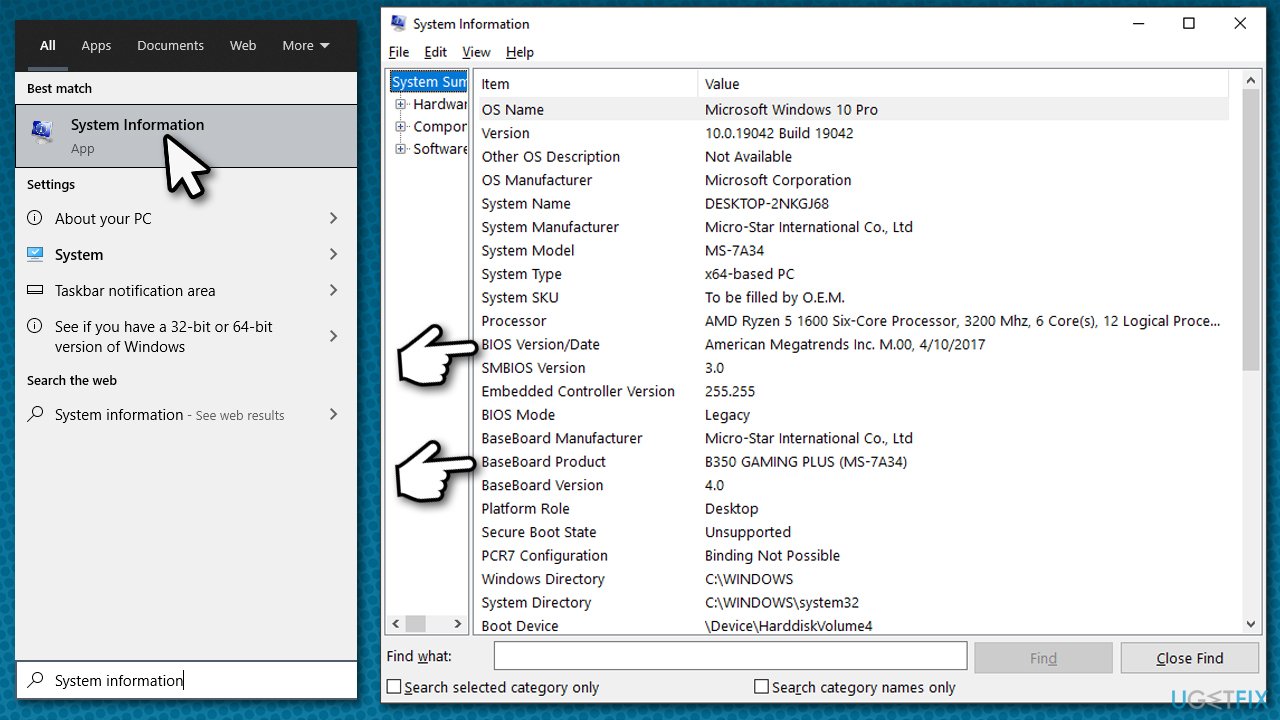
How to fix intcoed sys blue screen in windows update bios - Open your web browser and visit the official site of your motherboard manufacturer
- Head to the Downloads section
- Download the appropriate version of BIOS for your motherboard and launch the installer
- Reboot your system once complete.
5. Update drivers
One of the easiest ways to make sure that all your drivers are compatible and up-to-date is by using specialized software such as [rev id="DriverFix"]. Alternatively, you can download the latest version of the OED driver on the official Intel website, although you have to make sure you are using the correct driver for your particular device type.
6. Reset Windows
You can reset Windows if none of the methods above helped you fix these BSODs. Before you proceed, make backups of your personal files just in case and disconnect the external devices such as printers or cameras.
- Right-click on Start and pick Settings
- Go to the Update & Security section and select Recovery
- Under Reset this PC, click on Get Started
- Select Keep my files and Cloud download
- Click Next in the next prompt
- Finally, click Reset.
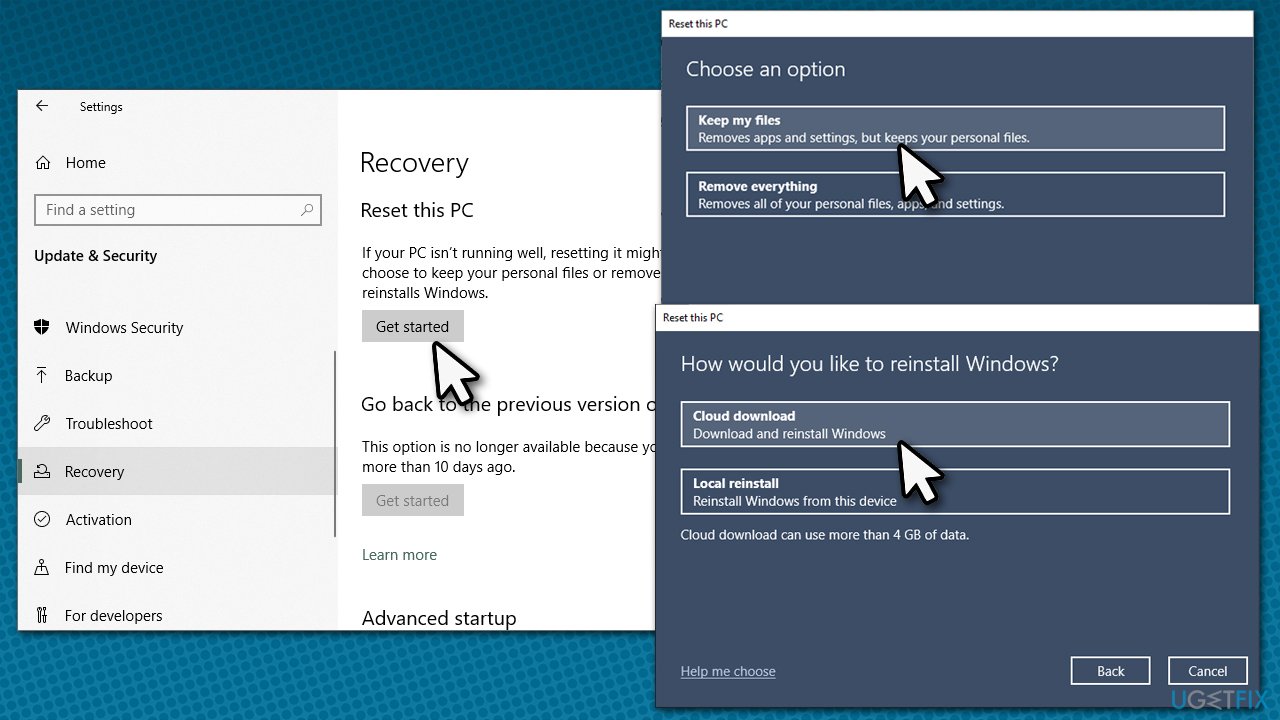
How to fix intcoed sys blue screen in windows reset windows
Bottom line
To fix the IntcOED.sys Blue Screen error, you can try uninstalling the most recent Windows update or removing the Smart Sound Technology driver. Additionally, using PC repair software may help resolve BSODs efficiently. If none of these solutions work, consider seeking further technical assistance.
Frequently asked questions
The IntcOED.sys Blue Screen error is typically caused by outdated or corrupted Intel audio drivers, which can lead to system instability. Other potential triggers include conflicts with third-party software or hardware issues.
To update the Intel drivers, go to Device Manager, find the relevant audio device, right-click it, and select 'Update driver.' You can also visit the Intel website to download the latest drivers compatible with Windows 10 or Windows 11.
If updating the drivers doesn't work, try performing a system restore to revert your system to a previous state or consider running the Windows Memory Diagnostic tool to check for hardware issues.




Report an issue
What's wrong with this guide? We review every report and update or remove content.
Report received — thank you. We'll review and fix it.
You need a free account to submit a report.
Be the first to comment