How to fix
Intel Rapid Storage Technology crashes Windows
on Windows
Resolve Intel Rapid Storage Technology crashes on Windows 10 and 11 effortlessly. Expert-tested solutions guarantee minimal downtime and zero traces left.


What causes How to fix Intel Rapid Storage Technology crashes Windows?
- Corrupted system files
- Outdated display driver
- Issues with Intel Rapid Storage Technology
- Incompatibility with Windows updates
Repairs Windows system files, removes malware, and restores a clean OS state — without reinstalling.
Hello. My Windows computer is crashing almost every day. I found that the crashes are caused by Intel Rapid Storage Technology. What should I do to stop these constant crashes?
Intel Rapid Storage Technology (RST),[ref en-1] is a firmware-based RAID solution built into a wide range of Intel chipsets. As of 2020, it includes a RAID system capable of RAID levels 0, 1, 5, and 10, a block-level SSD caching accelerator ("Smart Response Technology") with support for write-back and write-through modes for speed or data protection of any disk or RAID array, and support for intelligent caching, speedy recovery from certain issues, and for PCI Express based drives.
Some users have recently reported having issues caused by Intel Rapid Storage Technology. People say that it crashes their Windows devices constantly. While it is unknown what exactly causes RST to crash the Windows operating system, the problem could be related to corrupted system files or an outdated display driver.
In this guide, you will find 5 steps that should help you fix Intel Rapid Storage Technology crashes Windows. However, keep in mind that the manual troubleshooting process can be lengthy. If you want to avoid it, you can try using a maintenance tool like [d1]. It can fix most system errors, BSODs,[ref en-2] corrupted files, and registry[ref en-3] issues. Otherwise, follow the step-by-step instructions below.

Solution 1. Update Windows
- Press the Windows key to open the Start menu
- Type Check For Updates
- Click on Check for Updates
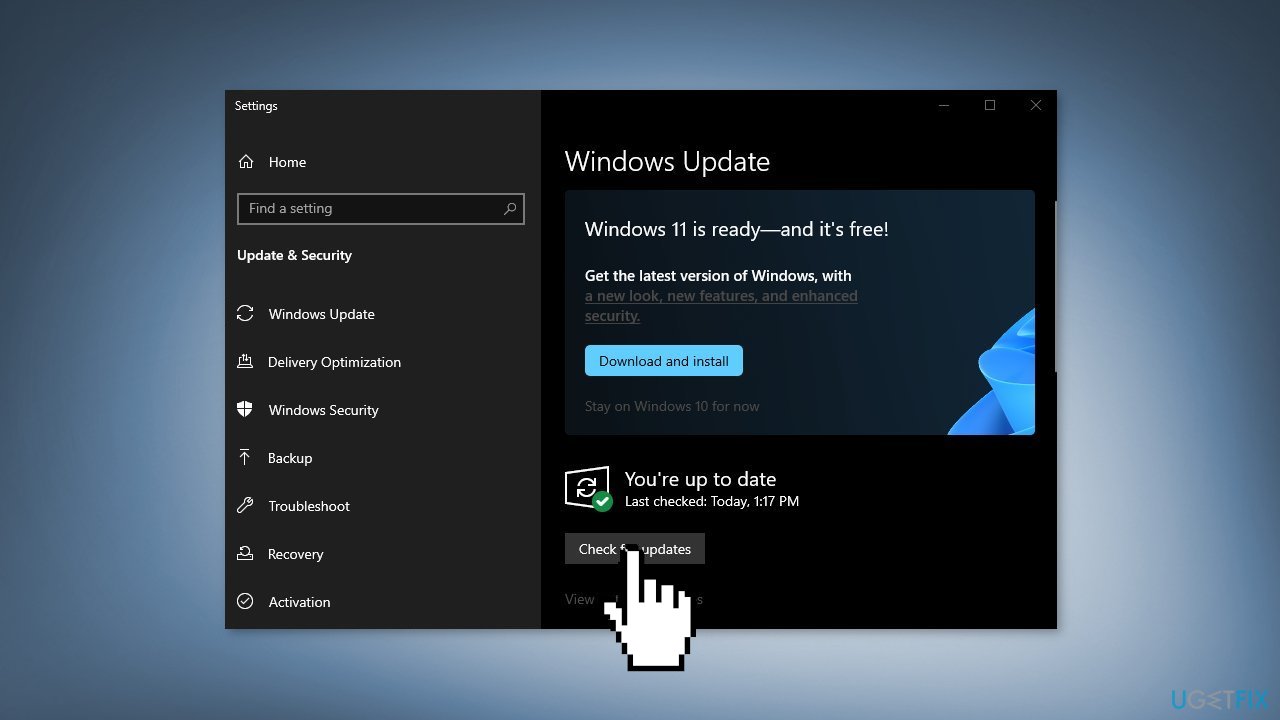
- Install any available recommended updates
Solution 2. Repair Corrupted System Files
Use Command Prompt commands to repair system file corruption:
- Open Command Prompt as administrator
- Use the following command and press Enter:
sfc /scannow
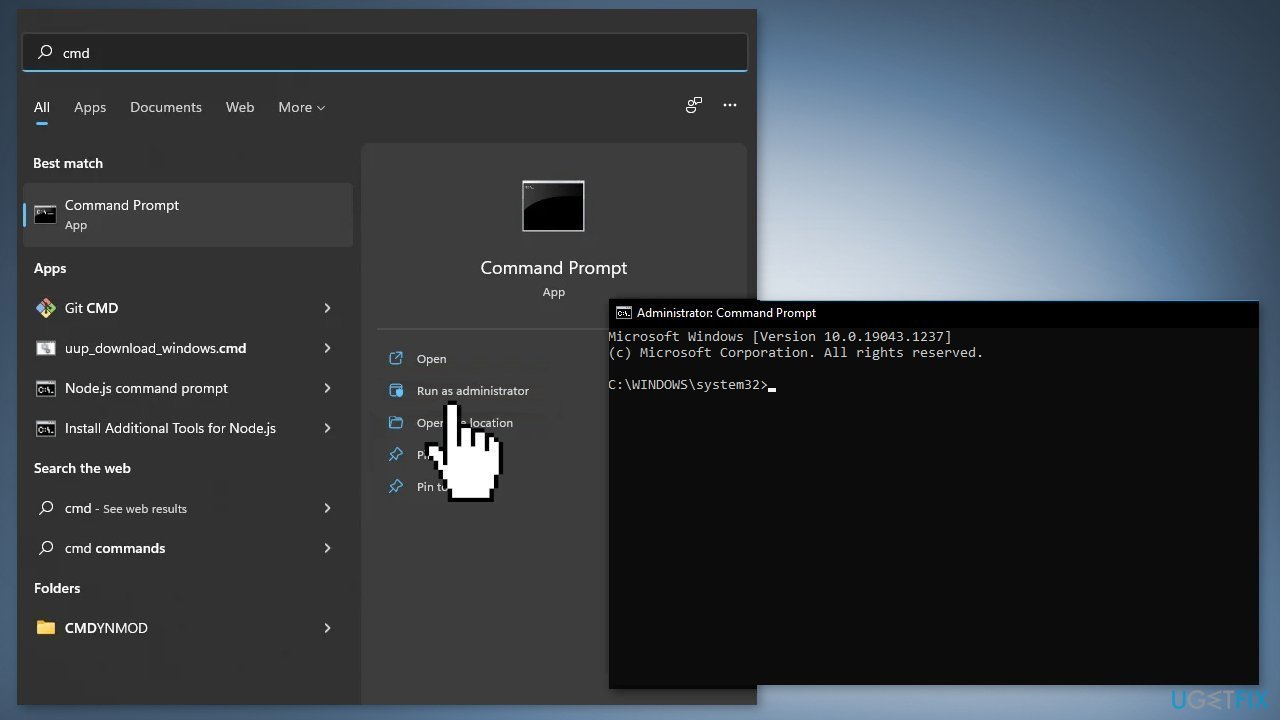
- Reboot your system
- If SFC returned an error, then use the following command lines, pressing Enter after each:
DISM /Online /Cleanup-Image /CheckHealth
DISM /Online /Cleanup-Image /ScanHealth
DISM /Online /Cleanup-Image /RestoreHealth
Solution 3. Reinstall Graphics Drivers
- Open Device Manager
- Expand Display adapters
- Right-click on your display adapter and select Uninstall device
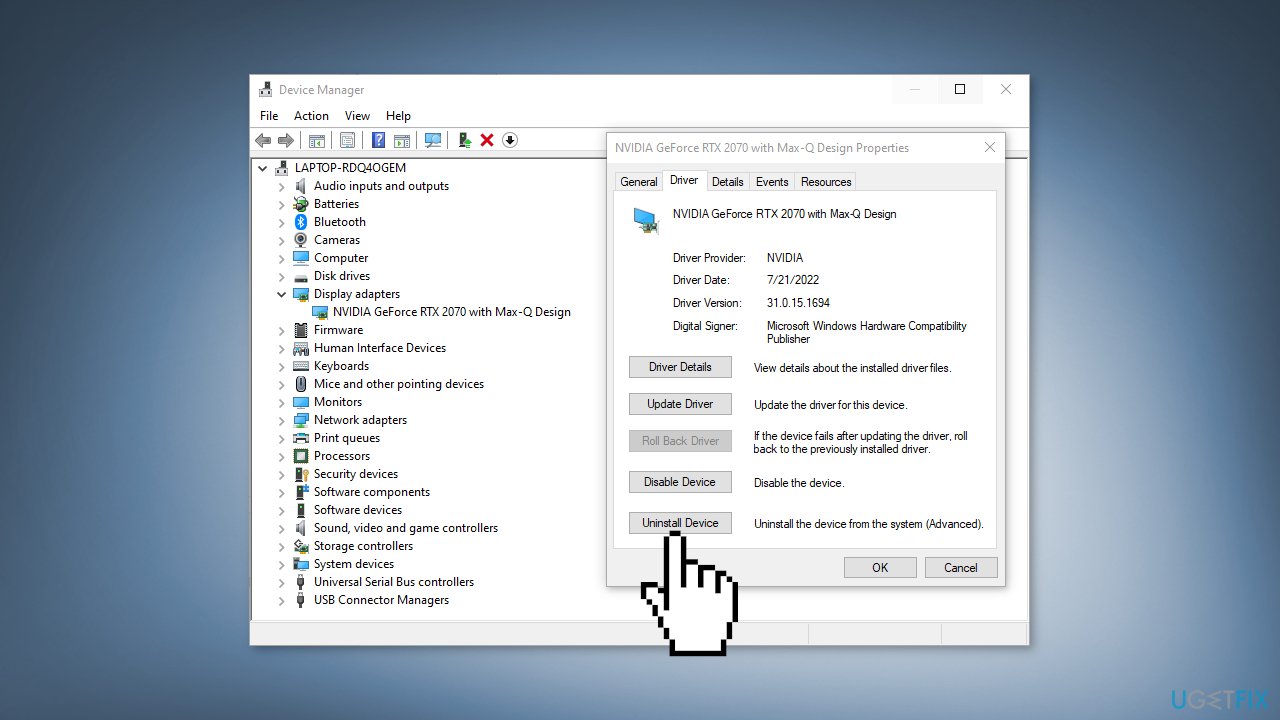
- Check the box next to Delete the driver software for this device
- Click Uninstall
- After the process is finished restart your system
- You can also use a dedicated utility like [rev id="DriverFix"]. It can find the best drivers for your machine and install them automatically
Solution 4. Use System Restore
System Restore allows users to reverse a Windows system to a previous point before any issues started occurring.
- Type in Create a System Restore Point in Windows search and hit Enter
- Click on System Restore
- Select Choose a different restore point (if available) and click Next
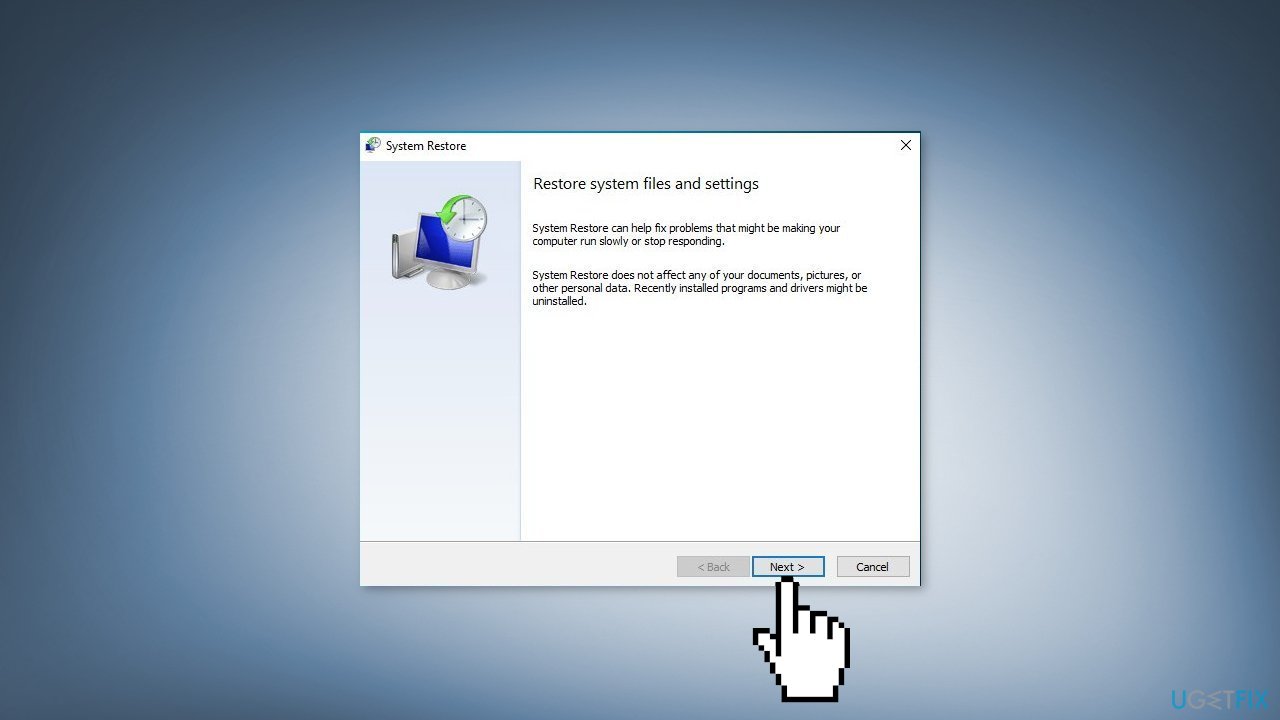
- Mark the Show more restore points checkbox
- Choose the date before you start experiencing the issue
- Click Next and reboot the system as required
Solution 5. Repair Install Windows
If none of the above methods worked, perform a repair install of Windows.
- Visit the official Microsoft website to download Windows 11 Installation Media
- Run the Media Creation Tool and select Create Installation Media for another PC
- Select your USB drive
- Let the Process complete of writing the Installation files to the USB drive
- Click Finish
- On the PC you wish to upgrade, Press Windows + E to open the File Explorer
- Open the Removable drive and click Setup.exe
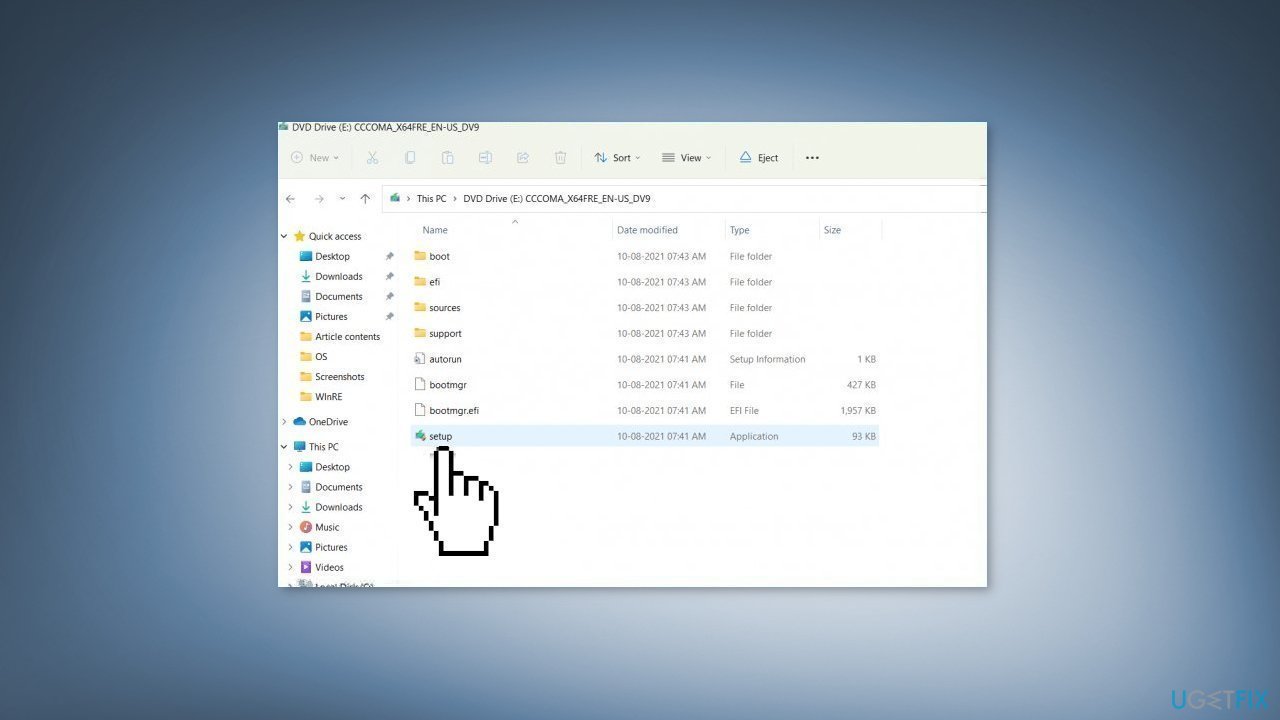
- Accept the license terms on the next screen
- Confirm the Upgrade options – Files, apps and Settings are kept
- Click Install, and the upgrade should start
Bottom line
To fix Intel Rapid Storage Technology crashes, you can update Windows, repair corrupted system files using Command Prompt, and reinstall graphics drivers. If these solutions do not resolve the issue, consider using a maintenance tool to fix system errors.
Frequently asked questions
First, ensure that you have the latest drivers for your Intel Rapid Storage Technology installed. If the issue persists, consider uninstalling and reinstalling the application from the Control Panel.
You can prevent crashes by disabling unnecessary features within the Intel Rapid Storage Technology settings or by updating your system to the latest Windows 11 version to ensure compatibility.
Yes, you can disable Intel Rapid Storage Technology if you do not require its features, but be aware that it may affect the performance of your storage devices.




Report an issue
What's wrong with this guide? We review every report and update or remove content.
Report received — thank you. We'll review and fix it.
You need a free account to submit a report.
Be the first to comment