How to fix
INTERRUPT_EXCEPTION_NOT_HANDLED BSOD
on Windows
Resolve the INTERRUPT_EXCEPTION_NOT_HANDLED BSOD error in Windows 10 effortlessly with our expert-tested solutions. Fixed in minutes!


What causes How to fix INTERRUPT_EXCEPTION_NOT_HANDLED BSOD in Windows 10?
- Affected files
- Corrupted drivers
- Damaged registry entries
- Issues from software installation
- Problems after OS updates
Repairs Windows system files, removes malware, and restores a clean OS state — without reinstalling.
I get the blue screen error. A few different ones actually, and is annoying. The message states that the OS cannot boot due to an interrupt exception. It goes fine, and the computer works smoothly when the error occurs. I manage to restart the system, but the issue repeats. I have no idea why it happens and how to solve the issue. Can you help?
INTERRUPT_EXCEPTION_NOT_HANDLED BSOD error in Windows is a common issue, unfortunately. The problem can be related to affected files or drivers on the system. But sometimes, update for drivers or troubleshooting do not do the job of fixing the issue.
People[ref en-1] state that this Blue Screen of Death[ref en-2] comes out of nowhere and that the message about a particular problem or even the code INTERRUPT_EXCEPTION_NOT_HANDLED is not showing up. The same BSOD in Windows 10 has a 0x803F7000 meaning. These system crashes can bring out panic and frustration, but if you manage to run the system normally - you can solve the problem easily.
This interruption exception error occurs because the system came across some damaged piece of the file. It can be related to registry entries, drivers, other files. When you update the operating system, some of those bugs[ref en-3] trigger the damage, or the update itself contains files that are not running properly.
INTERRUPT_EXCEPTION_NOT_HANDLED BSOD error can also appear after a fresh installation of software, hardware. It also triggers issues with various systems, not only Windows 10 version. However, reports show that these newest OS machines suffer from such errors more often.
The error can be fixed by running a tool with the purpose of recovering damaged files and pieces in system folders, for example. There are issues that such affected, corrupted pieces trigger, BSOD errors can be one of the problems. Run [d1] before you do anything else, and you can save some time for the manual solutions.
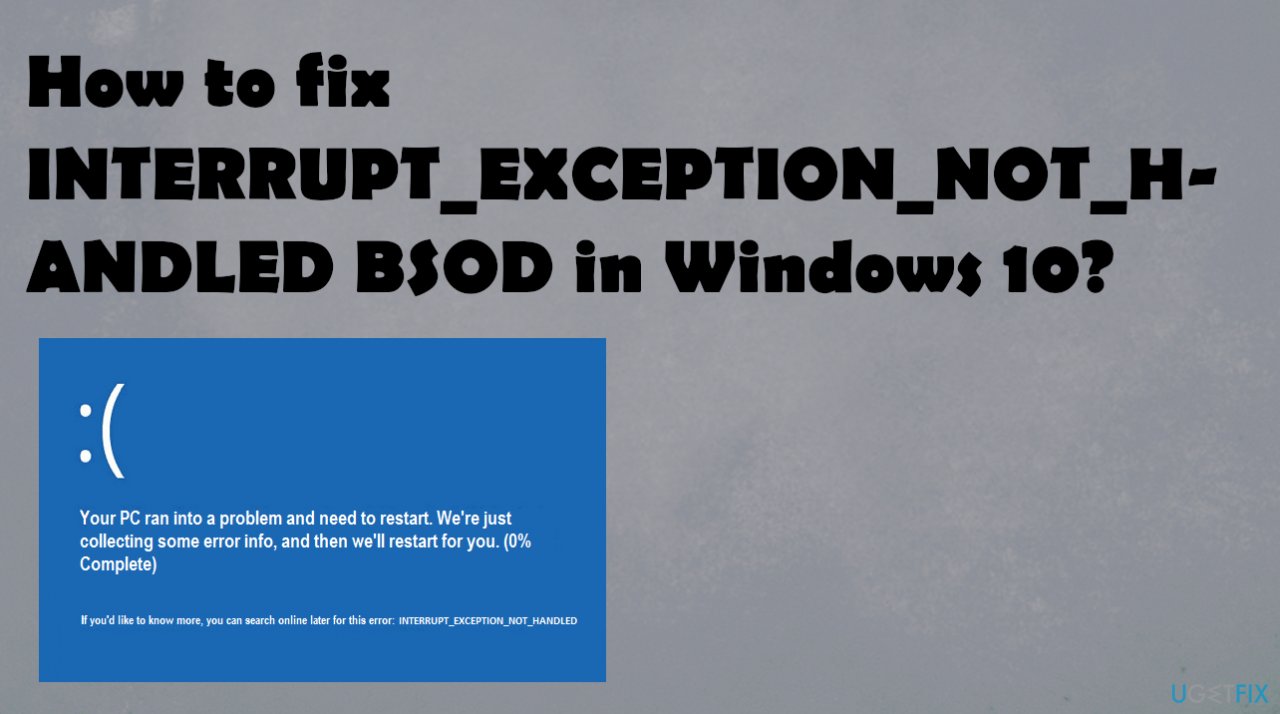
1. Run SFC scan
- Click Start and type cmd.
- In your search results, cmd should show up.
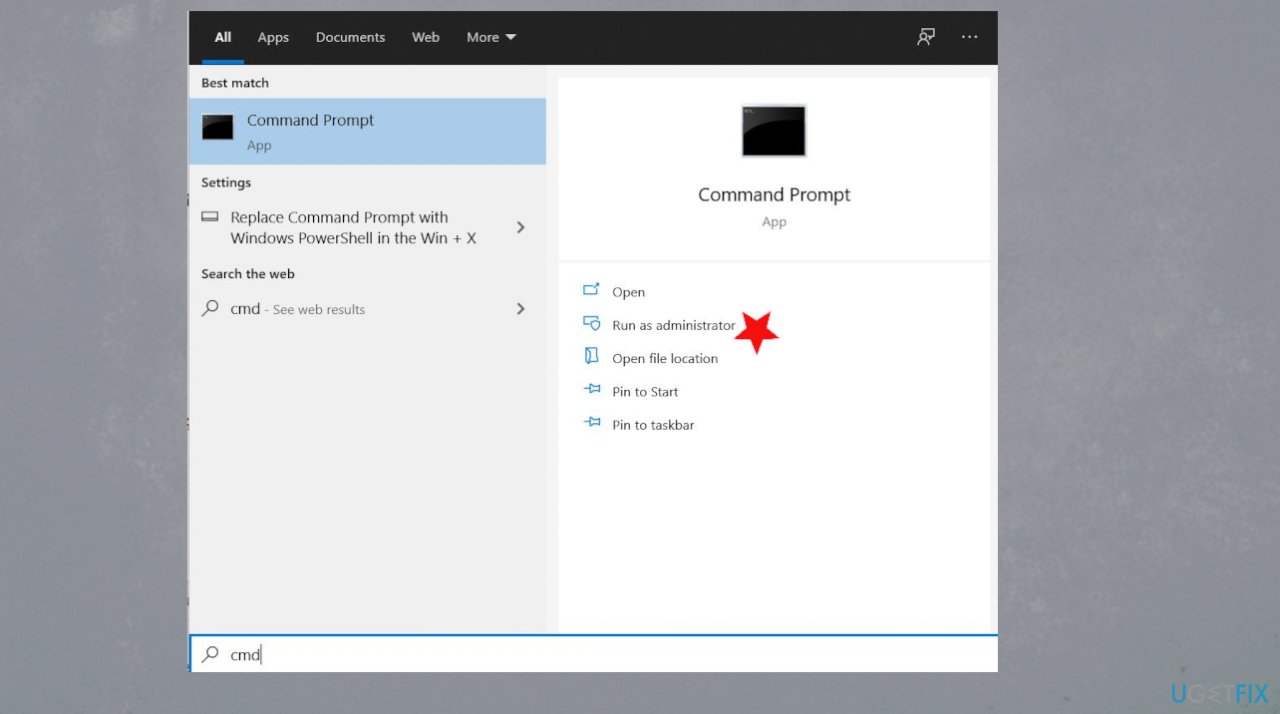
Interrupt exception not handled bsod in windows cmd - Click it and select Run as administrator.
- If you are prompted for the admin password, enter the password and click OK.
- Type
sfc/scannow and press Enter.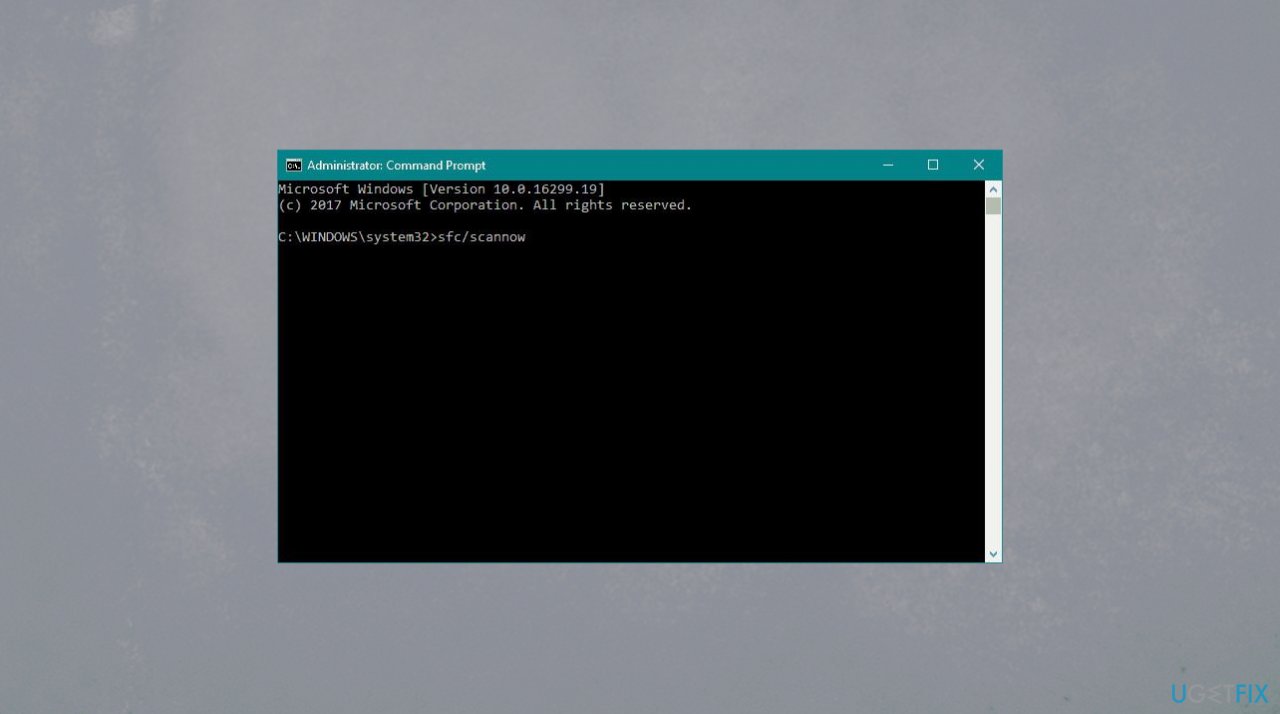
Interrupt exception not handled bsod in windows sfc - The process takes time, so wait until it is complete.
- Then reboot the PC.
2. Run DISM
- Right-click Start and open Command Prompt (Admin).
- Paste the following command and press Enter:
DISM /Online /Cleanup-Image /RestoreHealth - Wait until the scan is finished.
- Restart your computer.
3. Update drivers
- Open the device manager by holding down the Windows and R keys and putting devmgmt.msc in.
- Click OK.
- Go to chosen section and then expand it.
- You can choose graphics and other drivers that have exclamation points.
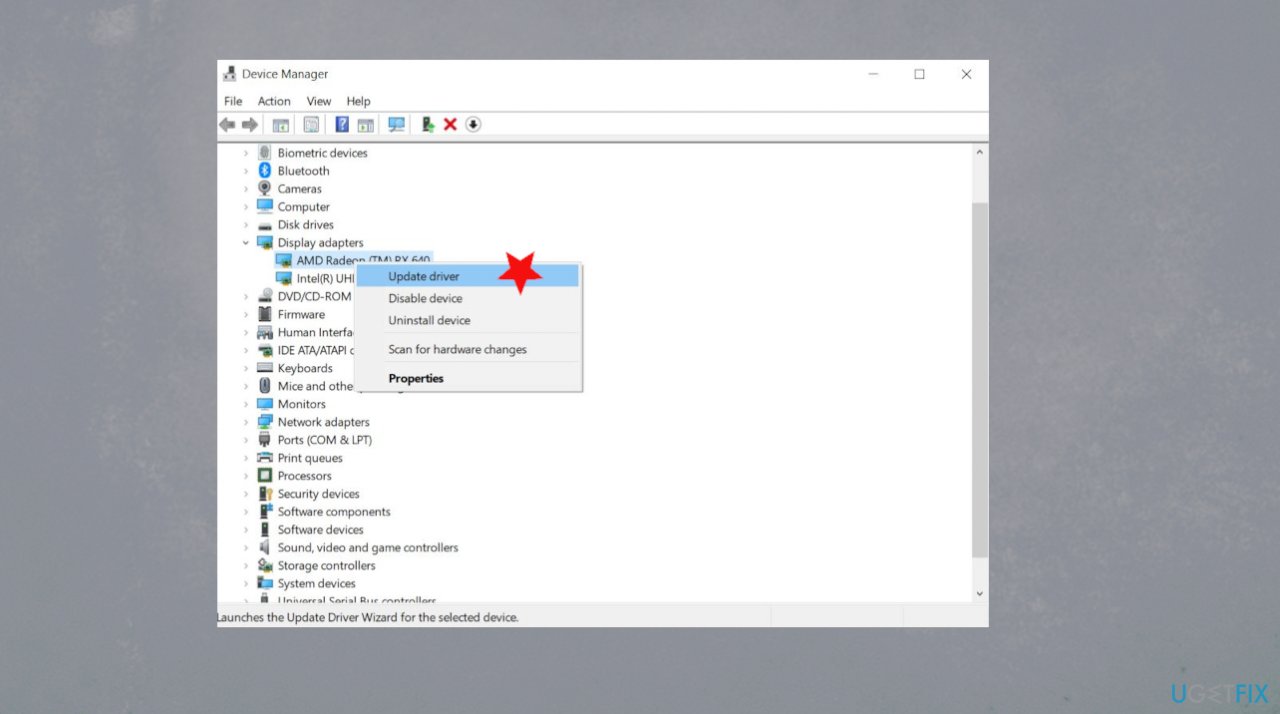
Interrupt exception not handled bsod in windows driver - Right-click on the drivers and then select Update Driver Software.
- Select Search automatically for updated driver software.
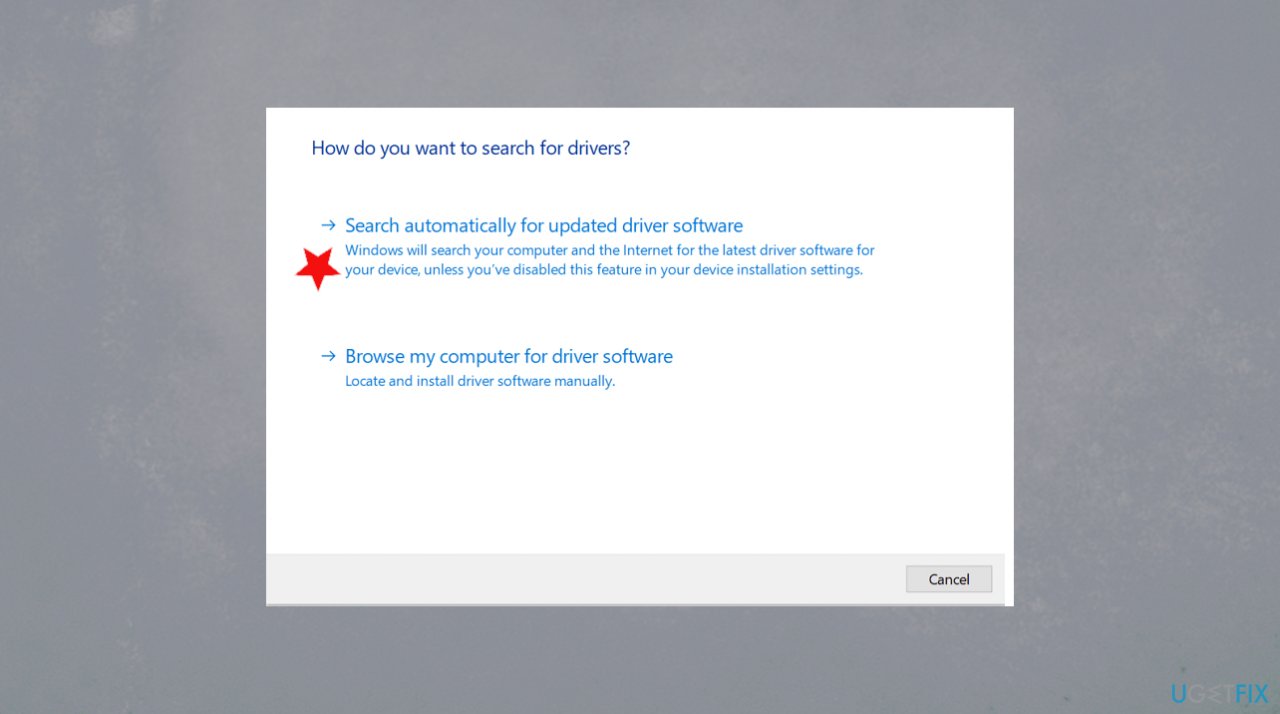
Interrupt exception not handled bsod in windows driver update - Your computer will search online for drivers and updates them.
4. Troubleshoot BSOD errors
- Open the Settings app and go to Update & Security section.
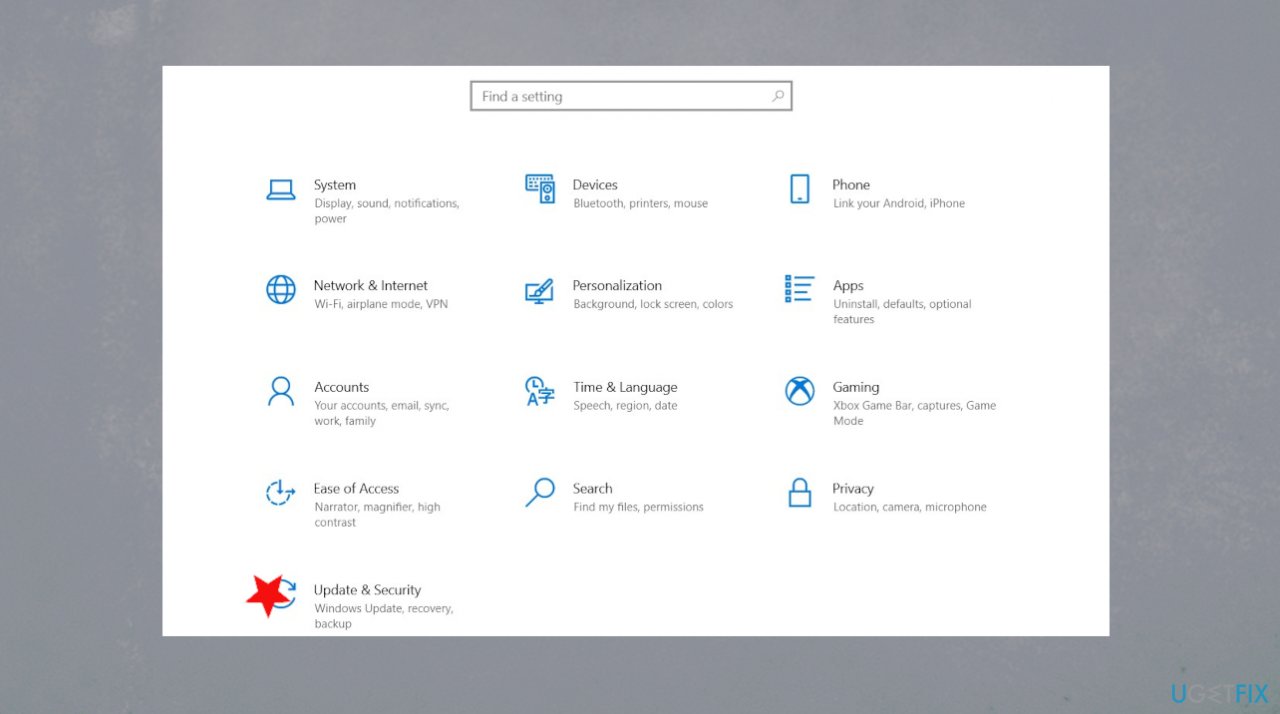
Interrupt exception not handled bsod in windows update security - Select Troubleshoot from the menu on the left.
- Select BSOD from the right pane and click Run the troubleshooter.
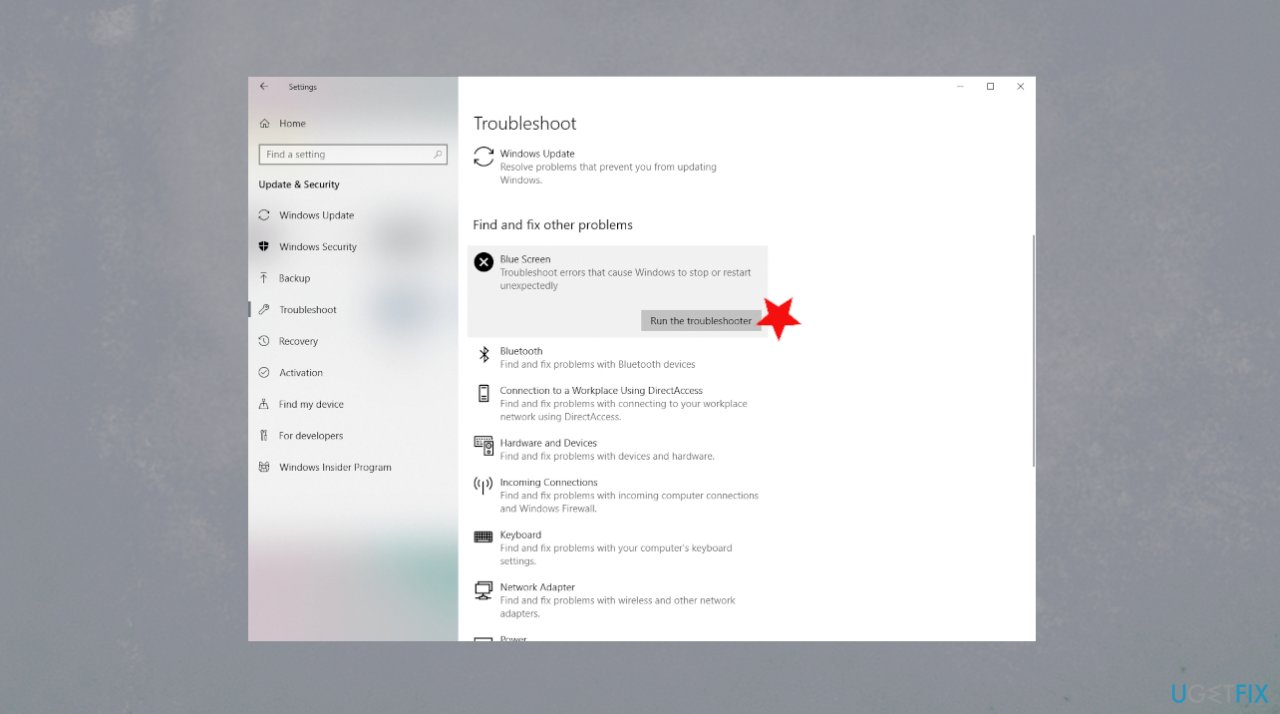
Interrupt exception not handled bsod in windows troubleshoot - Follow the process.
5. Make sure Windows OS update is the latest one
- Go to Settings.
- In the Settings window, click on Update & Security.
- Click on Check for updates and let it check for updates.
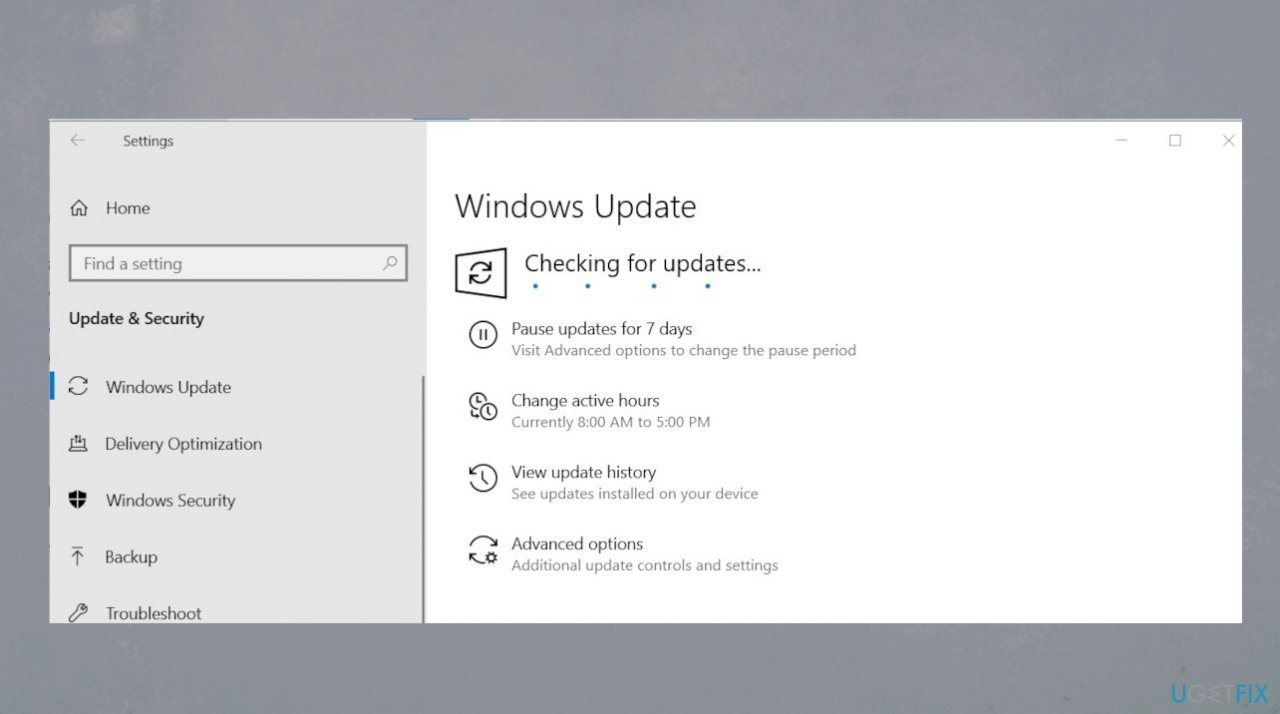
Interrupt exception not handled bsod in windows checking updates - If any updates found - install them.
Bottom line
To fix the INTERRUPT_EXCEPTION_NOT_HANDLED BSOD error, you can run an SFC scan to recover damaged files. If this does not resolve the issue, consider checking for driver updates or troubleshooting further. If none of these solutions work, you may need to explore more manual fixes.
Frequently asked questions
This BSOD error is typically caused by incompatible or outdated drivers, faulty hardware, or corrupted system files in Windows 10.
To troubleshoot this error on Windows 11, you can boot into Safe Mode, update your drivers, or perform a system restore to revert your system settings.
Yes, graphics, network, and storage drivers are often responsible for the INTERRUPT_EXCEPTION_NOT_HANDLED BSOD, especially if they are not updated or compatible with Windows 10 or Windows 11.




Report an issue
What's wrong with this guide? We review every report and update or remove content.
Report received — thank you. We'll review and fix it.
You need a free account to submit a report.
Be the first to comment