How to fix
Invalid Signature Detected
on Windows
Resolve the Invalid Signature Detected error on Windows 10 and 11 easily. Follow our expert-tested solutions for a smooth experience, fixed in minutes.


What causes How to fix Invalid Signature Detected?
- Invalid signature related to security policy
- Running a dual OS
- Upgrading to Windows 10
- Resetting BIOS to factory settings
- Connecting a new hard drive or SSD
Repairs Windows system files, removes malware, and restores a clean OS state — without reinstalling.
Hello, I was trying to update my Windows OS, and after it, my PC crashed, and I received the "Secure boot violation - invalid signature detected" error. Now all I see is a black screen which claims that I need some CD. I have no idea what is this and how to fix it, so I hope you guys could help me? My laptop is ASUS X550VX-MH71, and I am running Windows 10 if that helps.
Invalid Signature Detected error is not exclusive to Asus computers only and has been around for many years now. According to the error, the system cannot be booted because of invalid signature that relates to security policy. Most users who are not tech-savvy usually panic because they are unable to boot Windows as usual and consider the computer even broken. All they see is a UEFI of BIOS screen[ref en-1] which states the following:
Secure Boot Violation
Invalid signature detected. Check Secure Boot Policy in Setup
Ok
However, there is no need to be scared, as there are several ways to fix Invalid Signature Detected error without contacting tech support services or bringing the laptop the repair shop - these services are usually pretty pricey. In this article, we will provide you ways to fix "Secure boot violation - invalid signature detected" error by using a simple step-by-step guide.
The initial Invalid Signature Detected problem started with Windows 7 when Asus users applied the KB3133977 update. Initially, the patch was designed to prevent the encryption of drives on Windows 7 machines. While it fixes the problem, it causes a different issue to Asus computers, and users started seeing the Invalid Signature Detected error. The new issue was patched by Microsoft, but the error still prevails even in later versions of the OS.
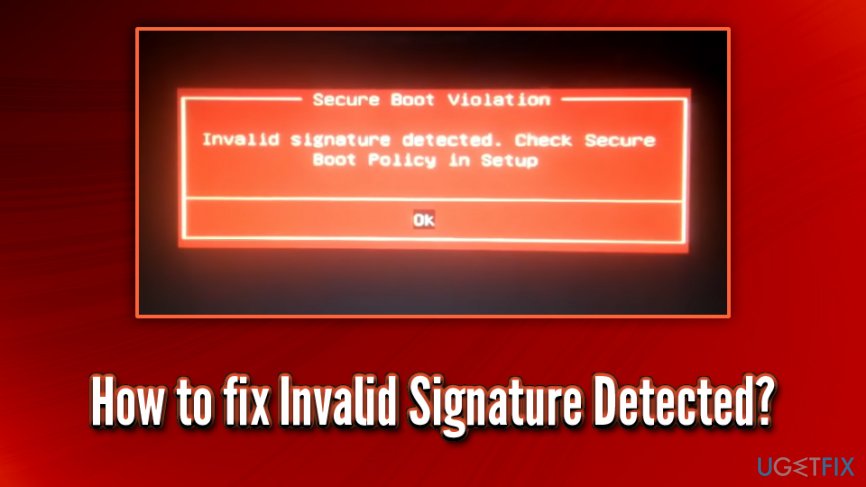
There are several other reasons why users encounter Secure boot violation - Invalid Signature Detected error. For example, when running the double OS, when upgrading to Windows 10, after resetting BIOS to factory settings or connecting a new hard drive (HDD) or a solid-state drive[ref en-2] (SSD), etc.
To prevent such problems in the future, we highly recommend using [d1] - the PC repair software that can also fix the existing issues on all versions of Windows.
So now, let's proceed with the Secure boot violation - invalid signature detected error fix - please follow the steps carefully.
Step 1. Enter BIOS of your device
To fix the Invalid Signature Detected error, you will have to enter BIOS of your laptop of the PC. BIOS is a firmware[ref en-3] configuration of the computer and handles hardware initialization process during the boot. Ways to enter the mode varies from machine to machine, but in most cases, you should be able to enter it by restarting the computer and then continually pressing F1, F2, Fn + F2 or Del key.
Nevertheless, you should be directed to the BIOS screen as soon as you press Ok on the error button window.
Step 2. Disable Secure Boot Control
- From the main tab, navigate to Security tab by pressing →
- Now press ↓ to reach Secure Boot menu
- Press Enter
- Select Secure Boot Control and then follow up by Disabled
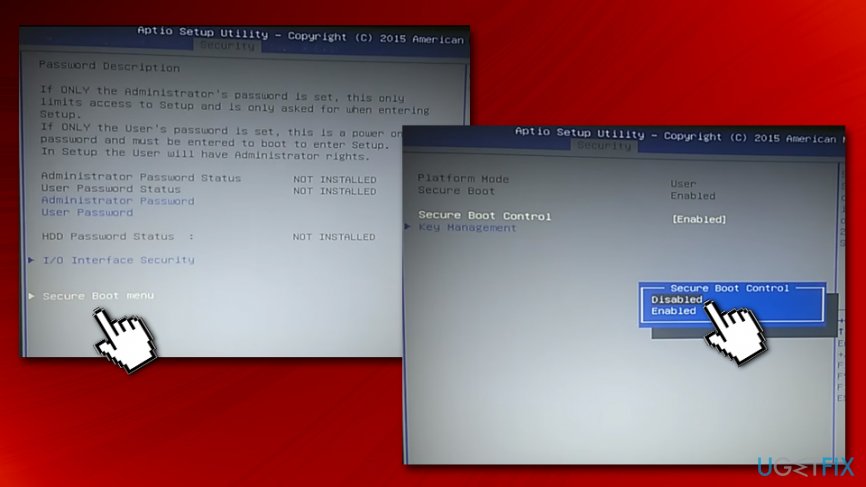
Invalid signature detected fix disable secure boot
Note: If you can see OS type option in this menu, make sure you set it to Other OS, even if you have Windows OS installed.
Step 3. Enable CSM and disable Fast Boot
- From Security tab go back up and select the Boot tab
- Select Fast Boot and hit Enter, then choose Disable
- Then pick Launch CSM and pick Enabled
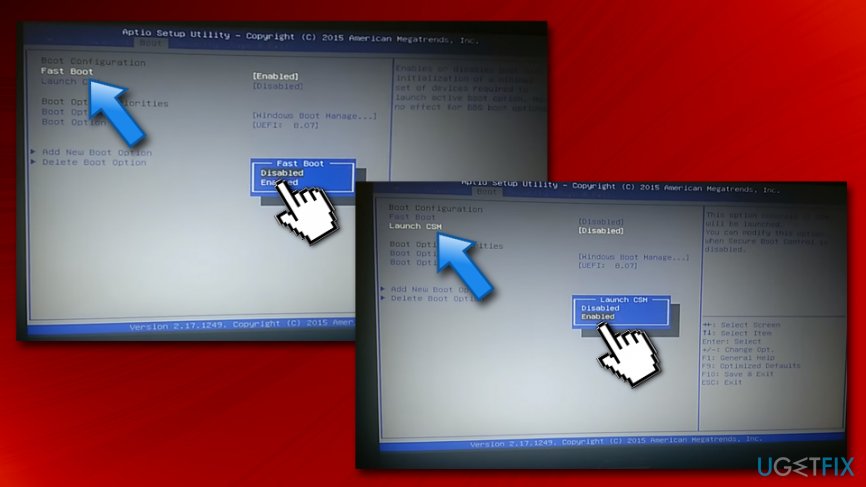
Invalid signature detected fix disable fast boot enable cms - Now, navigate to Save & Exit tab
- Select Save Changes and Exit and confirm with Yes
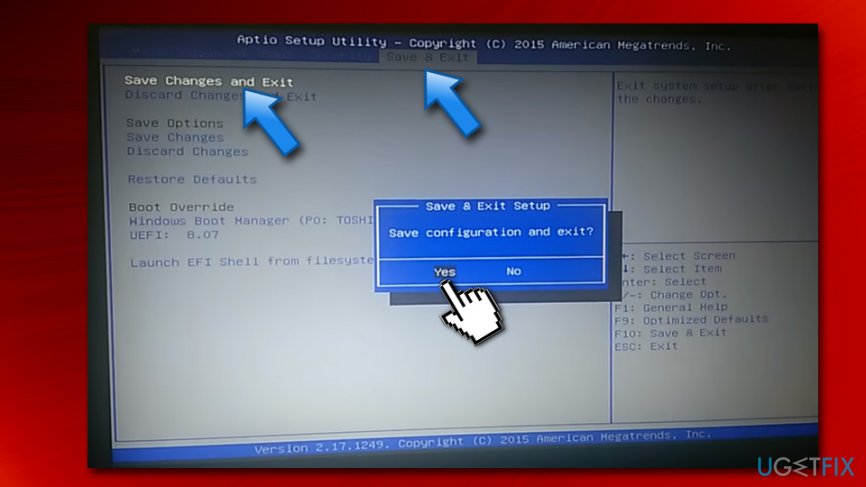
Invalid signature detected fix save changes and exit
Step 4. Enter Key management
If the previous steps did not solve your problem, the reason for Invalid Signature Detected error is the update performed on the UEFI/BIOS. To fix the issue, you will have to reset the keys.
- In the Bios, go back to Security tab
- Select Key Management
- Set all the keys to NOT INSTALLED
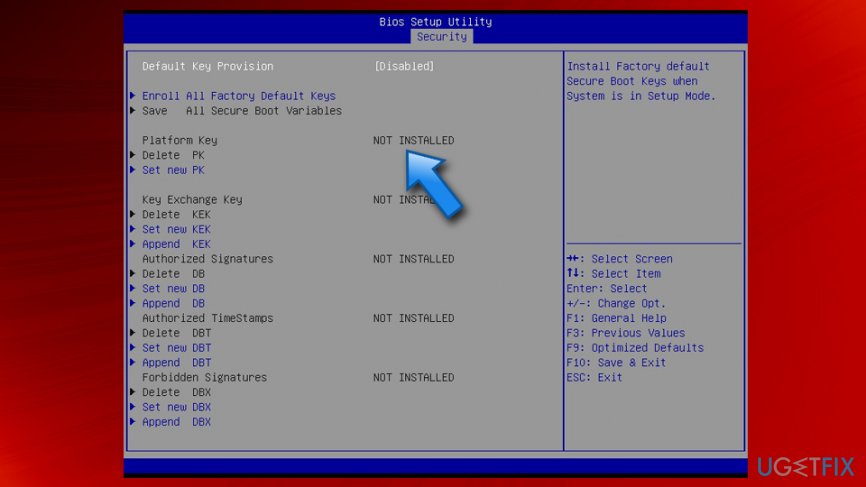
Invalid signature detected fix disable keys
Bottom line
To fix the 'Secure boot violation - invalid signature detected' error, you can try several methods including checking the Secure Boot Policy in BIOS, updating your system, or restoring factory settings. If these solutions do not resolve the issue, consider seeking professional tech support.
Frequently asked questions
This error indicates that a digital signature for a file or driver cannot be verified, potentially due to corruption or tampering. It can prevent certain applications or features from running properly.
You can try updating your drivers through Device Manager, running a system file check with 'sfc /scannow', or disabling driver signature enforcement temporarily to see if that resolves the issue.
To minimize the chances of this error, ensure that your Windows 10 is regularly updated and only install software or drivers from trusted sources.




Report an issue
What's wrong with this guide? We review every report and update or remove content.
Report received — thank you. We'll review and fix it.
You need a free account to submit a report.
Be the first to comment