How to fix
“Invalid Value for Registry” error when opening .jpg or .png files
on Windows
Resolve the "Invalid Value for Registry" error when opening .jpg or .png files on Windows 10 quickly with expert-tested solutions. Fixed in minutes!

What causes How to fix “Invalid Value for Registry” error when opening .jpg or .png files on Windows 10?
- Remnants of old registry entries
- Windows Photos app update
- Conflict between new and old registry entries
- Incompatibility with Microsoft Windows Photo app
Repairs Windows system files, removes malware, and restores a clean OS state — without reinstalling.
I’ve been using Windows 8 for about five years or so but got tempted to try Windows 10. I’ve upgraded to Windows 10 a couple of days ago and the first bug I was “honored” to get is "Invalid Value for Registry" when trying to open .jpg files. Consequently, I cannot open hundreds of photos on the system. I need to edit several of the urgently, but how could I do that if I can’t even open them to view?? Could someone help me ASAP?
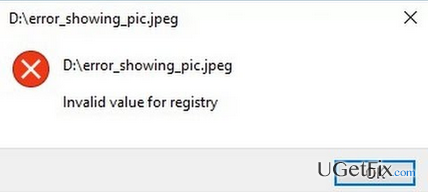
"Invalid Value for Registry" is a pop-up error, which prevails on Windows 10 OS. However, it’s not limited to this OS, so those who are using Windows 8, 8.1. or 7 may also encounter this issue. The "Invalid Value for Registry" error is thrown on the desktop when a PC’s owner attempts to open images having JPG or PNG file format. Typically, the images can be opened with the other photo viewer applications, except for Microsoft Windows Photo app. Unfortunately, the error message is not informative and it’s not possible to read anything along the lines since the message simply says:
C:\Users\User Name\Pictures\Windows 10.jpg
Invalid Value for Registry
There are no specific references to the programs or files that might be the culprit, so it may seem to be difficult to address the problem. Nevertheless, Windows experts point out that the reason for "Invalid Value for Registry" error to appear is most likely to be the remnants of the registry entries. In this case, it might be that the Windows Photos app has been updated, but its old registry entries were left intact. Consequently, the new and old registries crash throwing the "Invalid Value for Registry" error, which prevents Windows Photo app from opening files. To fix this situation, try the method described below.
How to Fix "Invalid Value for Registry" when opening .jpg or .png files on Windows 10?
Since the culprit of "Invalid Value for Registry" error is related to registry entries, we would highly recommend you to install [d1] and try running a scan with it. This program is a PC optimization tool, which primarily targets Windows Registry and checks it for corrupted, damaged or outdated entries. Therefore, the tool might automatically delete outdated Windows Photo app registry keys, so you may not need further intervention. If this program did not help to fix "Invalid Value for Registry" bug or you are not willing to install it, you may try to work around this bug manually. For that, please refer to the following steps:
- Log on to your PC as administrator.
- Click Win key + R, type regedit, and press Enter.
- Use the left pane and navigate to the HKEY_CURRENT_USER\Software\Classes\Local Settings\Software\Microsoft\Windows\CurrentVersion\AppModel\Repository\Families\Microsoft.Windows.Photos_8wekyb3d8bbwe directory.
- Here you should see several entries each of which has a version number, for example, Microsoft.Windows.Photos_15.1201.10020.0_ or similar. If this folder contains 8 Microsoft Windows Photos App entries, it means that the outdated registry keys have been left intact after the application update. Therefore, the outdated keys have to be removed. (In some cases, people have 4 entries, two of which are outdated. In this case, the old two should also be removed.)
- Select the outdated entry, right-click on it, and open Properties.
- Select Security and open Permissions tab.
- Click Advanced in Select User or Group window.
- Select Find Now, pick your user name, and click OK. Steps 5-8 explain how to take the property of the obsolete entry. Without doing so, you won’t be allowed to delete the outdated entries.
- Once done, right-click on the outdated entry and select Delete.
- Repeat the same steps with each four outdated Windows Photos Apps’ entries.
- Finally, close everything and reboot your PC.
In case you still can't open .jpg files after removing registry leftovers, try to reinstall Windows Photos App using an elevated PowerShell. For this purpose, click Win key, type Powershell, and press Enter. Type Get-AppxPackage *windows.photos* | Foreach {Add-AppxPackage -DisableDevelopmentMode -Register "$($_.InstallLocation)\AppXManifest.xml"} and press Enter. Let the command to be executed and then reboot your PC to save the changes.
Bottom line
To fix the 'Invalid Value for Registry' error, it is recommended to install a PC optimization tool and run a scan to address the registry issues. If this does not resolve the problem, consider using alternative photo viewer applications to access your images.
Frequently asked questions
This error typically occurs due to incorrect registry entries that are associated with the default image viewer settings for .jpg or .png files.
You can fix this error by accessing the Windows Registry Editor, navigating to the relevant keys, and ensuring that the default values for image file types are correctly set.
To prevent this error in Windows 11, regularly check for updates and ensure that your default apps for image files are correctly configured in the Settings app.




Report an issue
What's wrong with this guide? We review every report and update or remove content.
Report received — thank you. We'll review and fix it.
You need a free account to submit a report.
Be the first to comment