How to fix
INVALID_PROCESS_ATTACH_ATTEMPT (0x00000005) error
on Windows
Resolve the INVALID_PROCESS_ATTACH_ATTEMPT (0x00000005) error on Windows 10 effortlessly with expert-tested solutions and visual aids. Fixed in minutes!

What causes How to fix INVALID_PROCESS_ATTACH_ATTEMPT (0x00000005) error on Windows 10?
- Corrupt drivers
- Hardware failure
- Incompatible programs
- Corrupt system files
Repairs Windows system files, removes malware, and restores a clean OS state — without reinstalling.
Hi, I am experiencing an annoying issue with my laptop. Ever since I installed Windows 10, my computer randomly freezes while I am using it and keyboard inputs do not work (like CTRL + ALT + DEL or CTRL + SHIFT + ESC). I am left with no options, and I have to restart. After the reboot, I face the INVALID_PROCESS_ATTACH_ATTEMPT error, and I need to restart again. In some cases, I can not even get to use my PC, as it loads the Blue Screen still. Please help, I am so frustrated about this!
INVALID_PROCESS_ATTACH_ATTEMPT (0x00000005) error is a stop error, otherwise known as Blue Screen of Death (BSoD).[ref en-1] This means that your computer encountered a critical error and could not continue operation, so it had to shut down all the processes to prevent damage.
In some cases, the STOP 0×00000005 error can be a one-time issue, and everything can return back to normal after a reboot. However, many users reported to encounter it several times after their computer freezes. Therefore, certain troubleshooting needs to be done in order to fix INVALID_PROCESS_ATTACH_ATTEMPT error on your device.
The INVALID_PROCESS_ATTACH_ATTEMPT error is prevalent on Windows 10, 8, 7 and XP machines and can occur at any time - during system startup or shut down, as well as during the operation or opening of applications. The message states the following:
INVALID_PROCESS_ATTACH_ATTEMPT
STOP: 0x00000005
There are several reasons for the STOP 0×00000005, but is most likely caused by corrupt drivers,[ref en-2] although hardware failure, incompatible programs (like third-party anti-virus software), or corrupt system files can be related to it as well. Therefore, perform the following steps to fix INVALID_PROCESS_ATTACH_ATTEMPT error on your Windows 10 machine.
Protip: If you want to get rid of various Windows errors automatically, you should download and install [d1]. This repair software is capable of fixing all corrupt files on Windows operating systems by replacing them with brand new ones, stored on the internal database. The scan is free, however, to perform a full repair, you will have to purchase a licensed version of the program.
This video will help you with this issue:
[youtube ExZAzFwWLrk]
Step 1. Get rid of Synaptics TouchPad driver
Many users who encountered INVALID_PROCESS_ATTACH_ATTEMPT error reported that the culprit was Synaptics touchpad driver on their HP laptops.[ref en-3] This driver comes pre-installed and might cause the error. Therefore, uninstalling it would help to solve the issue:
- Click on Start button and type in Control Panel
- Under Programs, select Uninstall a program
- Scroll down and locate Synaptics touchpad driver
- Right-click on it, pick Uninstall and follow on-screen instructions
- Restart your PC
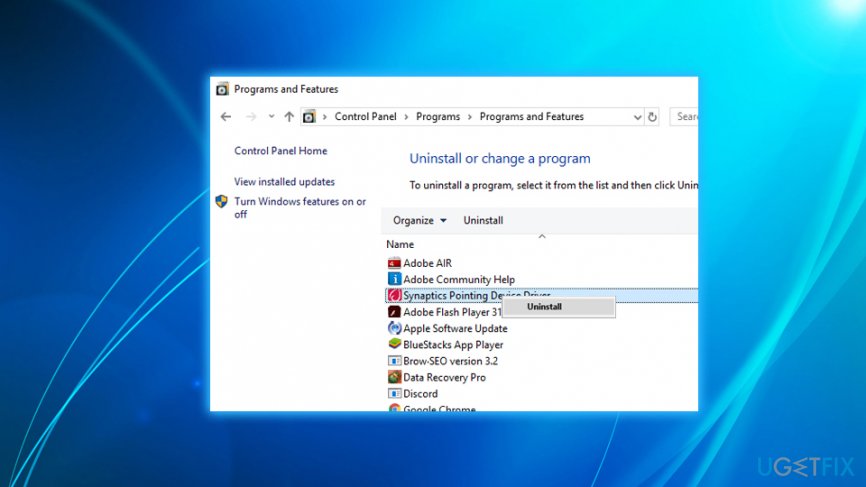
Invalid process attach attempt error uninstall synaptics driver
If your computer performs normally again, go ahead and download the latest driver from computers manufacturer's website.
Step 2. Update Windows operating system
While in most cases you should be running the latest version of Windows, there is a chance that the automatic update function is off. Thus, check for the newest Windows updates:
- Click on Start button and type in Windows Update, click to open Settings
- Click on Check for updates
- Wait till Windows configures and installs latest updates
- Restart your PC
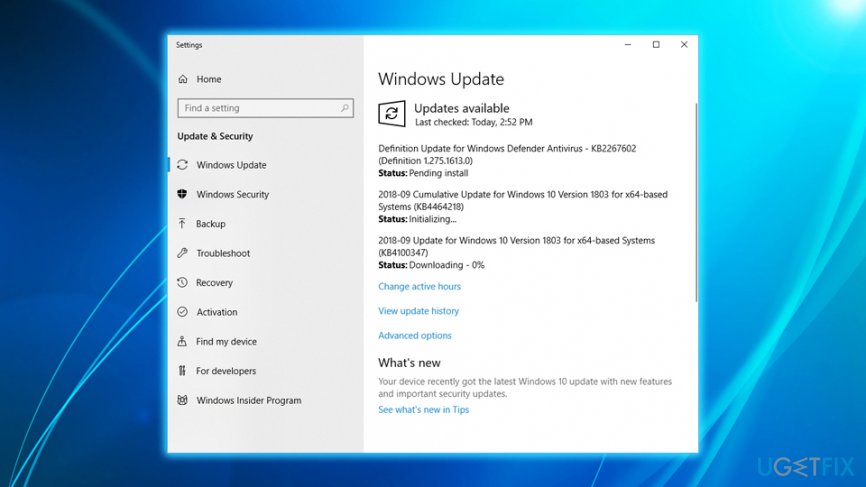
Invalid process attach attempt check for windows updates
Step 3. Disable your Anti-virus software
Users reported that disabling the anti-malware program helped them to fix INVALID_PROCESS_ATTACH_ATTEMPT (0x00000005) error:
- Press Ctrl + Shift + Esc to enter Task Manager
- Locate the running anti-virus process, right click on it and press End Task
- Go to Control Panel > Uninstall a program again
- Find the anti-virus software installed on your PC and follow the uninstallation steps as explained above
Step 4. Get rid of recently installed programs
The malfunctioning software can be a reason for stop error occurrence. Thus, you should uninstall recently installed applications the following way:
- Press Windows Start button and type in Apps & Features
- At the top of the list make sure you sort apps by Installation date
- Click on recently installed app and select Uninstall
- Follow the uninstallation instructions
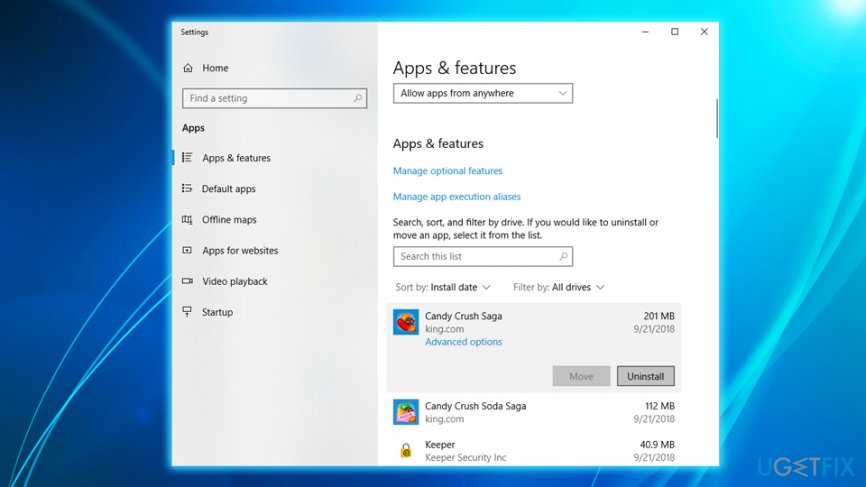
Invalid process attach attempt uninstall recent apps
Step 5. Use System File Checker feature
Windows has an excellent built-in tool that can detect issues related to system files and fix them automatically. To use it, follow these steps:
- Type in Command Prompt or cmd into the search box
- Pick Command Prompt from the results, right-click and pick Run as administrator
- Next, type in sfc /scannow and hit Enter
- Wait till the scan is complete. If Windows finds any issues it will let you know
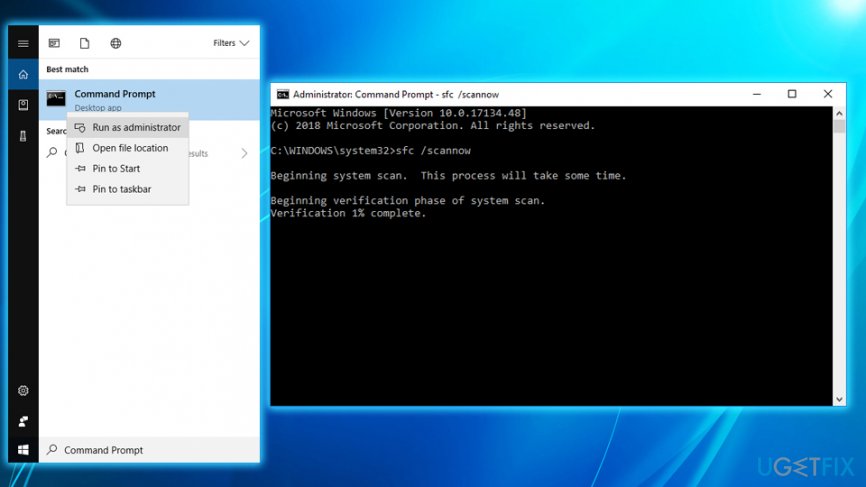
Invalid process attach attempt run system file checker
Step 6. Reinstall Windows
If none of the solutions worked for you, you would have to re-install Windows from scratch. Nevertheless, you can still keep all your files if you are using Windows 10.
Bottom line
To fix the INVALID_PROCESS_ATTACH_ATTEMPT error on your Windows 10 machine, you should troubleshoot by checking for corrupt drivers, removing incompatible programs, and repairing corrupt system files. If these steps do not resolve the issue, consider using repair software to fix corrupt files or seek further technical assistance.
Frequently asked questions
This error typically occurs due to issues with device drivers, third-party applications, or conflicts with system files. It can also arise when trying to attach a debugger to a process that does not allow it.
You can start by updating your drivers, performing a system scan with the built-in Windows tools, and checking for any problematic third-party applications. Additionally, consider running Windows in Safe Mode to identify the issue.
To prevent this error, ensure all your device drivers are up-to-date and regularly maintain your system by running updates and scans. It's also advisable to avoid installing unverified third-party software.




Report an issue
What's wrong with this guide? We review every report and update or remove content.
Report received — thank you. We'll review and fix it.
You need a free account to submit a report.
Be the first to comment