How to fix
IPhone not showing up on my computer
on Windows
Resolve the issue of your iPhone not appearing on your Windows 10 or Windows 11 computer quickly and easily. Expert-tested solutions included!

What causes How to fix iPhone not showing up on my computer?
- iPhone is not compatible with Windows computers
- iTunes is not detecting the iPhone
- USB port or cable issues
- iOS device is locked or on sleep mode
- Operating system or iTunes is not up to date
Repairs Windows system files, removes malware, and restores a clean OS state — without reinstalling.
Hello, I have the issue that is bothering me for a week or so. I want to see photos and videos from my iPhone on my computer, but it doesn't show up as a portable device, and I can't get my PC to recognize it. The USB port is okay and works with other devices, makes the noise of connection, but the iPhone is not appearing on the system. Is there anything that I can do?
The issue with the iPhone not showing up on the computer is a problem that people[ref en-1] complain about often. There are some particular reasons and frustrations. In most cases, the issue is related to the fact that the iPhone is a product from Apple, and Windows computers are not that compatible with these devices or iTunes and other services needed. iPhone not showing up in iTunes is one of the more common issues in particular.
When iTunes or computer doesn't detect your iPhone, there are many things that can trigger the problem. You need to use this feature if you want to access photos or videos stored on the phone. Sometimes you can see the device in iTunes, but Portable Devices do not show the iPhone for you. This issue with recognition can be related to mobile device problems, USB port or cable, or even connectivity and drivers.[ref en-2]
If iPhone not showing up in iTunes it may be the case that your OS or iTunes is not up to date. You may fix the iPhone not showing up on the computer problem by installing the latest updates. You can even try reinstalling iTunes to ensure that everything is okay on this end.
When the iPhone owners complain about the issue with iPhone not showing up in iTunes Mac, there might be some simple factors that can solve the problem quickly. Unlocking the iOS device can prompt the recognition or affect the connectivity when the iPhone is on sleep or locked still when you connect it to the computer.
Of course, the simple but important thing is the cable itself or general reboot of the machine. Restarting the computer or.and the iPhone may fix various issues without any interference with settings. Broken cable or faulty drivers can be easily fixed, so you no longer experience iPhone not showing up on PC error.
How to fix iPhone not showing up on my computer
If you have the iPhone not showing up on my computer issue on the Windows operating system, causes can be lighting cable, USB port malfunction or damage, Apple Mobile Device Drivers that can get corrupted or outdated pretty quick. Unfortunately, there is an issue of malware[ref en-3] or corrupted application, conflicts between similar programs. Sometimes [d1] or similar tools can help with the application, file, and cyber intruder problems. Also, if you accidentally clicked on Don't Trust option during any other time you connected the two devices the problem with recognizing the iPhone may occur. Below are all the more difficult steps that you can take to fix the iPhone not showing up on the computer.
Install the latest updates to fix iPhone not showing up on my computer
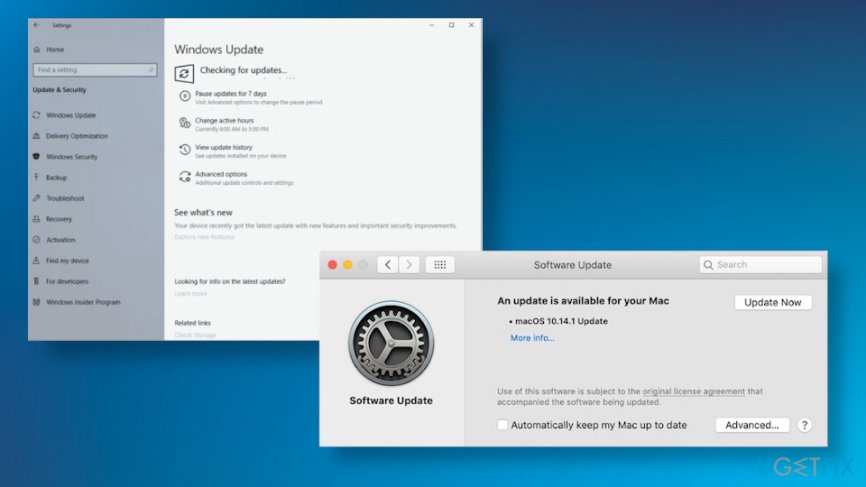
- Open Control Panel and Choose Windows Update to search for a more recent OS version.
- Install updates to complete the task and check if you see the iPhone under This PC.
- If you run an older version, not Windows 10, you may need to locate to settings and Update&Security section where you can Check for updates.
- You should do the same with your iPhone since an outdated Apple Mobile Device USB driver can cause the problem. Go to Apple support and search for the latest driver compatible with the version of Windows or the OS your PC is running on.
How to fix iphone not showing up on my computer updates
Fix iPhone not showing up on my computer in Device Manager
- Press Windows key and X together and then select Device Manager.
- Choose Portable Devices and right-click on Apple iPhone, select Update Driver Software from the drop-down menu.
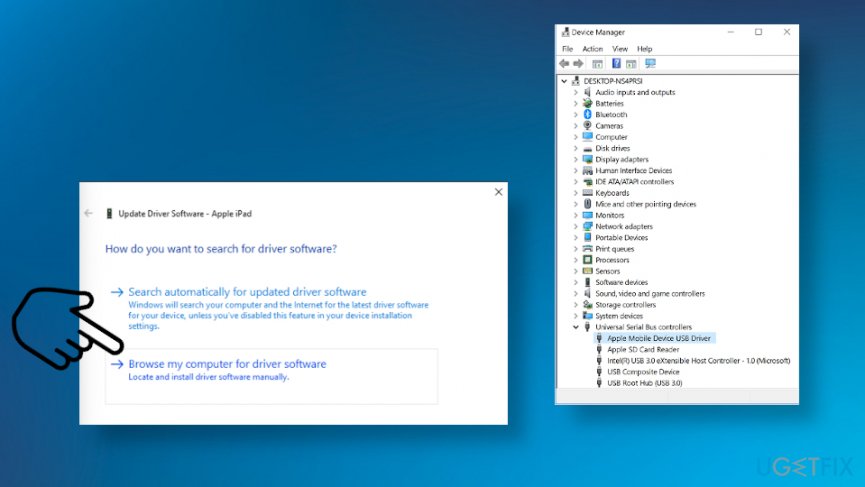
How to fix iphone not showing up on my computer drivers - Choose Browse my computer for driver software and select Let me pick from a list of device drivers on my computer.
- Install the appropriate driver and reboot the PC.
Reset your Location & Privacy settings to fix iPhone not showing up on my computer
- If you have pressed Don't trust button by accident, your device is not recognized and cannot show up nor on iTunes nor on the computer. Go to Settings on your iOS device and choose general.
- Tap Reset Locations & Privacy.
- Next time you plug in the device, the Trust This Computer should be chosen.
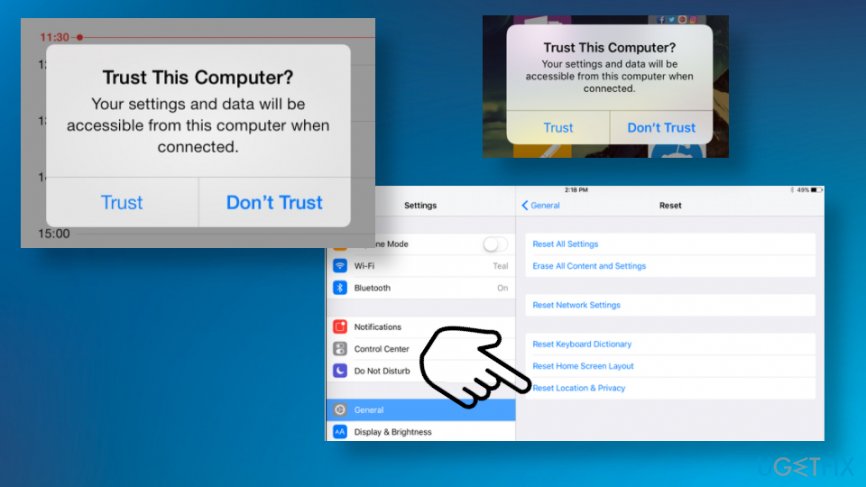
How to fix iphone not showing up on my computer reset location privacy
Bottom line
To fix the iPhone not showing up on the computer, ensure that your OS and iTunes are updated, try reinstalling iTunes, and unlock the iPhone when connecting. If these solutions do not work, consider checking the USB cable and port for issues.
Frequently asked questions
Your iPhone may not appear in File Explorer due to outdated drivers or issues with the USB connection. Ensure that you have the latest version of iTunes installed on your Windows 10 computer and that your iPhone is unlocked when connecting.
To fix your iPhone not being recognized on Windows 11, try using a different USB cable or port, and check if your iPhone is trusted by tapping 'Trust' on the prompt that appears on your device.
If your iPhone is not detected after a Windows 10 update, reinstall the Apple Mobile Device USB driver from Device Manager and restart both your computer and iPhone.




Report an issue
What's wrong with this guide? We review every report and update or remove content.
Report received — thank you. We'll review and fix it.
You need a free account to submit a report.
Be the first to comment