How to fix
IRQL_GT_ZERO_AT_SYSTEM_SERVICE error notification
on Windows
Resolve the IRQL_GT_ZERO_AT_SYSTEM_SERVICE error on Windows 10 quickly and efficiently. Expert-tested solutions for a hassle-free experience.

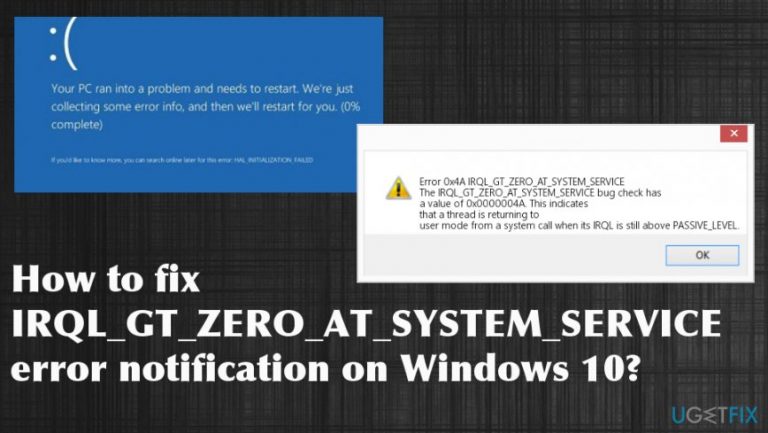
What causes How to fix IRQL_GT_ZERO_AT_SYSTEM_SERVICE error notification on Windows 10?
- Faulty hardware
- Software corruption
- Corrupted software
- Outdated drivers
- Damaged drivers
- Incompatible drivers
Repairs Windows system files, removes malware, and restores a clean OS state — without reinstalling.
Hey. My computer has crashed to IRQL_GT_ZERO_AT_SYSTEM_SERVICE error page 4 times already and it has only been a week since I’ve installed the latest Windows update. I can’t find any pattern to explain what could be causing this issue, not to mention fixing it. I hope you can help me fix this issue?
The Windows error IRQL_GT_ZERO_AT_SYSTEM_SERVICE is the issue either caused bu the faulty hardware or software corruption. In some instances, the error can keep you from accessing the desktop pr mess the computer entirely. The error code that is displayed on the pop-up message and other information can determine the particular reasons and help to determine the method for repair.
IRQL_GT_ZERO_AT_SYSTEM_SERVICE is a BSOD (blue screen of death) error which may appear on the system due to a variety of reasons.[ref en-1] Generally, BSoD errors have become a common problem among the new Windows 10 users and are also reported after the latest updates or even on the older versions of Windows.[ref en-2]
For instance, Anniversary Updates get often followed by a bunch of smaller cumulative updates and receive hundreds of tech support inquiries. Unfortunately, these issues might continue up until the major upgrades and fixes.[ref en-3] Thus, we have prepared this concise guide to fix or at least bypass the IRQL_GT_ZERO_AT_SYSTEM_SERVICE issue to be able to use your computer interrupted by unexpected system crashes.
If this error is not fixed and perpetuates to occur, it may have some negative impact on the computer’s performance and health. Besides, BSoD errors are known as instigators of data loss and system instabilities. System instability is directly associated with the system’s vulnerability to other malfunctions and cyber threats so, surprising as it sounds, IRQL_GT_ZERO_AT_SYSTEM_SERVICE errors may become a gateway for various malware, viruses, and worms. To shut down these risks, we have prepared a few fix solutions which you will find below. 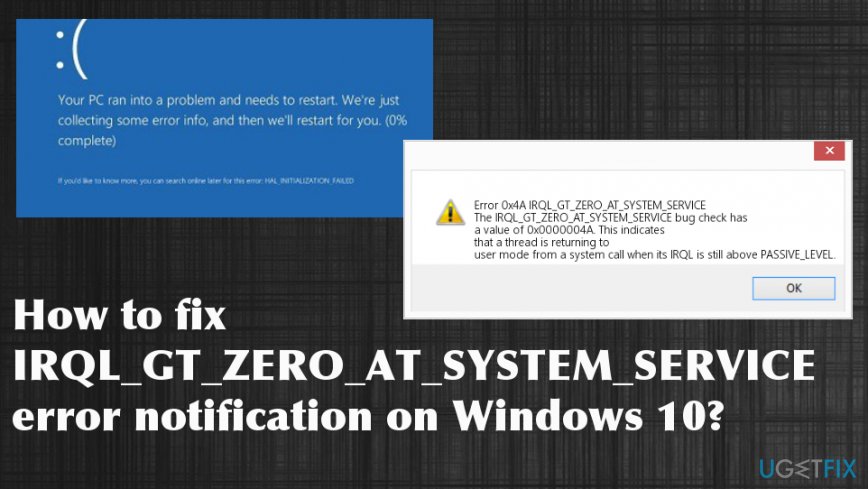
How to fix IRQL_GT_ZERO_AT_SYSTEM_SERVICE error notification on Windows 10
Returning to the IRQL_GT_ZERO_AT_SYSTEM_SERVICE error itself, we should note that this notification may be caused but is not limited to corrupted software, outdated, damaged, or incompatible drivers. Also, it may signal trouble with hardware. However, to determine the real cause of the problem it is necessary to scan the device with specialized tools, for instance [d1].
When updating your software, you should not forget to go through the list of installed drivers and make sure they are all compatible with the related hardware and are not outdated. If you notice warning notifications next to any of the drivers, investigate it immediately and take action accordingly. When your system is well balanced and running smoothly, you should not see IRQL_GT_ZERO_AT_SYSTEM_SERVICE errors anymore.
Check for Windows Updates
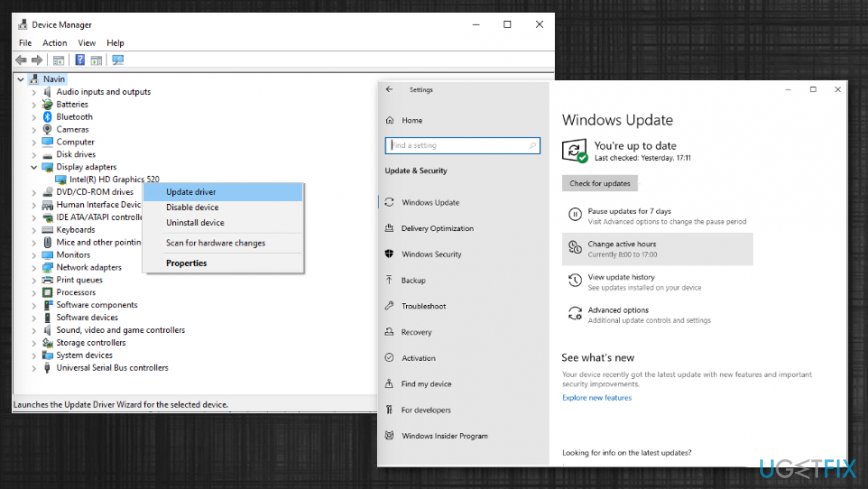
Since errors like IRQL_GT_ZERO_AT_SYSTEM_SERVICE are usually caused by outdated software or incompatible hardware, we suggest keeping both of these areas up-to-date by regularly checking for the latest updates and running the automatic Windows Update. System and software updates often patch the problematic areas that might be causing errors, so, checking whether your software and system are running according to the latest configuration should be the first step in an attempt to remove IRQL_GT_ZERO_AT_SYSTEM_SERVICE error.
- Go to Device Manager or access Settings to check for updates of the OS.
- You can also update drivers and other software to repair additional issues related to applications.
Uninstall recently added software to fix IRQL_GT_ZERO_AT_SYSTEM_SERVICE issue
- Go to Control Panel and click Uninstall a program.
- On the Programs and Features window, you will see the list of programs that already got installed.
- Look through and Uninstall suspicious ones or the ones that may cause these system issues
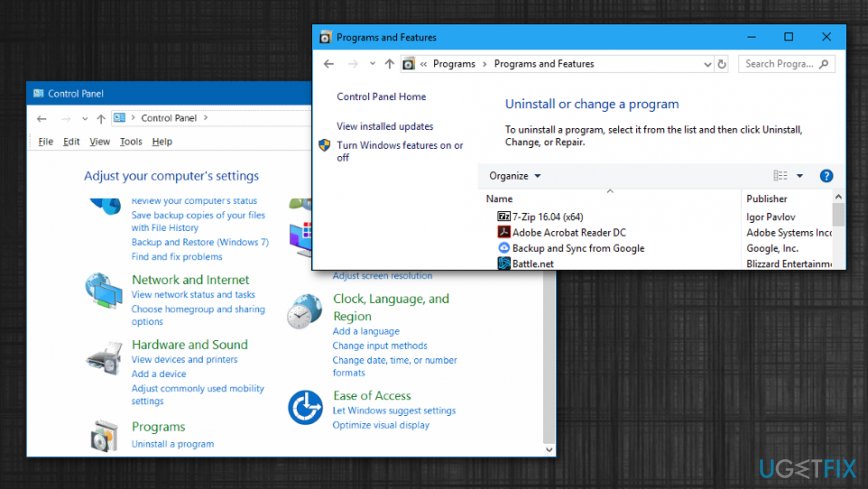
How to fix irql gt zero at system service error notification programs
Troubleshoot by changing to fast startup
- Type Power Options in the search and press Enter.
- Click Choose what the power buttons do.
- Change the status under Shutdown settings to Turn on fast startup.
- Save changes.
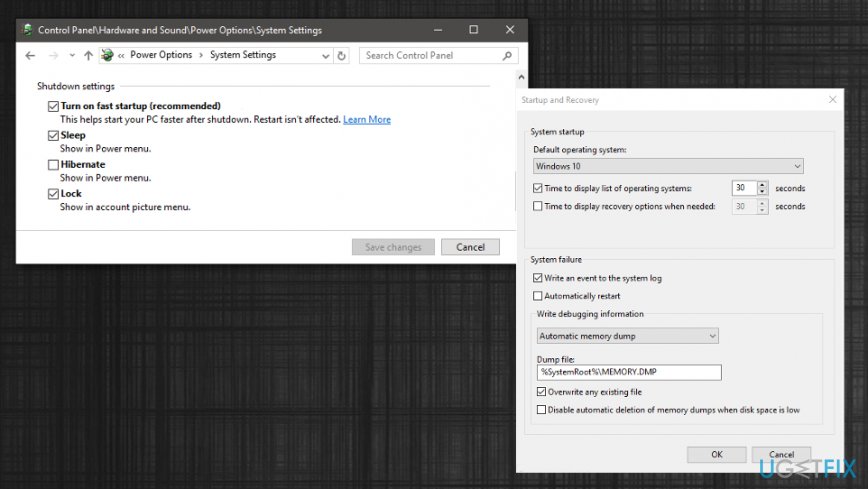
How to fix irql gt zero at system service error notification startup preferences
Restrict the automatic restart
- Go to System properties and find Settings under Startup and Recovery.
- Go to System failure and unmark the box by the Automatically restart option.
- Hit OK.
Bottom line
To fix the IRQL_GT_ZERO_AT_SYSTEM_SERVICE error, you can try updating or reinstalling drivers, checking for hardware issues, and ensuring software integrity. If these solutions do not resolve the issue, consider seeking professional assistance or further technical support.
Frequently asked questions
This error typically occurs due to faulty drivers, memory issues, or software conflicts in Windows 10. It can also be triggered by hardware malfunctions.
You can start by updating your drivers, running the Windows Memory Diagnostic tool, and checking for system file corruption using the SFC command. Additionally, removing recently installed software may help.
To prevent this error, ensure that all your drivers and Windows updates are up to date, and regularly check your hardware for issues. Using reliable antivirus software can also help avoid conflicts.




Report an issue
What's wrong with this guide? We review every report and update or remove content.
Report received — thank you. We'll review and fix it.
You need a free account to submit a report.
Be the first to comment