How to fix
“It looks like Windows didn’t load correctly” error
on Windows
Fix the "Windows didn't load correctly" error quickly and efficiently on Windows 10 or 11. Expert-tested solutions await you for a seamless experience.


What causes How to fix “It looks like Windows didn’t load correctly” error?
- Failed Windows process
- Corrupted data within the system
- Improper installation of the OS
- Malware leading to corrupted files
- Missing or corrupted BCD
Repairs Windows system files, removes malware, and restores a clean OS state — without reinstalling.
Hello, I need your help. I get the Windows didn't load correctly error. How can I solve this properly? Do you know what caused this boot issue for me? I updated and this now appears. Maybe the update to Windows 10 caused it?
"It looks like Windows didn't load correctly" error often appears while starting the machine and can be triggered by the failed Windows process. There are some problems with the error because it can appear as the Blue Screen of Death[ref en-1] which is a critical error. People get panic when they see this screen, and users[ref en-2] complained about the issue recently.
The corrupted data within the system can create issues with unreadable messages when the machine needs to run processes. Compromised files or corrupted, missing data can lead to various issues, including those blue screens and other critical errors. Sometimes these errors occur a few times before crashing the machine, so when your device reboots properly, it is the best time to fix the root cause for the error.
The particular problem with the "It looks like Windows didn't load correctly" error can be caused by the affected processes that were needed to properly run the installation of the Windows operating system. This is often caused by the improper installation of the OS. Malware[ref en-3] also can lead to issues with corrupted files and programs.
You can solve issues like this by manually configuring the BCD that is corrupted or missing since this is a possible issue. It is possible to repair affected files and even solve these issues like the "It looks like Windows didn't load correctly" error by triggering the system scan using tools like [d1]. Other methods might require your attention and manual intervention.
1. Boot in Safe Mode
- Turn on your computer, and as soon as the manufacturer's logo appears, turn it off. Make sure to repeat the step at least three times.
- You will be redirected into the Advanced Recovery Option.
- Head over to Advanced Options.
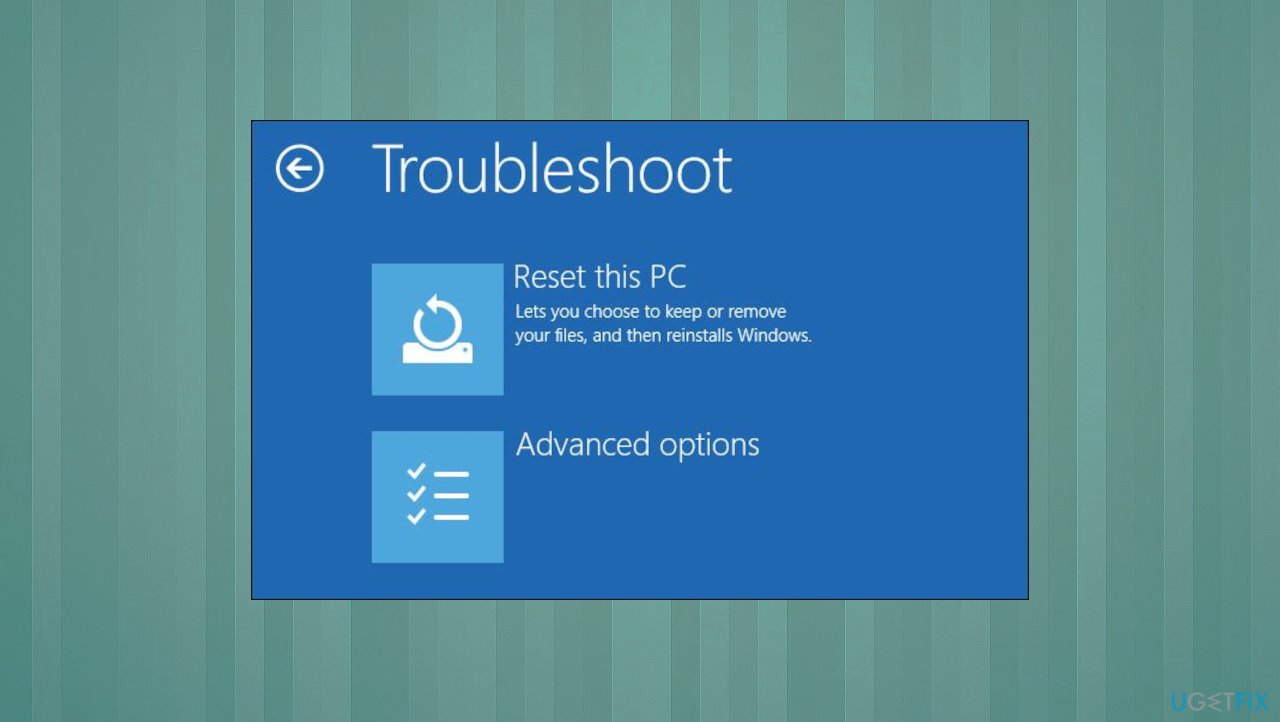
Windows wont load correctly troubleshooting - Then choose Troubleshoot and follow with Startup Settings.
- Hit Restart.
- Pressing the F4 will enable you to run into Safe Mode.
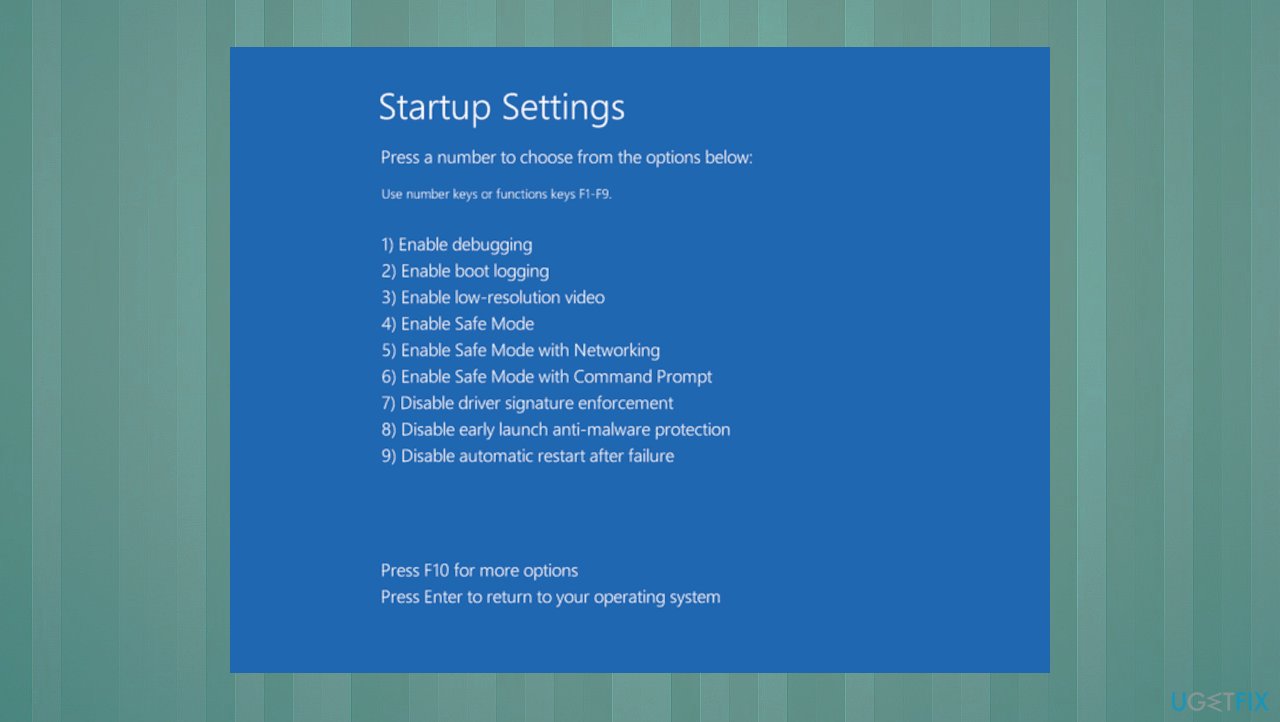
Windows wont load correctly startup - You can even use Safe Mode with Networking by pressing F5.
- Give your machine a quick diagnosis.
2. Run DISM and SFC commands
- Type in cmd into Windows search.
- Right-click Command Prompt result and select Run as administrator.
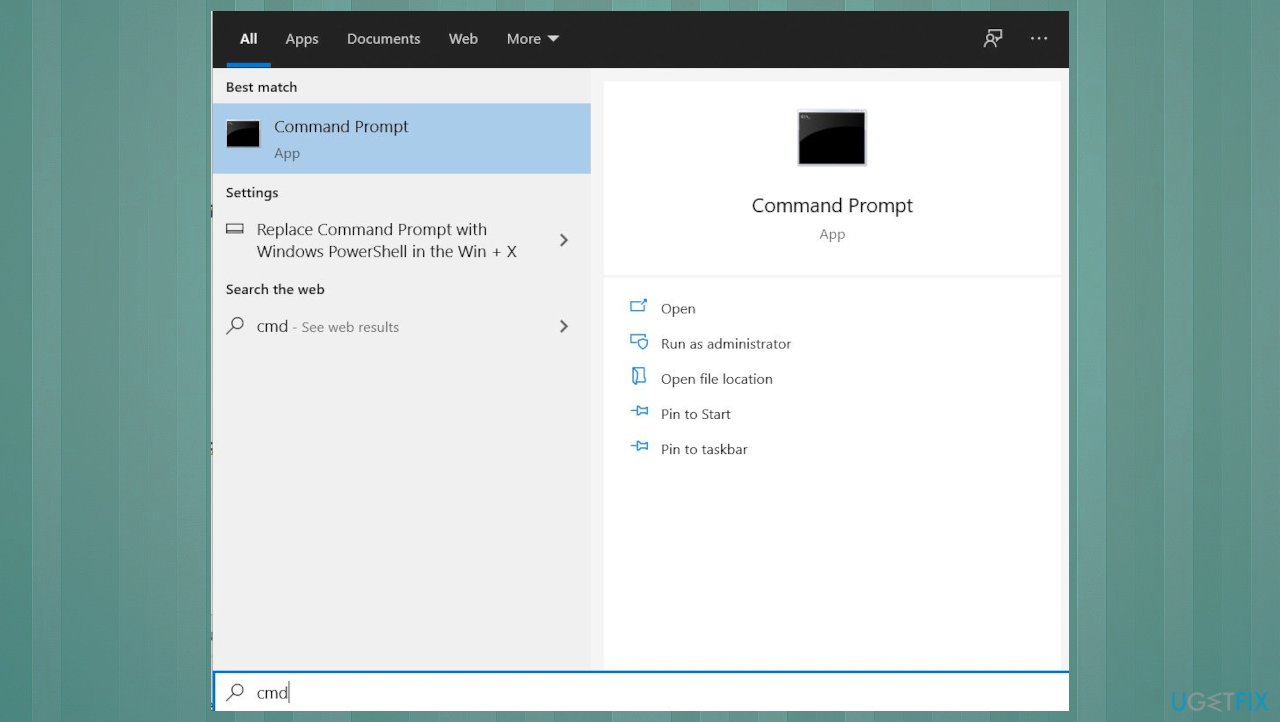
Windows wont load correctly command prompt - When the User Account Control window shows up, click Yes
- In the new window, type in the following command and press Enter:
sfc /scannow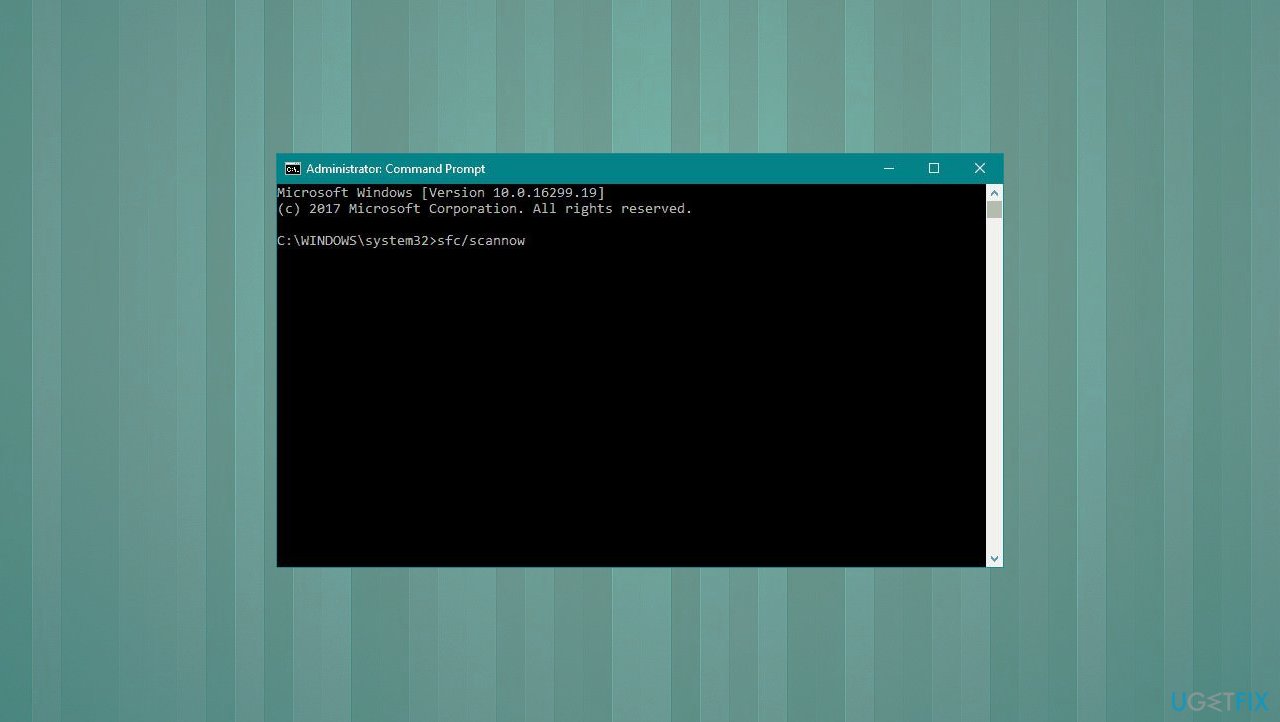
Windows wont load correctly sfc - After the scan is done, copy the following command and press Enter:
Dism /online /cleanup-image /restorehealth.
3. Use System Restore
- Type in Create a Restore point in Windows search and hit Enter.
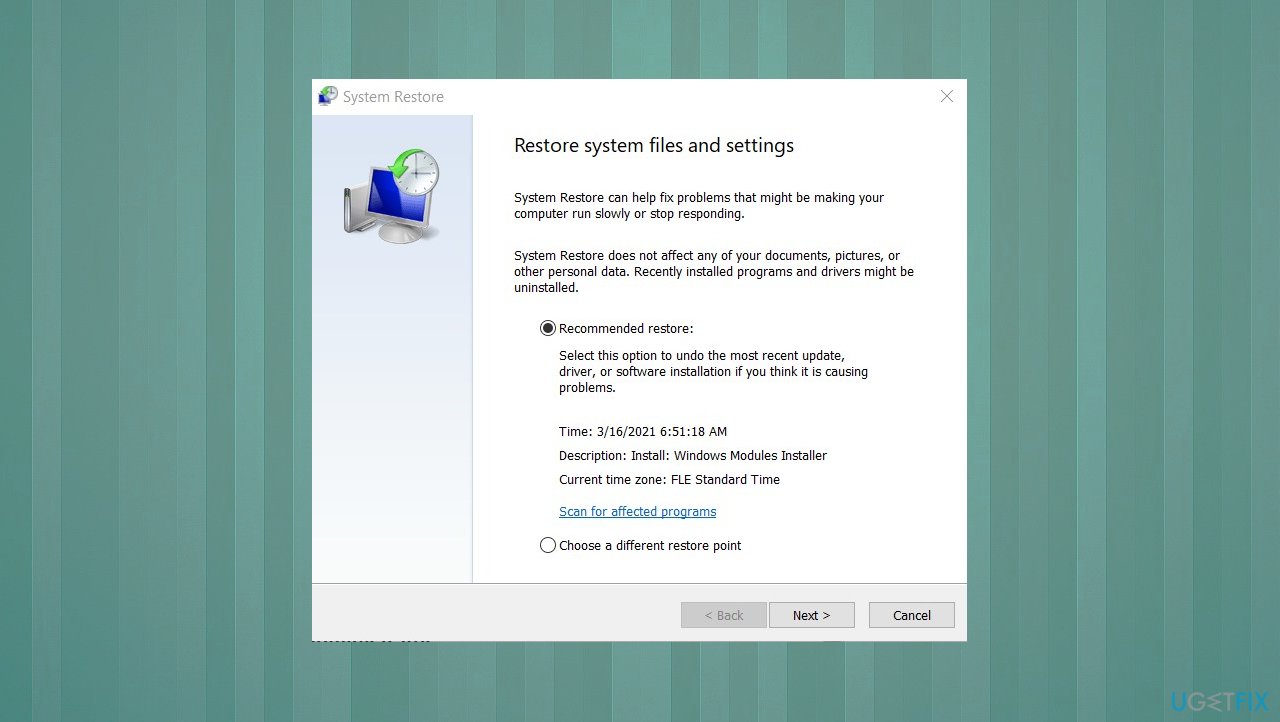
Windows wont load correctly restore - Go to the System Protection tab and pick System restore.
- Click Next.
- Hit Show more restore points.
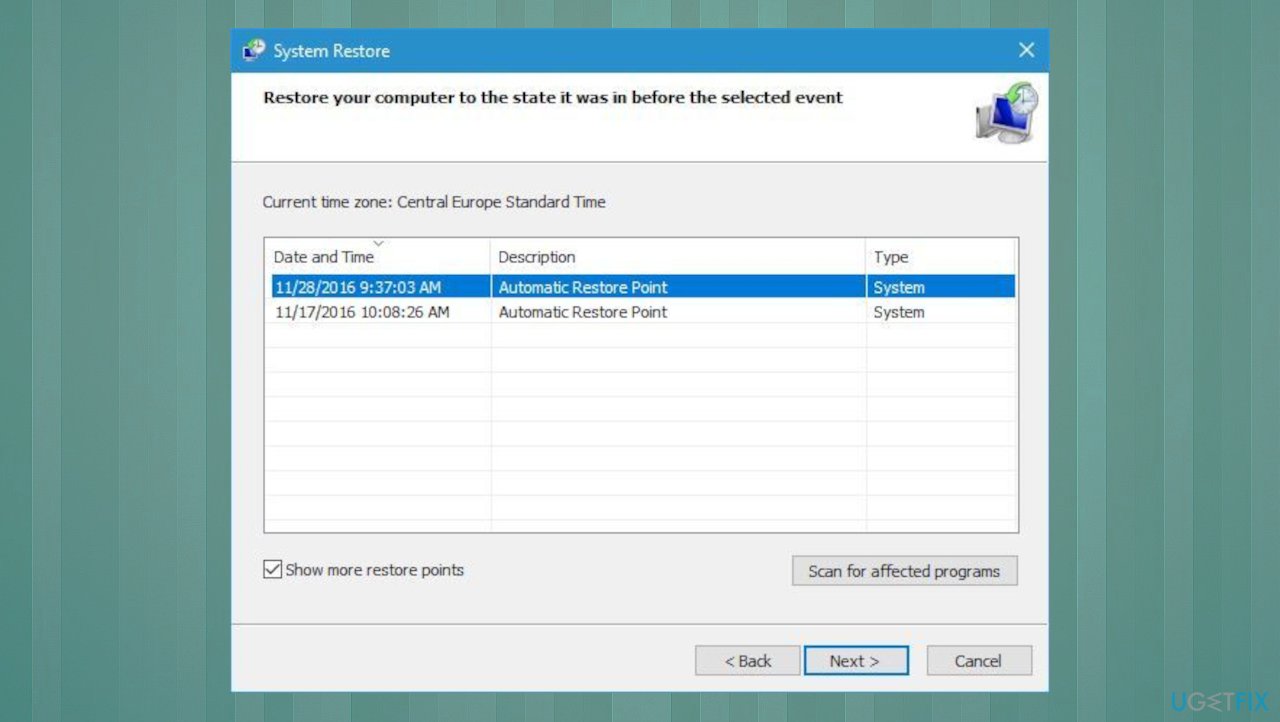
Windows wont load correctly restore points - Choose the time before the problem occurred and click Next.
- Follow the steps and restart the PC.
4. Reset the PC
- Right-click on Start to see options of tools and click Settings.
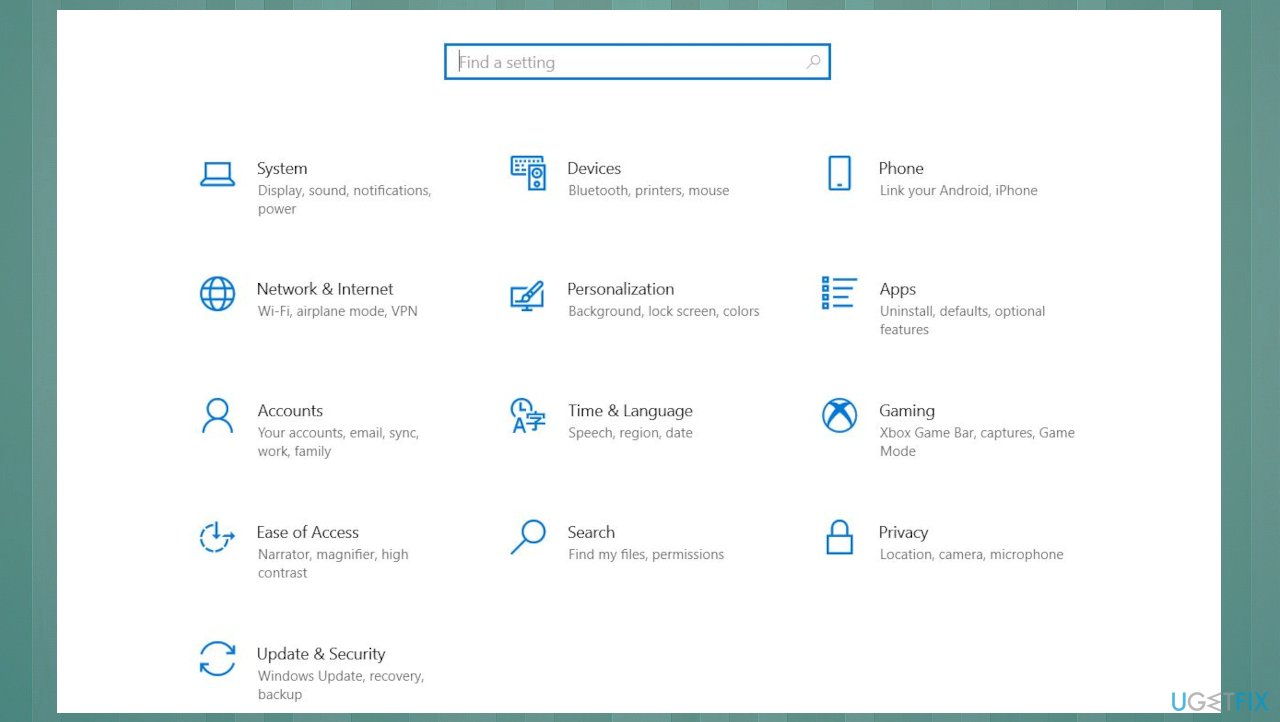
Windows wont load correctly sfettings - Go to Updates & Security section.
- Select Recovery on the left.
- Under Reset this PC, click the Get started button.
- Pick Keep my files and Cloud download from the options.
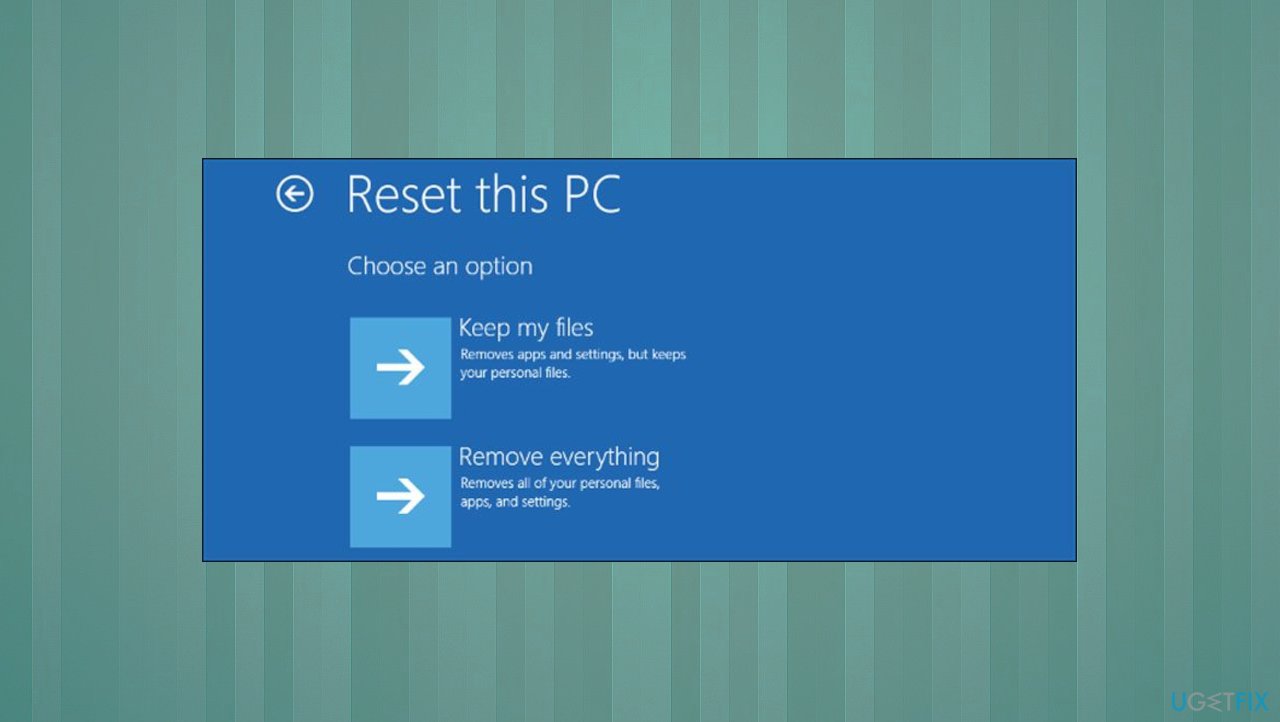
Windows wont load correctly reset pc - Wait for the installation.
Bottom line
To fix the 'It looks like Windows didn't load correctly' error, you can try booting in Safe Mode, manually configuring the BCD, or triggering a system scan using repair tools. If these methods do not resolve the issue, further manual intervention may be required.
Frequently asked questions
Try restarting your computer to see if the issue resolves itself. If the error persists, boot into Safe Mode and perform a system restore to revert to a previous working state.
You can access the Advanced Startup Options by holding the Shift key while clicking Restart. From there, choose Troubleshoot, then Advanced options, and select Startup Repair to fix the issue.
Yes, running Startup Repair can often resolve this error by fixing any boot-related issues. Make sure to access it through the Advanced Startup Options if the error keeps recurring.




Report an issue
What's wrong with this guide? We review every report and update or remove content.
Report received — thank you. We'll review and fix it.
You need a free account to submit a report.
Be the first to comment