How to fix
ITunes error 9006
on Windows
Resolve iTunes error 9006 on Windows 10 and 11 effortlessly. Follow our expert-tested tips for a smooth fix in minutes. Updated 2025 for accuracy.

What causes How to fix iTunes error 9006?
- Weak internet connection
- Incorrect network settings
- Inability to contact iOS update servers
- Server-side issues
- Firewall or security software interference
Repairs Windows system files, removes malware, and restores a clean OS state — without reinstalling.
Hello, I need some help. I was trying to restore my iPhone, and during this, I received the following error: "iPhone Software Updating (processing file). There was a problem downloading the software for the iPhone ''iPhone'' A unknown error occurred (9006). Make sure your network settings are correct, and your network connection is active, or try again." Is there anything I could do to fix this, please?
iTunes Error 9006 is an error message that might occur during the installation of apps or software from iTunes. This problem usually affects iPhone and iPad users. Despite this, macOS and Windows[ref en-2] device users can come across this issue too.
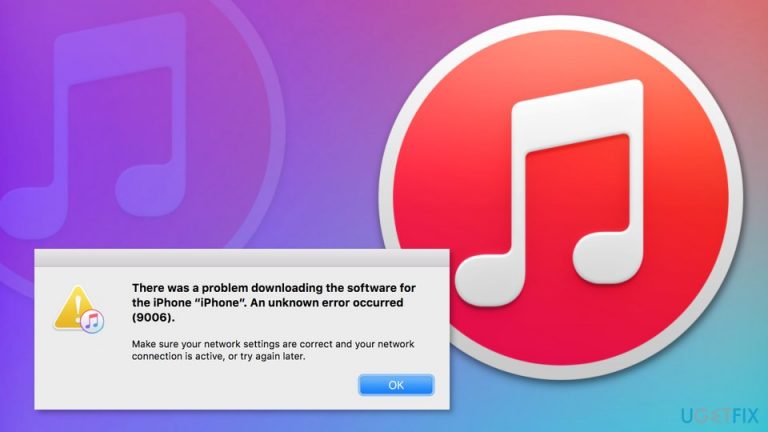
The majority of users reported that the iTunes error 9006 appeared when they were upgrading to iOS 10[ref en-3] or newer versions. However, this annoying message might show up on the screen when you download or update any other app. The full message says:
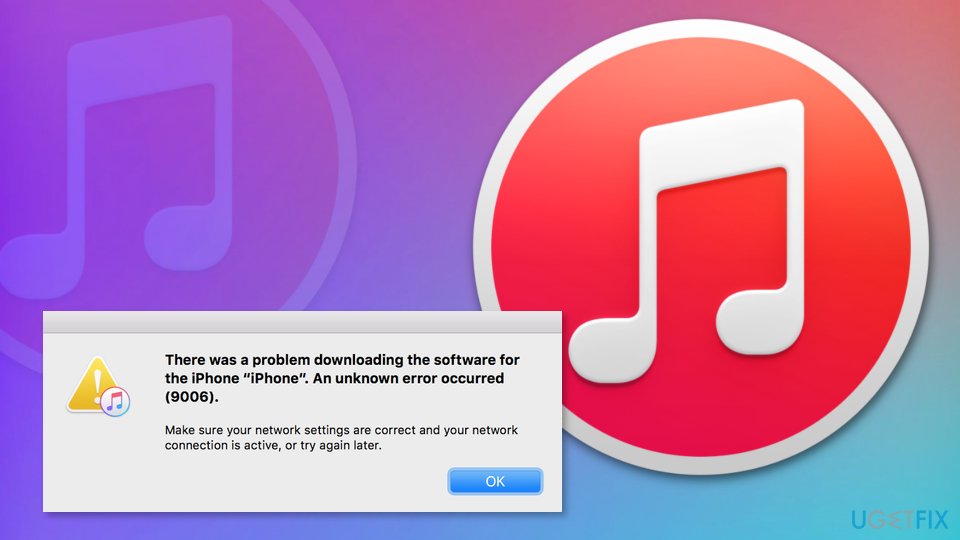
There was a problem downloading the software for the iPhone “iPhone”. An unknown error occurred (9006).
Make sure your network settings are connected and your network connection is active, or try again later.
Indeed, sometimes it’s enough to try again after a couple of minutes and install necessary content. We have no doubts that you checked your internet connection and tried again several times in order to fix iTunes Error 9006. However, these simple methods do not always help the situation, and iPhone users are stuck without being able to use their devices as usual.
Ways to fix iTunes Error 9006
Apple devices are known for interconnection and syncing capabilities, hence users can restore files or apps from iCloud easily when resetting the phone, for example. While typically there are no issues with such operations, iTunes Error 9006 might be encountered suddenly and prevent performing the wanted actions.
As evident by the iTunes Error 9006 text that is provided when the issue occurs, the error is caused by the device's inability to contact the relevant iOS update servers. While in many cases, this can be caused by weak internet connection from the users' side, the limitations could be caused by overly aggressive antivirus or firewall software.
Luckily, there are several ways that can help you fix Error 9006 on iTunes. However, first of all, you should check your Internet connection and restart your device.
Method 1. Update iTunes
Sometimes problems with software updates or downloads occur when iTunes is outdated. Thus, access the program and check if there are any available updates:
- Quit iTunes.
- Launch App Store.
- Check for any iTunes-related updates and install them.
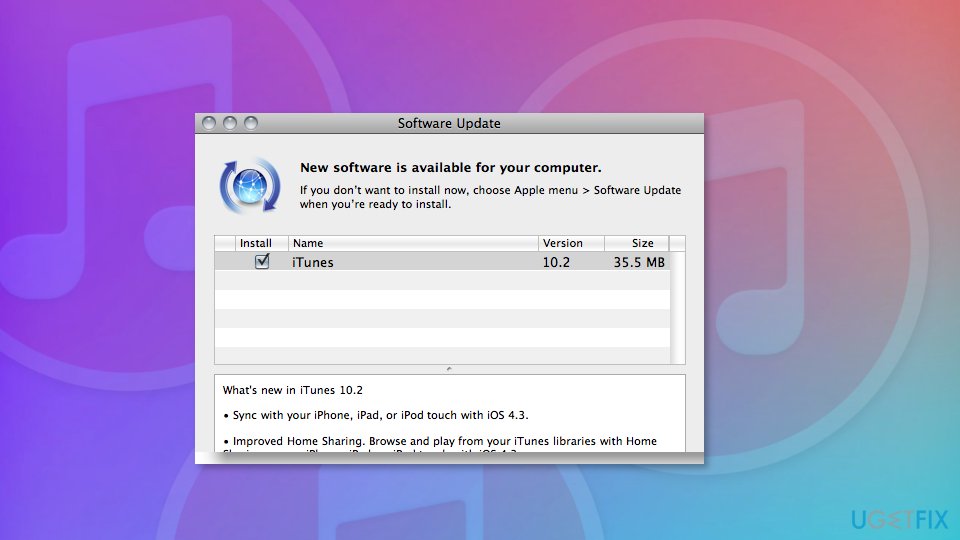
Update itunes to fix itunes error
On Windows machines, perform the following actions:
- Open iTunes.
- In the top right corner, select Help > Check for Updates.
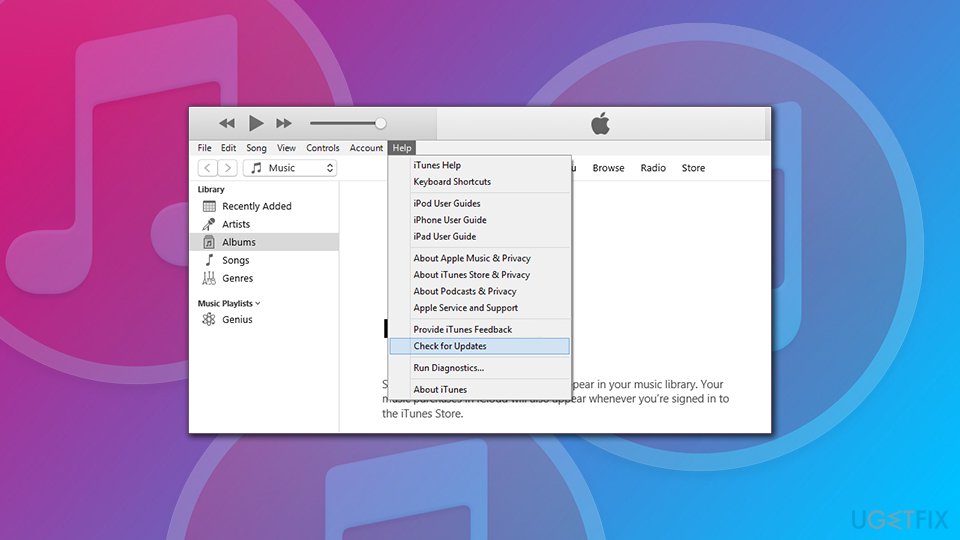
Fix itunes error 9006 check for updates windows - Follow the on-screen instructions to install the latest updates.
Method 2. Update your operating system
While the iTunes Error 9006 issue most commonly affects mobile devices, the synced computer might create several version mismatches, hence resulting in an error. Update your macOS:
- From the dock, click on App Store.
- At the top-right corner click on Update all.
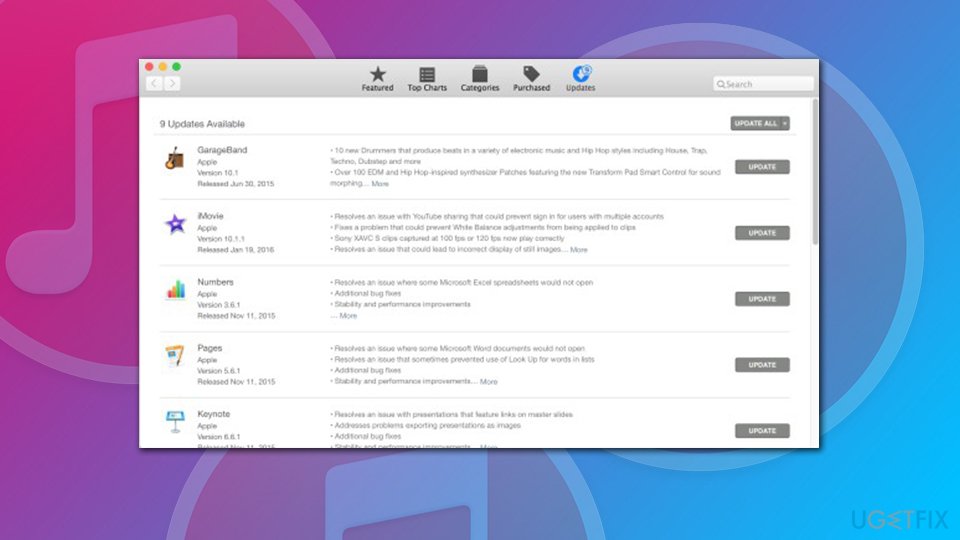
Fix itunes error 9006 update macos - Wait till Mac installs all the updates and reboot.
Method 3. Connect to a different WiFi
Another simple method suggests connecting to the different network. Even though Internet connection seems fine, trying other WiFis might help to get rid of the iTunes error and download necessary updates or apps.
Method 4. Turn off antivirus
Sometimes antivirus programs prevent from installing apps. Therefore, you can try temporarily disabling them to fix iTunes Error 9006:
- Open your security program and find “Disable” or “Turn off” button.
- Restart the device.
- Launch iTunes and check if the problem was resolved.
Additionally, you should check if a firewall or other Internet security settings do not block communication to albert.apple.com or phobos.apple.com.
Method 5. Make sure time and date is correct
Time and date are typically syncing automatically. However, in some cases, the date and time setting might not be defaulted to being set automatically. Therefore, make sure your device is running the correct time and date:
- Click on Apple logo at the top on your Mac computer.
- Pick System Preferences and then select Date & Time.
- Tick the box at Set date and time automatically.
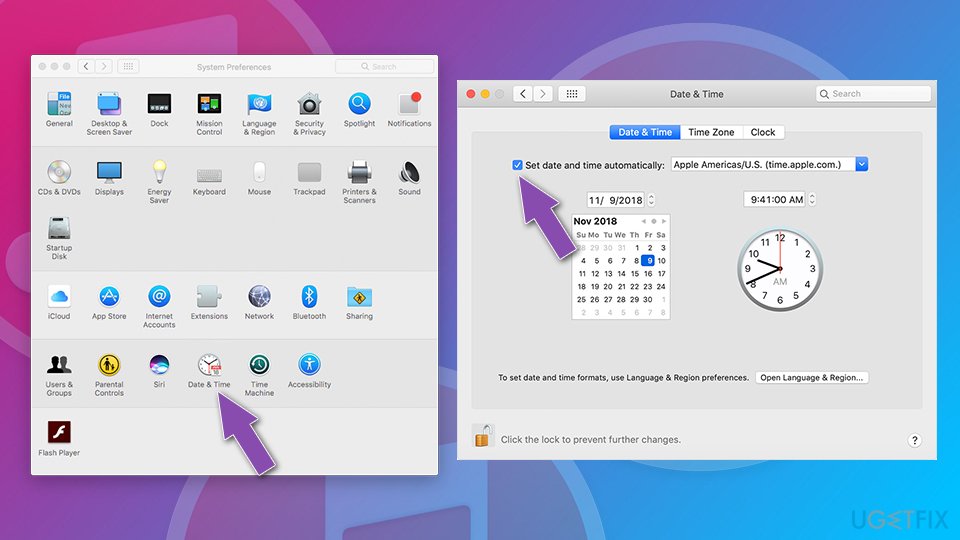
Fix itunes error 9006 set date and time automatically
Method 6. Remove the .ipsw file
ISPW[ref en-1] files belong to the Apple Device Software Update. If this file was corrupted or there’re other problems with it, it might trigger Error 9006 in iTunes. Thus, you should delete it and check if it was the source of the problem.
On macOS these you can find IPSW files in these directories:
- iPhone: ~/Library/iTunes/iPhone Software Updates
iPad: ~/Library/iTunes/iPad Software Updates
iPod touch: ~/Library/iTunes/iPod Software Updates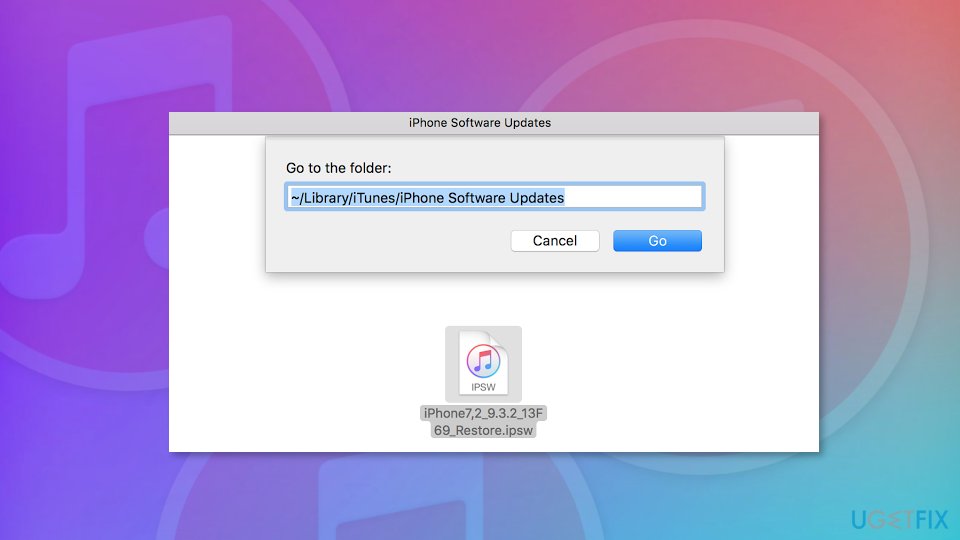
Delete ispw file to fix itunes error
Windows OS users can fix iTunes Error 9006 by deleting .ipsw file from these locations:
- iPhone: C:\Users\[username]\AppData\Roaming\Apple Computer\iTunes\iPhone Software Updates
iPad: C:\Users\[username]\AppData\Roaming\Apple Computer\iTunes\iPad Software Updates
iPod touch: C:\Users\[username]\AppData\Roaming\Apple Computer\iTunes\iPod Software Updates
Bottom line
To fix iTunes Error 9006, ensure your internet connection is stable, check your network settings, and try again after a few minutes. If the problem persists, consider disabling any firewall or security software that might be blocking the connection. If none of these solutions work, further troubleshooting may be necessary.
Frequently asked questions
iTunes error 9006 typically occurs due to network issues, firewall settings, or corrupted iTunes installation files on Windows 10 or Windows 11.
To troubleshoot iTunes error 9006, you can try disabling your firewall temporarily, ensuring a stable internet connection, or reinstalling iTunes on Windows 10 or Windows 11.
Yes, updating Windows 10 or Windows 11 can help resolve iTunes error 9006 by ensuring you have the latest drivers and system updates that improve compatibility.




Report an issue
What's wrong with this guide? We review every report and update or remove content.
Report received — thank you. We'll review and fix it.
You need a free account to submit a report.
Be the first to comment