How to fix
ITunes.exe Bad Image error
on Windows
Resolve the iTunes.exe Bad Image error on Windows 10 quickly and effectively. Get expert-tested solutions for a seamless experience, fixed in minutes.

What causes How to fix iTunes.exe Bad Image error on Windows 10?
- Corrupted system files
- Available or recently installed updates
- Incorrect installation of iTunes
- Compatibility issues with Windows
- Missing or damaged files
Repairs Windows system files, removes malware, and restores a clean OS state — without reinstalling.
When I launch iTunes on my Windows 10 computer, I receive an ITUNES.EXE - Bad Image error. How can I solve the problem?
iTunes.exe - Bad Image error on Windows 10 can be caused by numerous problems. The error might pop-up and prevent from launching the app due to the corrupted system files, available or recently installed updates.
The majority of users report that this bad image error usually occurs when users try to open iTunes on Windows.[ref en-1] Then they receive this error message:
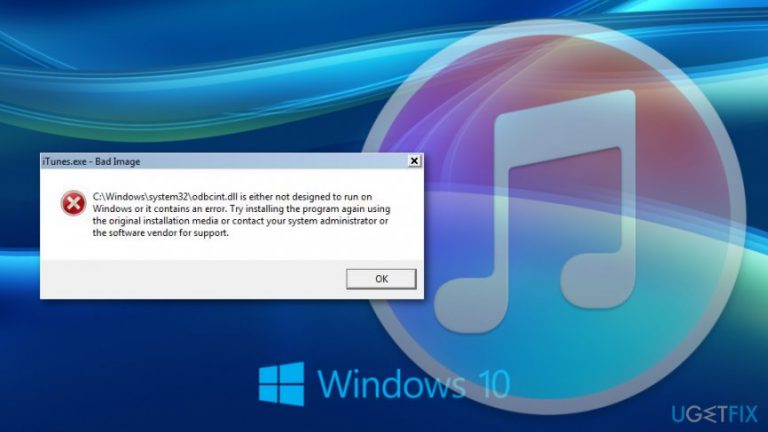
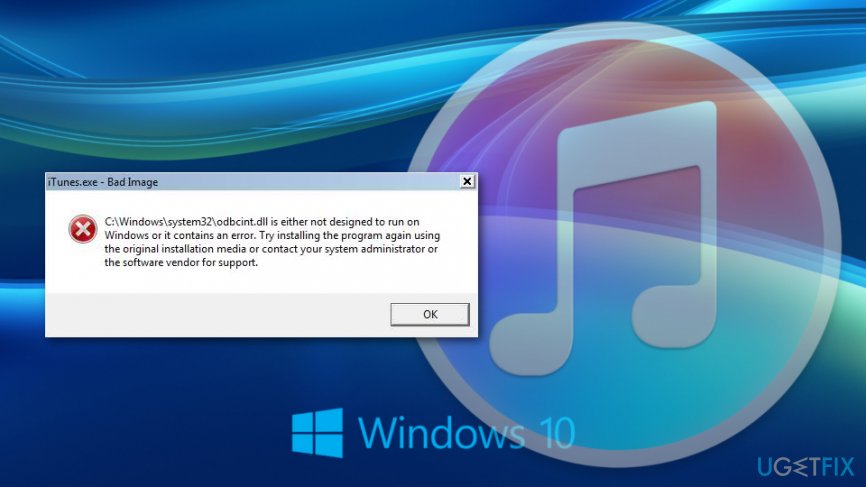
iTunes.exe – Bad Image [file path] is either not designed to run on Windows, or it contains an error. Try installing the program again using the original installation media or contact your system administrator or the software vendor for support.
However, contacting system administrator or support is not needed. You can try to fix iTunes.exe Bad Image error yourself. We have prepared a couple of methods that should help you.
6 methods to fix iTunes.exe Bad Image error on Windows 10
There are a couple of methods that can help to fix iTunes exe bad image error. Below you can find six the most popular methods that help to get rid of this problem.
Option 1. Check for corrupted system files using System File Checker
- Click Win + X keys and open Command Prompt (Admin) from the appeared list.
- In the Command Prompt enter the following command to run the Deployment Image Servicing tool: DISM.exe /Online /Cleanup-image /Restorehealth
- Enter sfc /scannow command and click Enter to run System File Checker.
- Wait until the scan is over and reboot the computer if corrupted system files were repaired.
Option 2. Repair iTunes
- Click Win + R keys to open Run program.
- In Run, enter appwiz.cpl and click OK.
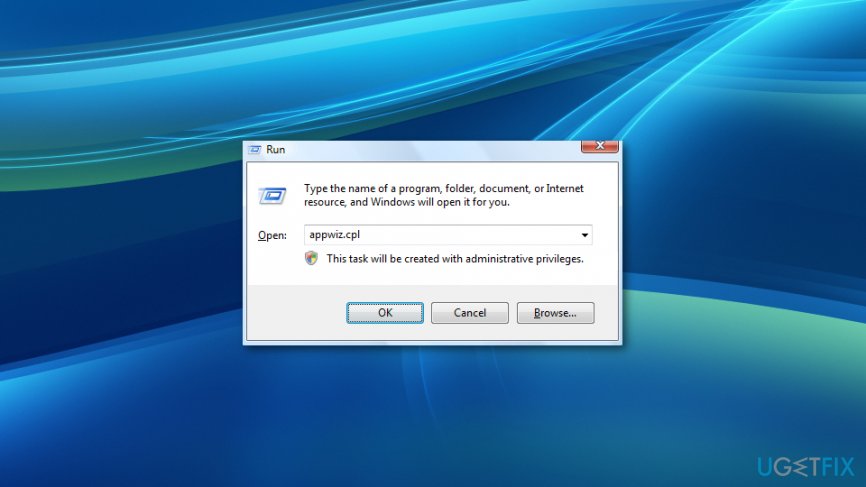
Enter appwiz cpl to run - You will end up in Uninstall or change a program window.
- Find iTunes and click on it.
- Click Change button and choose the Repair option.
- Restart your computer after repairing the problem.
Option 3. Uninstall and reinstall iTunes
Reinstalling iTunes might help to get rid of the error.[ref en-2] To remove the program from Windows 10, follow these steps:
- Navigate to Control Panel.
- Access Programs > Programs and Features.
- Find the program in the list and choose Uninstall.
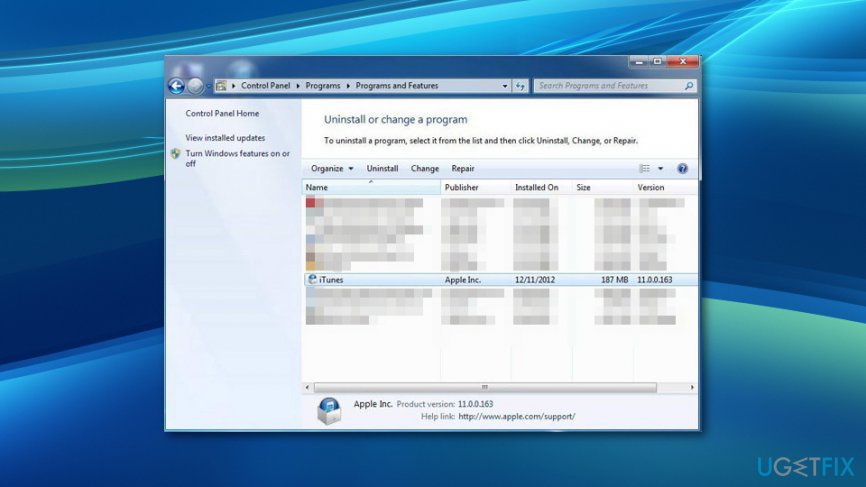
Uninstall itunes - Follow the uninstallation guide on the screen.
Reboot the computer if needed and install iTunes again:
- Access iTunes download website and click Download Now button.
- Click Save button and Run when the download is completed.
- Follow the installation guide.
- Once you re-installed the program, check if the iTunes.exe Bad Image error is fixed. If not, try the fourth method.
Option 4. Uninstall and reinstall QuickTime
QuickTime[ref en-3] is an application that is necessary for iTunes operate properly. If there are some problems with a program, reinstalling it might help to fix iTunes.exe Bad Image error on Windows 10. You can uninstall it by following the steps provided in the 3rd option. Then download the program from the official website.
Option 5. Install Windows 10 updates
- Click Start and access Settings.
- Navigate to Update & security > Windows Update.
- Click Check for updates button.
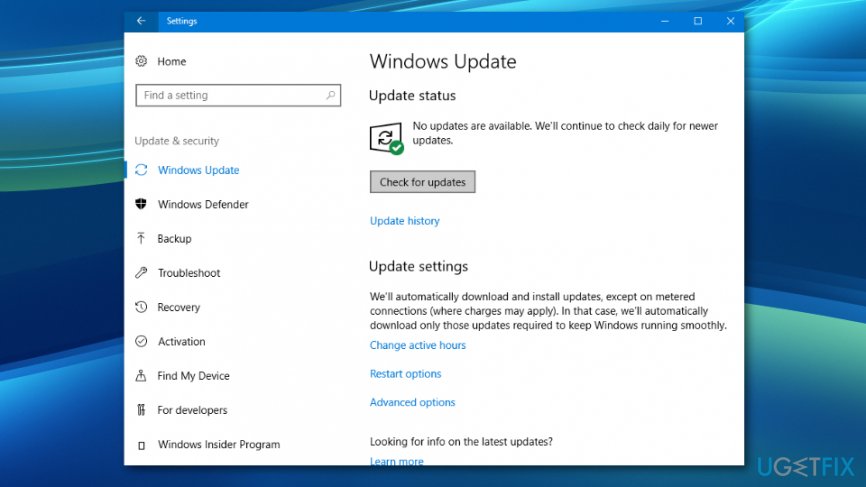
Check for windows 10 updates - If there are any updates, install them.
Option 6. Uninstall recent updates that may have triggered iTunes exe bad image error
- Click Start and navigate to Settings > Update & security > Windows Update.
- Click Update history link.
- Click Uninstall updates.
- In the Uninstall an update page, select the update you want to remove and click Uninstall button.
- Click Yes to confirm the action.
- Click Restart Now to finish the task.
Bottom line
To fix the iTunes.exe Bad Image error, you can check for corrupted system files using the System File Checker, repair iTunes through the Uninstall or change a program window, or uninstall and reinstall iTunes. If none of these methods work, consider seeking further assistance from a system administrator or the software vendor.
Frequently asked questions
The iTunes.exe Bad Image error on Windows 10 is often caused by corrupted system files or conflicts with other software. It can also occur if the iTunes installation is damaged or if there are issues with Windows Update files.
You can repair iTunes by going to Settings, selecting Apps, finding iTunes in the list, and choosing the Repair option. Alternatively, uninstalling and reinstalling iTunes can also resolve the issue.
Yes, running the System File Checker tool by executing 'sfc /scannow' in the Command Prompt can help identify and repair corrupted system files causing the Bad Image error.




Report an issue
What's wrong with this guide? We review every report and update or remove content.
Report received — thank you. We'll review and fix it.
You need a free account to submit a report.
Be the first to comment