How to fix
KB4013418 cumulative update
on Windows
Resolve the KB4013418 update issues on Windows 10 and 11 quickly. Get expert-tested solutions to restore system stability and performance in minutes.

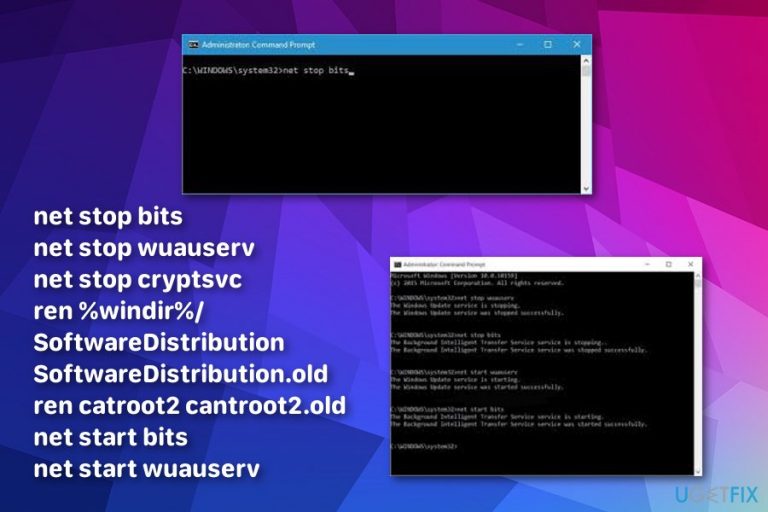
What causes How to fix KB4013418 cumulative update?
- Windows installation gets stuck
- Reset could not be completed
- Rollback features cannot be launched
- Malware affecting performance
- Software distribution issues
Repairs Windows system files, removes malware, and restores a clean OS state — without reinstalling.
Hello, I have encountered the issue on my Windows 10 regarding the KB4013418 cumulative update. The machine tried updating on its own but failed each time. "Update History", says that this certain update Failed to Install but there is no error code or particular reason. Everything seems working normally. Is there any fix for the issue?
KB4013418 is a Windows 10 cumulative update that has caused numerous discussions online. People get frustrated because it seems to there is no fix for this problem. This issue starts during Windows installation which gets stuck. Additionally, the statement about the reset that could not be completed appears. The same issue appears when people try to reinstall Windows.[ref en-1]
This message has been frustrating users because various applications cannot be launched normally, the Start menu and other OS features also seem to be affected. Unfortunately, the KB4013418 cumulative update issue cannot be fixed by the users themselves: the system recovery does not work, while rollback[ref en-2] and other features cannot be launched. Many users have also complained that Windows reset fails to help as well.
People who have encountered KB4013418 error have been interrupted by one of these notifications:
Cumulative update for Windows 10 version 1607 for x64-based system (KB4013429 ) - failed 0x800f0900.
Cumulative update for Windows 10 version 1607 for x64-based systems (KB4013429 ) - error 0x80070002.
While Microsoft has no answer why does this error come up, we provide a few solutions to come over it. However, there is always a possibility that this error came up regarding malware[ref en-3] and other cyber threat, so before you follow methods that we presented, check the system with anti-malware tools to see is there any malware on the device which may be affecting the performance and possibly cause issues. For that, use [d1].
How to fix KB4013418 cumulative update error
Since there are no particular reasons why does this issue appear, there are a few different methods that might work to get rid of it. Microsoft has also confirmed that there is a solution to this issue which is creating the new user account, fixing software distribution issues, troubleshooting and so on. You can follow these methods, we provided below and possibly try a few of them since these might not work the same for each and every device.
This video contains methods for eliminating this issue:
[youtube KAYKPMarpeM]
1. Create the new user:
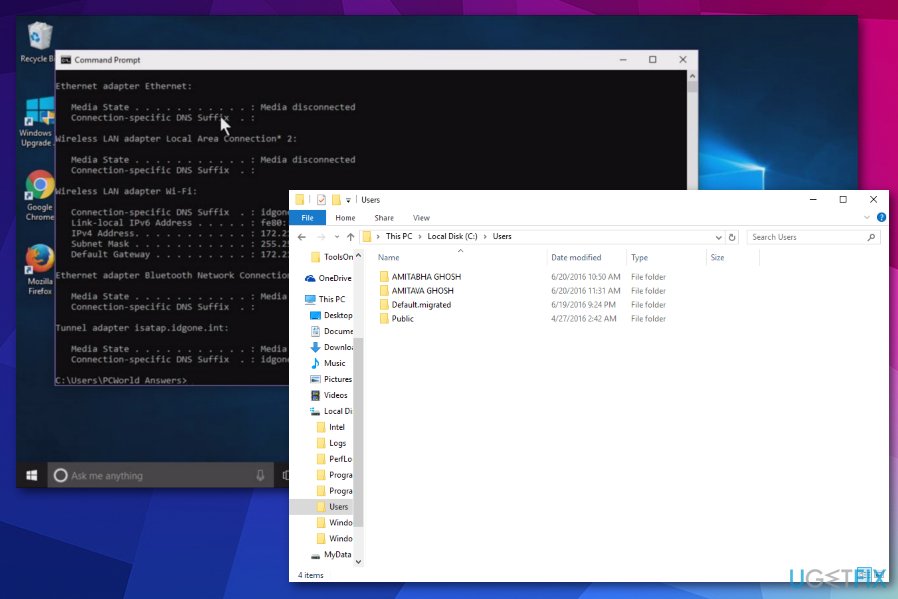
You can try to back up your personal data, create a new user account using the command prompt and then copy the old data to your new user folder.
- Go to the Command prompt and copy-paste this line: net user /add TheNewUsername SetUpPasswordHere press ENTER.
- Then do the same with this text: net localgroup administrators TheUserNameYouCreated /add and ENTER.
- Once this is done delete a corrupted profile by going to This PC>Local disk>Users. Then, right-click on the folder and choose Delete.
2. Restart Windows Update Service:
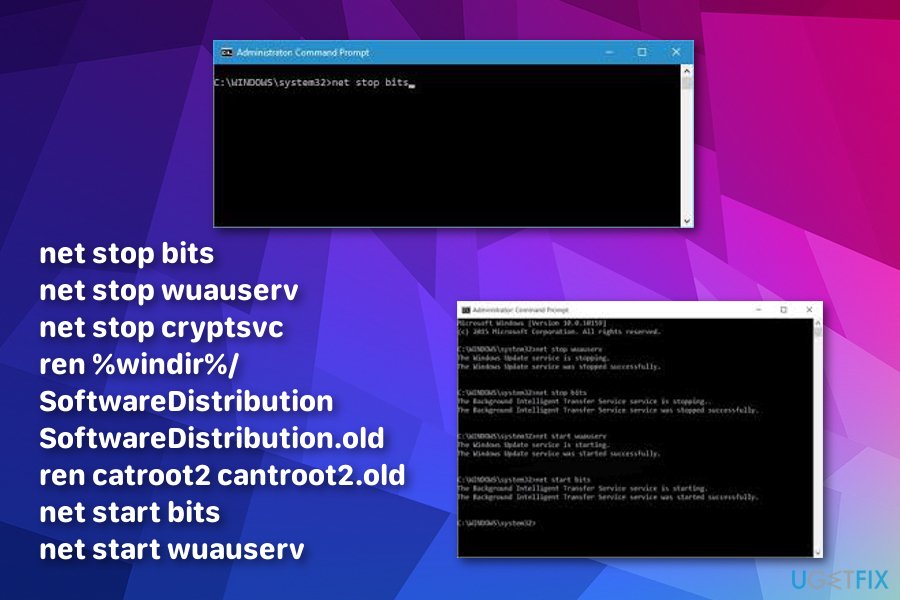
Press Windows icon + X key on the keyboard and then go to CMD.
Enter these commands:
- net stop bits
- net stop wuauserv
- net stop cryptsvc
- ren %windir%/SoftwareDistribution SoftwareDistribution.old
- ren catroot2 cantroot2.old
- net start bits
- net start wuauserv
- net start cryptsvc
3. Try Recovery Console to fix KB4013418 cumulative update:
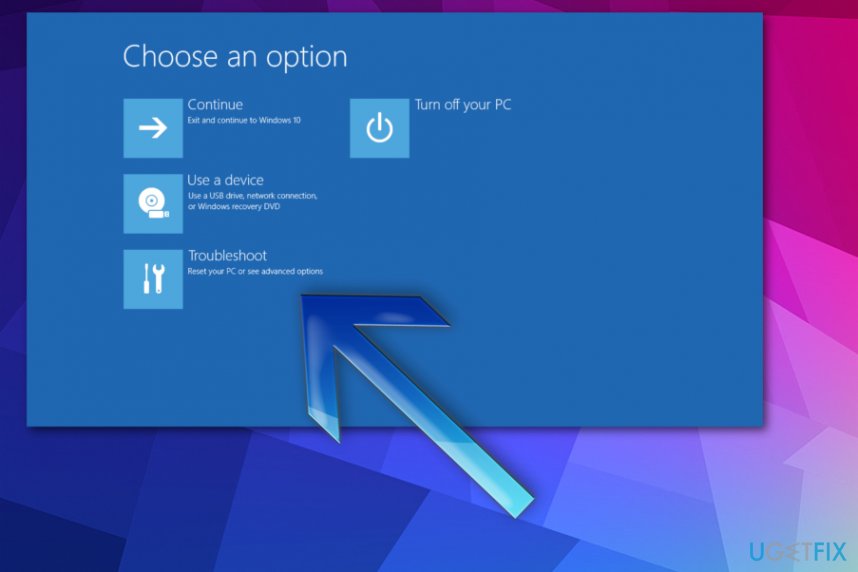
- Restart your PC. Hold the Shift key down while you select Power-Restart on the sign-in screen.
- Choose an option screen should appear once it restarts. Select Troubleshoot>Advanced options>Go back to the previous build.
4. Perform Automatic Repair:
- Press Shift and click Restart to get you into the Advanced Startup.
- When Startup Options screen appears open Settings>Update & Security>Recovery>Advanced startup>Restart now.
- Type: shutdown /r /o in CMD prompt to reboot the device into Advanced Boot.
- Use Installation Media or Recovery Drove to reboot your computer. Select repair and Advanced startup options should appear.
- Run Command Prompt again as administrator. In the CMD box that appears on the screen, enter the following text one line at the time and press Enter: net stop wuauserv; net stop bits.
- Go to C:\\Windows\\SoftwareDistribution and delete all files inside.
Bottom line
To fix the KB4013418 cumulative update error, you can create a new user account, troubleshoot software distribution issues, and check for malware using anti-malware tools. If these methods do not resolve the problem, further assistance may be required.
Frequently asked questions
If the KB4013418 update fails to install, try running the Windows Update Troubleshooter from Settings > Update & Security > Troubleshoot. Additionally, ensure your system is connected to the internet and restart your PC before attempting the update again.
Yes, you can manually download the KB4013418 update for Windows 11 by visiting the Microsoft Update Catalog website and searching for the update. Make sure to select the correct version for your system architecture before downloading.
Common issues after installing KB4013418 on Windows systems may include system crashes, application errors, or performance degradation. If you experience these problems, consider uninstalling the update through Settings > Update & Security > Windows Update > View update history.




Report an issue
What's wrong with this guide? We review every report and update or remove content.
Report received — thank you. We'll review and fix it.
You need a free account to submit a report.
Be the first to comment