How to fix
KB5014032 fails to install
on Windows
Resolve KB5014032 installation issues in Windows 10 quickly and easily. Get expert-tested solutions for a smooth update experience. Fixed in minutes!

What causes How to fix KB5014032 fails to install in Windows 10?
- Servicing stack update (SSU) failed to install
- Insufficient disk space
- Third-party antivirus software interfering
- System not meeting prerequisite requirements
- Corrupted system files or registry issues
Repairs Windows system files, removes malware, and restores a clean OS state — without reinstalling.
Hello. I tried to install the KB5014032 update for Windows 10 but the installation process failed. Is there any way to fix this?
Users may experience frustration if the servicing stack update (SSU) for Windows 10 KB5014032[ref en-1] fails to install. This is a serious issue because servicing stack updates are essential for maintaining the trustworthiness of Windows update installation. This update is intended to improve the servicing stack's quality, which controls how Windows updates are installed and maintained on a user's computer.
The general update process for a Windows 10 device can be interrupted if KB5014032 is not installed, which is one of the most apparent and immediate repercussions. A user's device can have trouble downloading, installing, or even correctly setting other crucial Windows updates if the servicing stack isn't reliable and current. Performance problems, security threats, and vulnerabilities that are not fixed may follow from this.
In addition, if the servicing stack is not updated, it may set off a chain reaction where subsequent upgrades may not install or configure properly. This may lead to a device falling behind on important updates, making it more vulnerable to security risks and lacking the most recent features and advancements. The lack of these crucial updates may also cause users to notice increasing operating system instability.
Troubleshooting the root reasons is usually necessary to fix the KB5014032 installation problem. Running Windows Update Troubleshooter to find and fix problems, making sure there is enough disk space, temporarily turning off third-party antivirus software, or manually downloading and installing the update from the Microsoft Update Catalog are a few examples of popular fixes. Verifying that your system complies with the prerequisite requirements for the upgrade is also crucial.
In this guide, you will find 8 steps that should help you fix KB5014032 failing to install in Windows 10. You can also run a maintenance tool like [d1] that can fix most system errors, BSODs,[ref en-2] corrupted files, registry[ref en-3] issues, or clear cookies and cache. Otherwise, follow the step-by-step instructions below.

Method 1. Fix Corrupted System Files
Use Command Prompt commands to repair system file corruption:
- Open Command Prompt as administrator
- Use the following command and press Enter:
sfc /scannow
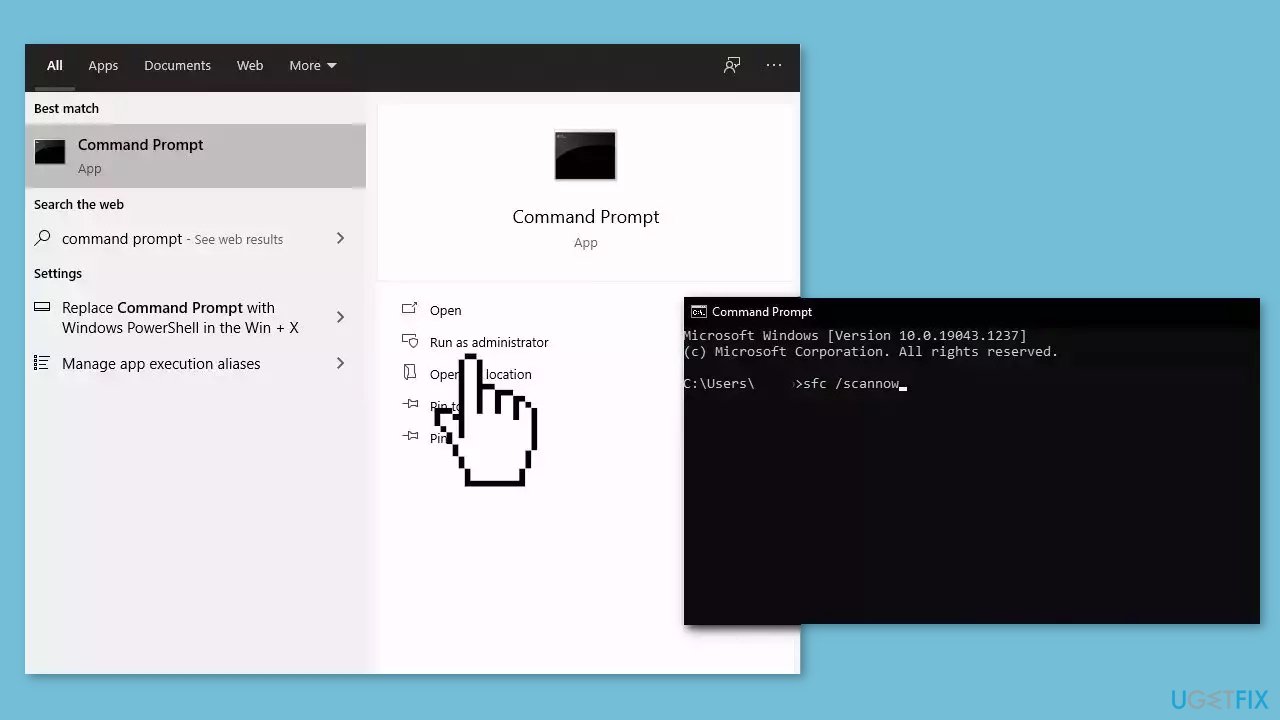
- Reboot your system
- If SFC returned an error, then use the following command lines, pressing Enter after each:
DISM /Online /Cleanup-Image /CheckHealth
DISM /Online /Cleanup-Image /ScanHealth
DISM /Online /Cleanup-Image /RestoreHealth
Method 2. Run the Windows Update Troubleshooter
- Press the Windows + X keys and go to Settings.
- Go to Update and Security.
- Click Troubleshooter.
- Select Additional troubleshooters.
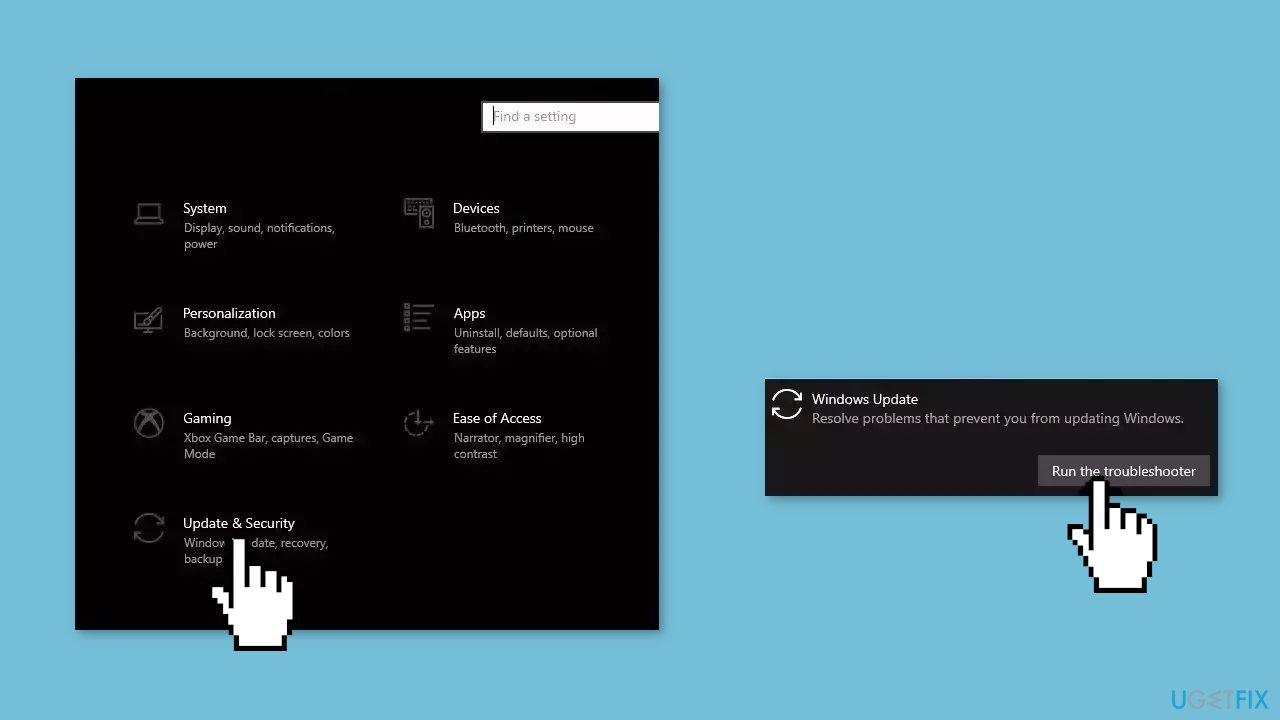
- Run the Update troubleshooter.
- Restart.
Method 3. Remove Windows Update Files
- Press the Windows key + X and click on PowerShell (Admin).
- Copy and paste the following commands and press Enter after each one:
net stop bits
net stop wuauserv
net stop msiserver
net stop cryptsvc
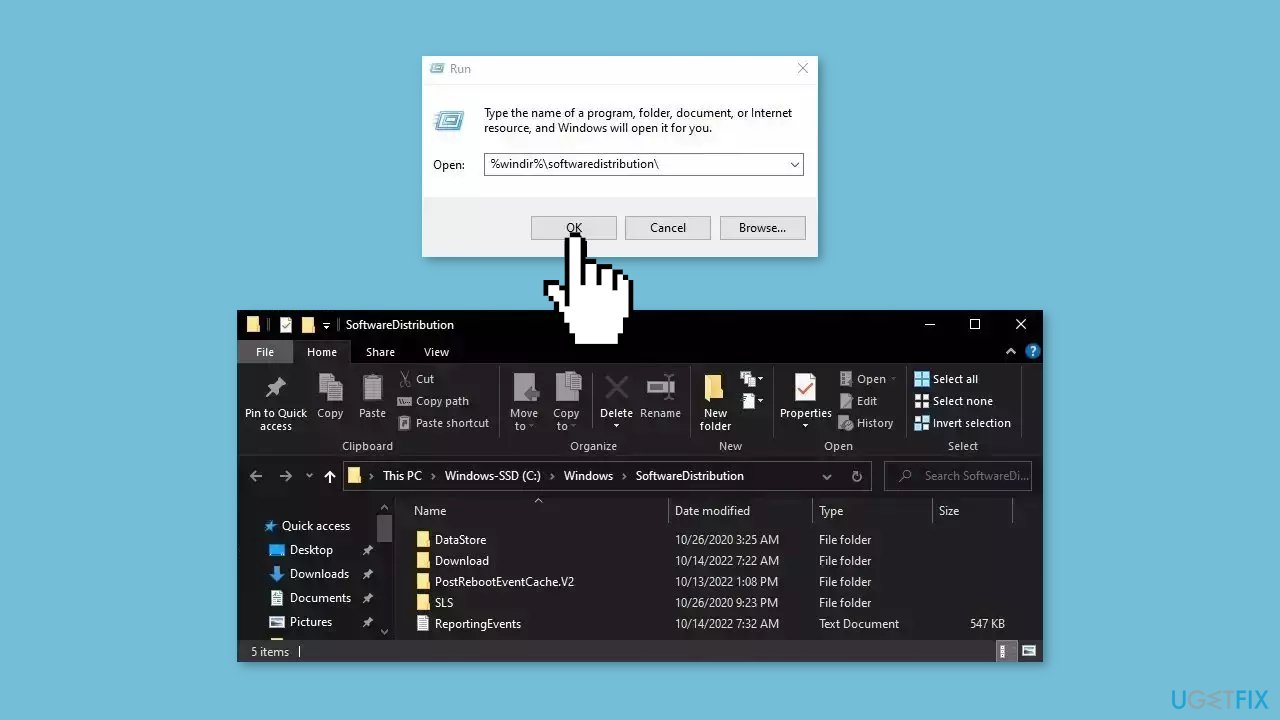
- Press the Windows key + R to open the Run box.
- Type %windir%\softwaredistribution\ press Enter.
- Delete all content inside the SoftwareDistribution folder.
- Press the Windows key + X and click PowerShell (Admin) again.
- Copy and paste the commands below and press Enter after each one:
net start bits
net start wuauserv
net start msiserver
net start cryptsvc - Check if you can install Windows updates
Method 4. Restart Windows Services
- Type services in the search bar and launch the Services utility.
- Find Windows Update in the list.
- Double-click on it, set the Startup type to Automatic, and click Apply.
- Now click on Restart the Service.
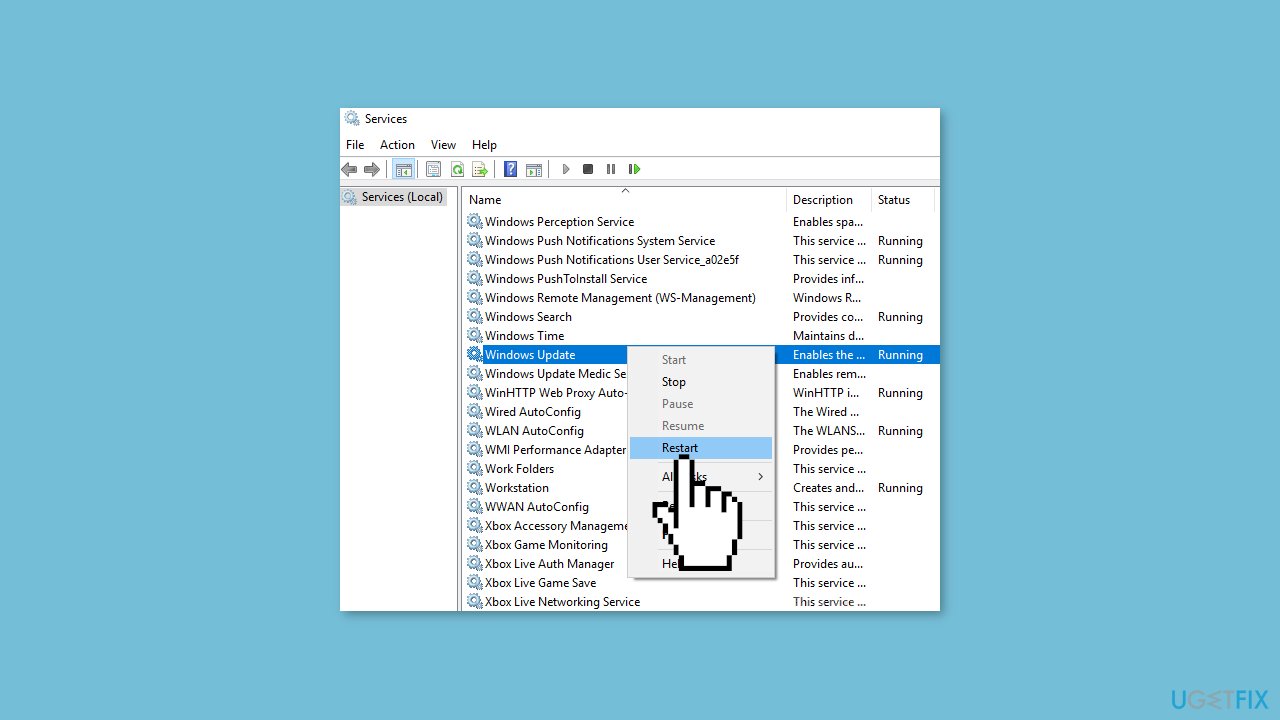
- Do the same with Background Intelligent Transfer Service.
Method 5. Update Drivers
- In the search box on the taskbar, enter device manager, then select Device Manager.
- Select a category to see the names of devices, then right-click the one you’d like to update.
- Select Search automatically for updated driver software.
- Select Update Driver.
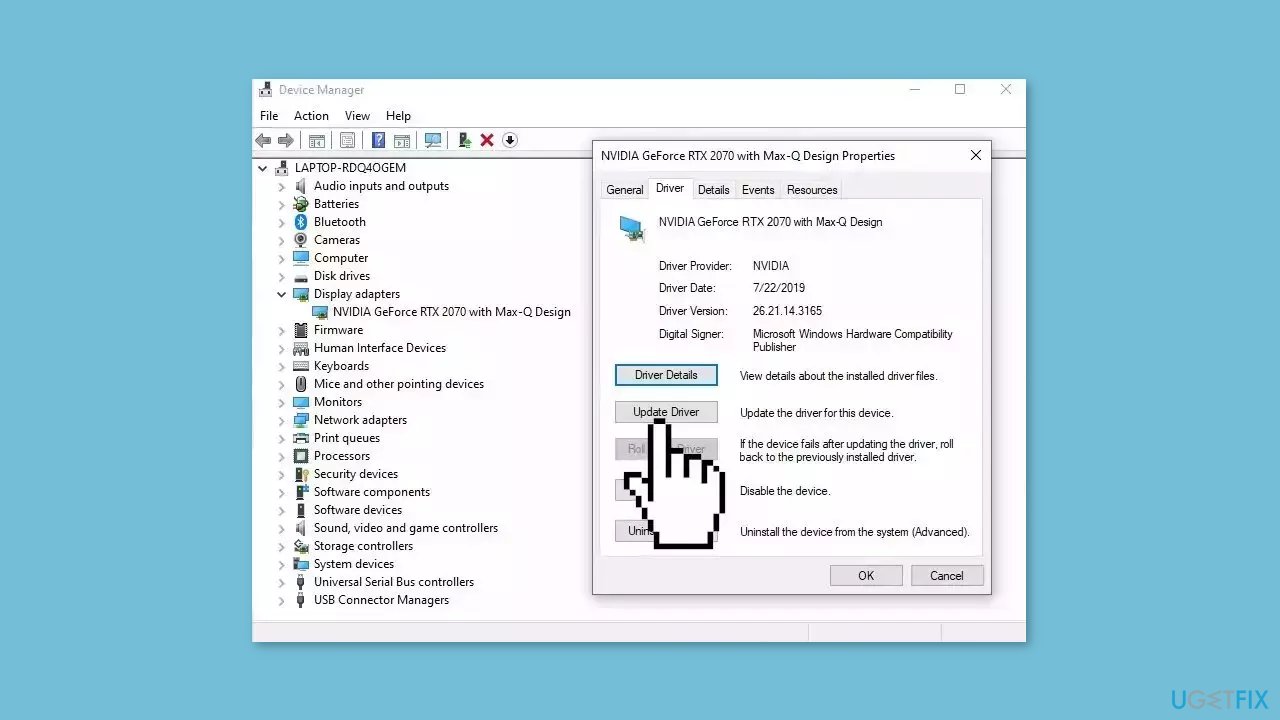
- If Windows doesn't find a new driver, you can try using an automatic tool like [rev id="DriverFix"] which can find the best drivers for your system.
Method 6. Install the Update Manually
- Open your browser and go to the Microsoft Update Catalog.
- You will be presented with several versions of the KB5014032 update.
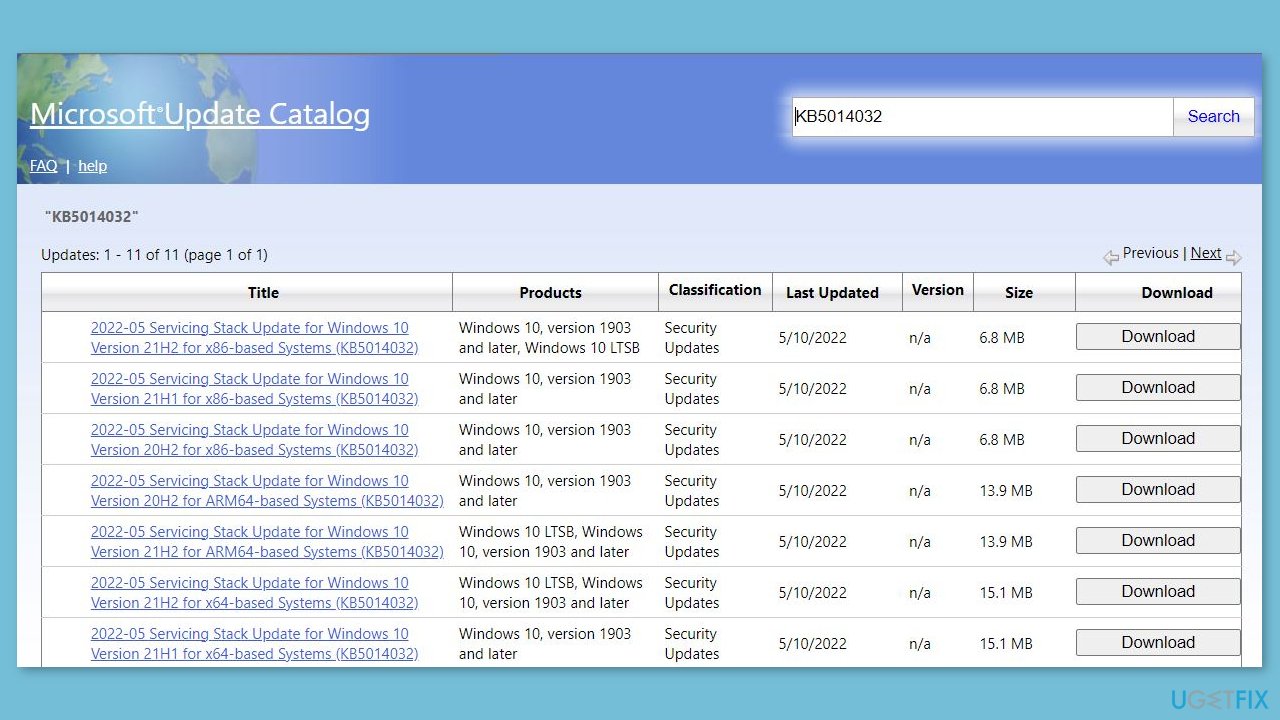
- Find the correct update for your OS version (you can check it by right-clicking Start and picking System > Windows specifications > Version is what you are looking for) and click Download.
- Follow the on-screen instructions and install the update.
- Reboot your system.
Method 7. Try Clean Boot
- Open the Search menu, type in system configuration, and press Enter.
- Under the Services tab, tick the Hide all Microsoft services box.
- Click on Disable all button.
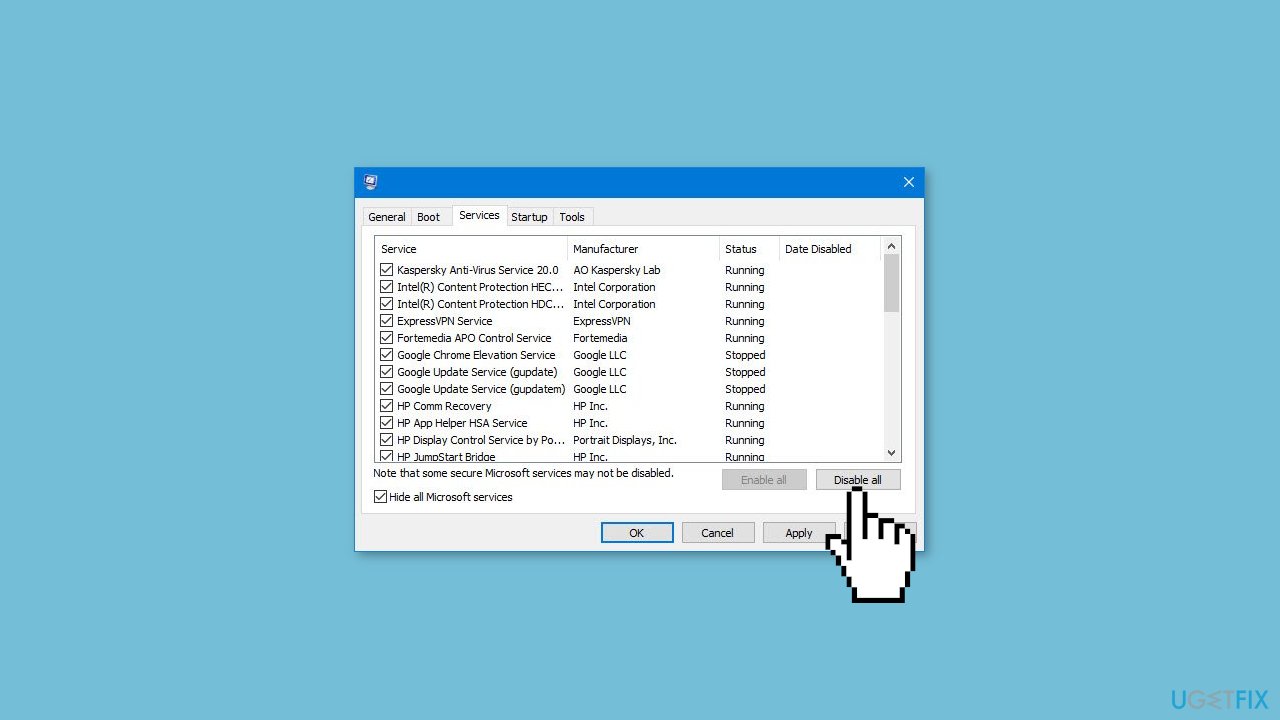
- Head over to the Startup tab and click on Open Task Manager.
- Select a third-party program and click on Disable at the top.
- Repeat this step to disable all third-party apps and programs.
- Restart your PC to enter the clean boot state and see if the issue persists.
- If the issue disappeared in the clean boot state, then you can be certain that a third-party app is causing it.
- Go through all recently installed apps or programs and remove them one by one.
Method 8. Use Media Creation Tool
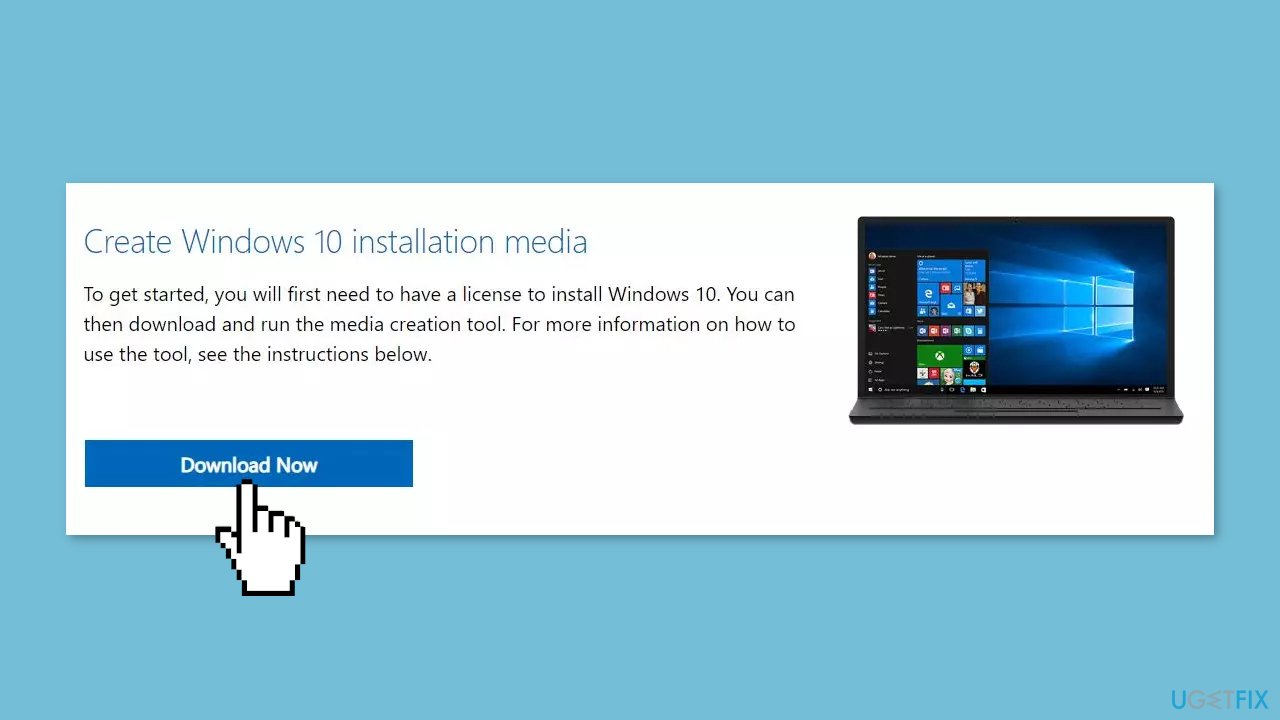
- Visit the official Microsoft website and download Windows 10 installation media.
- Double-click the installer and select Yes when UAC shows up.
- Agree to terms and click Next.
- Select Upgrade this PC now and select Next.
- Proceed with on-screen instructions.
- Your PC will restart.
Bottom line
To fix the KB5014032 installation issue, you can run the Windows Update Troubleshooter, ensure there is enough disk space, temporarily disable third-party antivirus software, or manually download and install the update from the Microsoft Update Catalog. If these steps do not resolve the problem, consider using a maintenance tool to fix system errors.
Frequently asked questions
Try running the Windows Update Troubleshooter to identify and fix issues preventing the installation of KB5014032. You can access it through Settings > Update & Security > Troubleshoot.
Yes, common error codes include 0x800f0922 and 0x80073701, which can indicate issues with system files or the update process itself.
You can download the standalone update package directly from the Microsoft Update Catalog and install it manually to bypass the automatic update process.




Report an issue
What's wrong with this guide? We review every report and update or remove content.
Report received — thank you. We'll review and fix it.
You need a free account to submit a report.
Be the first to comment